Category: Tech

  • Square Online transactions Pros – Why Square is Better

    Square Online transactions Pros – Why Square is Better

    There are so many best and secure online transaction available . Here we detail about Square cash and the pros of Square Online transactions which makes it better .

    Square Online transactions Pros – Why Square Cash is Better

    Square Online transactions was born out of necessity when one of its founders had problems while accepting payment via credit card for one of his art works. Square helps you to go online. You can create a website for free to sell your goods. They believe in giving everyone an opportunity to showcase their talents be it big or small. According to them economy is for everyone to make use of. The technology shouldn’t make someone greater and another smaller. Equal importance should to given to all.

    The tools by Square help to empower and enrich the people. A good idea put to use at the right time can create wonders and get the business started. Square started their business with a card reader that can accept credit card payments on mobile through a plastic reader/dongle. The dongle need to be inserted into the phone port. Like all credit card companies they too take a transaction fee of 2.75% per swipe. Square cash another option is the easiest method when hanging out with friends and paying while splitting the bill.

    They also introduced Square POS system for cafes and restaurants. They had a tie up with starbucks which later had fallout due some issues. The POS system works on the square registered app and helps in inventory management, gift cards, and employee log in etc.

    Read Also : Safe Online transactions Tips & top 12 safe online transactions methods

    Square Connect

    This is another wing of Square. Square connect is an e – commerce option that allows a person to make online purchases from a website without leaving the site. It is quite helpful to small businesses. Local businesses and small time owners have found satisfaction with the online transactions of square app. Sites like PayPal are their rival companies. There are also many online transaction companies that are really safe including latest Google Tez .

    Read Also : Best Low Cost Fund Transfer Methods An Overview

    Why is Square online transactions better than other online payments site?

    The best POS (Point of Sale) mobile services Square product and services are what makes them stand apart. Unlike other services Square offers few additional services free of charge. Some of them include low stock alert, employee management, inventory counts, customer loyalty points etc. which is not available with PayPal or Venmo. One can even create a cash register and sue it on the mobile for sales. All of these are consolidated and easily viewable on the Square Dashboard.

    Read Also : PayPal Vs Google Wallet : Best Online Money Transfer / Payment System Compared

    Square Online transactions Pros

    Below is the point by point description of Square Online transactions pros that makes people to rely on this online money transfer system.

    • Fast and easy

    The process of using square in small businesses is a fast and easy process. Square Cash helps to accept payment from any cards.

    • Seamless payments

    The process of online payments happen seamlessly through Square online transactions.

    • Affordable – Square’s Fees

    The transactions fees are light on the pocket. Unlike other credit cards companies where you need to shell out thousands of rupees per month as fee here the transactions fees are 2.75% per swipe or 3.5% fee + 15 cent extra when typed in manually. If you are looking for low transaction fee payment app that works like PayPal then Square is your option . Square fees is an attraction to choose square as the online transaction method.

    • Secure 

     Transactions through the app is very secure. The personal details are kept secure and hidden. They have a fraud detection system to catch discrepancies happening in the system or with the accounts of customers.

    Read Also : How to secure bank account from hackers

    • Accepts offline payments

    With Square one can accept payments anywhere anytime. Offline payments are accepted via card reader. The companies need to invest in a card reader that can be fixed to any mobile or iPad. The customers can then swipe their debit or credit cards easily and make instant payments offline.

    • Payment deposited in 1-2 business days

    Almost all card companies process the payments in 5-7 business working days. Square processes it faster in 1-2 business days. This is a huge advantage to the company as well as the customers. While the company gets more customers for this offer people are also benefited with this early deposition.

    Read Also : Pros and cons of credit cards – All the Hidden Facts on Credit cards

    • Assistance with problems faced 

     There is 24/7 customer support to clear all queries related to Square transactions. Customers can contact the support team via emails, social media or support forums. Immediate action is taken on all tasks. During swiping or cards too, the customers receive a receipt via SMS or email then and there as and when the card is swiped. There is no third party interference.

    Read Also : Purchase without credit card top hacks

    • Reliable 

     The source is very reliable i.e. including the app and the payment gateway. The online store similar to eBay provides merchants or anyone who wants to create an e commerce website a platform to showcase their goods

    • No monthly fees 

     For those interested in setting up an e commerce website this is good news. There is no start up fees or monthly fees to work the site. It is free and can be got made ready in a matter of 15 minutes.

    Read Also : Venmo User Guide for Safe Transactions – Venmo payment

    Read Also : Cancel / Reverse Venmo payment : When a Venmo payment goes wrong

    • Not contract based 

     Finally there are no commitments or contracts that need to be signed for setting up a website. This simple and easy method is what attracts people to Square. While keeping it free and easily accessible to all the security is not compromised.

    Square is economical in terms of transaction fees and it is easy to install and use. Local business owners find it a boon to their business and it has helped them and their business in this world of technology and marketing. The card reader functions are also useful to many individuals who find the need for sudden debit or credit card purchases and do not carry any hard cash.

  • Best LinkedIn Alternatives for Global Professional Reach

    Best LinkedIn Alternatives for Global Professional Reach

    You can find the best choice of professional Networking sites that are considered as the Best LinkedIn Alternatives for Global Professional Reach.

    When its about a professional network to rely upon ,then the only one name that comes to our mind is LinkedIn . Many people think that LinkedIn is the only profession networking site but its wrong.Here we will discuss some of the Best LinkedIn Alternatives .

    Best LinkedIn Alternatives for Global Professional Reach

    LinkedIn comes into our mind when we think of kick starting our professional career .LinkedIn is also the best way to increase and maintain the professional relations with your work circle.

    It has been proved that LinkedIn is one of the best sites that provide good opportunities to the professionals. 380 million people in 200 countries and territories  use LinkedIn for good job opportunity through this site.

    Other than this professional networking site , social networking sites like Facebook, twitter help us to an extent.  Comparing to the social networking sites LinkedIn proves to be best.

    Best LinkedIn Alternatives

    Networking for job seekers is really important same as the case to build more professional network to take your existing career to next big level.

    Only one popular business sites like LinkedIn is what we all are familiar mostly . So here we are giving you scope to choose a professional networking site like LinkedIn .

    There are many other professional networking sites that are Best LinkedIn Alternatives that broaden your professional career. They are listed below –

    Angel List

    The next Best LinkedIn Alternatives is angel List this platform allows the jobseekers to connect with n number organisations that are looking for target skill for free.Angel list also help the people who wish to invest in startups and raise funds  which you recruit professions through angel list for your startup.

    Read Also : SBA Loan Detailed-Everything about Small Business Administration

    Xing

    The next best alternative for LinkedIn is Xing. This is basically popular in European continent it allows to find employment, find suggestions also to find partners even post jobs for your setup.  You can signup Xing for free but certain other features are paid.

    Plaxo

    One of the Best LinkedIn Alternatives is Plaxo. This is the cloud based address book that sync your contact automatically and updates it in your address book. Plaxo is a easy platform which helps you to list contacts and it also maintains calendars and keep reminders for your contacts birthdays.

    MeetUp

    Meetup is also an alternative professional networking site like LinkedIn .It gives platform for like minded people to meet offline as well as online This platform also keeps you updated about the upcoming events of your  like This allow you to share your interest to like minded people and also expose you to to the real world interactions.

    Beyond.com


    The best alternative site like LinkedIn is Beyond.com which is a career oriented network that allows employees with particular talent and people suitable for particular post to find jobs through talent group.This also allows the users to read career related content from 1400 sources which provide great insight in making a healthy career.

    Net Party

    The  best alternative to the LinkedIn is Netparty because it is a social networking site for young talents all over the globe .It has branches all over North America and European countries. This platform allows young talents to meetup like minded people catch up in comfy environment and also gives entry passes for various upcoming events and receives communities options etc… It is simply a great networking site for young talents to develop their career.


    LinkedIn Alternative Networking Sites used by the Professionals and Business People

    Survey conducted in 2013 by USA Proves that LinkedIn users are more than these sites.

    UNITED STATES – 74 Million Members

    INDIA              –      20 Million Members

    UNITED KINGDOM- 11Million Members

    BRAZIL            –            7Million Members

    CANADA         –            4Million Members

    AUSTRALIA    –            4Million Members

    U A E                 –            1.3Million Members

    These resources prove that LinkedIn is the best site for business Professionals. But still if you prefer more options then you can try these alternatives also .

    But in case you are looking for company growth and in need of investment opportunities instead of personal career growth then Angel List serves best in that case.

          Best Social Networking Sites for Business Professionals

    Business social networking sites help the employees of the company to increase their contact and grab good opportunities.

    The list of best social networking for business professionals

    1. COMPANY LOOP
    2. DO MY STUFF
    3. DOOSTANG
    4. FAST PITCH
    5. KONNECTS
    6. PAIRUP
    7. LINKEDIN
    8. RYZE
    9. SPOKE
    10. XING

                                   10 Professional Networking Sites for both Freshers and Expert Professional

    If you are a fresher and think of a professional networking site for fresher or if you are a expert and looking for next career move to higher level or to find a startup job opportunity then below is the list of top 10 Professional Networking Sites for both Freshers and Expert Professionals .

    TWYLAH

    This  is basically for the professionals working in  a company using their company brand name search for better opportunities working in the company.If a opportunity comes up they go for it.

    Read Also : Best Lifestyle Apps for Android and iPhone

    OPPORTUNITY

    This provides opportunity to both working as well as for fresh job seekers an it also will provide pre screening needs to whom having good force.They also provide job skill training resume writing and interview training assistance also.

    PARTNERUP

    PartnerUp basically focus on small business enterprises and entrepreneurs.Though they have moved to google+communities they still maintain the all old customers and advice them .

    Read Also : Skype for Business: Fix “Cannot sign in because the server version is incompatible with Microsoft Lync” 

    VISUAL CV

    Visual CV helps you to build you digital CV and helps you to build good career. Though it is similar to LinkedIn it is more engaging that allows freshers as well as experienced and also working people.

    MEETUP

    Meetup connects like minded professionally and personally connect them offline and exchange their views and opportunities and events .

    Read Also : Best Augmented Reality Apps for different uses Exclusive

    ZERPLY

    Zerply is mainly desingned for professionals with creativity it also provides opportunity for the creativity of a person it mainly focus on talent acquiring persons.

    ANGEL LIST

    Angel list is the job portal that provide opportunities in startups.This also helps in venture capital and equity sharing.Crowd funding facility also available through angel list.

    BRANCH OUT

    Branch out is basically Facebook based portal that provides opportunities to the young talent talents all over the world. This is based on a social networking app it connects people from destination for job offers and also people hiring for employees.This is also useful for working people.

    So guys here is some useful list of Best LinkedIn Alternatives as a Career Accelerator . There are few repeated names in the list because it fits to more than one kind of people . So hope this helps freshers and experienced professionals who are in search of Alternatives to LinkedIn.

  • Bixby Vs Google assistant Vs Siri Vs Cortana – Popular AI Assistant

    Bixby Vs Google assistant Vs Siri Vs Cortana – Popular AI Assistant

    If you are looking for a comparison between Popular AI Assistants then here is the detailed comparison on Bixby Vs Google assistant Vs Siri Vs Cortana .

    Bixby Vs Google assistant Vs Siri Vs Cortana – Popular

    AI Assistant

    We know that today there are so many popular Virtual Assistant that help us to get connected to use technology much easier than before . Here we will focus on bringing out the cross comparison between popular virtual assistant apps ( AI assistant ) that is Bixby Vs Google assistant Vs Siri Vs Cortana .

    There are so many popular and trending AI Assistants . Here we have hand picked some of the favourite and most used Virtual Assistants for comparison –Bixby Vs Google assistant Vs Siri Vs Cortana

    Bixby

    Bixby is the virtual assistant by Samsung electronics. It is the intelligent personal assistant for Samsung users . Bixby by Samsung is a pocket assistant combined with machine learning , voice assistance .

    By using Bixby you will be able to read your Facebook notifications,listen to your favorite songs through its voice assistant while driving . Bixby will read the notifications , messenger messages etc so it is very useful while you are  on long drive.

    The important feature that Bixby has is that it goes automatically to Do Not Disturb mode when you say good night.

    Bixby also understands the words as we say; this means, if you click a picture and say “Send” it goes to Send option automatically and sends the messages to the sender.

    Since the first part of our topic ” Bixby Vs Google assistant Vs Siri Vs Cortana ” is about Bixby here we will understand more about Bixby .

    Likely about what is Bixby and how to use Bixby and top Bixby tips and tricks .

    When we say about Bixby Vs Google assistant Vs Siri Vs Cortana , using of each AI assistant is really different . So let’s understand about it .

    Read Also : Create Virtual Desktop without Upgrading to Latest Windows OS

    How to use Bixby 

    Bixby is one of the important features of Samsung S8 and Samsung S8 plus . Bixby button is found on right side below the volume rocker in Samsung S8 plus.When you select Bixby option you will be taken to the setup screen.

    Setting Up Bixby

    Once the apps on Galaxy Apps queue have been updated, click on Hello Bixby panel to begin the prompt for Bixby Voice setup. Presently you can get access Bixby only on American English and Korean languages for the virtual assistant.

    Bixby takes you through different levels of setup process. In order to carry out Bixby updating just agree to Bixby terms and conditions. The entire inserting process is quite simple, as it begins with Bixby directing the process. In case of English-speaking version, Bixby has the voice of your female fairy; however in the Korean version you can choose either male or female voice. 
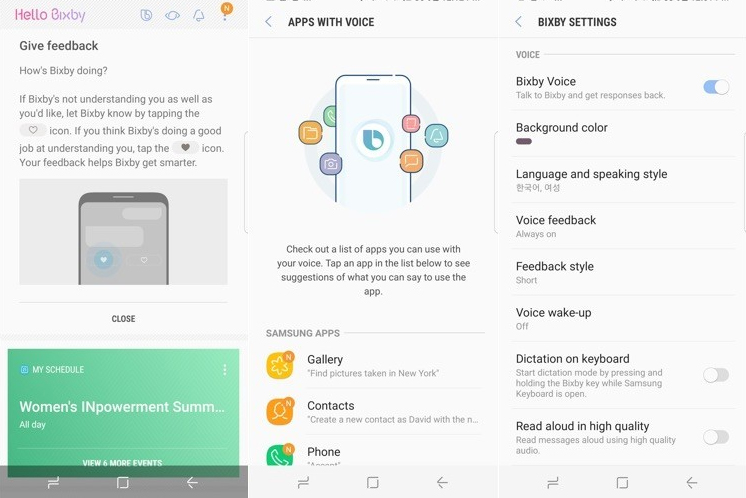
    As Bixby Voice is all set, it enables to give command from any screen by holding Bixby button. 

    You will be granted access to the Bixby to activate Bixby say ” HEY BIXBY  “or holding down Bixby button while talking over phone. Bixby feature also extends like sending messages via Samsung S8 messages app ,Weather , Upcoming meeting , Movie showtimes , sports scores , Contact , camera app etc are also availed by Bixby.

    Once Bixby is activated you can find a B symbol on your home screen and vision  eye and reminder bell icon also appears in the  symbol is replaced by gear icon.

    Read Also : Best Lifestyle Apps for Android and iPhone

    Top Bixby Hacks ,Tips and Tricks

    Bixby Voice serves as a Pocket assistant to whom you could talk to, for getting your work done. However, if you are not getting things done by Bixby, then the assistant would turn to be a burden rather than a boon. Following tips ensures that Bixby listens to your commands through Bixby Voice:

    • Ask Bixby to open apps

    As you make Bixby Voice to do a task, the primary thing you need to do is to ask Bixby to open an app. For instance, if you say “Hey Bixby, Open my Calendar”, it opens the Calendar on your Phone. Once the app is opened, it is important that you don’t create confusions when asking Bixby to complete your tasks. If you take more time in asking Bixby to open a specific app before giving commands, She would know which app it is. This way, you get things done soon as the app is open. 

    • Check compatible apps

    As Bixby works with multiple apps and Samsung adds more to its catalog; it does not include everything. If you wish to assure that Bixby can do every task you give it, then you can double-click  the app to verify whether Bixby is compatible with that app. There is a complete list of compatible apps you could access. Moreover, in case of Bixby Labs, these are the apps currently being tested with Bixby. 

    Read Also : Best Augmented Reality Apps for different uses Exclusive

    • Be specific

    When you ask Bixby to finish a task for you, you need to be sure of being specific. If you are not clear about the task  to be done, it cannot do any help. For example, if you say “Bixby, do I have anything on the Calendar  for November 9 2017?” it would be easier for Bixby to complete the request at once rather than saying “Bixby what’s going on next week?”

    • Take time to teach Bixby

    When you have Bixby to complete task or answer a question, you will be able be teach Bixby and give a feedback. Sometimes, Bixby gets the picture easily, but in some cases the app would get your words wrongly, then you will have to correct it. Bixby learns as you interact with it; thereby understanding you and what you ask for. 

    • Use Quick commands

     If you are using Bixby Voice, Quick Commands let you customize your experience with this Virtual Assistant. As you set your own Quick Command, you can launch particular actions with a phrase of your choice. 

    Bixby takes your picture by just focusing on your voice and and your vision by clicking eye symbol.  Bixby also helps you to change your settings by your voice commands .Bixby also allows to schedule your day , set alarm for you.

    Now before moving to the comparison of Bixby Vs Google assistant Vs Siri Vs Cortana , we will see next about Google Assistant exclusively .

    We have seen about Bixby , Bixby features , tips and tricks to use bixby and how to set up Bixby . Now likewise we will take a look on Google assistant , Features of Google Assistant , How to set up Google Assistant and top tips and tricks of Google assistant next to complete half knowledge on our topic “Bixby Vs Google assistant Vs Siri Vs Cortana” .

    Read Also : Android Vs iOS – Pros & Cons of Buying Android Vs iOS

    Google assistant

    Google has overtaken Amazon AlexaApple Siri and Microsoft Cortana through its own voice assistant: Google Assistant

    Google assistant is a voice converted assistant created by google to do the actions on behalf of the user.Google assistant is now available in all android devices.Google assistant answers all types of questions , only for the starters google assistant will be bit difficult but when you start using it you will be able to go through the instructions and guidelines you will be granted the access.

    Google introduced Assistant at Google I/O , launched it on the Google Pixel and Pixel XL phones, then took it to Google Home, later into Android Wear 2.0 even before showing it in other phones running on Android Nougat. And, now, after a year, Google has brought out a new hardware, which has the Assistant built-in.
    Now on to the second part of our topic ” Bixby Vs Google assistant Vs Siri Vs Cortana ” is about Google Assistant here we will understand more about Google Assistant .

    Likely about what is Google Assistant and how to use Google Assistant and top Google Assistant tips and tricks . Now this can give you idea to cross compare how to utilize between Bixby Vs Google Assistant and further sections will make the detailed comparison on Bixby Vs Google assistant Vs Siri Vs Cortana .

     How Google Assistant works

    For those who have been using Android devices for quite some time, would know that the Google Now feature shows off the important information for the users. It knows where the person works, as well as the meeting locations and travel plans, the favorite sports teams, and other interests of the user. This information would be shown in cards or certain reminders on Android device. 

    Google Assistant is created to be conversational. You can ask one or more questions and this virtual Assistant would keep track of the conversation, evaluate the situation and clearly respond with the correct information. 

    Read Also : How to Use Google Assistant on Android Devices (Without Root)

    How to use Google assistant

    Google Assistant is activated by holding on the Home button for long time. As you hold this button, Google Assistant would ask you to say what you want. It then starts the process of searching.

    When the Google Assistant gets activated you get a notification telling that you have a new friend.You can complete the process by OK GOOGLE voice command or HOLDING AND PRESSING THE HOME BUTTON.

    Google also helps you to get answers to your questions by tracking your location.Google assistant also allows you play games through your commands.

    Read Also : Fix “Voice search has been turned off” error for google now

    Top Google assistant Hacks ,Tips and Tricks

    Initially, as you get the Google Assistant on your smartphone, you will be instructed to use Google Assistant and “OK Google” always to detect voice. To do so, the phone needs to have a unique “OK Google” voice replica so that the phone recognizes your voice at any moment; as well as Google Assistant to complete your needs-play music, check the weather forecast etc. 

    Here are some useful tips for Google Assistant . These feature can also throw a light on comparison of Bixby Vs Google assistant Vs Siri Vs Cortana .

    Read Also : Convert 3G Phone to 4G Phone to support 4G Sim in 3G Mobile

    • Pick the right Google Account for Assistant

     Google Assistant uses the Google Account in the same way as done by Google Now. You have ensure that the Assistant is setup using the same Google account from which this virtual Assistant the retrieve information from, particularly from the photos. If one Account is used for Assistant and another account is used for Google Photos, it cannot be accessed. 

    • Adjust settings

     There is a Settings menu for Google Assistant. This menu gives access to anything task; right from adjusting “OK Google” voice model to seeing the summary of the activity created by Assistant. To use the Settings menu of Assistant, open the Settings app, go to Google > Search  & Now >Settings (in Google Assistant). Here, you find sub menus with settings option. 

    • Enable/Disable Assistant

     In the Settings menu of Assistant, go to “Adjust settings for this (Pixel) device. Below this, there will be button next to Assistant. When this button is pressed, Assistant is given the permission to answer the questions and complete the tasks. 

    • Customize news list

    Select “News” under Settings menu of Assistant, below Pixel category. Click on it to make changes in News list. On the next screen, click on the customize link, from which you can choose a set of news sources like NPR, PBS, CBS etc. Once you select the preferred the news source, you can make Assistant to read the news for you. However, this feature is presently unavailable in the UK. 

    • Customize “My day” summary

    This feature can be found under Settings menu by going to “My Day” below Pixel category. Select this modify the daily updates. There is a set of options to be chosen from; like Weather, Work, Travel, Reminders, or even summarize the day with news reports. You can then ask Assistant to read the Summary for the day and receive interesting responses. In the UK,you can get updates only on Time & Weather.

    • Enable/Disable Screen Context

    To do this, go to “Adjust settings for the Pixel device” under Assistant’s Settings.  Below this, there is a button next to “Use screen context” which is Now on Tap 2.0. Clicking on the button enables Assistant to show information about what is on the screen. It shows certain links in, relevant sites like YouTube or IMDB.

    • Change Assistant Language

    Under Settings, go to “Adjust settings for this device”. Below this, there will be an option “Assistant Language”. As you click on it, you would find Language Preferences, wherein a default language can be selected and a language can be added. 

    • Enable/Disable always on ‘OK Google’

    Below the “Adjust settings for this device” option, you will find “‘OK Google’ detection”. Click on it. Turn on the switch for “Say ‘OK Google’ any time” to allow Assistant recognize your voice every time you say ‘OK Google’ even when the screen is off or when using an app. 

    • Use ‘OK Google’ to unlock device 

    Below the “Adjust settings for this device” option, you will find “‘OK Google’ detection”.Click the button for “Trusted Voice” to let Assistant unlock the device when hearing ‘OK Google’ in your voice. 

    • Retrain ‘OK Google’ voice model

     Below the “Adjust settings for this device” option, you will find “‘OK Google’ detection”.Click the button for “Retrain Voice Model”. You need to say “OK Google” a few times to enable Assistant remember and recognize your voice when you say the phrase next time. This voice model can be used as alarm or to unlock device. 

    • Delete ‘OK Google’ voice model

    Below the “Adjust settings for this device” option, you will find “‘OK Google’ detection”.Click the button for “Delete Voice Model” in a way that Assistant does not remember and recognize your voice when you say the phrase. Remember that once this voice model is deleted, it cannot be reused. 

    • Set home & work locations

    Under the Settings menu, go to “Google Account Settings”. Below, you will find “Personal Info”. Click here. There is an option to add home and work locations. Click on it and manually add the addresses. If you have used Google Now before, it will be easier to retrieve this information. 

    • Set nickname

     Under the Settings menu, go to “Google Account Settings”. Below, you will find “Personal Info”. Click and find the option to add nicknames, thereby manually entering nicknames. You can verify if Google says your name correctly.

    • Change Weather units

     Under the Settings menu, go to “Google Account Settings”. Below, you will find “Personal Info”. As you click, you can see the option to change the unit of weather. Here, you can select from Fahrenheit to Celsius.

    When compared to Bixby features with Google Assistant feature you would have gained half the topic subject -Bixby Vs Google assistant Vs Siri Vs Cortana .

    Siri

    If you are a great fan of Apple products, you will surely know that there is a personal assistant for your lovely device. This virtual assistant is named Siri. 

    Siri is a virtual assistant allowing the user to turn on the flashlight and turn it off  , know the weather , get the sports news updates etc through your voice command. Siri is released by the Apple. Siri is a virtual application that helps the user to get his job done by the voice command when you say the command for first time you can save your voice as well as your command and question for the future purpose.
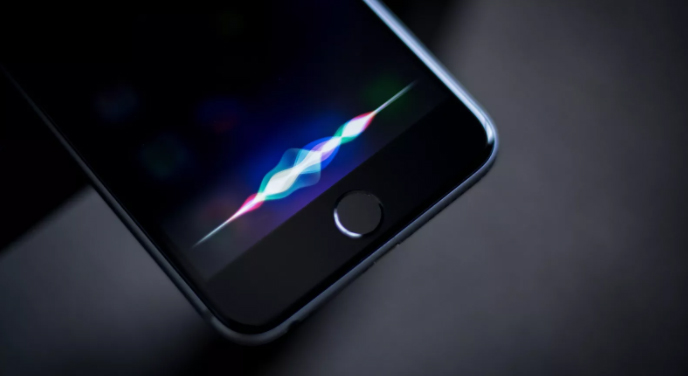
    Siri has the ability to schedule events, setting reminders, maintaining a timer and also to reserve seats at restaurants. Siri is an extension of functionality of iPad to voice along with making the keyboard free and use your voice instead for giving instructions. 

    Since the third part of our topic ” Bixby Vs Google assistant Vs Siri Vs Cortana ” is about Siri here we will understand more about Bixby .

    Likely about what is Siri and how to use Siri and top Siri tips and tricks .

    How to use Siri

    Siri can be activated by holding the Home button on iPad. As you press this button for a while, iPad gives a beep you can see the screen changing to Siri interface. At the bottom of this interface, there will be multi-colored  lines showing that Siri is actively listening. 

    Siri is one of the easiest to use virtual assistants because it can be used or started easily.

    You can follow these steps while using Siri:

    • Press and hold “Home” button on iPhone. 
    • Hear two beeps indicating that Siri is awake and is waiting for you to speak. 
    • As Siri opens, ask a question or make it perform a task like mailing or send instant messages. Siri automatically checks when you do not speak; you can hence click on the microphone icon indicating that you stopped speaking. 
    • When you ask Siri to send an email or an instant message, it shows out a draft before being sent. To send this message, you can either say ‘Send’ or just click on Send button. 

    Top Siri Hacks ,Tips and Tricks

    To those who have shown the least interest in Siri and have disabled the feature, it is high time you really get to know this amazing virtual assistant from Apple. Siri has got its popularity on the higher side and is being used by almost everyone who has a smartphone. 

    Well, here are some great tips on using Siri. 

    • Siri checks Twitter quickly

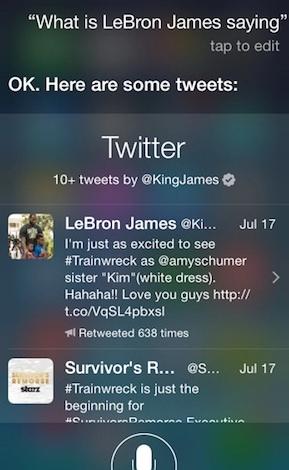
    If you wish to see a comment passed by a person or a community on Twitter, you could, either browse and find a particular Twitter account or save time and just ask Siri– “What is (<Twitter name>) saying?” In a second, Siri would get back with the requested Twitter name’s recent tweets. 

    The exciting news is that, Siri can not only understand Twitter controls, but also the Twitter names. For instance, LeBron James’ Twitter control is @KingJames. If you are not sure about his Twitter name, just ask Siri “What is Lebron James saying?”
    Read Also : Get Celebrities Notice Maximum on Twitter – Popular Tweeter Hacks

    • Tell Siri to “Take a Selfie”

    Selfie has been the most annoying term ever used in English. For the last few years people have been taking photos of themselves and newly named it as Selfie, as if it was the latest technique used in photography. If you wish to use the camera app on your iPhone, just tell Siri to “Take a selfie” and there you go! the camera lights up. As the camera app starts, the display would be what was left off the last time it was used. 

    Read Also : 25 Best Selfie Apps for every Selfie Lovers – Perfect Click

    • Get directions in a snap

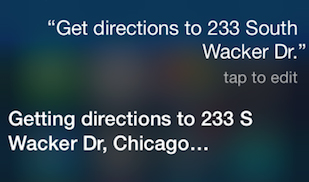
    It is confessed that it is quite easier to get directions when we use Apple Maps or Google Maps. However, if you are using Siri for the navigation purposes, it could be more effective. Siri is quite impressive as it understand the common language and simple words, has a talent of saying an address quicker and louder, rather than typing it by hand. To enable this feature, just tell Siri to “Get directions to (address)”. It will be directed to Apple Maps and the result will be shown on your screen right away!
    Read Also : Google Traffic : How to check traffic to work or home

    Read Also : Google Maps List Create, Share and Edit on Desktop & Mobile Now

    • Find which song is played

     An app named Shazam has been impressive; however, recently, it turned out to be annoying. One of the users of Shazam app had once ranked this as “Most Helpful” on the App store and said it is worthy. Shazam app was very easy to use. If you liked a song from a movie you were watching, you could instantly install this app and it could tell you the song and the artist at the very moment. 

    Read Also : Fast Forward , Rewind , Scrub Music in iPhone & iPad Music Player

    Read Also : Best iTunes Cleanup Software for better iTunes experience

    Now likewise we have taken a look on Siri , Features of Siri , How to set up Siri and top tips and tricks of Siri next to complete three by fourth of knowledge on our topic “Bixby Vs Google assistant Vs Siri Vs Cortana” , we will see more on Cortana and features of Cortana as well tips and tricks to use Cortana.

    Now before moving to the comparison of Bixby Vs Google assistant Vs Siri Vs Cortana  , we will see next about Cortana exclusively

    Cortana

    Cortana is an intelligent personal assistant designed by Microsoft .Cortana can recognize natural voice, set reminders for you.

    Cortana is your truly personal digital assistant. It is designed to get your work done in a short time. From the very first day, it gets all set to answer your queries and perform given tasks. Cortana learns to be more useful day by day. You could always count on Cortana to be on top of the reminders and be compatible over multiple devices. 

    Since the third part of our topic ” Bixby Vs Google assistant Vs Siri Vs Cortana ” is about Cortana here we will understand more about Cortana .

    Likely about what is Cortana and how to use Cortana and top Cortana tips and tricks .

    How to use Cortana

    Follow these steps to start Cortana :

    • Launch Cortana: Select the corresponding search box on the taskbar to start Cortana


    • Sign in: To get a personalized experience, use your Microsoft account to sign in by choosing “Cortana can do much more”. 


    • Set a reminder: Type “Remind me to…” or just say “Hey Cortana, remind me…” to start a task. 


    Top Cortana Hacks ,Tips and Tricks

    Cortana is one of the best virual audio assistants by Microsoft especially for windows 10 . It enables to:

    1. Increase screen size
    2. Get your shortcut easily
    3. cleanup your startup menu

    We shall now look into the top useful tips of Cortana for Windows 10.

    • Set Reminders for Time, Places & People

    There is a powerful built-in reminder feature for Cortana. These reminders can do one step ahead than a normal reminder which gives you an alarm at a specific point of time. You could either use Reminders icon or just say “Remind me”. You can manually set a reminder and ask Cortana to remind you to do something when you are at some place, or even when you talk to someone. You could just say “Remind me about the meeting at 10 am”. 

    • Use Natural Language Search

    There is a strong support for natural language search of files in your computer. For instance, you could instruct Cortana to “find pictures from October” or “find documents about Microsoft”, to retrieve pictures from the month of October or get the documents on Microsoft. It is the built-in search feature of Windows; however it has more natural language facilities and is much easier than the older version of search operators. 

    • Identify a song

     As in Siri, Google Now and certain apps like Shazam, Cortana too can listen to a song played near you and identify it easily. To do so, you just say “What is this song?” and you can see Cortana using the microphone to listen to the music and match it with the song. This really works well with recorded music; however need not necessarily work with LIVE music. 

    • Browse the web with Google instead of Bing

    Bing “controls” Cortana. When you ask Cortana to do a task or ask something which it cannot answer, Cortana opens the default browser to perform a search through Bing for an answer. Cortana can be made to use Google instead of Bing via the Chrometana extension to Google Chrome. When Cortana instructs Google Chrome to use Bing search’s result page, Chrometana automatically redirects the search to Google or any preferred search engine, thus commanding Cortana to search using Google. It works only when using Chrome.

    • Perform Calculations and conversions

     Cortana performs quick calculations too. These calculations can be entered in Cortana search box also and this means  you need not say long numbers. You either ask Cortana to calculate 4321*4321 or type a unit to convert, e.g. “150 Euro to AED”. Conversion can be done on other units too. 

    • Tracking Flights & Packages

     You can also track the flught number and packages through Cortana by using the tracking numbers. All you need to do is to enter the flight number or the package tracking number in the Cortana search box, or just do the copy-and-paste activity to get the current status.

    • Finding Facts

     Bing is used by Cortana to give direct answers the common questions. It is same as Google’s Knowledge Graph. For instance, ask a question- “What is the tallest building in the world?” or anything you like and you get the answer quickly. 

    • Check the weather

     You can check the weather of different locations using Cortana. Typing “Weather” displays the weather of the place you are currently located; however, when entering “weather in [location]” would show the weather in another city. 

    • Launch Programs

    You can commence a program using Cortana, and for this you have to say “Launch [program name]”. In case you have a voice assistant “Hey Cortana” set on your desktop, you just have to say “Hey Cortana, launch Firefox” to the PC and the app is automatically open. 

    • Send Email

     Using a built-in mail app and the accounts configured, Cortana will be able to send emails; just need to say “Send email to Max” if the person’s details are stored in Contacts. 

    • Create Calendar events

     Calendar events can also be set by Cortana. You just need to say, for example “Add a luncheon with team on Friday at 1:30pm” and you can see that Cortana fills the provided information. When you say “Add meeting” Cortana would ask for details.

    • Just Chat

    As seen in Siri, chat is enabled in Cortana as well. You can “chat” with Cortana and it responds with quick answers. Ask differently like “Who’s Chirpy?” or give some instructions such as “Sing a Song”, “Play with me” etc

    At last after a long long information covered now we are heading towards the nutshell section of our topic “Bixby Vs Google assistant Vs Siri Vs Cortana” .

    Bixby Vs Google assistant Vs Siri Vs Cortana: The Best One!

    In this session, the comparison will be of Samsung Bixby with other Virtual Assistants. To be precise its all about Bixby Vs Google assistant Vs Siri Vs Cortana .

    The most important update we wish to give, regarding Samsung’s Bixby is that it is presently available only in beta version and that the full version is being delayed because of limited resources.  However,the Beta version is strong enough to be compared to other Virtual Assistants or its competitors. 

    • Bixby is activated by a button and not a Phrase

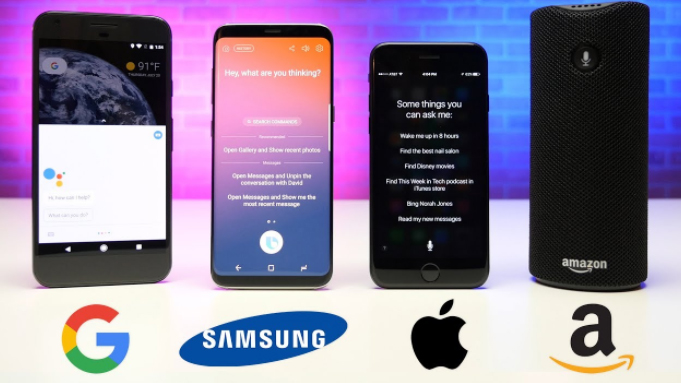
     You just need to say ‘OK Google’ or ‘Hey Siri’ to activate these virtual assistants. -WHEREAS- In the case of Bixby, you need to press the Bixby button which is on the side of phone. Once the button is pressed, you could ask this assistant to do anything from rotating a photo to setting reminders. Samsung had stated that its virtual assistant can do your 15000 tasks, but emailing is not included in the list. Assistant composes the mail but does not input the address automatically. The good side of Bixby is that, if it cannot do a task it does not say “I cannot help you with this”, as found in Siri. Bixby would more pleasingly say “Is this how you want?” This is an important thing to notice on comparison between Bixby Vs Google assistant Vs Siri Vs Cortana .
    • Bixby has enhanced reality features in store 

    You can have different ways to communicate with Bixby on Samsung Galaxy S8 with one of them being Vision. This feature makes use of the camera on the smartphone and a few advanced technology so as to identify some real time objects and search online. For instance, if you took a photo of a book at a store, Bixby looks at the price, reviews and suggestions or recommendations. This is again an important positive feature to notice on comparison between Bixby Vs Google assistant Vs Siri Vs Cortana .

    • Bixby has its own “Social Stream”

     Samsung has used Bixby Home to overtake the news update feature of Flipboard; hence you can find all the latest news at one place. Bixby Home plays the role of a network of uniform card; such as the reminders, reports on social media and the latest news. Imagine the lockscreen of iPhone with the widgets; and Bixby would be much more impressive and effective. Bixby can update you with latest news based on your daily tasks on the phone, or what is on high priority on your calendar. 

    • Learns from To-do-list and sends reminder

    This virtual assistant can give effective reminders directly from Bixby Home, so as to record the tasks to be done in a day. These reminders would be based on the importance, such as paying a telephone bill, to watch a movie bookmarked on Youtube. Unlike Siri, Bixby’s reminder feature is more stronger as it stays within the apps and hence learns from the words you feed onto the phone. 

    That’s all abut the Bixby Vs Google assistant Vs Siri Vs Cortana detailed look .

    Review

    From this comparison of Bixby to other virtual assistant like Siri, Google Assistant and Cortana, I hereby conclude that Bixby is the most preferrable Virtual Assistant, it has smarter features, to be specific, the reminders and the Social media connectivity with faster updates covering all the latest news. 

    Now we have discussed the comparison features between Bixby Vs Google assistant Vs Siri Vs Cortana .

    Hope this will help you to choose the ideal and best Virtual Assistant from Bixby Vs Google assistant Vs Siri Vs Cortana .

  • 25 Best Selfie Apps for every Selfie Lovers – Perfect Click

    25 Best Selfie Apps for every Selfie Lovers – Perfect Click

    25 Best Selfie Apps for every Selfie Lovers – Perfect Click

    Today Selfie is like unavoidable click in a day so here is something useful for selfie lovers – 25 Best Selfie Apps for every Selfie Lovers .
    25 Best Selfie Apps Trending

    Click! Click! Click! Smile, pout, and pose.
    Selfies have become a part of our everyday life. It’s a way of making oneself confident and also helps to realize the flaws. Selfie by the sea, selfie at workout, each minute is a memory now captured on the phone.

    We already have smart phones with 16MP front facing cameras in the market. Selfie has become a sweet craze that will only increase with time. The users love the attention they get when the pictures are posted on social media platforms and they receive positive comments. This boosts a person’s morale we can say.

    People not only take pictures but also improvise it with various apps. With over a million apps to choose from for iPhone and android, it becomes relatively difficult to select good software that serves the purpose. Selfie apps provide a lot of editing and face enhancement tools.

    If you claim to be bitten by the ‘Selfie’ bug then this is for you! Find below 25 of the most popular Selfie apps for selfie lovers that work on windows, Android, iOS and both. From editing, to makeup there are ‘n’ numbers of features to opt for.

    25 Best Selfie Apps You shouldn’t miss

    Here is the list of 25 Best Selfie Apps that can make every selfies of you more beautiful with great number of filters , editing option and so much .

    • You Cam Perfect – Selfie Cam

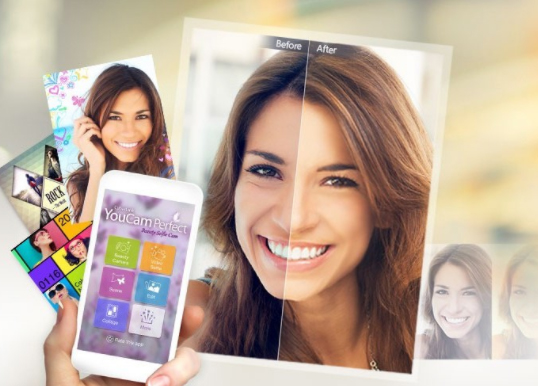
    This is one of the best and most popular and Best selfie apps. You can apply loads of effects for both the photos as well as videos. You Cam Perfect can make your face look thinner, eyes bigger, adjust skin tone, and remove wrinkles and pimples. The highlight of the app is the Auto beautifying effect which retouches the picture with a click of a button. With this app you can stand out, for it can make you look taller and body slimmer.

    Read Also : Exciting free Photoshop Alternatives for high quality photo edits

    • Retrica

    One of the top rated selfie apps, Retrica is free and no in-app purchases too. It’s available both on Android and iOS. The main feature is it allows applying the filters live even before the picture is taken. It offers the ‘Vintage’ effect which is quite in use. Retrica is a best selfie app for android as well as a best selfie app for iOS.

    Read Also : How to Fix “Cannot Take Photo” Problem on iPhone and iPad

    • Candy Camera

    Candy Cam is used worldwide and is another top rated selfie camera app. Here too the filters appear real time. The tools to be noted are the makeup functions like the concealer, lipstick, eyeliner and mascara. They also offer a range of stickers for every season. Also note that new stickers are added with every update.

    • BeautyPlus

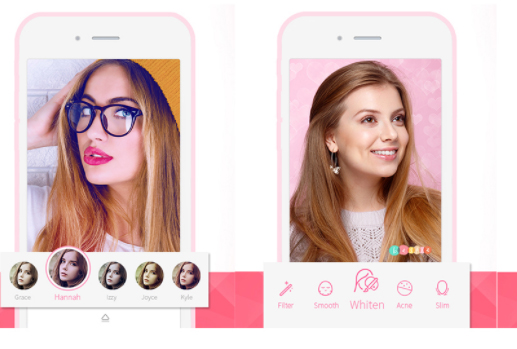
    Like most apps Beauty Plus allows to take photos and videos selfies and then apply the beauty filter. As the website claims they have worked with the well-known makeup artists, photographers, and real people to lend perfect photo touch up. They have tools for teeth whitening, dark circle and acne remover, brightening eyes, slimming and contour. It is the best selfie editing apps .

    • B612

    Called the ultimate selfie app, B612 is designed mainly for selfies. It has the option for selfie videos that last about 3-6 sec long.

    • Perfect 365

    This mainly concentrates on the makeup and beauty tools. The one tap makeover feature helps to try makeup templates that are in trend.

    • Snap chat

    Snap chat is quite a fun app to work with. It has funny filters that can be applied live. Apart from selfies you can chat using this app. It is quite popular these days and thus it is one of the Best Selfie Apps.

    • Instagram

    Like Snap chat, Instagram is also a photo and video sharing app. You can keep a tab on your friend’s pictures and news feed. You can also edit the pictures with cool tools.

    • Best Me selfie camera

    This is mainly a camera app and they provide 125 real time filters. They have timers; blur effect for Instagram, support for selfie stick and much more.

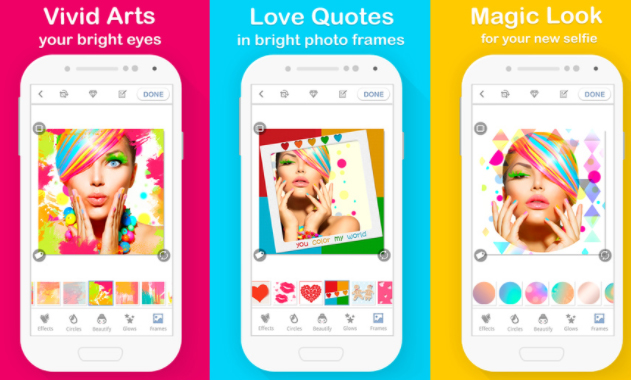
    • Bright Camera

    With this app you will never have a boring selfie. They give a number of stickers and frames and a set of special love effects. Love quotes and sayings in beautiful photo frames is their main feature.

    • Selfie Studio

    Selfie studio app is very easy to use. This helps you to take perfect selfies edit them and post on social networking sites in a few minutes.

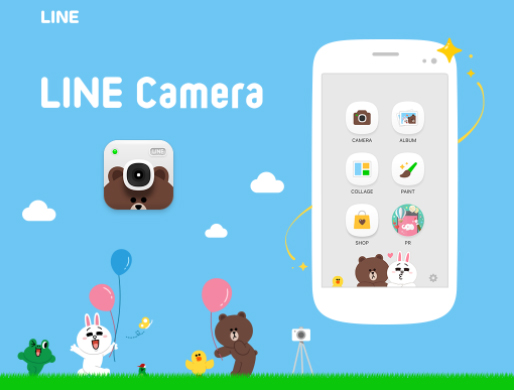
    • Line Camera

    Line camera gives us a lot of features like mirror mode, timer, flash, filters to brighten shadowy pictures etc.

    • Retro Selfie

    This app takes your picture to the past in the most amazing and wonderful manner. It gives the picture a vintage retro look. They have 100s of filters to choose from.

    • Silent Selfie

    This selfie camera app has a silent shutter mode for taking pictures in crowded places and stares from the public. There’s a pinch option for a zoom in and zoom out camera view.

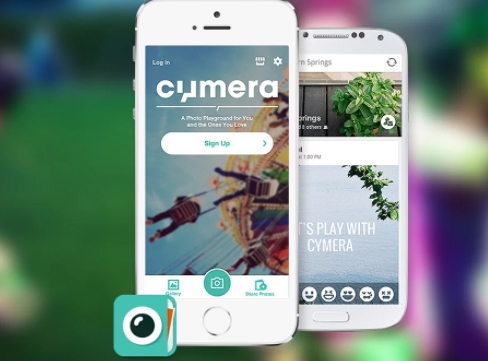
    • Cymera

    Cymera is a very popular for selfie and editing. It has 7 different camera lens and beautifying functions like skin correction, face lift, natural hair styling and face recognition.

    • FaceTune

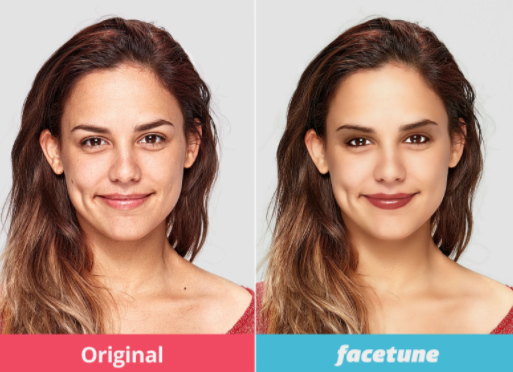
    Unlike other apps this is a paid app. Even with the payment option many go for it as it provides instant touch up to selfies, removes red eye, redefines jaw line etc.

    • Makeup Selfie Cam

    Used by many for the beautifying effects, it helps to remove blackheads, pimples, acne and blemishes to give a smooth skin.

    • Frontback

    Contrary to the other selfie apps this is capable of taking two photos simultaneously – one from the front camera and the second from the rear camera. This app also provides a 5sec short video.

    • CamMe

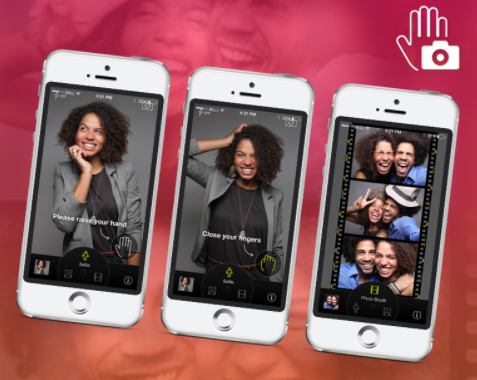
    CamMe is an iOS friendly app. The features that stand out are photobooth that helps to take a sequence of photos.

    • PIP Camera

    Picture in Picture (PIP) as it’s called is a photo editor that gives a feel of a photo inside another. They have special frames and filters, fun stickers and mysterious filters.

    • Bestie

    As the name suggests it’s a bestie for teens. They have auto detect functions, natural retouching, and quick-fix for contour.

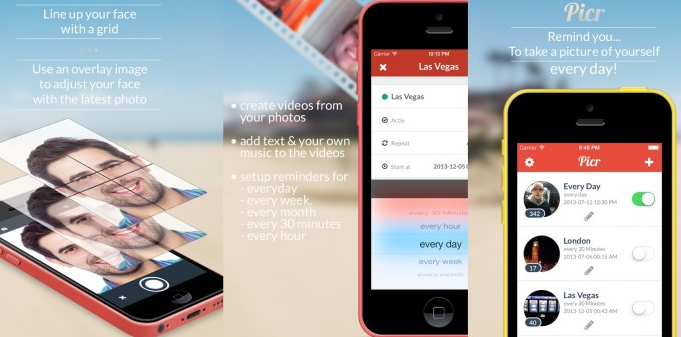
    • Picr

    With Picr you can create everyday photo and video. It gives a reminder to take pictures to document your life. Picr will help in clicking pictures correctly and finally will make a short video itself.

    • Lumia Selfie

    Lumia’s built–in selfie app is one of the best for windows handset. The built-in beautifying feature provides smooth skin tones, teeth whitening and other filters.

    • Flickr

    Here too like Instagram and Snap chat the photos are made available to others for viewing. You can click, edit and upload pictures to social networking sites and you can access it anytime and anywhere in the world.

    • PicsArt

    This app allows you to modify and edit pictures by adding stickers and filters, applying masks, adding texts and making collage.

    Selfies have been in the running from the time cameras were in use. The invention of smart phones has lifted the photo taking experience a notch higher with these kinds of apps to intensify the pictures. Hope the list of Best Selfie Apps can make your selfie experience much better .

  • Turn Kindle Fire HD into Roku box or media device ultimate

    Turn Kindle Fire HD into Roku box or media device ultimate

    For all of you who associate Kindle with reading only, here is some awesome things it can really do. A kindle fire HD can be turned into a peripheral for many devices like the Roku Box for instance. Turn Kindle Fire HD into Roku Box with the following steps. You can also turn kindle fire HD to media device .

    Can you guys believe it . If no , then here is the ways to Turn Kindle Fire HD into Roku box or media device ultimate.

    The Kindle Fire HD allows you to mirror your tablet into a TV. In other words mirror kindle fire HD to view all those lovely videos.  Did you know that while buying? It’s the most simplest of ways to watch your favourite shows on big screen without too much of a hassle. With technology growing beyond imagination, this is a revolution on its own. It’s a statement today, called showing off.

    Read Also : Use Kindle Fire as Second PC Screen / Display Ultimate Guide

    The Kindle Fire HD, is part of the Kindle Fire line of tablet computers. The family consists of: 7″, 8.9″, 7″, 6″, 7″, 8″, 10.1″. And the latest is the the 6″, 8″ and 10″ Fire HD tablets that are available. In our previous section we have given a detailed write-up on different Kindle versions and Nook versions .The Kindle Fire uses an android platform which is what most non-Apple and non-Windows “Smart phones” use.

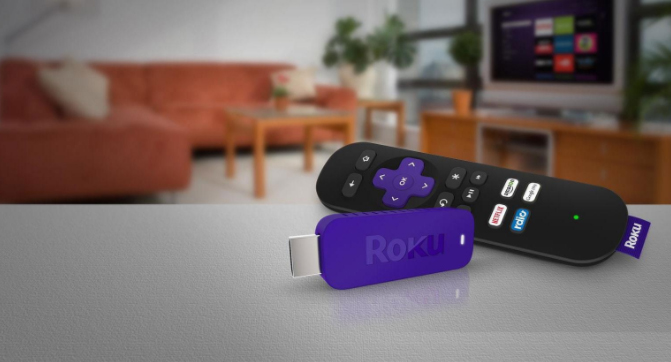
    The Roku mobile app is a free application for iOS and Android devices that turns your mobile device into an ultimate streaming companion for Roku streaming players. Streaming experience with your tablet could never have been more fun and easy without the Roku app. It conveniently allows you to access innumerable features with the powerful app.  Searching by using your keyboard or voice, send stuff from your gallery like videos, photos and more to your TV and browse and add channels from the channel store.

    Turn Kindle Fire HD into Roku box or media device ultimate

    So typically a Roku box turns your TV into your favourite Kindle small screen data onto a larger projection. So your advantages over other viewing material is huge as it allows you to view just about everything that is browser based.

    There are typically 2 ways to get your Kindle Fire HD started with a Roku box. Find out the two ways to Turn Kindle Fire HD into Roku box .

    Read Also : Kindle Fire Silk Browser Alternatives

    Option 1 – Connect Via Fire TV

    Let’s initiate the process with an Amazon Fire TV or Amazon Fire TV stick. Ensure connecting your device and your tablet to the same wireless network along with internet access that will allow you to watch your programs undisturbed. Now connecting a standard HDMI cable between the Fire TV and the HDMI port on your TV initiates the magic of watching on big screen. The settings on your TV might differ with each brand and model. So ensure to check your TV manual to get the process started.  Do the right settings and get your big screen going.

    Do remember that this setup works only with Android version of televisions. So before starting the whole setup, ensure to check the compatibility of your TV in order to Turn Kindle Fire HD into Roku box or media device ultimate .

    Read Also : Roku Remote Control Doesn’t Work-Fix Roku Remote

    Option 2 – HDMI Adapter or cable

    Let’s get started and connect your tablet to your TV for Roku duty. You will need an HDMI cable preferably a 15 feet one in case you are the lazy type to keep getting up always. This is a option to the wireless way to connect your Kindle Fire HD to your TV, at the moment, but the joy of watching on the big screen beats the downside of not being wireless.  The cable should have an HDMI connector at one end to plug into your TV and a Micro-HDMI connector on the other end to insert into your tablet.

    Once the cable is appropriately connected, then switch your TV to the appropriate HDMI input, like HDMI1, HDMI2 etc according to your TV. In a few moments you should be able to see your Kindle Fire’s interface on the big screen. Voila, you have it big right from your small Kindle Fire HD tablet.

    Read Also : Hard and Soft Reset Roku Manual – Fix Frozen Roku Streaming Stick

    You can stock up on apps of your choice from the net and start enjoying the magic of watching your favourite channels from your Kindle Fire HD. Choose from an array of Roku channels to suit your need, lifestyle and of course, mood.

    Your choice is vast using a Roku with the Kindle Fire HD. You can browse a great selection of movies and TV shows that allow you your favourite programs on the big screen. You can add channels and games from the Roku store by becoming a member. The list is endless and the selection is vast.

    That’s it about the two different ways to Turn Kindle Fire HD into Roku box .

  • How to change ringtones in Google Pixel

    How to change ringtones in Google Pixel

    How to change ringtones in Google Pixel – For all our Pixel and Pixel XL lovers we have been discussing so many hacks about google pixel so today we will detail about How to change ringtones in Google Pixel.

    How to change ringtones in Google Pixel

    How to change ringtones in Google Pixel – The most distinguishable part of phone customization, is the ringtone.  If you a new user of Google Pixel, you may be wondering how to get personalized ringtones on your phone. There are different options to set personalized ringtones on your phone. You may set ringtones for one specific individual contact or for everyone. It is important to set custom ringtones for your contacts as it will allow you to know when a particular person is contacting you.

    What are different ways to change ringtones in Google Pixel ?

    Here we will give you all possible ways to change ringtones in Google Pixel or Pixel XL.

     Change ringtones in Google Pixel using contacts app

     You can follow these steps to change individual ringtone on Google pixel phone.

    • First turn on the Google Pixel
    • Then go to the Dialer app.
    • Select the contact for which you want to set a ring tone.
    • Select the pen-shaped icon.
    • Then select the “Ringtone” button and a popup window will show up all available ringtone sounds.
    • You can select the song which you want to set as a ringtone.

    Read Also : Google Pixel WiFi Calling Enable and Disable

    Change Google Pixel ringtone using sound settings

    You can follow these steps to change ringtone using settings

    • Go to “Settings” in your pixel phone
    • Under device section, tap on “Sound” button
    • Click on “Phone ringtone”
    • Choose from the listto set ringtone in pixel and click on “OK”

    Read Also : Google Pixel Haptic Feedback / Vibration Mode Enable or Disable

    Change Google Pixel default ringtone with Favourite Music

    If default ringtones are not good in the phone, then you can download ringtones online and set it in your pixel phone.

    • The first step in getting a ring tone is to decide what you want to use as a song.
    • First of all you need to download any file manager appfrom play store.
    • Once you open File manager , go to music and download
    • Select ringtones you want to add and move it to ringtones in Internal storage and select OK
    • Now go to settings in device and it will show the list of ringtones along with the latest ringtones downloaded.
    • Click on the Save button and select what type of notification you want to save it as. You can save the file either as a ringtone, an alarm, or a notification and enjoy your new ringtone

    Read Also : Google Pixel Dictionary – Add words / Phrases to Dictionary

    Know more about Pixel and Pixel XL 

    If you are looking for the best Android phone now, then Google Pixel is the right one for you. Google Pixel is the first smartphone which is fully designed and built inside and out by Google. Google pixel has two versions: Pixel and Pixel XL. Pixel XL has a 5.5-inch display, 2560×1440 resolution and 3450 mAh battery whereas Pixel has 5-inch display, 1920×1080 resolution and 2770 mAh battery.

    Best thing about the phones is that both have excellent battery life for daily usage and are powered by Qualcomm Snapdragon 821 processor.

    The Pixel phone has got free unlimited online storage for all photos and videos.  The Pixel phone comes with an app that allows the users to have easy access to customer service and enables you to chat with the customer support agents 24/7.

    Read Also : Connect Google Pixel to TV Easily with these Exclusive Guide

    Using this app you can also share your screen with them so they guide you and help you troubleshoot your problems. Google pixel has an outstanding camera, it includes a 12.3MP rear camera and an 8MP front camera. Google Pixel is the only phone that comes with the Google Assistant, which works as a personal virtual assistance. When you ask something to Google Assistant, it quickly figures out what you have asked and provides you the best answer based on the question asked. Google Assistant apparently is better than Siri on the iPhone 7 Plus. There are lot of amazing and enjoyable features on this smartphone. If you are a music lover, you will love this phone because it gives around 130 hours of audio playback and also 14 hours of video playback.

    How to change ringtones in Google Pixel – One of the best things about Android phones is that they offer lot of flexibility in terms of customization.  You can choose between traditional wallpapers, moving Live Wallpapers etc.

    Conclusion

    Google pixel ringtones are not serious and provide light-hearted options that allows people to express themselves. If you are a fan of Google’s operating system, then Google Pixel and Pixel XL are undoubtedly one of the best phones for you. They are among the best smartphones available on the market currently featuring all the top-end specifications. Overall, the Google Pixel XL has everything to offer to all.

    Stay tuned for more update How to change ringtones in Google Pixel and latest information.

  • Roku Remote Control Doesn’t Work-Fix Roku Remote

    Roku Remote Control Doesn’t Work-Fix Roku Remote

    Roku remote control doesn’t work-Fix Roku Remote

    Roku devices have been getting more popular among youngsters. You could browse through your favourite channels via WiFi and these could be accessed through Roku Remote. You could watch movies or even play games. What would you do if your Roku Remote control doesn’t work?

    There are two types of remote, based on the Roku player or Roku TV owned.

    • Standard IR remote
    • Enhanced “point-anywhere” remote

    Standard IR Remote uses the Infra-Red(IR) light so as to transfer the remote key pushes. For the reliable operation of IR remotes, they must be directly pointed to the Roku device and make sure there are no obstacles blocking the signal

    The Enhanced “point anywhere” remote enables connection via wireless network and they need not be pointed directly to the Roku device If the Roku Streaming Stick or a remote supports voice search or private listening  through a headphone jack on the remote, then it is an enhanced “point-anywhere” remote. There are other Roku devices that have “point anywhere” remotes.

    We shall now see how to resolve when Roku remote control doesn’t work with these remote types.

    Read Also : Hard and Soft Reset Roku Manual – Fix Frozen Roku Streaming Stick

    Roku devices with standard IR Remote

    These remote types must be pointed directly in front of Roku player or Roku TV. The most common factor for the missed key pushes is that the Roku device would be placed in a location where the signal from the remote would be fully or partially blocked. Another significant issue is the low or dead battery.

    There are ways to solve this issue. Let us see each of them:

    1. Make sure the front side of the Roku device can be seen from where you are seated, and that there are no obstructions between the Roku device and the IR remote.
      • Hold the remote up higher so it directly points to the Roku device so the signal is not blocked from the remote. Once the remote works, remove any obstruction blocking the signal. You could also move the device so there is a reliable communication from the IR remote.
    2. Re seat the batteries
      • If the remote is still not working, you could remove the remote batteries and re insert them
    3. Replace the batteries
      • If the Roku remote control doesn’t work, replace the batteries.
    4. Try a new remote
      • If the remote is broken, it is time you try a new one.

    Read Also : Roku Tricks-Must Try for streaming success (Roku user manual FAQ)

    Roku devices with Enhanced “point anywhere” remote

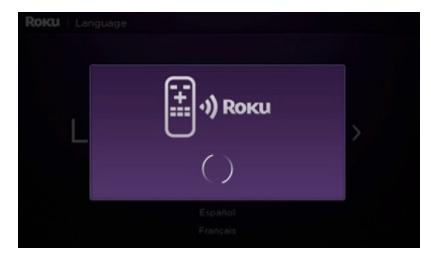
    These types connect via wireless network and need not be directly pointed to the Roku device. During the initial setup, the “point anywhere” remote sets a wireless connection with the Roku device and the process is called Pairing. As the Roku remote pairs, following message is shown on the Roku device.

    Read Also : Roku Pros & Cons -Reasons to Choose Roku Streaming Stick

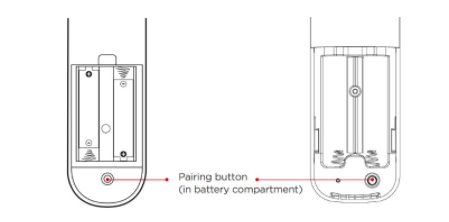
    Not sure if yours is the Enhanced Roku remote? You could find it by opening up the battery compartment to check if there is a pairing button.

    Following are the ways to solve the “point anywhere” remote issues:

    1. Try restarting the Roku device and remote:
      • Open the battery slot and remove the batteries.
      • Remove the power cable from the Roku device, wait for 5 seconds and re-connect the power cable.
      • As the Roku device displays the home screen, reinsert the batteries.
      • Wait for 30 seconds as the remote establishes a connection with the Roku device.
    2. Try re-pairing the remote:
      • Open the battery compartment and remove the batteries of the remote.
      • Remove the power cable from the Roku device, wait for 5 seconds and re-connect the power cable.
      • Press and hold the pairing button inside the remote for 3 seconds or until pairing light begins to flash.    If the light does not flash, try pairing it  again. If the light still does not flash, then you need to replace the batteries
      • Wait for 30 seconds while the remote establishes a connection with your Roku device.
      • The remote pairing dialog has to appear on TV screen.
    3. Replace the batteries:
      • Open the battery compartment and remove the old batteries from the remote.
      • Remove the power cable from the Roku device, wait for 5 seconds to re-connect the power cable.
      • When the Roku device displays the first screen, insert new batteries.
      • Wait for 30 seconds as the connection is established with your Roku device.
      • The remote pairing dialog appears on your TV screen.
    4. Try to replace the remote:
      • This step is followed when none of the above steps solve the problem.

    Read Also : Best Kodi Alternatives for Every Streaming Device

    However, you could be mislead with the following steps. Do NOT follow them:

    • Perform a factory reset on the Roku box.
    • Swap out your remote and buy a new one.

    A factory reset of the Roku box will not make a difference. The extreme step is to buy a new remote.

    You do not have to panic if Roku remote control doesn’t work. The remote control with a purple tag has a ‘panic’ button. As you pull the plastic cover from the back of the remote, you can see this button. It is the ‘pairing’ button. The remote must be paired with the Roku device. Press this button and hold it for a few seconds. Make sure the Roku player is unplugged for 5 to 15 seconds and then plug it to the wall socket. The button is the pressed and held for 5 seconds. An Android, iPhone, iPad or an iPod effectively works as a remote for the Roku device and there is an app available.

    Read Also : Kodi Vs Plex Vs Emby Vs Popcorn Time Comparison on Depth

    Follow these steps if the Roku remote control doesn’t work:

    • Point the remote directly at your Roku player.
    • Move closer to the player
    • Make sure the batteries are new and are inserted in the right manner
    • Make sure the front side of the player is not obstructed
    • If the status light of the player flashes every time the remote button is pressed, then the problem is not with the remote. Do not worry.

    Read Also : Best Streaming Devices – All Top Media Streaming Box on Market

    Read Also : Netflix Vs Prime Vs Hulu Vs Sling Vs Directv Now Vs Youtube Vs Vudu Vs  Vue

    Solution

    • Unplug Roku player from wall outlet.
    •  Wait for 5 or 10 seconds. Plug Roku player back into wall outlet. Roku logo is seen bouncing on TV screen.
    • Remove plastic cover from back of Roku remote control. There is a latch to press.
    •  Insert batteries properly. Smooth bottom or battery negative goes against the big spring. Positive post touches a small coil.
    • Press and hold the pairing button for 3 to 5 seconds.
    • Wait for about 10 seconds till the remote LED stops flashing.
    •  Try Roku remote again. It works.

    Review:

    This article will surely help you solve the Remote control issues.

  • Best Lifestyle Apps for Android and iPhone

    Best Lifestyle Apps for Android and iPhone

    Nowadays, smartphones have become the most important part of everyone’s life. Apps are one of the factors that make a smartphone smarter. There are millions of apps available such as cooking apps, makeup apps, shopping apps, education apps, news apps, travel apps, weather apps, medical apps, finance apps and more. In this article, I am going to talk about Best Lifestyle Apps for android and iPhone.

    Best Lifestyle Apps are apps which help users to maintain a healthy lifestyle. Installing a lifestyle app can make your cell a personal health adviser for you. A lifestyle app can do everything it can give you suggestions, track your improvement, show all the progress and also motivates you to do better.

    Best Lifestyle Apps for Android and iPhone

    Here we will take a look at best lifestyle apps for android and iOS lifestyle apps that are trending on the market .

    1. Runkeeper

      Runkeeper is the Best Lifestyle Apps to track how much you have run.It is available for both Android and iPhone users. It also offers a digital diary in which all the measurable and other factors that impacted each run, will give you an idea over time of what is helping and where to improve more.

      Read Also : Amazing Fitness Apps To Track Calories & Keep You Motivated

    2. MyFitnessPal

      MyFitnessPal is most popular lifestyle app . It helps users to track calories. In also offers recipes, water tracking, weight loss goals, and a lot more. The app also records all your exercises data you just have to tell the app which exercises you’ve done and the app will remember it. It is available for one-month free trial and after that, you have to take the subscription

      Read Also : Weight loss booster Foods you should take before & after exercise

    3. C25K Couch to 5K

      C25K Couch to 5K is one of the best lifestyle apps.This app can make you fit from fat. It has integration of MyFitnessPal that allows users to create music playlists to workout, it also tracks your runnings.The app also offers programs like 0 to 10K, 5K to 10K. The free version is a trial and to access the full version you have to pay $1.60.

      Read Also : Cancer Preventing Ketogenic Diet Plans

    4. Lifesum: Healthy lifestyle app

      Lifesum is one of the best lifestyle apps . It can become your health instructor. Lifesum first understands your lifestyle goals and health and then creates a perfect plan for you. It can help you to lose weight, gain weight, build muscles. It offers a healthy lifestyle that suits users and their needs, tells you what to eat and what to avoid, exercise tips show your progress. For access more features such as special diets and nutrition information, and to connect with other fitness apps such as M Withings, Fitbit, Jawbone, Runkeeper, you have to take the Lifesum Premium membership.

      Read Also : Incandescent Vs LED Vs CFL Vs Halogen : Choosing the right bulb guide

    5. Healthy Lifestyle App

      Healthy Lifestyle app is one of the lifestyle apps available for users . In this app, you can find everything you need for maintaining a healthy lifestyle. This app offers yoga column, acupressure points section, exercise section which help you to burn more calories, workout music section is also there which can make your workout section more enjoyable, then there is grandma’s prescription column and last section is calorie list section which tells you about the calories each food contains so you can maintain a healthy diet as well.

      Read Also : Hormonal Imbalance Signs and Treatment in Men & Women

    6. HealthTap

      HealthTap app is available for free on both platforms. Its iPhone rating is 4.5 stars and Android rating is 4.5 stars. This app is very useful as a health database when users are in need of a two-way conversation. Users can also send their health problems and receive personalized solution from doctors. If users want more help there are video chat option available features there you can directly talk to doctors.

      Read Also : Best Pre-existing Cancer Health Insurance For different Countries

    7. 8fit Pro App

      8fit Pro app is available for Android users. It is one of the best apps. There are three options that are offered in this app first is lose fat,second is get fitter and last is gain muscle mass. So you can choose according to your need .the app offers you the time period in which you want to achieve your goal. the free trials available for one month and after that, you have to take the subscription. 8fit Pro offers workout programs, diet plans, and the recipes are simple to cook. This app has really helped a lot of it can be helpful to you also you just have to keep yourself motivated.
      Read Also : Weight Loss Diet plan for Different Age & Different diet methods

    8. Argus Calorie Counter Diet, Activity, Step Tracker App

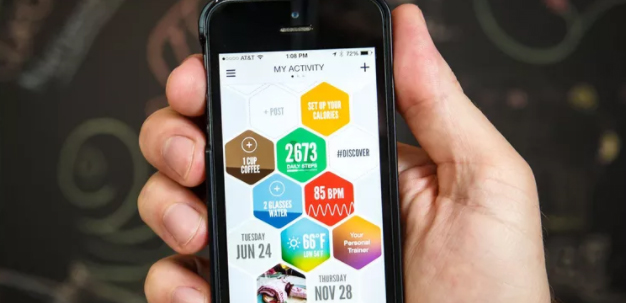
      Argus Calorie Counter Diet, Activity, Step Tracker is the best health tracker app it is free fitness app that will definitely help you to achieve your health goals. It can track your sleep, calories, heart rate, and more. This app also offers challenges to overcome and allow users to build their own workout plan. This app will help you to burn calories with workout videos. And also share your achievement socially to motivate you.
    9. Drugs.com Medication Guide App

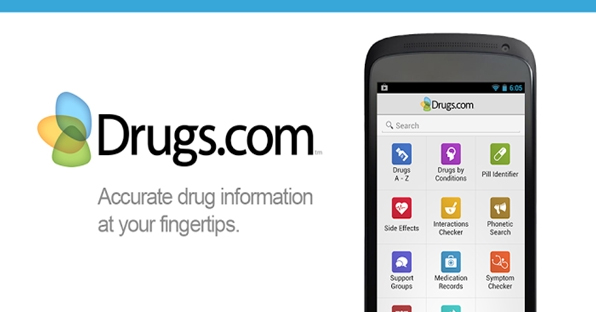
      The iPhone rating of Drugs.com Medication Guide app is 5 stars and Android rating is 4 stars. Overdoses of some medicines can be very harmful. It is very important to be sure of what you’re taking is safe or not and how to use it that it gives you maximum benefit. This app will help you to identify medications, learn about their side effects and also track how much you have taken that dosage to avoid overdosing. You can also ask questions about any medicines you are taking.
    10. First Aid by American Red Cross App

      This app is free for Android as well as iPhone users. Its rating is 4.5 stars and Android rating is also 4.5 stars. Accidents can happen to anyone at anytime and First Aid by American Red Cross is the app who will definitely help you in that situation.
      This app helps users to prevent accidents as well. This app offers virtual first aid scenarios to test how much you are prepared, and there are videos available that will guide you how to be safe and secure. If in some situations you feel that you need help you can call directly to the contact number that is available on the app.

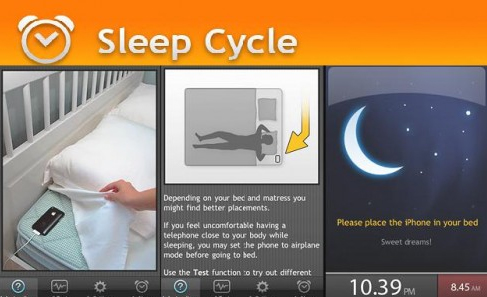
    11. Sleep Cycle Alarm Clock App

      Sleep Cycle Alarm Clock iPhone rating is 4.5 stars and android rating is 4.4 stars. Night’s sleep is very important between to make a day good and bad. If you have poor sleeping habits it can affect your health. This app analyzes your sleep and finds a perfect time to wake you up this makes you feel more relaxed.

    12. KidsDoc App

      KidsDoc app’s iPhone rating is 4 stars and Android rating is 3 stars. If your child is sick, this is a useful app for parents, this app offers guidance and decision chart to help you decide what to do next. Users also get useful medication guides.

      Read Also : Unavoidable Parental Control Apps ,Tools to monitor children

    13. My Diet Coach App

      My Diet Coach app’s iPhone rating is 4.5 stars and Android rating is 4.5 stars. This makes the most difficult thing that is dieting easier for you. This app offers a visual weight tracker, their users find an animated version of themselves and watch your animated appearance change as you update your weight. This app also tracks user’s exercise and diet.

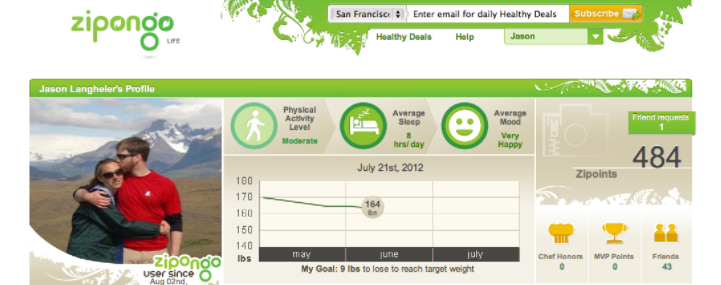
    14. Zipongo App

      Zipongo app offers tasty recipes which are healthy as well, nothing can be good like healthy eating. Users can use this app to create a list of grocery and store your favorite recipes all in one place and you can also get deals and discounts from grocery stores around you.



      Read Also : Internet Safety Rules for Kids – Online Safety Tips

    15. Moves App

      Moves app help you to maintain good physical and mental health. This app tracks your steps tagging your locations and even displaying how you are traveling that means walking or traveling through vehicles.You can check how much you have walked, run, or cycled in the last 24 hours.

    Conclusion

    In this article, i have mentioned some top best lifestyle apps for Android and some top best lifestyle apps for iPhone. Lifestyle app does not only mean that the app should help you to lose weight or help you to do dieting. The best lifestyle app is an app which helps users to change their bad small habits which are affecting their health into good habits which will make them more healthier. Because health is the most precious wealth.

    Hopefully use of these kind of

  • Best Augmented Reality Games that are safe

    Best Augmented Reality Games that are safe

    Best Augmented Reality Games- Check here online Best Augmented Reality Games for android and iPhone that are safe

    Best Augmented Reality Games

    We all know that playing games are fun but playing augmented reality games add more fun to it. It is the technology which gives you completely different experience to play with. You can play these games by using your smartphones. In this article, we will take a deep look into the Best Augmented Reality Games that are safe.

    Best Augmented Reality Games that are safe

    Augmented Reality games combine digital content with real things. Before discussing the Best Augmented Reality Games we must understand that all games are safe until or unless we don’t forget it is a game. There are some people who take these types of games very seriously and harm themselves. So the best thing is to remember that games are not reality and one should not get so addicted to them.

    Let’s see the list of ten best Best Augmented Reality Games that are safe.

    1. Bee Ready

      Bee Ready is the most simple and easiest augmented reality game. The game uses the camera of your smartphone and then shows you a view of a bunch of bees. Users have to shoot all the bees in order to win. There are random butterflies also come that you can’t shoot. Users will lose the game when their health runs out. It’s a free game you don’t have to pay to play it.

      Read Also : Best Augmented Reality Apps for different uses Exclusive

    2. Ingress

      Ingress is an augmented reality game where users need to travel to collect energy from many portals and claim them. In Ingress, there are two forces available The Enlightened and The Resistance users can join any of this. Users can find the portals near popular real-world places around them, such as monument and more.You can download this game on both Android and iOS platform.

      Read Also : Unavoidable Parental Control Apps ,Tools to monitor children

    3. DinoMess

      DinoMess is an augmented app it is a combination of collectible and fighting game. Users need to move around to search and collect dinosaurs and then use battles. You can download this game on both Android and iOS platform.

      In this game, there are features like evolution, egg hatching, daily tasks, and supplies and more are available all these things make the game very interesting. Users can also chat and invite their friends to go for dinosaur collection hunt.

      Read Also : 38 Best iPhone games you should play

    4. Toyota 86 AR

      Toyota 86 AR it is an augmented reality game available for free users can download on GOOGLE PLAY. It is a driving game which is also used as a promotional tool. Users have to go on the site listed in the app and print out a marker. The app then recognizes the marker and puts a car down for users to drive. It gives users a very different experience.

      Read Also : Android: Prevent apps from running at startup(Stop/Disable Apps)

    5. Zombies, Run!

      Zombies, Run is an augmented reality game, users can download it on GOOGLE PLAY. It is a fitness game it offers an immersive audio adventure game. The way it works is that users go for a walk or a run. As they go on the way they will have to unlock various pieces of the story. This game involves users in a creative way that helps them and motivate them to keep going. Users can also play this game on treadmills. This is a very popular and interesting game and help users to stay fit.

      Read Also : Internet Safety Rules for Kids – Online Safety Tips

    6. Garfield GO

      Garfield Go is an augmented reality game very attractive for Garfield fans. Users can download this game on both Android and iOS platform. This game offers users to go on a real-world scavenger hunt with their favorite cat to search for treasure. It is very difficult for users to move the fat cat, users have to feed the cat its favorite dishes to make it move and go on the hunt. Users can also dress up Garfield, earn badges, play mini-games, and more. And the most important part that users can earn real prizes by completing some tasks, like Amazon Gift cards, Dominos Pizza, prepaid cards, and more.

      Read Also : Improve The World With Smartphone -Top 10 Hacks

    7. Mobbles , the mobile monsters

      Mobbles is an augmented reality game where users have to go out in the real world and find Mobbles. Many mobbles are present , users have to catch them, raise them properly by taking care of their food, sleep and playing with them. Users can also use them to battle with other players around the world. Users can download this Best Augmented Reality Games for both Android and iOS platform.

    8. Landlord Real Estate Tycoon

      Landlord Real Estate Tycoon is an augmented reality game.Users can download this game on both Android and iOS platform.This game uses real properties around users. Users can use virtual money to buy properties and earn rent money when other friends visit those places. The price of the property is fixed on depending on the popularity of the property. From small shops to popular monuments can be bought.

    9. Parallel Kingdom

      The Parallel Kingdom app is one of the best-augmented reality games. This game places the users in a parallel universe that converts Google Maps into a map of kingdoms, dungeons, and castles. The game is very simple where users just need to slay monsters their own backyard. Users can also travel to far away lands and conquer them and can make them their own territory.

      Read Also : Connect Android to Projector via USB and Wireless

    10. Resources

      Resources is an augmented reality game. Users can download this game on both Android and iOS platform.This game is an economic game where users can set up virtual mines in the real-world to collect resources and make money. Users just need to protect and upgrade their mines to raise their rank.Users have to look for different resources near them and to save them from other people.
    One other name on the top head that hit the game world is detailed previously .

    Pokemon Go 

    It was the best AR game that the gaming world witnessed as people run mad around it .

    All Possible ways to Make Money by Playing Pokemon Go

    Conclusion

    Augmented Reality games offer users a very different experience.In this article, we have discussed augmented reality games that are available on both Android and iOS app stores. The most important thing users always have to remember is that they should not get addicted to any game because addiction always harms us. Play game for fun only and don’t take it too seriously.

    I Hope this information will help you.

  • Zipped File Extraction Error Fixing “An unexpected error is keeping you from copying file” error

    Zipped File Extraction Error Fixing “An unexpected error is keeping you from copying file” error

    Here we will give the solution on a common problem faced that is Zipped File Extraction Error Fixing “An unexpected error is keeping you from copying file” error .

    How to Fix “An unexpected error is keeping you from copying file” error when extracting a zipped file

    So you might have seen the above error frequently or in some recent times(Obviously since you are reading this) which is an error while copying a zip file. The error though looking simple to solve can be really a big pain sometimes.

    Zipped File Extraction Error Fixing

    This basic error on copying Zip files might arise because the zip file might have errors in them or more likely a virus.

    After some research I found out that it is a system error but to be sure first try to copy the same file to a different computer and if the error persists that simply means there is an error in your zip file. So I propose to ask the sender to resend the file because it is most likely that there is a virus attached to the file but if for some reasons you can not do it then here are your solutions.

    Read also : Connect dual displays / monitors to one computer on Windows & MAC

    I mean if its not an issue with the zip file then here is the exclusive ways that can help with Zipped File Extraction Error Fixing.

    So all you have to do is simply open it in a separate folder and copying the simple EICAR.txt file or a file that has zip recursion level beyond five (5) levels deep results in the following error dialog box or could look like:

    This could practically happen with any file for example:

    Title: Copy File
    Error message:
    An unexpected error is keeping you from copying the file.
    If you continue to receive this error, you can use the error code to search for help with this problem.

    Error 0x80070570: The process cannot access the file because another process has locked a portion of the file.

    or

    Error 0x80010135: The Path is too long.

    So the solution to this problem is as follows:

    All you have to do is to reproduce a file and you have to do that by the below mentioned steps and this problem will disappear from your life like a smoke cloud but do remember that there might be a bit more serious and potential error that is keeping you from copying your zip file since all it says is an unexpected error is keeping you from copying though the error code is really helpful since you can simply call the Microsoft assistance helpline and they will solve it for you. However if you do not have a licensed product or there is another issue then follow the below mentioned steps:

    1) Select a Document Library
    2) Switch the Library ribbon view
    3) Open the Document Library in Explorer View
    4) Drag and Drop the EICAR test file into this view.

    Read more : The ultimate guide to make Windows run faster (Boost Computer Speed)

    You can also Fix “An unexpected error is keeping you from copying the file” Error When Extracting a Zipped File by following the below steps –

    1. Extract Zip file using WinRAR or WinZip by using the password for extracting the particular zip file.
    2. Then try to Copy the Zip file that will be done without an Zip file copy errors as before .

    I am sure that this will definitely be the solution to your problem of Zipped File Extraction Error Fixing, though if these steps or sequence of process does not solve your problem do mention about it in the comments section. These type of errors are generally caused by unnecessary virus signatures which get attached to your file and your system tries to protect you from screwing up. Till then keep sharing.