Blog

  • Google Pixel Dictionary – Add words / Phrases to Dictionary

    Google Pixel Dictionary – Add words / Phrases to Dictionary

    Google is the world leader in internet related services and products. The world’s most popular smartphone Operating System, Android is owned by Google. Launched in October 2016, Google Pixel smartphone is a flagship product designed, developed and marketed by Google that runs the Android OS. Now with all excitement launched the latest Android O with Exciting features . The other consumer electronic devices by Google are the Pixel C tablet and Chromebook Pixel laptops. Now we will see one feature with Google Pixel that is to Google Pixel Dictionary : Add words / phrases to Dictionary.

    How to Add words / Phrases to Dictionary on Google Pixel Dictionary

    The Pixel smartphone suggests words and phrases from its dictionary while you are typing. You can type faster using this feature. The dictionary will be updated automatically when you type new words. But you can also Add words / Phrases to Dictionary. There are two ways/methods/options to add an entry to the Google Pixel Dictionary .

    Option 1 –  Add words / Phrases to Google Pixel Dictionary

    while typing

    You can add Add words / Phrases to Google Pixel Dictionary while typing as and when you are typing.

    • Step 1: Tap the area where you can enter the text which you want to add to dictionary .
    • Step 2: Now just Enter the word or phrase that you want to add to Google Pixel Dictionary .
    • Step 3: You can find the word that is underlined in red. Tap that word.
    • Step 4: Tap Add to dictionary .

    This is the first method to add words or phrases to Google Pixel/Pixel XL Dictionary . This way you can add words/phrases to dictionary .

    Tips on Google Pixel/Pixel XL Keyboard 

    Just tap on the backspace to remove the word on Google Pixel.

    You can Tap Keyboard and select settings from more and find Text Correction to Correct words in Google Pixel.

    You can remove any words from Pixel Dictionary by simply touching the word which you want to remove from Google Pixel and then long press or hold it till it get selected. Now there appears an option to trash/remove that word . All you have to do is to Just click it , the word is removed from your keyboard.

    Option 2 – Ways to Manually Add words / phrases on Google Pixel Dictionary( Pixel/Pixel XL) 

    • Step 1: Go to the Settings option.
    • Step 2: Tap Languages & input.
    • Step 3: Tap Personal dictionary.
    • Step 4: Tap the + at the upper right corner.
    • Step 5: Type the word or phrase you want to enter in the top field.
    • Step 6: Select the back arrow at the bottom of your screen when you finish.

    This is the way to manually add words to Google Pixel Dictionary .

    Setting up a Dictionary shortcut on Pixel /Pixel XL

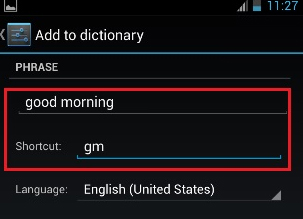
    You can also set an abbreviation for a full word. For example, if you have a word like “Howzit!” in your dictionary, you can set a shortcut like “zit” for the word. So, when you want to type the word “Howzit!”, just type the word “zit” and it will be converted to the entire word “ Howzit!”.

    Why Google Pixel is the best Android phone apart from Google Pixel Dictionary

    Google Pixel phone can be easily said as the best Android phone of the time available in the market. It has many advantages over other Android phones which makes it the most amazing phone in recent times.

    Here are some of special features of Google Pixel phone that makes it unique.

    • Google Assistant

    Google Pixel is the only Android phone which has Google Assistant. It is an incredible digital assistant from Google superior than any of its competitors.

    Read Also : How to Use Google Assistant on Android Devices (Without Root)

    • Built-in 24/7 customer service

    The phone has an inbuilt customer support app that runs 24/7.  It has a feature called “screen share” that lets you share your screen with the customer support agent and easily troubleshoot your problem.

    Read Also : Android: Prevent apps from running at startup(Stop/Disable Apps)

    • Snapdragon 821

    The Pixel phones are powered by the most advanced Qualcomm Snapdragon 821 chipset which is the company’s most powerful processor available in the market.

    • Best camera ever

    The Pixel comes with the best camera ever on any smartphone with a DxOMark score: 89. With a HDR of 12.3 megapixels it gives the best shooting experience any user can dream of.

    Read Also : Exciting free Photoshop Alternatives for high quality photo edits

    • Unlimited storage facility

    It comes with an unlimited online storage facility that lets you store all your high resolution photos and videos automatically in Google photos.

    • Timely Android updates

    It takes more than a year for most Android phone to get updated on new Android versions. The Pixel is the only phone that gets Android updates as soon as they are available.

    Read Also : Android boot Fix – Steps to Try When Your Android Won’t Boot

    • Daydream

    “Daydream” is a virtually reality platform by Google. By connecting your phone to the Daydream headset, you can play games and watch videos on Netflix, You tube etc., and have an out of the world VR experience.

    • Faster charging

    The Pixel comes with a 2770mAHh battery. According to Google, 15 mins of charging the device and can last 7 hours which is amazing. But it  depends on how you use your phone.

    Read Also : Battery Health : How to keep your phone or tablet battery healthy

    • Easily switch from other devices

    The Quick Switch Adapter makes it very easy for you to transfer all your files from iphone or other Android devices to Pixel phone.

    • See your phone screen on your television

    You can connect and mirror your Google Pixel phone screen to your television screen to watch your favourite videos on Netflix, You tube etc …

    Google Pixel phones enjoy an exclusive status among all other smartphones. They come with a version of Android that’s not available on any other smartphones in the market. Every feature available on this phone is unique which makes it the most luxurious smartphone ever.  The whole experience of owning a Pixel phone is something that is really great.

  • Get Celebrities Notice Maximum on Twitter – Popular Tweeter Hacks

    Get Celebrities Notice Maximum on Twitter – Popular Tweeter Hacks

    Get Celebrities Notice Maximum on Twitter – Popular Tweeter Hacks

    Have you ever imagined that you might get a tweet or a re-tweet or a reply from your favorite celebrity and woken up from your dream but what if I say it is not a dream anymore. Yes my dear friends there is a way and let me tell you celebs really love their fans a lot and many of them even reply to their fans occasionally even follow their fans while re-tweeting their fans every once in a while. Your friend here wants to help so that you can Get Celebrities Notice Maximum on Twitter .

    I would like to mention a few things before I start my researched methods. The chance of you being noticed by a celebrity depends on many factors(especially number of their followers on twitter). So if your celeb has some millions of followers and fans and if they only tweet once in a week or so (for example Taylor Swift) then your chances are significantly less but not zero.

    Recently many celebs are utilizing their twitter account to promote projects(Example #asksrk by @iamsrk). You can verify their timeline to see if they ever reply to fans or only tweet about their upcoming films, songs, events etc if the answer is latter one then sorry but you should not waste your time trying to get reply from such a celeb as the odds are really not in your favor.

    At last please be aware about the fact that some celebs twitter accounts are actually run by their managers or publicists. So be extremely careful if you try to talk about personal stuff because when you think you are being funny you actually could get reported or blocked. So here are some tips that will ameliorate your chances significantly.

    Read Also : Battery Health : How to keep your phone or tablet battery healthy

    Get Celebrities Notice Maximum on Twitter – Popular Tweeter Hacks

    Follow the below steps to be noticed by Celebrities on Twitter and become a popular tweeter .

    • Tweet to celebs when they are online or tweeting

    Majority of your celebs would not see a tweet buried deep in their timeline so check the time since some celebs are often online like while some celebs are online late at night after their busy day like Benedict Cumberbatch, Shahrukh khan etc. So get an approximate idea about the tweeting time of your favorite celeb’s schedule and tweet only when they are available. That is the right time to tweet Celebrity to get re-tweet/ reply is at the time they are online.

    •  Check their timeline for clues about what they reply to.

    Some celebs have a habit of RT funny jokes while some reply to the compliments given to them by their fans while some respond to questions about their career and hobby. Note that some stars do not like to brag generally but they like to share some good news for instance if they are nominated for a global award or complete their graduation early like Dove Cameron, Nolan Gould. You have to congratulate them and they might reply to your tweet or RT you or might follow you as well. This is one of the way to Get Celebrities Notice Maximum on Twitter.

    • You can meet them at their tour or concert (this is tough, but if you live in Mumbai or New York your chances are pretty good)

    Some celebs often say if you meet and greet them once then they without a doubt will follow you. So you can meet them and even post a photograph to remind them and after they follow you do not forget to thank them. At least you just might get a response from them.

    Read Also : Record iPhone iPad Screen on Windows & Mac

    •  You got to have patience

    Say the celeb you like have over 10 million followers which are increasing day by day so due to this they just might not see your tweets but true fans do not give up even after a week, month or even a year.

    • You have to have a positive attitude

    Sadly some celebs are the ones who might not reply to a complement but would surely reply to hate against them. Once there has been a really crazy fan war between Bella and Zendays. Though bella did reply to calm things down in which she succeeded to a great extent but you might probably get blocked and keep in mind that the other fans will attack you brutally and not spare you. So again that is simply and clearly not worth it! But still one of the way Celerities notice you on twitter and thus you Get Celebrities Notice Maximum on Twitter

    •  You have to be graceful

    After following my methods when you do get noticed or followed or if you get an RT or tweet like “thank you” do not ever think that now you are their acquaintance and they are going to have a long conversation or they will reply every time you tweet them. You have to be grateful and gracious.

    All I hope and pray for is that these tips work out for you and remember to comment or screen cap your reply or RT when you get one so that you can motivate other people to get them their favorite celeb RT or reply or follow. I will end this by informing all of you that I meet a lot of celebrities and a lot do reply to me. I will also let you know when and where the celebs are meeting their beloved fans so that all of you can take advantage of that. Till then Share this so that maximum people can get to their celebrities

  • Battery Health : How to keep your phone or tablet battery healthy

    Battery Health : How to keep your phone or tablet battery healthy

    Battery Health : How to keep your phone or tablet battery healthy

    You know by now that your smartphone is smarter than you and same goes for the PC / laptop on your desk or the tablet in your backpack(even if your backpack is of different brand than your laptop) and even a simple gadget like a normal watch on your wrist. Since all of them are important irrespective of what each gadget is capable to do. But every smart gadget dies when its battery dies . So it is very important to increase your gadget battery life . So here we will focus on the ways to improve your gadget’s Battery Health .

    There are batteries in almost all of our latest gadgets which ranges from iPhones and laptops(for those who are or like to look rich) to Bluetooth headphones to tablets. Most of them are lithium batteries which are pretty advanced when compared to NiMH and other rechargeable batteries that came earlier. The Li metal ions can pack a good amount of power into a relatively smaller size and additionally they do not drain that energy either to leakage or when they are not not being used.

    So let me first get some facts straight which many people might have misconceptions about. The overcharging is not a significant issue because opposite to what you generally think (or might have been told or have a myth) is that leaving either your phone or laptop plugged in all the time especially during night is not at all bad for its Battery Health. All is possible because your gadgets and the batteries in them including the chargers you use with them to are really smart about the way they operate. So the question arising in the smart minds would be how to take care of my beloved and important Battery Health .

    So let’s see how to improve your Phone Battery life or your laptop / tablet Battery life.

    So if you follow some basic rules I give you can easily avoid it and one advice i’d like to give is that avoid the exposure to heat whenever possible and even if you do expose your to sunlight you would still be fine. I know it is very natural to obsess over battery care and to let those charging myths metastasize into a lunacy.

    Battery Health : How to keep your phone or tablet battery healthy

    So below given are some steps to keep in mind if you want your Android / iPhone / Lithium ion Battery last longer .

    1. Stay Calm

    Most of gadgets which are smart along with their batteries are pre-designed to keep you geniuses from ruining them. So the modern lithium ion batteries now a days are smarter, reliable and more efficient than those nickel metal battery which was in use around centuries ago.

    So when it comes to choosing best Battery for Phone / tablet choose Lithium ion battery on a comparison with Lithium ion battery Vs Nickel metal battery .

    2. Charge in bits and pieces

    Our lithium batteries do not like being fully charged up and then running completely down. The efficiency is maintained much better if you charge in little bits here and there. You are bound to charge your battery around 20% of the time though the percentages may vary from phone to phone the 20% is average which should be done. Make sure that the temperature of case should not be too hot to cause damage to your phone.

    Read Also : Android Oreo Features to fall in love with Android mobiles often

    3. Keep charging as long as you want

    Never worry about overcharging batteries in your gadgets and do not worry ever about overcharging your laptop. The mechanism of batteries in phones is similar to the mechanism of batteries in laptops. Moreover many laptops are smart enough to just stop the battery of being charged entirely once it becomes full.

    5. Batteries like medicines should be kept cool

    Talking of temperature be sure not to leave your phone in a hot car all day or leave it on top of your gaming PC and never go with your battery in a sauna(really in sauna you are …). One important thing to note is that beware of dash/quick chargers and though your phone and charger are smart enough to minimize the damages from high voltage chargers but a lot of power on a super fast speed can generate sometimes an uncontrollable heat. Always store a gadget or its battery or both of them in a cool and dry place.It increases Battery Health and Battery life thus ensuring long life to battery.

    Read Also : Fast Forward , Rewind , Scrub Music in iPhone & iPad Music Player

    6. Go replaceable

    Go with removable batteries whenever you can to avoid the tension you might face and also avoid the lunatic things you might do for charging. The least you can do to avoid these bad battery practices is at least starting with fresh battery whenever you think it is unanimous.

    7. Use Good Quality Chargers

    The simple idea behind using good chargers is that whatever product if you maintain it it is bound to last long. The good quality chargers are smarter than normal chargers since they are able to change their flow if they detect any change in voltage or current of your phone. A good charger will smartly avoid all the excessive amount of voltage which otherwise could cause destruction of your phone.

    Read Also : Connect Google Pixel to TV Easily with these Exclusive Guide

    8. Don’t let your battery rule your life.

    Take it from me that your batteries irrespective of how much you care about them are going to die one day or maybe a night. So there is really no amount of delicate and obsessive care which would save you from having to deal with a less capable battery from now within a few years so it is just a matter of time.

    Like it or not we are all destined for that annoying end of our favorite game that comes when a battery degrades or you are either tethered to all the above mentioned steps. All of have been there before once and we would be there again not immediately but definitely. Do not worry as long as you follow my guidelines. The best you can do is that you can maximize your distance from here to the end of your beloved battery.

  • Fast Forward , Rewind , Scrub Music in iPhone & iPad Music Player

    Fast Forward , Rewind , Scrub Music in iPhone & iPad Music Player

    Fast Forward , Rewind , Scrub Music in iPhone & iPad Music Player

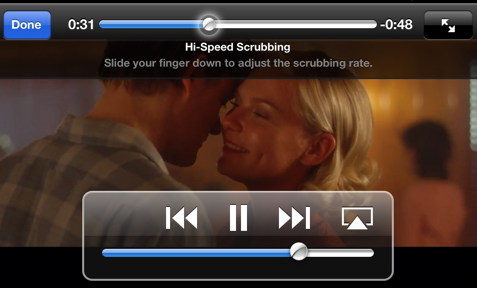
    If you have an iPhone and have listen to music in iPod before you would know that any song playing from the iOS Music app various operations like Fast Forward , Rewind , Scrub Music can be performed easily. In the case where you want to play a song in rewind or fast forward a song you can do either of them right from the lock screen of your iPhone or iPad Music Player or iPod touch as well.

    These are really useful feature but I do not know why some lovely people find it so hard to find the location of the feature that they think there is practically no way to do it but you can do it though and here are my simplified steps to do them for various different versions of iOS.

    Read Also : Factory reset iPhone without password or iTunes with data backup

    Read Also : Connect Google Pixel to TV Easily with these Exclusive Guide

    Fast Forward , Rewind , Scrub Music in iOS 7 & Higher

    •  You have to start the music or simply play the track you wish to listen and then might wish to fast forward to your favorite part and rewind it again to listen it.
    •  You then have to swipe the Control Center above by simply swiping from the bottom of the screen and then upward.
    • You then have to swipe either left or right unless and until the track which you are currently playing is displayed on your screen.
    • Now finally you have to drag the ball on the music timeline bar to your desired spot. Another way is that you have to first tap and then hold the fast forward or rewind buttons as well to skip ahead or backtrack respectively as per your wish.
    • Do speed scrub so that you can Fast Forward , Rewind , Scrub Music in iPhone & iPad precisely .

    This is the way to Control iPhone Music through Control Center.

    Read Also : Best iTunes Cleanup Software for better iTunes experience

    Fast Forward , Rewind , Scrub Music in iOS 6 & Lower

    • You have to hold your device in a proper portrait orientation .
    • Now when your song is playing in the iPod you will notice that the album art will appear somewhere on your screen and if you find that there is no album art then a music note appears instead of album art. Then you have to tap either the album or the art/note whatever you are playing.
    • After completing above two steps successfully you will see a small bunch of features about which you might not be aware of. If you look closely you will find a line of them that indicates where on the music length of track your song is being played. Now as per your requirements you can now drag the ball back or forth to fast forward or rewind whenever you would want.

    You can use these ways to Fast Forward , Rewind , Scrub Music in iPhone , iPad Music Player of all iOS versions .

    Read Also : 38 Best iPhone games you should play

    In the end I will conclude that by using my simple methods you can simply fast forward or rewind any song on an iPad or an iPhone whenever and wherever you want with the exact speed you want and as per your mood you select the speed. So use these techniques yourself and share them with other people so this information can be useful to mas many people as possible.

  • Connect Google Pixel to TV Easily with these Exclusive Guide

    Connect Google Pixel to TV Easily with these Exclusive Guide

    Google Pixel by Google is a range of mobile devices that work with Chrome OS, Android OS. It’s the first official step into phones by the mighty search giant. They are the finest of phones and available on Google and retail stores. Pixel range of electronic devices includes pixel tablets, pixel laptops, and pixel smart phones. They are the best Android devices from Google in the year. Today we will see the ways by which we can Connect Google Pixel to TV Easily with these Exclusive Guide.

    How to Connect Google Pixel to TV

    The Google pixel can be connected to the TV to watch Netflix, YouTube or any screen of your phone on the TV. Unlike the usual phones, Google pixel can mirror the phone screen on the TV. When the Google Pixel is connected to the TV all that’s available on the phone is visible on the TV screen. This is called Screen mirroring . You can Screen mirror Android devices on TV .

    Read Also : Android Oreo Features to fall in love with Android mobiles often

    What is Screen mirroring ?

    It is nothing so much technical and confusing . Screen mirroring device just means you are viewing the same screen on your device on some large size device . Here Screen mirroring Android to TV is to watch/view same screen on Android on your TV screen.

    Connect Google Pixel/ Pixel XL to TV means to Screen mirror Google Pixel/ Pixel XL to TV .

    Now let’s see how to Connect Google Pixel to TV using a wired and a wireless method.

    Read Also : Android boot Fix – Steps to Try When Your Android Won’t Boot

    Non Rooted devices – Connect Google Pixel to TV (Pixel XL )

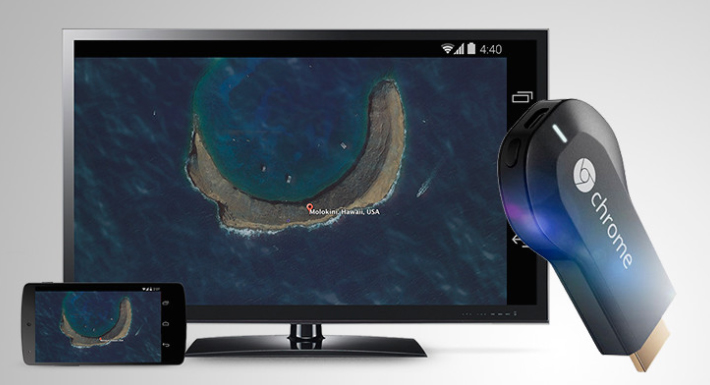
    In non rooted devices, the only way to mirror the screen is by using Chromecast.

    Step 1: Purchase Chromecast hardware and connect to the HDMI port of the TV.

    Step 2: The Chromecast should be connected to the same Wi-Fi network. Connect the TV with a USB plug and download the cast application.

    Step 3: Open the Chromecast app, go to ‘Menu’ and select Cast screen/audio. Chromecast icon will appear in the apps click on it and the data will transfer to the TV.

    This is the way you can connect Google Pixel or Pixel XL or any Android device to TV in non rooted device.

    Read Also : How to Use Google Assistant on Android Devices (Without Root)

    Rooted Devices – Connect Google Pixel to TV (Pixel XL )

    For Rooted devices, Miracast can be used for mirroring the screen. It is possible only if it’s rooted. Miracast is a wireless HDMI that connects the two devices; hence it doesn’t require an internet connection. If the TV doesn’t support Miracast you will need a setup box that supports like Amazon Fire TV, Roku, or even Miracast video adapter.

    Step 1: Install the Build.Prop editor.

    Step 2: In the upper right corner there’ll be an ‘i’ icon click on it and select ‘Add’ and then ‘New’.

    Step 3: Set the property name to ‘persist.debug.wfd.enable’ and set the value to 1.

    Step 4: Restart/Reboot the device.

    Step 5: To cast the screen go to Settings > Display > Cast > Menu > Enable Wireless Display.

    This is the way to connect Google Pixel or Pixel XL rooted device to TV.

    Read Also : Android: Prevent apps from running at startup(Stop/Disable Apps)

    Read Also : Hard and Soft Reset Roku Manual – Fix Frozen Roku Streaming Stick

    Advantages of Google Pixel

    Google Pixel is the best buy for a smart phone. With elegant features and specifications, this phone has captured the hearts of many Android users. It’s not just another android; it’s amazing with a number of advantages.

    Here are some of its unique features:

    • Superior Quality builds and feel.
    • Operational with a 4GB RAM and internal storage of 32GB/128GB and expandable memory of 256GB
    • Excellent Camera (great in low light). 13Megapixel Full HD camera rear camera and 8Megapixel FHD front camera.
    • Fast charging with battery life of 2770mAh
    • Google Assistant that puts even Siri behind in its function.
    • Receive updates as soon as it is available.
    • 24/7 customer service with an added feature of ‘screen share’ for expert guidance during support calls.
    • Fast and super sensitive touch response
    • Unlocking the phone made quick and secure with a smart fingerprint sensor.
    • Pair it with a daydream headset and get high-quality VR experience of games and videos in your personal space.
    • Unlimited storage of original photos and videos with full resolution on Google photos. The updating is done automatically.
    • Easy to switch from iPhone to Google Pixel. It comes with an adapter that you can help plug the iPhone directly to the Pixel and transfer all the photos, videos, contacts, music with just a click.

    Conclusion

    With so many superior features Google pixel is an android one shouldn’t miss. It has brought a new meaning to the android world. Make it yours and enjoy the luxury brought to your feet.

  • Astonishing Botox Uses To treat different medical conditions

    Astonishing Botox Uses To treat different medical conditions

    One popular cosmetic treatment that exist is Botox Treatment , but we all know Botox injection only for treating different cosmetic issues . Especially the dermatologists favourite Wrinkle removal treatment is Botox . But what about the astonishing Botox Uses To treat different medical conditions. Ever wondered that Botox Uses is beyond the cosmetology treatments.

    If so now you going to wonder about the different uses of Botox .

    Astonishing Botox Uses To treat different medical conditions

    Here is some Magical Botox Uses which are way beyond the wrinkle treatment using Botox .

    • Botox Effective Treatment On Migraine 

    People with chronic Migraine are treated with 20- 30 Botox injection for migraine treatment even by famous medical universities. These injections help to have a good relief from migraine for 2-3 months period minimum . Botox injections are taken at different points around neck , back neck , side , head etc . This shown a very good improvement in patients with migraine .

    Read Also : TMJ Headache Must be Treated – Symptoms & treatments

    • Botox to Treat Excess Underarm sweating 

    There is a medical condition called Hyperhidrosis  which the excessive abnormal way of sweaty hands and feet and underarms over even the whole body . If you are one who always smells sweaty and excessive underarm sweating is a problem for you then Botox is a solution for that . Botox controls excessive underarm sweating in people .

    • Botox for Overactive bladder or bladder dysfunction treatment

    The feeling to pee so often is seen in most of the women its mainly because of overactive bladder . So treat this problem of incontinence , nocturia & overactive bladder Botox is a ideal remedy. You have to repeat the process in every six months .

    Read Also : Menstrual Cups, a solution to the pad effect-Another Period

    • Botox to relax Muscle spasm ( Multiple Scelorosis )

    If you feel irritated with the frequent twitching of muscle spasm due to multiple sceloris or any neural issues this can be treated with Botox injection as they reduce the muscle spasm. This really works to solve the muscle spasm .

    • Botox to treat Eye problems – Crossed eyes , Strabismus , twitched eye 

    Taking Botox injection in 3-4 month interval will help to relax the eye muscles thus twitching as well as crossed eye problems can be solved easily. Thus Botox treats Squint problems and help your eyes to focus properly.

    • Botox treats Tennis elbow

    Tennis elbow is a condition of muscle problem so this an be cured by Botox injection . Other methods will give you just temporary relaxation from the pain of tennis elbow.

    •  Smile not revealing Gum

    Your smile may not be so perfect and confident when t reveals so much of your teeth gum outside . To solve this injecting Botox to upper lip can help in giving you smile hiding gums.

    Read Also : Dangerous Teabags – Brands making you Sick with Healthy Label

    •  Botox for Bells’s Palsy Treatment

    Because of some nerve issues we can see that drooping on face to one side  happens thus the skin looses its firmness . To avoid the unnecessary movements  and twitching of the muscle Botox injection is used . Thus it tightens the skin.

    •  Head & Vocal tremors Cured with Botox

    Tremors due to nerve problems can be cured with Botox injection which shows high effectiveness in treating vocal as well as head tremors.

    Read Also : Ketogenic diet Weight loss menu for Beginners -Ketosis

    Other Non FDA Approved Botox Uses 

    Botox Uses also varies to many other areas of medical treatments which are still on the research . As of now it is believed that Botox can be used for some other treatments more where Botox Uses is not FDA approved –

    • Botox Uses for Depression and it is believed that Botox can greatly influence one’s mood .
    • Painful sex can be avoided with Botox injection . This Botox Uses is not clinically approved but still considered working due to researches.
    • Premature ejaculation problem resolution with Botox Uses is on the research which is also not approved by FDA.
    • Parkinson’s Disease Drooling can be cured with Botox which is on the research process.
    • Botox Uses and Abnormal heartbeat is also on the study .

    These are the various Botox Uses which are approved by FDA as well as yet to approve .

  • Android Oreo Features to fall in love with Android mobiles often

    Android Oreo Features to fall in love with Android mobiles often

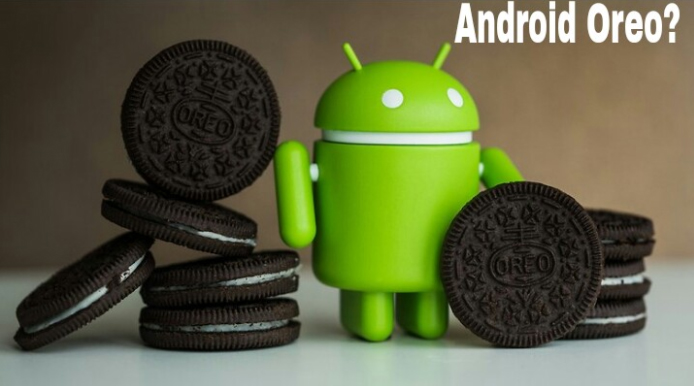
    Android O / Android Oreo the latest in the technology world . Don’t mistake that we are talking about our favourite biscuit Oreo . We are here discussing about the Tech Giant Google’s latest launched Android Operating System . Android Oreo is going to be game changer in the smartphone industry soon with the exciting Android Oreo Features.

    12 Android Oreo Features to fall in love with Android mobiles often

    May be a good battle with Apple iOS latest version OS . We think Android Oreo Features will definitely make many people to fall in love with Android mobiles often. Latest Android OS updated feature is here.

    # Background Limits – High Battery Life of Android Device

    Android mobile Battery drain quickly is one of the great problem faced by all Android users . Finally with the latest Android Oreo battery life is improved with background limits. Now there’s a control on the apps that are running on your background like what can the background running apps do and what not . Thus Android battery life is increased . This is one of the best Android Oreo Features.

    Read Also : Android: Prevent apps from running at startup(Stop/Disable Apps)

    # Picture in Picture Mode as Android Oreo Features

    You can do check your social media feeds , message someone and watch video simultaneously thus your technology boost your multi tasking skill now with Android Oreo Picture in Picture mode . This was available to Android TV earlier now to your mobile also .

    You can do it by watching a video and toggle it on by touch home screen so that the video will be shrinked and played in minimized size or floating player.

    # Autofill API

    Remembering passwords for every favourite website you visit is a difficult task and using apps that remembers the password for all the website is on one hand less secure and on other hand this will make your phone to work slow. Now latest Android Oreo Features has put an end to this issue . Now in Android Oreo it will auto-fill the passwords and thus makes it easy for you.

    Read Also : How to Use Google Assistant on Android Devices (Without Root)

    # Better Security on Android Device

    Now Android becomes safer than ever before . Isn’t it a great thing to feel secure with your Phone . Android Oreo features has taken a deep look into security also . Google play protect ensures that your Android device is completely secured . It scans out the apps that are installed as well as prevent any suspicious malware or virus.

    # Notification Grouped to Channels – Notification dots on Android Oreo

    Notification on android mobile like all notification clubber together can be now customized by the android user . User can make notifications to channels and control it and snooze or even block it individually. Notification dots that was in iPhone is now available for android users also . So you get important notifications to get your quick attention.

    Read Also : Best Apple Watch Alternatives-Affordable Gadgets

    # Snooze Notifications 

    You can snooze Android Oreo notification rather than missing it out forever by dismissing it . Now you can set time and snooze it for 15 mins to hours you want . It depends on your preference to have it looked back .

    # New Android Oreo Emoji

    A completely freshly designed way of emoji is what you have with Android Oreo features. Now you can enjoy the wizard , fairy , dinosaur and even one more favourite emoji to indicate one true emotion tat its the ” bursting head emoji” .

    # Adaptive icons

    Depending on the choice f the manufacturers the developed now get the chance to use any shape of app icon. So cool feature in Latest Android OS update.

    # New Android Camera Shortcuts

    Tap between camera o video instead of boring swipe . Zoom out and Zoom in photo or video easily The latest Android camera feature of double tapping to 50% zoom is really awesome for your perfect click .

    Read Also : Exciting free Photoshop Alternatives for high quality photo edits

    # Play with Octopus

    You can find the Octopus on the Android Oreo by Settings -System – About phone – Android version till you find a large Android O . Now click on the O repeatedly to get an Octopus that floats all over . Cool Isn’t it ?

    # Easy Text Selection

    Just a matter of tap there Android plays more intelligently highlighting the text for you without so much constraint . Thus selecting text has now became more easier than ever before with Android OS Latest version.

    Read Also : Android boot Fix – Steps to Try When Your Android Won’t Boot

    #Excellent system performance speed

    The auto fill feature as well as installed apps on Android Oreo makes it performance more good thus the time consumed to do each task is now falling less . This makes the speed and easiness of this update more visible t the world as better than ever before.

    Here we have listed out the top 12 exciting Android Oreo Features to fall in love with Android mobiles often.

  • iOS 11 Vs Android Oreo – Who wins gadget lover’s Heart

    iOS 11 Vs Android Oreo – Who wins gadget lover’s Heart

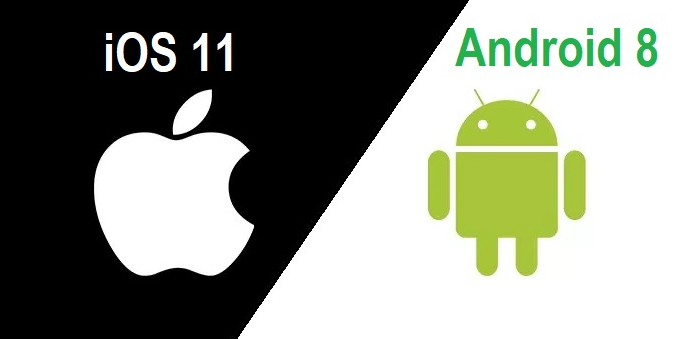
    If the world is growing with 2x speed then our technology is growing up with 10x speed. Whenever we think about mobile OS the first two things that come in our mind is iOS and Android. In just few days , two leading mobile OS developers of world has came up with two great launches . Firstly Google has released its Android Oreo and then Apple came up with its iOS11. Today we will compare both of them so that you all can decide which one is better for you . But for that, first I will explain both the iOS and Android concept to you . Then will see n detail the comparison between iOS 11 Vs Android Oreo .

    iOS vs Android

    Let’s take a rough look at iOS vs Android before making it precise about iOS 11 Vs Android Oreo.

    Android is a mobile operating system developed by Google and it is based on Linux kernel and is basically designed for touch screen mobile phones whereas iOS ( iPhone OS) is from brand Apple Inc. It has been used in iphone firstly in 2007 and later it has been extended to other apple touch devices like iPad etc.

    Read Also : Update to Latest Android OS : Oreo -Stay with Nougat / Marshmallow

    iOS vs Android Comparison :

    1. When we talk about the storage space in Android Vs iOS ,then android offers expandable storage with several phones by using external storage devices like sdcard etc. Whereas iOS does not support expandable storage .

    Read Also : Backup Android Device to PC or Google

    2. Higher chances of malware : In Android phones we can install third party apps which can harm our data .Whereas in iOS there is very few chances of malware as Apple optimization decreases the chances of malware.

    Read Also : Android: Prevent apps from running at startup(Stop/Disable Apps)

    3. Apple itself optimize its both hardware and software: Apple itself optimize its every iPhone hardware and software. This leads to its better quality and performance whereas in Android Support and assistance services are not good as compared to iOS due to huge number of customers . It gives patchy support.

    Read Also : Android boot Fix – Steps to Try When Your Android Won’t Boot

    4. There is a tremendous demand for Android mobile as well for android apps . One of the reason behind this is the cost comparison between iOS Vs Android . Increased number of users for android has lead to great number of developers for android applications . But in the case of iOS this is not so high so as iOS apps are also less in number .

    From the above comparisons we can find that there are several pros and cons in both Android and iOS. Now we will look about what Android Oreo and what iOS 11 offers and what is the difference between both of them. That is we will study – iOS 11 Vs Android Oreo.

    Read Also : Android Oreo Vs Android Nougat Vs Android Marshmallow Vs Lollipop

    Android Oreo 

    Android new version 8.0 named as ‘OREO’ is a mobile OS currently only available in Google pixels phones. The new version ‘Oreo’ comes up with several improvements in the market. It provides 2x boot speed and can save a huge amount of battery . It also comes up with several catching features like the picture-in-picture (PIP) mode. Oreo also has ‘per app disk space quota’ which automatically delete cached files from apps. One can also snooze notifications with Android Oreo. Oreo also offers some user friendly features like autoFill which can help you to fill form faster. There are so many New Android Oreo features to get acquainted with.

    iOS 11 

    iOS 11 is said to be the next generation version of iOS. Apple’s CEO , Tim Cook said that this update takes the best and most advanced operating system and turns it up to the 11.

    iOS 11 brings several features like ‘Subtle design changes’ which can interface elements throughout the operating system. In iOS 11 the Control center is now customizable and there are options from which we can add a wide range of settings.

    In iOS 11 3D touch integration has been expanded , so we can now do more without opening Settings. Siri has also improved with this update. Now Siri has a more natural voice and is more intelligent than ever.

    Now we have seen a brief about iOS 11 features and Android latest Version Features before going in depth a

    Then the main thing is that how to make the choice which one is better for you because both offers a lot of great features . So now we will compare both iOS 11 and Android Oreo , so that we can make our decision.

    Read Also : Factory reset iPhone without password or iTunes with data backup

    iOS 11 vs Android Oreo Comparison 

    Here we will discuss about the latest iOS & Android version by comparing iOS features and Android features by comparison of iOS 11 Vs Android Oreo .

    1. Notification : Both iOS 11 and Oreo comes up with several improvements in notification settings. In Oreo , there is a new notification channels which allow to control the same type of notifications together at a time . Whereas iOS has removed it’s old notification center completely.

    2. Autofill : Android Oreo feature autoFill which has the ability for apps to autoFill username , passwords and many more things. iOS also has this feature before , but it is restricted to fewer apps like Amazon , Flipkart etc. and all works on Safari only during web surfing.

    3. Multitasking : iOS 11 gave iPad the main priority . It has features like app-switching and split view . It also has a new doc similar to the Mac OS while in Android Oreo, there is nothing new for multitasking.

    4. Picture-in-Picture : Android Oreo has came up with this feature for YouTube , Hangout etc. While this feature has already been released by iOS in its iOS 9 .

    5. Memory Management : iOS 11 provides memory management features like new image and video formats like HEIF (Hight Efficiency File Format) and HEVF (High Efficiency Video Format). But there is no such feature in Android Oreo .

    6. Copy and Paste : We know Android was the first one to support Copy and paste . Android Oreo, makes it easier for its user to copy the text while Apple is the first one to implement user interactions but Google’s Smarter AI has taken it to another level .

    iOS vs Android which is better : iOS 11 Vs Android Oreo

    There are major differences between the two but both of them offer some quality experience to its users. You can choose between them according to your need, if you want more quality and security then according to me you can go for iOS11 but if you want more features and choices then you can opt for Android Oreo .

  • Android Oreo Vs Android Nougat Vs Android Marshmallow Vs Lollipop

    Android Oreo Vs Android Nougat Vs Android Marshmallow Vs Lollipop

    Android has won hearts of millions of people because of its salient features and new android version updates . Every time Google has something sweet as dessert when it comes to Android update . Can’t say any of the Android was a flop . Because we can still find device that are actively running on its old Android OS version . Now the latest in the Android OS release is the Android O or Android Oreo but still as i said we can find other Android OS devices. So people should still have a confusion on knowing about their Android OS . So to know better about something always a cross comparison can do a great job . So here is the cross comparison between different Android OS – Android Oreo Vs Android Nougat Vs Android Marshmallow Vs Lollipop . And much before version is Android Kitkat we think everyone has moved from that

    Android Oreo Vs Android Nougat Vs Android Marshmallow Vs Lollipop

    So let’s begin to familiarize with the different Android OS on the comparison list . So we can understand how things matches and differs with Android Oreo Vs Android Nougat Vs Android Marshmallow Vs Lollipop .

    Let’s begin with the most recent ones – Android Oreo Vs Android Nougat

    Android Oreo Vs Android Nougat

    Here is the comparison between Android O Vs Nougat.

    Android O

    Android “Oreo” (Android O) is the eighth major version of the Android mobile operating system Preceded by Android 7.1.2 “Nougat”. The name “Oreo” is a result of partnership between Google and Nabisco,the world-famous cookie producer.

    Before going to in depth comparison between android OS versions -Android Oreo Vs Android Nougat , we will see features of different android OS.

    Android Oreo has Picture-in-Picture, AutoFill, Wi-Fi Aware, multi-display support and smart disk space sharing as noteworthy features.
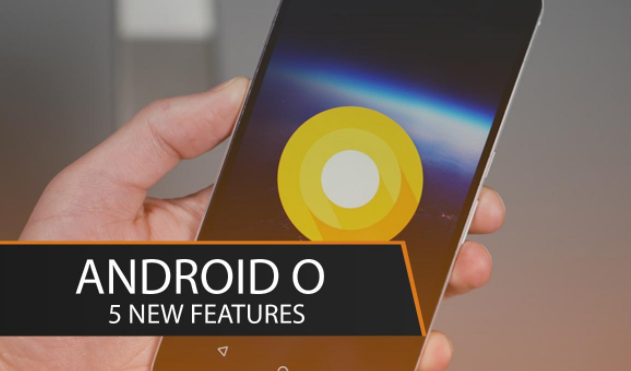
    Picture-in-picture (PiP) mode : This is a kind of special type multi-windows mode. PiP mode was available for Android TV but Android Oreo brings the feature available to mobile also.

    Autofill Framework : It is specially designed for filling out the forms, such as login and credit card forms, much faster and easier.

    Wi-Fi Aware(Neighbor Awareness Networking or NAN) : Android Oreo supports the mechanism for finding other devices in close proximity and also the ability to establish a bi-directional Wi-Fi Aware network connection between them, without using a “traditional” Wi-Fi access point unlike done previously.

    Smart disk space allocation : We encounter problems of running out internal space every now and then, Android Oreo helps improve this by implementing a per app disk space quota for cached data. When the system run out of space and needs to free up some, it will start by deleting cached files from apps that have exceeded their allocated quota.

    Snooze notifications : With those many perks Android 8.0 also allows you to snooze individual notification groups for 15 minutes, 30 minutes, one hour or two hours.

    Android Oreo Vs iOS 11 is the rising trend on the market . So if anyone reading this has  a love for Apple iPhone latest OS then wait till the release date of new iOS (iOS 11) . Before that you can get familiarize with the exclusive features of Android Oreo .

    Android Nougat

    Android “Nougat” ( Android N ) is the seventh major version of the Android operating system Preceded by Android 6.0.1 “Marshmallow”.

    Android Nougat is the version in the android series developed by the giant Google this has excellent features that can make one to forget the previous marshmallow and also it contains extended features.

    Read Also : Android boot Fix – Steps to Try When Your Android Won’t Boot

    Nougat introduces change including the split-screen view  to display multiple apps on-screen together,support for inline replies to notifications, and an expanded “Doze” power-saving mode that restricts device functionality once the screen has been off to optimize battery performance.
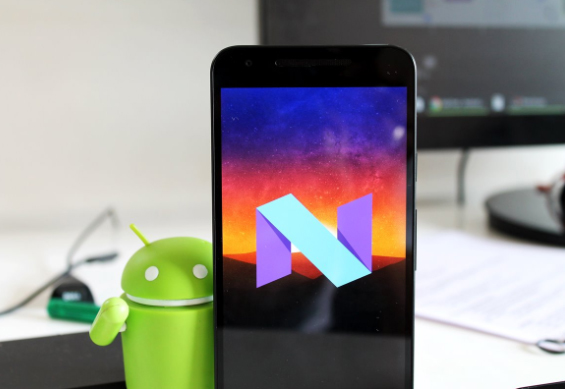
    Night Light mode on Android Nougat turns your display an amber color,
    it does cause less eye strain in dimly lit environments.

    Most Android have had the feature to set one image as a lock screen wallpaper and another as your home screen wallpaper long ago, but Google annexed this feature in Nougat.

    Read Also : Android Vs iOS – Pros & Cons of Buying Android Vs iOS

    Night Light mode on Android Nougat turns your display an amber color.
    It does cause less eye strain in dimly lit environments.

    Now we have seen the features of both now will go to the actual comparison Android Oreo Vs Android Nougat.

    Comparison Features of Android Oreo Vs Android Nougat

    Battery Life– Oreo vs Nougat

    In Lollipop, Google has tried making innovation by minimizing battery consumption. With Marshmallow they introduced Doze, which put devices in a state of deep sleep to save battery and in Nougat its further improved with Doze on the Go .

    Quick Settings – Android Oreo vs Nougat

    Among Noticeable visual changes in Oreo compared to Nougat has ,  is Quick Settings area. While Nougat had the dark and light gray combination for the Quick Settings panel, Oreo altered it out and It’s now white, compared to Nougat’s muted gray.

    Read Also : Google Traffic : How to check traffic to work or home

    Notifications – Oreo vs Nougat

    If you disable notifications for any app on earlier versions it would block all notifications from the app. Which means critical notifications  would also not come through. With Oreo, you can disable  notifications individually of any app so that you don’t get spammed but at the same time you don’t miss out on any critical notifications.

    Read Also : Battery Health : How to keep your phone or tablet battery healthy

    App Interaction – Oreo vs Nougat

    Notification Dots which is the new way of interaction has made taking actions against app easier than ever before. You will get to interact with the app by a long press on its icon.

    It lets user to set custom importance levels for  notification groups.

    Each group has four levels of priority.

    • Urgent: sound and notification pops on the screen.
    • High:  sound and places a notification in the bar.
    • Medium: No sound, but a notification is still placed in the bar.
    • Low: No sound or visual interruption—a silent notification.
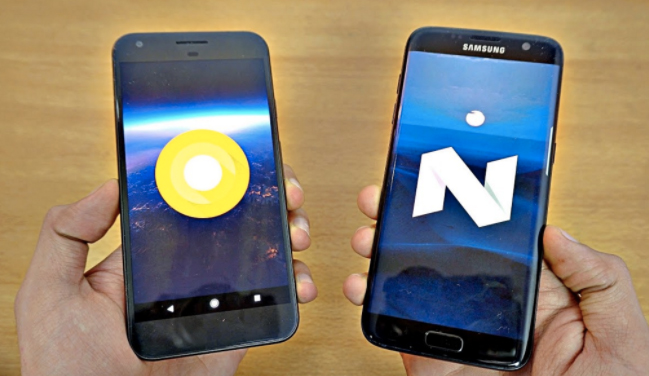
    Installing Apps from External Sources– Oreo vs Nougat

    Oreo aggravates security when it comes to downloading apps and giving free hand to them.In Android Oreo you can individually grant or deny permission to each App.

    Improvements to the Android Runtime– Oreo vs Nougat

    In Android Oreo , the runtime and app loading is faster as much as twice than it was previously in Android Nougat. Animations such as swiping down to reveal the notification appear to have been tightened up, which gives the impression of speed ,however there’s not much difference in other aspects such as switching between applications etc.

    Read Also : Backup Android Device to PC or Google

    App Shortcuts vs Notifications Dots– Oreo vs Nougat

    Notification Dots makes interaction with apps  way more easier. Whenever you get a notification from an app it will be shown by a dot , you need to long press the icon  to see the exact contents and perform actions you wish against that.

    We have seen about the comparison between Android Oreo Vs Android Nougat.

    Android Nougat Vs Android Marshmallow

    Let’s rake up and see what Google added to the repertory of Nougat and where it scored more than its predecessor.

    Battery performance —Nougat vs Marshmallow

    The most annoying thing for Android users has always been battery drain but Google didn’t disappoint in dealing with this problem and has shown its allegiance to Android users. It has added a Doze Off feature which saves your battery whilst the phone is not in use. You no longer have to bother about closing the apps that keeps running if you have forgotten to do so since this feature takes good care of it.

    Read Also : Fix “Voice search has been turned off” error for google now

    This battery saving feature was introduced in Marshmallow and is refined in Nougat.

    In Android 6.0 Marshmallow , Doze activates if the phone has been stationary for a while. Unwanted features like searching WiFi In this state are disabled. For example, instead of Facebook Messenger keeping your phone active all day, it will be forced to perform in intermittent manner.

    Whereas in Android 7.0 Nougat Google refined this feature and it will activate itself if your phone’s screen is off. In this mode, wakelocks are still allowed, and the phone will still search for GPS or Wi-Fi signals, but cell network access will be disabled. This will give your battery a pretty big bump over time.
    Multi Window support or Split screen—Nougat vs Marshmallow

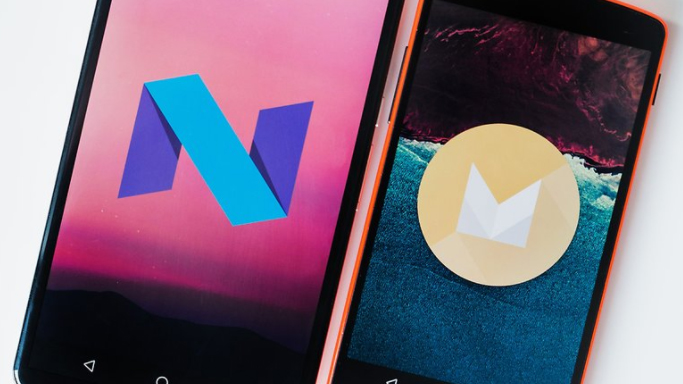
    This is the noteworthy aesthetic change that makes Nougat standout. Since now the people are preferring bigger screens and plenty of apps in their mobile phones , this is a sagacious move from Google. You can operate on different apps without switching from one to another as the apps can be snapped to occupy halves of the screen. This takes multitasking to another level and gives completely different feel but Google bought it no sooner than Nougat.

    Other Aesthetic changes,

    1 the keyboard that can change color , you can also embed an image of your choice in the background of it.

    2 RGB settings to adjust the tint on the screen.Screen Tint Adjustment can be used  to adjust screen with color tints.

    3 dpi setting adjustment to expand or compress texts and icons as preferred.

    Read Also : Google Pixel WiFi Calling Enable and Disable

    Notification Panel—Nougat vs Marshmallow

    Badly needed feature and fulsome thanks to Google for neatify popping notifications.This will allow users to view notifications from different apps in a sorted manner.This means notifications from same app will be bundled together just like an unshuffled deck of cards.You can reply to  those email, message notifications  separately and expand notifications to the least like never before.

    Android Marshmallow Vs Lollipop

    Lollipop features a redesigned user interface built around a responsive design language referred to as “material design”. Other changes include improvements to the notifications, which can be accessed from the lock screen and displayed within applications as top-of-the-screen banners.

    Now you can flick up notifications to place them back to the Notification drawer without dismissing them entirely.

    In Android Marshmallow, you can select a bluetooth profile or a wireless network  from the drop-down panel itself.

    Android Runtime (ART) replaced Dalvik for improved performance of applications.

    Read Also : Google Pixel Haptic Feedback / Vibration Mode Enable or Disable

    Security — Marshmallow vs Lollipop

    Android 6.0 has also come up with “Biometric Fingerprint support”.If a user wants then device can only be unlocked by fingerprints. Whereas this option is not available in Android Lollipop.

    Android 6.0 has user defined control over some app permissions. This means users are in control of whether or not an app has access to something such as their microphone or camera.

    Read Also : How to Use Google Assistant on Android Devices (Without Root)

    Status Bar — Marshmallow vs Lollipop

    Users can remove any unnecessary icons from status bar through system tuner in Marshmallow as in Android Lollipop there were icons that remain active in the notification bar all the time which irritated the users.

    Ram ManagerAndroid — Marshmallow vs Lollipop

    Android Marshmallow has brought a change in RAM manager now users can see which app is deteriorating the device performance and which app is using minimum and maximum amount of RAM.
    Volume Controls — Marshmallow vs Lollipop

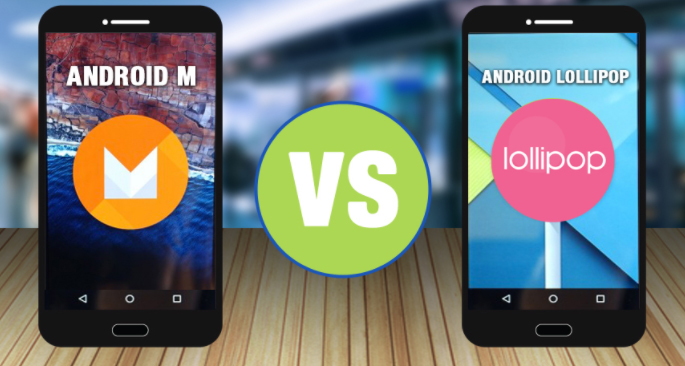
    In Android Lollipop, users have to tap volume up and volume down to alter the volume but in Android Marshmallow there is a drop down option to let users to set the volume for notification, system volume and alarm. These volume controls will allow users to individually set the volume for apps, music and alarms.

    Read Also : Android: Prevent apps from running at startup(Stop/Disable Apps)

    Each  Android release bought something new to its users because it’s obvious that we expect something better from earlier versions. Each of them might have lacked some virtues but neither of them can be termed as a flop as there are still huge number of devices that are still running on older versions.

    Android Oreo seems scoring Home-Run over other versions when it comes to being handy, nimble ,secure and is the best among others served to us at least by now , but nothing lasts forever and there’s always a possibility of improving otherwise Google would have ceased releasing Android versions long ago if any of them had reached perfection.

    Read Also : Google Pixel Dictionary – Add words / Phrases to Dictionary

    So far Google is successful in living up to the expectations as Android is still the blood and bone of majority of devices and it’s no bad reason for taking proud.

    There are plenty of reasons that Android would be surging in future, But “Perfection” is subjective and  spec and feature list is not enough to make an idea of how good an Android really is or is it the best to each minuscule trait it has got.

    So hope you have got a clear comparison idea about the different Android OS – Android Oreo Vs Android Nougat Vs Android Marshmallow Vs Lollipop .