Category: Tech

  • Best Augmented Reality Apps for different uses Exclusive

    Best Augmented Reality Apps for different uses Exclusive

    We all know that technology is developing every minute and augmented reality apps are one of the results of its development.In this article, I am going to talk about Best Augmented Reality Apps.

    What is an Augmented Reality?

    Augmented Reality app is a software application that combines visual content into the user’s real environment. It is a technology that integrates images generated by computers on user’s view of the real world. Augmented Reality uses the real world environment and adds more information on it this makes it different from virtual reality, which creates an artificial environment. Augmented apps bring elements of the virtual world, into the real world. It gives the experience of both the real and virtual world.

    Augmented Reality Vs Virtual Reality ( AR Vs VR )

    Augmented Reality differs from Virtual Reality so here we will see AR Vs VR ie, Augmented Reality Vs Virtual Reality

    • In simple words, the major difference between Augmented Reality and Virtual Reality is that virtual reality offers a complete virtual or artificial environment, whereas augmented reality offer to add something more to the existing reality.
    • Augmented reality offer users to experience real world with adding virtual components to it such images, graphics and more, whereas virtual reality offers users its own created reality that is created by using computers.
    • Augmented reality combines the real world and virtual world, whereas virtual reality completely sidelines the real world.
    • Augmented Reality can be used on smartphones and tablets. they use your mobile’s camera to give you the view of the real world and then put layers of the virtual world, whereas virtual reality offers a complete artificial view.
    • Most famous example of augmented reality app is Pokemon Go and Most famous example of virtual reality app is Google Earth.

    Uses of Augmented reality apps and how they are useful

    Although augmented reality app got more famous when Android and iOS smartphones came with GPS features, camera, and other capabilities. It makes the reality around users into a digital interface by adding virtual elements in it. Augmented Reality uses the reality and adds new information on it.

    It is a technology that combines virtual reality with the real world in the form of video or imagery that is digitally enhanced with computer-generated graphics. You can experience it through headsets and through displays of mobile phones.

    When augmented apps started accessed smartphones it led to the development of huge varieties of augmented reality apps.

    Augmented apps doing very well in every field such as games, education, lifestyle, busineess and more.Let’s have a look at the list of best-augmented apps in different fields.

    Best Augmented Reality Apps

    Here is the list of some of the Best augmented Reality Apps which are used in different fields .

    1. Pokemon Go

      Pokemon Go is the Best augmented reality game.This is the most popular game it allows users to catch virtual Pokemon that are hidden throughout the map of the real environment. It uses the real geographical locations of the users The game allows the players to find and catch many species of Pokemon around them. The app works on both Android and iOS platforms.

      Hopefully Pokemon Go is one of the most popular known Best augmented Reality Apps .

      Read Also : All Possible ways to Make Money by Playing Pokemon Go

    2. Ingress

      Ingress is one of the best-augmented reality apps for game. This App allows users to experience a completely different world.This App from Google turns reality surrounding into capturable objectives in-game portals. Landmarks and points of interest are captured on your mobiles. It just uses GPS technology to access your location and gives you a view of augmented reality.

      Read Also : 38 Best iPhone games you should play

    3. Aurasma

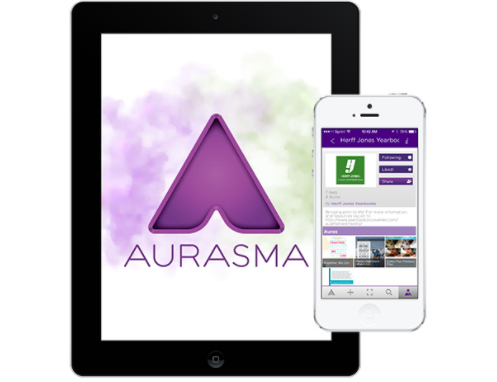
      Aurasma is one of the best-augmented apps for education. It is Free and available for both Android and iPhone platforms. This app is very useful to complete project works. If you find the logo of an augmented app on newspapers, magazines, books and on any product there is a chance for you to discover Aura. It is the only app that allows users to create and share their own augmented reality. Users can also create their own Auras and can also share them with friends and other Aurasma users. It
      allows users to send a video message on the greetings card.

      Read Also : Download free eBooks For My Nooks or Kindle -Read eBooks

    4. AR Flashcards App

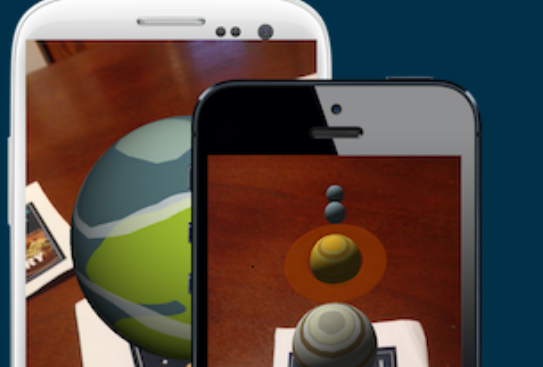
      AR Flashcards Appone of the Best augmented Reality Apps in education sector it introduced a new way to learn.You can use this app even your ward is not going to school, they can start learning through this app. And as it is learning through technology your ward will definitely show extra interest.Learning through this app is fun. There are also 3D images available with the voice this attracts children more. The best app to help children learn.

      Read Also : Best Smart Home Gadgets for Home automation- Smart home

    5. Amikasa app

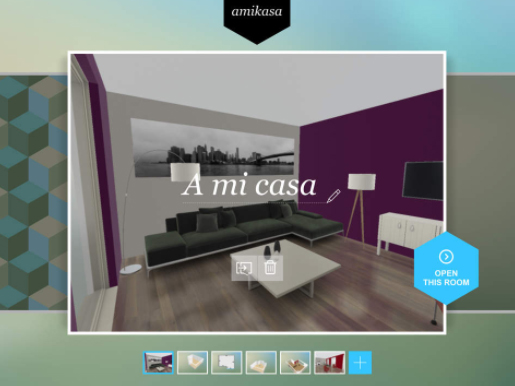
      Amikasa app is available for iOS platform. It is an augmented reality app for lifestyle. If you want to buy new furniture for your home this app will surely help you to decide what to buy. This app offers help to users to style their home and find out the perfect layout before users buy furniture. Users by using their iPhone or iPad’s camera can easily walk around their home and can place 3D models of furniture to see how they look. Through this app, you can also take suggestions from your family and friends. It is thus a popular iOS Augmented reality app .

      Read more : iOS 11 Vs Android Oreo – Who wins gadget lover’s Heart

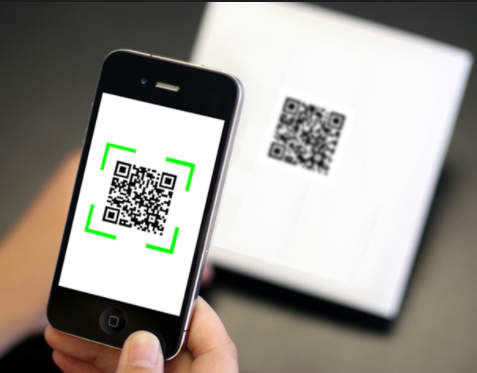
    6. QR Scanner

      Users can download QR Scanner from GOOGLE PLAY. Barcode and QR scanners are the first AR apps.It works by using user’s camera to read various barcodes. It can handle barcodes and QR codes. This app also saves user’s scans that they have already made so they can recall them later. It is one of the most important AR apps available for android users.

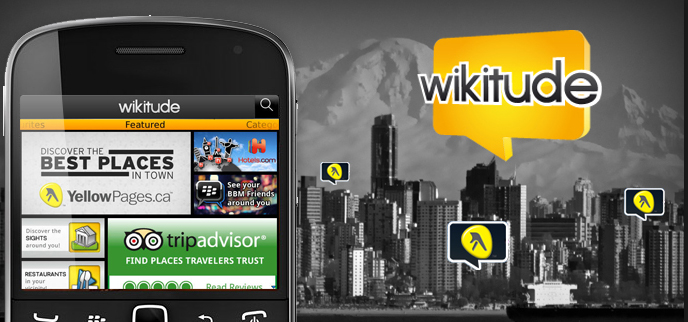
    7. Wikitude app

      Wikitude app is one of the best augmented app for business. It offers user’s to use their mobile camera in a particular area, this app gives users all the geographical info that might be of use for your traveling, routes to the landmarks and also the directions to the nearest shops, ATMs, hotels and more. Wikitude offers spots on the map for the local businesses to promote in a form of augmented business.

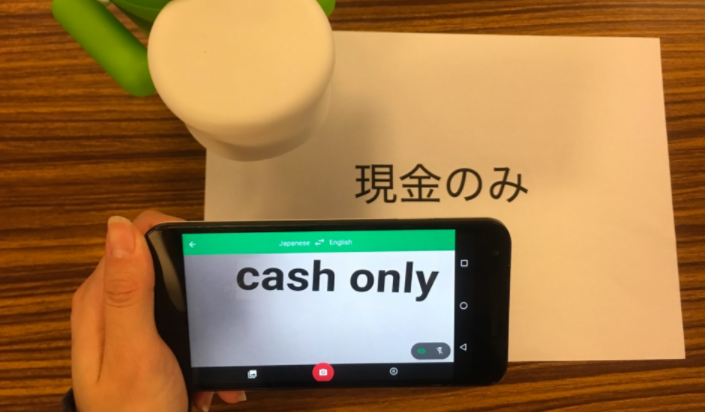
    8. Google Translate

      Google Translate available for both Android and iOS platforms. This helps users to translate texts and audio, and it becomes more useful with its augmented reality real-time visual translation features. Users just need to hold up their smartphone camera and focus on the document or text they want to translate, and this app will provide the users real-time translations of words and phrases from a variety of languages. Users can also download language packs, allowing for select offline translations.

    9. Strava’s Fitness

      Strava’s Fitness is a Best augmented Reality Apps for fitness and easy lifestyle. It allows users to visualize their running and biking routes in 3D. Users can make an account on Strava’s fitness and can upload their routes and can even explore new routes this app will display a 3D map and also allow users to explore the map from different angles.

    10. World Brush

      Word Brush app is one of the Best augmented Reality Apps available for free for iOS users. It is an iOS augmented reality app that allows users to use virtual brushes to draw and paint over real-world. Once users complete their virtual painting it is saved according to its GPS location, and the app also allows other users to view virtual paintings of word brush users. And there are options available for like, dislike, and report.

    Conclusion

    Through above discussion, we come to know about Best augmented Reality Apps in different fields such as education, games, and lifestyle. You can install these apps according to your need and as they all are augmented app they will give you different experience which you will definitely enjoy.

  • Connect Android to Projector via USB and Wireless

    Connect Android to Projector via USB and Wireless

    Connect Android to Projector via USB and Wireless

    Earlier, projectors were mainly used for PowerPoint presentations in organisations. It was also used to watch movies on big screens. Projectors could be could be connected to other devices via USB or through wireless media. Here we will tell you the ways to Connect Android to Projector.

    There are certain common ways to connect Android to projector.  This is a hard wired connection and is used when the wireless connectivity does not work. For this, the Android device has to support a type of wired connection. They are as follows:

    • MHL (Mobile High-definition Link) : If the Android device supports MHL, you can connect the HDMI adapter to the device and then connect the HDMI port to the projector.
    • HDMI (High-Definition Multimedia Interface) : A mini HDMI cable could be used to connect directly to the standard HDMI port on the projector.

    Assume you wish to connect Android smartphone to the projector but have no clue about how to do it. Regardless of the available options, we would have a look at how to connect Android device to the projector.  It would be rather easier to connect the Android smartphone to projector and more portable than to carry a laptop around.

    The options available depends on the projector used. Each projector has its own ports and features.

    • Wireless App

    At first, make sure there is an app associated with it. So far, this has been the most relieving solution possible.  Panasonic Projectors and other leading brand projectors have apps, which enables to connect via WiFi or Bluetooth network and get a screenshot of what is present in Android device.

    If the app is unavailable on the Google Play website, you could check the website of the company that made the projector, or the documentation.So you must make sure there is wireless app to connect android device to projector .

    • Chromecast

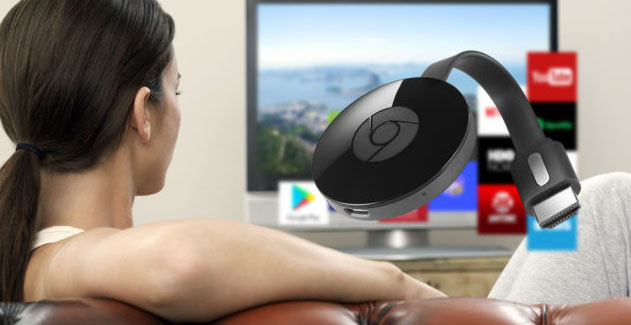
    This option works in most Android devices. You may wish to watch a movie or get a screenshot of Android device on the projector, Google Chromecast would be the perfect choice. Chromecast device links directly to the HDMI port on a projector where you could send from the Android device via WiFi.

    • Miracast

    You could connect Android device to projector using Miracast too. If the projector does not have Miracast support,you could use Miracast video adapter to directly connect to the HDMI port of the projector. Miracast enables in casting anything from the Android device to the projector.

    Read Also : Connect Google Pixel to TV Easily with these Exclusive Guide ( Screen Mirroring )

    We shall now have a deep look into each type of android devices and how to Connect Android to Projector based on their type.

    Connect Android Tablet to Projector

    Here we will explain the ways to Connect Android to Projector via wireless and ways to Connect Android to Projector via USB too .

    Read Also : Backup Android Device to PC or Google

    Connect Android to Projector Via USB

    When you choose for an ultra-lightweight portability of a tablet, you need not look for a powerful laptop for giving a business presentation.Connecting your tablet to projector enables to extend the tablet screen onto a big screen for clients and staff to have a clear view. Connecting these devices require an adapter cable; however this depends on your tablet and the projector. These are the steps to be followed to connect the Android (tablet) to the projector:

    1 . Turn off the tablet.

    1. Review the types of video ports available on the tablet: The USB ports would vary depending on the manufacturer and the model of the tablet. Compare the ports to the type of video input ports available on the projector to choose the type of video adapter required to connect the two devices. If the port types on your tablet are not compatible with the input ports on the projector, you require an adapter. For example, Apple’s VGA adapter can be used to connect an iPad to a VGA projector
    2. Obtain one end of the video cable to the input port on the projector and connect the other end of the cable to your tablet. If an adapter is used to make the connection, connect the video cable to the adapter and then connect the adapter to the video port on your tablet.
    3. Turn on the projector and wait till the warm-up process is completed.
    4. Turn on your tablet. The images from your tablet should be transmitted automatically. If they don’t, refer to the owner’s manual for information on how to adjust the video output settings specific to your tablet model.

    This way you can connect android tablet to projector via USB.

    Read Also : Battery Health : How to keep your phone or tablet battery healthy

    Connect Android to Projector Via Wireless

    There are two basic approaches to connect Android device to projector via wireless media.One is by Bluetooth technology; and the other is through an existing network. The tablet must have Bluetooth support, being a standard on tablets such as the Google Nexus and Samsung Galaxy but might be avoided on certain lower-cost models. Epson uses the network technique, manufacturing projectors with built-in Ethernet or wireless networking.

    Read Also : Google Pixel WiFi Calling Enable and Disable

    Connect Android Phone To Projector

    Before we saw the methods to connect android tablet to projector now will see how to connect android mobile to Projector .

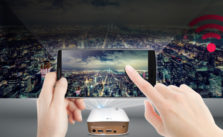
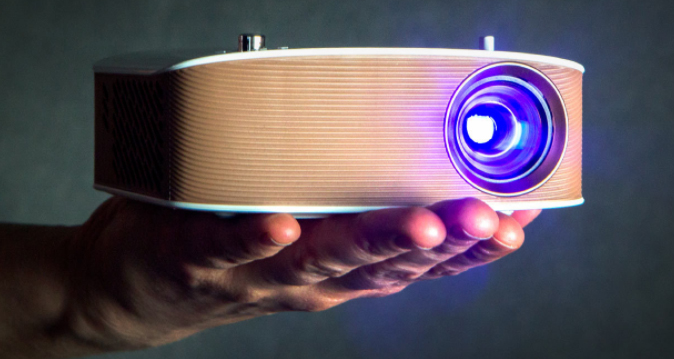
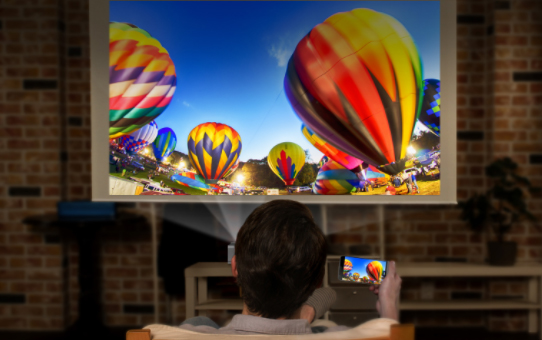
    Connecting an Android phone to a projector depends on the type of projector used. Latest projectors have inbuilt apps and wireless technology that could be used to send the details from the phone to the projector. This form is a stress free; displaying any video or screenshots from the android phone.Turn on the projector and point the phone like a flashlight on the wall,and the content gets displayed on the wall with high quality. This technology enables in sharing any data on the mobile anywhere with friends or with business people. Movies too could be enjoyed.

    Read Also : Android boot Fix – Steps to Try When Your Android Won’t Boot

    A few years ago, projectors had VGA or HDMI port connection; most android phones did not support these port types. The best option to connect the android phone is to get it connected via a micro USB to HDMI port or micro-USB to VGA port.Carrying heavy laptops, CD or glass sheets have turned old fashioned and even old people started hating using them.

    The other method of connecting to projector is using the Droid@Screen app, wherein you connect your mobile phone to any computer and using this app you could screen-in your project from the computer to the projector. The projector could be connected to the computer via HDMI port or VGA port.

    Smart phones are also available with Miracast supporting the projectors. If the projector does not have Miracast  you could purchase a Miracast video adapter and connect it to the projector. This method enables to watch the content like movie or any content from the android phone. You don’t need any WiFi connections to project the movie or the presentation. If you wish to connect mobile to projector via WiFi connections then you can use Chromecast. This device is directly linked to the HDMI port of the projector and you could send movies or power point presentations or any content from your mobile to the projector through WiFi connection.

    So that’s the concluding of our write up on the different methods to connect Android to Projector .

  • Kindle & Nook versions : Digital Device Trends (eBook Readers)

    Kindle & Nook versions : Digital Device Trends (eBook Readers)

    Kindle & Nook versions

    Youngsters these days have their eBooks kept always accessible. These eBooks could be readable either from their tablets, or smartphones with larger screens. Smartphones would have apps into which eBooks could be downloaded and read anytime and anywhere.There have been certain digital devices in trend, such as the eReaders Kindle and Nook . We would now see the Kindle & Nook versions.

    # Kindle

    These are an array of e-Readers, created and marketed by Amazon. These devices allow the users to browse, buy, download, and read e-books, newspapers, magazines and other digital media through wireless networking, to the Kindle Store. Although the device is quite light-weight and easily portable, you could keep a large number of eBook   in the Kindle. Most people use WiFi connection to download eBooks to the Kindle. However, the advanced models comprises 3G mobile phone technology, so as to enable the downloads, from wherever you are located.

    How did the name ‘Kindle’ evolve ?

    The hardware of Kindle was developed from the original Kindle launched in 2007 and the Kindle DX, having larger screen was announced in 2009. There were devices with a Kindle Keyboard, touch sensitive high resolution and contrast screens called Kindle Paperwhite, a tablet with the Kindle app called the Kindle Fire, and a low-priced model with a touch-sensitive screen called Kindle.

    The software of Kindle device is designed for the use in multiple platforms like Microsoft Windows, iOS, Mac OS X (10.5 or later, Intel processor only), Android, web OS and Windows Phone. Kindle has a”cloud” reader, which allows to read, as well as buy Kindle books at read.amazon.com.

    Kindle contents are bought online; also downloaded via wireless networks in certain countries-either standard WiFi or Amazon’s 3GWhispernet” networkWhispernet is easily usable without any monthly fee or wireless subscription, although  fees are drawn for the delivery of journals and other content when travelling beyond the customer’s home country. A service called “Whispersyncenables customers to synchronize reading progress, bookmarks, and other information across Kindle hardware and other mobile devices.

    Read Also : Download free eBooks For My Nooks or Kindle -Read eBooks

    Kindle Devices 

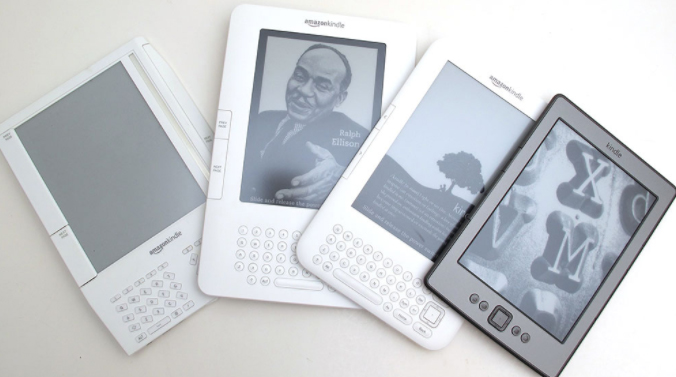
    Here is the different versions of Kindle device.

    • E-link versions
    • LCD Versions

    Now we will see he different Kindle E-link versions

    First Generation Kindle :

    The first e-reader of Amazon, Kindle, was developed which costed about $400. The pieces of this amazing device were sold in just five and a half hours. Unfortunately, they had run out-of-stock.

    The device sized to a 6 inches (diagonal) 4-level gray-scale E Ink display, internal storage to 250 MB , enabling to have approximately 200 non-illustrated titles.

    This device also comprised a speaker and a headphone jack,allowing the user to listen to audio files on Kindle. It has been the only Kindle which could have expandable storage, with an SD card slot.
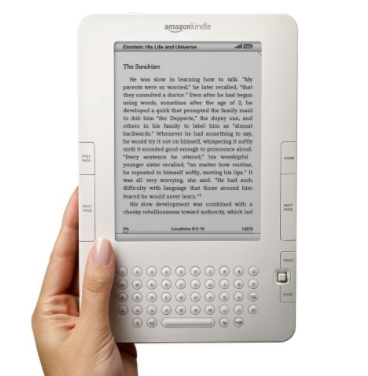
    The Whispernet feature was co-designed with Qualcomm and Kindle being the first device with free 3G data throughout the U.S enabling browsing and to download free eBooks from Amazon’s Kindle Store.

    These First generation Kindle devices were not sold outside U.S.

    Read Also : Use Kindle Fire as Second PC Screen / Display Ultimate Guide

    Second Generation Kindle :

    The Kindle 2 had features such as text-to-speech option; wherein the text would be read aloud, and 2 GB of internal memory,out of which 1.4 GB was allowed to be used by the user. According to the evaluation by  Amazon, the Kindle 2 could hold up to 1,500 non-illustrated books. However,the limitation of the second generation devices was that they did not have an external memory card slot. It was slimmer than the original Kindle. The Kindle 2 had Freescale 532 MHz, ARM-11 90 nm processor, 32 MB main memory, 2 GB flash memory and a 3.7 V 1,530 mAh lithium polymer battery.

    Amazon then reduced the price of the Kindle 2 from $359 to $299.The price was further reduced to $259. The Kindle 2 had priced manufacturing materials to an estimate of $186 by iSuppli . Amazon had stopped selling the initial model of Kindle 2 and sold the Kindle 2 international version worldwide. Later, Amazon claimed a software update for the device with enhanced battery life to 85% and hosted the original PDF file support.

    Kindle 2 International 

    Amazon released  Kindle 2 International, where users could download free eBooks wirelessly in over 100 countries. The looks of International Kindle 2 was the same as the U.S.-only Kindle 2, however, it had used a regular mobile network .

    The primary model of Kindle 2 had CDMA2000 on the Sprint network. Meanwhile, its international version used standard GSM and 3G GSM, allowing to be used on AT&T‘s U.S. mobile network, as well as internationally in 100 other countries. The Kindle 2 International was considered, having a higher variation in its display,but it was not advertised by Amazon.
    Kindle DX

    Kindle DX was featured with a larger screen than the standard Kindle and supports PDF files. It comprised an Accelerometer allowing the user to consistently turn pages between landscape and portrait orientations as and when the Kindle DX is turned around. It was marketed with the ability to display newspaper, as well as contents of textbooks. The drawback was that it could be connected only by Whispernet, in the U.S

    Kindle DX International

    This version of Kindle DX was launched in 100 countries. The features of Kindle DX international is ‘ditto’ as that of Kindle DX, except for its support for international 3G data.

    Kindle DX Graphite

    The display on this device is of E Ink, having 50% better contrast ratio as E Ink Pearl technology has been used, which has only a graphite case color. It was figured out that, the change of color was to improve comparative ratio approach further,since certain users observed the prior white casing highlighted the E Ink background with light gray and not white. As in the Kindle DX, DXG too does not have a WiFi connection.

    The DXG is a combination of third-generation hardware second-generation software. The CPU works with the same speed as Kindle Keyboard; but the DXG having only half the system memory being 128 MB. These differences would cause the DXG running the same software as that of Kindle 2. Hence, DXG has not been able to display writings in international fonts, like the Cyrillic, Chinese, or any other non-Latin font; also that PDF support and the web browser are limited to matching the features of Kindle 2.

    The Kindle DX was taken off from sale; yet, was accessible again for another few months. 3G data usage has been made free with the access of Kindle Store and Wikipedia.Downloading personal documents via 3G data would be priced to $1 per megabyte. The Kindle battery life would last up to a week’s time along with 3G set ON and two weeks with 3G being OFF. Text-to-Speech and MP3 playback are supported too.

    Read Also : Gadget for e-book and book readers 

    Third Generation Kindle :

    Kindle Keyboard

    The third generation Kindle released by Amazon had been renamed as “Kindle Keyboard”.  The prior order of Kindle Keyboard was accepted soon after its launch, hence started shipping the devices. Amazon declared Kindle Keyboard as the fastest-selling Kindle ever. Since Amazon does not actually add numbers at the final stage of each Kindle by its generation; reviewers, customers and press companies often considered this Kindle as the “K3” or the “Kindle 3“.

    The size of Kindle Keyboard is 0.5 inches shorter and 0.5 inches narrower when compared to the Kindle 2. It holds up additional fonts and international Unicode characters along with a Voice Guide feature with spoken menu navigation. Experimental features comprise a browser working on the popular WebKit delivering engine (browser would be limited to 50 MB of 3G per month to websites excluding Amazon and Wikipedia in outside the United States), Text-to-Speech which reads the texts aloud from books and other content, and also holding an MP3 player. Extended internal memory would be to 4 GB, with almost 3 GB of content accessible for user. Battery life has been declared to be two months,provided the user would read about half an hour a day turning off the wireless, that would extend the battery life to roughly 30 hours.

    Fourth Generation :

    The fourth-generation Kindle and the Kindle Touch possess the 6-inch, 167-ppi e-ink display, similar to the 2010 Kindle model, having the additional feature of an infrared touch-screen control on the Touch. These also have Amazon’s trial version of web-browsing capability accompanied by WiFi.

    Kindle 4

    Kindle in the fourth generation was quite less expensive ($79 with ad support, $109 excluding ads) and comprising a slight reduction in weight and size, though with a lesser battery life and storage capacity, unlike the Kindle 3. It has a silver-grey holder, with nine hard keys, a cursor pad, an on-screen keyboard, a zipped storage capacity of 2 GB, with battery life up to almost one month  under optimal settings in reading.

    Kindle Touch

    There have been two versions of touchscreen Kindles, the Kindle Touch, having Wi-Fi ($99 ad-support, $139 without ads) and the Kindle Touch 3G, comprising Wi-Fi/3G connectivity ($149 ad support, $189 excluding ads). The latter version enables to connect via 3G to the Kindle Store, download free eBooks and journals, as well as access Wikipedia. Temporary web browsing (outside Wikipedia) using Kindle Touch 3G is available only via WiFi connection.(Kindle Keyboard has no restriction). The 3G data could be used only up to 50 MB per month. Just as in Kindle 3, the Kindle Touch has a capacity of 4 GB with two months of battery life under optimal reading circumstances, yet larger than the Kindle 4. The Kindle Touch started shipping out only in the U.S. It was declared that the device would be available in the UK, Germany, France, Spain and Italy. This Kindle version was the first Kindle that supported X-Ray, listing out the frequently used character names, locations, themes, or ideas in a book. Amazon launched the 5.2.0 version of software, wherein operating system was updated so as to match the interface of Paperwhite with that of the Touch’s MP3/audiobook features.

    Fifth Generation :

    Kindle 5

    Amazon released the Kindle 5  ($70 ad-supported,$90 no ads). The Kindle has a black ring holder, distinct from the Kindle 4 with silver-grey, accompanied by a better display contrast. It has also been declared that Kindle 5 had 15% faster page loads. It had a 167 PPI display and was the lightest Kindle at 5.98 oz until the release of Kindle Oasis.

    Kindle PaperWhite (First Generation)

    This version of Kindle was launched with a 6″, 212 PPI E Ink Pearl display (758×1024 resolution) and four built-in LEDs for screen illumination, Paperwhite 1st generation was accessible via WiFi and WiFi + 3G  models; with ad-supported versions available only in the U.S. One of the main features of PaperWhite is the light, wherein there is a manually adjustable light level. The access restrictions of 3G data usage are the same as in the Kindle Touch, and usage limit is set to 50 MB per month and only on Amazon and Wikipedia’s websites; and additional data ought to be purchased.

    Battery life could be set up to eight weeks of reading with half an hour per day without Wi-Fi and consistent usage of light totalling to 28 hours. The authentic leather cover for the Paperwhite enables the hall effect sensor,wherein device detects when the cover was closed/opened, turning the screen off/on respectively. This device was the first Kindle version to record reading speed thereby calculating  finishing point of a chapter or book; this feature was later added as per the Kindle updates as well as in Kindle Fire tablets.

    Unfortunately, Kindle Paperwhite does not have physical buttons to turn on the pages and does not carry-out auto-hyphenation.   Excluding the feature of lock screen/power button at its bottom, it mainly depends on the touchscreen interface. During November 2012, Amazon launched the 5.3.0 updated version enabling users to turn off certain content on the home screen in Grid View (can view two rows of content) and included common error fixes. The 5.4.4 updated version was launched later, wherein Goodreads integration was added , Kindle FreeTime which had limited child’s usage, Cloud Collections for association and Page Flip to scan the content without losing the location, that almost matched the features of Paperwhite 2’s software features. The Kindle Paperwhite was introduced in most of important international markets with a version from Japan comprising 4 GB storage capacity, also in China followed by non-Japan versions with 2 GB of storage (1.25 GB accessible to users).

    Read Also : How to reset iPod Nano or steps to unfreeze iPod Nano

    Sixth Generation :

    Kindle PaperWhite (2nd Generation)

    The Second generation of Kindle Paperwhite was brought out being named as the “All-New Kindle Paperwhite” and literally called as the Paperwhite 2, with the WiFi version launched in the US on ($120 ad-supported, $140 no ads), as well as the 3G/WiFi version in the US ($190 ad-supported, $210 no ads). The Paperwhite 2 comprises a higher contrast display technology – E Ink Carta with improved LED illumination, 25% faster processor (1 GHz) enabling faster page turns, and improved response to touch-input when compared to the standard Paperwhite. Paperwhite 2 also holds the 6″ screen with 212 PPI, ring holder and 28-hour battery life as in the initial version. The software has dictionary/Wikipedia/X-Ray look-up, Page Flip, enabling the user to skip ahead or back in the text in a pop-up window and go back to the previous page, and the Goodreads social integration.

    In Paperwhite 2 ,a trial version of web browser has been used with the 3G data usage restrictions as in previous Kindles; however there are restrictions in the usage of WiFi. The customary leather cover for the Paperwhite 2 is     the one as used for the initial Paperwhite. It would turn the screen on or off while been opened or closed. The Paperwhite 2 model of Kindle was launched covering up major international markets by the mid 2014 and this model included 4 GB of storage.Meanwhile, the US version of the Paperwhite 2 had included 4 GB of storage with the previous version of Paperwhite 2 had 2 GB.

    Seventh Generation :

    Kindle 7

    An upgraded version of primary Kindle and the Kindle Voyage were released.The Kindle 7 was launched ($80 ad-supported, $100 no ads). It had been the first ever Kindle model using a touchscreen to sail through books and had a 1 GHz CPU. Additionally, it had been the first Kindle available in international markets like India, Japan and China. Amazon also declared that a single charge would extend to a month if used half an hour a day without WiFi.

    Kindle Voyage

    The Kindle Voyage was launched in the US, comprising features like 6-inch, 300 ppi E Ink Carta HD display, which had been the highest resolution and contrast found in e-readers having six LEDs with an changeable light sensor that could automatically brighten the screen according to the environmental change. It had been available in WiFi ($200 ad-supported, $220 no ads) as well as WiFi + 3G ($270 ad-supported, $290 no ads) models. Its design includes a tint glass screen on the front with the rear glass having angular, raised plastic edges holding the power button, as in the Fire HDX model. The Voyage has used “PagePress”,  which is a navigation system with sensors on both sides of the screen which would turn the page when pressed. PagePress could be disabled, but the touchscreen would still be active.  The user storage would hold up to 3 GB. Amazon had declared that the battery life would last to 6 weeks, if used for 30 minutes a day without WiFi and brightness being set to 10, which would be about 21 hours.

    Kindle PaperWhite(3rd generation)

    The Kindle Paperwhite (3rd generation), named as the “All-New Kindle Paperwhite” and literally referred to as the Paperwhite 3 and Paperwhite , was launched in the US. It has been accessible through WiFi ($120 ad-supported, $140 no ads) and WiFi + 3G ($190 ad-supported, $210 no ads) models. The device comprises a 6-inch, 1440×1080, 300 ppi E Ink Carta HD display, which was twice the pixels of the typical Paperwhite having the same touchscreen, four LEDs and size being the same as previous model of Paperwhite. It also had over 3 GB of user accessible storage. This device had improved display of PDF files, with the accessibility to select text enabling the use of certain processes, like translation on a PDF’s text. It was also declared that the device had a battery life of 6 weeks when used for 30 minutes a day with wireless off and brightness set to 10, which is about 21 hours.

    The Paperwhite 3 has been the first e-reader to have added the Bookerly font, a new font designed by Amazon,  including updated formatting operations like the hyphenation and better spacing. The Bookerly font had been included in most of conventional models through a software update. The Paperwhite 2, Paperwhite 3, Kindle 7 and Voyage had updated to 5.7.2, wherein a new home screen layout, called an OpenDyslexic font choice, had improved book references and a new quick actions set of choices.

    On June 30, 2016, a white version of the Paperwhite 3 worldwide had been introduced; with the only distinct feature about this version being the color of the shell. During October 2016, Amazon launched the Paperwhite 3 “Manga Model” in Japan with 33% better pace in turning page along with storage capacity of 32 GB which could cover up to 700 Manga books. The Manga model had been launched at 16,280 Yen ($156) for the version with ad-supported WiFi or 12,280 Yen ($118) for Prime members.

    Eighth Generation :

    Kindle Oasis 

    Amazon introduced the Kindle Oasis and had been released worldwide. The Kindle Oasis was made available in WiFi ($290 ad-supported, $310 no ads) and WiFi + 3G ($360 ad-supported, $380 no ads) models. The Oasis comprised a 6-inch, 300 ppi E Ink Carta HD display with ten LEDs. Its lopsided design presented physical page having buttons on one side with an Accelerometer in a way that, the display would be rotated with either hands. It was thicker on one side and narrows towards an edge being 20% thinner than the Paperwhite. It comprised a removable leather battery cover for better protection and enhanced battery life available in either Black, Walnut (brown) or Merlot (red); the cover joining in the narrowed edge. The Oasis featured battery life of 28 hours provided it has been used with the battery cover without WiFi; however, without the cover, the Oasis battery would live up to seven hours. The user storage of 3 GB was another highlighted feature. The Oasis included the Bookerly (serif) font and it had been the first Kindle that included the Amazon Ember (sans-serif) font.

    Kindle 8

    Amazon’s upgrade of the basic Kindle was launched on the 22nd of June 2016 in both Black as well as in White   ($80 ad-supported, $100 no ads). The Kindle 8 comprised a new rounded design which was 0.35 inches (9 mm) shorter, 0.16 inches (4 mm) narrower, 0.043 inches (1.1 mm) thinner, and 1.1 ounces (30 g) lighter than the Kindle 7, and also had double the RAM (512 MB) than that of the previous Kindle version. The Kindle 8 had been the first Kindle that used Bluetooth to support VoiceView screen reader software for the blind people. It comprises the same screen display as of the previous model; a 167 ppi E Ink Pearl touch-screen display. Amazon declared that the device had a four-week battery life which could get all charged in just four hours.

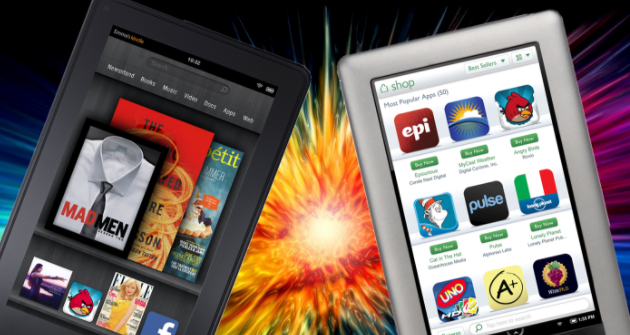
    Kindle LCD Versions:

    Here is the Kindle LCD versions in detailed list.

    Kindle Fire

    Kindle Fire is an Android-based tablet using a component of Android. During the release of this device it had costed $200 and had a 7-inch IPS color touchscreen display. This was the first Kindle without an E Ink display. However unlike former versions of Kindles, it had no 3G option, but only WiFi.

    Kindle Fire HD

    The Kindle Fire HD, was second generation of Amazon’s color touchscreen Kindle Fire tablet line. It was made accessible in three component types- 6 inch, 7 inch and 8.9 inch screen sizes. Amazon introduced its latest version of Fire HD tablets, formally withdrawing “Kindle” from the device’s name.

    Kindle Fire HDX

    The Kindle Fire HDX was the third generation of Amazon’s Kindle Fire tablet series which previously used Fire OS 3 with screen sizes 7 inch and 8.9 inch. During the update, it was renamed as Fire HDX thereby removing the name “Kindle” from that device’s name.


    Read Also : Kindle Fire Silk Browser Alternatives


    #Nook

    Barnes & Noble Nook or stylishly named Nook is a brand of e-Readers, developed by American book retailer Barnes & Noble. with Android platform as the base. The original Nook version had 6 inch E-paper display and a separate, smaller color touchscreen serving as the primary input device and capable of WiFi and AT&T 3G wireless connectivity.

    How did the e-Reader get its name-‘Nooks’?

    This name was disregarded at first, by Barnes & Noble;  however, gradually Nook became a common place for reading, thereby being convincing enough for the company executives to accept the name. The original Nook version had 6 inch epaper display.
    Devices:

    Nook Glowlight Plus(E Ink)

    This version of Nook e-reader was launched, comprising a 6 inch 300 PPI Carta E Ink screen with front light and touchscreen, WiFi, aluminum shield at the back, six weeks battery life without Wireless connection, weighing  6 ounces and being water resistant up to maximum depth of 1 meter and dust-resistant. The software of Nook reader is Android 4.4 Kitkat with 2.8 GB of data available to user. With the software being Android 4.4, there could be third-party apps installed.

    Read Also : Convert 3G Phone to 4G Phone to support 4G Sim in 3G Mobile

    Samsung Galaxy Tab Nook

    Barnes & Noble had declared that there could be a newer Nook version and hence they claimed to join with Samsung so as to develop a dual-branded tablets, thus naming it as Samsung Galaxy Tab 4 Nook.                     This device would be a combination of features of Galaxy’s 7 inch display and personalized software of Nook.

    Samsung Galaxy Tab 4 Nook(7″ LCD)

    This version of Nook was launched in the U.S concentrating on firmware and the idea; and Samsung concentrating on hardware. The device runs on Android 4.4.2 Kitkat 1.2 GHz Quad-core Snapdragon with 1.5 GB RAM, WiFi and Bluetooth comprising 1.2 MP front camera and 3.2 MP back camera, screen resolution of 1280 x 800; accompanied   by SD card slot that would take cards with storage capacity up to 64 GB. This device was launched at the price of $199;eventually the price dropped to $149 during May 2015.

    Samsung Galaxy Tab S2 Nook (8″ LCD)

    This device was launched as Samsung Galaxy Tab S2 branded as Nook with 8 inch LCD, which comprised the software of both Samsung and B&N. This device runs on Android 5.0.2; comprising 8-core CPU (1.9 GHz Quad + 1.3 GHz Quad) accompanied by 3 GB RAM, 32 GB internal storage, a micro-SD card slot, dual-camera(2.1 MP front 8 MP back) and 4000 mAh battery, which would last up to 14 hours using video and costing up to U.S $399.99.

    Samsung Galaxy Tab E Nook(9.6″ LCD)

    This Nook version was launched which was Nook branded Samsung Galaxy Tab with 9.6″ LCD whose software was a combination of Samsung, B&N and Microsoft. This device operates with Android 5.1.1 on a 1.2 GHz Qualcomm Snapdragon 410 CPU with 16 GB of storage, micro SD card accessibility, weighing 547 grams, and dual camera (2 MP front and 5 MP rear); 9.6″ display having resolution of 1280 x 800 costing to $249.

    Nook Tablet 7

    B&N introduced Nook Tablet during November 2016, which was an exclusive Nook branded tablet with a 7″ screen and 600 x 1024 resolution costing up to $50. The operating system used in this device is Android 6.0 Marshmallow with Nook apps, accompanied by 1.3 GHz MediaTek CPU. It has 8 GB storage, a micro SD card slot, WiFi and Bluetooth; weighing 8.8 ounces and a battery life of 7 hours.

    Read Also : Android Oreo Vs Android Nougat Vs Android Marshmallow Vs Lollipop

    Conclusion

    We have looked at the different Kindle & Nook versions from where you could download free eBooks for these devices. Hope this article has won your hearts and helped you find your right e Reader. Have a Good Read.


  • Kodi Vs Plex Vs Emby Vs Popcorn Time Comparison on Depth

    Kodi Vs Plex Vs Emby Vs Popcorn Time Comparison on Depth

    If you look for a media player, the first name comes to you is Kodi. It is an open source software and available for almost every platform like Windows, Mac OS, Linux, and Android. To use a media player you just need a compatible streaming box. Kodi is the best but its competitors like Plex, Emby and Popcorn time etc are also present in the market. There are so many best alternatives to Kodi streaming service . So this article is mainly about Kodi Vs Plex Vs Emby Vs Popcorn Time.

    Before understanding their differences, here must know what is Kodi, Plex, Emby and Popcorn Time.

    1. Kodi

      Kodi was known as XBMC or Xbox Media Center, it is a free, open-source media player and is available on many platforms and offers 65 languages.It was created by XBMC foundation which is a non-profit foundation.This Foundation also accepts donations in bitcoins .

      Kodi allows you to watch live TV, you can also stream latest movies and local media the best streaming device for Kodi is Amazon fire TV. More details about Kodi is provided in the downward section that is Kodi Vs Plex Vs Emby Vs Popcorn Time.

    2. Plex

      Plex is the best alternative for Kodi. Plex allows you to stream media to anywhere. It supports all kind of media files like MP4, MKV, AVI, MOV, MP3, M4A, JPG, PNG, TBN, RAW and more. It supports Windows, Nvidia Shield, Linux, OS X and more.

      Roku, Amazon Fire TV, Android TV, Apple TV, Chromecast are compatible streaming devices for Plex. To use Plex you just need a high-speed internet connection. More details about Plex is provided in the downward section that is Kodi Vs Plex Vs Emby Vs Popcorn Time.

      Read Also : Roku Tricks-Must Try for streaming success (Roku user manual FAQ)

    3. Emby

      Emby was also known as Media browser but soon it updates with more advanced features and its name also change to Emby. Emby stores and organizes your media beautifully and you can also access it from many devices.


      It offers Live TV, DVR and child lock options are also available. Like Kodi and Plex, Emby is also free. It can easily manage your content and you can also share it without any security issue. It’s apps also available for iPhone, iPad, Android, windows, Amazon fire TV, Roku, Chromecast, Android box and more. More details about Emby is provided in the downward section that is Kodi Vs Plex Vs Emby Vs Popcorn Time.
      Read Also : Roku Pros & Cons -Reasons to Choose Roku Streaming Stick

    4. Popcorn Time

      Popcorn media player was created in 2004, but it closed very soon. You can instantly watch latest movies and TV shows, you just need an internet connection. It also offers subtitles and Hd quality. All the content that is present on Popcorn time is copyrighted if you use it without permission it will be illegal.

      After that, independent developers made two forks of it first is Popcorn time.io and other one is time4popcorn. Then after some time one of the forks that is popcorn time.io closed because of all these things butter project created which is 100% legal. More details about Popcorn Time is provided in the downward section that is Kodi Vs Plex Vs Emby Vs Popcorn Time.
    Let’s see the comparison between Kodi and Plex, Plex and Emby, Emby and Popcorn Time.

    Read Also : Best Streaming Devices – All Top Media Streaming Box on Market

    Kodi Vs Plex Vs Emby Vs Popcorn Time

    Here is the comparison between Kodi and its top alternatives .

            Kodi Vs Plex

    • Kodi is free and as it is open-source it is highly customizable and offers many add-ons , whereas Plex is not much customizable and offers comparatively low live TV support than Kodi.
    • Kodi is user-friendly but less than Plex. Kodi is suitable for watching media on a single device, whereas Plex is a service that is user-friendly that means media of one device can be accessed from multiple devices on your network.
    • Kodi offers add-ons that allow the user to access huge content. Some add-ons are illegal so for security you must check out the list of the best Kodi add-ons on Google. On the other hand, Plex also offers apps called channels, and they work same as Kodi’s add-ons. The main difference between channels and add-ons is that channels offer high-quality and legal content to watch, whereas Kodi’s add-ons offer more content through Internet pirates. Kodi’s live TV support legal or illegal is better than Plex. 
    • On Kodi you don’t have to make an account, you can get started using it directly after installing, whereas to use Plex you have to create a free account.
    • Kodi is compatible with Amazon Fire TV Stick, Chromebox, Windows, Mac OS X 10.7 and later, Linux , iOS, Android (Mobile); Amazon Fire TV, Boxee Box, Cubox-i, Compulab Utilite, Intel NUC, Nvidia Shield Android TV, ODroid, Razer Forge TV, WeTek Play, Google Nexus Player, OUYA, Raspberry Pi and more, whereas Plex is compatible with Apple TV, Chromecast, Amazon Fire TV, Roku, Android TV, Windows Vista and later, Mac OS X 10.6 and later, Linux, iOS, Android, Windows Phone,PlayStation and more.
    • Kodi is free of cost but if add-on that offers you to watch paid content, you have to pay to the owner of the content, whereas Plex is also free but if you want to access some more advanced features then you have to pay.Read Also : Streaming Services – Netflix Vs Prime Vs Hulu Vs Sling Vs Directv Now etc

      Plex Vs Emby

    • Plex is very simple to use, whereas if you want to access some more technical advances than you can go with Emby.
    • Plex offers users to make changes to their library which is very simple. The Emby offers few more features than Plex for example, to manage your media on Emby there is the built-in Metadata Manager which allows users to see a list of their media.
    • Plex has more experience than Emby and is compatible with a huge number of devices such as Roku, Amazon Fire TV, Chromecast, XBox, PlayStation, Android, iOS, Smart TVs and more, whereas Emby is new so it has not much experience and is compatible with fewer devices tan Plex. 
    • Plex is very easy to set up and also offers a step by step guide, whereas Emby is also easy to set up but is quite complicated than plex and also it does not offer any guidance.
    • Plex is more refined, experienced and stable and than Emby, but doesn’t offer some advanced features like Emby.
    • Both are free of cost and if you want to access some more advanced features then you have to take the subscription Plex offers monthly subscription at $5, annual subscription at $40 and lifetime subscription at $150, whereas Emby offers monthly subscription at $5, annual subscription at $36 and lifetime subscription at $70.Read Also : Hard and Soft Reset Roku Manual – Fix Frozen Roku Streaming Stick

      Emby Vs Popcorn Time

    • The major difference between Emby and Popcorn time is that, in Popcorn time there is a risk as the content might be copyrighted and if you use it without owner’s permission it will be illegal and other thing is that every media on Popcorn time is not from the verified owner so there is always a risk, whereas Emby is safe so,  you can go with Emby as it is safe and it also supports Kodi TV means kodi’s add-ons work on it.

    Conclusion

    Each media player is unique in its own way. The best media player for you is completely depends upon your need. For better understanding of their pros and cons and their differences from each other are already explained in the Kodi Vs Plex Vs Emby Vs Popcorn Time section. Hope this article will help you.

  • Best Kodi Alternatives for Every Streaming Device

    Best Kodi Alternatives for Every Streaming Device

    If we talk about best media player. Kodi is on the first number. Kodi is created by XMBC foundation which is a nonprofit foundation. It is a free open source software created for entertainment purpose. It can stream audio and video from the internet. Everything you need is available on Kodi you can also replace the cable with it. Kodi is compatible with many devices. It is the best media player. But there are many alternatives for Kodi available in the market some of them are Plex, Emby, Popcorn time and more. In this article, I am going to talk about best Kodi alternatives (2017) for every streaming device such as Firestick, Windows, Android, iPhone.

    Best Kodi Alternatives for Every Streaming Device

    Here is the Best Kodi Alternatives for the Top Streaming Devices that you would fall in love with.

    1. PLEX

      Plex is the first best Kodi alternative for firestick, windows, android, iPhone etc. It is compatible with many devices. It is not at all complicated to use you can use it easily. Plex offers many features which give beautiful experience to users. It supports all types of files and also 4k, you can also watch live tv without paying anything extra, there is DVR option available.

      On Plex, everything is encrypted so there are no security issues. Its library organization can easily organize all your data beautifully. If you think that some content is not good for children so for this plex offers parental controls. Plex can easily stream media to all your devices regardless of time and place. You can easily share your content with your friends. It is free of cost but if you want to access additional features, you have to pay $4.99 per month. So, overall Plex is perfect if you use it for iOS or windows it offers many features for both of them you can sync your mobile and you can also sync your mobile data to plex.

      Read Also : Streaming Services – Netflix Vs Prime Vs Hulu Vs Sling Vs Directv Now etc

    2. EMBY

      Emby is the second best Kodi alternative for Windows, iPhone, Android, and Firestick. It is mainly created to manage content and sharing it without any security issue.It is free but if you want to access some additional features you have to pay $4.99 per month.

      Emby even has a Kodi addon that gives Kodi library management features of Emby. You can stream data on any device.You can access it from anywhere.It also organizes media so perfectly and beautifully and it also syncs content to cloud for easy backup.It is compatible with smartphones, tablets, TV. It offers live TV option, DVR option to record videos and child lock. It’s apps also available for Android,iPhone,iPad windows, Amazon fire TV, Roku, chromecast, Android box, home theater computer.

      Read Also : Roku Tricks-Must Try for streaming success (Roku user manual FAQ)

    3. SPMC

      Semper Media Center is one of the best Kodi alternatives for Android and firestick. Semper Media Center is like a Kodi fork that means add-ons that work on Kodi will definitely work on Semper media center.

    4. Media portal

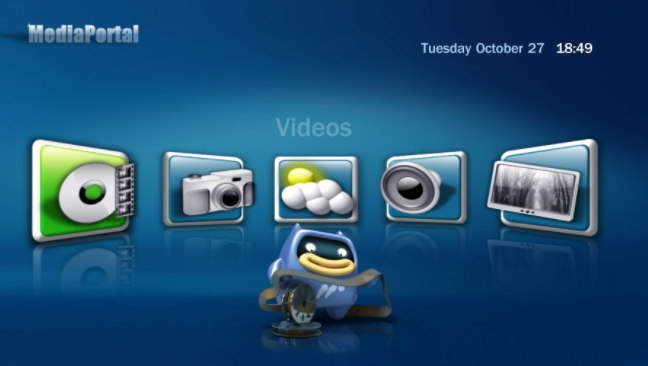
      Media portal is Kodi alternative for Windows. It is very easy to set up and use and you have to pay nothing as it is free of cost. DVR option is also available you can also record live TV. You can also access Media Portal through couch potato app for your iPhone/iPod which allows you to control your media portal through WiFi.

    5. Terrarium TV

      Terrarium Tv is Android app and the best Kodi alternative for Android and Firestick. It offers HD streaming, you can stream and download anything at no cost, there are latest movies also available.You just need a good internet connection to use it. It is not easily available for iOS but you can try some tricks like you have to install Vshare first to use it on iOS.

    6. Popcorn Time

      Popcorn time it is free, open source multiplayer platform It is one of the Kodi alternatives which is compatible with iOS, Android, and Windows. It is not illegal completely but it depends upon the way you use the content, as the content available on this is copyrighted and if you use it without owner’s permission that will be illegal. Popcorn time was created in 2014 and closed very soon but as it becomes popular two independent developers created two forks of it first is popcorn time.io and other is time4popcorn. After sometimes popcorn time.io also shut down all these things gave birth to butter project which is legal. Butter project is an app that offers media streaming.

      Read Also : Roku Pros & Cons -Reasons to Choose Roku Streaming Stick

    7. JRiver Media Center

      JRiver Media Center is an inclusive software that supports all kind of data. It is Kodi alternative for Windows and Mac OS X.
      You can also watch live tv and DVR option is also available so you can also record programs. Its audio and media player is best of all. Streaming services like the most popular Netflix, Hulu and YouTube are also available on JRiver Media Center.

    8. Google Home

      Google Home is an extension for watching and sharing content. It is one of the Kodi alternatives. It can easily control your media player through your Chrome web browser. It offers voice control it means you can ask questions and it will provide answers. It can easily recognize many voices. It supports a limited number of third-party apps.It works great with mobile devices than desktop.

      Read Also : Hard and Soft Reset Roku Manual – Fix Frozen Roku Streaming Stick

    9. Serviio

      Serviio is the free media server. It is also a best Kodi alternative for both Android and iOS also for both windows and Mac . It allows you to stream media files that is music, videos or images to your tv and mobiles. It easily streams online content and also supports subtitles.

    There are some Kodi like apps also available for Android. So, here is a list of all the best apps you can choose from.

    Apps like Kodi for android

    Here are the few apps like kodi for android users which you might surely like .

    • AllCast
    • Bubble Up np
    • Google Home
    • Local Cast
    • Emby for android
    • Plex
    • VLC for android
    • Zappo Tv Apps
    • Remote Media Center

    Read Also : Best Smart Home Gadgets for Home automation- Smart home

    Conclusion

    We are already come to know about best Kodi alternatives for streaming devices. Plex is the most popular and perfect Kodi alternative for Android, iPhone, firestick, PlayStation, Apple TV, Chromecast, Amazon Fire TV, Roku, Android TV and other smart TVs. Plex apps also available for different platforms for free. Plex also offers Plex app,so If you want to access to the latest content, Plex Pass is the best option for you. Its monthly subscription plans start from $4.99. Plex offers a huge number of channels that easily provide access to a variety of freely available streaming digital content. Its Library sharing feature is one of the best things in it. If your device is low powered then don’t worry, as Plex can work on that also. Plex’s streaming is its most attractive feature. It is even better than Kodi’s limited streaming.So, overall Plex is the best alternative but you can choose accord to your need.

    Hope all these information will help you to choose between the Best Kodi Alternatives for Every Streaming Device.

  • Best Streaming Devices – All Top Media Streaming Box on Market

    Best Streaming Devices – All Top Media Streaming Box on Market

    Today, I am going to talk about Best streaming devices as they have become very popular these days . Also evidently the users are rising for streaming devices. At the time of buying a streaming device, all users must have faced one problem that is which is the best streaming device for them as there are so many streaming devices that are available in the market to choose from.

    Best streaming devices

    Before knowing about Best streaming devices we must know what is streaming and how does a streaming device work?

    Streaming – In simple words it means that a video or audio data is constantly transferring while the data which has successfully transferred is being played. In other words streaming means, you can access audio and video listening without downloading them.

    Streaming Device – A streaming device is a device that helps to stream videos and audio from the internet to your television. Most of the people love online programs and wish to see it on a big screen. So by using a streaming device, they can easily watch their favorite online show on television.

    Best streaming devices – All Top Media Streaming Box on Market

    When we talk about streaming devices there are many options available such as Apple TV, Roku, Chromecast, Amazon fire TV and Android TV these are some best streaming devices. To use a streaming device you need an HDTV, internet connection whether wired or wireless. Once a streaming device is set then you just have to subscribe to service like Amazon Prime, Hulu Plus, Netflix and other to use them. But before this, you have to buy a compatible streaming device for your TV and also on which your favorite shows easily available.

    So for a better understanding of streaming devices, here are some important details about the best streaming devices and comparison between them, which will definitely help you to choose the best streaming device for yourself.

    • ROKU 

      Roku is the first company to do streaming for television. The company manufactured a series of streaming devices as well as Roku TV that has a built-in streaming feature.Roku devices are the most flexible and convenient streaming devices that are very easy to set up and use.

      Roku streaming device , stream shows and movies from services including HBO GO, Amazon Prime, Hulu Plus and much more. It comes with a remote on which Roku search feature is available through which user can easily search what they want to watch. It just needs a cable internet connection to stream the best quality like HDR. You can access a large number of movies and shows both from free and paid channels. There is also a support website available that provide help to a user through articles and videos.

      Read Also : Roku Tricks-Must Try for streaming success (Roku user manual FAQ)

      Latest Roku streaming models

      1.Roku Express
      2.Roku Express+
      3.Roku Premiere
      4.Roku Ultra

    5. Roku Premiere +

    Roku Express offers 1080 HD streaming you can use it on any TV which has HDMI connection, whereas you can use Roku Express plus if you have an old TV without HDMI. Its price is pocket-friendly. Roku Premiere is not so expensive and its performance is quite good. It supports HDR for a better quality of a picture. And the best one is Roku Ultra it is the best streaming device if you use it you will have a completely different experience. Voice search option is also available on Roku Ultra.

    Roku is one of the Best Streaming Devices .

    Roku will turn to be most affordable streaming device with the launch of Roku Premiere and Roku Premiere Plus , both will cost cheaper than that of Amazon 4K Fire TV .

    The Roku Premiere 4K offers the customers to access 4K at the low cost .

    The old Roku Premiere is different from New Roku Premiere model that is coming up . Also this new Roku will support voice assistant . Roku supports Google Assistant from its new batch , and expected changes with Roku Ultra model as well.

    Read Also : Hard and Soft Reset Roku Manual – Fix Frozen Roku Streaming Stick

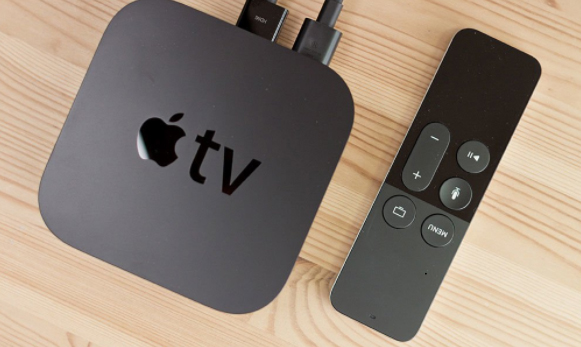
    • APPLE TV

      The main purpose of making Apple TV was to make a device that can easily shift connection from iTunes running on a computer to the TV in HDR quality so, people can easily sync data. It also streams content from Netflix, Hotstar, Eros Now and many others. It can also stream video and audio from your iPhone, iPad, and iPod with the help of airplay. Airplay can stream data directly from the iPad or iPhone to your television. It just needs an HDMI cable to connect to your television. Other ports include an Ethernet port for direct connection to the router and an optical port for audio. It interacts with devices via Bluetooth and WiFi.

       Apple TV models

      1.Apple TV
      2.Apple TV 4k

      Apple TV is the old model and its processor is A8 chip with 64 bit,  whereas Apple TV 4k is the latest model and its processor is A10x chip with 64 bit. Apple TV 4k offers 4k quality that is much better than Apple TV, as well as its speed, is twice more than Apple TV.

      Apple Tv is the brand name trusted Best Streaming Devices .

    Read Also : Best iTunes Cleanup Software for better iTunes experience

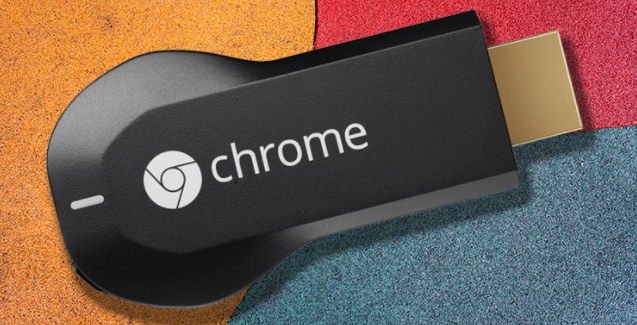
    • CHROMECAST

      Chromecast is a media streaming device it is very tiny in size that makes it portable. It is very easy to connect it to your tv. It is add-on platform it depends on other devices to work.

      Chromecast streaming models

      1.Chromecast 2
      2.Chromecast Ultra

      Chromecast Ultra is the new model it cost less than Chromecast which is the old model. The ultra update is very cool as it supports HD as well as HDR video. It is much faster than Chromecast 2.

      Read Also : Connect Google Pixel to TV Easily with these Exclusive Guide

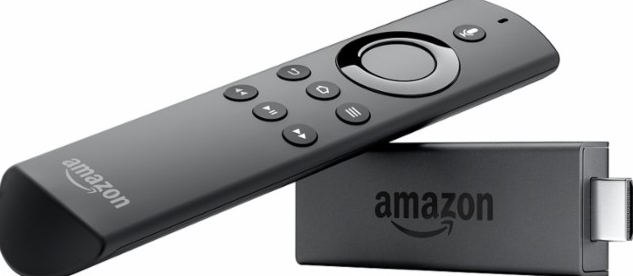
    • AMAZON FIRE TV

      Amazon Fire TV is also a streaming device which is also used to stream video and audio from your computer to your tv. It has a huge collection of movies and shows. It just needs a high-speed internet connection with wifi and HDTV with HDMI input. A voice remote comes with it in which you can say the name of show or movie and it will start playing instantly.

       Amazon TV streaming models

      1.Amazon Fire TV
      2.Amazon Fire TV Stick
      Amazon Fire TV is the latest model and it is dual core, whereas Amazon Fire TV is the old model and it is quad core. UI update is the attractive feature of the new fire stick. You can also control your smart devices with its new voice search feature. New Amazon Fire Stick is more versatile than the old one.

    • ANDROID TV

      Android TV is a streaming device that also streams programs, shows, and movies to big screen. Its best feature is that it beautifully arrange all your videos and audios and photos with bios and details. It can easily cast everything on your tv without installing any app.

      Android TV latest streaming models

      1.Nvidia Shield TV
      2.Xiaomi Mi Box

      Nvidia Shield Box is the best android streaming device, whereas Xiaomi Mi Box is the newest to the streaming device market. It has built-in Google vast ad well as 4k streaming. Nvidia Shield is quite expensive but its features are awesome to use Nvidia shield you don’t need a Chromecast, it supports 4k streaming as well and is best for the people who love gaming, whereas Xiaomi Mi box is not so good for gaming.

      Comparison between the best streaming devices

      Here is the Comparison between the top streaming media devices .

      Comparison between Roku and Apple TV

      Roku and Apple TV both are the most popular streaming devices. Let’s see how they are different from each other.

      Here is comparison points between Roku Vs Apple TV

      ♦Apple tv is the best streaming device to watch content from iTunes and other popular apps. Its airplay feature makes it more attractive as airplay stream data directly from iOS device to your tv.
      ♦Roku is much faster and versatile as well as offer a large number of channels as compared to Apple tv streaming device.
      ♦Apple tv streaming device support Bluetooth whereas, Roku streaming device doesn’t support Bluetooth.
      ♦Apple tv media streaming device is best for people who are using other Apple products also otherwise, you can choose Roku as it is the best streaming device to replace the cable and also the best media player for tv.

      Read Also : Roku Pros & Cons -Reasons to Choose Roku Streaming Stick


      Comparison between Apple tv and Chromecast

      Here we have compared Apple Tv Vs ChromeCast .

      ♦Chromecast is not stand alone platform, whereas Apple Tv is standalone that means Chromecast needs other devices and Apple Tv is independent it doesn’t need any device.
      ♦Chromecast doesn’t have any pre-installed apps, whereas apps are pre-installed on Apple Tv.
      ♦Chromecast is not compatible with every device, whereas Apple Tv is compatible with all iOS device and can be controlled by them.
      ♦Apple Tv just needs airplay to stream videos, whereas if you use Chromecast to stream videos to your tv you have to install software.
      ♦Apple Tv media streaming is best for you if you are apple fan and if you have an android device you can go with Chromecast.

      Comparison between Chromecast and Amazon Fire Play

      This is the comparison between ChromeCast Vs Amazon Fire Play .                                                            ♦Amazon Fire Play streaming devices come with remote, whereas Chromecast doesn’t come with any remote

    ♦Amazon Fire Tv does not depend upon any other devices, whereas Chromecast depends on other devices.

    ♦Amazon Fire Tv has a large space and it can easily stream videos and audios from amazon prime and other compatible apps without depending upon any other devices, whereas Chromecast depends upon other devices it works more as a casting system as it cast content from your computer on your Tv.

             Comparison between Amazon Fire Tv and Android Tv

    ♦Amazon Fire Tv is expensive than Android Tv .Both Amazon Fire Tv and Amazon Tv are compatible with Kodi but Amazon Fire Tv is best if you are ready to spend money.

    ♦Amazon Fire Tv is more stable and flexible than Android Tv.

    Conclusion

    Through the details that are given above we come to understand that Roku devices especially the Roku ultra is the best streaming device. It is the best choice to replace your cable with. Amazon Fire Tv is the best streaming device for Kodi. As Kodi doesn’t have its own media player. There are many devices available in the market on which Kodi is pre-installed but before using this kind of device you have to be very careful, as they can give access to pirated movies which is illegal. This makes people think that Kodi is illegal but it is not illegal. The illegality is based on the way you are using it the better and safe option is to buy a compatible device. If you want to live tv stream the best device for you is Dish Air Player as it streams channels direct from HD antenna.

    I hope all these information will help you to buy the best streaming device for you.

  • Streaming Services – Netflix Vs Prime Vs Hulu Vs Sling Vs Directv Now etc

    Streaming Services – Netflix Vs Prime Vs Hulu Vs Sling Vs Directv Now etc

    We are here on discussion about Top Streaming Services – Netflix Vs Prime Vs Hulu Vs Sling Vs Directv Now Vs Youtube Vs Vudu Vs Vue .Our previous update was on Best Streaming Devices and Comparisons .

    For so many years cable remain the only source of entertainment but then streaming services came into the market and attracted many people. The number of streaming services is rising increasingly, as a result confusion of people also increasing.

    So many options, confused you too?

    This article is about Streaming Services their plus points as well as negative points  and comparison between the best streaming services which will help you to choose best streaming service for you. Before,  proceeding we must understand what streaming services are. So, basically streaming service acts like an on-demand online source for entertainment. There are so many reasons to choose streaming service over Cable connection , That is why it is attracting so many people first is that they are more advanced than cable, second, they can stream live tv and third after giving so much they charge not so high that means are very affordable. As, the popularity of streaming devices have increased the competition in the market also increased.

    Streaming Services Compared

    Here is the comparison between the Best Streaming Services -Netflix Vs Prime Vs Hulu Vs Sling Vs Directv Now Vs Youtube Vs Vudu Vs Vue .

    1. NETFLIX

      Netflix is the first streaming service which still remains at its number one position. It has become the most popular streaming service. To use Netflix you have to take the subscription and you just need an internet connection. It supports iOS, Android, Windows and many streaming services devices Its recommendation system is very good. In Netflix, you can watch unlimited number of movies, shows, and online programs like House of cards, Luke cage, and Orange is the new black. If you find something to watch on Netflix you should watch quickly as new titles replace old titles very fast. Netflix offers start at $7.99 for a month. 4 people can use one Netflix account at a time. Netflix is quite expensive but spending money on Netflix is worth you will never repent on your choice.

      Read Also : Hard and Soft Reset Roku Manual – Fix Frozen Roku Streaming Stick

    2. Amazon PRIME

      Amazon Prime is the best streaming service for families. It offers most awesome content and its most attractive feature is offline viewing. iOS, Android, and Windows are some platform it supports and preferable streaming devices are Amazon Fire TV, Roku and others. It does not work with Chromecast. This is the best streaming service for people who shop online as it gives two days offer that is free shipping on every order from Amazon. Amazon has best shows for kids and its original programs are Alpha House, Transparent, and Mozart in the jungle. There is no monthly subscription available you have to take an annual subscription.

      NETFLIX Vs AMAZON PRIME

      Netflix is overall perfect for everyone, whereas Amazon Prime is nice for families. Offline viewing is not available in Netflix, whereas it is available on Amazon Prime. Netflix subscription starts at $7.49 but it doesn’t include 4K content, whereas Prime does it without charging any extra cost. Amazon offers a very useful feature that lets you know about the actors and places in the background. More streaming devices like Apple tv, Philips, Roku, Virgin Media and Chromecast supports Netflix, whereas fewer streaming services such as Amazon Fire Tv and Apple Tv. Amazon Prime is good but Netflix is still the best as it offers content which is much better than content offered by Amazon Prime.
    3. HULU

      Hulu is a streaming service which is not at all expensive. It is the first streaming service to offer tv shows as well. You can watch the best latest tv shows except for CBC channels. It also offers new movie every week. Apple Tv and Roku are the supported streaming devices. Fear and walking dead is a series which is only available on Hulu. Some of its original programs are The Mindy Project and Shut-Eye. All seasons of Games of Thrones are also available on Hulu. One downside of Hulu is that there are many ads.

       AMAZON PRIME Vs HULU

      No commercial ads are there on Amazon Prime, whereas there are lots of ads on Hulu. No live Tv option available on Amazon Prime, whereas it is available on Hulu. Amazon offers good content but not as good as Netflix, whereas content on Hulu is not much good. It offers 30 days trial, whereas Hulu offers an only 1-week trial. Prime has 5.1 encoding, whereas Hulu offers only stereo sound. Amazon Prime’s attracting feature is that it gives shopping offers to online shoppers, whereas Hulu’s attracting feature is that it offers Tv shows.

    4. SLING

      Sling streaming service offers on-demand videos as well as live tv. You can watch shows that are aired three days ago. Sling streaming service is available at a very affordable price. Roku and Amazon Fire Tv is its supported streaming services. Only one user can use it at a time. It offers three plan orange, blue, and orange+blue. Orange plan cost just $20 and offers 28 channels including ESPN and ESPN 2, blue plan cost $25 offers 40 channels but ESPN is not included and orange+blue cost $60 and offers 60 channels. You can subscribe for an offer which is suitable for you.

      HULU Vs SLING

      You can pause shows on Hulu, whereas this pause video option is not available on Sling. But according to overall performance Sling is more compatible for watching live tv than Hulu.

    5. DIRECT TV NOW

      Direct tv Now is the newest streaming service. It also offers live tv option but CBC channels not available. A user can also add channels. It is compatible with a very limited number of streaming devices such as Apple tv, Chromecast, and Fire tv. You can pause the video but fast-forward and DVR options are not available. One problem of Direct tv Now is that error 40 comes frequently.

      Read Also : Roku Pros & Cons -Reasons to Choose Roku Streaming Stick

      SLING Vs DIRECT TV

      DVR option is available on Sling but it is not available in Direct tv Now. Sling streaming service is slightly expensive than Direct tv, as it offers channels at a low price that makes it affordable. No errors on Sling, whereas Direct tv shows error frequently.

    6. YOUTUBE TV

      Youtube is the most popular streaming service. It is Google’s product.To use Youtube tv you just need an account on Google+. Live tv option is also available but no original programming is available. Lots of free content available on Youtube but there are many ads. It offers starts at $35 per month. You can use it from both Android and iOS but if you use it from iOS it cost high.

      DIRECT TV Vs YOUTUBE TV

      There is no DVR available on Direct TV Now, whereas it is available on YouTube you can keep the recording for 28 days. Only 7 days free trial offered by Direct TV now, whereas YouTube offers 30 days free trial. Direct TV offers 60+ channels at $60, whereas YouTube offers 45+channels at $35.

    7. VUDU

      Vudu streaming service is getting popular. It charges on per view basis. It supports both Android and iOS.Vudu can be played on Roku and Chromecast. It offers great content all latest movies are available on it. Even all the seasons of Games Of Thrones are also available on it. But Vudu’s app needs some improvement and it is also expensive.

      YOUTUBE Vs VUDU

      YouTube offers 30 days free trial, whereas Vudu charges money per view. This economical aspect counts as the prime comparison between Youtube Vs VUDU .

    8. VUE

      Vue is streaming service from Sony. There is nothing which is not available on Vue whether it is sports, live tv and movies. Its content is impressive there are channels like CBC, Disney, FOX Business, Food Network and many more. Streaming devices that support Vue are Roku, Amazon Fire Tv and Chromecast. Its offer starts at $39.99 offers more than 60 channels. It’s content is more like cable as well as Vue streaming service is costly.

      VUDU Vs VUE

      Vudu charges on per view, whereas Vue offers 5 days free trial. Vue is expensive but offers good content, whereas Vudu acts more like cable. If you are looking for streaming service you can go with Vue but if you want live TV and purchasing and renting options also then you can select Vudu.

      Conclusion

      There are many streaming services available but Netflix is the best among them. For better understanding details and comparison are already discussed.

  • Convert 3G Phone to 4G Phone to support 4G Sim in 3G Mobile

    Convert 3G Phone to 4G Phone to support 4G Sim in 3G Mobile

    Convert 3G Phone to 4G Phone

                       ” 4G 4G everywhere ,
    Don’t have any mobile to use ? “

    No problem we are here to help you.In this rapid growing world , our technology is also growing with a bullet speed. Firstly, we all depend upon 2G internet which is very slow. Then 3G wireless spectrum has been allocated to all private operators on 1st September, 2010, which is much faster than 2G and now 4G has been introduced in the world which is much more faster than 2G and 3G.

    With the launch of Reliance JIO in India , it’s become easier for a common people to use this 4G technology because Jio has provided free and cheap internet plans to all its users. 4G speed can do jobs much faster and it also provides high quality voice calls through voLTE (Voice Over LTE).

    But the main problem is that most of us don’t have 4G mobiles .And many of us have question that Can we use we Reliance 4G jio sim in 3G mobile ?. So the situation is like that we have the sim but we can’t use it as we don’t have 4G phone. But today we will show you how to use 4G mobile in our older 3G handsets. For this , we all have to know first how to convert 3G phone to 4G phone . So let’s have a look to this .

    Read Also : Android boot Fix – Steps to Try When Your Android Won’t Boot

    There are several methods available in the market showing how to Convert 3G phone to 4G phone . Some are fake but some work efficiently. So what’s the need to buy expensive 4G phones when we can use 4G sim in our 3G mobiles.

    Today we will show you the real one’s, which are tested and it has proven how to enable 4G on 3G mobile.

    Method 1: Convert 3G phone to 4G phone (For MediaTek processors)

    Before starting the steps let me know you that for this method your phone should have Andriod version 4.4 or a higher version than that and it must have been rooted.

    1. Firstly download and install MTK Engineering Mode app in your 3G mobile.
    2. Open the app and click on MTK settings and select preferred network option.
    3. Now select 4G LTE/WCDMA/GSM as network mode.
    4. Now save it and turn it off and on your mobile device.
    5. Once done , shutdown your phone and insert 4G sim in Slot 1 and keep the 2nd Slot empty.
    6. That’s it switch on your device and now you will see 4G sim network.

    But one problem with this method is that within minutes you will get 4G network but you will not get 4G speed.

    Read Also : Android Vs iOS – Pros & Cons of Buying Android Vs iOS

    Method 2: Convert 3G phone to 4G phone (For  Redmi 1S mobiles or Samsung 3g mobiles)

    1. Dial *#*#4636#*#* from your 3G mobile device.
    2. Then a page appears on your screen from that choose phone information 1.
    3. Choose LTE/GSM auto (PRL) option or any LTE option.

    That’s it , but if you face any network problem in your device then select network manually in your device. But if still you face this problem then go for the following steps :

    1. Download both Xorware 2G/3G/4G Switcher & Xorware 2G/3G/4G Interface App.
    2. Open app and choose the network settings.
    3. Select network mode to 4G LTE.
    4. Click on apply and then restart your device.

    Read Also : Google Traffic : How to check traffic to work or home

    Method 3: Convert 3G phone to 4G phone (For Qualcomm Chipset Devices)

    1. Download Shortcut Master (Lite) app.
    2. Install the app and click on Menu .
    3. Search for “Service menu” or “engineering mode” .
    4. Then Select “System App” Option For Deep Search. If Found then open it and access to change LTE Bands.
    If it doesn’t works.
    5. Go to Engineering mode and Select Change LTE bands.
    If this also doesn’t works,
    6. Dial *#2263# and select Menu and click back again then Select Menu.
    7. Go to key and enter 0000 and wait for some seconds, you will get Popup.
    8. Select UE settings from that popup, and select
    setting>protocol>NAS>Network Control>Band Selection>LTE Band> The Select “Band 40”.

    You are done now . Just restart the device and place the sim in first slot.

    Read Also : Backup Android Device to PC or Google

    These methods help you to use 4G sim cards especially Reliance Jio sim cards in your 3G handsets . But before doing these methods your phone must have been rooted and you should know that doing root can harm your mobile devices and it is bad for the privacy of mobile data. Also rooting increases  the chances of different viruses entering into the mobile. So , you should know about what you are going to do and whether you can complete all the steps or not, because these things can risk your mobile.

  • Android Vs iOS – Pros & Cons of Buying Android Vs iOS

    Android Vs iOS – Pros & Cons of Buying Android Vs iOS

    Android Vs iOS      

    When we think about buying a mobile , our first consideration is all about to buy whether an Android mobile or iPhone . So there is always a comparison between Android Vs iOS .

    Here we will discuss about ios vs android comparison and thus android vs ios pros and cons which can help you to understand ios vs android which is better .

    Android

    As you all know Android is one of the best operating system from Google which is based on Linux Kernel . Now almost many devices run on this Android OS. Currently 99.6% of new smartphones runs on android and there are 2 billion Android users across the world .The main reason for this popularity is that it is very cheap compared to iOS devices and it is open source .

    There are over 2.8 million apps  in play-store . Android application can be made with java , c and c++ languages . Android has been the best selling OS in tablets since 2013 . Android has given numerous updates to add new features and fix bugs .

    Read Also : Google Pixel WiFi Calling Enable and Disable

    Read Also : Android Oreo Features to fall in love with Android mobiles often

    Android name its versions after the name of dessert in alphabetical order for eg. Cupcake to Android Oreo . Android OS is widely been used in many devices like smartphones , also popular in Android TV , Android Auto and Android wear thus we can see an increase in Android users day by day . One of the catchy things of Android is that one can customize anything according to his/her need , like one can change the OS of the device. These features make Android different and most popular mobile OS in the world.

    Read Also : How to Use Google Assistant on Android Devices (Without Root)

    Now we have discussed about Android before we talk about Android Vs iOS , we will take a rough look on iOS also .

    iOS

    iOS ( iPhone OS) is a mobile operating system developed by Apple Inc. It has been unveiled in 2007 for iPhone and later it has been extended to support other devices such as the iPod touch released on September 2007 .

    Apple has also been praised for its accessibility functions that enable a person with hearing and vision disability to use it’s product properly. ‘Be my eyes’ ,’Dragon dictation’ are some good examples of that. iOS is best in terms of data security . One have to use iTunes desktop app to share media, thus making media transferring very difficult. iOS releases its versions annually .Current version is iOS 10 and It is available on various devices of iPhone like iPhone 5 .

    Read Also : Backup Android Device to PC or Google

    Now on the iOS series latest is iOS 11 which is the latest iOS version .

    Pros & Cons of Buying Android Vs iOS – Which is better Android Vs iOS

    Here is the pros and cons to before you chose between Android Vs iOS when considering to buy your latest smartphone .

    Pros of Android 

    1. Open source and easily customized : It is based on Linux kernel . It is an open source you can get millions of free apps there . It is easy to customize. One can even have access to even boot loader. The more number of apps increase choice and this is one among the top catchy factors of android.

    2. It offers expandable storage with several phones: Normally most of the android phone offers expandable storage so that we can store more and more which iOS don’t offer .

    3. Wider choices of phones are available in the market: There are a huge number of android phone companies are available in the market like SAMSUNG, HTC, MICROMAX and many more  which in-turn offer users more choices while iOS is only available on Apple devices.

    Read Also : Google Traffic : How to check traffic to work or home

    4. Large number of user leads to large number of developers for android: Large number of android user also leads to large number of developers because of increase of android phone demands and their apps.

    5. Very cheap and easily available then iOS: Android phones are very cheap in comparison to iOS phones . One can easily get a good android phone under 10k .

    Cons of Android 

    1. Higher chances of malware:   Android phones allows installation of third party apps which can harm data and increase chances of malware .

    2. Different interface for different phones:  A large number of interfaces is available for a variety of mobiles.

    3. Patchy support :   Support and assistance services are not good as compared to iOS due to huge number of customers . It’s patches are easily available.

    Read Also : Fix “Voice search has been turned off” error for google now

    4. Don’t have any special features for disable persons yet :   Like any other iOS phones no android phones have features for disable persons yet .

    Pros of iOS

    1. Apple itself optimize its both hardware and software: Apple itself optimize its every iPhone hardware and software . It blocks installation of third-party app stores. This leads to its better quality and performance.

    2. Curated app store : Very well curated app store . You can get a lot different choices which you can’t get anywhere else. The iOS phone needs to be jail-broken if we want to download apps from other stores.

    3. Very few chances of malware : Apple optimization decreases the chances of malware.

    4. It has a good user support : Apple provides its user a very good support . It provides icloud support to its user which can store upto 5GB files automatically.

    Read Also : Android boot Fix – Steps to Try When Your Android Won’t Boot

    5. Features for disable persons in iOS makes it more popular: It has some features and apps that can help disable persons to use iPhone conveniently like ‘be my eyes’ and ‘dragon dictation’.

    Cons of iOS

    1. We can’t extend storage in an iOS phone : iOS phones doesn’t support external storage means we cannot expand storage with the help of memory cards.

    2. Walled garden ecosystem: It means that the iOS carrier or service provider has control over the applications and content .

    3. Limited customisation : We can’t change its OS or can’t make more changes unlike android phones.

    4. Most of the apps you have to buy from it’s store as it is not open source like android : Very few apps are available for free most of them you have to buy from it’s store and you can’t share these apps .

    So this will help you to choose between Android or iOS .

  • Google Traffic : How to check traffic to work or home

    Google Traffic : How to check traffic to work or home

    Here is the ways to find traffic to work and traffic to home on Google Maps – Google Traffic.

    Google Traffic : How to check traffic to work or home

    Today I will talk about the traffic problems we face in our day to day life. So have you ever thought if you could use some some magic to just know about the traffic on every road and then take the path with the least traffic. That would be a fairly amazing idea wouldn’t it. I am not teaching you how to create apps because our beloved company google has already done that and all we have to do is their service. So let’s get to our favorite yet the most boring part that is the details that is about the google Maps feature Google Traffic to check traffic to work or home .

      • Check traffic on your area using your Cell Phone on Google Traffic

    -> First of all start the google’s application.
    -> After opening the app you have to select the “Menu” Button icon which would be located at the upper left corner.
    -> Then you have to select “Customize” option from the menu.
    -> Then you have to tap the Home icon and then type the address to your home and finally click “ok”.


    -> Now you will find maps Home and Work.
    -> Then you have to open the “Google Maps” app and search for either “Home” or “Work”.
    -> Then you have to select the arrow of navigation to go into the mode of navigation.
    -> Now you have to enter a starting point for your journey.
    -> Now you have to select the “Menu” button which is at the upper right corner and now you can choose the “All traffic” option.

    Read Also : Backup Android Device to PC or Google

    Read Also : Fix “Voice search has been turned off” error for google now

    -> Now you have to go to the areas of the street which will have a color which indicates the traffic level on them which is listed as below:-

    -> Green implies Light traffic.
    -> Orange implies Moderate traffic.
    -> Red implies Congested.

    Read Also : Google Pixel WiFi Calling Enable and Disable

    Read Also : Exciting free Photoshop Alternatives for high quality photo edits

      • Check traffic on your area using your Desktop Browser of Google Map – Google Traffic 

    -> First of all start the Google Maps application.
    -> In the “Search Google Maps” field you have to type or search “work” but if you have not set your work location before then you will be prompted to enter your address for your workplace.

    -> Now you have to go to the “Search Google Maps” field and then type “Home”. If you have not set your home location before then you will be prompted to enter your address of your home.
    -> Now you have to go to the “Menu” > “Traffic” to see traffic on map.
    -> Now you have to go to the areas of the street which will have a color which indicates the traffic level on them which is listed as below:-

    -> Green implies Light traffic.
    -> Orange implies Moderate traffic.
    -> Red implies Congested.

    I would conclude this article by writing that that you can find anything you want provided you look in the right place and know how to use it.