Author: Hardik Mittal

  • Waze Vs Google Maps Comparison

    Waze Vs Google Maps Comparison

    GPS are a kind of saviors these days. No matter in which city you are, whatever time it is you can always find your way of the place wherever you are stuck. So here we will see a brief comparison on Waze Vs Google Maps traffic to find out the accurate one .

    Why you need services like Google maps / Waze ?

    The maps provide you with the best routes, shortest route to any place and with the least traffic. The maps tell the best routes turn by turn, at every roundabout and hence save us from a lot of trouble of useless wandering on wrong routes. Also these days they also give you a heads up regarding the live traffic, hence giving you the route with least time, thus help you to save time in traffic .

    There are a number of GPS apps out there for telling you the best routes but the most heard of and used are the Google Maps and Waze.

    Read Also : Google Maps List Create, Share and Edit on Desktop & Mobile Now

    Actually both of these have the same parent company and that is Google. Although both operate separately but also you can recognize a number of similar features if you have used both. But before comparing
    Waze Vs Google Maps , both the apps lets get to know a little bit about both apps.

    Google Maps

    Google maps are available for private vehicles, on foot as well as for the public transport. The apps gives you the best way to your destination by analyzing the live condition on all the possible paths, providing you with the least travelling time. The maps are available offline as well. The app is based more on the data rather than its users. Not only that, it also lets you search for famous places around you. Here after you will even get speed limit camera alerts as well .

    The maps are available offline as well. The app is based more on the data rather than its users. Not only that, it also lets you search for famous places around you. Here after you will even get speed limit camera alerts as well .

    Read Also : Google Traffic : How to check traffic to work or home

    Waze

    Waze maps are available only for private vehicles. Waze is like a social media platform where you can give and receive heads up for things like different routes, some accident or any police sightings.

    This way the working of the app depends on its users rather than the data. The app is not available in offline mode. It can be used for finding routes only.

    Waze Vs Google Maps Comparison

    Now lets get to the business. Which one is better ? We can’t just decide here whether Google maps or waze which one is better since each has some specialties of its own. So lets compare some of the features between Waze Vs Google Maps –

    • The first feature is regarding the interface. Waze app has 3D interface which is quite an attention seeker. While interface for Google maps is in 2D only and is simple.

    Read Also : Mock location app for Android & iPhone to fake location

    • Google maps can be used offline as well. No such feature is available for Waze maps. Also now Google maps will give you details on speed limits as the new feature which was already there on Waze .
    • Waze can only be used for cars and bikes while Google maps can be used for public transport as well as while on foot.
    • Comparing Waze Vs Google maps traffic , Google Maps are based on data collected using satellites only while Waze gets the current conditions such as police sightings, traffic jams etc. from its users.
    • In waze such heads up can help you skip the traffic jams quite easily, also can help you save from the police tickets by notifying about police sightings while Google maps totally lacks such notifications.
    • When it come to which GPS use more data then we can say comparatively Waze needs more data than that of Google maps .

    Conclusion on Waze Vs Google Maps

    So which one is actually better? According to me the only feature that Google maps lack are the incident reporting feature by other drivers. But beside this it has a lot of stuff which it is better at like the offline mode, can be used for public transport and with the news that soon the incident reporting feature will be introduced makes Google maps the clear winner.

  • WhatsApp Stickers – Create custom Personalized Whatsapp Stickers

    WhatsApp Stickers – Create custom Personalized Whatsapp Stickers

    WhatsApp is definitely among the most famous online chatting app and is used worldwide. Also WhatsApp regularly roll out new updates featuring bunch of new features with every update. Like WhatsApp stories have been introduced, earlier voice call and video call were introduced, like deleting sent messages on WhatsApp and many more. The latest features introduced by WhatsApp is the WhatsApp stickers.

    Earlier smileys were present but now chatting can be even more fun using the whatsapp stickers. This feature was long awaited since almost all its competing platforms such as Hike and Telegram had this feature. Since the feature has been introduced only recently not a wide range of stickers are available but the problem can be solved by creating your own custom stickers to express yourself even better. Of course you have to use third party apps for creating custom stickers.

    One such app is Sticker Maker and believe me the process is pretty simple to implement as mentioned below :

    • Obviously firstly you need to install the app named Sticker Maker on your smartphone.
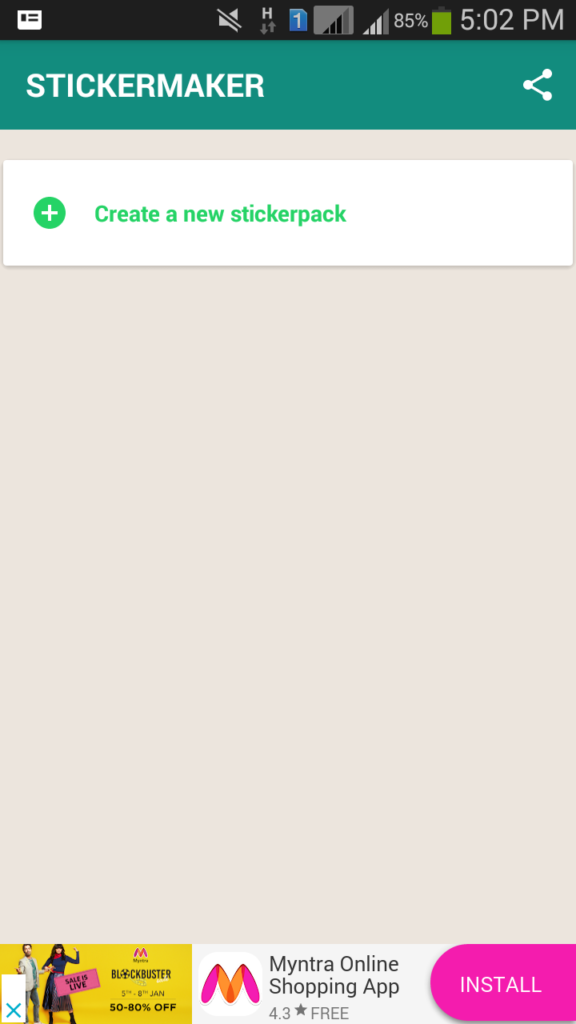
    • After you install the app, as soon as you open the app on the screen that appears, click on the option Create a new stickerpack.
    Stickermaker for WhatsApp
    Stickermaker
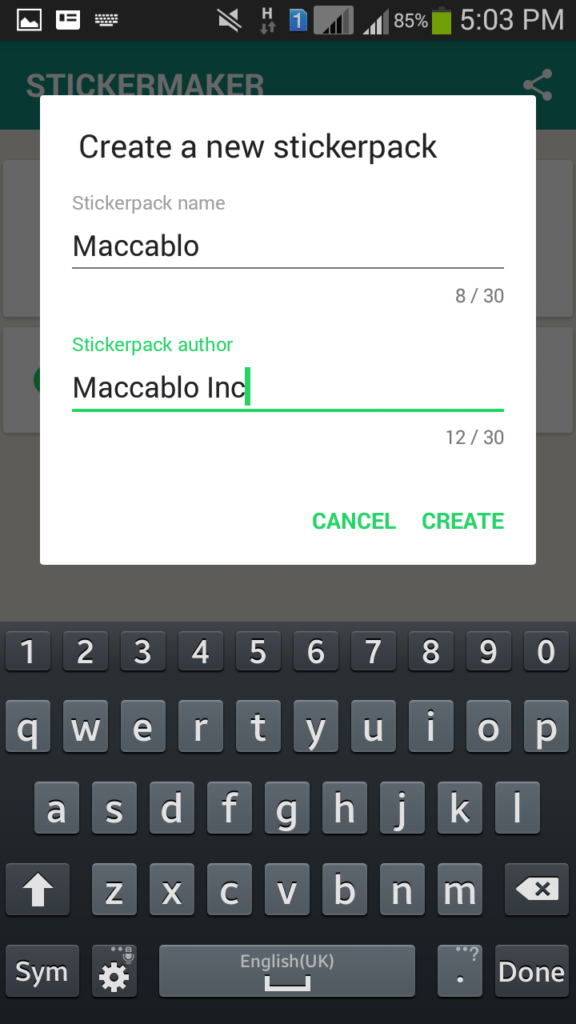
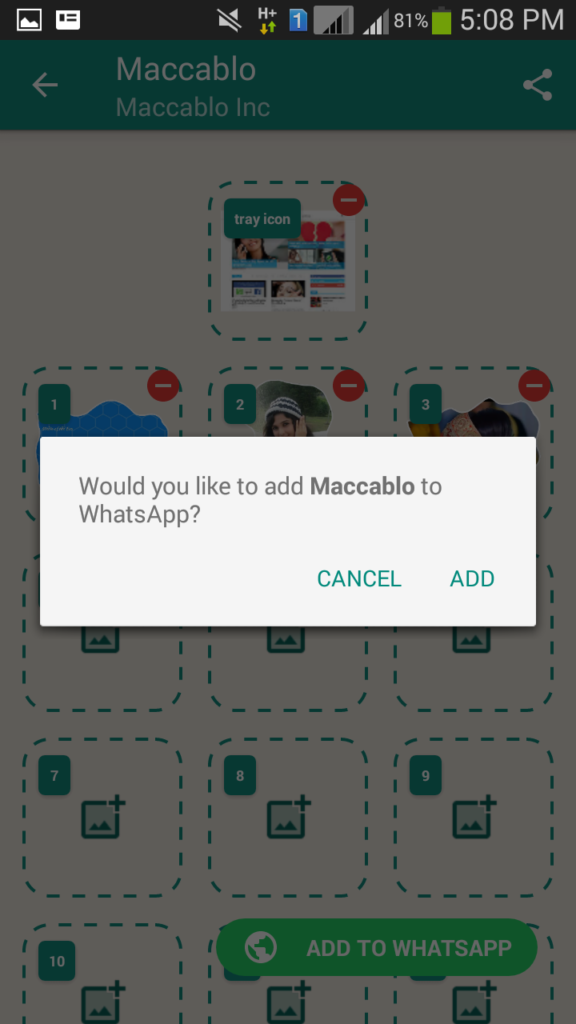
    • Now give a name to your stickerpack .Just like we have given our stickerpack name here as Maccablo .And Sticker pack Author name as Maccablo Inc.
    Creating Custom Stickers on Whatsapp
    New Stickerpack
    • Then you need to create a sticker which will be like the icon of your sticker pack which you can’t use, you can only use the stickers which are present in the slots. Each pack can have at most 30 stickers.

    Read Also : WhatsApp Security Scams and How to Protect Yourself

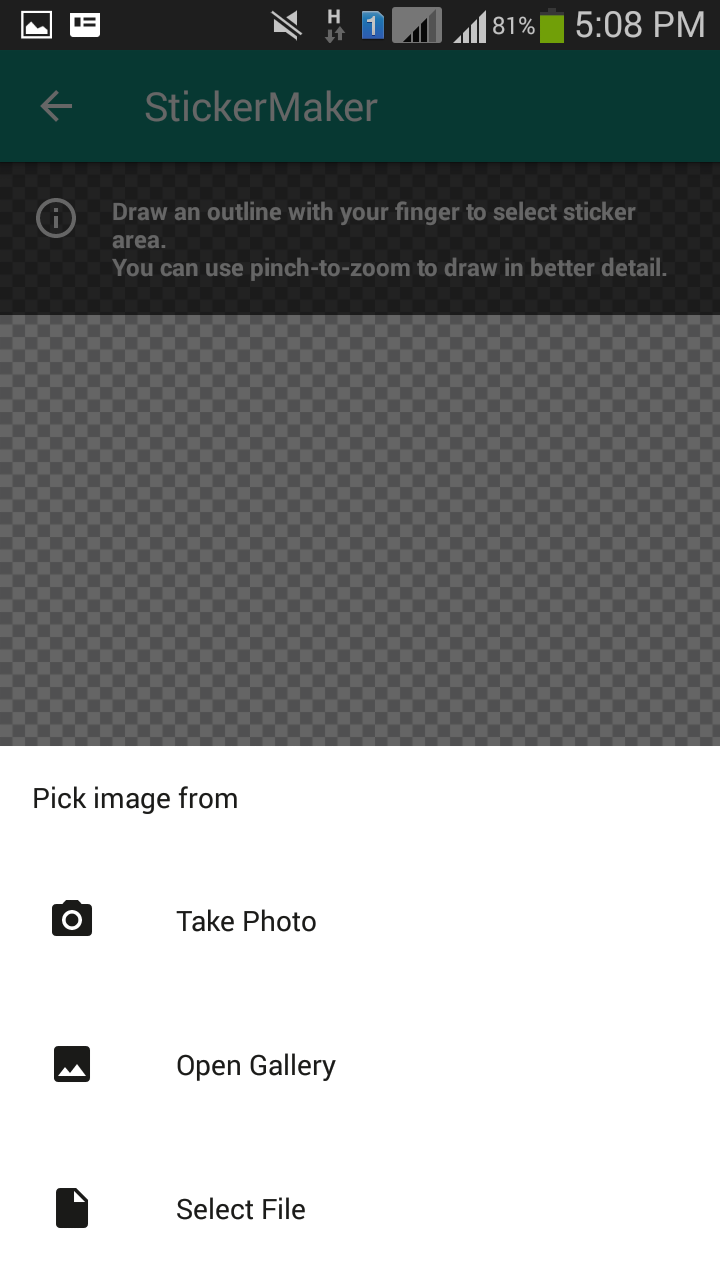
    • Inorder to create sticker choose the file you would like to make sticker from your gallery and you can cut it or freehand draw it and save it as sticker . Just like we have chosen an image of Maccablo logo from my phone Gallery .After selecting it i have chosen to use freehand cut and draw a shape . Those enclosed in the line became my new personally customized sticker.
    New WhatsApp stickers
    • Once you are done showing all your creativity, I mean done creating stickers you need to click on the green button Add to Whatsapp on the bottom right of your screen. Once done a confirmation message will be displayed.
    • Now From my Whatsapp Stickers i am choosing the newly created sticker pack and selecting my sticker to send . Just like shown in the below images for reference .
    Share custom Sticker on WhatsApp

    Once done with all this all you need to do is open whatsapp and use all the fun stickers you have created. For doing so in any conversation, click on emoji button and there you can find your custom stickers easily.

    So definitely with time we hope that whatsapp rolls out a number of new stickers within the app itself, till then you can have all the fun using this app. Do share your experience of creating your very own custom stickers with us.

    You can create your own custom WhatsApp stickers by following the instructions given above and even download Whatsapp stickers from All Stickers .

    You Have an option to use Hike Stickers on Whatsapp where you can send unlimited Hike stickers on Whatsapp . All you have to do to get Hike stickers on Whatsapp is just to work on your Hike Settings . Thus you can share Hike stickers on WhatsApp .

    So enjoy the new WhatsApp feature in its newest way !!!

  • WhatsApp Security Scams and How to Protect Yourself

    WhatsApp Security Scams and How to Protect Yourself

    Whatsapp, who doesn’t use it right? Its like the most famous messaging app out there. Everyone from the younger ones to the eldest in the families use it. It is used you in all spheres from personal to professional. And with each passing day its getting improved for better , thus attracting more users. Even though there are so many best alternatives to WhatsApp , this application doesn’t lose its users . Recently Whatsapp Security has become a question of concern for its loyal users with the rise of Whatsapp Security Scams .

    WhatsApp Security Scams Alert
    Whatsapp Dangers and Scams

    WhatsApp Security Scams

    But with all this amazing features and extensive usage all around the globe there are some people who try to harm the users and scam them in some way. There are a number of scams on whatsapp which you need to be aware of and those are as follows :

    Read Also : WhatsApp Data Sharing Disable Methods to Protect WhatsApp Data

    Whatsapp gold scam

    Sometimes the scammers slide a link into your inbox claiming it to be the link for downloading the Whatsapp gold version. The scammers claim that you have the exclusive chance to use the gold version WhatsApp which is used by the celebrities with much more Latest WhatsApp features.

    But what you get in return is no gold version rather a device infected with some kind of malware.

    But what you get in return is no gold version rather a device infected with some kind of malware.

    Whatsapp gold version for celebrities scam
    Whatsapp gold scam

    The best way to stay away from this scam is to know the fact that whatsapp can never send you such a link. Secondly, if you have already been a prey to this you can download some antivirus.

    So make sure you are not downloading the wrong version of the app while you upgrade Whatsapp version . Because this is a common WhatsApp Security Scams found these days.

    Read Also : 10+ Best Alternatives to Whatsapp you will love this year

    Free vouchers

    Who doesn’t like free vouchers, right? It is the easiest way to scam anyone these days and whatsapp is full of such scams. If you receive any voucher either from Asda, Tesco or Marks & Spencer, its for a fact that its not from them since these never giveaway vouchers like these. It appears to be sent from actual number but its fake.

    Free vouchers scam on Whatsapp
    Free WhatsApp Vouchers Scam

    To be aware of such Whatsapp security scams you can look out for grammatical and spelling errors in such messages.

    Read Also : App Lockers for Android to Improve your Privacy

    Pay for renewing your Whatsapp

    Its like the oldest Whatsapp security scams , but you can still fall prey to this even now. Whatsapp is a free app so make sure you don’t have to pay anything to use this . The message asks you to forward some kind of message to other active users within 48 hours else you will be charged .

    Whatsapp Renewal Scam asking Money for updating / renewing Whatsapp
    Whatsapp Renewal Scam

    Inorder to stay safe from this scam you just have to understand that whatsapp doesn’t ask you to pay or forward any messages .

    Call this number to transfer WhatsApp Number

    This is a recent Whatsapp scam as compared to other ones. You may receive a message or call mentioning that you have initiated a request to transfer Whatsapp number , in case you haven’t made a request then there will be a number given to call to confirm that you haven’t requested to transfer Whatsapp number. Just ignore all these kind of messages .

    Transfer Whatsapp Number Scam
    Whatsapp Voice Call Scam

    To stay away from such scams never call on the given number since it is a premium number. Also transferring contacts to other device has no role for whatsapp whatsoever.

    Pdf, Excel or Word attachments with Malware

    The scam involves that the message received contains some kind of attachment and requires you to download it but it actually has some kind of malware. Downloading it just infects your phone.

    Attachment scam on WhatsApp screenshot of malware document shared on Whatsapp
    Whatsapp Attachment scam

    To stay away from such scams never open files and attachments from unknown sources and just delete such messages.

    Voicemails

    Like earlier, you may receive some voicemail but as soon as you click on listen button leads you to some website downloading malware in your device. To be safe never open voicemails from unknown sources.

    The spy app

    The message contains link for downloading an app for viewing the conversations your friends are having with other people. But link downloads some malware into your device. To stay away from such scams know for a fact that all the conversations on whatsapp are encrypted and cannot be read by anyone except the sender and receiver.

    There are number of people out there ready to scam you in one way or the other. The best  way to not to fall prey to such scams is not click on anything until you don’t know its source or something appears malicious to you. And if you have an anti-virus in your device just in case some malware attacks your device. But beware of these type of Whatsapp security scams online .

  • Google chrome themes that you shouldn’t Miss

    Google chrome themes that you shouldn’t Miss

    Google Chrome , your favourite web browser from tech giant Google allows you to choose between a variety of Chrome themes . So here we will discuss out the best Google chrome themes that you shouldn’t Miss .

    Most of you must be an avid user of the Google chrome browser for your daily web browsing and if not you definitely will be aware of it. There are a plenty of options you can choose from as your web browser and Google chrome is one of the most popular options known for its lightweight and user friendly interface besides some amazing features. So Google chrome, your favorite web browser from the tech giant Google offers you a number of terrific and refreshing themes to choose from. Here we are going to discuss some of them but before there is some more information you will like to grasp.

    What is Google Chrome Theme ?

    Technically what themes are that these are additional extensions which you may add to your browser to change the way your browser looks. Also these are added like any other extensions but don’t contain any HTML or JavaScript codes. You can change the look of the browser completely starting from tabs, browser background, and color of the text and much more the way you want. Google Chrome Themes provide a new and refreshing look to your chrome browser.

    Why you should Change Google Chrome Theme ?

    Sometimes you may get tired the way your browser looks and just get bored of using it because of it same old appearance. Here changing theme provides it a new and refreshing look. Moreover you can set the colors of text, tabs, background and much more the way it comforts you, the way you want.

    Read Also : Best Web browsers for Computer & Smartphone

    Best Google Chrome Themes you shouldn’t Miss 

    Here is the list of the some of the best Google chrome themes :

    Google chrome Norwegian Fjord Theme

    Who doesn’t love nature, right? And this theme is definitely among the best landscape Google chrome theme. Capturing the picturesque view of this water body flowing through these mountains in its background is going fill you up with some happy and refreshing vibes every time you are going to use your browser.

    Google chrome Galaxy view Theme

    This is the best Google chrome theme capturing the amazing colorful night sky full of stars through the trees. This truly captures the essence of the beauty of the night and is just simply going to be stunning as a new theme of your browser. I must say this is one of the best Google chrome themes available .

    Google chrome Plumage Theme

    The vibrant colors in the background are definitely going to make you enjoy using your browser. The background image consists of some intricate and beautiful details and texture. You might think of the color to be too bright but it for sure deserves a chance.

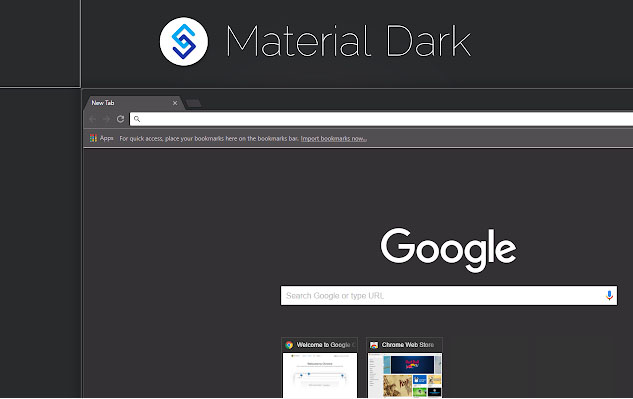
    Google chrome Material Dark Theme

    This theme is counted among the best minimalist Google chrome themes. The background image consists of very little graphics and dark shades of colors. The theme is simple and straightforward. The theme completely satisfies the saying less is more.

    Google chrome Angry Birds Theme

    This is the best theme for all the angry birds lovers out there. With this theme you can meet your favorite characters every time you will use your browser.

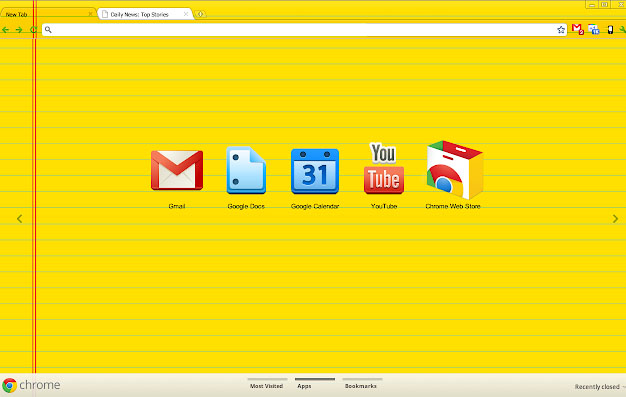
    Google chrome Legal Pad

    Laptops have somehow replaced the use of books and notebooks. With this theme you can get the feels of using some notebook. It’s the best theme for all the students for sure. If you love some bright and vibrant colors, then this theme is for you.

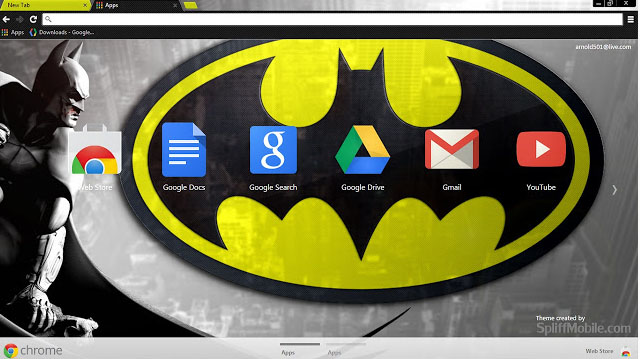
    Google chrome Batman Design

    Batman has a huge fan base across the globe. This is the best Google chrome theme for you if you are a part of this fandom. The theme is minimalistic and features dark colors. And is perfect way to show your love towards batman.

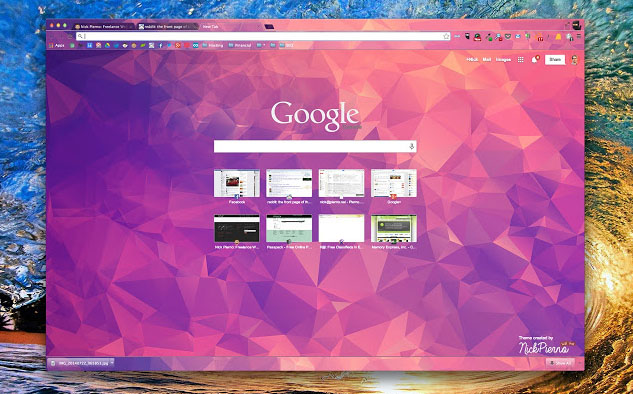
    Google chrome Polytheme

    This is the best Google chrome theme if you want a splash of colors on your browser’s background. The background features geometric designs in multiple but not too bright colors and can be simply beautiful and amazing theme for your browser.

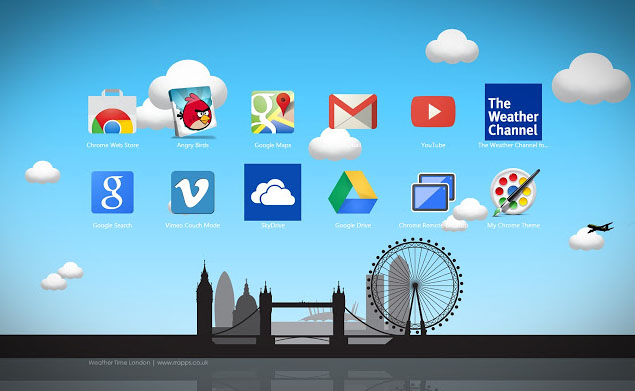
    Google chrome Weather time London theme – Daylight

    The theme captures the essence of London featuring the major attractions of the city. The colors are used in lighter shades and are comforting to the eyes. Indeed a beautiful theme and a must try.

    Google chrome Puppy Love

    If you are a dog lover then this is for sure the best Google chrome theme for you. The background features a top shot of a cute puppy lying on grass. The background is just too cute.

    How to download Google Chrome Themes ?

    You can add Google Chrome theme easily for which you have to download Google Chrome theme following the given steps –

    1. Click upon the three vertical dots present on the top right corner of your screen.
    2. Then click upon Settings.
    3. Scroll down the page that appears to Appearance. Now select Themes and then Chrome web Store.
    4. A new tab is opened displaying all the themes available for you to select.
    5. For information about each theme click its thumbnail.
    6. For installing any, simply click upon Add to chrome.
    7. You can undo it then and there if you don’t like it.

    So your desired Google chrome themes is installed in your browser and the changes can be seen on the browser window.

    Read Also : Best free office software for Computer & Smartphone

    Read Also : The ultimate guide to make Windows run faster (Boost Computer Speed)

    How to remove Google Chrome Theme ?

    The steps to install google chrome themes , let it be any theme its easy right? So are the steps to remove google chrome theme if you just in case want to restore to the default theme. Just follow the steps mentioned below:

    1. Click upon the three vertical dots present on the top right corner of your screen.
    2. Then click upon Settings.
    3. Scroll down the page that appears to Appearance.
    4. Now select Reset to default theme.

    How to Change Google Chrome Theme ?

    The whole purpose of applying a theme is to provide a new look to your browser and the day you get bored of your existing theme you ought to change it. In order to change google chrome theme all you need is to repeat the steps mentioned above under ‘How to install Google chrome theme’. Select the desired new theme and install it. The older one is removed and the newly installed Google chrome themes is put on display.

    Read Also : Connect dual displays / monitors to one computer on Windows & MAC

    How to customize Google Chrome theme (How to create own Google Chrome Theme )

    You can select the theme from the huge and amazing collection available on the chrome web store but still if you don’t like any or just want to create your own theme then that is possible as well.

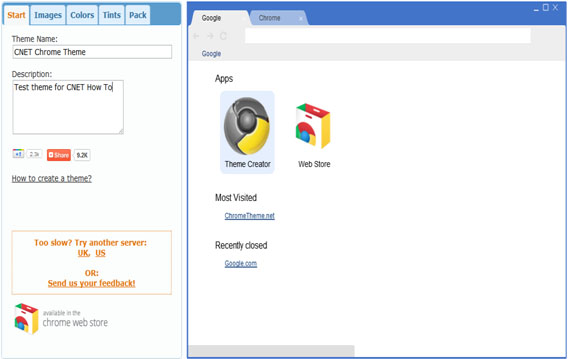
    By following the given steps you can simply create your own customized theme for your browser using Chrome theme creator , so let us see how to make your own google chrome theme :

    • First you need to understand that the left feature all the settings required while on the right side the preview of the theme you are making can be seen. You can set the theme name and add a description whatever you want to
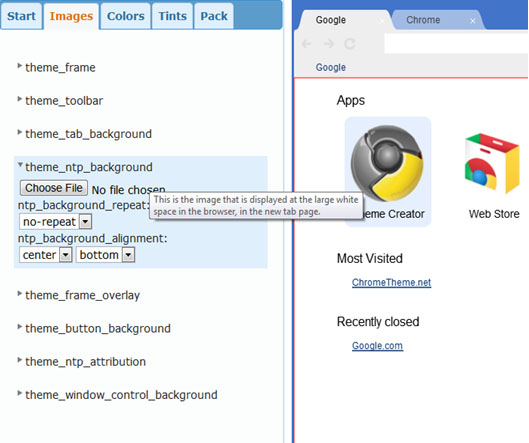
    • The next step is to set all the images for the different parts of the browser. Of you want to set image only for the background then you need to set only the Theme_ntp_background. You select the image file and adjust the alignments. If you want to set different images for the tabs, toolbar etc. then you can select separate image for each section as shown in picture.
    • In the next tabs you can set the colors and tints for the texts and the different sections as per your desire.
    • Once you are done with creating your theme click on the pack and install button. Its installs the theme and displays. If you don’t like the way it turned out then you can go back and modify again.
    • Once the theme is finalized you can download and save it for later use. You can even upload it on the chrome web store and let others use it as well.

    Best google chrome theme creator / google chrome theme makers

    Above you can understand how to create your very own theme using the Google theme creator. There are number of other amazing tools which can be used for the very same purpose:

    1. Theme Creator

    It’s a google extension application. Create some amazing and personalized themes with a lot of ease and share it with others as well.

    1. Theme beta

    Like theme creator, another theme creator tool. Select the images, color, text designs and your theme is ready.

    1. Google chromizer

    It is a web app for creating themes. Works mostly like other tools but there is a tiny restriction, it only accepts images in jpg, png or gif format.

    1. com

    It is another simple tool for creating your custom themes and makes the process quite easy and comfortable for the user.

    1. Canvas

    With all the features available with other tools it has a few add ons. You can set your own images for the tab section and also has a new feature named selfie mode for instantly clicking your pictures.

    1. Stylish

    It’s an extension where you get to edit any theme and get to choose from a huge collection of colors and skins.

    So we can see to provide a completely new and refreshing look to your browser the chrome web store provides you with a decent collection of a huge number of themes and you may now understand that the process to install, change or uninstall any theme is also pretty simple. Google also provide you with the ability to create your own personalized themes. So do tell us which one is your favorite theme and do also mention your experience if you try creating your own custom google chrome theme.

  • Android P Vs Android O Features compared

    Android P Vs Android O Features compared

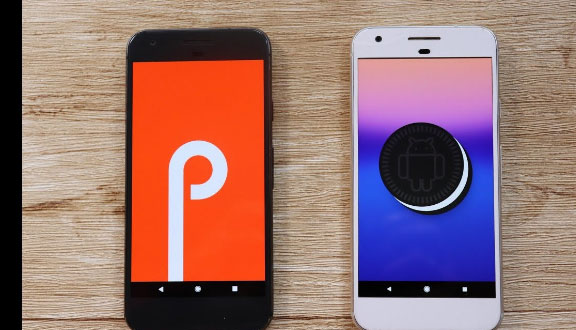
    Android Oreo was launched in August 2017 while almost a year later Android Pie was launched in August 2018. Although the android pie features were announced back in may in the Google I/O Developer Conference where it was officially unveiled as Android 9 Pie. It’s the 10th Anniversary update. With the Android Pie update Google has tried to make the phones smarter and well suited to every single person’s habits by using a lot of machine learning and artificial intelligence as compared to android Oreo. So we will compare between Android P Vs Android O Features in this article .

    Android P Vs Android O Comparision

    Android Pie Vs Android Oreo Vs Android Nougat Vs Android Marshmallow Vs Lollipop can be understood after reading this .

    Even though we already discussed out the Android O features , now we will compare it with Android P features .

    Here are the major new features and some updated Android features which you will encounter while using android pie and will be able to exploit it to its full use –

    Physical Appearance and Aesthetics

    The user interface of any phone is like the first impression for every phone for any of its user. Its needs to be friendly, good looking and easy to understand. Let’s compare between Android P Vs Android O based on physical appearance

    Android Oreo 

    The settings menu got a makeover in the android oreo update and featured grey colored simple plain icons on a complete white background. The drop down menu also features small white icons in a grey backdrop. Small dots can be seen on the icons of the apps with unseen notifications. These are some major updates in the interface for android oreo. But still the android needed a spice of color which is now available with the android pie.

    Android Pie

    Although there are no dramatic changes look wise provided in Android P but the new look given is definitely seems cuter, friendlier and colorful. The edges are softened and curved in the interface as compared to android oreo which had more of a flat look. The icons now used in settings menu are colorful and colorful circles are used in the notification dropdown menu.

    Phone Addiction

    Most of us these are stuck with our phones for a major part of our day, sometimes for work sometimes just for passing time. At times we also want to get a rid of it but we just can’t, right? Its becoming a major problem these days and it needs to be tackled well. Android P Vs Android O based on addiction –

    Android Oreo

    At the time android oreo was released there wasn’t much talk and need for reducing the phone addiction among the general masses. So android oreo consisted of no such tools which may help you dealing with this problem.

    Android Pie

    Android pie has come with this new feature which has a lot of potential in curtailing this disease. It features a Dashboard where the time spent by you on your phone is displayed a simple pie chart in which the total time spent is broken app wise and then its upon you how conscious you are about that and you need to stay away from your phone.

    Dashboard provides kind of a fast digital “sanity check”, a more human take on android Oreo’s existing feature that enables you to see what proportion battery power apps use. It additionally notes how many times you unlock your phone every day, and the way several notifications you receive.

    Usage limits

    Its high time when each one of us realizes the immense benefits that will be achieved by maintaining their digital discipline i.e. by keeping a check of time you spend on different apps in your phone. Device usage limits cross compared with Android P Vs Android O .

    Android Oreo

    As said earlier as well the need for tools to check your phone usage were not as badly required as now and people were also not aware of the need of such tools. So App timers which was pretty much absent in android oreo required to restrict the time spent on some specific app.

    Android Pie

    For checking your phone usage android P has introduced a new feature of setting App timers. What android pie has done that now you can set App Timers. By using app timers you can set a limited time period for which you can use any specific app up to that maximum preset limit. Once the limit is near to get exhausted you are notified and after it is over the app icon will grey out. So, this is an immensely helpful tool for making anyone curtail the time he/she pays on Facebook, YouTube, Instagram or any other app. Many of us each day end up spending a lot of time on some app be it Facebook or Instagram or You Tube. App Timers are an amazing way to put an end to these dangerous habits. But, still some self-will and self-consciousness is definitely needed.

    Night Mode

    Nigh mode or dark theme is quite popular feature for all devices and websites or apps . So how the night mode on Android P Vs Android O differs lets take a comparison .

    Android Oreo

    The night mode in android oreo removed the blue rays from the phone as the time approached the bedtime leaving behind hues of just yellow and orange. Thus the rays from the phones are not too bright for the eyes, making it easier and comforting for your eyes.

     Android Pie

    A wind down feature has been introduced in android P and it is important step towards maintaining a digital discipline for people around the globe. While the wind down feature when the bedtime is approached which is set by the user himself, the display turns grey scale and the phone is set to Do Not Disturb mode just providing you the perfect sleeping conditions. All this simply helps you in taking a sound sleep without much disturbance.

    Read Also : YouTube Dark Mode Android Version Without Rooting

    Read Also : Enable Reddit Dark Mode : How to turn on Reddit Dark Theme

    Read Also : Use Old Reddit Layout – How to opt out New Reddit Design

    Read Also : Google News Dark Mode – How to toggle on Dark Theme

    Volume Control

    Android volume control for its two different OS such as Android P Vs Android O is compared out –

    Android Oreo:

    If you press volume buttons in android oreo, the volume is changed as per the app you are using. If some media or video is being played it will alter the media volume, else you can change the volume for the notifications.

     Android Pie

    In Android pie, the volume buttons alter media volume irrespective of the app you are using. You can change the mode of your phone to volume or silent from the icons on the interface that appears upon pressing the volume buttons. However this feature won’t suit you if change you notification volume frequently as now you will have to alter it from the shortcut icon in the notification menu.

    Brightness Control

    Screen brightness is one the import aspect or feature of every devise , you must have a good brightness adjustment feature , so how brightness control works for both Android P Vs Android O is discussed .

    Android Oreo

    The adaptive brightness feature in android oreo was pretty simple, basically it adapted to the outside light. It adjusted the phone’s brightness as per the light outside the phone as per comfort the eyes. 

    Android Pie

    In android pie they have used the concept of machine learning where initially you are to set your brightness levels and then the phone will adapt as per your habits and adjust brightness automatically. In simpler words, the adaptive brightness of the phone will adjust as per the user habits. The feature is an amazing one and adds a lot more convenience to the user.

    Adaptive Battery Management

    Battery is such an important feature for any smartphone and proper batter management for sure results in a long lasting battery life. So the battery performance of Android P Vs Android O is compared here –

    Android Oreo

    The major such battery saver feature available with android oreo was that you can view which app is consuming how much battery. This was helpful as then you can view which app in your phone is draining your battery. Some restrictions on battery usage for the background running apps were also introduced to save the battery.

    Android Pie

    Android pie has a quite different way for the battery management, its not any replacement for the battery saver instead the apps you rarely use in your phone which run in the background, are provided with only basic permissions hence saving a considerable amount of your battery. Any notifications from them is also delayed, however they’ll use less battery as a result. Apps you utilize all the time won’t be affected.

    App AI

    AI apps are the trending on the tech industry , so what does your Android P Vs Android O provide you in AI aspect , let us take a look –

    Android Oreo

    Android oreo didn’t made much use of machine learning and artificial intelligence and it makes sense as well since these topics were not such a rage at its time as they are now. So picking out the most used apps and putting them for quicker access was absent in android oreo.

    Android Pie

    What’s the best thing about android pie is that it does most of the things that are suitable to you. The features you use the most, the apps you use the most, it picks them up and put them in the front of your eyes. All this was pretty much absent in the android Oreo. The common apps you employ the foremost seem just below the top row of icons on the apps menu. However, these app actions also will show up within the universal search bar, in the Google Assistant and also the Play Store app.

    Navigation

    Easy and Quick navigation on android devices is always known feature . So how it differs in Android P Vs Android O .

    Android Oreo

    Most of you must be familiar with the three soft buttons which are present at the bottom of most android phones. In android oreo as well similarly there buttons are used to navigate in the phone. One is for the home button, one for going a step back and the third one for opening recent apps.

    Android Pie

    Android p has tried to make navigation within your phone faster and simpler. There is a single home button present. Single click takes you to the home screen, one swipe up opens recent apps and two swipe ups opens the app menu. And there is the back button on the interface whenever it is possible to go back. This is an optional feature though and its up to you whether you want to use single button or three separate buttons.

    Bluetooth

    Bluetooth in Android P Vs Android O is compared out –

    Android Oreo

    None of us want to be entangled in wires, right? We all love using wireless speakers, earphones and headphones and Bluetooth plays a major role ion the wireless media. So now android oreo supports Sony LDAC wireless codec. This means wireless streaming at is now much faster and an amazing sound streaming quality.

    Android Pie

    Bluetooth since getting a major update and amazing update in the android oreo, was didn’t in android pie.

    Screenshot

    You cannot stop yourself from doing screenshot both in personal way and even related to work . So screenshot features in Android P Vs Android O is discussed –

    Android Oreo

    In android oreo you can simply take a screenshot and then it is saved and then you can access it and edit it the way you want.

    Android Pie

    While in android pie the after taking any screenshot first you can edit it and only then it will be stored in gallery. Its not a major change but still increases your convenience.

    Do Not Disturb

    Android Oreo

    The do not disturb mode didn’t receive any update in android oreo. Like earlier it could be activated from the shortcut in dropdown or from volume button only.

    Android Pie

    For activating do not disturb all you need is to turn down your phone and done. The DND mode is activated that easy.

    Copy and Paste

    Android Oreo

    The android Oreo Ctrl + C , Ctrl +V feature also received an update and was definitely a smart step for the convenience it added. The smartness is that it could recognize the numbers, links and mail ids by itself only and pre select those. If you want to select these it requires a single click. But still if you are to select normal text it becomes a bit tad.

    Android Pie

    This is updated for the android pie. If you try selecting any simple text then it is magnified and hence the process becomes easier. This feature might seem familiar to you since you might have seen it in iPhone already.

    Time in Notification Bar

    Android Oreo

    The time in the top notification bar appeared like in any other phone earlier as well on the top right corner of the screen.

    Android Pie

    The time in the top bar is shifted to top left hand side of the screen to suit the notch. Although some of you might not like it since every phone with android pie may not have a notch.

    Notifications

    Android Oreo

    The notifications got a major update in the android oreo. Now you could snooze the notification for any specific app so that it appears after your desired time again. Also, on the apps with unseen notifications appeared a small dot and clicking upon which shows you the unread notification.

    Android Pie

    The handling of the notifications didn’t get any major update in the android pie.

    Recent Apps

    Android Oreo

    The recent apps interface android Oreo consisted of 3D stack where the recent apps are displayed one over the other. Where we could scroll up and down and select which ever app you want to use.

    Read Also : Android: Prevent apps from running at startup(Stop/Disable Apps)

    Android Pie

    While in android pie the recent apps interface is more like a multi-tasking window used for app switching in which the apps are positioned side by side to each other rather than in a stack. This feature is also much like available in iPhones.

    Android pie is more suited to individual needs and habits and has brought the technologies machine learning and artificial intelligence which are in most demand these days and definitely add much more convenience to your experience of using your phone. Android interface is made more user friendly, as well as the battery and Android screen brightness adapts to your habits .

    Read Also : Update Latest Android OS – Top reasons to upgrade Mobile OS

    So do let us know which one is your favourite feature and what you expect with respect to Android Q features and look . So you can decide if you would like to update Android Oreo to Android Pie . You can make your android OS updated to Latest OS to use Android P .


  • Best Nintendo Switch Games to enjoying Game time

    Best Nintendo Switch Games to enjoying Game time

    Nintendo Switch was the seventh major video game console launched by Nintendo . Ever since video games hit as the most sought entertainment among kids to adults . Best Seller Video games are increasing day to day with new version of each popular games . Here we have some of the Nintendo Switch Best Sellers games and list of upcoming Best Nintendo Switch Games .

    Nintendo Switch console , it is a kind of a hybrid console consisting of two major units. The major unit is inserted in the dock station to connect it to the television while the other is kind of a remote, Joy-con controllers used to play the games consisting of the direction buttons and a small joy stick for motion sensing.

    The console can be removed from the dock can be used as a tablet like a touch screen LCD screen. It is a portable device to which you can connect the Joy-con controllers on the sides acting as a hand support and play all the games you move even when you are not at your home.

    Best Nintendo Switch Games to enjoying Game time

    Here is the list of the Best Nintendo Switch Games which have loved all time by the critics with some recent and some upcoming video game releases :

    Super Mario Odyssey

    Who doesn’t loves Mario right? Almost everyone has played and enjoyed this game in their childhood and now Nintendo switch has presented to you a newer version to the game. Here also you have to save Princess Peach but you have got a new companion, a spirit, Mr. Cappy. Because of it now you have lots of new moves such as the cap throw, cap jump, capture and has the power to possess other objects and animals. You get to uncover loads of powers as you progress in the game. The game received wide critical acclaim upon its release. It is praised especially how new innovations were added to the game still keeping its originality and is counted among the Best Nintendo Switch Games of its series .

    You may not believe this but the Goomba stacking limit while playing super mario is 200 . For all super mario lovers do let us know if anyone got lucky to beat 200 Goombas .

    Mario Kart 8 Deluxe

    Mario Kart 8 is another game featuring your favorite childhood buddy Mario and is a racing video game. In the game you are to compete against other members from the Mario universe in a race in your go karts and try to hinder others and improve your speed by different tools found in item boxes. The Mario Kart also had anti-gravity arena where you can drive on walls and ceilings.

    The Mario kart 8 Deluxe version featured 8 new arenas and several new gameplay modes. Mario Kart 8 Deluxe gained universal acclaim upon release and also a commercial success and counted among the best Nintendo switch racing games.

    Celeste

    Celeste is the among the most recent game released on the Nintendo switch which got a worldwide critical acclaim for its heart touching and genuine story, for the amazing music and soundtrack, and definitely for the amazing and exciting moments the players gets to experience while playing.

    The players play a girl named Madeline. She is to climb a mountain and on each levels you are to solve puzzles putting your mind and knowledge to test. Madeline can jump, climb and occasionally perform an air dash. Across each levels are hidden strawberries and the ending depends on the number of these you collect. Its definitely one of the best Nintendo Switch games .

    Fortnite

    Fortnite Battle Royale is one of the best player versus player game where up to 100 players fight so as to be the last stand alone winner. Each player can play alone, in a dual or with a squad. All are dropped on an island weaponless, whose size is decreasing due to the incoming storm.

    All players fight and kill and search for weapons to stay alive. So as to access all the resources map is put to use. The last player or duo or squad alive wins. The game is quite popular with the Nintendo Switch users and loved universally.

    Dragon Ball FighterZ

    Dragon Ball Fighterz was released recently in January 2018 for the Nintendo Switch system. It’s a fighting game and is set in the time period between “Future Trunks” and “Universe Survival” arcs of Dragon Ball Super. The basic premise is similar to any fighting game.

    The player is to select three characters for his team. Player controls one of these and can switch during the game. The three characters can attack simultaneously and in combos. All three opponent’s characters are to be defeated to win. Each character has its own special moves. The games characters, fighting and music were widely appreciated while the story was criticized. Its counted among the Best Nintendo Switch fighting game.

    Undertale

    Undertale is a role playing video game and was launched for the Nintendo Switch platform quite recently in September 2018. Undertale follows the story of a boy who falls into a secluded large area underneath the earth’s surface and now is on the quest to reach the surface back. While on his quest he has to fight a number of monsters.

    Every time its his decision whether he wants to kill them or to pacify with them. Each decision made decides the journey forward. The game is praised for its writing, the characters and the dialogues and also how the journey depends upon the decisions made by the player. Its among the best Nintendo Switch games.

    Read Also : Best Augmented Reality Games that are safe

    Into the Breach

    The game was released for the Nintendo switch platform in August 2018 only. The game is set in very far future where the human soldiers are to fight against gigantic creatures breeding under the earth. They are to fight them by operating the large mechs which can be equipped with a number of armors, weapons and lots of other cool equipment. It’s a strategy based game and has turn based combat.

    You are to form an estimate of the attack and then to have a proper strategy for the counter attack. The game has been praised simplistic design, amazing difficulty and creative strategies required and also for the writing and the background music. The game proved to be Nintendo switch’s best reviewed game for this year so far.

    Bayonetta 3

    Bayonetta 3 is an upcoming action and adventure Nintendo Switch game which is highly anticipated by the fans of the Bayonetta series.

    A teaser trailer for the game has been released from which the fans of the series have speculated that it occurs in a parallel world or an alternate timeline and also although the complete look of Bayonetta has not been revealed but the teaser shows some changes in the original look. Bayonetta 2 was a huge commercial and critical success and the same is expected from Bayonetta 3 as well.

    Read Also : All Possible ways to Make Money by Playing Pokemon Go

    Shantae : Half Genie Hero

    The game is the fourth installment in the Shantae series and was launched for Wii U and Nintendo Switch, especially made for high definition platforms. The player controls a half genie, Shantae who can kill enemies with the whip of her hair.

    She can dance and transform into different beings like elephant and monkey and then reach to some inaccessible areas. Game features multiple stages that can be replayed. In this installment some new transformations are added and a new ‘Hard Core Mode’ featuring even dangerous enemies was added through an update. The game received favorable reviews upon its release. Considering the best game reviews this is one among the Best Nintendo Switch Games .

    Read Also : Life threatening Games Online – Steps to Stay Safe

    Read Also : 38 Best iPhone games you should play

    West of Loathing

    West of loathing is funny comic adventure role playing video game. The game features handmade drawings with all the characters made out of thin sticks. It has turn based combat.

    The game is set in the wild west of the Kingdom of Loathing universe. While on your quest you get to fight silver tongued snakes, skeletons wearing cow boy hats and some demon cows. The game features quests, puzzles and loads of gags, laughs and jokes. The game was well received with some critics calling it the one of the funniest Nintendo switch games ever.
    Hope, you must have loved reading about all these games and definitely will like to experience the excitement and adventure with these games on your Nintendo switch. If your favorite game is not on the list don’t forget to mention your favourite and Best Nintendo Switch Games in the comments below.

  • Apple Homepod Tips, Tricks and Review

    Apple Homepod Tips, Tricks and Review

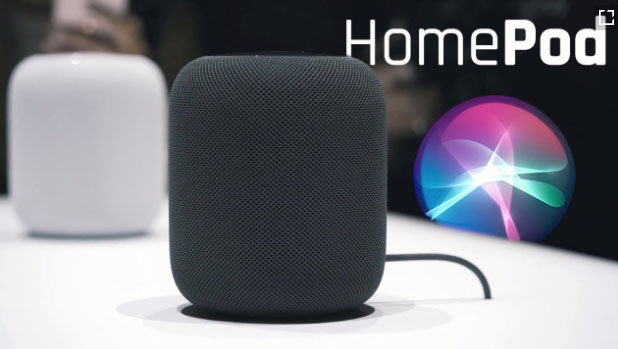
    Apple Homepod is the Apple’s smart speaker. Apple launched it in February this year. Apple finally entered this field after Amazon’s Alexa or Echo and then followed by Google’s Home assistant. Earlier we have discussed out the Amazon Alexa tips and tricks , now here we will discuss the Apple Homepod Tips and Tricks as well as Apple Homepod Review .

    Since its release the Apple Homepod has been most appreciated for which Apple is much famous already i.e. its sound quality that to with 360 degree audio. How can I forget to mention that the Homepod is damn good looking and stylish. But it costs much more as compared to Echo.

    Before we discuss about the Apple Homepod Tips and tricks , lets understand what is Apple Homepod.

    What is Apple Homepod ?

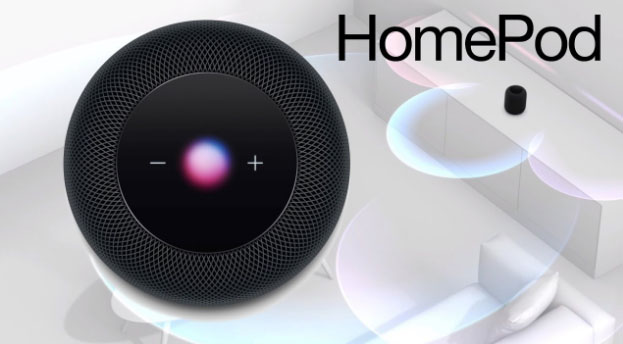
    The question is simple and the answer is very simple . Apple Homepod , popularly known as Homepod is a smart speaker that functions amazingly along with Siri and creates a wonderful music experience with Apple music . This wireless smart speaker is the trend of the generation.

    Apple Homepod Price ?

    You can buy Apple homepod from apple store online or even there are great deals for Apple Homepod this year on different e-commerce site . The price range of Apple Homepod is about $349 .

    There are speculations in the market regarding Apple Homepod which are not yet confirmed .There can a price cut for Homepod , else Apple Homepod 2 or Apple Homepod Mini will be released .

    Read Also : Best Apple Watch Alternatives-Affordable Gadgets

    Apple Homepod Tips, Tricks and Review

    Here’s a guide to all the major Apple Homepod tips and tricks that are going to help you to get you the best out of your Homepod or force you to buy one right now:

    Switch Siri’s voice on Homepod

    The very first Homepod trick is that if you want a completely new refreshing voice and accent for your Homepod so here’s the good news . You can try and experiment the different available option to choose different accent such as American accent / British / Australian accent . Even you can switch between either female / male voice . To change Siri voice , all you have to do is just long press Homepod tile . This will enable so many options from which you can select the Siri language settings , default voice and many more as per your choice of interest . This is one of the excellent Apple Homepod tips to try out .

    Mute Siri on Homepod

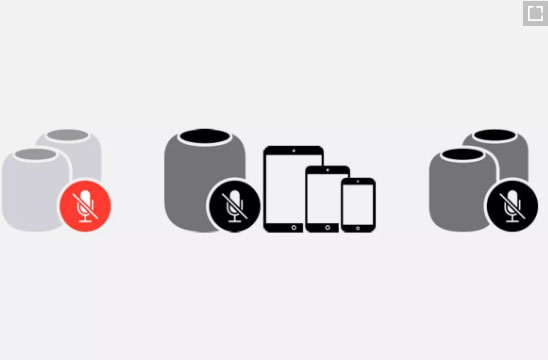
    Sometimes you might want Siri to not listen to some of your conversations so here is one more Homepod tip for you. For doing so you can mute Siri. Just say ‘Hey Siri, Stop listening’. For making your Homepod active again just say ‘Hey Siri, Start listening’.

    You can also control these settings from your Home app simply by selecting on/off for the ‘Hey Siri’ option.

    Homepod Security controls

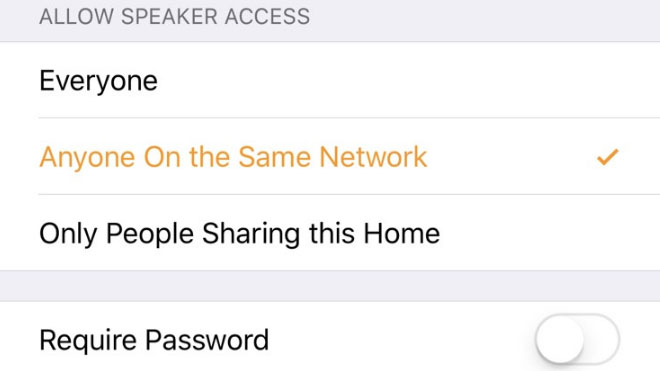
    Here’s one of the most important Homepod tip for you. None of you might want that anyone who’s near your homepod and can connect to it is able to play songs on it. For this you can limit your homepod access. You can allow access to everyone living in your home or to people connected to the same network. You can even set a password for accessing your homepod. All these settings can be accessed in the home app.

    Translate with Homepod

    Homepod can act as your very own translator. Siri can help you translating English to French, German, Italian, Spanish and Mandarin. Just say ‘Hey Siri, how do you say [word] in [language]’ and there’s your answer.

    Siri Tune

    Whenever you give some command to your Homepod you might keep wondering whether it heard it or not. For this you can switch on Siri tune. It will assure you whether your Homepod heard you or not.

    For turning it on, go to your Homepod’s settings in the Home app and switch on ‘Sound when using Siri option’.

    Latest Gossip and news on Homepod

    You can get all the latest scoop about your favorite celebrity and the latest news from your Homepod. Simply say ‘Hey Siri, give me the latest news about Beyoncé’ and for listening the latest news say ‘Hey Siri, what’s the latest news?’.

    Homepod as Speaker for your Apple TV

    Your TV speaker is a crap? No problem, your Homepod can be the perfect replacement for the speaker of your Apple TV. Just long press the play/pause button and select your Homepod for audio.

    For permanently doing so, in your TV’s settings, there select ‘Video and Audio’ section and then select ‘Audio Output’ and choose your Homepod.

    Homepod Smart Home Controller

    If you use smart lights, fans and smart appliances in your house and they are compatible with the apple Homepod kit you can simply ask your Homepod to switch them on/off for you. Just say ‘Hey Siri, switch on the lights’ and done.

    Read Also : Best Smart Home Gadgets for Home automation- Smart home

    Homepod Nearby Suggestions

    Want to explore your surroundings, no problem. Your Homepod can be of great help here. Just ask your Homepod ‘Hey Siri, what are the great restaurants nearby’ or ‘Hey Siri, tell me some great shops nearby’ and done.

    Send Text Messages to your contacts via Homepod

    Feeling lazy for typing something and sending it to some friend of yours, your Homepod can come to your rescue here. Just say ‘Hey Siri, send a message to john saying I won’t come today’ and done, your message is sent. If the recipient replies then a notification is delivered through a chime. Its definitely a Homepod tip you will love to use a lot, no typing just speaking and the message is sent.

    Read Also : Alexa Tips, Tricks and Commands

    Set Alarms on Homepod

    Just say ‘Hey Siri, set an alarm for 8:00 a.m.’ and done your alarm is set. Similarly you can also set timers and snooze the alarm. Quite a helpful Homepod tip helping you being on time wherever you want to go.

    Scenes

    This is definitely an amazing Homepod tip. Scenes are when you deliver a certain command and a chain of events occur because of that single command. Such as on saying ‘Hey Siri, good morning’ your lights are switched on, some sweet music is switched on and your coffee maker is switched on.

    You can set scenes for your Homepod from the home app in your iPhone.

    Transfer a call on Homepod

    You can very simply convert your Homepod into a loudspeaker while talking on the phone. Just select the audio mode for the phone call as the Homepod. The green light on Homepod shows that an active conversation is going on.

    Family grocery list on Homepod

    If the whole simply add their own demands at their own to the shopping or grocery list that’s the best. Your Homepod can help you in this task helping you by maintaining a family grocery list. This way any family member can add their needs to the list.

    For doing so under your iPhone’s settings go to Reminders. There under iCloud select family option and done. Now any family member can add items to the list. Just say ‘Hey Siri, add soap bars to the grocery list’.

    Spotify Music Streaming on Homepod

    If you have a Spotify premium account then this Homepod tip is definitely for you. You might be wondering whether you can stream music through your spotify account on your Homepod. The answer is why not. Just open your Spotify app, check devices available and select your Homepod. There you can connect the Homepod to your Spotify app and you can now stream music through it.

    Read Also : Spotify Tips and Tricks to Enjoy Spotify Subscription More

    iTune Podcasts on Homepod

    You can listen to the iPhone podcasts whether you have subscribed to it or not. Just say ‘Hey Siri, play podcast [Podcast name]’ and if you want to subscribe to some podcast say ‘Hey Siri, subscribe to [Podcast name]’ and done, siri will itself add that podcast to your library.

    Read Also : Best iTunes Cleanup Software for better iTunes experience

    Discover from Specific artists

    One of the best Homepod tip for all the music lovers out there. For every artist his/her songs are organized under three categories i.e. Essentials, Next Steps and Deep Cuts. Essentials contain all the major hits from that artist, Next Steps consists of some other hits from that artist and even now you want to dig deeper in your favorite artist’s songs play Deep cuts. Just say ‘Hey Siri, play [Artist Name] Essentials/Next Steps /Deep Cuts’.

    Use your voice as your Volume Control

    This is just another simple Homepod tip you will be using a lot while using your Homepod. You can simply command Siri to change the volume level for the Homepod. Simply say ‘Hey Siri, increase the volume’ or ‘Hey Siri, turn up the volume’ or set it to some specific level by saying ‘Hey Siri, set the volume to 50 percent’.

    Musical Trivia on Homepod

    Whenever some song is playing on your Homepod, you might be interested to get some history about that song. Thus simply use this Homepod tip to increase your knowledge. You can simply ask Siri whatever question pops up in your mind like ‘Hey Siri, when was this song released?’ or ‘Hey Siri, How many copies did this album sold?’ or ‘Hey Siri, tell me more about this artist’ anything else. Siri will answer you.

    Let Siri know your tastes

    Let Siri know about your likings and disliking while Siri is playing some song. This will help Siri personalize playing your favorite music even more. Just say ‘Hey Siri, I like/don’t like this song’ or ‘Hey Siri, I love/hate this [band name]/[artist name]’. This Homepod tip helps Siri personalizing you music listening experience.

    Block Explicit Content

    Quite amazing and helpful Homepod tip this is if you are having some kids in your house. Many of the songs might be having some explicit words and if some kids are around you will definitely want them to listen to those. In Homepod you can block the explicit content.

    Go to your homepod’s settings in the home app and there you can block any music with Parent Advisory label.

    Factory Reset

    This is the Homepod tip which is going to prove its worth at the time of crisis. If your Homepod is not responding to your commands properly the simplest way to correct id by resetting it. It can be done from home app. Click on Homepod icon and details will appear, there you can reset.

    The other way is using Homepod itself. Unplug it then wait and plug it in again. Keep your hand over the white light until it turns red. Keep it there only and you will hear from Homepod it is resetting and done and then you can remove your finger.

    Hope you liked all these features for the Apple’s Homepod. You might be thinking that it can a do a lot of stuff and its true as well.

    Now the latest Homepod update in September has come up with new homepod features .

    Latest Homepod Updates Highlights

    The very recent homepod update can make it more powerful rival for the other best smart speakers such as Echo , Sonos One , Google home etc.

    • So many new homepod features
    • Siri can be used to the core now
    • More languages added to Siri
    • Just like Alexa Routines , Google Routines , Siri will also now give users the access to Siri shortcuts
    • Find your iPhone with Homepod , so you don’t have to search the whole messy room to find where you kept your phone
    • Homepod allows you use multiple timer feature
    • Search by lyrics on Homepod
    • You can receive calls and make calls with Homepod

    Firstly the smart speakers were launched by Amazon then Google and then by apple. So the comparisons are ought to happen. More or less you might be thinking that all three of them have similar features. But in the cost of buying one Homepod you can buy about three Alexa. If you are a music lover and just simply want no compromise for the sound quality of your speaker you can straightly for the Homepod without giving it any second thought if you don’t have any budget constraint.

  • Alexa Tips, Tricks and Commands

    Alexa Tips, Tricks and Commands

    Alexa , switch on the lights and even sometimes i would say Alexa, play some music . You might think that I am talking to some person. Well yeah you can say that I am talking to someone but not exactly a person. I am talking to Alexa, it is a device not some person. Alexa is a virtual assistant developed by Amazon. Here we will be discussing Alexa Tips , tricks and Commands .

    Amazon Alexa was announced in June, 2014 and was inspired by the fiction series Star Trek. You might wonder that Alexa can perform loads of cool stuff. Alexa can be controlled using the Alexa app or from the site http://alexa.amazon.com/ .

    What is Alexa & What Alexa Can Do ?

    Before we go deep into the Amazonalexa tips , tricks and command let us understanding something more about Alexa .

    What is Alexa ?

    Alexa is the new generation’s virtual voice assistant that comes as built on many smart gadgets to ease your tasks in daily life.

    It’s the era of Smart devices and smart gadgets , and on the trend there lies the smart speakers. One of the best selling smart speakers is Amazon Echo series . You may be aware that Amazon echo first generation series which was only open for its Amazon Prime subscribers .Now Amazon Echo series comes up with build in voice assistant called Alexa .And Further in future you can expect Amazon Lex to come to the field as well . Alexa is a virtual assistants from the great brand Amazon .

    What Alexa can do ?

    Alexa can do a lot of basic stuff such as narrating news, weather and playing music. A lot more of stuff is available in the skills section. Just enable the desired skill and use it then. So now let us learn Alexa tips in detail.

    Note – Alexa is a vitual voice assistant like bixby , cortana , siri etc… Amazon echo ,Amazon Echo dot etc are smart speakers that use Alexa voice assistant .Not only the Amazon echo series make use of Alexa , but also Fire Tv use this smart virtual voice assistant.

    Now  moving on to the core topic about the smartest alexa tips and commands .

    Alexa Tips, Tricks and Commands

    Now we are going to discuss a number of Alexa tips, tricks and commands that will help you to use your Alexa to the best of its capability or tempt you to buy one right now:

    View Command History

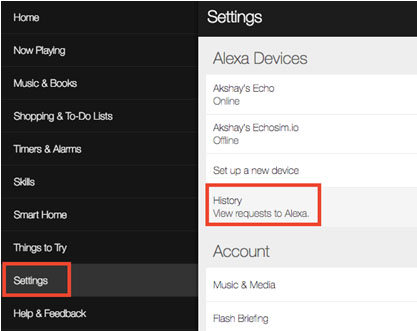
    Whatever commands you give to Alexa are recorded and saved as history. If Alexa is unable to fulfill any of your commands you can look for the issues in history that what Alexa actually heard when you gave the command. Moreover, anything that Alexa recognizes is saved here in the history. You can also delete and playback the recordings in history as well.

    For accessing Alexa command history just go to Settings and then click on History. Here you can view, delete and playback all the commands.


    Force Alexa Software Updates

    Usually, Alexa auto-updates itself whenever it gets time if you keep it connected to internet always. But if it is in usage continuously or that it doesn’t get time to update itself, then it might be working on some older update and you might be missing out on some latest alexa features.

    For doing all you have to do is go to settings and then your echo. Scroll and select ‘Device Software Version’. If an older version is being used, just mute Alexa for about half an hour to let it auto-update.

    Alexa Flash Briefing

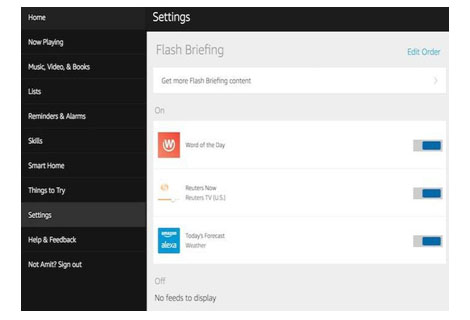
    If you ask Alexa commands like ‘Alexa, What’s up?’ or ‘Alexa, read me the news’ then Alexa reads you the latest news, however if you don’t like the content then you can simply listen to customized news.

    For this go to Settings and there select Flash Briefing and there you will see loads of options. Switch on the switches whosoever content you like to hear to in the customized news.

    Teach Alexa new responses

    There might be some alexa commands for which might Alexa not respond to, if you want Alexa to reply to your custom commands as well, this can be done using skill ‘Everyone Around’.

    Just say ‘Alexa, enable Everyone Around’. Then you will have to add custom commands in the app. For this use command ‘Alexa, open Everyone Around’ and you will receive a mail to add custom replies. This is one of the useful Alexa tips to try .

    Read Also : Bixby Vs Google assistant Vs Siri Vs Cortana – Popular AI Assistant

    Alexa as Kitchen Assistant

    Alexa can be your wonderful cooking companion as well. There are loads of Alexa commands which can be of great help to you in your kitchen. Some of these are ‘Alexa, Set timer for 10 minutes’, ‘Alexa, add flour to the shopping list’ or carry some conversions by saying ‘Alexa, how many cups are there in two pints?’. Smart devices for kitchen is an asset , so you can use some Alexa tips to make Alexa your kitchen assistant .

    Read Also : Meal Kit Delivery – Amazon Meal Vs Walmart Meal Vs Blue Apron Vs Hellofresh

    Read Also : Amazon Go Store – Grocery Store of the Future

    Alexa To do List manager

    Alexa can be an amazing to do list manager. You can create your own shopping lists, wish lists or simply a to do list consisting of your day to day tasks. Use commands like ‘Alexa, add ‘Call Boss’ to my to do list’ or ‘Alexa, add denims to my shopping lists’. You can review these lists on Alexa’s mobile application or http://alexa.amazon.com/.

    Add work location on Alexa 

    You can add your frequently visited locations such as your home and work. Just go to app Settings and select Traffic under account. There you can add your desired addresses.

    Then you can use commands like “Alexa, how is the commute to work?” and know about the traffic conditions for your way. This is an excellent alexa tips to use on a daily basis .

    Alexa Smart home – Control your home

    Amazon alexa can help you to control all your smart gadget easily.For every smart home alexa is the perfect manager . Just say “Alexa, switch off the fan”. You can also create a group for devices so as to turn them on/off together. For this your smart home devices need to be Alexa-compatible.

    Read Also : Best Smart Home Gadgets for Home automation- Smart home

    Link Alexa with other apps

    You can access a lots of services provided by other companies such as Uber, Pizza Hut, Dominos and more. Their services can be used by enabling their respective skills in the skill section. You can add your work place and say “Alexa, book a ride to work” and your ride will be booked in a pinch of time.

    Alexa’s Easter eggs

    If you have kids in your house then this is one of the most interesting features for you. Alexa can play a lot of games with you and you can expect a number of funny responses as well. For example you can play animal game, just say “Alexa, play animal game” and Alexa will ask you a bunch of questions to guess the animal you thought of. You can play a number of more such games like Bingo, rock paper scissor and much more or just say “Alexa, tell us a joke”.

    Alexa Calorie Tracker 

    If you are on a diet, Alexa can be your very own trainer to keep track of your intake of calories in a day. Food tracking service Nutritionix is present and you can use commands like ‘Alexa, tell food tracker to log a cup of ice cream’ will help you in tracking your eating.

    Listen to book using Alexa

    If you are doing super busy and are unable to finish the book you started, then Alexa can come to your rescue. You can listen to that book while you are driving or walking or cooking. Just say ‘Alexa, read the Kindle book [Book Title]’ and Alexa will read the book from kindle where you left it.

    Get skilled at adding skills

    There are literally huge number of skills that can performed by Alexa that a number of them can be overlooked by its user. So while using Alexa you also know how to activate the best skills available with Alexa. For doing so you can search them in proper categories and can also sort them in desired order.

    Alexa Alarm Clock

    Alexa can be your alarm clock as well. Just say ‘Alexa, set an alarm for 7:00 a.m.’ and for setting some celebrity’s voice as your wake up song just go to the Menu button, then select Timers & Alarms then Alarms and then select Manage alarm volume and default sound. Now go to the Alarm and then select Celebrity and choose the voice you want.

    Say things properly

    Whenever you give Alexa give some command you ought to say it properly else Alexa may not be able to perform your desired action. For example if you say ‘Play songs Alexa’, it will do nothing since ‘Alexa’ is its wake word and it for this it hears nothing after Alexa so it won’t play any songs.

    Alexa Routines

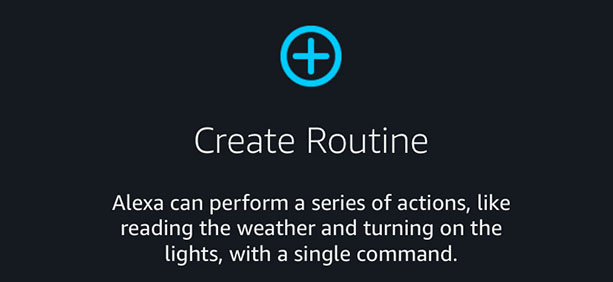
    Alexa is unable to implement multiple commands at a single moment but routines are a kind of a substitute to this. Routines implement a series of commands stored. For example a routine can be created for the command “Alexa, good morning” which first plays your flash briefing and then plays your favorite music.

    Disable/Change Alexa wake keyword

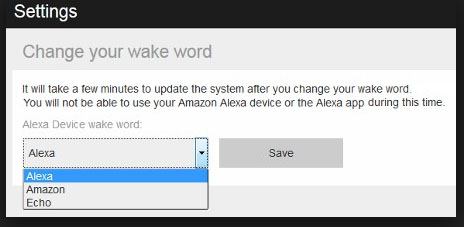
    If you want to resist Alexa from listening the wake keyword then you can mute Alexa by pressing the mute button on it and it will remain muted until that button is pressed again. For changing the wake keyword go to the settings and tap on [Device Name] and select Wake Word Alexa under general settings.

    Use Alexa as Intercom

    You can make use of Alexa to turn your Amazon Echo device into a home intercom .For example if you ever wanted to make some announcement in drawing room just say “Alexa, drop in on the drawing room”. You can use the multiple Alexa’s as speakers to play a single song.

    Create Voice profiles on Alexa 

    You can create separate voice profiles on Alexa for each of your family member, this helps Alexa to recognize who is making the commands and deliver personalized results. For “Alexa, what are my upcoming events”. It will tell you about your events from your calendar by recognizing your voice.

    Hope, these Alexa tips and tricks will help you to get the best from your Alexa. Do tell us which feature helped you the most and don’t forget to share with us any more features of Alexa you find cool.

  • Spotify Tips and Tricks to Enjoy Spotify Subscription More

    Spotify Tips and Tricks to Enjoy Spotify Subscription More

    Spotify is one of the trending in chart , so let’s discover some of the exciting Spotify features , Spotify Tips and Tricks to Enjoy Spotify Subscription More .

    What is Spotify 

    Spotify, many of you must have heard this name as it is one of the leading platforms for music streaming online. Spotify was founded in Sweden in 2008. As per May 2018, it had as huge as 175 million active monthly subscribers.

    Spotify has come a long way from Sweden now has expanded to most parts of the world. Over 35 million songs can be played using Spotify.

    Spotify is available for all leading platforms including Windows, Mac OS and even Linux. It has mobile applications for android, apple and Windows. It can also be used to play songs on play stations and Xbox.

    Everyone loves listening to music, music can be our best companion under any kind of circumstances whether happy or harsh or sad, and Spotify can be just the perfect way for you to meet your best companion.

    With Spotify app we can access to huge number of songs from all genres and from a number of artists. We can share our listening sessions and playlists with your followers and on other social media networks as well.

    Read Also : Top 8 Smule alternatives – Best Karaoke Singing Apps

    Spotify Tips and Tricks to Enjoy Spotify Subscription More

    Here are the features and some of the Spotify Tips and Tricks which justify why Spotify is one of the leading music streaming platforms:

    Discover Weekly Playlist

    It is a personalized playlist created by Spotify for each of its user. The playlist is updated every Monday. The playlist is based on the type and genre of songs you listen on Spotify, means that study your recent music choices on spotify then create a playlist of similar songs it thinks you will love to listen to.

    For accessing this playlist you simply go to the Playlists section and can find it there. You can thumps up or down the songs in this playlist to help spotify further create even more awesome playlists for you.

    Read Also : Best Garage Band Alternatives for Windows and Mac

    Read Also : Garageband Alternatives- iPad / iPhone / Android

    Daily Mixes

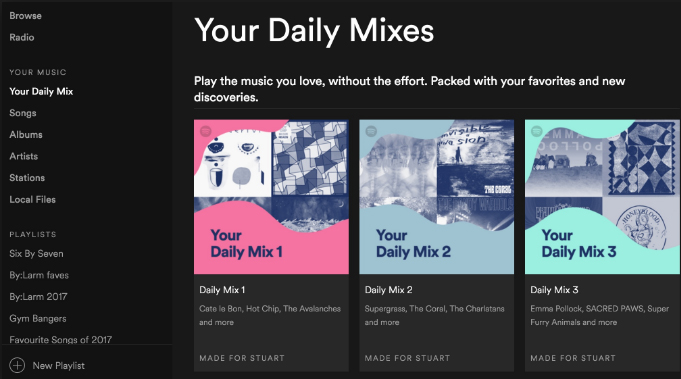
    These are also personalized playlists created by the Spotify like the Discover Weekly playlists. The only difference that these are updated on a daily basis rather than weekly basis. Use like and dislike for improving the playlists as per your interests.

    Add tracks from Shazam

    If you discover some new track on some other app like Shazam you don’t need to go search it separately in Spotify app to add it to your playlist or library, you can directly add it using the Shazam app only.

    For this you need to link your Spotify account to Shazam. After this whenever you identify some new song click on the arrow along the song and select the Spotify option. This plays the song in the Spotify app.

    Read Also : Best Streaming Devices – All Top Media Streaming Box on Market

    Read Also : Streaming Services – Netflix Vs Prime Vs Hulu Vs Sling Vs Directv Now etc

    Private Listening Sessions

    Sometimes you might be in a mood that you don’t want to share whatever you are listening to with your followers, or you want to stop sharing for a while then you can use the Spotify Private listening mode. Just go to the settings and enable this option. It is the perfect way of enjoying your guilty pleasures.

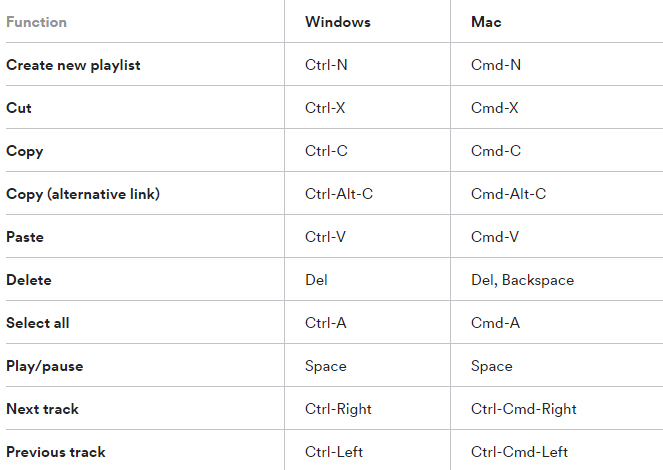
    Spotify Keyboard’s shortcuts

    Some Spotify shortcuts always come in handy so why not some for the Spotify application. Here are some Spotify keyboard shortcuts which will help you master in using Spotify –

    Recover deleted playlists

    Sometimes you might have deleted some playlist accidentally or you just want to listen to a playlist you deleted earlier, no problem. Spotify creates backups and keeps them for a considerable time period. For accessing these simply go to the Recover Playlists in the Main menu on the desktop app of Spotify. Then select the desired playlist and click ‘Restore’.

    Your Personal Karaoke

    On the Spotify desktop app when you play a song you can read its lyrics on your screen without exiting the app. Thus it can be your very own personal karaoke, have fun and sing along with your favorites.

    Collaborative Playlist

    As the name for the feature a collaborative playlist with your friends on Spotify such that all of you can add and remove songs from the playlist. So go check out this feature and create some amazing playlists and for doing so, in your library select whichever playlist you want to collaborate and select ‘Make Collaborative’.

    Radio Station

    Radio stations are playlists based on the artist or the song used to create it. You can create radio stations for the artists you listen to and similar ones. A radio station can also be created using a single song containing songs from the same artist and similar to it. For creating radio playlist click on the three dots and from the options select ‘Go to Radio’ and the radio playlist appears.

    Read Also :  Find the best radio station for iPod or iPhone FM Transmitter

    Read Also : Top Satellite Car Radio Installation and specification guide

    Discover about live gigs

    You can discover about all the concerts in and around your location. Just go to the browse section and then to concerts. There you can find about the live gigs of the artists you listen to and all the top artists as well. You can get all the details with one simple click.This would be a least familiar Spotify Tips and Tricks for most of the readers .

    Learn more about Spotify Live gigs to make use of this Spotify tips .

    Smart Search

    You can search any song or album on Spotify using its full name on Spotify easily. Besides this you can search using keywords like genre: jazz for searching songs of particular genre, year: 1980-1985 for songs of this specific era. You can use keywords like AND, NOT for including and excluding certain artist from the search.

    This will be a familiar Spotify tips for most of you .

    Hear a quick Preview

    If you want to add new albums or songs to your library and playlists, Spotify can help you lessen your work. No need to listen to complete songs or albums, just long tap on whichever song you want to listen to then spotify will play a small section for you to decide whether you want to add it or not.

    Read Also : Fast Forward , Rewind , Scrub Music in iPhone & iPad Music Player

    Read Also : Best iTunes Cleanup Software for better iTunes experience

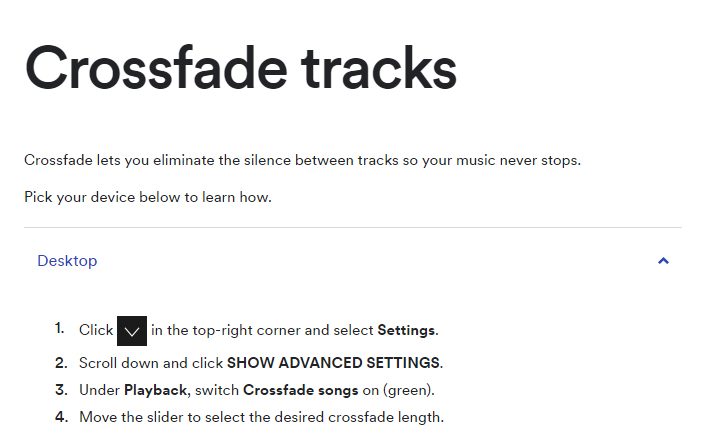
    Crossfade feature

    If you hate the time when one song ends and the next one begins to play, the crossfade feature is definitely there for your rescue. It simply blends the two songs and you can customize the Spotify crossfade time between 1-12 seconds.

    Just access the settings then go to Show Spotify Advanced features, scroll down enable and then customize this option the way you want.

    Running Playlist

    Spotify has this amazing feature where it plays songs which matches your tempo while you are running. For this select any running playlist from the browse section. Then through your phone sensors it will find your tempo and play songs with similar tempo, thus taking your running experience to next level.

    Listen to Spotify on your Uber ride

    You can listen to any of yours Spotify playlists by linking your Spotify account with your Uber account. If the feature is allowed by your Uber driver then you can have the access the stereo of the uber car and enjoy your ride to its fullest with your favorite music playing.

    But this feature is not available in all countries yet, for checking if it’s available in your country, check it in the uber app.

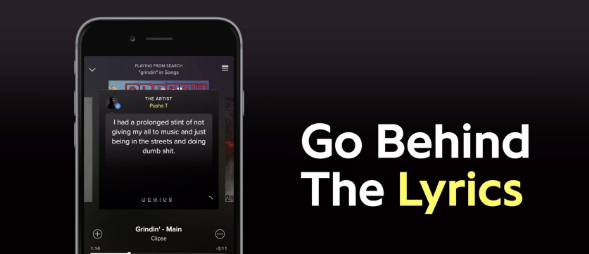
    Behind the Lyrics

    This feature was launched by Spotify in collaboration with Genius. What this features actually does is that provides the listener with the meaning of the lyrics or some facts and trivia about that song. Although behind the lyrics is not available for all the songs in the App or website but still is definitely an amazing feature

    Be picky

    Be picky in whatever music you add to your library since spotify allows you to add only a finite number of songs to your library. Once the limit is reached you will have to clean your library by going through all of it, instead add carefully initially. You can also save you some space by adding songs to your playlist instead of the library. This Spotify tips is a must to avoid messy situation in future.

    By reading the loads of cool stuff you can do on spotify all your doubts that why Spotify is one of the leading music streaming platform among the music lovers across the globe. But many of the above Spotify features mentioned only for Spotify Premium Accounts. There are offers for complete family subscription or Student discounts are also available. You can opt for these ways for a cheaper subscription.

    Do tell us which feature do you find the coolest and don’t forget to share any of your favourite Spotify tips and tricks with us in the comments below.

  • Pinterest Tips and Tricks to use Pinterest like a Pro

    Pinterest Tips and Tricks to use Pinterest like a Pro

    Pinterest, you must have heard this name right? Whenever you search something on Google images a number of results are from Pinterest only. We might save those images and move on without actually knowing what Pinterest is. Of course many of you must be knowing what Pinterest is and how to use it but many of you don’t. So this article going to get you familiar to Pinterest tips and tricks to use Pinterest like a Pro .

    What is Pinterest ?

    Pinterest is an image-based platform for viewing images, bookmarking them and sharing your own related to different stuff such as art, fashion, food, landscapes, buildings and event planning’s and a lot of other such creative fields.

    Pinterest Tips and Tricks to use Pinterest like a Pro

    Now let’s explore the useful Pinterest Tips and Tricks –

    Adding Links without Pin button

    If you want to pin the picture then on many websites whenever we hover mouse over the picture an icon named ‘pin it’ appears if you have added the Pinterest extension to your browser. Clicking it the picture is pinned. But it can also be done without this pin it  button, just copy the image’s URL and then open your Pinterest mobile app, it will by itself pop up the link you copied and there then you can pin it.

    Read Also : Exciting free Photoshop Alternatives for high quality photo edits

    Read Also : 25 Best Selfie Apps for every Selfie Lovers – Perfect Click

    Read Also : Bothie feature on any Smartphone – Best Bothie apps

    Get rid of the pin button

    Sometimes seeing the ‘pin it’ can be distracting and irritating when you are simply browsing some site. Whenever the pointer hovers some picture this little icon pop up. But wait here’s the solution, you can simply get rid of it.

    Just right click on the Pinterest extension button, select options and check “Hide hovering Pin it buttons” and done. No more pin it buttons.

    Trending

    There is loads of cool stuff to look for on Pinterest. But if you want to look at what your friends and your fellow Pinterest users are searching or if you want a look at the latest trending topics, just go to the explore section. In one simple click get all the trending pins according to your interests.

    Secret Boards

    If you don’t want to just broadcast every board of yours, want to keep some moments of yours to yourself, plan some surprise, save pins for planning some event, Secret boards can come to your rescue. You can keep secret boards to yourself or share it with selected people only.

    Setting Pin Descriptions

    If you highlight any text or any heading before pinning any image from any website then that text will be used as the description of your pin. This can save you from a lot of thinking required for an amazing caption.

    Searching Pins from a specific website

    Searching pins from a certain website can be a hectic task given a large number of pins related to every topic. This can be done simply by searching this URL https://www.pinterest.com/source/WEBSITE_DOMAIN/.  Replace the Website domain with the domain name of whichever = website you want to search for.

    For Example searching for https://www.pinterest.com/source/maccablo.com/ gives:

    Edit notifications

    Getting loads of notifications whenever you switch on the internet is irritating. You can manage your notifications from pinterest. Just click on edit option on the notifications menu and select the desired option and save.

    Get More Privacy

    Secret boards one of the many ways to get privacy on Pinterest. There are other ways as well.

    Pinterest tracks you while you visit other sites so as to provide you a personalized experience when you are using Pinterest. You can switch it off by disabling the Personalization option in settings.

    You can keep your boards off the Google searches by enabling the Search Privacy option.

    Read Also : Instagram tips and tricks to be a Pro Instagrammer

    Place Pins

    Place pins lets you bookmark different locations on Pinterest. These can be used for planning any vacation or if you simply want to save the places you wish to visit. On Android, the app notifies you whenever you are in a nearby area of your pinned places.

    Aspect Ratios

    You can upload pictures in any aspect ratio you want, but the most recommended aspect ratios for getting the most repins are 2:5 or 1:3:5. Images with ratio 1:3:5 are very long and can viewed completely only by clicking on expand pin.

    Send pins via email

    If you want to share your pins with someone who is not on Pinterest, for this click on send option and start typing the mail address of the receiver and choose the top option from the dropdown appearing. The link of your pin will be shared with the desired person.

    Move pins to new board

    Organizing your pins and boards is just a few clicks away. For doing so click on the ‘Move Pins’ option and check the desired the pins you want to move, select Move and list of your boards appears and then select the desired board or create a new one.

    Pin a buyable pin

    Now you can even buy and sell stuff using Pinterest. There is a buy option right under every buyable pin. Pinterest notifies when the price of any of your pinned items drops. It is an amazing feature with Pinterest.

    Set up a Business page

    You can easily convert your personal page on Pinterest for Business purposes. Simply convert your page to Business profile. This will help you in getting the  Pinterest analytics to your page, helping you to get better at your business.

    Rich Pins

    In rich pins you can add additional information with your picture. There are different types of rich pins such as Movie pins include ratings, cast members and reviews, Article pins include the headline, author, story description and link and many more to provide instant access to some important info regarding any pin.

    Hope these Pinterest tips and tricks will help you turning into a pro Pinterest user. You must have become quite familiar by now many of the amazing features available on Pinterest. Do tell us know the Pinterest feature you loved the most. If you know some other Pinterest Tips and Tricks don’t forget to share those with us.

    So make use of all the Pinterest Tips and Tricks  and enjoy !!!