Tag: tips and tricks

  • Google Maps Features Exclusive guide

    Google Maps Features Exclusive guide

    Google maps have become an essential part of our life and business . Here we will take a look at exciting new Google maps features .
     

    google maps features guide

    It is always difficult for everyone to travel to different places without knowing the route. Checking the signboards, asking someone for direction every time is time-consuming and difficult. Also, if you miss out on any exit, then we will have to look for the next exit and take a diversion. When Google introduced maps (maps google , google my maps ) , all the chaos in finding the correct route to a destination was over. Google Map makes it so easy to find shops, restaurants, tourist attractions, and a lot more. You can drive alone to anywhere you want to visit without any anxiety about finding the route. But one needs clear understanding of all google maps features to use it for their convenience .

    First, you should install google map on your phone , select the starting point and destination, and follow the route shown on the map. You can turn on your location on the phone, so that, Google Map will automatically enter your current location. Click on directions and you can choose the mode of transport you are using as a car, two-wheeler, train or bus, walk, etc. Google Map offers aerial photography, street maps, satellite images, real-time traffic environment, and 360-degree interactive panoramic views. 


    How to Save Route in Google Maps

    To save a particular route in google maps that you use often, you have the option of saving the route to your home screen. Once you have installed Google Map on your android phone, choose your starting point and destination. See the top right corner, tap on the three dots or it will be given as the first alphabet of your name and you will be able to see a few choices to select. Click on add route to the home screen. Click on Add.

    This is a Great google maps feature for my life i must say .

    Why Google maps not available in my country

    Google Maps are available in the majority of the countries and regions. But still, there is 1% where Google Map will not be accessible. It can be because of any legal or political issue. We cannot accurately conclude the reason for google maps not being available in certain places and when you search for the Google Map App, it might show as Google Maps not available. 


    Fix Google Maps not updating location

    Make sure the location in your android phone is enabled. If you cannot find the blue dot (your current location) when you open the map, tap on Location at the bottom. If you find it difficult to select the precise current location, you should use a high accuracy mode. In your android phone, go to Settings > tap Location > switch on location > clock on Mode > High Accuracy. Google Map usually finds your current location with the help of Wi-Fi, GPS, and Cell towers. You can also try switching on the Wi-Fi/mobile data, try restarting your phone, or calibrate your phone by opening the google map and make a figure of 8 with your phone until the blue dot is in an accurate position. 

    This google maps features easy tip can help you have your accurate location on google map .


    Google maps not talking or giving direction – How to fix

    When you are driving, you do not need to check the map on your phone over and over. Google map comes with voice over and you can just hear the navigation while driving. If you cannot hear the voice, there are a few remedies. First, check your phone’s volume to make sure that it is not muted. Enable the play voice over Bluetooth – If you are using the google map on your car’s Bluetooth system, you should enable the play voice over Bluetooth to hear the navigation. 

    This is one of the safest driving assistance available in form of google maps features.

     Avoid toll roads on google maps

    We always like to avoid tolls and ferries enroute to our destination and with the help of Google Map, we can avoid such toll roads. If you want to reach a destination soon and if you want to avoid the toll, first you should select the starting point and destination. Click on three dots on the right top corner of the screen and you will see a few options to select. Click on > Route Options > Select avoid toll roads on google map from the three options given. Click on the Done button. The Google Map will show the route avoiding the tolls present on the main highway. See how superb are these google maps features thanks to such good inventions 🙂 


    Fix Google Maps not showing street view

    Street View map is one of the most commonly used google maps features  by the majority of the people because it shows the real images of the places you are going to visit which will be much easier to spot. But if the street view option is not showing on your android, then there might a glitch or some other problems. Check the following steps for the issues.

    Sometimes this problem may occur when you update your Google Map App. Check if you have recently updated the app and the street view is not showing. Also, check with other users if they are facing the same issue in your region. Try using the older version of Google Map to solve this problem. Or you can even try using the google map offline mode. 

    Check if the street view option is available in your area since the street view map type is not available in all the regions. 

    You can also check for map google nearby places to the destination you want to visit. All you have to do is select one of the famous spots and click on nearby places on the map to see all the nearest shops, restaurants, shopping malls, etc. So that might be able to get a street view near to the destination you are looking for. 

    This google maps features always helped me with shopping and travel whenever am in a new place .

    Try getting the map through a google search. Give your current location first in the search bar and then select the maps section. Drop a pin anywhere you like to get the image of the area you are looking for.


    Zoom on Google maps with one finger

    When you have selected your origin and destination point, the map will be reflected on the screen. If you want to zoom a particular spot on the map, you can do so by simply double-tapping the spot. To zoom in you can just pinch in the spot. You can also use two fingers to zoom out the spot you want too. Likewise, to move the map and see the route you can just press on the screen with one finger and move your finger right, left, top, or down to see.


    Set up plus codes on Google maps

    Getting the plus codes on google map is very easy. You can share the plus code with anyone and with that plus code your friends or relatives can search the map on their android just like a street address. Open the Google Map on your android and select the destination. Tap and press on the drop in on the map to the plus code and you can find the address and the plus code below.   this icon shows the plus code and you can share the plus code by simply copying the code and paste it into mail or WhatsApp etc. 


    How to set multi-stop directions in Google maps

    With Google Map, you can set up multi-step directions easily. This means, other than entering the origin and destination point, you can add other stops between the journey. To add other stops, open Google Map on your android and click on the Go button on the left bottom corner. Enter the origin and destination point. Click on the settings option which will be represented by 3 dots on the top left corner. From the drop-down menu, select Add Stop. You can add several stops as you wish in your Google Map. The stops will be shown in alphabetical order (A, B, C, etc.) You also have the option to reorder the destinations by simply dragging the leftmost button shown as small circles. 


    Restrict Google maps data grabbing

    Google Map is a very convenient technology used by the majority of people to travel. It is so easy to find the routers and landmarks using the Google Map. But using Google Map throughout your journey can consume your phone battery charge quickly and it also used mobile data. If you are thinking about using the map without grabbing the data then, there are a few options that you can try.


     Read also : How to Spoof location


    Use offline Google Maps: Before you start your journey, you can download the offline map on your android phone easily which will not consume much data of yours. Open the Google Map, click on the setting button on the top left corner and the drop-down menu will show the option of Offline Map. Click on that and download the map. 


    Disable Data Access: Another option to avoid usage of data is to disable unrestricted data usage. To do that, go to setting in your phone and select the apps from which you can click on the Google Map app. You will see a few options like permissions, storage, data usage, etc. From that, click on data usage and if the unrestricted data usage is on, then turn it off so stop using mobile data.


    Use Wi-fi Only: It is not feasible to use wi-fi on the road while you are traveling. But you can stop the usage of data by setting this up on your phone. Go to Google Map, click on the Settings button, and enable the Wi-Fi only option. 


    Share real-time location on WhatsApp and Google maps

    It is very easy to share your real-time location with your friends or family. Open WhatsApp and click on the attach option (a pin). Click on Location and tap on share the live location. You can select the duration of time below the same page and also add a comment and share the same with anybody you want. 

    To share the real-time location on Google Map > Click on three dots on the top left corner (or an alphabet). From the menu, click on Location sharing and share your live location through WhatsApp, mail, messenger, etc. 


    Create and share custom google maps 

    It is not feasible to create a custom map just using your android phone. First, you need to use your computer to set up a custom google map, and then you can share the same with your phone. To do that, open google map on your computer and select the origin and destination. Create your custom map by clicking and moving the various routes shown on the map. Once you have fixed on a particular route, click on> Send directions to your phone. You can share the same via mail, text, etc. 


    Steps to use google maps offline

    To use Google Maps offline, first, you need to download the map on your phone. Open Google Map> Click on three dots on the top left corner. From the options given, click on Offline Maps. Select the area you want by zooming in or out using your fingers and select the area. The size of the map you selected will be given below. Click on download map. Once it is downloaded, you can give your origin and destination and find the route offline.


    Save locations in Google Maps for – Android and Apple

    If you are using the same location often, then you can easily save the location on your phone. Open google map in android or Apple, select the location you want either by typing the destination or by clicking on the map. Then at the bottom, you can see many options including SAVE. Click on the save button and the location will be saved in your phone at that moment.


    Google maps clear navigation and search history

    If you want to clear or delete the navigation and search history from your phone, click on settings > click on maps history. There we will see many options that you can choose from. You can turn on the auto-delete option if you want which will automatically delete the history from your phone. You can even select months, years, or weeks according to your need and select it so that the search history for that particular period will be cleared. 


    How to turn off Google map voice search permanently on android

    When you use Google Map, once the navigation starts, the google voice will automatically give you directions which is easier for people who drive. If you want to turn the voice off, then once you click on start navigation, you will be able to see a speaker icon on the left side of the map. Disable it to stop hearing the voice again. 


    Remove location sharing on Google hangouts

    With the latest update of Google hangouts, location-sharing is unavailable. However, you can share locations through google hangout using the google map. 


    How to access Google services on pc

    If you want to use Google services on your pc, first your need to install google chrome and follow the instructions. Once it is downloaded, open the chrome, and sign in by giving your Gmail address and password. Create a new account with a username and password if you do not have one and begin using the services of Google on your pc. Likewise, you can download any google services on your pc and sign in to use it. 

    Another option is to download Bluestacks on your pc. The bluestack acts as a virtual machine that helps in downloading the apps you need. Once you have Bluestack installed, open it and sign in to your google account. Only then you will be able to use Google Play Store to download any apps of google services. With Bluestack you will get the feel of using your android phone on your pc. But it is way slower if you do not have a powerful pc. 

    Hope this google maps features helps you use this app more conveniently . Let us know your favourite google maps features


     

  • Wikipedia Tips and tricks to be a Wiki Master

    Wikipedia Tips and tricks to be a Wiki Master

    Wikipedia is globally popular site ranking among top 10 websites . Basically, Wikipedia acts as a free encyclopedia and also allow users to participate and contribute to Wikipedia in order to improve the quality of information. In this article, we are going to throw some light on the tips and tricks of Wikipedia. Hope these Wikipedia Tips and tricks will help you to to become a Wiki Master / Wikipedia Expert .

    Wikipedia is discovered by Jimmy Wales and Larry Sanger on 15th January 2001 and is owned by Wikipedia Foundation.

    Wikipedia is an encyclopedia that is available in multiple languages and is free of cost. The best feature of Wikipedia is that anyone can edit or donate on Wikipedia information to make the information more informative. Wikipedia can be used in various ways just have a look at some Wikipedia tips and tricks that can help you to use Wikipedia more effectively.

    Wikipedia Tips and tricks to be a Wiki Master

    So let us see some of the popular Wikipedia tricks and Wikipedia tips to be a Wikipedia expert .

    Registration on Wikipedia 

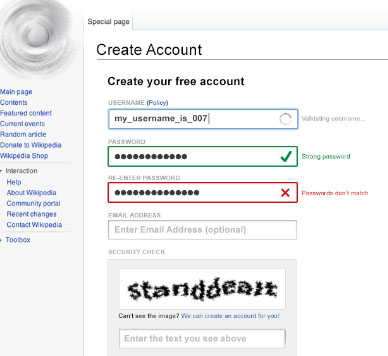
    Users can work as an admin after they register themselves on Wikipedia, after registration they can create content, and access options like edit and rename content, socialize with others. Like this you can become Wikipedia contributor .

    Steps to do the registration:

    • Do Sign up it is free
    • Log in to your account
    • A personal account will be open
    • Edit your profile
    • Ready to use

    Wikipedia Offline Reading 

    Wikipedia, offers a feature that allows users to create books which they can read or use offline on their devices. Suppose you are travelling for hours and there is no guarantee of the network then you can use this book creating option at its best. You can create an offline book of web pages in which you are interested.

    Read Also : Apple Homepod Tips, Tricks and Review

    Read Also : Keylogger detector & Anti-Keyloggers to Protect your data

    Use Wikipedia to read the news

    On Wikipedia you can read about all the current news and events that happen across the world. You can read old news as well as latest news on Wiki. You can read all the latest news by using the Current event option.

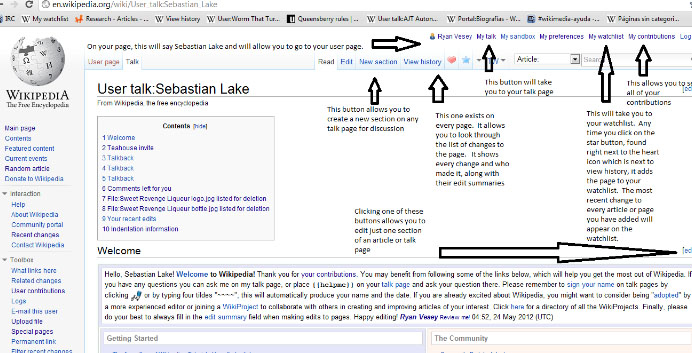
    Wikipedia Talk Page

    Wikipedia offers its user to contribute by editing the information so the information can become more informative. Users can simply edit the information. But before editing users must check the online debate that is going on the Talk page one of the best examples of this is the Smashing Pumpkins. Basically, the Smashing Pumpkins is one of the most debated topics as there are many different arguments, reviews, are given by different users. So, reading all these once will give a better thought to the user in doing the better editing.

    Wikipedia Vision

    This is the most interesting feature of Wikipedia. Wikipedia Vision allows its users to see the changes made on encyclopedia on the map. This feature helps users to see the background work and from which part of the world the editing is been done. This feature is there for users to check the list of recent edits as well as the location. This recent edit list can be sort by time, date, internet protocol address.

    Wiki Suggest Bot 

    As the name suggests the Suggest Bot option is used for solving the confusion faced by the users. When the users face problem as what to edit next then they Suggest bot can suggest them a topic according to the user’s history of editing.

    Wikimedia commons

    Wikimedia common is a feature that gives the user to free access to media, multimedia and picture files. The multimedia files can be used easily by users on any project they want. It is known as Wikimedia common because all the media it offers can be used by anybody.

    Read Also : DuckDuckGo Tips and Tricks to Search Like a Pro

    Read Also : Facebook Small Business Advertisement Working and Results

    Wikimedia mobile

    Wikimedia mobile is a feature that allows users to use Wikipedia on their mobile devices without paying any charges. The main purpose of inventing Wikimedia mobile is that it allows users to access knowledge without paying anything.

    These are some of the Wikipedia tips that can help users to use Wikipedia efficiently.

  • iPhone X Features ,Tips ,Tricks and iPhone X Review

    iPhone X Features ,Tips ,Tricks and iPhone X Review

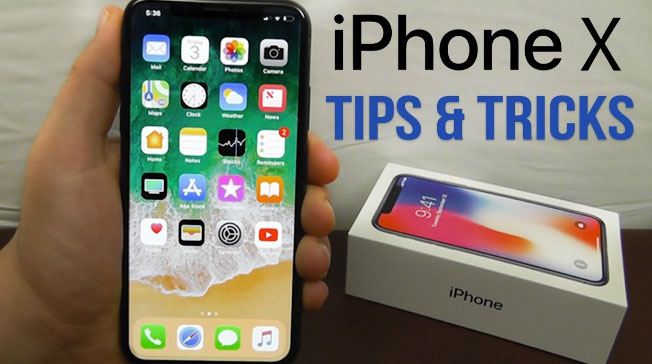
    If we talk about smartphones, iPhone is the first name that comes on everybody’s mind.  Everything about iPhones is special such its features, its price, its fan following, its demand all over the country is just outstanding all these things make it a luxury.  In this article, we are going to throw some light on the latest iPhone X, iPhone X features , and iPhone tips and tricks.

    On the Apple mobile series the latest is iPhone XS , iPhone XS Max and iPhone XR . You may be aware that the iPhone X got discontinued . It doesn’t mean that your iPhone X is useless now , those who have the iPhone X can still continue to use their device . But those who wanted to buy a new iPhone X , you lost the chance .

    Don’t worry you have better options than iPhone X . The latest iPhone XS , iPhone XS Max and iPhone XR have got better specifications than iPhone X features .

    iPhone X Features ,Tips ,Tricks and iPhone X Review

    Here we will discuss about iPhone X features and iPhone X tips for those who still use the iPhone X model.

    Read Also : How to Fix “Cannot Take Photo” Problem on iPhone and iPad

    iPhone X

    Apple launched iPhone X on November 3, 2017. The iPhone X is available in two colour options one is space grey and the other is black. The stainless steel is used to make the phone as it ensures durability and glass is used to make the casing of iPhone X.

    Some of the awesome iPhone X features are given below:

    • General: iPhone X weight is 174.00 and dimension is 143.60 x 70.90 x 7.70.
    • Display: The display screen of the iPhone is 5.80-inch with a resolution of 1125 pixels*2436 pixels. It provides a super retina HD display, multi-touch display, and 3D Touch.
    • Hardware: The iPhone X is powered by the hexa-core processor and it provides 3 GB RAM. The phone provides 64GB of internal storage that is non-extendable.
    • Operating system: iOS 11 is the operating system used in iPhone X it makes the smartphone more compelling, personal and intelligent than ever.
    • Wireless Charging: The best iPhone X feature is that it ensures wireless charging.
    • Battery: Battery capacity of iPhone X is 2716 and the battery is non- removable.
    • Camera: The rear camera is of 12 megapixels and has features like Quad-LED dual-tone flash, panorama, HDR, Noise reduction, Exposure control, Body and face detection and more. The front camera is of 7 megapixels. It is compatible with Retina Flash, Portrait Mode, Exposure control, Burst mode, Timer mode, Auto image stabilization etc.

    • Video recording: Options like 720p HD video recording at 30 fps, 1080p HD video recording at 30 fps/ 60 fps, and 4K video recording at 24 fps/30 fps/ 60 fps, are also available.
    • Sensors: Sensors that are offered in iPhone are Accelerometer, Face ID, Three-axis gyro, Barometer, Ambient light sensor, and Proximity sensor.
    • Animoji: The most attractive iPhone X feature is Animoji. With this feature, you can customize emojis. It can be possible with the help of one more attractive iPhone X feature that is true depth camera.
    • Some of the other iPhone X features are that it is dust, water, and Splash resistance and it supports Nano Sim.

    Read Also : Android Vs iOS – Pros & Cons of Buying Android Vs iOS

    Read Also : iOS 11 Vs Android Oreo – Who wins gadget lover’s Heart

    iPhone X tips and tricks

    The new iPhone is quite different from its successors, so it became difficult for its users to find and use all iPhone X features. So, some tips and tricks are shared below for the iPhone X users which will help them in using their smartphones more smartly.

    1. Use face to mute alarm: iPhone X users don’t have to snooze their alarm. They just need to look at the mobile and the Face ID will automatically lessen the loudness of the alarm.
    2. Deactivate Face ID: The Face ID can be deactivated and passcode security will reactivate when the user presses the power button five times.
    3. Battery: The battery percentage is never shown on the iPhone X, however; users can see the battery percentage by swiping down the notch presented on the right side.
    4. Home button: Home button is not present but the user can get a virtual home button, they just need to go to General, where they will find Accessibility and in it, they have to turn on the Assistive Touch option.
    5. Save battery: Users can save the battery of there iPhone by setting black wallpaper or by using the grayscale mode.
    6. Close multiple tabs: Users can close multiple tabs in one go by using Safari option.
    7. SIRI announcements: If the user is using headphones and someone is calling then Siri will announce who is calling. A user can turn on this feature by visiting the setting option.

    Read Also : Fast Forward , Rewind , Scrub Music in iPhone & iPad Music Player

    Read Also : Garageband Alternatives- iPad / iPhone / Android

    Read Also : Factory reset iPhone without password or iTunes with data backup

    iPhone X price

    iPhones are always expensive that’s what makes them a luxury and not a common thing. The current price of iPhone X in the market is quite high because of the increase in customs duty. The price of the 64GB Apple iPhone is Rs. 95,390 and the price of the 256GB Apple iPhone is Rs. 1, 08,930.

    With the Launch of iPhone XS ,  iPhone XS Max and iPhone XR Price range of the iPhone X will see a heavy fall .

    iPhone X reviews

    iPhone never disappoints its users, after going through people’s reviews one thing is very clear that iPhone X users are really very satisfied with it. The best iPhone X feature which many people liked is face unlock feature, the other thing which users like is its wireless charging feature, the camera is quality is just great, the display and size of iPhone X are just awesome and comfortable to hold. When it was first released not many apps were supported on it, however, developers are trying since to make it compatible with more apps. So, we can say that iPhone X has majorly satisfied its users.

    Read Also : 38 Best iPhone games you should play

    What to do with old iPhone X ?

    This is a question in mind of every gadget lover who got disappointing with the discontinuity of iPhone X . So what can you do with the iPhone X .

    Well here we give a short idea on what can you do with old iPhone .

    Upgrade iPhone X 

    You can now make use of the last few days to upgrade your old iPhone X . You can upgrade iPhone X to iPhone XS ,or iPhone XS Max using the apple’s iPhone Upgrade Program .

    But when you have iPhone X then the decision to upgrade iPhone X to iPhone XS will seriously disappointing you . So you can consider to upgrade iPhone X to iPhone XS Max .

    To get a novel feel with iPhone you must buy iPhone XR . You can even sell or trade old iPhone online easily .

     iPhone X plus

    Apple launched iPhone XS in the market. Being the newest model, the iPhone XS will provide more advanced features and obviously will be more expensive. The release date of iPhone XS is September 12, 2018. Though it is going to be launched soon, people already started being curious and begin to guess what features this new iPhone will have so from the sources we came to know that its display will be of 6.0, it will provide storage of 64 GB, camera will be 13 MP, battery MAH will be 2815, and 4GB Ram. For more accurate details we need to wait until it launched.


    Soon we will give you iPhone XS , iPhone XS Max and iPhone XR review and features.

  • Apple Homepod Tips, Tricks and Review

    Apple Homepod Tips, Tricks and Review

    Apple Homepod is the Apple’s smart speaker. Apple launched it in February this year. Apple finally entered this field after Amazon’s Alexa or Echo and then followed by Google’s Home assistant. Earlier we have discussed out the Amazon Alexa tips and tricks , now here we will discuss the Apple Homepod Tips and Tricks as well as Apple Homepod Review .

    Since its release the Apple Homepod has been most appreciated for which Apple is much famous already i.e. its sound quality that to with 360 degree audio. How can I forget to mention that the Homepod is damn good looking and stylish. But it costs much more as compared to Echo.

    Before we discuss about the Apple Homepod Tips and tricks , lets understand what is Apple Homepod.

    What is Apple Homepod ?

    The question is simple and the answer is very simple . Apple Homepod , popularly known as Homepod is a smart speaker that functions amazingly along with Siri and creates a wonderful music experience with Apple music . This wireless smart speaker is the trend of the generation.

    Apple Homepod Price ?

    You can buy Apple homepod from apple store online or even there are great deals for Apple Homepod this year on different e-commerce site . The price range of Apple Homepod is about $349 .

    There are speculations in the market regarding Apple Homepod which are not yet confirmed .There can a price cut for Homepod , else Apple Homepod 2 or Apple Homepod Mini will be released .

    Read Also : Best Apple Watch Alternatives-Affordable Gadgets

    Apple Homepod Tips, Tricks and Review

    Here’s a guide to all the major Apple Homepod tips and tricks that are going to help you to get you the best out of your Homepod or force you to buy one right now:

    Switch Siri’s voice on Homepod

    The very first Homepod trick is that if you want a completely new refreshing voice and accent for your Homepod so here’s the good news . You can try and experiment the different available option to choose different accent such as American accent / British / Australian accent . Even you can switch between either female / male voice . To change Siri voice , all you have to do is just long press Homepod tile . This will enable so many options from which you can select the Siri language settings , default voice and many more as per your choice of interest . This is one of the excellent Apple Homepod tips to try out .

    Mute Siri on Homepod

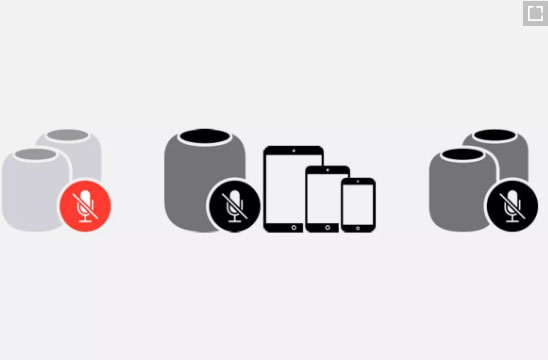
    Sometimes you might want Siri to not listen to some of your conversations so here is one more Homepod tip for you. For doing so you can mute Siri. Just say ‘Hey Siri, Stop listening’. For making your Homepod active again just say ‘Hey Siri, Start listening’.

    You can also control these settings from your Home app simply by selecting on/off for the ‘Hey Siri’ option.

    Homepod Security controls

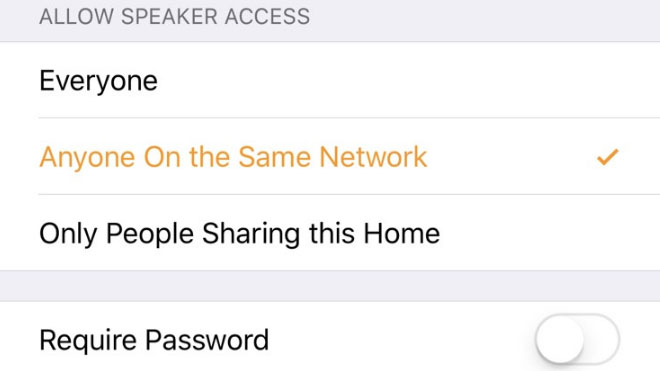
    Here’s one of the most important Homepod tip for you. None of you might want that anyone who’s near your homepod and can connect to it is able to play songs on it. For this you can limit your homepod access. You can allow access to everyone living in your home or to people connected to the same network. You can even set a password for accessing your homepod. All these settings can be accessed in the home app.

    Translate with Homepod

    Homepod can act as your very own translator. Siri can help you translating English to French, German, Italian, Spanish and Mandarin. Just say ‘Hey Siri, how do you say [word] in [language]’ and there’s your answer.

    Siri Tune

    Whenever you give some command to your Homepod you might keep wondering whether it heard it or not. For this you can switch on Siri tune. It will assure you whether your Homepod heard you or not.

    For turning it on, go to your Homepod’s settings in the Home app and switch on ‘Sound when using Siri option’.

    Latest Gossip and news on Homepod

    You can get all the latest scoop about your favorite celebrity and the latest news from your Homepod. Simply say ‘Hey Siri, give me the latest news about Beyoncé’ and for listening the latest news say ‘Hey Siri, what’s the latest news?’.

    Homepod as Speaker for your Apple TV

    Your TV speaker is a crap? No problem, your Homepod can be the perfect replacement for the speaker of your Apple TV. Just long press the play/pause button and select your Homepod for audio.

    For permanently doing so, in your TV’s settings, there select ‘Video and Audio’ section and then select ‘Audio Output’ and choose your Homepod.

    Homepod Smart Home Controller

    If you use smart lights, fans and smart appliances in your house and they are compatible with the apple Homepod kit you can simply ask your Homepod to switch them on/off for you. Just say ‘Hey Siri, switch on the lights’ and done.

    Read Also : Best Smart Home Gadgets for Home automation- Smart home

    Homepod Nearby Suggestions

    Want to explore your surroundings, no problem. Your Homepod can be of great help here. Just ask your Homepod ‘Hey Siri, what are the great restaurants nearby’ or ‘Hey Siri, tell me some great shops nearby’ and done.

    Send Text Messages to your contacts via Homepod

    Feeling lazy for typing something and sending it to some friend of yours, your Homepod can come to your rescue here. Just say ‘Hey Siri, send a message to john saying I won’t come today’ and done, your message is sent. If the recipient replies then a notification is delivered through a chime. Its definitely a Homepod tip you will love to use a lot, no typing just speaking and the message is sent.

    Read Also : Alexa Tips, Tricks and Commands

    Set Alarms on Homepod

    Just say ‘Hey Siri, set an alarm for 8:00 a.m.’ and done your alarm is set. Similarly you can also set timers and snooze the alarm. Quite a helpful Homepod tip helping you being on time wherever you want to go.

    Scenes

    This is definitely an amazing Homepod tip. Scenes are when you deliver a certain command and a chain of events occur because of that single command. Such as on saying ‘Hey Siri, good morning’ your lights are switched on, some sweet music is switched on and your coffee maker is switched on.

    You can set scenes for your Homepod from the home app in your iPhone.

    Transfer a call on Homepod

    You can very simply convert your Homepod into a loudspeaker while talking on the phone. Just select the audio mode for the phone call as the Homepod. The green light on Homepod shows that an active conversation is going on.

    Family grocery list on Homepod

    If the whole simply add their own demands at their own to the shopping or grocery list that’s the best. Your Homepod can help you in this task helping you by maintaining a family grocery list. This way any family member can add their needs to the list.

    For doing so under your iPhone’s settings go to Reminders. There under iCloud select family option and done. Now any family member can add items to the list. Just say ‘Hey Siri, add soap bars to the grocery list’.

    Spotify Music Streaming on Homepod

    If you have a Spotify premium account then this Homepod tip is definitely for you. You might be wondering whether you can stream music through your spotify account on your Homepod. The answer is why not. Just open your Spotify app, check devices available and select your Homepod. There you can connect the Homepod to your Spotify app and you can now stream music through it.

    Read Also : Spotify Tips and Tricks to Enjoy Spotify Subscription More

    iTune Podcasts on Homepod

    You can listen to the iPhone podcasts whether you have subscribed to it or not. Just say ‘Hey Siri, play podcast [Podcast name]’ and if you want to subscribe to some podcast say ‘Hey Siri, subscribe to [Podcast name]’ and done, siri will itself add that podcast to your library.

    Read Also : Best iTunes Cleanup Software for better iTunes experience

    Discover from Specific artists

    One of the best Homepod tip for all the music lovers out there. For every artist his/her songs are organized under three categories i.e. Essentials, Next Steps and Deep Cuts. Essentials contain all the major hits from that artist, Next Steps consists of some other hits from that artist and even now you want to dig deeper in your favorite artist’s songs play Deep cuts. Just say ‘Hey Siri, play [Artist Name] Essentials/Next Steps /Deep Cuts’.

    Use your voice as your Volume Control

    This is just another simple Homepod tip you will be using a lot while using your Homepod. You can simply command Siri to change the volume level for the Homepod. Simply say ‘Hey Siri, increase the volume’ or ‘Hey Siri, turn up the volume’ or set it to some specific level by saying ‘Hey Siri, set the volume to 50 percent’.

    Musical Trivia on Homepod

    Whenever some song is playing on your Homepod, you might be interested to get some history about that song. Thus simply use this Homepod tip to increase your knowledge. You can simply ask Siri whatever question pops up in your mind like ‘Hey Siri, when was this song released?’ or ‘Hey Siri, How many copies did this album sold?’ or ‘Hey Siri, tell me more about this artist’ anything else. Siri will answer you.

    Let Siri know your tastes

    Let Siri know about your likings and disliking while Siri is playing some song. This will help Siri personalize playing your favorite music even more. Just say ‘Hey Siri, I like/don’t like this song’ or ‘Hey Siri, I love/hate this [band name]/[artist name]’. This Homepod tip helps Siri personalizing you music listening experience.

    Block Explicit Content

    Quite amazing and helpful Homepod tip this is if you are having some kids in your house. Many of the songs might be having some explicit words and if some kids are around you will definitely want them to listen to those. In Homepod you can block the explicit content.

    Go to your homepod’s settings in the home app and there you can block any music with Parent Advisory label.

    Factory Reset

    This is the Homepod tip which is going to prove its worth at the time of crisis. If your Homepod is not responding to your commands properly the simplest way to correct id by resetting it. It can be done from home app. Click on Homepod icon and details will appear, there you can reset.

    The other way is using Homepod itself. Unplug it then wait and plug it in again. Keep your hand over the white light until it turns red. Keep it there only and you will hear from Homepod it is resetting and done and then you can remove your finger.

    Hope you liked all these features for the Apple’s Homepod. You might be thinking that it can a do a lot of stuff and its true as well.
    Now the latest Homepod update in September has come up with new homepod features .
    Latest Homepod Updates Highlights

    The very recent homepod update can make it more powerful rival for the other best smart speakers such as Echo , Sonos One , Google home etc.

    • So many new homepod features

    • Siri can be used to the core now
    • More languages added to Siri
    • Just like Alexa Routines , Google Routines , Siri will also now give users the access to Siri shortcuts
    • Find your iPhone with Homepod , so you don’t have to search the whole messy room to find where you kept your phone
    • Homepod allows you use multiple timer feature
    • Search by lyrics on Homepod
    • You can receive calls and make calls with Homepod

    Firstly the smart speakers were launched by Amazon then Google and then by apple. So the comparisons are ought to happen. More or less you might be thinking that all three of them have similar features. But in the cost of buying one Homepod you can buy about three Alexa. If you are a music lover and just simply want no compromise for the sound quality of your speaker you can straightly for the Homepod without giving it any second thought if you don’t have any budget constraint.

  • Alexa Tips, Tricks and Commands

    Alexa Tips, Tricks and Commands

    Alexa , switch on the lights and even sometimes i would say Alexa, play some music . You might think that I am talking to some person. Well yeah you can say that I am talking to someone but not exactly a person. I am talking to Alexa, it is a device not some person. Alexa is a virtual assistant developed by Amazon. Here we will be discussing Alexa Tips , tricks and Commands .

    Amazon Alexa was announced in June, 2014 and was inspired by the fiction series Star Trek. You might wonder that Alexa can perform loads of cool stuff. Alexa can be controlled using the Alexa app or from the site http://alexa.amazon.com/ .

    What is Alexa & What Alexa Can Do ?

    Before we go deep into the Amazonalexa tips , tricks and command let us understanding something more about Alexa .

    What is Alexa ?

    Alexa is the new generation’s virtual voice assistant that comes as built on many smart gadgets to ease your tasks in daily life.

    It’s the era of Smart devices and smart gadgets , and on the trend there lies the smart speakers. One of the best selling smart speakers is Amazon Echo series . You may be aware that Amazon echo first generation series which was only open for its Amazon Prime subscribers .Now Amazon Echo series comes up with build in voice assistant called Alexa .And Further in future you can expect Amazon Lex to come to the field as well . Alexa is a virtual assistants from the great brand Amazon .

    What Alexa can do ?

    Alexa can do a lot of basic stuff such as narrating news, weather and playing music. A lot more of stuff is available in the skills section. Just enable the desired skill and use it then. So now let us learn Alexa tips in detail.

    Note – Alexa is a vitual voice assistant like bixby , cortana , siri etc… Amazon echo ,Amazon Echo dot etc are smart speakers that use Alexa voice assistant .Not only the Amazon echo series make use of Alexa , but also Fire Tv use this smart virtual voice assistant.

    Now  moving on to the core topic about the smartest alexa tips and commands .

    Alexa Tips, Tricks and Commands

    Now we are going to discuss a number of Alexa tips, tricks and commands that will help you to use your Alexa to the best of its capability or tempt you to buy one right now:

    View Command History

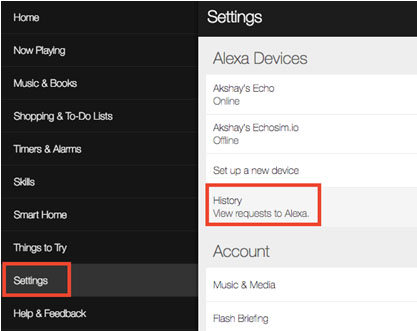
    Whatever commands you give to Alexa are recorded and saved as history. If Alexa is unable to fulfill any of your commands you can look for the issues in history that what Alexa actually heard when you gave the command. Moreover, anything that Alexa recognizes is saved here in the history. You can also delete and playback the recordings in history as well.

    For accessing Alexa command history just go to Settings and then click on History. Here you can view, delete and playback all the commands.


    Force Alexa Software Updates

    Usually, Alexa auto-updates itself whenever it gets time if you keep it connected to internet always. But if it is in usage continuously or that it doesn’t get time to update itself, then it might be working on some older update and you might be missing out on some latest alexa features.

    For doing all you have to do is go to settings and then your echo. Scroll and select ‘Device Software Version’. If an older version is being used, just mute Alexa for about half an hour to let it auto-update.

    Alexa Flash Briefing

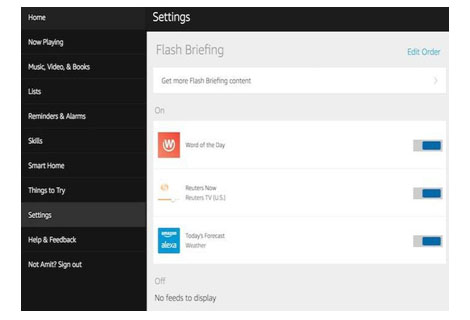
    If you ask Alexa commands like ‘Alexa, What’s up?’ or ‘Alexa, read me the news’ then Alexa reads you the latest news, however if you don’t like the content then you can simply listen to customized news.

    For this go to Settings and there select Flash Briefing and there you will see loads of options. Switch on the switches whosoever content you like to hear to in the customized news.

    Teach Alexa new responses

    There might be some alexa commands for which might Alexa not respond to, if you want Alexa to reply to your custom commands as well, this can be done using skill ‘Everyone Around’.

    Just say ‘Alexa, enable Everyone Around’. Then you will have to add custom commands in the app. For this use command ‘Alexa, open Everyone Around’ and you will receive a mail to add custom replies. This is one of the useful Alexa tips to try .

    Read Also : Bixby Vs Google assistant Vs Siri Vs Cortana – Popular AI Assistant

    Alexa as Kitchen Assistant

    Alexa can be your wonderful cooking companion as well. There are loads of Alexa commands which can be of great help to you in your kitchen. Some of these are ‘Alexa, Set timer for 10 minutes’, ‘Alexa, add flour to the shopping list’ or carry some conversions by saying ‘Alexa, how many cups are there in two pints?’. Smart devices for kitchen is an asset , so you can use some Alexa tips to make Alexa your kitchen assistant .

    Read Also : Meal Kit Delivery – Amazon Meal Vs Walmart Meal Vs Blue Apron Vs Hellofresh

    Read Also : Amazon Go Store – Grocery Store of the Future

    Alexa To do List manager

    Alexa can be an amazing to do list manager. You can create your own shopping lists, wish lists or simply a to do list consisting of your day to day tasks. Use commands like ‘Alexa, add ‘Call Boss’ to my to do list’ or ‘Alexa, add denims to my shopping lists’. You can review these lists on Alexa’s mobile application or http://alexa.amazon.com/.

    Add work location on Alexa 

    You can add your frequently visited locations such as your home and work. Just go to app Settings and select Traffic under account. There you can add your desired addresses.

    Then you can use commands like “Alexa, how is the commute to work?” and know about the traffic conditions for your way. This is an excellent alexa tips to use on a daily basis .

    Alexa Smart home – Control your home

    Amazon alexa can help you to control all your smart gadget easily.For every smart home alexa is the perfect manager . Just say “Alexa, switch off the fan”. You can also create a group for devices so as to turn them on/off together. For this your smart home devices need to be Alexa-compatible.

    Read Also : Best Smart Home Gadgets for Home automation- Smart home

    Link Alexa with other apps

    You can access a lots of services provided by other companies such as Uber, Pizza Hut, Dominos and more. Their services can be used by enabling their respective skills in the skill section. You can add your work place and say “Alexa, book a ride to work” and your ride will be booked in a pinch of time.

    Alexa’s Easter eggs

    If you have kids in your house then this is one of the most interesting features for you. Alexa can play a lot of games with you and you can expect a number of funny responses as well. For example you can play animal game, just say “Alexa, play animal game” and Alexa will ask you a bunch of questions to guess the animal you thought of. You can play a number of more such games like Bingo, rock paper scissor and much more or just say “Alexa, tell us a joke”.

    Alexa Calorie Tracker 

    If you are on a diet, Alexa can be your very own trainer to keep track of your intake of calories in a day. Food tracking service Nutritionix is present and you can use commands like ‘Alexa, tell food tracker to log a cup of ice cream’ will help you in tracking your eating.

    Listen to book using Alexa

    If you are doing super busy and are unable to finish the book you started, then Alexa can come to your rescue. You can listen to that book while you are driving or walking or cooking. Just say ‘Alexa, read the Kindle book [Book Title]’ and Alexa will read the book from kindle where you left it.

    Get skilled at adding skills

    There are literally huge number of skills that can performed by Alexa that a number of them can be overlooked by its user. So while using Alexa you also know how to activate the best skills available with Alexa. For doing so you can search them in proper categories and can also sort them in desired order.

    Alexa Alarm Clock

    Alexa can be your alarm clock as well. Just say ‘Alexa, set an alarm for 7:00 a.m.’ and for setting some celebrity’s voice as your wake up song just go to the Menu button, then select Timers & Alarms then Alarms and then select Manage alarm volume and default sound. Now go to the Alarm and then select Celebrity and choose the voice you want.

    Say things properly

    Whenever you give Alexa give some command you ought to say it properly else Alexa may not be able to perform your desired action. For example if you say ‘Play songs Alexa’, it will do nothing since ‘Alexa’ is its wake word and it for this it hears nothing after Alexa so it won’t play any songs.

    Alexa Routines

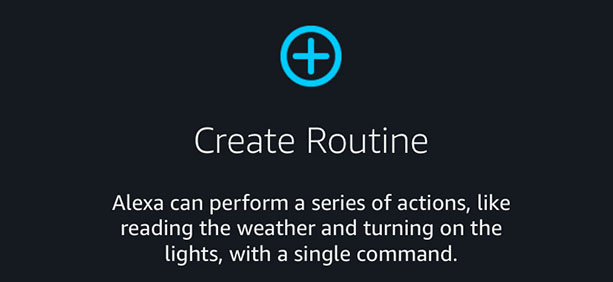
    Alexa is unable to implement multiple commands at a single moment but routines are a kind of a substitute to this. Routines implement a series of commands stored. For example a routine can be created for the command “Alexa, good morning” which first plays your flash briefing and then plays your favorite music.

    Disable/Change Alexa wake keyword

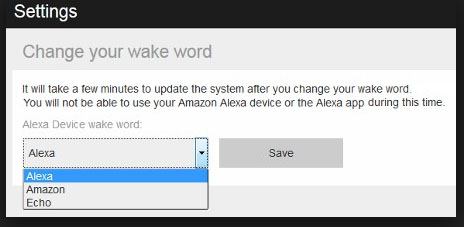
    If you want to resist Alexa from listening the wake keyword then you can mute Alexa by pressing the mute button on it and it will remain muted until that button is pressed again. For changing the wake keyword go to the settings and tap on [Device Name] and select Wake Word Alexa under general settings.

    Use Alexa as Intercom

    You can make use of Alexa to turn your Amazon Echo device into a home intercom .For example if you ever wanted to make some announcement in drawing room just say “Alexa, drop in on the drawing room”. You can use the multiple Alexa’s as speakers to play a single song.

    Create Voice profiles on Alexa 

    You can create separate voice profiles on Alexa for each of your family member, this helps Alexa to recognize who is making the commands and deliver personalized results. For “Alexa, what are my upcoming events”. It will tell you about your events from your calendar by recognizing your voice.

    Hope, these Alexa tips and tricks will help you to get the best from your Alexa. Do tell us which feature helped you the most and don’t forget to share with us any more features of Alexa you find cool.

  • Spotify Tips and Tricks to Enjoy Spotify Subscription More

    Spotify Tips and Tricks to Enjoy Spotify Subscription More

    Spotify is one of the trending in chart , so let’s discover some of the exciting Spotify features , Spotify Tips and Tricks to Enjoy Spotify Subscription More .

    What is Spotify 

    Spotify, many of you must have heard this name as it is one of the leading platforms for music streaming online. Spotify was founded in Sweden in 2008. As per May 2018, it had as huge as 175 million active monthly subscribers.

    Spotify has come a long way from Sweden now has expanded to most parts of the world. Over 35 million songs can be played using Spotify.

    Spotify is available for all leading platforms including Windows, Mac OS and even Linux. It has mobile applications for android, apple and Windows. It can also be used to play songs on play stations and Xbox.

    Everyone loves listening to music, music can be our best companion under any kind of circumstances whether happy or harsh or sad, and Spotify can be just the perfect way for you to meet your best companion.

    With Spotify app we can access to huge number of songs from all genres and from a number of artists. We can share our listening sessions and playlists with your followers and on other social media networks as well.

    Read Also : Top 8 Smule alternatives – Best Karaoke Singing Apps

    Spotify Tips and Tricks to Enjoy Spotify Subscription More

    Here are the features and some of the Spotify Tips and Tricks which justify why Spotify is one of the leading music streaming platforms:

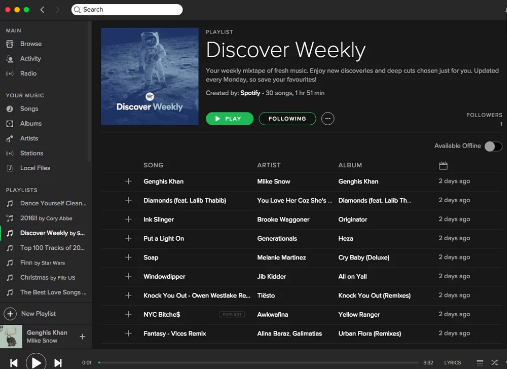
    Discover Weekly Playlist

    It is a personalized playlist created by Spotify for each of its user. The playlist is updated every Monday. The playlist is based on the type and genre of songs you listen on Spotify, means that study your recent music choices on spotify then create a playlist of similar songs it thinks you will love to listen to.

    For accessing this playlist you simply go to the Playlists section and can find it there. You can thumps up or down the songs in this playlist to help spotify further create even more awesome playlists for you.

    Read Also : Best Garage Band Alternatives for Windows and Mac

    Read Also : Garageband Alternatives- iPad / iPhone / Android

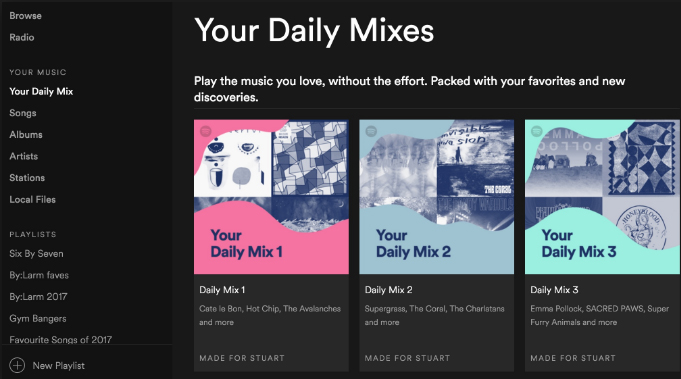
    Daily Mixes

    These are also personalized playlists created by the Spotify like the Discover Weekly playlists. The only difference that these are updated on a daily basis rather than weekly basis. Use like and dislike for improving the playlists as per your interests.

    Add tracks from Shazam

    If you discover some new track on some other app like Shazam you don’t need to go search it separately in Spotify app to add it to your playlist or library, you can directly add it using the Shazam app only.

    For this you need to link your Spotify account to Shazam. After this whenever you identify some new song click on the arrow along the song and select the Spotify option. This plays the song in the Spotify app.

    Read Also : Best Streaming Devices – All Top Media Streaming Box on Market

    Read Also : Streaming Services – Netflix Vs Prime Vs Hulu Vs Sling Vs Directv Now etc

    Private Listening Sessions

    Sometimes you might be in a mood that you don’t want to share whatever you are listening to with your followers, or you want to stop sharing for a while then you can use the Spotify Private listening mode. Just go to the settings and enable this option. It is the perfect way of enjoying your guilty pleasures.

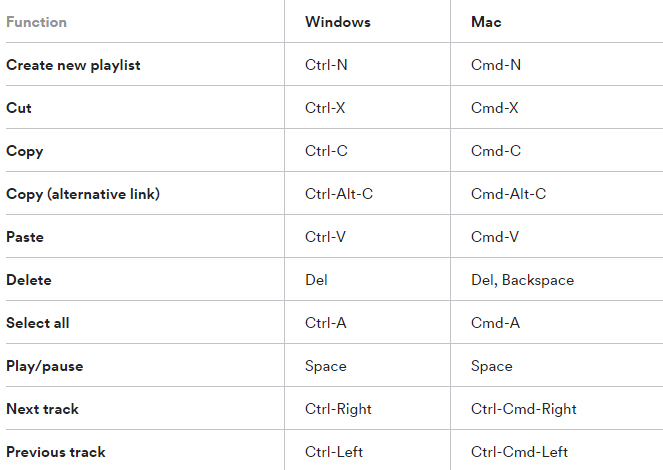
    Spotify Keyboard’s shortcuts

    Some Spotify shortcuts always come in handy so why not some for the Spotify application. Here are some Spotify keyboard shortcuts which will help you master in using Spotify –

    Recover deleted playlists

    Sometimes you might have deleted some playlist accidentally or you just want to listen to a playlist you deleted earlier, no problem. Spotify creates backups and keeps them for a considerable time period. For accessing these simply go to the Recover Playlists in the Main menu on the desktop app of Spotify. Then select the desired playlist and click ‘Restore’.

    Your Personal Karaoke

    On the Spotify desktop app when you play a song you can read its lyrics on your screen without exiting the app. Thus it can be your very own personal karaoke, have fun and sing along with your favorites.

    Collaborative Playlist

    As the name for the feature a collaborative playlist with your friends on Spotify such that all of you can add and remove songs from the playlist. So go check out this feature and create some amazing playlists and for doing so, in your library select whichever playlist you want to collaborate and select ‘Make Collaborative’.

    Radio Station

    Radio stations are playlists based on the artist or the song used to create it. You can create radio stations for the artists you listen to and similar ones. A radio station can also be created using a single song containing songs from the same artist and similar to it. For creating radio playlist click on the three dots and from the options select ‘Go to Radio’ and the radio playlist appears.

    Read Also :  Find the best radio station for iPod or iPhone FM Transmitter

    Read Also : Top Satellite Car Radio Installation and specification guide

    Discover about live gigs

    You can discover about all the concerts in and around your location. Just go to the browse section and then to concerts. There you can find about the live gigs of the artists you listen to and all the top artists as well. You can get all the details with one simple click.This would be a least familiar Spotify Tips and Tricks for most of the readers .

    Learn more about Spotify Live gigs to make use of this Spotify tips .

    Smart Search

    You can search any song or album on Spotify using its full name on Spotify easily. Besides this you can search using keywords like genre: jazz for searching songs of particular genre, year: 1980-1985 for songs of this specific era. You can use keywords like AND, NOT for including and excluding certain artist from the search.

    This will be a familiar Spotify tips for most of you .

    Hear a quick Preview

    If you want to add new albums or songs to your library and playlists, Spotify can help you lessen your work. No need to listen to complete songs or albums, just long tap on whichever song you want to listen to then spotify will play a small section for you to decide whether you want to add it or not.

    Read Also : Fast Forward , Rewind , Scrub Music in iPhone & iPad Music Player

    Read Also : Best iTunes Cleanup Software for better iTunes experience

    Crossfade feature

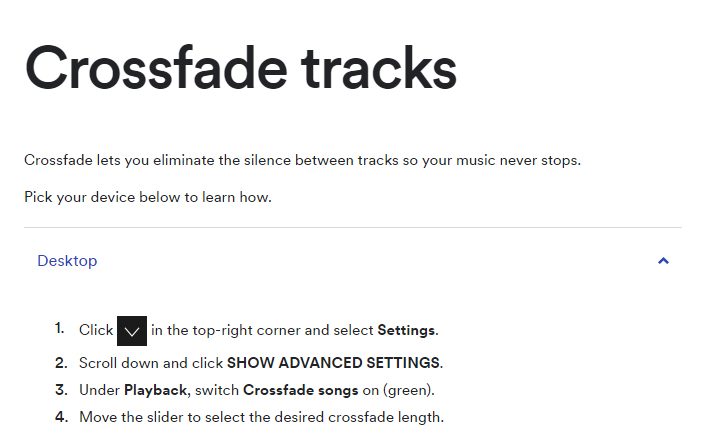
    If you hate the time when one song ends and the next one begins to play, the crossfade feature is definitely there for your rescue. It simply blends the two songs and you can customize the Spotify crossfade time between 1-12 seconds.

    Just access the settings then go to Show Spotify Advanced features, scroll down enable and then customize this option the way you want.

    Running Playlist

    Spotify has this amazing feature where it plays songs which matches your tempo while you are running. For this select any running playlist from the browse section. Then through your phone sensors it will find your tempo and play songs with similar tempo, thus taking your running experience to next level.

    Listen to Spotify on your Uber ride

    You can listen to any of yours Spotify playlists by linking your Spotify account with your Uber account. If the feature is allowed by your Uber driver then you can have the access the stereo of the uber car and enjoy your ride to its fullest with your favorite music playing.

    But this feature is not available in all countries yet, for checking if it’s available in your country, check it in the uber app.

    Behind the Lyrics

    This feature was launched by Spotify in collaboration with Genius. What this features actually does is that provides the listener with the meaning of the lyrics or some facts and trivia about that song. Although behind the lyrics is not available for all the songs in the App or website but still is definitely an amazing feature

    Be picky

    Be picky in whatever music you add to your library since spotify allows you to add only a finite number of songs to your library. Once the limit is reached you will have to clean your library by going through all of it, instead add carefully initially. You can also save you some space by adding songs to your playlist instead of the library. This Spotify tips is a must to avoid messy situation in future.

    By reading the loads of cool stuff you can do on spotify all your doubts that why Spotify is one of the leading music streaming platform among the music lovers across the globe. But many of the above Spotify features mentioned only for Spotify Premium Accounts. There are offers for complete family subscription or Student discounts are also available. You can opt for these ways for a cheaper subscription.

    Do tell us which feature do you find the coolest and don’t forget to share any of your favourite Spotify tips and tricks with us in the comments below.

  • Pinterest Tips and Tricks to use Pinterest like a Pro

    Pinterest Tips and Tricks to use Pinterest like a Pro

    Pinterest, you must have heard this name right? Whenever you search something on Google images a number of results are from Pinterest only. We might save those images and move on without actually knowing what Pinterest is. Of course many of you must be knowing what Pinterest is and how to use it but many of you don’t. So this article going to get you familiar to Pinterest tips and tricks to use Pinterest like a Pro .

    What is Pinterest ?

    Pinterest is an image-based platform for viewing images, bookmarking them and sharing your own related to different stuff such as art, fashion, food, landscapes, buildings and event planning’s and a lot of other such creative fields.

    Pinterest Tips and Tricks to use Pinterest like a Pro

    Now let’s explore the useful Pinterest Tips and Tricks –

    Adding Links without Pin button

    If you want to pin the picture then on many websites whenever we hover mouse over the picture an icon named ‘pin it’ appears if you have added the Pinterest extension to your browser. Clicking it the picture is pinned. But it can also be done without this pin it  button, just copy the image’s URL and then open your Pinterest mobile app, it will by itself pop up the link you copied and there then you can pin it.

    Read Also : Exciting free Photoshop Alternatives for high quality photo edits

    Read Also : 25 Best Selfie Apps for every Selfie Lovers – Perfect Click

    Read Also : Bothie feature on any Smartphone – Best Bothie apps

    Get rid of the pin button

    Sometimes seeing the ‘pin it’ can be distracting and irritating when you are simply browsing some site. Whenever the pointer hovers some picture this little icon pop up. But wait here’s the solution, you can simply get rid of it.

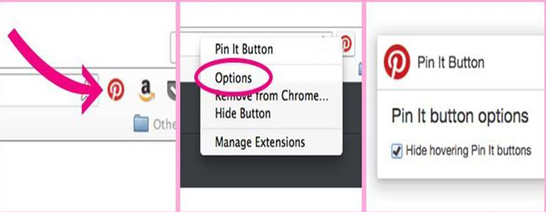
    Just right click on the Pinterest extension button, select options and check “Hide hovering Pin it buttons” and done. No more pin it buttons.

    Trending

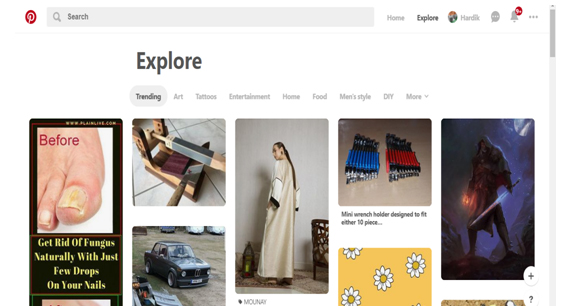
    There is loads of cool stuff to look for on Pinterest. But if you want to look at what your friends and your fellow Pinterest users are searching or if you want a look at the latest trending topics, just go to the explore section. In one simple click get all the trending pins according to your interests.

    Secret Boards

    If you don’t want to just broadcast every board of yours, want to keep some moments of yours to yourself, plan some surprise, save pins for planning some event, Secret boards can come to your rescue. You can keep secret boards to yourself or share it with selected people only.

    Setting Pin Descriptions

    If you highlight any text or any heading before pinning any image from any website then that text will be used as the description of your pin. This can save you from a lot of thinking required for an amazing caption.

    Searching Pins from a specific website

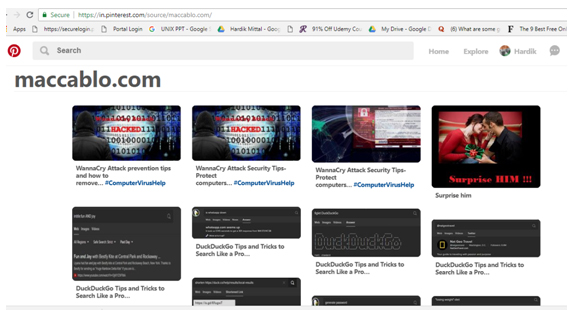
    Searching pins from a certain website can be a hectic task given a large number of pins related to every topic. This can be done simply by searching this URL https://www.pinterest.com/source/WEBSITE_DOMAIN/.  Replace the Website domain with the domain name of whichever = website you want to search for.

    For Example searching for https://www.pinterest.com/source/maccablo.com/ gives:

    Edit notifications

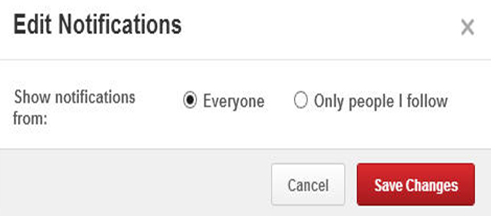
    Getting loads of notifications whenever you switch on the internet is irritating. You can manage your notifications from pinterest. Just click on edit option on the notifications menu and select the desired option and save.

    Get More Privacy

    Secret boards one of the many ways to get privacy on Pinterest. There are other ways as well.

    Pinterest tracks you while you visit other sites so as to provide you a personalized experience when you are using Pinterest. You can switch it off by disabling the Personalization option in settings.

    You can keep your boards off the Google searches by enabling the Search Privacy option.

    Read Also : Instagram tips and tricks to be a Pro Instagrammer

    Place Pins

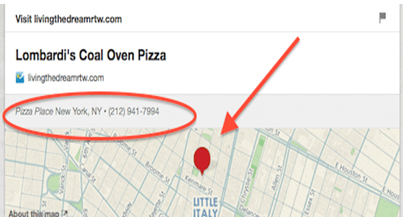
    Place pins lets you bookmark different locations on Pinterest. These can be used for planning any vacation or if you simply want to save the places you wish to visit. On Android, the app notifies you whenever you are in a nearby area of your pinned places.

    Aspect Ratios

    You can upload pictures in any aspect ratio you want, but the most recommended aspect ratios for getting the most repins are 2:5 or 1:3:5. Images with ratio 1:3:5 are very long and can viewed completely only by clicking on expand pin.

    Send pins via email

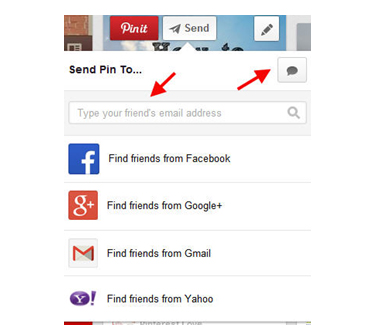
    If you want to share your pins with someone who is not on Pinterest, for this click on send option and start typing the mail address of the receiver and choose the top option from the dropdown appearing. The link of your pin will be shared with the desired person.

    Move pins to new board

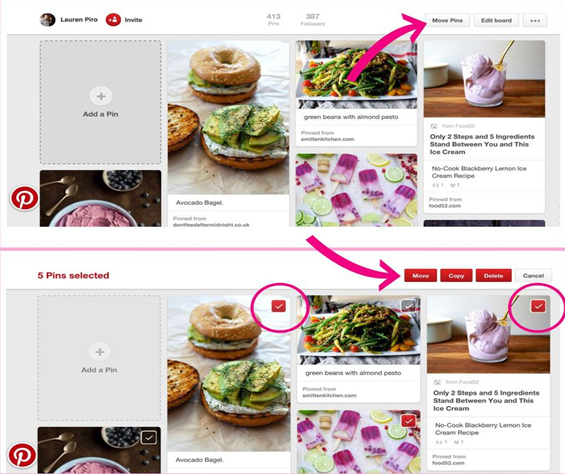
    Organizing your pins and boards is just a few clicks away. For doing so click on the ‘Move Pins’ option and check the desired the pins you want to move, select Move and list of your boards appears and then select the desired board or create a new one.

    Pin a buyable pin

    Now you can even buy and sell stuff using Pinterest. There is a buy option right under every buyable pin. Pinterest notifies when the price of any of your pinned items drops. It is an amazing feature with Pinterest.

    Set up a Business page

    You can easily convert your personal page on Pinterest for Business purposes. Simply convert your page to Business profile. This will help you in getting the  Pinterest analytics to your page, helping you to get better at your business.

    Rich Pins

    In rich pins you can add additional information with your picture. There are different types of rich pins such as Movie pins include ratings, cast members and reviews, Article pins include the headline, author, story description and link and many more to provide instant access to some important info regarding any pin.

    Hope these Pinterest tips and tricks will help you turning into a pro Pinterest user. You must have become quite familiar by now many of the amazing features available on Pinterest. Do tell us know the Pinterest feature you loved the most. If you know some other Pinterest Tips and Tricks don’t forget to share those with us.

    So make use of all the Pinterest Tips and Tricks  and enjoy !!!

  • Instagram tips and tricks to be a Pro Instagrammer

    Instagram tips and tricks to be a Pro Instagrammer

    Most of the Instagrammers around the globe is disappointed with  Instagram Global Outage recently ( At least to some countries) , Social Media is a rage these days. Almost everyone is active on social media. Moreover the internet connections have also become cheap, boosting the social media usage even more. Well with the increased use of Instagram here we bring out – Instagram tips and tricks to be a Pro Instagrammer .

    One such quite popular, well known social media platform is Instagram. Instagram announced that it achieved the milestone of 1 Billion users in June 2018. It has now become popular not only among the youngsters but also among the adults. New Instagram updates are being rolled out time to time adding new Instagram features, improving the interface and much more. A number of celebrities are also active on Instagram and you get to follow your favorite star as well.

    The picture & video sharing app has a lots of filters for the editing of the pictures to be posted. You can post minute long videos as well. There are Insta stories which are visible to your followers up to 24 hours of you posting it. All these features attract masses of people towards Instagram.

    You all must be knowing that most of the brands staring from the smaller ones and to all the leading brands, every brand uses Social Media Marketing to reach their customers. Instagram has become one of the leading platform for social media marketing. Instagram has also helped teenagers in following their passion. Many of them try to promote their work such as photography, art, food blogging and fashion blogging and much more. Love from followers keep giving them the boost required for following their passion.

    But you must know some good and secret Instagram tips and tricks to be a popular Instagrammer .

    Instagram tips and tricks to be a Pro Instagrammer

    Here are some of the best Instagram tips and tricks:

    Read Also : Contact Instagram Help Center Support for Any Assistance

    Read Also : Instagram for PC – How to use Instagram for Desktop ?

    Turn on Post Notifications on Instagram

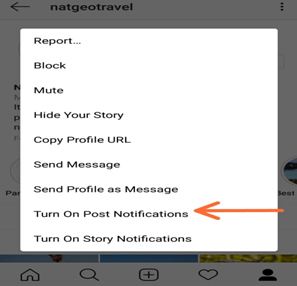
    If you want to see every Instagram picture, video or Instagram stories your best friend, you favorite celebrity or your favorite brand, just turn on the post notifications for that profile. This way Instagram will push a notification to you whenever they post.

    To get Notification of your Favourite Instagram user –

    • Go to their Instagram profile
    • On top of the right side corner , tap that three dots
    • Turn on Post Notification , just enable it .

    This way you can make yourself to Never Miss a Instagram Story Again ! If you want to stay updated on Instagram then this Instagram tips is ideal for you .

    Read Also : WhatsApp Data Sharing Disable Methods to Protect WhatsApp Data

    Read Also : Best Facebook Ad management tool – Facebook Advertising

    Add & Manage Multiple Accounts

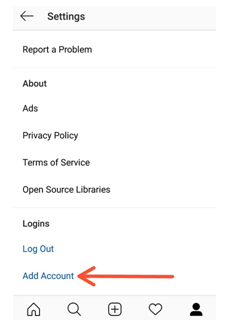
    If you have an Instagram account for your pet or you have some business of your own to promote you can manage two Instagram accounts from a single Instagram app. From your profile click on gear button (for apple) or three vertical dots (for android), scroll down and click on add a new account and then you can access it easily as well.

    This is the Instagram tips to use multiple Instagram accounts on one mobile app .

    Use as a Photo Editor

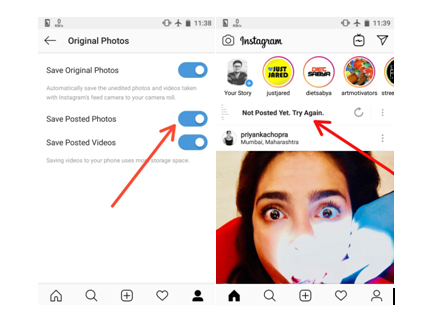
    Instagram has some amazing filters giving you a gorgeous picture to share. So, the Instagram app can also be used as one of the best Photo Editor & Photo editing apps . For doing so put your phone on Airplane mode and carry out whatever editing you want to do and post. Since your phone is on airplane mode the post will be failed but the post will be saved in your gallery. Make sure that option ‘Save Posted Photos’ is enabled in your profile.

    Inserting Line Breaks in Bio and Captions

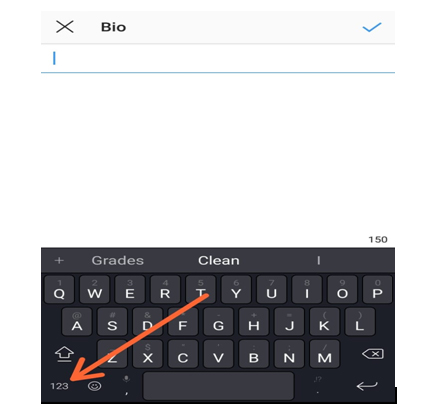
    Many keyboards don’t provide the enter or return key to introduce a line break in the caption to your posts or the bio of your profile. For doing so click on 123 button on bottom left corner of keyboard, the enter or return button appears on the bottom right. Another option is to write it some other app and then copy it to the Instagram app.

    Adjust Settings for Tagged Photos

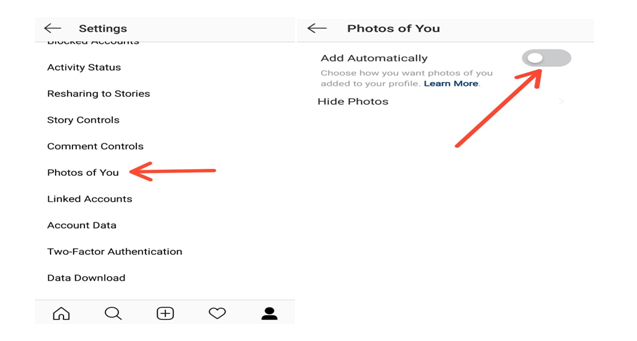
    All the posts that you are tagged can be seen by your followers in the Photos of You section of your profile. To control visibility of these posts select the Photos of You option in your profile. There you can hide the desired images and disable the Add Automatically option.

    This is yet another Instagram tips you must know .

    Drive traffic to another Website

    You know that these days social media is not just entertainment or to catch with friends alone . Its to get in touch with your customers on social media . Instagram for business is quite widely appreciated because of the results driven from it .

    If you have a website then you can drive Instagram traffic to website easily . You know that adding links in caption doesn’t work on Instagram .

    So what’s the way to add links on  Instagram ? Simple add it in your bio .

    Disable Activity Status on Instagram

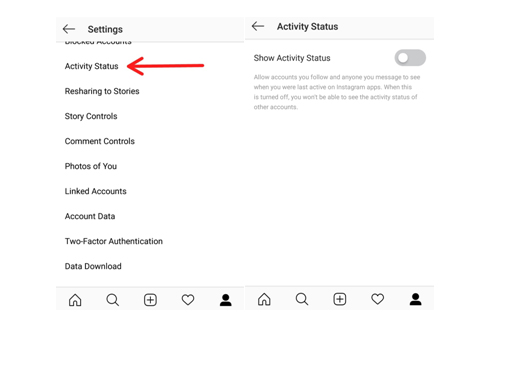
    In the Instagram Direct Messaging or the DM section it appears to your followers that when were you last active on the platform as ‘Active 2h ago’. You can disable this activity status by going to your profile, select the Activity Status option and Disable it. So this way you can disable Instagram Activity status .

    Schedule your Instagram Posts

    Most of the Instagram users are quite active on the platform and put up new posts on daily basis and if you are promoting some brand then you definitely need to do so. By switching your account to Instagram Business mode you can schedule your posts by saving them earlier and then setting the time for posting it.

    Embed Posts on Instagram

    If you are a Blogger you might want to share your Instagram posts to your blog as well. This can be done using the embed option. On the Instagram web service, click on the icon with three vertical dots and then select embed option. A link to your post is created and then you share that link wherever you want to share that post.

    Archive posts on Instagram

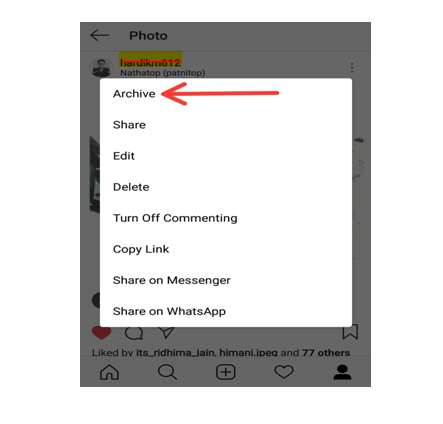
    If you don’t want your followers to see your certain post but you also don’t want to delete it permanently from your profile, then you can Archive Instagram post. This way they can only be viewed by you and you can undo your action any time you desire.

    Ignore posts from Users

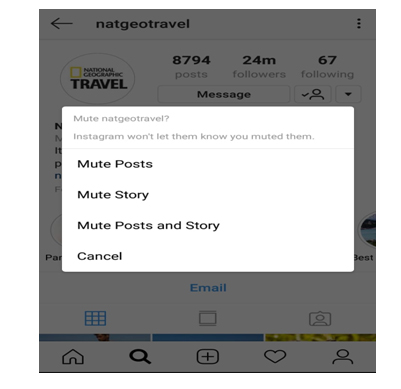
    If you want to ignore the posts or stories from someone without the of offending them by blocking them, just go their profile click on the vertical three dots on the top right corner and mute that profile. This way the posts and stories from that user won’t be shown to you.

    Save data option

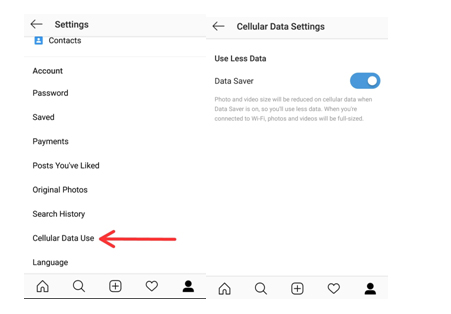
    You must be knowing that all the images and the videos in the Instagram app are preloaded and that to in HD quality. Thus if you are quite active on Instagram then using it can consume a large chunk of you mobile data. For saving your data, turn on Data Saver option which runs the app consuming a lot less data.

    Get Analytics, direct call and email Buttons

    By switching your profile to Business mode you can all the detailed analytics about your posts like the number of followers increase or decrease, how many people saved your posts, number of likes and impressions and much more. Also in business mode you can also add direct call and email options to your profile.

    Filter Instagram comments based on keywords

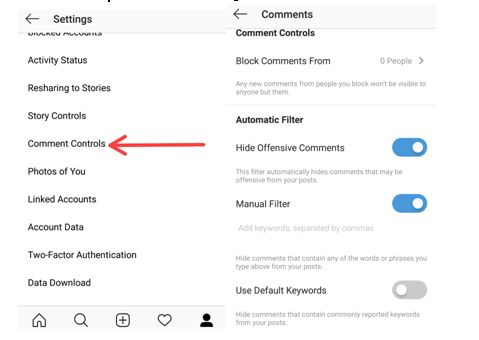
    You must be knowing that you can completely disable or delete comments on your insta post. But many of you won’t be knowing that you can hide offensive comments. Just go to your profile options and select comment setting Enable hide offensive comments and manual mode to hide comments with some specific word.

    Add hashtags to comments on Instagram

    Most of us create almost a separate para for putting up some interesting Instagram hashtags with our posts. But if you don’t want the hashtags when that post is posted on other social networks you can post them in the comments. This way people are still able to access your posts through the hashtags and they don’t appear on other social networks.

    Follow Instagram Hashtags

    The way you follow someone’s profile on Instagram, now you can follow a hashtag as well. If you want look at different posts having a certain hashtag just simply follow it and the posts appear in your feed like any other profile.

    Share someone’s Post in your Story

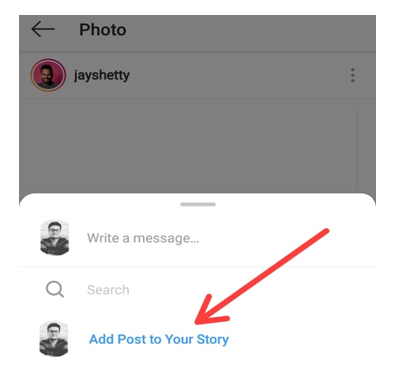
    To share a post from someone else’s post from to your story, just simply open that post and click on the arrow like icon below the post and click ‘Add post to Story’. If you have a public account and you want others to share your posts this way then select Allow Resharing to stories from your profile options and disable it.

    Highlights

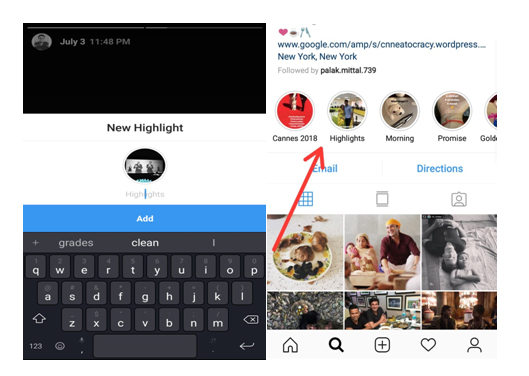
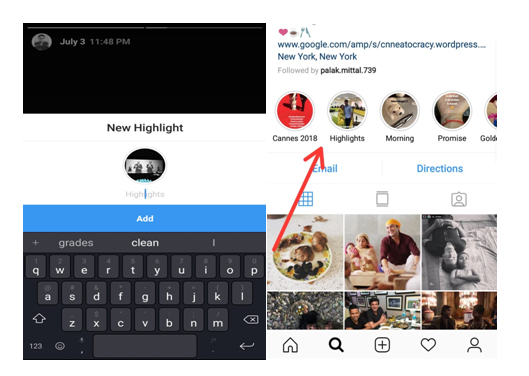
    Highlights are your stories which can be seen by your followers whenever they visit your profile unlike the normal insta stories which disappear after 24 hours of uploading. For adding Instagram highlights, go to your profile and click on time like icon and click on whichever story you want to add as a highlight.

    IGTV

    It is the latest feature to be rolled out by Instagram. Earlier you could only post a minute long videos on your profile but using the IGTV app you can post videos up to ten minutes longer or more than stories/feed videos but only in the vertical frame. You can install the IGTV app from app store and share longer videos with your followers and connect with them more.

    This is an Instagram tips to post long duration videos on Instagram .

    Hashtags

    The different hashtags you use with your pictures definitely have a direct effect on the number of your followers. Try using hashtags with your pictures which are popularly used so that a large number of people can easily access your posts. But use some unique hashtags which make your profile stand different from others.

    Follow Brands like your own on Instagram

    Having a brand of your own and promoting it on social media is a creative and thoughtful task for targeting the right person to get his/her attention towards your brand. For doing so look out for ways the brands similar to yours use for their marketing. Try drawing inspiration from those. Try interacting with their followers making them aware of your own brand. This is a good Instagram tips for Business and marketing .

    Promote other Instagram accounts

    Say if you are a food blogger in a certain city give shout outs to other food bloggers of your own or some other city. This way you can promote their account and they can promote yours. So instead of competing with each other, try helping each other.

    Hope these Instagram Tips and tricks will help you turning into a pro Instagram user. Being an active user of Instagram myself, it is my favorite social media platform as well for posting some cool pictures with some catchy captions and hashtags. Do tell us the reason for which you love Instagram and also don’t forget to tell us your favorite trick. If you know some other Instagram tips or tricks don’t forget to share those with us.