Tag: iPhone

  • How to Fix “Cannot Take Photo” Problem on iPhone and iPad

    How to Fix “Cannot Take Photo” Problem on iPhone and iPad

    Fix Cannot Take Photo Problem on iPhone and iPad Method 1:

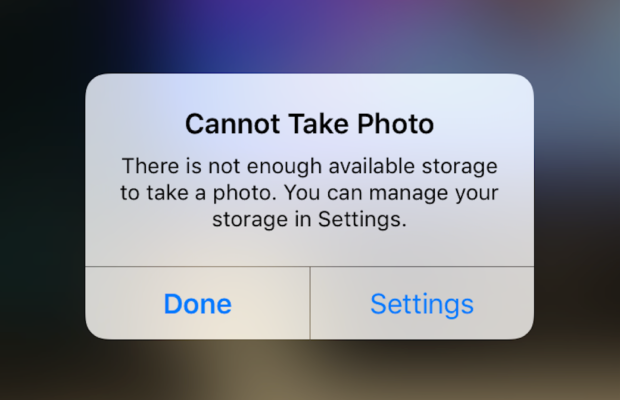
    When you go to take a photo using the Camera or any other app like Instagram, WhatsApp etc on your Apple iPhone or iPad but while doing so if you find an error message which says “Can’t Take Photo – There is not enough available storage to take a photo“.  You can manage your storage in Settings. Now you might get confused about what to do. Don’t worry because your savior(which is me by the way) can help you with this simple steps to Fix Cannot Take Photo.

    Why Can’t I Take Pictures on my iPhone

    I got an issue “my iPhone wont let me take pictures because of storage“. To fix this issue you need to remove some unwanted files and free up the storage. So choosing Settings on this message will provide you with a list of apps and the amount of storage they are using. You can also reach this screen at any other time by going to Settings > General > Usage.

    If you want you could select an app that is taking up a large amount of space(basically browse which apps take up the most space or an app that you can delete (deleting pictures or videos and music also creates extra space)) and then click on Delete app. That could or could not free enough storage to fit photos. Moreover you may not want to do this in case you like and value every single one of your apps.

    Read Also:

    How to Factory reset iPhone without password or iTunes

    Record iPhone iPad Screen on Windows & Mac

    Quick Fix Cannot Take Photo Problem on iPhone and iPad

    In majority of the cases iTunes(your culprit) is loading your device with music and regularly causing this message to appear when you use the Camera or any other app.

    You would free some space while you are out and by deleting some unwanted music from the device. What I to do is locate an entire album that I can live without and delete it using these steps(which is obviously hypothetical in my case ).

      • 1) Open the Music app on your iPhone.
      • 2) Select a particular artist (if you downloaded them legally) that has songs stored on the device you would like to delete.
      • 3)You can also locate a music track that is already stored on the device but if the track has a cloud icon that means it is not stored on the device(probably stored on iCloud). You will have to find tracks that do not have this icon.
      • 4) You then have to swipe left across the name of the song. A button is bound appear that says Delete.
      • 5) You than have to tap delete(putting a stone on your heart) and the song is gone forever. Repeat these steps any number of times unless you have freed enough space.

    Read Also : Best iTunes Cleanup Software for better iTunes experience

    Fix Cannot Take Photo Problem on iPhone and iPad Method 2:

    1) Connect your iPhone to a Mac or Windows PC which has iTunes installed already.
    2) Open iTunes(most complex step of this method so be careful :)).
    3) Select on your device then choose “Music“.
    4) Uncheck the ‘Automatically fill free space with songs‘ button(Though I think it would be a checkbox).
    5) Choose ‘Sync’.

    If these steps do not fix storage error message from regularly appearing then you might need to remove some apps, photos maybe even videos from the device(Unfortunately you have to set your priorities).

    Using iMyFone Umate

    iMyFone Umate is a special memory cleaner for mac and is highly recommended for increasing storage space on the device and cleaning up the unwanted phone memory. All I demand is that you have to follow these few simple steps and your phone will be new:

    • Connect your phone to open the cleaner.
    • iMyFone Umate will do a quick scan.
    • With one click, all the junk files and unwanted files will be removed.
    • It clean many hidden temporary files with a click
    • It clear’s the junk files to improve iPhone performance

    Some other programs are:

    • Photo manager

    It basically compresses the images/photos compressing the size of each photo.

    • App manager

    It has a one click mechanism to mass remove all the unwanted Apps.(If you have any)

    Hopefully the above given methods would serve your purpose but if you want something extra then below are some extra tips.

    To exchange information on one iPhone with other are extremely valuable for you on the high probability that you need to duplicate substance from old iPhone to new purchased iPhone /iPhone Plus. You might want to replicate information. For instance songs, photographs, from your personal iPhone to a new iPhone.

    iCloud goes down your iPhone once every day. Since it is a good idea to reinforcement your old iPhone to iCloud one last time before moving. So nothing is passed up as a major opportunity. In the Settings explore the iCloud storage and Backup opportunities and tap on Back up. This may require significant investment relying upon the measure of information to be replicated.

  • Fast Forward , Rewind , Scrub Music in iPhone & iPad Music Player

    Fast Forward , Rewind , Scrub Music in iPhone & iPad Music Player

    Fast Forward , Rewind , Scrub Music in iPhone & iPad Music Player

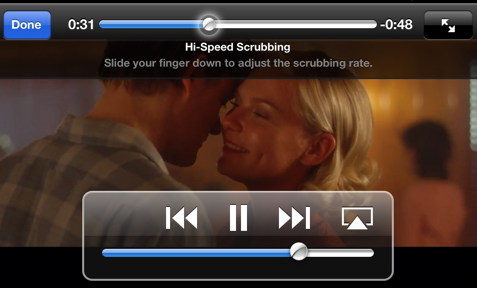
    If you have an iPhone and have listen to music in iPod before you would know that any song playing from the iOS Music app various operations like Fast Forward , Rewind , Scrub Music can be performed easily. In the case where you want to play a song in rewind or fast forward a song you can do either of them right from the lock screen of your iPhone or iPad Music Player or iPod touch as well.

    These are really useful feature but I do not know why some lovely people find it so hard to find the location of the feature that they think there is practically no way to do it but you can do it though and here are my simplified steps to do them for various different versions of iOS.

    Read Also : Factory reset iPhone without password or iTunes with data backup

    Read Also : Connect Google Pixel to TV Easily with these Exclusive Guide

    Fast Forward , Rewind , Scrub Music in iOS 7 & Higher

    •  You have to start the music or simply play the track you wish to listen and then might wish to fast forward to your favorite part and rewind it again to listen it.
    •  You then have to swipe the Control Center above by simply swiping from the bottom of the screen and then upward.
    • You then have to swipe either left or right unless and until the track which you are currently playing is displayed on your screen.
    • Now finally you have to drag the ball on the music timeline bar to your desired spot. Another way is that you have to first tap and then hold the fast forward or rewind buttons as well to skip ahead or backtrack respectively as per your wish.
    • Do speed scrub so that you can Fast Forward , Rewind , Scrub Music in iPhone & iPad precisely .

    This is the way to Control iPhone Music through Control Center.

    Read Also : Best iTunes Cleanup Software for better iTunes experience

    Fast Forward , Rewind , Scrub Music in iOS 6 & Lower

    • You have to hold your device in a proper portrait orientation .
    • Now when your song is playing in the iPod you will notice that the album art will appear somewhere on your screen and if you find that there is no album art then a music note appears instead of album art. Then you have to tap either the album or the art/note whatever you are playing.
    • After completing above two steps successfully you will see a small bunch of features about which you might not be aware of. If you look closely you will find a line of them that indicates where on the music length of track your song is being played. Now as per your requirements you can now drag the ball back or forth to fast forward or rewind whenever you would want.

    You can use these ways to Fast Forward , Rewind , Scrub Music in iPhone , iPad Music Player of all iOS versions .

    Read Also : 38 Best iPhone games you should play

    In the end I will conclude that by using my simple methods you can simply fast forward or rewind any song on an iPad or an iPhone whenever and wherever you want with the exact speed you want and as per your mood you select the speed. So use these techniques yourself and share them with other people so this information can be useful to mas many people as possible.

  • Best iTunes Cleanup Software for better iTunes experience

    Best iTunes Cleanup Software for better iTunes experience

    Best iTunes Cleanup Software for better iTunes experience

    Most of us are iTunes lovers because we can play numerous favourite tracks with iTunes .But its really messy and irritated when you find song duplication in your iTunes library . To fix this and use iTunes hassle free there is a strong demand to use some good softwares for effective use of iTunes. Here we will detail about some of the Best iTunes Cleanup Software

    We need an iTunes Cleaner to Cleanup the identical songs,unnamed tracks & other garbage to release space of hard disk .

    So,that our favourite thing on iPhone doesn’t get dissipated .

    Are you in search of iTunes music cleanup software ?

    Then here’s the right place to find an appropriate iTunes music cleanup software which can help you find cleanup  your iTunes music library by deleting duplicated/identical songs,unwanted tracks & completing music details.

    Why there’s a need of iTunes cleanup software?

    “I  am so frustrated with my phone”, although its an iPhone,but its music library “iTunes” is so messed up.

    There are so many identical songs,unnamed songs,no artist name mentioned nothing at all,its so strenuous to filter the desired track when required,you might have heard this from many.

    If your iTunes library also contains identical songs,unknown tracks,then automatically,it becomes a hub of dissipated data with no record,it will merely fill up your hard disk with junk.And at times disturb your iTunes listening experience also.

    So,to aid you all iPhone admirers,we sorted a list of some popular and professional iTunes cleanup software to help you have the best iTunes experience via managing your iTunes library & music collection.

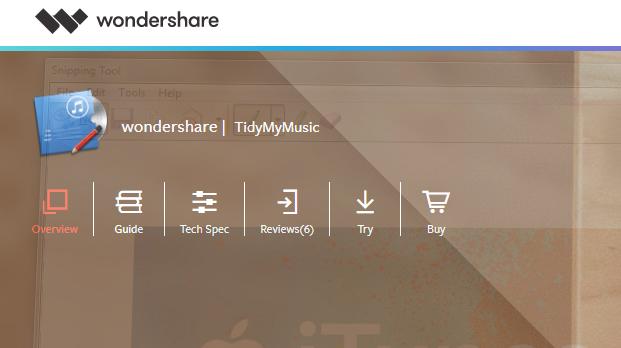
    1. Wondershare Tidy My Music Review:

    Wondershare Tidy My Music Cleanup software tool is an absolute to help you download albums,artwork,lyrics,fix unlabeled music & identical songs. It allows us to label down songs or unknown  tracks in iTunes library or any local music folder ,where the whole song collection becomes disordered. It is one such tool that can help you to cleanup your iTunes library,customise accordingly and makes it well-organized with advanced acoustic fingerprint search,which can accurately scan & add on the mislaid info.

    Major Attributes:

    1. Systematically fix mislaid & unlabeled music info such as song name,artist .
    2. Group process music collection in large quantity to save time.
    3. Search & add mislaid album to each piece of music easily.
    4. Easily downloads lyrics &adds them to your audio files.
    5. Identify identical songs & delete some unnecessary ones to save disk space.
    6. Dovetail track details ,lyrics with mp3 audio files to devices like iPod,iPad,iPhones etc.

       Pros & cons:

    Pros and Cons of this Best iTunes Cleanup Software is detailed below .

    Pros:

    • Clean up iTines library.
    • Simple to use
    • Instinctive user interface.
    • Rapidly identify correctly.

    Cons:

    • Rarely fails to recognize song correctly.

    Read Also : Factory reset iPhone without password or iTunes with data backup

    Read Also : Connect dual displays / monitors to one computer on Windows & MAC

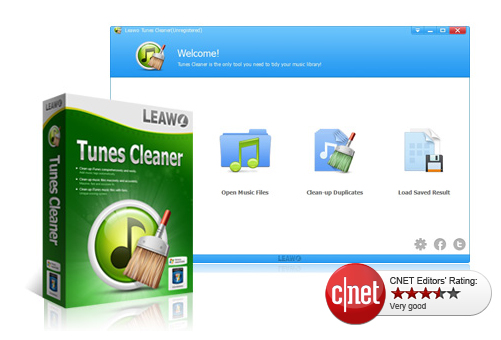
    2.  Leawo Tunes Cleaner Review:

    Analysis: Effortlessly cleanup iTunes & music library junk.

    Its a smart iTunes cleanup program to filter for mislaid album titles/lyrics/metadata, sing tags & identify identical songs etc & can account all mislaid music tags,album artworks & vanish duplicates as soonest as possible. It cannot only cleanup the largest iTunes library ,but also the local song folders.

    Major Attributes:

    • Search iTunes music library automatically
    • Recognize & delete identical songs easily.
    • Ger album artwork for iTunes & other audio files.
    • Download & increase music tags 
    • Allow editing music tags manually
    • Mend & cleanup iTunes with practical attributes .

      Pros & cons:

    Pros and Cons of this Best iTunes Cleanup Software is detailed below .

    Pros:

    • Elementary operation
    • Detach duplicates/identical precisely
    • Substantial manual editor to edit audios

    Cons:

    • Falsely find artwork for some audios.

       Read Also : Cancel / Reverse Venmo payment : When a Venmo payment goes wrong

    Read Also :  Venmo User Guide for Safe Transactions – Venmo payment

    3. Wondershare Tunes Go Review :

    Analysis: Approriate iTunes guide fir Android & iOS

    It can transfer your iTunes media files (music,playlists,movie,podcasts,TV shows,iTunes U & many more) without limits. TunesGo automatically analyses & cleanup the iTunes song library with one click. It scans the music library & helps you fund out which track needs a fix. You can mend all mislaid & inaccurate music tags.

    Major Attributes:

    • Openly transfers your music & playlists between ios/android devices
    • Download /record music to iTunes from almost all popular sites.
    • Controls iTuneslibrary by music tags & album art,burning music
    • Restore iTunes library from desktop files

    Pros & Cons

    Pros and Cons of this Best iTunes Cleanup Software is detailed below .

    Pros:

    • Audio & video downloads can be done
    • Straightforward yet robust & efficient
    • Cleans up & manage your music collection & any apple device connected to it.

             Cons:

    • It’s little high priced

       Read Also : Factory reset iPhone without password or iTunes with data backup

    4.Neat Music Review:

    Analysis: Most comprehended iTunes housekeeper

    In the era of digital India, with respect to digital music,iTunes is the undisputed champion & is currently used by millions of music fanatics,whether you are using an apple ios enabled mobile device, apple Mac or windows OS enabled computer nothing beats iTunes for wresting downloading & organizing personal audio files . It allows us to extend the playlist to unlimited no. of audio files.

    Even ,with all of its ability ,iTunes is not completely unerring & at times ,it can become disorderly . This is where Neat Music can be most useful .

    Major Attributes :

    • Apply it to find mislead info such as album,titles,tracks etc
    • Gives you the potential to add mislaid album to your iTunes account
    • Aids to reorient dislocated songs into much coherent list
    • Arranges audio lists for all iOS devices including iPhones,iPods,iPads.
    • Automatically corrects any & all mislaid song file metadata.

      Pros & cons:

    Pros and Cons of this Best iTunes Cleanup Software is detailed below .

    Pros:

    • Rapid iTunes music cleanup & organizer
    • Best iTunes music organizer on PC
    • Fetches highest quality album artwork

    Cons:

    • No identical songs cleaner uptil now

    So,if you are an iPhone/iPad/iPod,user download any of the Best iTunes Cleanup Software by today itself, to have the best listening iTunes acquaintance ever.

  • Factory reset iPhone without password or iTunes with data backup

    Factory reset iPhone without password or iTunes with data backup

    Security, Safety, Password etc These are not just words but necessity for our life to protect personal things,documents,files and it becomes important for people those who have iPhone or any other phone. Lot of people use password in their phones to protect their data, files, important documents etc. This article will tell iPhone users how to Factory reset iPhone  with backup data? People always reset or fix their setting when they are about to sell their iPhone or iPad for that they don’t want their personal data on it. To safe guard phone data, people restore iPhone to factory setting. The factory restore erases the information and setting on your iPhone or iPad to prevent your any personal data  from being misused. It is really a good way to protect your personal data.

    Factory reset iPhone without Password:-

    Factory reset iPhone  is always a tough decision, as it means all the important data on iPhone will be lost. It is the security measure that put in place to prevent unauthorized access to the private files, but you can always perform a system restore to prevent your data. And this article will guide and provide you with effective approach on how you can Factory reset iPhone without password.

    There are two methods to restore iPhone without password.

    1) Factory reset iPhone without password with Power Button – 

    It is one of the most easiest way to reset iPhone if iPhone buttons are available.

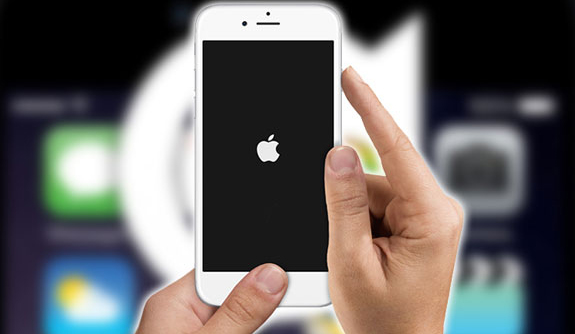
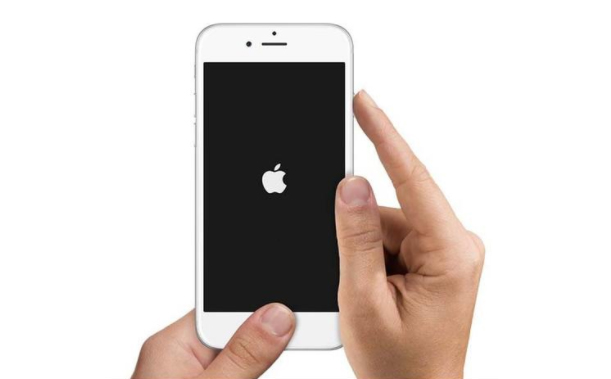
    Step 1 – First thing you need to do is to press home button long (at the bottom) and like wise press the power button (on the top) simultaneously.

    Step 2  Now long press the both buttons and wait till it gets shut down and restart again like wise go on  let it go you see the apple logo appear on the screen.

    Read Also : Cancel / Reverse Venmo payment : When a Venmo payment goes wrong

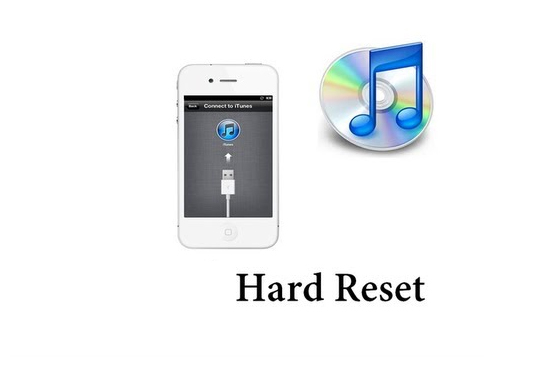
    2) Factory reset iPhone without password with iTunes –

    This method will help you only if have synced your iPhone using iTunes in the past, and for that you will not be asked again for your password.

    Step 1 – First you need to Backup your data, because all your iPhone data will be removed by a factory reset.

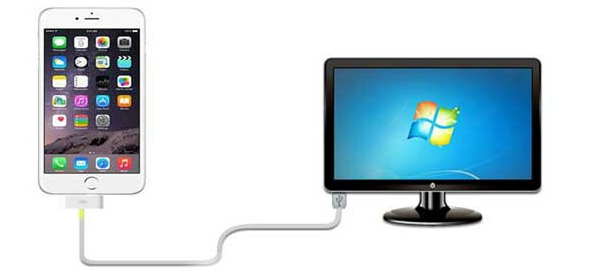
    Step 2 – Now connect your iPhone to your computer with USB cable.

    Step  3 – Install latest version of iTunes on your computer.

    Step 4 – Turn your iPhone off.

    Step 5 – Press and hold down your iPhone home button and connect the other end of the cable to phone.

    Step 6 – Wait until; iTunes appears on the computer screen, and then releases the home button.

    Step 7 – Finally CLICK on ‘Restore button on iTunes’.

    This way you can Factory reset iPhone using iTunes without password .

    Read Also : Venmo User Guide for Safe Transactions – Venmo payment

    Factory reset iPhone with Password:-

    Password can protect your important content from being misused or misplaced.  If you remember your phone password then you can restore your iPhone with the following methods:-

    1) Restore iPhone with password via menu

    If you still remembered you iPhone password then it is well and good as you can access your iPhone successfully. But it could be little bit hard to reset iPhone via menu.

    Step 1 -First Go to setting } General } Reset and select now “Erase all the content and setting”.

    Step 2 – Now click OK button to confirm  your restore iPhone factory setting.

    2) Factory restore iPhone without iTunes

    Without using or synced your iPhone to iTunes you can restore you phone easily. But you are required to follow the step.

    Step 1 – Connect to WI-FI, before backing up you need to connect your iPhone to WIFI, otherwise you won’t be able to restore your phone. You can also use hotspot and other network as well.

    Step 2 -Now go to your setting } icloud and then click on “Backup” button at the bottom. You will see the data of your last icloud backup as well. It might take time to backing up depending on your data.

    Step 3 – Lastly you can restore a backup from your iPhone. Do this by going to Setting } General and find “RESTORE”, And select all “erase content and setting” option

    Read Also : Hard and Soft Reset Roku Manual – Fix Frozen Roku Streaming Stick

    How to hard reset iPhone ?

    If your iPhone is not responding as well as you are thinking of how to hard reset iPhone to the factory setting by erasing all its data and restoring a backup in iClouds and iTunes. You can easily follow the steps below to factory reset your iPhone by carrying out a hard reset.

    Step 1 – Shut down the iPhone normally so that you can reset it again. Hold down the power button long until the slide to power off message appears.

    Step 2 – Now you can press and hold the reset button ( shut down on its own ) and start to restart.

    • iPhone 6S and earlier : power button + home button
    • iPhone 7S and 7plus : power button + volume – down button.

    Step 3 – Continue holding both buttons, Do it for 10 seconds.

    Step 4 – Finally Release the button once you see the “Apple logo”on screen.

    Read Also : How to Use Google Assistant on Android Devices (Without Root)

    Backup iPhone before Factory reset

    It is good and safe to backup your iPhone before factory reset as as factory reset will clear your iPhone data. So it is better you backup your data from iPhone before factory resetting if you don’t want to lose your data.  It is simple and easy method to use that allow you to select backup and you can also preview and store your data before back up. In 3 steps you can back up your iPhone before factory reset.

    How to backup iPhone

    Here is the steps on How to backup iPhone

    Step 1 – First you need to launch dr. fone toolkit  to backup your iOS data backup and restore on the computer. To connect your iPhone to computer  you need to click on “iOS data Backup & Restore”.

    Step 2 – Now select data type,  once back up is completed the programmer will scan your iPhone data , this process will take few minutes to complete it.

    Step 3 -Finally you can select/choose the content to backup for that you have to Click the button “Restore to device” or “Export to PC”.

    You all (iPhone user) have to know that once you factory reset your iPhone all your text and SMS messages will be deleted  only after a successful reset and new setting of your iPhone. Furthermore the entire data to the third party apps are going to be lost as well. So before factory resetting your iPhone you need to carefully read and understand everything in a very detail. Sometimes in hasty result lead to loss of data.

  • Record iPhone iPad Screen on Windows & Mac

    Record iPhone iPad Screen on Windows & Mac

    Wondering how to Record iPhone iPad Screen on Windows or Mac? Capturing or Recording iPhone/iPad Screen on your computer is no longer impossible. Recording a high-quality video of a presentation, tutorial, or gaming you can easily record it. If you are going to record iPhone or iPad screen on Mac then, you can simply use the QuickTime which is an inbuilt application on the Mac. Record iPhone , iPad Screen, if you are using Windows then there is an availability of the easy to use iPad/iPhone recorder.

    Most of the individuals are aware of the QuickTime which supports Mac OS and allow the users to record iPad screen.  But when it comes to the windows only a few people know the method of the recording. Follow some simple steps and you will surely find it easy to record the screen on iPhone or iPad.

    Steps to Record iPhone iPad Screen on Mac

    QuickTime:

    • To start with the recording of the iPhone or iPad screen on your Mac OS, firstly make sure that you are running with OS X Yosemite and iOS 8.
    • Connect your iPhone or iPad to Mac using the Lightning cable. (Suggestion: You may need to “Trust” your Mac so before iPhone works.
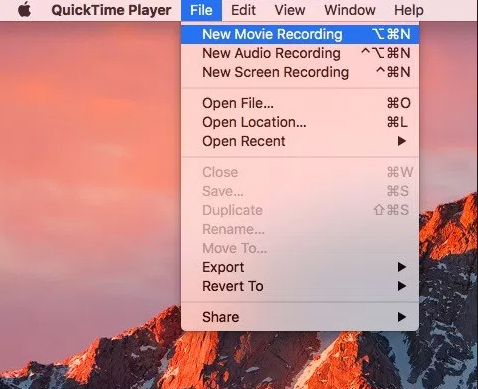
    • Launch QuickTime on Mac and select file then under file select New Movie recording which is available on the menu bar. Also, you can use an alternative option which is a shortcut given through the keyboard i.e. Option-Command-N. These all options will launch a new QuickTime window for the video recording. Now you can easily click on the small downward facing triangle which is just next to the record button. This button will let you just select an alternative which includes your iPhone or iPad now.
    • Now you can select your iPhone or iPad screen from the list and easily see the device screen which is just been replicated in the QuickTime window. The QuickTime recording acknowledges the iPhone or iPad screen rotation so do not ignore to see the preview window on your Mac switch aspect ratio as you rotate your device.

    The recording itself is a real time but some noticeable difference is seen between performing an action on the device and seeing the action being occurred on the window of QuickTime. But, for the actual iPhone recording, it is not an issue as the software will sync audio as well as the video for the final output. But, this does not mean that you don’t use this feature while playing live games or perform tasks which require less latency. For the audio, you can easily record iPhone or iPad screen on Mac and add the audio later during post and editing, or you can also record audio live with the video.

    Read Also : TeamViewer Alternatives – Top rated Remote Desktop Software

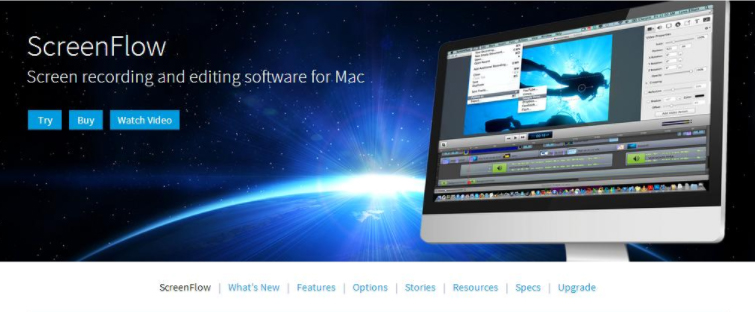
    ScreenFlow:

    This is a similar way to record the iOS device like the QuickTime. But ScreenFlow gives the advantage to edit video instead of open up another program. Sometimes, the ScreenFlow is better than the QuickTime in capturing the video. But, QuickTime is free and ScreenFlow is paid.

    To get started with the ScreeenFlow just connect your iOS device with Mac with lightning cable and open ScreenFlow. Automatically, your device will get detected and give you the option to record screen.

    Read Also : Best Truecaller Alternatives to find Caller Identity

    Tips to Record iPhone iPad Screen on Windows OS:

    You can Record iPhone iPad Screen on windows easily like as in MAC.

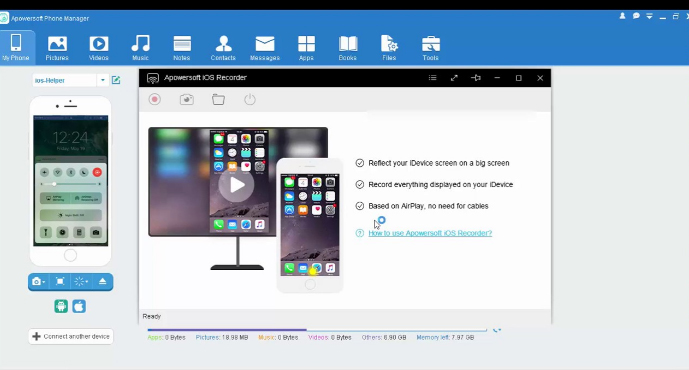
    Apowesoft Phone Manager:

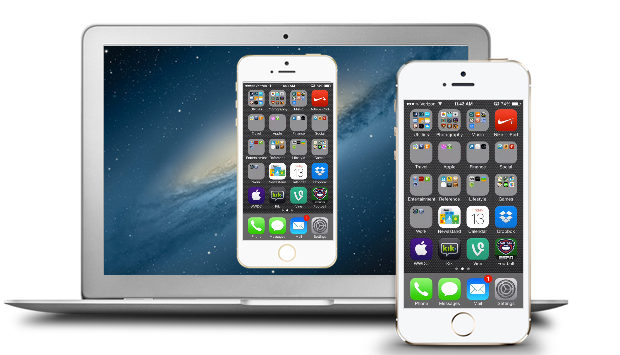
    This phone manager is one of the most powerful apps that provide users to mirror the iOS devices screen to the Windows and record all content on the screen.

    • To simply achieve the recording follow the steps:
    • Download the app and then install
    • Mirror your iOS device to the PC
    • Record iPhone iPad Screen
    • Then, connect your iOS device and PC with the Wi-Fi
    • Run this phone manager on computer and click on “Tools” and then “iOS Recorder”
    • Swipe up from bottom on your device of screen to access control center
    • Tap on “AirPlay” and you will able to see a TV icon with its name. Click it and open up mirroring function.
    • Within some time, you will see the device screen is projected to the PC screen and both the screens will act simultaneously.

    Read Also : Best Apple Watch Alternatives-Affordable Gadgets

    ApowerMirror:

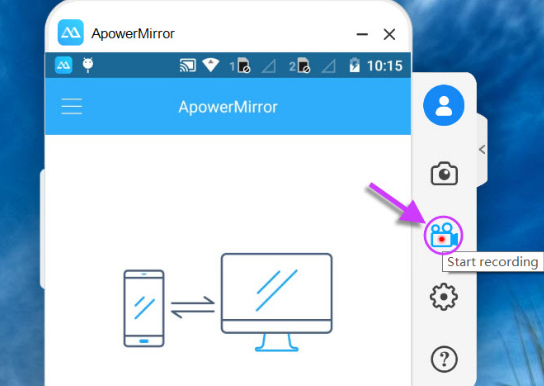
    ApowerMirror is an excellent tool of mirroring for recording iOS device by following some steps:

    • Install the application on the PC and afterward activate it
    • Then, on the iOS device just open AirPlay mirroring or AirPlay.
    • Select the device name and thus your device screen gets mirrored on PC.
    • Then, click on the recording icon or just simply press Ctrl + R to record screen

    Conclusion:

    So, this is the way you can easily Record iPhone iPad Screen on the Windows or Mac. Just follow the simple steps and you will surely be able to record the screen without any hassles.

  • Create Animoji Karaoke / Memoji Karaoke on iPhone

    Create Animoji Karaoke / Memoji Karaoke on iPhone

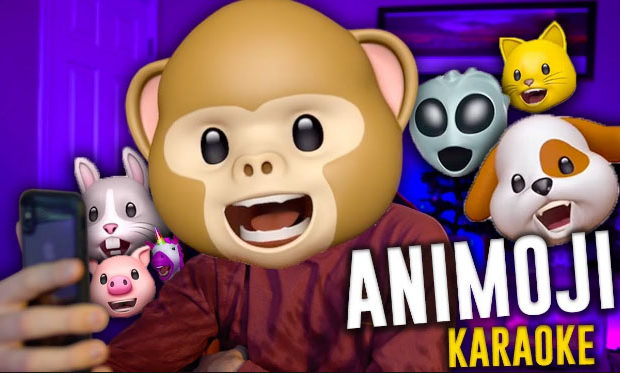
    Here we will find how to create Animoji Karaoke or Memoji Karaoke on iPhone. Before getting into this let us first answer a question in your mind about what is Animoji or memoji. Hope this will be interesting for most of you .

    So first let’s learn a bit about these, Animoji is animation plus emoji. So basically these are animated and 3D versions of the simple emoji which can be recorded using iPhone X camera and can be sent as video files along with audio as well.

    Memoji is an even updated version of animoji available with iOS 12. These are like avatars which somewhat look like you and also have similar facial movements. These features can be accessed using the iMessage app.

    Read Also : Top 8 Smule alternatives – Best Karaoke Singing Apps 

    Next question is what is animoji or memoji Karaoke. Hope you are familiar with dubsmash , if so let me make it simple . Animoji Karaoke or memoji Karaoke is like a dubsmash with avatar . Now let us begin with how to Create Animoji Karaoke .

    How to Create Animoji Karaoke / Memoji Karaoke on iPhone

    To begin with , all you need is to select the music of your choice first . Let us take a look more about the process on how to Create Animoji Karaoke / Memoji Karaoke on iPhone –

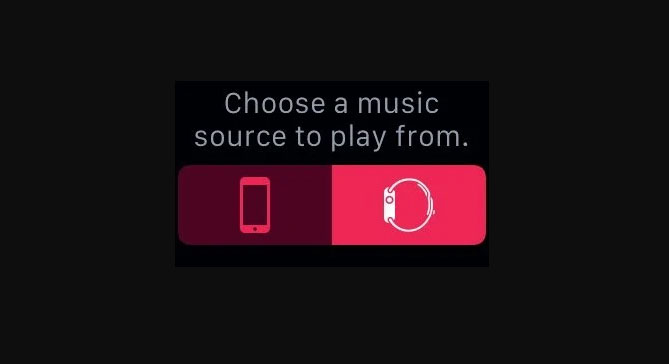
    Music Source

    The first and foremost requirement is a music source. The only thing you should care about this is that the volume should be high enough that it can be clearly recorded by the iPhone. Remember, for playing the music you will require some device other than your iPhone since you cannot play music and record an animoji on it simultaneously.

    Learn Lyrics

    You definitely to memorize all the lyrics for whichever song you want to create the karaoke for a cool and appealing video. Since if your lip sync won’t match with the lyrics of the song, it will simply ruin your video. Display lyrics on the music device, it can be helpful.

    Use Animoji

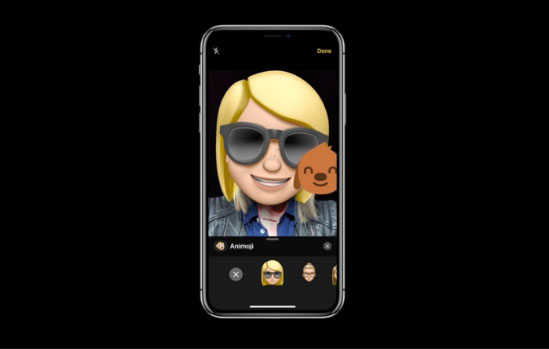
    Now you need to select the appropriate animoji to express your karaoke video properly. Also instead of animoji you can go for a memoji. This way you can display your expressions pretty well.

    For selecting the animoji or the memoji, these are available only on the iMessage app on your iPhone. There create a new message and to view the animojis there click on the monkey icon. After this you select from the animojis available or your own memoji.

    Read Also : Spotify Tips and Tricks to Enjoy Spotify Subscription More

    If you can’t find out any right animoji for your karaoke video then you can refer to a number of third party apps where you can create animojis yourself. One such app is Animoji Studio.

    Decide length

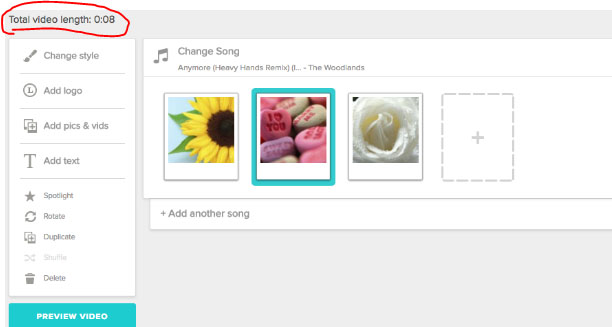
    The next thing is to decide your Animoji / memoji Karaoke Video length . For Half minute videos , i mean 30 seconds ones ; you can record it easily by holding the record button. In case you got to create long Karaoke videos , then you use iPhone screen recording feature .

    For starting the screen recording pull down the control menu from the horn button, click upon the screen recorder and swipe up to close the control menu. Now record as long video as you want whether a  small clip or a complete karaoke. For switching off the screen recorder, click on the side button.

    Share Animoji Karaoke

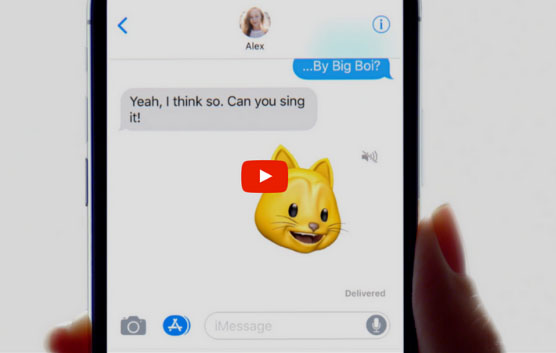
    Using your iMessage app you can create your Animoji / Memoji Karaoke and can share the same on any of the messenger apps or social media sites .

    So it is quite easy to create some cool and fun animoji karaoke videos. Actually you can make up your karaoke game if you can sing well. Then you may not lip sync but sing the song in your very own original voice. It can be even more fun, right? Do share with us your experience of making animoji karaoke videos on your iPhone.

  • iPhone Conference Calling Step by step guide

    iPhone Conference Calling Step by step guide

    Most of our daily routines in office demands Conference calls . Even the best buddies conference call to make exciting plans , meet ups , get together or to share some blunders and laugh together we need this tech feature . If you have an iPhone , and ever wondered about how to make Conference call on iPhone then here we will be discussing out the step by step guide on making iPhone Conference Calling .

    What is Conference Call ? Exactly there is nothing like a great definition to be discussed here . When you make a call there is certainly 2 people involved . When more than 2 people , exactly 3 or more people on a call together is conference call .

    On a conference call you can hear everyone and everyone can hear you .

    iPhone Conference calling – How to turn on conference call on iPhone

    So now let us understand , how to start a conference call on iPhone with simple step by step instructions .

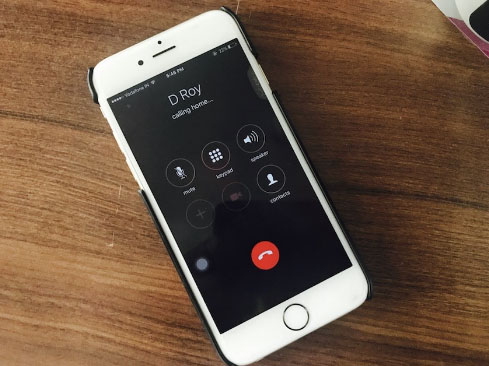
    1.  Go to iPhone’s Phone app and dial the first person’s number
    2. Now make a call by dialing the call button on iPhone screen
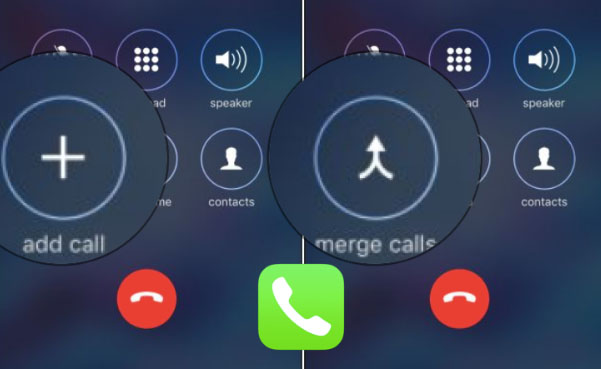
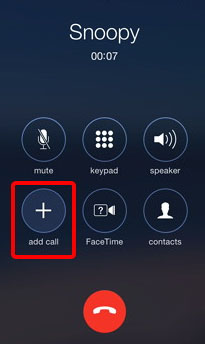
    3. Tap on the Add call button while the first call in ongoing .
    4. Now enter the next person to be added on to your iPhone group call .
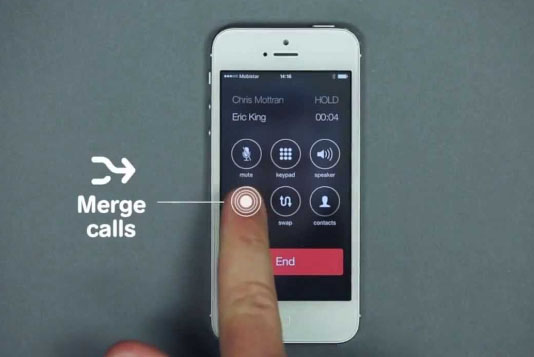
    5. Now your first person will be put on hold on iPhone
    6. Tap Merge calls 
    7. You have now all the three including yourself connected on conference call
    8. Repeat the step of add call and merge calls to add more people to iPhone conference call.

    This is how to do a conference call on iPhone .

    Read Also :  Best free calling Apps for all Smartphones

    Read Also : Best iMessage alternatives for Android/ Windows/ Mac/ iOS

    In case sometimes if you are not able to add and merge calls on iPhone , i mean when the steps of how to turn on conference call on iPhone doesn’t works out then check your iPhone call settings .iPhone Conference Calling Not working can be due to the following reasons sometimes . So this is the checklist when iPhone calling doesn’t works –

    • Check DND (Do not disturb ) on your iPhone
    • Check iPhone block list
    • Check your iPhone call forwarding settings and options
    • Make sure your iPhone software updated is up-to the date

    Solution to fix  –

    • Check airplane mode  and turn it on and turn off airplane mode after 5 minutes
    • Try to check your network coverage
    • Remove and reinsert iPhone sim from the sim slot .

    If you are using VoLTE then ,  iPhone conference call won’t merge . So this cannot be fixed .

    Hope you guys find this useful 🙂

  • How to update iPhone / iPad to the Latest iOS update

    How to update iPhone / iPad to the Latest iOS update

    Apple being one of the famous brand always upgrade Operating system for its devices . As you may be very well aware that the operating system Apple make use of is the iOS . Soon after the release of three new flagship iPhones here comes the most awaited latest iOS version . Here we will learn about How to update iPhone / iPad to the Latest iOS update .
    Answering the most awaited question about iOS 12 release date , the new iOS got released for 2018 also on September . Those who wanted to upgrade iOS and update iPhone with Latest iOS . Then read this piece , because its just written for you.

    The history of iOS versions begins from the release of iPhone OS 1 , iPhone OS 2 , iPhone OS 3 , iOS 4 , iOS 5 , iOS 6 , iOS 7 , iOS 8 , iOS 9 , iOS 10 ,  iOS 11 , iOS  12, the latest .

    Read Also : Improve The World With Smartphone -Top 10 Hacks

    iOS 12 Released 

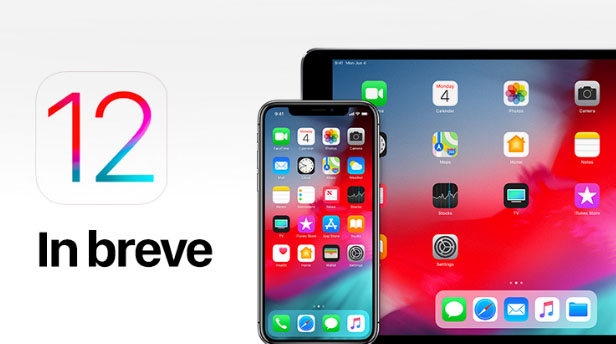
    Finally the most awaited latest Apple OS for iPhone and iPad is released. After iOS 12 beta now iOS is official . It is evident that most of the iOS 11 supported devices will support iOS 12 .
    You can update iPhone to iOS 12 by checking out whether your iPhone OS can be upgraded .

    iOS 12 Supported Device list

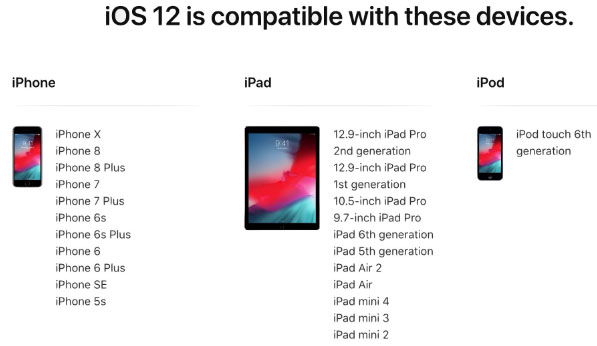
    Given below is the devices that use iOS 12 and also list of devices where you can upgrade iOS .Here is the list of Apple devices capable to do iOS 12 download. We will also guide you about how to update iPhone with latest iOS  .
    iPod Touch

    On the series of iPod touch devices the iPod Touch 6 (iPod 6th generation) is compatible for iOS update . You can download iOS 12 for iPod Touch 6 . The iPod touch 6 G that initially was iOS 8 which can be now updated. So you can update iOS 8 to iOS 12 .

    Read Also :  38 Best iPhone games you should play

    iOS 12 for iPod Touch – How to Install iOS 12 On iPod Touch

    In order to update iPod touch with iOS 12 follow the given steps –

    • First take a iTunes Backup / iCloud Backup of your iPod Toch device
    • Install latest iOS (download iOS 12) either by wireless method or by iTunes

    The steps to installation of iOS is same for iphone , ipad and iPod .So read the common section for understanding how to update iPod software .

    iPad iOS update Supported Devices 

    Given is the list of iPad devices that can be upgraded to iOS 12 . So lets see how to update iOS on iPad .

    • iPad Air – Initially used iOS 7 , now this can be updated from iOS 7 to iOS 12

    • iPad Air 2 – Initially used iOS 8 , now this can be updated from iOS 8 to iOS 12

    • iPad 2017 – Initially used iOS 10.2.1 can be upgraded to iOS 12

    • iPad 2018 – Initially used iOS 11.3 can be updated from iOS 11 to iOS 12

    • iPad Mini 2 -Initially used iOS 7.03 can be updated to iOS 12

    • iPad Mini 3 -Initially used iOS 8.1 can be upgraded to iOS 12

    • iPad Mini 4 -Initially used iOS 9 can be now updated from iOS 9 to iOS 12

    • iPad Pro (9.7 inches) , iPad Pro (10.5 inches) , iPad Pro (12.9 inches ) Generation 1 and 2 – Initially used iOS 9.1 can now be upgraded with latest iOS 12 .
    iPhone iOS 12 supported

    Here is the list of iPhone that can be available for iPhone software update to the latest iOS 12 . These devices can be upgraded to iOS 12

    • iPhone 5S – Initially run on iOS 7 can be now upgraded to iOS 12

    • iPhone 6 – iOS 8 to iOS 12 can be updated for iPhone 6 users

    • iPhone 6 Plus – This iPhone 6 Plus users using iOS 8 can update it to iOS 12

    • iPhone 6S & iPhone 6S Plus -Initially run on iOS 9 can be upgraded to iOS 12

    • iPhone SE – updating iOS for iPhone SE is available , here you can upgrade iOS 9.3 to iOS 12

    • iPhone 7 – iOS 10 to iOS 12 software update is available for iPhone 7 series

    • iPhone 7 Plus – iOS 10 to iOS 12 update is possible for even iPhone 7 Plus

    • iPhone 8 – You can update the old iOS in iPhone 8 which was iOS 11 to iOS 12

    • iPhone 8 Plus – iOS 11 is the OS running on iPhone 8 plus hich was available for iOS 11 update earlier . Now you can upgrade iPhone 8 Plus to iOS 12 .

    • iPhone X – iOS 11 was the iPhone X OS , now those who are using iPhone X can update iPhone to iOS 12

    • iPhone XS – iOS 12 is the OS for the new flagship Apple phone

    • iPhone XS Max – This apple flagship phone uses iOS 12

    • iPhone XR – Most modern apple phone , iPhone XR runs on iOS 12

    Why iOS 12 – Best Features of iOS 12 

    The newly released iOS 12 has so many features to make you fall in love with iOS 12 . Let’s take a look at some of the most exciting and best iOS 12 features –
    Navigation Apps is Not Limited Anymore 

    You may be aware that earlier versions of Apple OS has allowed its users to rely upon only the Apple Navigation app , that is the Apple Maps . Those who had voted more for Google Maps on a comparison between Google Maps Vs Apple Maps , can be happy now . Your iOS 12 allows you to use Google Maps and other third party navigation apps with the Apple CarPlay .

    That’s quote a good news , isn’t . Don’t worry we will guide you on how to Google Maps with Apple CarPlay in our upcoming write up.

    Group FaceTime Call is Latest in iMessage Group Chat

    Now , this feature is not live but it will be rolled out soon in iOS 12 . Thus allowing the iPhone , iPad and Mac users to enjoy group Facetime Call with new iOS .

    Read Also : Best Triple Camera Phones to Buy This Year

    iOS with More App updates

    Seriously not a major app updates but yes there are few excellent app updates with the iOS 12 .

    • Apple News App with a scroll option in iPad.
    • Stock Analysis , Performance and top stock related news updates throughout the day.
    • iPad now gets Voice memo apps . Also there is iCloud support to sync your Voice memo with other Apple devices .
    • iBooks turned to be Apple Books . It has got Book store feature and Reading now feature to make it much more easy to use .

    Access Apple TV with Apple Control Center 

    Add Apple TV tile to your iOS 12 Control center , now just swipe and tap to access Apple TV

    Managing Screen Time

    Now iOS 12 lets the Apple iPhone and iPad user to understand the pattern of their device usage time , a clear and detailed summary of how much you have used your device . Also which app you spend more time etc.

    App Limit Feature 

    Along with managing screen time , apple also introduced an efficient and smart feature that allows the users to limit their usage by setting time limit for each apple apps . So that’s how the App Limit feature adds more power to the screen time management feature in iOS 12.

    Downtime Feature in iOS 12

    This is a boon to parents where they can remotely manage their kid’s apple device usage with Family sharing app . The downtime feature in iOS 12 aims at helping parents to limit their kid’s access to apps or websites and even set time to each applications .

    Bye bye to Long list of Notifications

    No more irritating thread by thread notifications to pile up your home screen . Everything is now sent as a grouped notification on a single thread . This single thread notification is one of the best things that happened with iOS 12

    Read Also : iPhone Vs Samsung which is better – iPhone Vs Galaxy Compared

    Do Not Disturb & Critical Alerts

    Set time to enable Do not disturb and toggle on Do not disturb whenever you want to stay away from getting distracted because of mobile. But one better thing is Critical alerts from healthcare persons will work even when your Do not disturb is enabled .

    There are more features like – iOS Photos – For You Tab , Siri shortcuts for iOS 12 , ARKit 2.0 , USDZ format , Add 2 Face Id Profiles , Better password manager , Apple camera app with Improved Portrait mode , better battery health , better QR scanner , Better screenshots on iPhone , New Apple map design , location sharing , Animoji and memoji trends , iOS 12 Siri suggestions improved .

    How to update iPhone / iPad to the Latest iOS update

    Now let us dive into the core topic ,that is how to update iPhone/iPad with latest iOS . Before you do iPhone Sofware update you have to backup iPhone /iPad before you update iOS .

    How to Backup iPhone /iPad /iPod before updating to iOS 12 

    Before you download iOS 12 , You have to backup iPhone /iPad /iPod to prevent loss of data while software upgrade.

    You may be aware that there are two methods to update iPhone –

    1. Update iPhone using iTunes
    2. Update iPhone using iCloud

    Now before that all you need is to learn to back up iPhone / iPad /iPod

    Read Also : Factory reset iPhone without password or iTunes with data backup

    How to Take iTunes Backup of iPhone/iPad/iPod

    To prevent iPhone data loss before you update iPhone or any of your iOS device , take a iTunes backup . Follow the given steps –

    • Ensure that you have updated latest iTunes version , if no install latest iTunes version first .
    • Now open iTunes
    • Connect your iPhone/iPad/iPod to your computer
    • Now you will be asked to verify the computer by entering the passcode .
    • Next you have to enter your Passcode information correctly .
    • Now select your device on iTunes window’s left corner .
    • You have to click on the Summary option that you can see on the left corner of the window
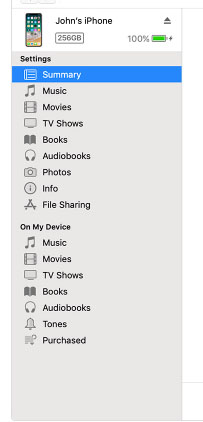
    • At this time yo can see your device information on centre of the window displayed out . Also there you can find an option This Computer
    • Toggle it and below that there is an option Encrypt device backup , Click that and enable tick mark for that to protect it with password
    • Now on Manually backup and restore option click on Backup Now
    • Click done .

    Read Also : Best iTunes Cleanup Software for better iTunes experience

    This is how you can restore iPhone/iPad /iPod using iTunes . Make sure that you do take a back up iphone /ipad before updating to ios 12 .

    How to update iPhone / iPad to the Latest iOS update

    Now let us learn how to download iOS and install latest iOS on your iPhone , iPad and iPod . So i guess you have taken back up of your iPhone . If so proceed on how to download latest iOS ( How to dowload iOS 12 ) –

    • To update iPhone with latest iOS 12 you must either take iClod / iTunes backup of your device first
    • Now to install iOS 12 using iTunes follow the given steps
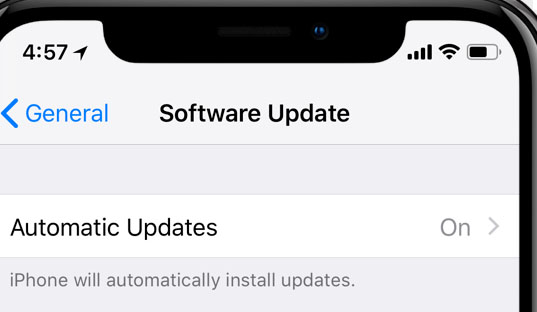
    1.  Go to iTunes
    2. Plug your Device , that is plug iPhone / iPad / iPod
    3. Now select the device icon that can be found at top left
    4. Go to Summary
    5. Now click on Check for Update
    6. Select Download and update option
    7. Now click Agree button mentioning you agree to all the terms and conditions
    8. Enter your device passcode
    • Now to install iOS 12 using iPad / iPhone software update follow these steps to update iPhone iOS with iOS 12
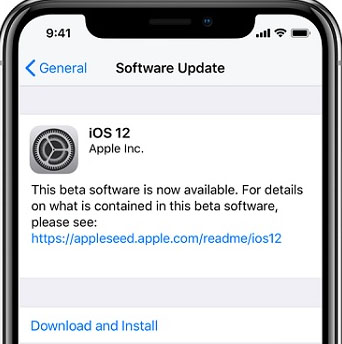
    1.  Take iCloud Backup
    2. Go to device Settings option
    3. Go to General 
    4. Now click on the Software update 
    5. There you can see and option called Download and Install , just click that
    6. Proceed with entering your device passcode and simple agree to terms and conditions4
    7. Click Agree to confirm

    That’s it , this is how to update iPhone with iOS 12 , hope you are clear with how to download iOS 12 and install iOS 12 .

    Android Vs iOS – Comparing Android P Vs iOS 12

    After Android O (Android Oreo) google has released Android P , that is Android Pie , the very latest Android OS . So with the release of iOS 12 , most of the users have a confusion which is the best Android Vs iOS ( On a cross comparison between Android or iOS) . So here we will take a look at Android P Vs iOS 12 .
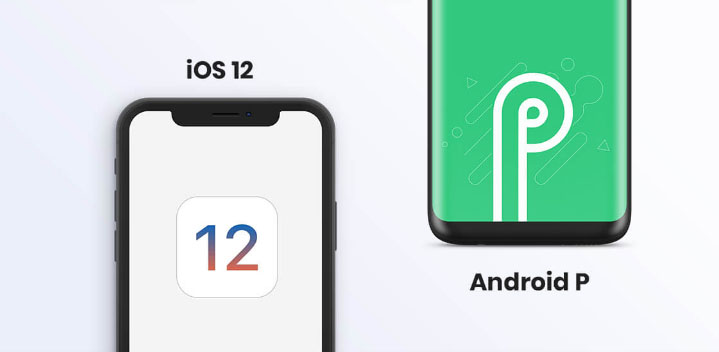
    Many of the devices are apt for Android 9 Pie as OS . And we have already discussed iOS 12 supported devices and how to upgrade to iOS 12 . Google Pixel 3 XL will come with Android 9.0 (Android P) . And in many other devices using Android Oreo you can update Android Oreo to Android Pie ( Android O to Android P )

    Read Also : Android Oreo Vs Android Nougat Vs Android Marshmallow Vs Lollipop

    Now lets take a look at iOS 12 Vs Android P –

    • iOS 12 Vs Android 9.0 comparison Google’s Android P is the best with respect to maps and navigation performance when your compare with iPhones. So google maps is best when compared to apple maps .
    • While encountering comparison between the virtual voice assistants in Android P and iOS 12 , Android wins the heart . Even though Apple has brought so much of new updates to Siri , still Google assistant remains favourite for majority .
    • Digital health aspects is taken more carefully by iOS than Android , so in that case iOS is winner

    Read Also : iOS 11 Vs Android Oreo – Who wins gadget lover’s Heart

    Read Also : Update to Latest Android OS : Android Pie -Stay with Nougat / Marshmallow/ Oreo

    Read Also : Backup Android Device to PC or Google

    There are more differences that will be discussed separately and in detail .

    So i guess we have given our users a very detailed idea on iOS 12 and iOS 12 supported devices , a cross comparison between iOS 12 Vs Android P & our core point how to update iPhone / iPad / iPod to latest iOS 12.
  • iPhone Vs Samsung which is better – iPhone Vs Galaxy Compared

    iPhone Vs Samsung which is better – iPhone Vs Galaxy Compared

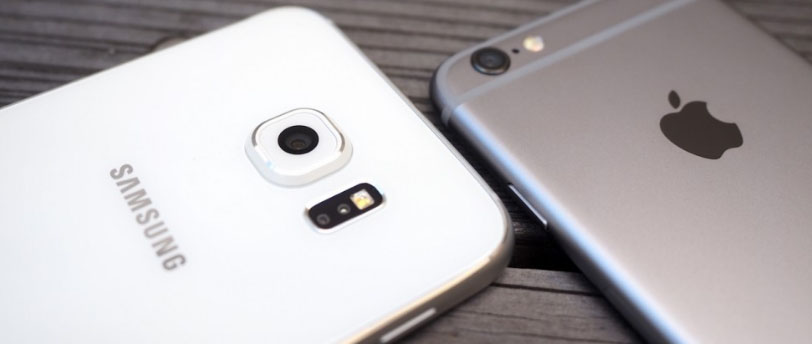
    Apple and Samsung being two big brands in the industry have made Galaxy and iPhone as two big names in the realm of Smartphone, Galaxy is introduced by Samsung and iPhone is introduced by Apple. Both Galaxy and iPhone are very popular among their users, their popularity has given rise to competition between both of them. More the competition , it lead to more of confusion among the buyers . So, in this article, we will discuss which one is better Samsung Galaxy or iPhone. The article is about iPhone Vs Samsung (Galaxy Vs iPhone) and the comparison between iPhone X , XS , XS Max and XR  and Samsung galaxy S10 , S9 and S8.

    In Samsung Galaxy, Smartphone Android Operating system is used whereas in iPhone, iOS software is used. Both of them offer so many features that it is very difficult to choose anyone. But one of the differences between the two is that iPhones are always expensive whereas Galaxy phones are affordable. Let’s have a look at the comparison between iPhone Vs Samsung Galaxy through a comparison between their latest Smartphone.

    Read Also : Improve The World With Smartphone -Top 10 Hacks

    Read Also : Best iTunes Cleanup Software for better iTunes experience

    Read Also : iOS 11 Vs Android Oreo – Who wins gadget lover’s Heart

    We all buy Smartphone but when it comes to buying we do all possible efforts to find out which is the best in the market. And after researching the two names that you must come across are Samsung Galaxy and iPhone. You might want some constructive comparison between iPhone Vs Samsung if you heard about Galaxy phones and iPhones.

    Latest Galaxy & Latest iPhone 

    Samsung on their Galaxy S series has launched Samsung Galaxy S9 .The latest Smartphone launched by Samsung Galaxy is Samsung Galaxy S9 which is released on 16 March 2018 . The upcoming latest Samsung phone will be Samsung Galaxy S10 .

    Whereas the latest iPhone is iPhone X launched by Apple on November 3, 2017.  Now Apple has released their 3 flagship smartphones recently – iPhone XS , iPhone XS Max and iPhone XR .

    iPhone Vs Samsung which is better – iPhone Vs Galaxy Compared

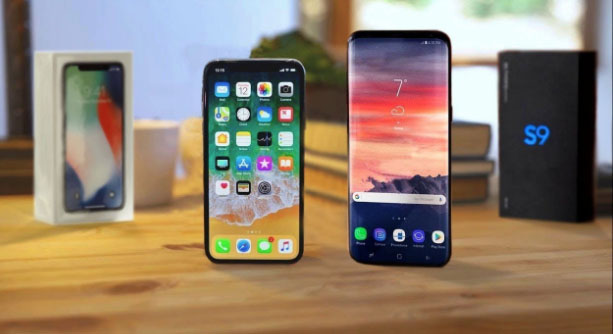
    When we discuss about iPhone Vs Samsung , Both of these smartphones are giving tough competition to each other. To know more about the features, prices, and other details of these smartphones please go through the iPhone X Vs Galaxy S9.

    Read Also : Update Latest Android OS – Top reasons to upgrade Mobile OS

    Read Also : Samsung Pay Guide with Exclusive Samsung Pay FAQ

    Read Also : Android Vs iOS – Pros & Cons of Buying Android Vs iOS

    Read Also : Apple Homepod Tips, Tricks and Review

     iPhone X Vs Galaxy S9

    • The operating system of iPhone X is iOS v11.0.1 whereas the OS of Samsung Galaxy S9 is Android v8.0.
    • Both the Smartphone offers 64 GB of storage whereas memory of S9 is expandable and memory of the iPhone cannot be expendable.
    • Both provide 12 megapixels of a camera.Samsung Galaxy S9 offers 8 megapixels front facing camera whereas iPhone offers 7 megapixels of front camera.
    • The display of both is 5.8 inches but Galaxy S9 screen is Super AMOLED whereas the screen of iPhone is OLED.
    • iPhone X is a single sim Smartphone whereas Samsung Galaxy S9 is dual sim Smartphone.
    • The processor of iPhone X is Hexacore whereas Samsung Galaxy S9 processor is Octa-core.
    • Samsung Galaxy S9 is made up of metal and its price is ₹ 57,900 whereas the iPhone X is made up of glass and its price is ₹ 89,000.

    If we talk about the battery of S9 and iPhone then the battery of both of them can’t be replaced. The mAh of S9 is 3000 whereas the mAh of iPhone is 2716.  RAM of S9 is GB whereas RAM of iPhone X is 3 GB and the chipset of iPhone X is Apple A11 Bionic whereas chipset of Samsung Galaxy S9 is Samsung Exynos 9810.

    iPhone X and Samsung Galaxy S9 both are going great in the market. iPhone X is brought by people who like to buy luxury products because it adds to their social status but just because of this one can’t underestimate Samsung Galaxy S9 as it is a great rival to iPhone X and using it is very fun and amazing experience. Both of these smartphones are best however users can choose between iPhone X and Samsung Galaxy S9 according to their own requirements.

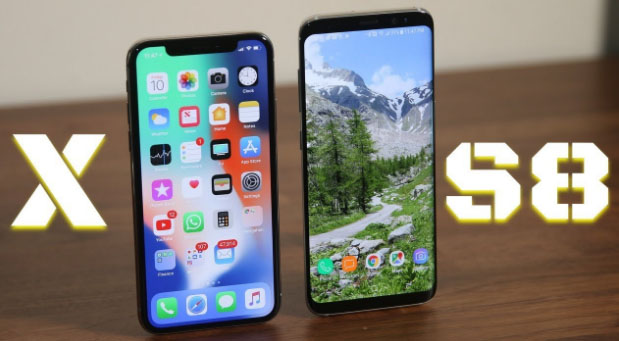
    iPhone X Vs Samsung Galaxy S8

    • Samsung Galaxy S8 is the successor of Samsung Galaxy S9, S8 is launched by Samsung on May 5, 2017. The features of Samsung Galaxy S8 are similar to the features of Samsung Galaxy S9 users but Samsung Galaxy S9 features are more advanced.
    • The price of iPhone X is around 90,000 whereas Samsung Galaxy S8 Price is around 60,000. The Samsung Galaxy S8 is available in 5 colours that are black, grey, gold, silver, red and blue.
    • The iPhone X offers some amazing features like wireless charging, face unlock feature, animoji feature whereas these Samsung Galaxy S9 and S8 offers features like face recognition, dual lens camera, stereo speaker, dual sim, intelligent scan, AR emoji like bitmoji , memoji , Bixby feature, desktop experience supporting, calling PLUS and more.
    • The iPhone X does not have any home button, fingerprint scanner, and headphones jack whereas Samsung galaxy s9 has all of these.

    Both Samsung Galaxy S9 and iPhone X are offering best features at the best price. Both are getting positive reviews from the users, however, iPhone win the hearts of many people but before buying you must understand your expectation and need and choose between both on the basis of it. Whether you choose S9 or iPhone X both will give you an amazing experience as both are best in their own ways, features and style.

    Now when you compare iPhone Vs Samsung , we have seen the comparison between iPhone X Vs Samsung S9 , iPhone X Vs Samsung S8 .

    As Samsung S10 (Samsung Galaxy S10) is upcoming we will make a cross comparison between iPhone XR Vs Samsung S10 . Samsung galaxy note 9 is best alternative to iPhone XS .

    You might be aware that iPhone X Vs iPhone XS doesn’t have so much breathtaking features to be cross compared . Well iPhone XS Max can be one of the best product recently launched in market .

  • iPhone X Features ,Tips ,Tricks and iPhone X Review

    iPhone X Features ,Tips ,Tricks and iPhone X Review

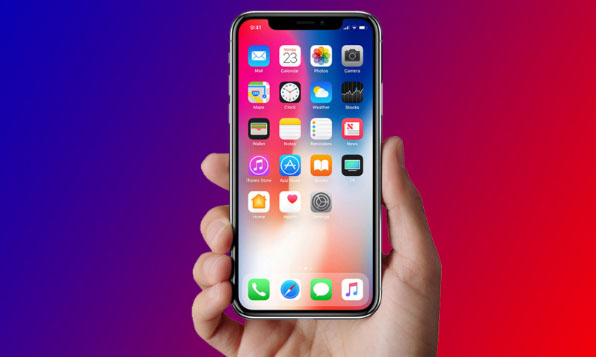
    If we talk about smartphones, iPhone is the first name that comes on everybody’s mind.  Everything about iPhones is special such its features, its price, its fan following, its demand all over the country is just outstanding all these things make it a luxury.  In this article, we are going to throw some light on the latest iPhone X, iPhone X features , and iPhone tips and tricks.

    On the Apple mobile series the latest is iPhone XS , iPhone XS Max and iPhone XR . You may be aware that the iPhone X got discontinued . It doesn’t mean that your iPhone X is useless now , those who have the iPhone X can still continue to use their device . But those who wanted to buy a new iPhone X , you lost the chance .

    Don’t worry you have better options than iPhone X . The latest iPhone XS , iPhone XS Max and iPhone XR have got better specifications than iPhone X features .

    iPhone X Features ,Tips ,Tricks and iPhone X Review

    Here we will discuss about iPhone X features and iPhone X tips for those who still use the iPhone X model.

    Read Also : How to Fix “Cannot Take Photo” Problem on iPhone and iPad

    iPhone X

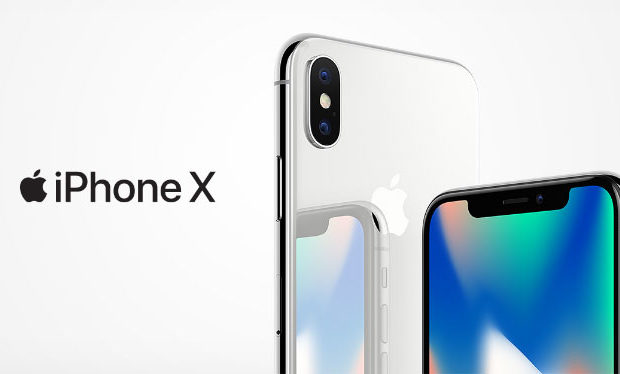
    Apple launched iPhone X on November 3, 2017. The iPhone X is available in two colour options one is space grey and the other is black. The stainless steel is used to make the phone as it ensures durability and glass is used to make the casing of iPhone X.

    Some of the awesome iPhone X features are given below:

    • General: iPhone X weight is 174.00 and dimension is 143.60 x 70.90 x 7.70.
    • Display: The display screen of the iPhone is 5.80-inch with a resolution of 1125 pixels*2436 pixels. It provides a super retina HD display, multi-touch display, and 3D Touch.
    • Hardware: The iPhone X is powered by the hexa-core processor and it provides 3 GB RAM. The phone provides 64GB of internal storage that is non-extendable.
    • Operating system: iOS 11 is the operating system used in iPhone X it makes the smartphone more compelling, personal and intelligent than ever.
    • Wireless Charging: The best iPhone X feature is that it ensures wireless charging.
    • Battery: Battery capacity of iPhone X is 2716 and the battery is non- removable.
    • Camera: The rear camera is of 12 megapixels and has features like Quad-LED dual-tone flash, panorama, HDR, Noise reduction, Exposure control, Body and face detection and more. The front camera is of 7 megapixels. It is compatible with Retina Flash, Portrait Mode, Exposure control, Burst mode, Timer mode, Auto image stabilization etc.
    • Video recording: Options like 720p HD video recording at 30 fps, 1080p HD video recording at 30 fps/ 60 fps, and 4K video recording at 24 fps/30 fps/ 60 fps, are also available.
    • Sensors: Sensors that are offered in iPhone are Accelerometer, Face ID, Three-axis gyro, Barometer, Ambient light sensor, and Proximity sensor.
    • Animoji: The most attractive iPhone X feature is Animoji. With this feature, you can customize emojis. It can be possible with the help of one more attractive iPhone X feature that is true depth camera.
    • Some of the other iPhone X features are that it is dust, water, and Splash resistance and it supports Nano Sim.

    Read Also : Android Vs iOS – Pros & Cons of Buying Android Vs iOS

    Read Also : iOS 11 Vs Android Oreo – Who wins gadget lover’s Heart

    iPhone X tips and tricks

    The new iPhone is quite different from its successors, so it became difficult for its users to find and use all iPhone X features. So, some tips and tricks are shared below for the iPhone X users which will help them in using their smartphones more smartly.

    1. Use face to mute alarm: iPhone X users don’t have to snooze their alarm. They just need to look at the mobile and the Face ID will automatically lessen the loudness of the alarm.
    2. Deactivate Face ID: The Face ID can be deactivated and passcode security will reactivate when the user presses the power button five times.
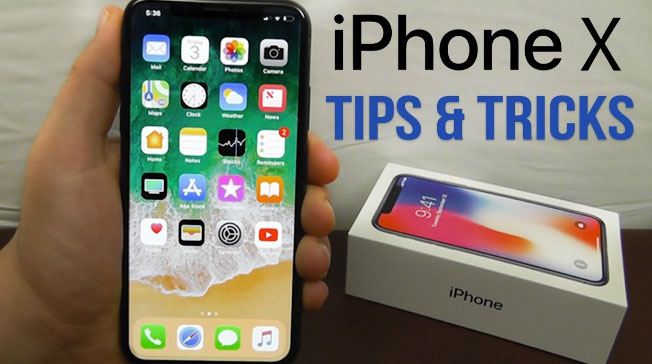
    3. Battery: The battery percentage is never shown on the iPhone X, however; users can see the battery percentage by swiping down the notch presented on the right side.
    4. Home button: Home button is not present but the user can get a virtual home button, they just need to go to General, where they will find Accessibility and in it, they have to turn on the Assistive Touch option.
    5. Save battery: Users can save the battery of there iPhone by setting black wallpaper or by using the grayscale mode.
    6. Close multiple tabs: Users can close multiple tabs in one go by using Safari option.
    7. SIRI announcements: If the user is using headphones and someone is calling then Siri will announce who is calling. A user can turn on this feature by visiting the setting option.

    Read Also : Fast Forward , Rewind , Scrub Music in iPhone & iPad Music Player

    Read Also : Garageband Alternatives- iPad / iPhone / Android

    Read Also : Factory reset iPhone without password or iTunes with data backup

    iPhone X price

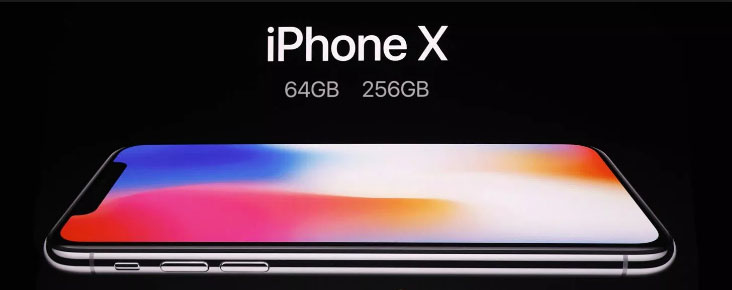
    iPhones are always expensive that’s what makes them a luxury and not a common thing. The current price of iPhone X in the market is quite high because of the increase in customs duty. The price of the 64GB Apple iPhone is Rs. 95,390 and the price of the 256GB Apple iPhone is Rs. 1, 08,930.

    With the Launch of iPhone XS ,  iPhone XS Max and iPhone XR Price range of the iPhone X will see a heavy fall .

    iPhone X reviews

    iPhone never disappoints its users, after going through people’s reviews one thing is very clear that iPhone X users are really very satisfied with it. The best iPhone X feature which many people liked is face unlock feature, the other thing which users like is its wireless charging feature, the camera is quality is just great, the display and size of iPhone X are just awesome and comfortable to hold. When it was first released not many apps were supported on it, however, developers are trying since to make it compatible with more apps. So, we can say that iPhone X has majorly satisfied its users.

    Read Also : 38 Best iPhone games you should play

    What to do with old iPhone X ?

    This is a question in mind of every gadget lover who got disappointing with the discontinuity of iPhone X . So what can you do with the iPhone X .

    Well here we give a short idea on what can you do with old iPhone .

    Upgrade iPhone X 

    You can now make use of the last few days to upgrade your old iPhone X . You can upgrade iPhone X to iPhone XS ,or iPhone XS Max using the apple’s iPhone Upgrade Program .

    But when you have iPhone X then the decision to upgrade iPhone X to iPhone XS will seriously disappointing you . So you can consider to upgrade iPhone X to iPhone XS Max .

    To get a novel feel with iPhone you must buy iPhone XR . You can even sell or trade old iPhone online easily .

     iPhone X plus

    Apple launched iPhone XS in the market. Being the newest model, the iPhone XS will provide more advanced features and obviously will be more expensive. The release date of iPhone XS is September 12, 2018. Though it is going to be launched soon, people already started being curious and begin to guess what features this new iPhone will have so from the sources we came to know that its display will be of 6.0, it will provide storage of 64 GB, camera will be 13 MP, battery MAH will be 2815, and 4GB Ram. For more accurate details we need to wait until it launched.

    Soon we will give you iPhone XS , iPhone XS Max and iPhone XR review and features.