Blog

  • View Twitter Full Site – Check Twitter Desktop Version on Android

    View Twitter Full Site – Check Twitter Desktop Version on Android

    Nowadays everyone started to switch to Smartphones for browsing , but one common issue is not satisfied with mobile version of websites . So here we will discuss on how to View Twitter Full Site – Check Twitter Desktop Version on Android .

    If you ever wanted to use desktop version of twitter on Android mobile then here is the easy step by step solution to help you out with this .

    View Twitter Full Site – Check Twitter Desktop Version on Android

    Follow these steps to view twitter full site on mobile , i mean to get twitter desktop view –

    1. Go to your Chrome browser on Android . In case Chrome browser is not installed on your desktop then download Chrome for android .
    2. Now open chrome browser.
    3. Go to Menu on Chrome browser.
    4. Now from Chrome “Menu” you have to select option to browse in private mode . Click “New incognito tab ” from Menu.
    5. On Incognito mode visit any random website other than Twitter .
    6. Now Click on Menu button again on the upper right corner .
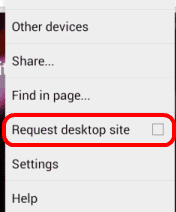
    7. Now click on ” Request Desktop Site “
    8. Now on incognito mode visit twitter .

    That’s it this will help you to use Twitter desktop version on Android mobile and thus you can easily View Twitter Full Site.

    Read Also : Get Celebrities Notice Maximum on Twitter – Popular Tweeter Hacks

    According to the surveys that are recently out , It is evident that most of the people has started to use mobile for browsing and secondly tablets .

    About 85% of the people are using Twitter on Mobile . But it is really sad and disappointing that mobile version of twitter doesn’t support all the features as it is in Twitter desktop . Even based on the browsers on mobile the twitter features compatibility is differing on same device .

    Earlier there was a method to access twitter desktop site from mobile via direct link but now it is not supportive it seems .

    If you want to kick out this method of doing it each and every time you can completely disable twitter mobile version of site and thus it will help you to access Twitter desktop version easily on your mobile.

  • Turn On Flashlight Instantly on your phone

    Turn On Flashlight Instantly on your phone

    Flashlight are really an essential must have on all mobile . So here is the guide on how to Turn On Flashlight Instantly on your phone.

    Turn on Flashlight on Instantly On Your Phone

    Let’s first begin with how to turn on flashlight on Droid Turbo .

    What is Droid Turbo ?

    Droid Turbo is a classy smartphone designed by Motorola. It comes from the Verizon Droid family, introduced in October 2014 on Verizon Droid Does website. This smartphone keeps a design and shape, similar to its predecessor- Droid Maxx, with an added feature of lasting airborne nylon or metal coated glass fibre.

    Droid 2 is the latest in the series of Motorola droid.

    Read Also : Backup Android Device to PC or Google

    How to turn On Flashlight on Droid Turbo / Droid 2

    Ever wondered about how to turn on flashlight in case of Droid Turbo? There are two ways: one is from the Menu; other is through gestures. We shall look at the steps:

    1. Via Moto Action :

    Hold the phone as one holds an axe, pretend to chop, twice downward. You could also “cut” it on your palm or pretend to shake a hand with permission. 

    2. Quick Settings :

    • Pull down the Top bar visible at the top of the screen with your fingers.
    • Tap on “Flashlight” to switch it On & Off

    Read Also : Best Lifestyle Apps for Android and iPhone

    How to Turn On MotoX Flashlight

    For most of the Motorola smartphones, the process to turn on flashlight is the same. It is the “chopping”. However, there are some tips you can follow as you turn on MotoX flashlight:

    • Place your hand 6-15cms away from phone
    • Make sure the IR (InfraRed) Gesture Sensors on the bottom right & left corners are not covered

    This is the way to turn on Flashlight on MotoX .

    Read Also : Android Vs iOS – Pros & Cons of Buying Android Vs iOS

    How to Turn On Flashlight on Android

    Starting an application to turn On flashlight on Android is quite easy. However, there are some tips to turn flashlight ON and OFF –

    • Press Power button

    When the device is locked, the fastest and the easiest way to turn On flashlight is with the Power button Flashlight/Torch app. With this app installed in your phone, you just have to press the Power button thrice continuously to turn On flashlight.

    You must always know to turn on flashlight when device is locked because in case of a sudden power failure switching your device by unlocking it is difficult and secondary .

    Read Also :  What’s my phone number – Find Phone Number on Android

    • Use Volume keys

    In case you find that the Power button is not convenient to you, you could always go for the alternative solution of using Volume buttons to turn On flashlight on Android phone . With an app called Torchie, press both the volume keys together so as to turn On flashlight.

    As this app gets installed, you will have to manually turn it on via the Accessibility services. If you want to use this app with the display off, make sure it is enabled by checking the App’s settings menu.

    • Shake your phone

    For those who do not like adding extra features for the buttons, here is the solution for you. Get the Shake Flashlight app which enables you easily turn on flashlight on Android.

    The app says it all. Just shake your phone; whether your phone is On or Off. The light is turned on. If the app does not respond well, check the settings and adjust the required preferences.

    Read Also : iOS 11 Vs Android Oreo – Who wins gadget lover’s Heart

    • Tap widget 

    So far, you have seen the most convenient and the fastest way to turn On flashlight on Android. However, these apps could get activated automatically and there are chances of battery drain. Another way to turn On flashlight is using a widget. This widget would be more helpful for those devices which do not have the built-in flashlight.

    To enable this, place the widget on the home screen of the device and tap on it when you wish to turn on flashlight.

    • Let the darkness Activate

    If you are someone who always use the flashlight, here is the perfect app for you. Get your device the Ambient LED Flashlight app. Once the app is activated, it automatically turns the flashlight on & off via light sensor in the device. So, being in a dark room the flashlight is automatically turned on and vice-versa. For this, the app should be open, else it automatically goes off.

    Read Also : Update to Latest Android OS : Oreo -Stay with Nougat / Marshmallow

    • Add a quick setting toggle

     There are certain devices with flashlight Quick Settings button. If your device has not got it, just add by using the Custom Quick Settings app in devices running Android 6.0 or higher version.

    Moto G Flashlight App

    If you ever came across the droid flashlight app, and find it too bright,we have a solution for this. The droid flashlight could be opened from the Drop-down menu. The dimmer can be controlled on Android phones but should be rooted.

    Read Also : Connect Android to Projector via USB and Wireless

    How to Turn off Flashlight on Android

    To turn off flashlight on Android, follow these steps:

    Step 1: Launch Camera on Android

    On your Android phone, locate and tap Camera icon on the home screen and open it.

    Step 2: Check Flashlight on Android

    Try to take a photo and check if the flashlight is On or Off. If it is not ON, proceed to the next step.

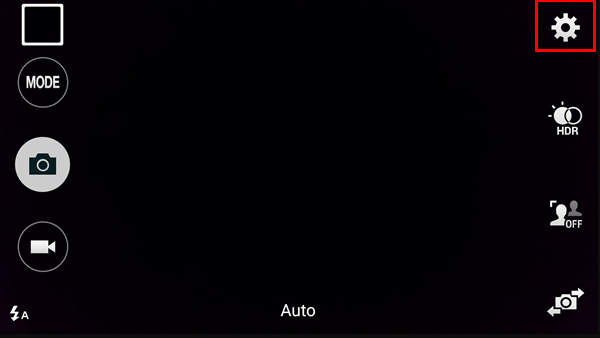
    Step 3: Go to Settings

    In this step, gently touch the Gear icon to open the Settings menu.


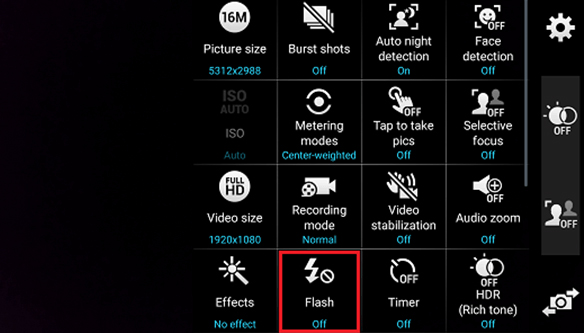
    Step 4: Turn on Camera Flash

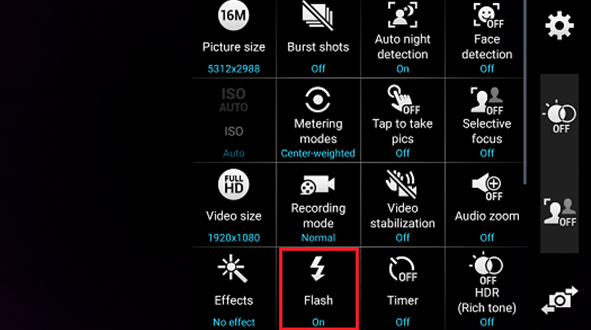
    In Settings menu, when you find the option Flash, tap it and check if the flash is On or Off.

    As the flashlight turns On, try to shoot any object to check the flashlight.


    Review

    In this article, we have learnt how to turn on flashlight on different devices like Droid turbo, Android, Moto X & Moto G. We have also seen how to turn off flashlight on your phone. Hope this article has been helpful.

  • What’s my phone number – Find Phone Number on Android

    What’s my phone number – Find Phone Number on Android

    We know others phone number as we use it , but its too less about we using our own phone number . So if you are one such person who doesn’t know your own phone number , Here is the way to Find Phone Number on Android. That is to know What’s my phone number .

    If you ever wondered like me – what is my phone number , then read this for sure .

    What’s my phone number – Find Phone Number on Android

    Here we will discuss the way to give answer to your question ” What’s my phone number ? ” .

    Let’s get acquainted with the different methods to Find Phone Number on Android  device . It is very easy thing as your device itself has a way for helping you to show me my phone number from android settings .

    Read Also : Best Truecaller Alternatives to find Caller Identity

    Method one to find your Phone Number

    This method works absolutely fine for most of the android versions . So you can follow the below steps if you are someone who forgot your own phone number and now sad with the question What’s my phone number –

    1.  Go to the settings option.
    2.  Now when you scroll down you can find either of these options ” About device ” or “ About phone
    3. Now mostly you can find your Android device phone number here .

    Haven’t find your phone number yet ?  Okay no worries now follow the further steps .

    4.  Select “Phone identity ” / “Status “.

    There you go , i guess you found your phone number by this .

    Most of the Android device shows the phone number of the device under the list as ” SIM Card Status / Voice MSISDN Line 1 ” .

    Read Also : Best free calling Apps for all Smartphones

    Method two to find your Phone Number

    Here is the second method to find your device phone number if you don’t know your own mobile number .

    1. Go to “messages” applications and select “settings”
    2. Now scroll down and see “Phone number

    Method three to find your Phone Number

    You can get phone number android code easily to know what’s my phone number of the device you are using .

    Just Dial 1-800-444-4444 , that’s it this will read the phone number you  are calling from .

    If your phone number is shown as unknown or anonymous , you may be worrying why my phone number is showing unknown / anonymous . Then the reason can be you must remove your SIM card from the slot and again insert it .

    That is all about the methods on finding your own phone number on Android device .

    Soon we will update What’s my phone number finding methods for iPhone users .

  • Disable / Enable  USB Debugging on Google Pixel

    Disable / Enable USB Debugging on Google Pixel

    This article guides you with the perfect guide to Disable / Enable USB Debugging on Google Pixel .

    Disable / Enable USB Debugging on Google Pixel

    The product of Google, the Google Pixel is a rage in the smart phone range. Its unique features stand out just as its creator. The first phones by Google the internet giant has carved a niche for itself and secured a place much above others with the same features. Pixel supports both Chrome OS and Android OS. The Google pixel range of devices includes laptops, smart phones, and tablets.

    Before going on to the steps to Disable / Enable USB Debugging , we will take a brief look on google pixel’s features.

    Features of Google Pixel 

    Here is the list of Google Pixel features you must know .

    • 5inch display screen
    • 6Ghz Qualcomm processor
    • 4GB of RAM
    • 32GB internal storage that is not expandable
    • 3 megapixel back camera and 8megapixel front camera
    • Single SIM option
    • 2770mAh non removable battery

    Now to understand Disable / Enable USB Debugging , you must be aware about what exactly is debugging , precisely what is USB debugging .

    What is USB debugging ?

    This is one of the many in built features of android phones. It is a simple feature unknown to few. USB debugging creates a connection between the android phone and computer. Previously it was created mainly for developers to transfer data between the phones and computers, however there are times when we people also make use of this function when some apps require USB debugging mode to function well. Disable / Enable USB Debugging function is a boon to debug an android phone

    Need of USB debugging

    Even though the debugging mode is highly used by technical guys and programmers, the non – technical members too can make use of this feature. While transferring huge files from the smart phone to the computer or vice versa this feature comes in handy. Some apps request to enable the debugging option for proper functioning. If the device is rooted one can recover data even when the hardware has a problem thanks to USB debugging. Have you tried using a phone with the screen locked? Yes, it is possible through the debugging option we can use a locked screen phone. A phone can be rebooted, install apps and many more with a locked screen by using the Disable / Enable USB Debugging .

    Read Also : Connect Google Pixel to TV Easily with these Exclusive Guide

    Another useful trick for the absent minded ones is being able get entry into the phone’s system if you have forgotten the lock screen password, pin or pattern. Isn’t it wonderful!! But it can be a bane if got into the wrong hands. Security breech can happen within seconds without the person’s knowledge and sensitive information will be spread like wildfire. Like every other function even Disable / Enable USB Debugging has this flaw.

    Issues with USB debugging

    Those times when we have tried exploring our smart phones we would have come across the debugging option. Though it is mainly used by developers at time we have unknowingly switched it ‘on’ or enabled it automatically when the message popped up during file transfer. But is it safe to leave it turned ‘on’?

    Read Also : Google Pixel Dictionary – Add words / Phrases to Dictionary

    For security reasons: NO. If the phone is connected to your personal computer while the debugging button is enabled it is ok, but if connected to a public computer there are chances of private information being transferred to that computer or even worse virus entering your phone if the debugging button is enabled.

    While Google has in built safety measures like a message pops up asking for permission to allow USB debugging not all phones have this feature and it can be risky since most of the time people are in such a hurry that they do not read the message properly or don’t understand and click ok which later many lead to problems.

    Read Also : Google Pixel Haptic Feedback / Vibration Mode Enable or Disable

    Other problems can arise if the phone is stolen or missed placed with the debugging option enabled. The individual can easily retrieve        data even with a locked screen. A safer option in any case would be to install the android device manager which will help you to delete all data from a remote computer if ever the phone gets stolen or lost.

    In some cases the phones have trouble while accessing the SD card in mass storage mode while the USB debugging is on. Hence you should use Disable / Enable USB Debugging function carefully.

    Read Also : Google Pixel WiFi Calling Enable and Disable

     How to enable USB Debugging

    1. In the main screen Go to <settings
    2. Select <about phone
    3. Here you will find build number <tap on it 7 times
    4. A message will pop up that says “you are now a developer”.
    5. Click the <back button
    6. You will find a “developer option” select it.
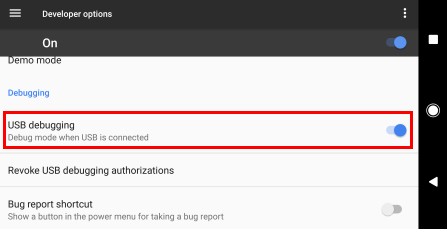
    7. Scroll down and you will find USB debugging under debugging section <select ‘on

    How to disable USB Debugging

    1. In the main screen Go to <settings
    2. Select <about phone
    3. Here you will find build number <tap on it 7 times
    4. A message will pop up that says “you are now a developer”.
    5. Click the <back button
    6. You will find a “developer option” select it.
    7. Scroll down and you will find USB Debugging under debugging section <select ‘off’

    Follow these steps and you will now have successfully debugged your Google pixel.

    Read Also : How to change ringtones in Google Pixel

    There are many features in our phone that is unknown to us. It is always good to learn new things and keep oneself up to date with the working and using of our smart phones. We can never except when the need will arise. By knowing and understand the usage of Disable/Enable USB debugging, you need not have to wait for a developer to fix your phone when there is a minor issue!

  • View Facebook Full site – Facebook Desktop Version on Android

    View Facebook Full site – Facebook Desktop Version on Android

    You may all know that its too much annoying to find that many features of Facebook Desktop version is missing on Facebook for Android Application . So here is the ways to tackle this problem by clearly explaining how to View Facebook Full site – Facebook Desktop Version on Android .

    That is all about how to view Full version of Facebook on Android or Facebook full site view on Desktop.

    View Facebook Full site – Facebook Desktop Version on Android

    There are three different ways to View Facebook Full site version on mobile .

    Direct Link Method to View Facebook Full site on Android

    Here is the first method to access Facebook full site version via direct link  ( www.facebook.com full site ).

    1. Login to Facebook account first by means of  Facebook mobile version site .
    2. Step two is to type out the direct link on your browser . The link is ” https://www.facebook.com/home.php “.

    That’s it now you can View Facebook Full site on Mobile . This will help you to access Facebook desktop version on your mobile itself .

    Browser Setting Method to View Facebook Full site on Android

    Now moving on to the next method to View Facebook Full site version on Android , follow these steps .

    You know almost all mobile browsers have the desktop view feature .

    1. Open your mobile browser that you are using .
    2. Now you can find three dots on top just tap on it.
    3. From menu  you have to select the option Request Desktop Site .

    Else follow the below steps in case the above three steps didn’t give you access to Facebook full website on Android.

    1. Go to browser Settings
    2. Select Debug
    3. Change the UA string / UA Agent

    This steps will make you access facebook desktop version on mobile itself .

    Read Also : Safeguard Facebook Pictures-Prevent profile picture downloading

    Use Facebook Desktop version on Mobile Method

    This is very easy method to view facebook desktop version on mobile , as no much steps is involved here .

    1.  Go to mobile browser and open facebook  https://www.facebook.com/ ( facebook home page full site )
    2. Now scroll to the end of the page , you can find an option “Switch to desktop version “
    3. Click it , you are done .
    4. Rotate the mobile screen for further Desktop view experience .

    That’s it about the three different ways to View Facebook Full site Desktop version on Android or any mobile devices.

  • Google Maps List Create, Share and Edit on Desktop & Mobile Now

    Google Maps List Create, Share and Edit on Desktop & Mobile Now

    Now Google Maps List is available for both desktop and mobile . Now you can create , share and edit Google Maps List on Desktop also .

    Google Maps List Create, Share and Edit on Desktop &

    Mobile Now

    Google Maps has been a great help as a navigator for people finding difficult to get the right route to their destinations. Imagine being lost in a new city! Having Google Maps with you? Do not panic. This navigator will direct you perfectly.

    Google Maps List feature was launched exclusively for mobiles, has now been made available in desktop paltform.

    It was only Android & iOS who could create Google Map list and users who were more based could just view them.

    And now, Google has extended the feature of creating Google maps list on desktop as well.

    After adding the interesting places to the Google maps list you will get a confirmation popup at the bottom of the map, and also a check mark to the list to which you added.

    Create Google Maps list on desktop

    Just as in Android devices like the smartphones or the tablet PCs, we can create Google maps list on desktop through the following steps:

     How to Create Google Maps list desktop :

    Here is the steps to create Google Maps list on desktop –

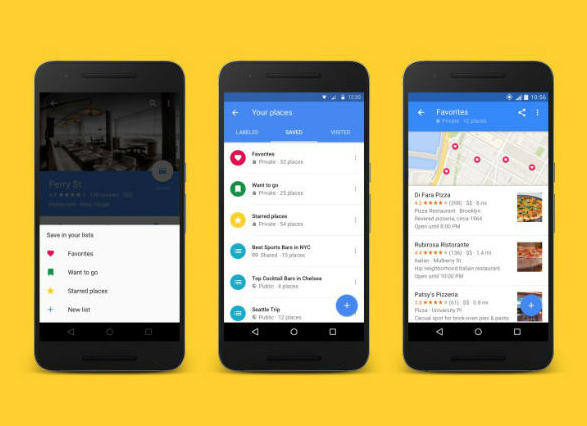
    1.  On the Android phone or tablet, open the Google Maps app.
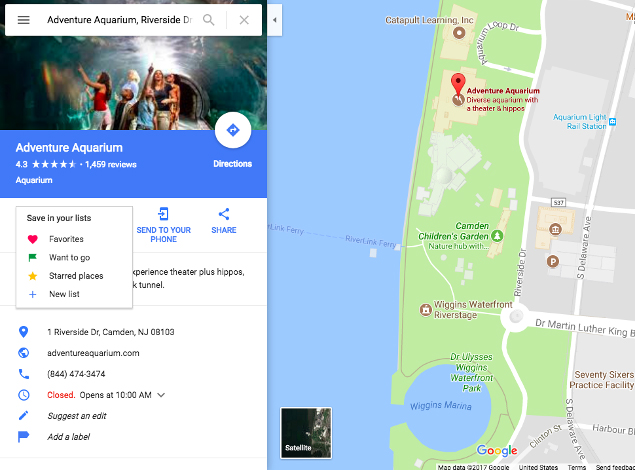
    2. Click Menu > Your places >saved
    3. In the bottom right, click Add +
    4. Enter name & description
    5. Tap Save.

    Read Also : Google Traffic : How to check traffic to work or home

     How to Save a place to Google Maps list on Desktop :

    Here is the steps to save places to Google Maps list on desktop –

    1. Open Google Maps
    2. Search for the place or click it on map
    3. At the bottom, tap place’s name & address 
    4. Tap Save 
    5. Choose list. To create another list, click New list +

     How to Share Google Maps list on desktop :

    Here is the steps to share places to Google Maps list on desktop –

    1. Open Google Maps app
    2. Click Menu > Your Places >Saved
    3. Beside the list you wish to share, tap More > choose from the options
      • Hide/Show on map
      • Share list
      • Sharing options: List could be set as Public/Private/Shared.If a person having the link wants to view the list, click Shared. To let people find and follow the list, select Public.

    How to Edit Google Maps List on desktop :

    Here is the steps to edit places to Google Maps list on desktop –

    1. On the desktop, open Google Maps app
    2. Click Menu > Your places > Saved
    3. Beside the list to be edited, click More > Choose Edit list or Delete list

    Read Also : How to Use Google Assistant on Android Devices (Without Root)


    Create, Share & Edit Google Maps List on Mobile 

    Now, let us see how do we create,share and edit Google Maps list on mobile:

    Create Google Maps List on mobile

    1. Open the side menu > Your places > open Saved > click on + sign in blue circle at bottom right corner of the screen
    2. Open the location where you wish add a new list > click Save and select Create a New List


    Share Google Maps List on mobile

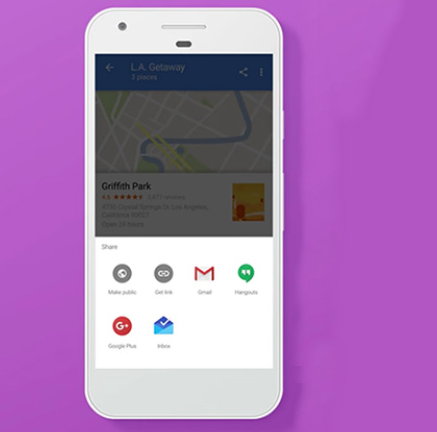
    1. Open the list and click on Share button on the top right hand corner 
    2. A link can be shared to the list through any app on the phone on both Android as well as iOS platforms- it could be Hangouts, SMS and even on Facebook or Twitter
    3. Once the link is shared to friends or family, they can just click “Follow” to see the list from Your Places as and when they need


    Edit Google Maps List on mobile

    1. Go to Your Places and click on “Saved” tab

    2. Click on the 3 dot menu on the right side of the list and select “Edit”. Places can be directly added to or removed from the list, from the place sheet of location by clicking “Saved” icon.


    Through these steps we find that it is quite easy to use Google Maps List on mobiles now.

    In this session we came across the latest technology from Google- Google Maps List. How dynamic was the transformation of Google Maps from viewing and accessing only on Mobiles to the Desktop view. We also read about how to create,share and edit Google Maps list on Desktop.

    This surely will be a great advantage for people who are not a fan of Android phones and yet, can access Google maps list on desktop.

    Hope you had a good read on Google’s latest technology Shift- From Mobile To Desktop Now. 

    Enjoy Visiting place through Google Maps list.

  • Create Virtual Desktop without Upgrading to Latest Windows OS

    Create Virtual Desktop without Upgrading to Latest Windows OS

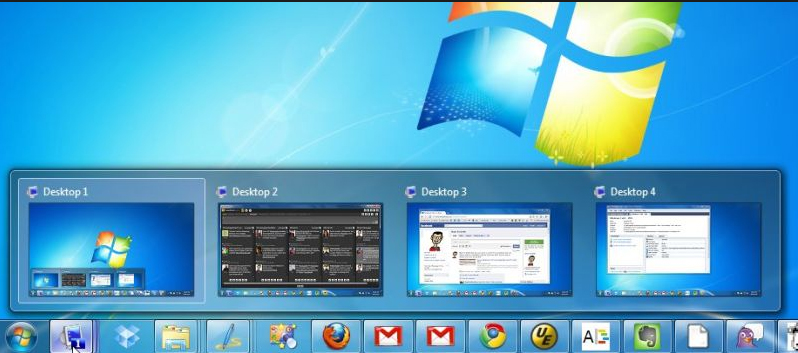
    This will help all to Create Virtual Desktop without Upgrading to Latest Windows OS . If you use Windows 7 or Windows 8 but need Windows 10 Virtual desktop Feature on Windows 7/8 then you can get the multiple desktop feature without upgrading to Latest Windows OS .

    Its a known fact that Mac & Linux had the virtual desktop feature from long . Microsoft has launched this officially through Windows 10 .

    Create Virtual Desktop without Upgrading to Latest Windows OS

    But do you guys know that Windows already has this Virtual desktop feature but its not enabled in our PC by default.

    So In this article we will guide you to Create Virtual Desktop on Windows 7 & Windows 8 without updating to latest Windows OS.

    Read Also : Use Multiple Desktops in Windows ( Virtual Desktop Feature )

    These days multi tasking has become the need of the hour . So when you are not having multiple monitor then this feature of multiple desktop function is really helpful . This helps you to use multiple virtual desktops on one PC.

    1. Go to Microsoft TechNet site – ( Find link here – https://technet.microsoft.com/en-in ) .
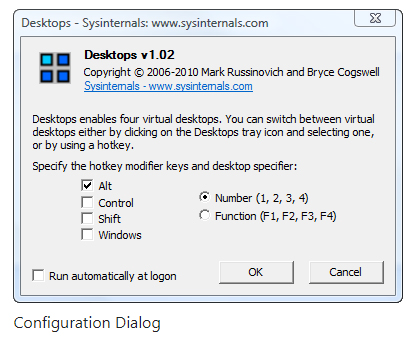
    2. Now from Download you have to download a freeware : Desktops v2.0 Windows Sysinternals.
    3. You can get it downloaded into your PC as a ZIP File.
    4. Now extract the EXE file by opening the ZIP folder.
    5. Now somewhere in your PC on a accessible location like in document stash the EXE file
    6. Now fire up program by double clicking it.
    7. Now run the installation on your Windows.
    8. At program startup set hotkeys.

    That’s it , the process of installation is done. You can use this on Windows XP higher versions to use virtual desktops.

    Read Also : Alt + Tab Windows Virtual Desktops / Multiple Desktop Function

    Now you can use virtual desktops in Windows without upgrading to new OS. The entire process of switching between the virtual desktops seems to be slow . But this gives you provision for creating four virtual desktops.

    If you look for some other alternative to Desktops v2.0 Windows Sysinternals then the recommendation is Dexpot . Because Dexpot allows to use multiple desktop function with more added features than Desktops v2.0 .

    Note – Windows Sysinternals is from Microsoft while Dexpot is just a third party app . If you are not using the licensed Windows OS then don’t try to use these methods to use virtual desktops .

    So this will help all the Windows XP higher version users to  Create Virtual Desktop without upgrading to latest Windows OS.

  • Use Multiple Desktops in Windows ( Virtual Desktop Feature )

    Use Multiple Desktops in Windows ( Virtual Desktop Feature )

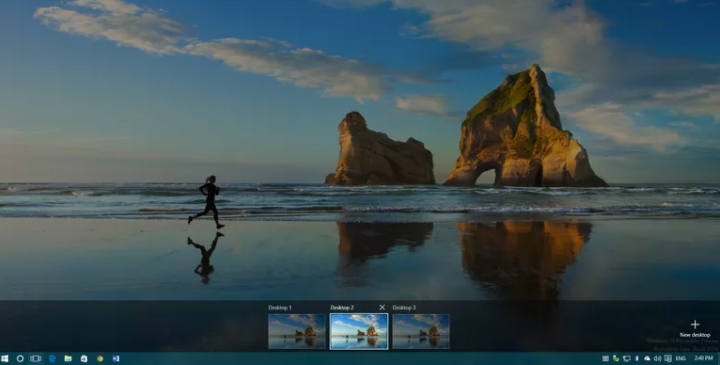
    Microsoft Windows 10 new feature multiple desktop or Virtual Desktop feature is drawing more attention . Earlier we have given the ways to enable Virtual desktop feature with Alt + Tab . Here we will discuss about how to  Use Multiple Desktops in Windows ( Virtual Desktop Feature ) . We will discuss three things under this head like – how to add a virtual desktop in Windows , how to switch between multiple desktops in Windows  and finally how you can move windows between multiple desktops.

    Use Multiple Desktops in Windows ( Virtual Desktop Feature )

    In Latest Windows OS you can enjoy the privilege to use as many as Virtual desktops you want to use . The Task View Pane makes it more easy and swift for the Windows 10 users.

    How to Add a Virtual desktop in Windows

    So if you want to add new virtual desktop in Windows then follow the instructions given below –

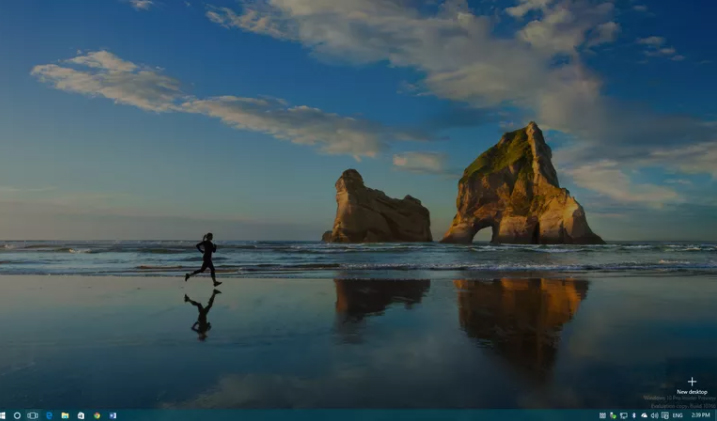
    1. From Taskbar , click on the Task view button to open new Task View Pane.

    Keyboard shortcut to open new Task View Pane – ” Windows Key + Tab “.

    2. Now Click – New Desktop in the Task View Pane . This will Add a Virtual desktop in Windows

    Keyboard shortcut to add new desktop  – ” Windows Key + Ctrl +D “.

    If there are already opened desktop then each new desktop will come up with a plus sign and as a grey tile .

    You can follow the above steps to Use Multiple Desktops in Windows by adding a new virtual desktop on windows.

    Read Also : Enable / Disable Windows File Protection & Fix Windows File errors

     How to Switch between multiple desktops in Windows

    So if you want to switch between multiple desktops in Windows then follow the instructions given below –

    1. Open Task View Pane.
    2. Point your cursor to the desktop you want to switch to and click it once.

    Keyboard shortcut to switch between virtual desktops  – ” Windows Key + Ctrl +Left Arrow ” & ” Windows Key + Ctrl + Right Arrow “

    Switching from one desktop to another doesn’t happens as rapidly . It takes time of cycling between all opened virtual desktops to switch to the particular one you want .  Lack of scrolling function makes it more time consuming to switch between virtual desktops .

    Though you can add infinite number of virtual desktop in Windows 10 , you can see only 9 virtual desktop at a time .

    Hopefully upcoming windows 10 version will fix these kind of issues to make multi window user function more hassle free .

    Read Also : Connect dual displays / monitors to one computer on Windows & MAC

    How to move windows between multiple desktops

    So if you want to move a virtual desktop in Windows then follow the instructions given below –

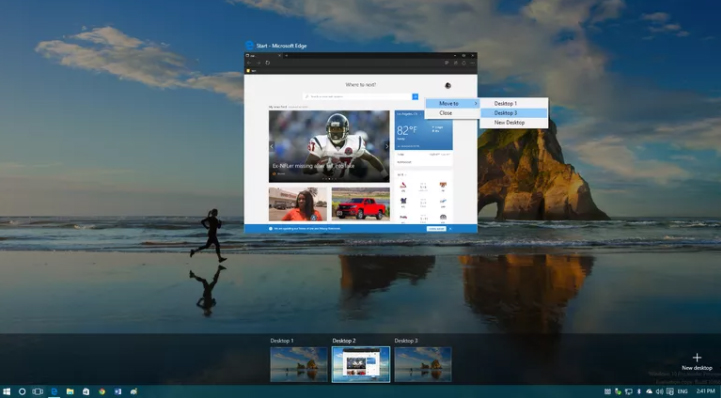
    1. Open Task View Pane
    2. Hover the virtual desktop window that you prefer to move .
    3. You can find that virtual desktop’s window will pop out.
    4. Now find the virtual desktop window you want to move out.
    5. Right Click ” the window you want to move and then select “Move to ” & finally choose the desktop to which you want to move the virtual desktop.

    It is just like select and drag .

    Read Also : The ultimate guide to make Windows run faster (Boost Computer Speed)

    How to close a Virtual Desktop on Windows multiple desktop

    So if you close a new virtual desktop in Windows then follow the instructions given below –

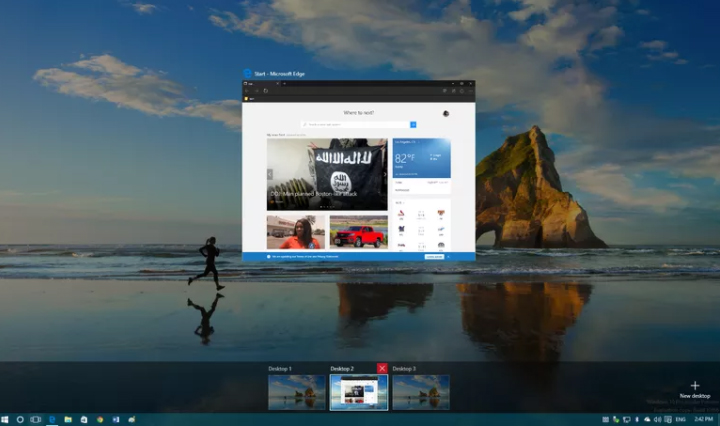
    1. Open Task View Pane
    2. Hover on the desktop you want to close
    3. Wait till a small X sign appears on top ride side.
    4. Click X
    5. That’s it you have closed the virtual desktop .

    Keyboard shortcut to close between virtual desktops  – ” Windows Key + Ctrl + F4 ”

    Limitations of Windows Multiple Desktop Function ( Virtual desktop feature )

    Though its an amazing thing to Use Multiple Desktops in Windows . There are some drawbacks /limitations of Windows Multiple Desktop Function. They are given as below –

    • No provision to drag or drop programs between multiple screens.
    • Individual desktops wallpaper cannot be changed
    • Jumping to particular desktop window is not possible immediately .

    Though this feature has some kind of limitations , it stands out as best features of Windows latest OS . Hope this will help you all to Use Multiple Desktops in Windows . Our next guideline will be how to use virtual desktops on Windows 7 and Windows 8 without updating to Windows 10 .

  • Alt + Tab Windows Virtual Desktops / Multiple Desktop Function

    Alt + Tab Windows Virtual Desktops / Multiple Desktop Function

    This article is the perfect guide to help you with steps to enable Alt + Tab Windows Virtual Desktops / Multiple Desktop Function. Microsoft has given Windows , a new user experience with the launch of Windows 10 . Know what is the reason behind this new Windows 10 user experience enhancement ? It is because of Windows Virtual Desktops or Windows Multiple Desktop Function in Windows 10 . Using keyboard you can switch between desktops using Alt + Tab Windows Virtual Desktops .

    Alt + Tab Windows Virtual Desktops / Multiple Desktop Function

     
    Alt+Tab is a popular keyboard shortcut function on Windows . Though earlier it was used in the previous versions to switch between full size windows to desktop . But now on Windows 10 “Alt + Tab” is the shortcut for multiple desktop function or Virtual desktops.

    Windows Virtual Desktops / Multiple Desktop Function

    Do you guys remember about PowerToy ?

    If anyone remembers then they would have indirectly got my point by now . Yes the latest Windows 10 feature Multiple desktop function was implicitly introduced on PowerToy much before .

    Now on Windows 10 its an important mainstream feature to enable Alt + Tab Windows Virtual Desktops .

    Read Also : Connect dual displays / monitors to one computer on Windows & MAC

    What is Virtual Desktop

    In simple words we can say that Virtual Desktop means expanding physical area of the virtual screen by which covering the limitations of the physical desktop screen.

    For Windows XP , PowerToy Virtual Desktop was created by the great Microsoft.

    Read Also : The ultimate guide to make Windows run faster (Boost Computer Speed)

    Windows 10 Multiple Desktop Function / Virtual Assistant

    If you didn’t understood the concept of virtual assistant then let’s make it more precise and simple by clearing Windows 10 Multiple Desktop Function / Virtual Assistant feature.

    Multiple Desktop Function / Virtual Assistant feature on Windows 10 is going to create more space to open new windows where you can toggle between them and do works more effectively.

    How to use /enable the Multiple Desktop Function / Virtual Assistant feature in Windows 10

    As the option to use the Multiple Desktop Function / Virtual Assistant feature in windows 10 is now enabled by default you have to turn it on to use that particular Windows feature .

    Read Also : Record iPhone iPad Screen on Windows & Mac

    Alt+Tab Windows Virtual Desktops / Multiple Desktop Enabled

    Here is the short and sweet keyboard shortcuts Alt + Tab between Multiple Desktop on Windows 10.

    Here is the steps to enable /turn on Alt + Tab Windows Virtual Desktops .

    1. Go to the start menu < Select the ” Settings “
    2. Select “System ” When “Settings” gets opened.
    3. Here find an option called ” Multitasking”
    4. You can find “Virtual Desktops” beneath that there is a drop down ” Pressing Alt+ Tab shows the windows that are opened ” . Click on that and you have to finally select ” All desktops ” option.

    These simple steps helps to enable Virtual desktops on Windows 10 and thus you can use use Alt+tab to switch between multiple desktops that are opened up.