Category: Tech

  • Record iPhone iPad Screen on Windows & Mac

    Record iPhone iPad Screen on Windows & Mac

    Wondering how to Record iPhone iPad Screen on Windows or Mac? Capturing or Recording iPhone/iPad Screen on your computer is no longer impossible. Recording a high-quality video of a presentation, tutorial, or gaming you can easily record it. If you are going to record iPhone or iPad screen on Mac then, you can simply use the QuickTime which is an inbuilt application on the Mac. Record iPhone , iPad Screen, if you are using Windows then there is an availability of the easy to use iPad/iPhone recorder.

    Most of the individuals are aware of the QuickTime which supports Mac OS and allow the users to record iPad screen.  But when it comes to the windows only a few people know the method of the recording. Follow some simple steps and you will surely find it easy to record the screen on iPhone or iPad.

    Steps to Record iPhone iPad Screen on Mac

    QuickTime:

    • To start with the recording of the iPhone or iPad screen on your Mac OS, firstly make sure that you are running with OS X Yosemite and iOS 8.
    • Connect your iPhone or iPad to Mac using the Lightning cable. (Suggestion: You may need to “Trust” your Mac so before iPhone works.
    • Launch QuickTime on Mac and select file then under file select New Movie recording which is available on the menu bar. Also, you can use an alternative option which is a shortcut given through the keyboard i.e. Option-Command-N. These all options will launch a new QuickTime window for the video recording. Now you can easily click on the small downward facing triangle which is just next to the record button. This button will let you just select an alternative which includes your iPhone or iPad now.
    • Now you can select your iPhone or iPad screen from the list and easily see the device screen which is just been replicated in the QuickTime window. The QuickTime recording acknowledges the iPhone or iPad screen rotation so do not ignore to see the preview window on your Mac switch aspect ratio as you rotate your device.

    The recording itself is a real time but some noticeable difference is seen between performing an action on the device and seeing the action being occurred on the window of QuickTime. But, for the actual iPhone recording, it is not an issue as the software will sync audio as well as the video for the final output. But, this does not mean that you don’t use this feature while playing live games or perform tasks which require less latency. For the audio, you can easily record iPhone or iPad screen on Mac and add the audio later during post and editing, or you can also record audio live with the video.

    Read Also : TeamViewer Alternatives – Top rated Remote Desktop Software

    ScreenFlow:

    This is a similar way to record the iOS device like the QuickTime. But ScreenFlow gives the advantage to edit video instead of open up another program. Sometimes, the ScreenFlow is better than the QuickTime in capturing the video. But, QuickTime is free and ScreenFlow is paid.

    To get started with the ScreeenFlow just connect your iOS device with Mac with lightning cable and open ScreenFlow. Automatically, your device will get detected and give you the option to record screen.

    Read Also : Best Truecaller Alternatives to find Caller Identity

    Tips to Record iPhone iPad Screen on Windows OS:

    You can Record iPhone iPad Screen on windows easily like as in MAC.

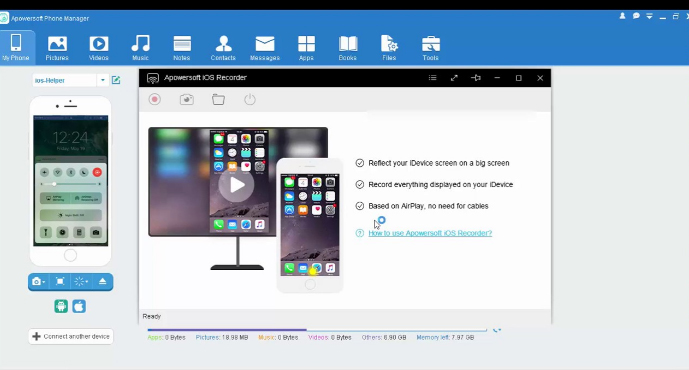
    Apowesoft Phone Manager:

    This phone manager is one of the most powerful apps that provide users to mirror the iOS devices screen to the Windows and record all content on the screen.

    • To simply achieve the recording follow the steps:
    • Download the app and then install
    • Mirror your iOS device to the PC
    • Record iPhone iPad Screen
    • Then, connect your iOS device and PC with the Wi-Fi
    • Run this phone manager on computer and click on “Tools” and then “iOS Recorder”
    • Swipe up from bottom on your device of screen to access control center
    • Tap on “AirPlay” and you will able to see a TV icon with its name. Click it and open up mirroring function.
    • Within some time, you will see the device screen is projected to the PC screen and both the screens will act simultaneously.

    Read Also : Best Apple Watch Alternatives-Affordable Gadgets

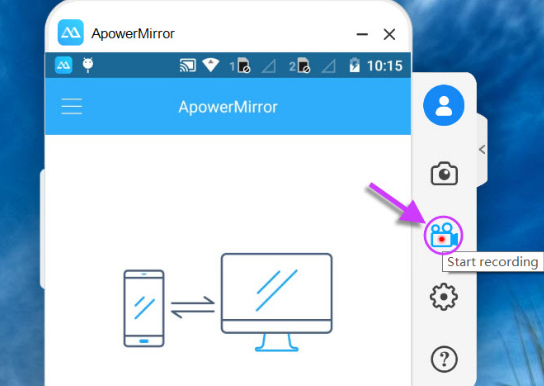
    ApowerMirror:

    ApowerMirror is an excellent tool of mirroring for recording iOS device by following some steps:

    • Install the application on the PC and afterward activate it
    • Then, on the iOS device just open AirPlay mirroring or AirPlay.
    • Select the device name and thus your device screen gets mirrored on PC.
    • Then, click on the recording icon or just simply press Ctrl + R to record screen

    Conclusion:

    So, this is the way you can easily Record iPhone iPad Screen on the Windows or Mac. Just follow the simple steps and you will surely be able to record the screen without any hassles.

  • Best Apple Watch Alternatives-Affordable Gadgets

    Best Apple Watch Alternatives-Affordable Gadgets

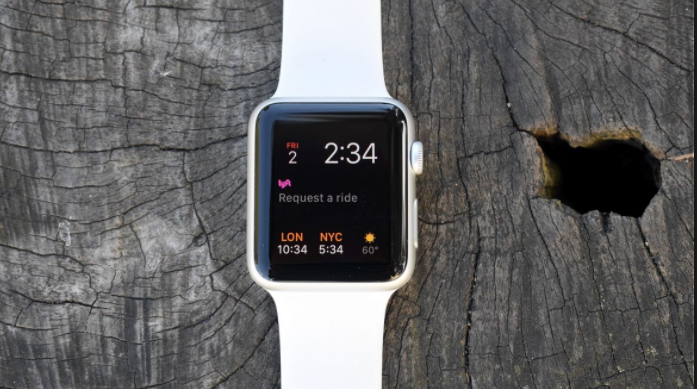
    Have you ever imagined a life without gadgets?Forget about gadgets, one cannot even breathe if they do not find their phones around.World around us has evolved latest technologies. Smartphones, tablets and what not! In these few years we have seen the young generation having a new technological invention- Smart-watches. One popular name in smart watch is definitely that of Apple watch but the range of apple watch differs so here is the exclusive list of Best Apple Watch Alternatives .

    Did you know? These smartwatches are used as alternatives for the bigger gadgets like Smartphones,tablets,PDAs etc. Apple has these watches available in different price range .

    Best Apple Watch Alternatives-The Compatibles: 

    Here is the various Best Apple Watch Alternatives that anyone can afford to stay upto the trend .

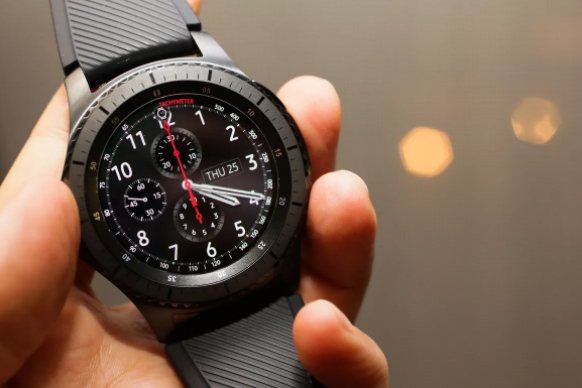
    Samsung Gear S3

    Samsung has wide range of gadgets which stands on top among all the best brand around the world. Even in smart watch trend samsung is never behind the competition. One of the Best Apple Watch Alternatives is Samsung Gear S3 . The dial looks bit bigger than the previous Samsung gear s2 watch model. Samsung Gear S3 looks more manly in its appearance but the bigger dial will hardly suit the skinny wrist hands . Added with many features like GPS support , 4G LTE Connectivity , water resistant , WIFI and bluetooth supportive , inbuilt speaker etc are the attractive features of this smart watch. Samsung Gear S3 has come with two brand models and the screen is absolutely scratch free . 

    Compatibility – Android and iOS

    Thus Samsung Gear S3 is best alternative smart watch for android and iPhone .

    These Best Apple Watch Alternatives have attractive features like the rounded rectangular looks,multi-faceted interface and iOS exclusivity, which makes them a unique wearable.

    This Apple watch alternative is a strong contender, worth considering if one is tightly gripped with Samsung phones. In comparison with the visuals of Apple watch, these are designed to work together offering specific benefits like the SamsungPay.

    The Greatest add-on about this smartwatch when comparing Apple watches is that it is compatible on both Android and iOS devices and this shows that people not happy with Apple watches could switch to Samsung Gear S3 anytime.

    The Gear3 having a 3-day battery life and an attractive AMOLED screen, suits most users for daily needs by being flexible and totally a smart choice for both the experienced and the newcomers to the Smartwatch market.

    Read Also : 38 Best iPhone games you should play

    Huawei Watch:

    Another alternative, phonetically called ‘Wah way’, is a Chinese manufacturing giant trying to make its space in the US market. Though it hasn’t made an impressive lead in US Smartphone, yet … it has surprised with its classic advent. While its extraordinary features are not in use, it takes the look of the classy analog kin.

    Running on the Android OS, this Apple watch alternative has the prominent smart watch functions one would expect, without  manufacturing showoffs. Now,  that does make this a unique piece of wonder.

    While the original Huawei watch being a total winner in its design challenging the premium quality of designer watches, yet there were things missing in terms of the functionality. And so, Huawei chose to have two other models developing second repetition- Huawei Watch2 comprises great specifications and features while its corresponding model Huawei Watch2 Classic holding onto the brilliant design of its ancestor.

    Both models work on Android Wear 2.0 which proves to be compatible with both iOS and Android devices.

    Read Also : Improve The World With Smartphone -Top 10 Hacks

    Garmin Fenix 5:

     These Best Apple Watch Alternatives  are the outdoor types coming in three models with a great set of features made specifically for the adventurous gang. These have features like Long Battery Life, Activity tracking, Heart rate tracking and other censors. Moreover, this feature of being water resistance upto 100 meters  would attract the swimmers and won’t make them take it off their wrists.

    Fenix 5 is the base model- ‘Jack-of-all-trades’, while Fenix 5S is a smaller model, designed for the feminine types having distinct version featuring the sapphire lens which makes it scratch resistant and with Bluetooth connectivity.

    Fenix 5X is the ‘Star of the show’ making it the most complex model. Being bigger in size it features protection by the stainless steel ring and strengthened make, also featuring LED backlight ensuring greater visibility all day long.

    All the models of Fenix watch have interchangeable straps, Gyroscope, Barometric Altimeter, Thermometer and a Compass. These can be connected to iOS, Android as well as Windows through a special application.

    These smart watches are easily paired with both iOS and Android devices, proving that the companies keep their customers on top priority thus offering them a Long lasting choice, which could be switchable from one platform to another as and when they wish thereby making them more attractive compared to Apple watches.

    Their Ratings based on the features: 

    • Functionality – 8/10
       
    • Design – 8/10
       
    • Connectivity – 8/10
       
    • Tracking – 9/10
       
    • Notifications – 9/10

     Overall rating: 8.4/10

    Read Also : All Possible ways to Make Money by Playing Pokemon Go

     Rival Comparison: Apple Watch V/s Android Wear:

    The Apple watch alternativesApple with Android, have been on tight war on its specifications, may it be looks, usability and more importantly the compatibility. However,the war between these Top Brands are not just on looks or the price, but beyond all- the Ideology. The single capability of Apple Versus the versatility of Android Wear; Apple’s set of fans, army of dedicated developers and accessory makers Versus Google’s strong partners powerful platforms.

    • DesignOne needs to decide if they need a rectangular or a circular face for the device, a choice Not available in an Apple watch. However, most Android Wear watches are in circular model and with Google’s software running perfectly on both the screen types  giving a tiny cut off texts. Though both Apple watch and Android Wear give an option to choose the best wearable design, it is the Google powered watches that provide the best customization and overall appearance options. With the Polar M600, Fossil Q Marshal and Nixon The Mission, there is certainly a wide choice of Android Wear for all.
    • Interface: If one is familiar with iOS and Android on smartphones or tablets, they would feel good for aesthetics of both Apple Watch and Android Wear, though the wearable versions are quite different in layouts. Apple Watch has a clean, unscrambled approach, accompanied by circular apps grid, that most people are not showing interest in. And so, Apple has included instant-loading apps in watch OS3. Two physical buttons on the side help in navigation. Android Wear on the other hand, is open to third-party  faces; however the options for the combination is quite awful! Android Wear2.0 is fixing this issue: one still has the access to list of existing faces, yet designers can include complexity in the designs making it more useful.  The working is similar to Apple Watch, though there is more on the screen at once in Android Wear. 

    [Conclusion: Android Wear has an important lesson learnt from Apple Watch]

    •  Apps:  Apple explored the Mobile App Store  concept with the Iphone and certainly, there a lot of companies and developers claiming to be on the faces of Apple watch. On both watchOS & Andorid Wear(post 2.0 update), developers are able to create stand-alone apps, which shows that lesser time is consumed with the smartphone and carefully tied up. One of the features of Android Wear that makes it stand out in the crowd is the support with notifications from any app in an innovative way, even if the app has not been updated for a long timeThere is still the need of more innovative apps for both platforms; however with the updates in Android Wear, more and better apps are developed so as to make the Google’s smartwatches stronger.
    • Price: As Apple was placed more towards high-end market; the release of more advanced versions of Android Wear devices, and the competition from Apple on its Sports models has seen the blend in the price level. For instance, Apple’s Ceramic Edition comes in an unbelievable and ridiculous price $1299 for 42mm. Series 2 starts at $269  upto $549 if one prefers the Stainless steel model. Advantage of having partnership with more manufacturers, shows that Android Wear has more fascinating options being more cost conscious; while a few bargains can be seen in older models and a few newer ones in a lesser price compared to the Apple devices. Price is definitely a feature where Android Wear has more to offer; yet, Apple has a better

    These Best Apple Watch Alternatives have greatly proved to be Better than The Best! The Next Gen is absolutely gonna be free from loading their bags with bulky devices to access important documents or schedule meetings and not to forget entertainment and leisure. They can also listen to favorite music;  as these latest gadgets are always gonna come in handy for them!

  • Best Truecaller Alternatives to find Caller Identity

    Best Truecaller Alternatives to find Caller Identity

    Have you ever picked up an unidentified number thinking it was an important call but it turned out to be one of those unwanted irritating calls? Well, not to worry, because the telephone technology keeps growing and tries to make us feel safe and protected.One of the telephone services that were introduced, was the Caller Identification, also known as the Caller ID. The caller ID is a facility which identifies the incoming calls and displays the name and address of the caller.The most popular software application we have all heard about is Truecaller. But fortunately there are apps that works really well which can be the Best Truecaller Alternatives.

    What is Truecaller?

    Truecaller is a software application developed by True Software Scandinavia AB, Sweden in 2009 for the purpose of caller identification. It also has inbuilt services such as blocking calls, last seen of contacts, detailed caller information, and much more.It is available on Android, iOS, blackberry OS, windows phone and many other operating systems. It has more than 250 million users, hence making it the most popularly known app.

    But with recent developments in the services of caller ID, many more alternatives to Truecaller having similar features to that of Truecaller have emerged. Here are 15 Best Truecaller Alternatives to find caller’s identity.

    15 Best Truecaller Alternatives 

    Now, it has become much easier to find out the identity of the unknown caller and we don’t even have to worry about picking random calls. Here comes the 15 Best Truecaller Alternatives .


    1. Whoscall

    Whoscall is a Caller ID and block mobile application which was developed by Gogolook in 2010. The major function of Whoscall is to identify unknown calls and ignore the unwanted calls. It also has various other functions such as management of contacts, blocking spam calls and searching unknown numbers. It has an impressive database of over 700 million numbers globally. It identifies more than 20 million calls every day and blocks another 500 thousand calls.

    Whoscall is a best Truecaller alternatives in terms of safety and privacy. It is available on Android, iOS and Windows phone platforms and is completely free.

    Read Also : TeamViewer Alternatives – Top rated Remote Desktop Software

    2. Sync.ME

    Sync.ME is another  Best Truecaller Alternatives which synchronizes your contacts for the purpose of identifying spam calls and blocks them. The app has over 10 million active users who depend on it and  to discover unidentified calls and blocks spam messages too.It also helps in synchronizing your contacts latest pictures and information with the help of your major social networks. Another interesting and useful feature is that the user can get daily birthday reminders and send personalized greetings to its contacts.

    It’s one of the most advanced caller ID and a very easy-to-use alternative app. Over 15 million people use Sync.ME and is rated #1 Caller ID app in 107 countries.

    3.Hiya 

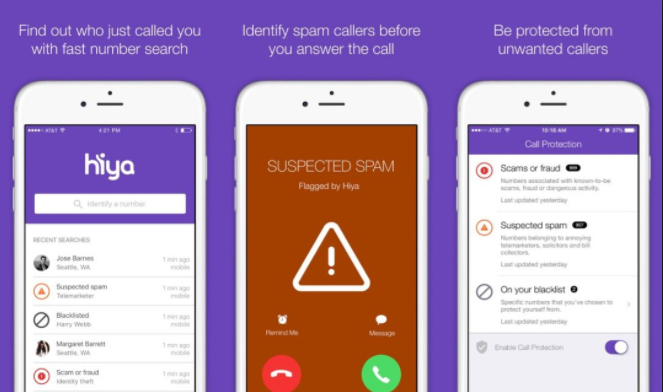
    Hiya, which was formerly known as Whitepages Caller ID, is a caller ID software application which provides caller’s profile information so as to help the user to identify any unwanted incoming calls and provides spam protection services. It blocks all kinds of spam calls, telemarketers and fraud calls and warns the user through automatic alerts. It also helps the user to block the calls. Another feature is that the app lets the user perform a reverse phone search on the incoming calls to identify if it is a spam call, a virus threat or spyware.

    It was rated as the Top 10 App in the TIME Magazine and has a database of hundreds of millions of phone numbers.

    4. Mr. Number

    Mr. Number, another Truecaller alternative, is a Call Blocking and Spam Protection App which is developed by Hiya. It helps you block unwanted calls and identify them. The user can also create a personal block list. It also provides additional services like reverse phone search, spam detection and reporting spam.

    It is rated 4+ out of 5 and has more than 10 million downloads. It is rated as the #1 app for call blocking and spam protection and is the Top 100 best Android apps according to PCMag.

    Read Also : 38 Best iPhone games you should play


    5. Call Control

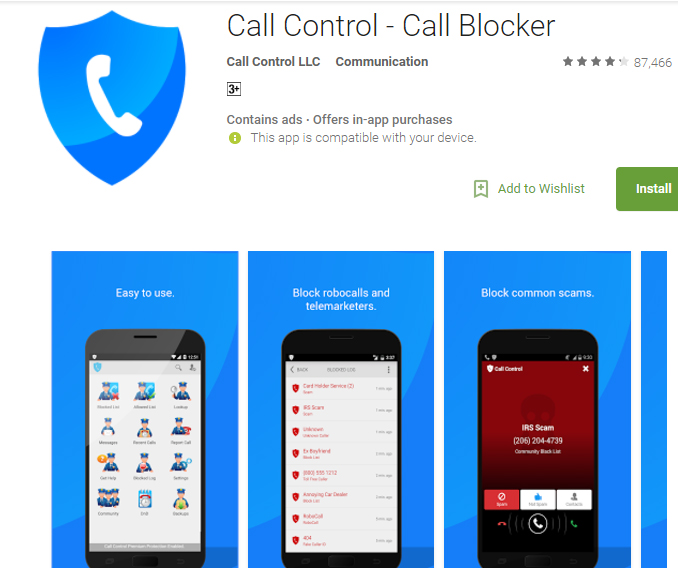
    Call Control is another call blocker application that automatically blocks millions of spam calls from telemarketers and robocallers. It has other services of personal block list, report spam calls and the user can also schedule when he/she doesn’t want to receive calls.

    Call Control has over 12 million users worldwide and protects the user’s privacy. It does not store or share any contacts, hence the user’s contacts are also subject to privacy.

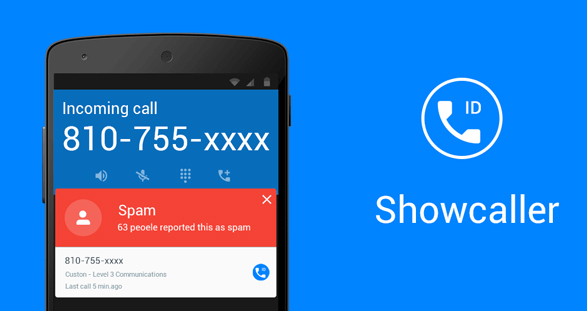
    6. Showcaller

    Showcaller is a spam identification and block software application that has a database of a billion phone numbers and millions use this app actively. Showcaller is absolutely free and is rated 4+ out of 5. It is also very accurate and easy to use.

    Show caller has many useful features which makes it the Best Truecaller Alternatives . It’s key features include:

    • Caller Identification
    • Block Call
    • Smart Search which stores all your search
    • Block list
    • Offline Database
    • Report numbers

    Read Also : Internet Safety Rules for Kids – Online Safety Tips

    7. True Contact

    True Contact is a Caller ID and reverse phone lookup app that uses the caller ID information from major social networks. While receiving any call, the user will get a popup on the top of the screen which will display the caller’s information. It will automatically block the call if it is an unwanted call or a fraudulent call.This is one of the Best Truecaller Alternatives.

    True Contact is the fastest growing application on the market and is easy to use. It takes care of the battery usage of your phone and is absolutely free. Other common features include spam blocking, caller location finder and providing full protection of the user’s data.

    8.Real Caller

    Real Caller is another caller ID and reverse phone lookup application that helps you look up the identity of unknown callers. The user can also search by name and can look up telephone numbers for free. It also has caller ID and call blocking features.

    It is very simple and easy to use. The user can also text those contacts who use Real Caller app and share pictures, videos and audios for free.

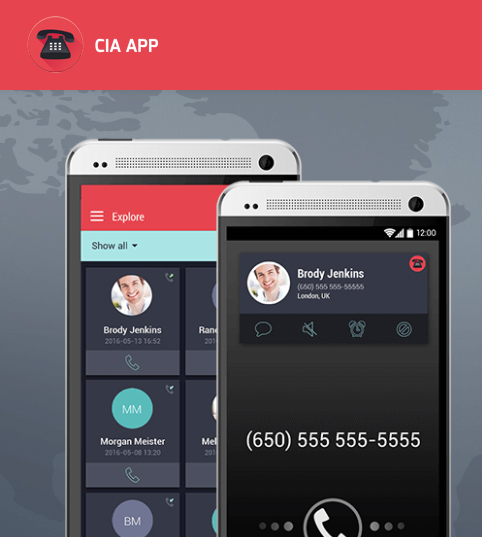
    9. CIA

    CIA is a Caller ID and Call Blocker application that will help you identify unknown numbers, keep your contacts updated and even mark unwanted numbers as spam. The new and improved user interface and layout makes it easier for the user to navigate in. The new graphics provides a more professional layout. The app also backs up your contacts and hence the user doesn’t have to worry about losing contacts while switching to a new phone. It has a database of more than 1 million spam numbers and will give a warning when the user gets a call from any of the spam numbers.

    The app has more than 45 million active users across all platforms and is loved by all its users worldwide. It also respects the user’s right to privacy and will make your phone book public.

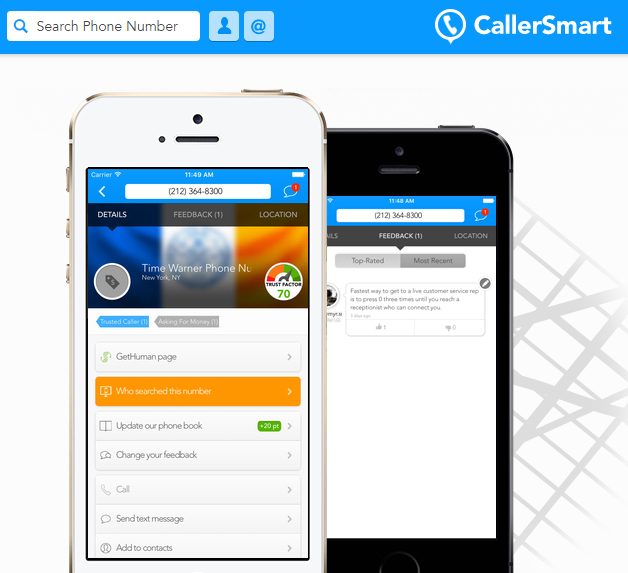
    10. CallerSmart

    CallerSmart is a caller ID and reverse phone lookup application that is very useful in searching unknown numbers and finding out if they are spam or not. It is very easy to use and absolutely free. It also saves your search results automatically, so that the next time you have to search for the same number, you wouldn’t have to type it all again

    It is a good Truecaller alternative and quite useful. It is available only on iOS.

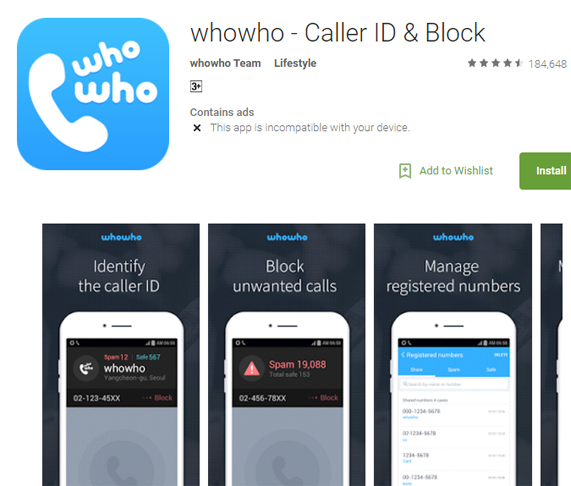
    11. WhoWho

    WhoWho is a Caller ID and Block application and helps you in blocking spam calls all the time. It’s major services include Real-time caller identification, easy schedule management with friends, group management, making community reports and blocking useless numbers.

    It is available on Android as well as iOS and is absolutely free of charge.

    Read Also : WhatsApp Exclusive Guide – Everything about WhatsApp Features

    12. Number Guru

    Number Guru is a website and a reverse phone and caller lookup smartphone application which helps user to track down the identity of unidentified numbers. It is developed by BeenVerified and can be accessed through it’s website or through various other operating systems such as iOS, Windows phone and Android. It covers up 99% of landline phones and approximately about 50% of domestic cell phones.

    Shortly after its launch in May 2011, the app recorded an average of approximately 864,000 look-ups per day. It works by entering the number in the apps phone book and very soon, it will display the owner’s name, location, type of phone and phone carrier. It also allows the user to find information on listed spam reports. The app is absolutely free and so are the searches.

    It is truly a best alternative and is also listed as a Top 10 Utility App and Top 150 Free Apps Overall according to App Annie.

    13. Caller ID and Number Locator

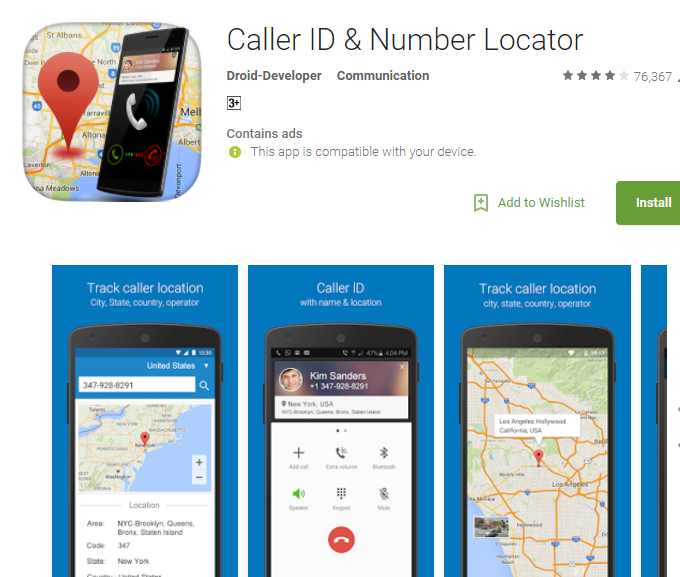
    Caller ID and Number Locator is a Caller ID, call blocker and number tracking application that allows the user to search any number and track the identity across the world in 246 countries and 12,982 cities. This app will locate the exact geographical location of the phone number and show it on the map. It also allows the user to block unwanted or spam numbers and the user can also create a block list.This is one of the Best Truecaller Alternatives.

    The app is powered by a database of millions of numbers across the world and has more than 5 million downloads with a rating of 4.2 out of 5 on the Google Play store. It is available for Android operating system .

    14. Calls Blacklist 

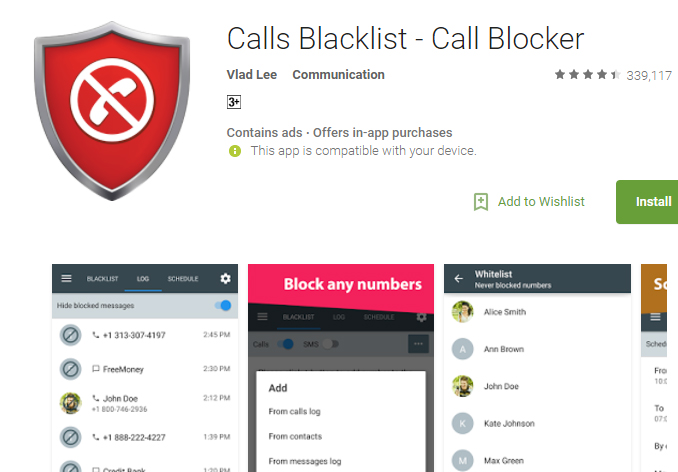
    Calls Blacklist is a call blocking application that allows the user to block unwanted calls and messages from selected contacts. The app has an added feature of blocking calls from a particular country as well. It also has a “Whitelist” section that helps to prevent the blocking of certain contacts.

    It is available for all Android smartphones. It is a good alternative to Truecaller and has a rating of 4.5 out of 5 on the Google Play store.

    Read Also : Best free calling Apps for all Smartphones

    15. Caller-ID

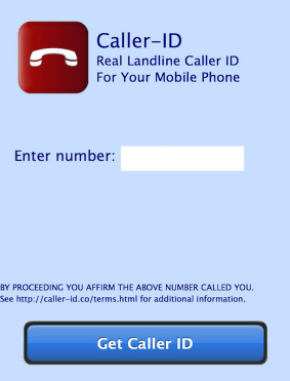
    This app is a reverse phone look up application developed by Greenflight Venture Corporation which will help the user to look up phone numbers that tried to call them. It also pinpoints the geological location of the caller.

    It is available for all iOS operating devices and is rated 4+ on the App store

    These were some of the Best Truecaller Alternatives in case you felt like exploring more applications on the internet.

  • TeamViewer Alternatives – Top rated Remote Desktop Software

    TeamViewer Alternatives – Top rated Remote Desktop Software

    Remote desktop software gives you fast and easy access to remotely access the system from anywhere . One popular name in this kind of software is definitely that of TeamViewer. Now there are so many TeamViewer Alternatives which you can rely.Team Viewer is the best free remote access software.Team Viewer also lets you  use a web browser to remotely access a computer.

    What is a Remote desktop software ?

    Remote Desktop software  allows you to access your computer over the internet so that you are never without your important data, files and programs.Remote desktop software is helpful to maintain and record data, files and documents.It allows for new usage scenarios and applications that have not been possible with current remote desktop software.In today’s world Remote desktop is as helpful as any other app or application which help you to maintain your records. Remote desktop software more accurately called Remote access software or remote control software, allows you to remotely control one computer from another.

    USES OF REMOTE DESKTOP SOFTWARE

    Here are the top uses of remote desktop software like team viewer .

    • Online learning
    • Online teaching
    • It also helps in operating other computers to maintain files and to record folders.
    • Remote desktop connection software help users work on a computer through another computer.
    • Interact with any installed program on your home machine.
    • Download any file from your computer.
    • Upload files to your computer.
    • Login using any browser, including from mobile devices.
      (e.g., iPhone, Android)
    • It can access from anywhere.
    • file explorer browsing.

    Read Also : Best free calling Apps for all Smartphones

     How TeamViewer can be used?

     Team Viewer is the perfect solution for private and personal use. Team Viewer provides easy, fast and secure remote access to Windows. it is very easy to use. it can be used anywhere and any time.  Team Viewer can be used for quick access or installed any app or application. we can use the teamviewer app to connect to PC using internet connection for remote desktop connection.Team Viewer application also use to establish a remote connection between two computers. it is very easy to use any one can operate another computer’s application file, folders, app and so many things can be done through team viewer.

    FEATURES OF TEAM VIEWER

    Team Viewer is safe desktop software and has it’s own security standards.It is used by thousand of people around the world. There are various features of team viewer which includes Audio conferencing, chat, Audio calls, file transferring, Recording and many more which people use for their own purpose.Team viewer is available for various operating system like Microsoft window, Blackberry, Windows phone, and Chrome ios, etc.Team viewer’s main focus is on collaboration, presentation and remote control of computers.

    Team viewer is multi platform as it is available for various operating system and software.it is also easy to understand to arranged, simple, touch-friendly, and quick to operate.Team viewer is international because it is available in more than 30 languages and supports international keyboards, which makes it an ideal solution for international use. it is also free for testing and personal use  software at home for personal use free of charge. it also has a special feature of chatting Instant messaging functionality includes group chats, web-based chats, offline messaging, chat history, persistent chat groups. it also has a feature of file transfer it can Share files of any size with transfer. Remote audio and video Hear music or system sounds and see videos from the remote computer during a connection.

    It is also a universal app for window, It open multiple connections in different tabs, copy and paste files via the clipboard, simplified file transfer.

    Team Viewer is easily the best free remote access software With support for video, voice calls, and text chat, Team Viewer also allows file transfers, supports wake-on-LAN (WOL) and can even remotely reboot a PC into safe mode and then reconnect automatically.It is very helpful to use and also it can be used for private and commercial. It is considered completely safe by today’s standards.

    But we hardly know the other remote desktop software that can be TeamViewer Alternatives to rely upon and use as a replacement .

    Read Also : WannaCry Attack Security Tips- Protect computers from Ransomware

    TeamViewer Alternatives – Top 6

    Team viewer is itself one of the best remote desktop software but there are lots of remote control programs too which people find more useful than team viewer. There are various alternative to team viewer for remote control. Many of TeamViewer Alternatives have the same work and system to support one computer to another. They also support, interact and collaborate with people which is an important feature for some.

    Here are some TeamViewer Alternatives which can help you in your remote desktop work or activities in easier and faster way.

    1. Chrome Remote Desktop

    Chrome Remote Desktop is a good dual monitor system.You can access files and other applications through chrome desktop. Chrome remote desktop can be used for android app to control and access to a home or office computers and machines from smartphones and tablets. It also allows users to connect their PC via chrome book. It is easy and safe tool which allows you to access you PC and applications. Access to files and folders and Fully secured in this software and it is considered to be one of the best TeamViewer Alternatives.

    2. Remote desktop connection

    This software is also like team viewer. It does the same thing which is to connect from one computer to another. it also provides you remote access to the desktop of your computer, from a computer that is actually placed at another location far from you. it is easy to set up through this you can access all files and network resource.

    3. CloudBerry Remote Assistant

    CloudBerry Remote Assistant is a free tool built to access remote control and desktop sharing developed by CloudBerry Lab. This software is designed to fully remotely access and control a desktop or server computer easily and securely by providing the SSL-encrypted connection, invitation links, text-voice chat. It also provides sound volume control which allows you to customize your working process according to your needs. CloudBerry Remote Assistant is 100% free and it’s not going to be chargeable.

    This is one of the best alternative for Teamviewer

    4. Join.me

    Join.me is the best remote desktop for business meeting and remote meeting. It is the best business tool which collaborate various business web meeting. It is best for to run a business and also to connect with people. A fast, easy and better way to connect and collaborate with people.This may be a new name to many of us as a Team Viewer Alternatives .

    5. Ultra VNC

    Ultra VNC is powerful and easy remote access software that can display another computer screen on your own screen via internet or network.This is the best alternative to Team Viewer. It allows you to work on another remote system to transfer files and getting your work done. this desktop can be use to share files and helping people.

    6. Mikogo

    Mikogo is also a software which can be used for web meeting and conference. people can use it for commercial purpose. this system is fully browser based. through this a person can do many things like video conferencing, chat, File transfer and more.

    These are the top 6 Team Viewer Alternatives that you can really rely upon for remote desktop connection .

  • Best free calling Apps for all Smartphones

    Best free calling Apps for all Smartphones

    Today we dial to communicate with friends and families even for simple matters . Now it has become more easy and totally inexpensive with some of the best free calling apps .

    What started with the invention of a simple telephone by Sir Alexander Graham Bell skyrocketed into a successful phenomenon. One that truly changed our lives. Over the decades, there has been tremendous growth in the telephone. From telephones to radio telephones, to cellphones and finally to smartphones. There have been monumental changes, not just in the structure but also in the functions.

    Over the time, the technology related to call facilities have improved vastly. Where once we used to pay for our calls, now we have numerous free calling smartphone apps to do so without paying.

    Best free calling Apps for all Smartphones

    Here, we are going to give a brief about the best free calling apps for all the smartphones . This will help you in familiarizing with more free calling apps easily.

    Best Free calling Apps for Android and iOS Mobiles

    Here is the list of free calling apps for Android as well as iPhone .

    1.  Facebook Messenger

    Facebook messenger is an instant messaging software application which was initially developed for messaging in 2008 but over the years has adopted many more features too. One of the features is the audio/video calling facility.

    Facebook messenger is a popular free calling apps which is used world wide.

    Nowadays, almost everyone uses Facebook which makes the audio/video calling facility a pretty decent option. You can dial up any of your messenger contacts and talk to them at a stretch, without worrying about the cost. The messenger also has the option of group voice calling, with a maximum of 50 contacts.

    2. Skype

    Connecting with friends, family, clients or colleagues, can also be done with Skype. Skype, also being another instant messaging app, provides not only online text message and audio/video call facility, it can also be used to make conference calls. Hence, it is very useful for business meetings, online interviews, group calling with friends, etc.

    Skype is also one of the widely known calling app and is free of charge to all the Skype users.

    3. Google Duo

    The Google Duo is a video chat application developed by Google and within two days of its release it reached no. 1 on Google Play’s list of free apps. It is even compatible for low connection mobile networks.

    Earlier this year, Google launched an added feature where the app allows the users to make audio calls too.

    4. WhatsApp

    WhatsApp is one of the most popular messaging app of all time and has the largest active user base compared to all the other messaging clients. Initially it’s primary feature was only messaging but over the year . Now there are numerous WhatsApp features – calling and video chatting being one of them. It is also considered to be the fastest even when you are connected to a 2G network.

    And while using WhatsApp make sure your WhatsApp data is protected .Nowadays, we use Whatsapp more often than any other app and hence, it is more convenient to call through WhatsApp than any other software application.

    Read Also : 10+ Best Alternatives to Whatsapp you will love this year

    5. Hike

    Hike messenger is an Indian messaging app which is a competitor app to WhatsApp. It has almost similar features to that of WhatsApp. Likewise, Hike messenger also has audio calling facility and is very convenient to all hike users.

    Hike is also a most preferred free calling app.

    6. Viber

    Viber is a free instant messaging and VoIP application and is one of the best apps for audio/video calling. It also has a lot of active users as well. Similar to Skype, Viber uses your WiFi or mobile data connection to communicate with your Viber contacts and it provides excellent voice calling and HD video chatting experience.

    Read Also : Improve The World With Smartphone -Top 10 Hacks

    7. LINE

    LINE is yet another one of the popular free calling apps that is available across multiple platforms including Android. LINE provides not only audio and video calling but it also includes group calls too.

    8. KaKao Talk

    KaKao Talk app is a free instant messaging software application and is more prominent in South Korea. This app too, started off as a messenger service and with time adopted various other features, including free calling features. KakaoTalk is an excellent voice call quality app. It also contains voice filters such as “Talking Tom” & “Ben.”

    KakaoTalk automatically synchronizes the user’s contact list and with the help of the contact list, it helps the users to find friends who are on the service. Users can also search friends by KakaoTalk ID without knowing each other’s phone number.

    9. Maaii

    Maaii app is not so popularly known but it turns out to be quite a spectacular app. It provides free calling facilities to other Maaii users. If you do not have any friends on it. You can easily search for friends nearby using it by searching for them with the help of the area pin code, location, or recommendations.

    Read Also : 38 Best iPhone games you should play

    10. Nimbuzz

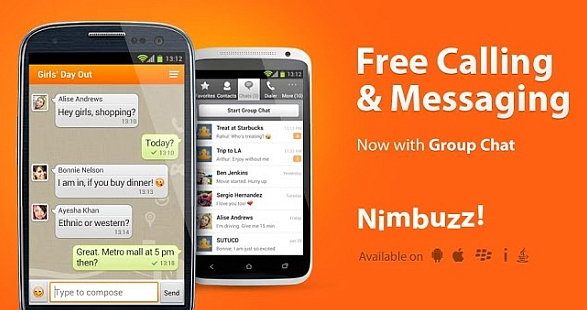
    Nimbuzz too is a social networking application which enables users to make free calls, instant messaging, social networking and games. Free calling facility is available to all the Nimbuzz users and has more than 150 million users across the world.This is one of the best free calling apps .

    11. WeChat

    WeChat is a Chinese social media application which was developed by Tencent, a Chinese investment holding company. It includes features of instant messaging, free calling, free games, payment services and commerce. By 2017, it became one of the largest standalone messaging app with over 938 million active users and is largely successful in China.

    12. Tango

    Tango is another social networking software application which was developed by TangMe in the year 2009. It is known for providing video calls over 3G, 4G and WiFi networks and the users can group chat upto 50 participants. PCMag, an American computer magazine, rated it as “the simplest mobile chat application out there, with a good range of support.”

    13. Imo

    Imo is a social networking application which offers free audio/ video calls and instant messaging features. It has been used by more than 150 million users and very famous for its free calling. It provides the user with excellent quality calls.

    14. ooVoo

    Another option to communicate with your friends and family is the ooVoo app. It is a social networking and communication application which offers free and excellent voice calls, messaging and video chatting. It has over 50 million downloads and an average rating of 4.3 out of 5

    15. Hangouts

    Google also developed another communication platform that includes instant messaging, audio calling and video chatting services. The services can be availed through the user’s Gmail/Google+ websites or through the mobile apps which is available for both Android and iOS.

    These were some of the best free calling apps that would help you to communicate with your friends, colleagues, family and enhance your calling experience.


  • WhatsApp Exclusive Guide – Everything about WhatsApp Features

    WhatsApp Exclusive Guide – Everything about WhatsApp Features

    WhatsApp not something unfamiliar to this generation and even the older generation. Today SMS became outdated as everyone of us are in deep love with this instant messaging app because WhatsApp features are really exciting and up-to the generation.

     What is WhatsApp ?

    Pun on the popular colloquial phrase ‘Whats up’ ,the app got such an easy to remember catchy and trending name of the century “WhatsApp“.

    WhatsApp is a messenger application for smartphones ,tablets and Desktop . It replaced SMS with this brilliant free to download application . Using WhatsApp one can send messages, audio , voice call , video call , share attachments and so on. WhatsApp is simply an instant messaging app that works with internet.

    Now let us look at latest Whatsapp features , even find the super latest whatsapp features like disappearing messages and how to use it .

    WhatsApp features

    WhatsApp messenger supports a great lot features than the normal SMS and most of the apps that exist .WhatsApp Features are getting updated day by day as well as the latest features that is rising is not any less .

    Exclusive List of 50+ WhatsApp Features 

    Given below are the super exciting Whatsapp features that are rolled out by the super messenger app .

    1. Texts 
    2. Group Chats 
    3. Voice Calls
    4. Video Calls
    5. Group Video Calls & Group Voice Calls
    6. Voice Messages
    7. Share Documents
    8. Send Images 
    9. Share audio
    10. Share video
    11. Update Status
    12. Find Storage of Each Chat 
    13. Format Text on demand
    14. Add Star to messages
    15. Get message details
    16. Mute conversation
    17. Most Popular Chat( Whom do you talk often)
    18. Hide your last seen
    19. Disable read receipts
    20. Don’t save photos and videos by default 
    21. Custom notification
    22. Export a conversation
    23. Broadcast
    24. Change Font size
    25. Reduce data usage for WhatsApp
    26. Privacy Control for photos,status and last seen
    27. Add event to Calendar
    28. Home screen shortcut for individual chats
    29. Transfer files between phone and PC
    30. Emoji ,Giant Heart
    31. GIF
    32. Quote Particular message and reply for that
    33. Protect Chats – Disable Notification preview
    34. Upload WhatsApp Dp / WhatsApp pp ( Display or Profile picture)
    35. Block unwanted people
    36. Archive Chats
    37. Delete Multiple Chats
    38. Mark as unread
    39. Reply directly from the notification bar
    40. Backup to Google drive
    41. Change wallpaper
    42. Use different languages
    43. Search messages
    44. Get early updates
    45. Know who has read your messages in a group
    46. Send your location with maps
    47. Live Location 
    48. Send and receive money with FreeCharge
    49. Share contacts
    50. Send photos from gallery using the camera icon too
    51. Pull back your accidentally sent messages (Delete for Everyone)
    52. Multiple Video or Image status for 24 hrs
    53. Pin Feature
    54. Delete Messages for all ( delete for everyone in whatsapp)
    55. Disappearing messages

    Now lets see all these WhatsApp features in brief

    1.Texts 

    You can send simple , long text messages for free in WhatsApp with just an active internet connection .WhatsApp text is now quite popular all around for effective communication. There is no limit in the number of text or the limit of each text word count in WhatsApp .It is really easy , simple and reliable messaging service to depend upon.

    This is a basic whatsapp features


    2. Group Chats

    Group Chats are really a boon for office people , friends , family members as it helps in sharing one text to convey a message to many people. WhatsApp group is really effective as it helps in sharing text , photos , videos , audio , voice messages to all the people in the group.

    • WhatsApp group can hold upto 256 people in one single group.
    • You can Give name and image to the group .
    • Add single or multiple admin to the group . This helps in keeping the group effective as only the admin can add or do any major changes to the group.
    • You can mute and customize notification on WhatsApp group chats. 
    • You can delete the group when its not required .
    • You can add or remove any participant of the WhatsApp group.

    Now Whatsapp Group Chat has more added features that help you feel more easy with group chats . May be solution to many annoying group chat miseries –

    • Re-adding Whatsapp Group Member Protection – Once you Leave Group Chat & You wont get added sooner as it prevents the group admin from adding you again to the group you left .
    • Find anyone in the group easily – You can search participants in the group instead of going through the whole lot of members names .
    • @Button for Catch up – No more you miss out if someone quoted you in the group chat or if anyone in group mentioned you .

    This whatsapp features is useful for students , peers , family , even for business purposes

    2.a ) How to create a WhatsApp Group ?

    You can create as many number of groups you want in WhatsApp and each group you can add upto 256 participants. You can easily create a WhatsApp Group by following these simple steps –

    ANDROID USERS

    If you are an android user then you can follow these steps to create WhatsApp group in Android device .

      1. Open WhatsApp.
      1. Go to Menu button < New Group or find the three dots on top of chat screen.
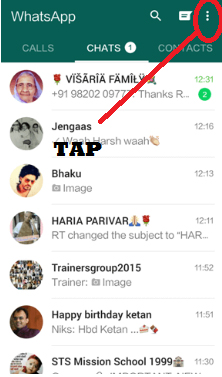
      1. Now click < New Group 
      1. Now you can find all our contacts displayed from that < Add participants
      1. Now tap the green arrow
      1. Type Group subject and add group icon
    1. Click the green tick mark

    You have created a WhatsApp group on android device.

    iPhone USERS

    1. Go to Chat screen on WhatsApp.
    2. Now look at the top of your Chat screen there you can tap like shown in the image.
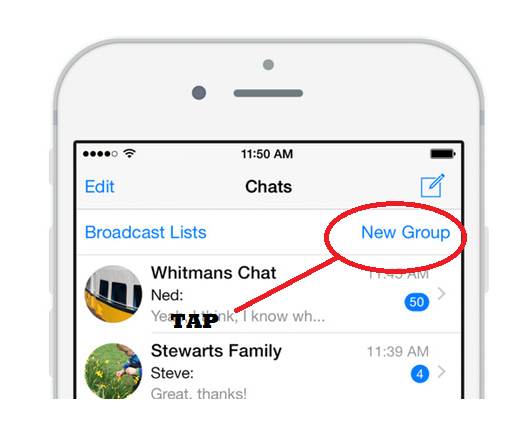
    3. Now click on the New Group button.
    4. Add participants for this group.
    5. Tap Next
    6. Name it , add an image if you prefer to do it.
    7. Tap create , you are all done you have created a WhatsApp Group.

    Windows Phone USERS

    You can create a WhatsApp group on Windows phone .

      1. Open WhatsApp <chat screen
      1. Click on the people icon on bottom of the screen < New group
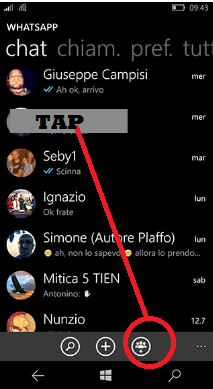
      1. Now add group subject and group icon.
      1. Tap next.
      1. Click (+) and add participants to the group or manually type the contact name whom you want to add as group participants.
      1. At the bottom of screen you can find create .
    1. Click create .
    2. b) How to add Participants to the WhatsApp Group ?

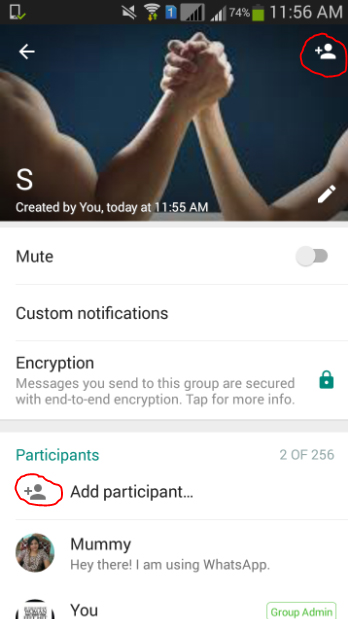
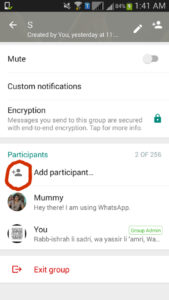
    In WhatsApp group you can add upto 256 participants in each group and you can create infinite number of groups you want . It is easy to add participants to WhatsApp group .The most essential thing to add participant to the group is to ensure you are an admin to the group.

    1. Click on the group on which you want to add participants.
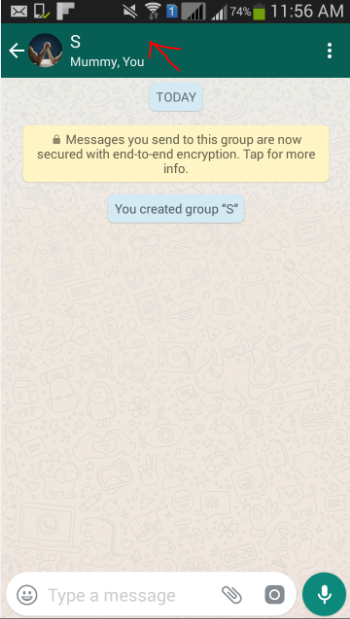
    2. Tap on Add participants.
    3. Select participants to be included from your contact list
    4. Click on add & Confirm it. That’s it you are done with the process.
    2. c) How to invite people to join WhatsApp Group with link ?
    1. Open Whatsapp.
    2. Open the WhatsApp group and add subject to the group.
    3. Click on add participants.
    4. Click on Invite to group via link and share out the link with other members in group or to some other app.
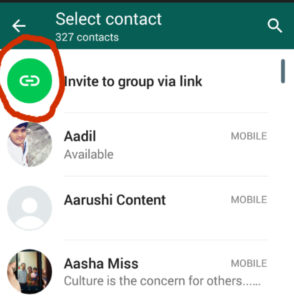
    You can invite people to join WhatsApp group with link  by following the above procedures. One important thing to do is you must be an admin to the group. The admin can make the link invalid anytime by using revoke link . Remember if the link is forwarded to anyone even without the approval of admin the person can join the group . So please be sure about it when you are inviting people using link.

    2. d) How to remove participants from a WhatsApp Group ?

    If you are an admin of the WhatsApp group the you can remove participants from WhatsApp group by doing these simple steps.

    1. Launch WhatsApp
    2. Go to the group and add subject to the WhatsApp group.
    3. Click on the participants you want to remove.
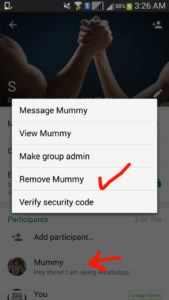
    4. Click remove.
    2. e) How to make someone admin to a WhatsApp Group ?

    You can make anyone admin to the WhatsApp group as a group can have any number of admins. Follow the below steps to make anyone admin to WhatsApp group –

    1. Go to WhatsApp.
    2. Click on the group where you want to add admin.
    3. Add the group subject.
    4. Click on the participant whom you want to assign as an admin.
    5.  Click on the option make group admin.
    2. f ) How to change WhatsApp Group subject ?

    You can change the subject of WhatsApp group by following the steps.

    1. Go to WhatsApp
    2. Go to group chat and group information
    3. Now you can find a pencil symbol .
    4. Click on the pencil symbol and type the group name
    5. So the subject of WhatsApp group is changed.
    2. g) How to change the WhatsApp Group icon ?

    You can change the group icon in WhatsApp if you want which is easy to do-

    1. Go to WhatsApp group
    2. Now on the group information tap on the group subject
    3. Click on the present group icon and choose from your camera or gallery or other folders to add a new group icon image of your choice.
    2. h) How to mute WhatsApp Group notifications ?

    We get notified when each message arrive in WhatsApp when it is individual message it doesn’t seem annoying but when you are in a active group then you get message over message and a series of notification then one thing is you will pissed off secondly you will find hard to search for the individual notification. So this can be avoided by simply mute WhatsApp group so you can feel ease with the group.To mute the WhatsApp group chat follow these simple steps –

    1. Open WhatsApp.
    2. Go to the group you want to mute the notifications.
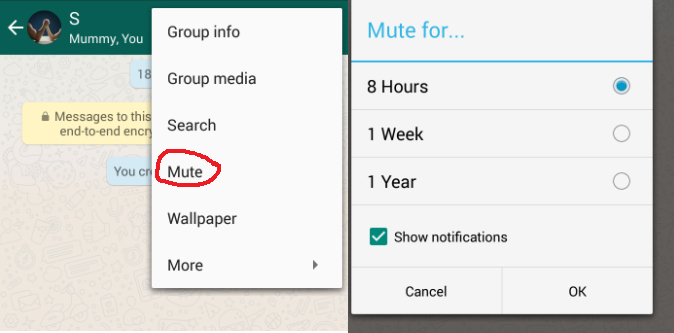
    3. Now click on the three dots so you can find Mute.
    4. Click mute and select the time period up-to which you want to mute the group notification.
    5. Click OK you are done with the process.
    2. i) How to exit or leave from a WhatsApp Group ?

    You can leave or exit a WhatsApp group easily if you are not interested to be part of a certain group then you can consider to choose exit/leave WhatsApp group by following some very simple steps.
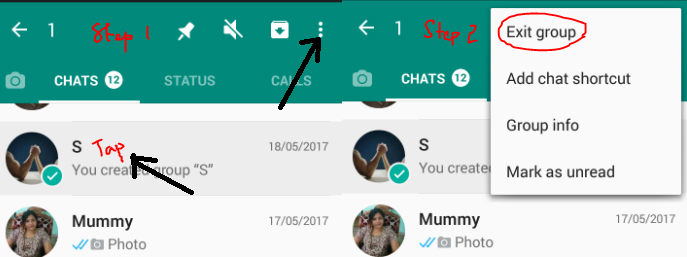
    1. Go to WhatsApp.
    2. Now on the Chat screen find the group from which you want to exit.
    3. Tap on the WhatsApp group you want to exit.
    4. Once its selected on the top find the option to exit group like given in the image.

    Read Also : Improve The World With Smartphone -Top 10 Hacks

    3.Voice Calls

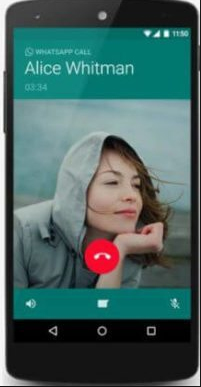
    WhatsApp Voice call is a great feature which made people to talk for free for hours and hours. There’s no barrier to talk wherever you are , whichever country you want to connect to . No charges for long hours of calling only an active data plan is all that you need . So WhatsApp Call feature has reduced our call cost we pay to our service operators .

    4.Video Calls

    You can also make WhatsApp video call which is a new feature in WhatsApp .When you click on the chat screen of the person with whom you want to make video call in WhatsApp then you can find a video button press on it which is on the top near to the call button. Make sure that your internet connectivity is good enough to place call.
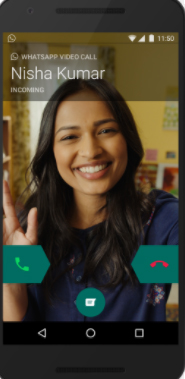
    You can attend WhatsApp video call from others by just sliding the green button to take calls.


    5. Group Video Calls & Group Voice Calls

    Now on Whatsapp you can have voice calls and video calls with a group of people allowing users to add upto 3 person . But if you want to have a group chat with a big group then i would suggest go for Snapchat Voice Group Call / Snapchat Group Video Calling feature .


    6.Voice Messages

    You can send voice message or audio message in Whatsapp by simply holding the mike button and speak or record any sound and send it to your contacts

    Suppose if you are about to make it a mistake by sending voice message then just slide to delete it instead of sending it .


    7.Share Documents

    You can now send documents among your WhatsApp contacts easily.Using the feature to Share document in WhatsApp you can share 100MB size documents among your contacts in WhatsApp. Also when you try to share a document from your folder in phone it will show you WhatsApp as an optional medium to share files.
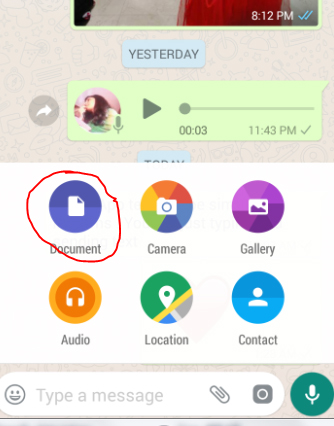
    How to send documents via WhatsApp
    1. Open the chat
    2. Find the paper clip icon
    3. Click on that
    4. Now from the desired folder choose the document you want to share.
    5. Click to send you are done with sharing document via WhatsApp.

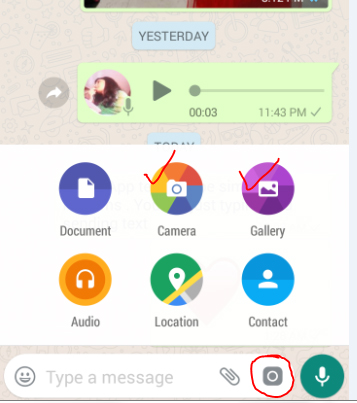
    8.Send Images 

    You can send Images via WhatsApp to your contacts by following these steps –

    1. You can send images in WhatsApp by opening the chat .
    2. Now click on the paper clip icon.
    3. Now you can click on Gallery and choose between the maximum of 10 images you want to share (or)
    4. You can click on the camera button either near to the document one or the camera icon at the end of the screen to capture a fresh image .
    5. Click send to share the image on WhatsApp.

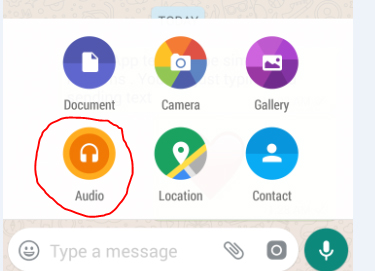
    9.Share audio

    You can share audio via WhatsApp by following these simple steps . By this you can send recorded music files , songs from your music playlist on phone etc.

    1. Click on the chat of the person to whom you want to share audio in WhatsApp
    2. Now click on the paper clip icon .
    3. Click on audio.
    4. Select from the numerous folders and audio files you have on your device.
    5. Click send button .


    Read Also : 10+ Best Alternatives to Whatsapp you will love this year

    10. Share video

    You can share videos of limit 16 MB via WhatsApp which will be of maximum 3 minutes length and you can also forward the videos that you received from someone else.

    How to share large Videos exceeding 16 MB via WhatsApp ?

    1. You can send large videos exceeding 16MB via WhatsApp by trimming the file .
    2. Use the application called “WhatsApp Video Optimizer” which enables you to send large MB videos on WhatsApp easily.

    11. Update Status

    The first form Status feature on WhatsApp was 130 character Text Status . You can update a text form status in WhatsApp by following these steps –
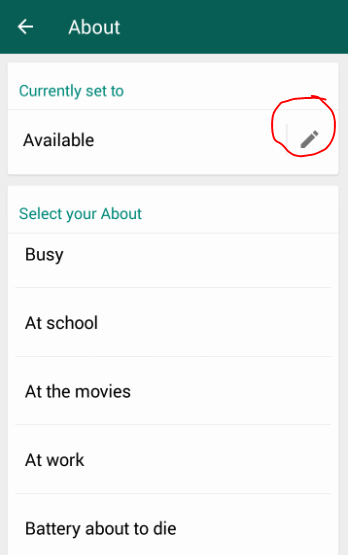
    1. Go to WhatsApp
    2. Click on the Settings
    3. Now tap on your Display picture or profile picture.
    4. Below your Profile picture there is ” About and phone number ” tap on the status word there.
    5. Now it will show “currently set to ” with a pencil icon.
    6. Click the pencil icon to type something new or choose from the existing status .

    12. Format Text on demand

    You can format text on WhatsApp like making the font change , bold , italics , strike-through etc.

    How to bold a text in WhatsApp 

    1. You can type the text you want to bold by using the asterisk symbol before and end of the text .
    2. To say example *I miss You Mom*
    3. This will appear as bold on the message.

    How to change font of a text in WhatsApp 

    You can Change the font of your WhatsApp text easily, to do that you can follow just a simple steps.

    1. Go to WhatsApp
    2. Click on the chat .
    3. Now type three characters “` in front of the text and at the end of the text .
    4. You can find that the text font is changed automatically .
    5. “`Great time mom“` find this example in the image given to understand better.
    6. This way you can change the font in WhatsApp text.

    How to make WhatsApp text in italics

    You can make the WhatsApp text in italics easily, to do that you can follow just a simple steps.

    1. Go to WhatsApp
    2. Click on the chat .
    3. Now type an underscore character _ in front of the text and at the end of the text .
    4. You can find that the text is italicized automatically .
    5. _Great time mom_ find this example in the image given to understand better.
    6. This way you can italicize WhatsApp text.

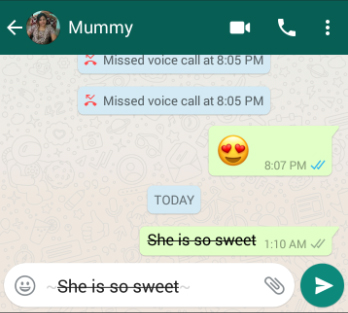
    How to strike-through a WhatsApp text 

    You can even format your WhatsApp text by striking through it if you want to strike-through a WhatsApp text then follow these steps.

    1. Go to WhatsApp
    2. Open chat
    3. Now type a Tilde character ~ both front and at the end of the text which you want strike through.
    4. ~She is so Sweet~ this is the way you have to type the text you want to strike through in WhatsApp which will look like the image below.
    13. Find Chat Storage

    Now find out how much each storage is consumed by each of the Whatsapp participants you chat with .Find the chat that eats your phone storage completely by going to Whatsapp Settings -> Then go to Data and storage usage and click on the Storage usage this will show you the details of chat storage usage .


    14.Add Star to messages

    If you want to make some messages as important which you want to quickly look into then you can add star to WhatsApp messages . By this the starred messages can be accessed quickly thus it saves time of scrolling .

    How to add star to a WhatsApp message 

    You can add star to any WhatsApp message as much as message can be starred in WhatsApp. To do this follow these steps.
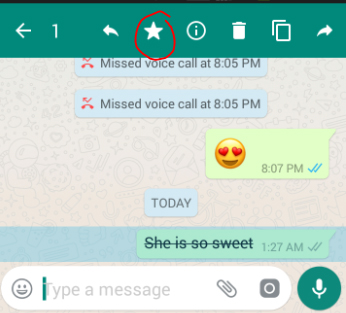
    1. Go to Chat in WhatsApp.
    2. Click to select the message inWhatsApp you want to add star .
    3. Now on the top you can find a star symbol click that.
    4. Now the message got starred .
    5. You can assure this by seeing a star symbol near to that message now.

    How to unstar a WhatsApp message

    Suppose you want to remove a message from starred list then you can unstar that message in WhatsApp without any complicated steps
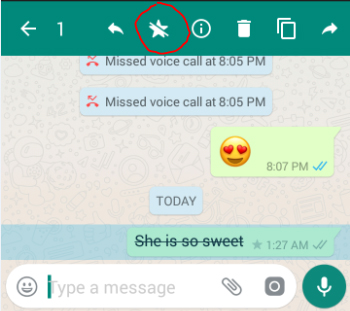
    1. To unstar WhatsApp message first go to that chat and click on the message which is starred .
    2. Select the starred image.
    3. Now on the top you can find unstar symbol click on that (or)
    4. Go to the section of all starred messages from that select the one you want to unstar.
    5. Now on the top you can find the unstar symbol.
    6. Click that you are done.

    How to view the starred messages in WhatsApp

    If you have starred so many messages and you want to view that without the pain of scrolling down then to view all starred WhatsApp messages by following these steps

    1. Go to WhatsApp.
    2. Go to WhatsApp menu
    3. Now you can find “Starred messages” option.
    4. Click on that.
    5. Now a screen with all starred messages will appear.You can view all the messages which you have marked starred.

    How to delete the starred messages in WhatsApp

    If you unstar a message in WhatsApp it just means you removed it from your starred list but delete a starred messages is different. If you want to delete starred message in WhatsApp then follow these steps-
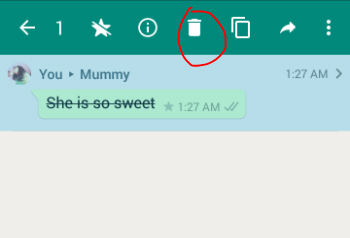
    1. Go to WhatsApp menu
    2. Find the ‘Starred messages’ option.
    3. Click on that .
    4. Now tap to select the starred image which you want to delete.
    5. Once the message gets selected you can find a symbol of trash bin.
    6. Click on the trash bin and confirm to delete it thus your starred message in WhatsApp is deleted.

    You can even click on the information symbol to get information on the starred message , if you want to copy or forward the starred message then you cans elect the concerned option in the top.


    15. Get message details

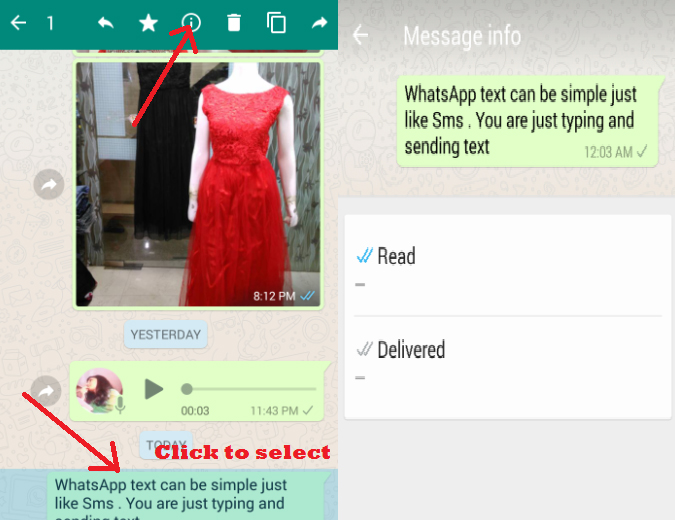
    You can find out message info in WhatsApp like whether the message got delivered , read or unread etc . If you use an iPhone you can know it by simple swiping left on the message you sent so it will show you the message information exactly the status of that message . But if you are an Android user then you can do it by simply selecting the message and press on the information symbol which looks like “i” in a circle and get the message info like shown in the below image.

    16. Mute conversation

    If you find that some messages are too much annoying then you can choose the option to mute conversation in WhatsApp to do this follow the steps –
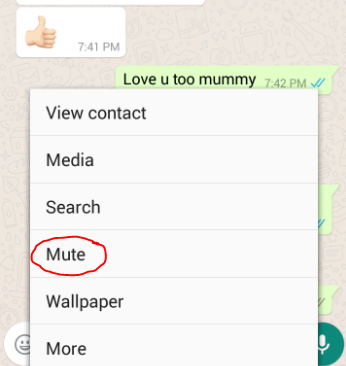
    1. Go to the chat
    2. Click on the menu
    3. It will show you option’ Mute’
    4. Click on that .
    5. Now it will ask for the time period to mute it choose it .
    6. You are done muting a chat in WhatsApp

    17. Most Popular Chat( Whom do you talk often)

    You can find out that with whom you talk the most if you use WhatsApp in iPhone.
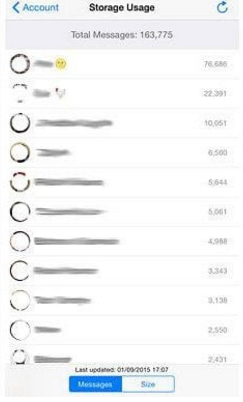
    1. Go to Settings
    2. Select Account
    3. Go to the Storage usage
    4. Now you can get the details of the total interactions you made in WhatsApp and with whom the most.

    18. Hide your last seen

    If you think pestered about the raising eyebrows and questions on your last seen is too much or for any personal reason you want to hide last seen in WhatsApp you can do it easily by changing your privacy options like –
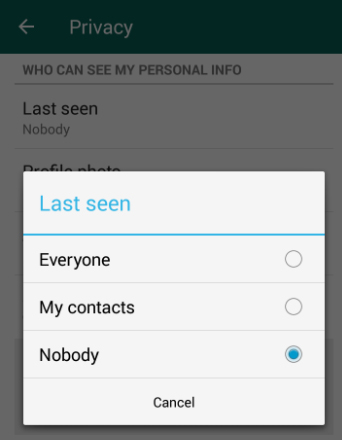
    1. Go to Settings
    2. Select Account
    3. Now go to Privacy
    4. Click Last seen
    5. Select it to none to hide last seen from all . If you want to share your last seen only with your contact then you can select My contacts .

    19. Disable read receipts

    You can disable the Read receipts in WhatsApp so you can read messages without the blue tick .
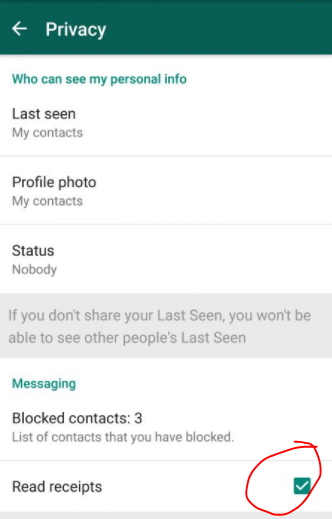
    1. Go to Settings
    2. Account < Privacy
    3. Now scroll down you can see that a green box checked in Read receipts . Click on that to un-check that option.
    4. Now you can read messages without Blue tick in WhatsApp as your read receipts is toggled off now.

    20. Don’t save photos and videos by default 

    Most people who use limited data pack or having very less space in phone memory will get sick of this automatic download of photos and videos in WhatsApp. You can solve this issue by making it don’t save media automatically . To do this follow these instructions –
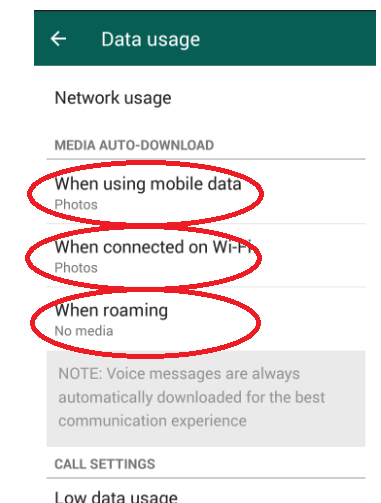
    1. Go to WhatsApp settings.
    2. Now select Data usage
    3. Find Media Auto-Download in that change the settings as you want the media to get downloaded when on mobile data, roaming and when connected to WiFi .
    4. Thus the audios,videos and photos which you receive will be saved according to your data mode and its customized setting you have chosen.

    21. Custom notification

    You can custom notification in WhatsApp like whether you need sound for incoming and outgoing messages in WhatsApp or vibrate , pop up notification , light etc. You can choose how you want the notification for individual chat messages , group chats as well for call notifications . To custom notification in WhatsApp you have to –
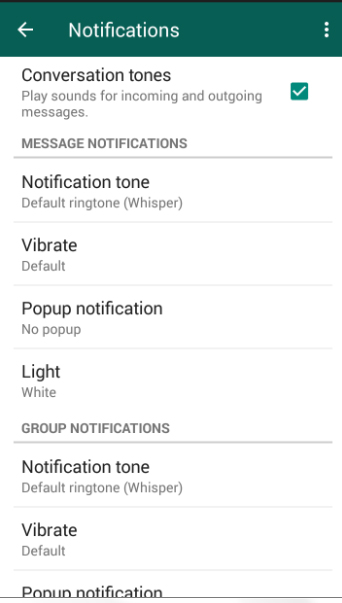
    1. Go to WhatsApp Settings.
    2. Now select Notifications.
    3. Get it customized as you wish for all the sections.

    22. Export a conversation

    If you want to save any chats for future as record or for any other means you can try to Export conversation in WhatsApp .
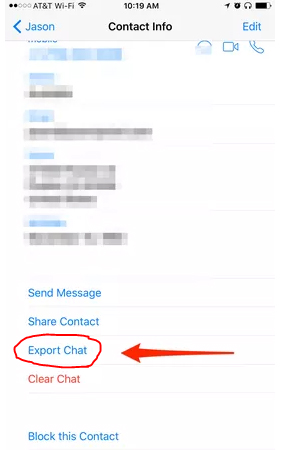
    1. View a chat thread you want to export.
    2. Tap on the contact screen
    3. Scroll down
    4. Find the contact info page at bottom and now select export chat
    5. This way you can export WhatsApp chat.
    6. In this you can select how you want to export the chat with the media or without the shared media.
    7. This includes both the to and from messages.

    23.Broadcast

    You can send messages in WhatsApp broadcast which enables you to send your single message to so many people you add to broadcast group. You can broadcast message easily by doing these steps-
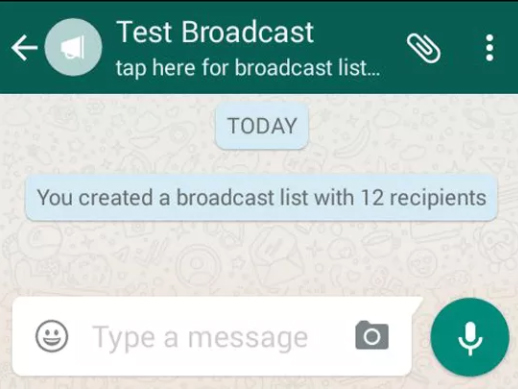
    1. Go to WhatsApp Chat screen.
    2. Find the three vertical dots in the top , tap on it.
    3. Select New broadcast.
    4. Add the people from your contact list, you have to add a minimum of two people while in WhatsApp group you can run a group with even one member or even you can delete that member and be the only participant of group yourself.But broadcast doesn’t allow this.
    5. Now your broadcast group is created with the contacts you selected .
    6. All your message will now be broadcasting to all in the list.

    24. Change Font size

    You can change the font size for WhatsApp by doing these simple steps –
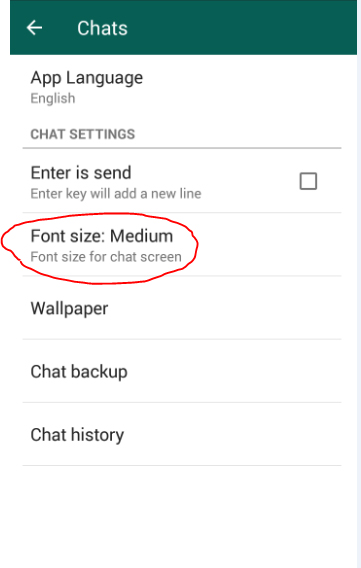
    1. Go the WhatsApp Settings.
    2. Click on Chats.
    3. You can now find Font size , choose between – small , medium and large.
    4. That’s it you are done changing your WhatsApp font size.

    25. Reduce data usage for WhatsApp

    You can reduce the data usage for all the applications running on your phone. In this you can really customize WhatsApp by enabling low data usage . 
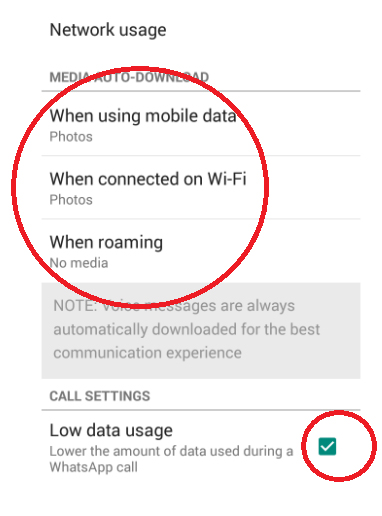
    1. Go to WhatsApp settings < Data Usage.
    2. Customize how to use your data for media downloads.
    3. Check in the Low data usage option.
    4. You are done now you can enjoy WhatsApp with low data.

    26. Privacy Control for photos,status and last seen

    You can set privacy control for your photos , status and last seen in WhatsApp . This helps the WhatsApp user to decide what they want to be private and public . To do this you have customize your Privacy settings-
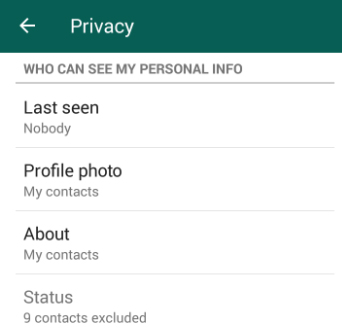
    1. Go WhatsApp Settings< Account
    2. Now go to Privacy option
    3. Now You can Click on Last seen and change the privacy setting for that.
    4. Below that Profile Photo option click that to change the privacy for who can view your profile picture .
    5. You can change ‘about’ privacy and also status also.

    27. Add event to Calendar

    You can find that the date or time that you send in WhatsApp chat will be appearing as blue font with underline. If you click on that it will allow you to Create an event for that date or time in your Calendar . So that if someone is inviting you to any meeting , dating or any important celebrations you don’t have to miss it from huge number of chat conversations.

    You can add event to WhatsApp Calendar  by –
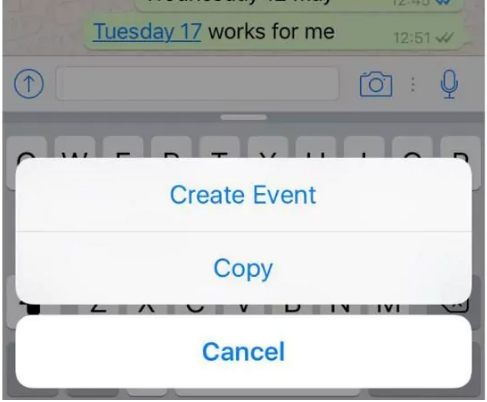
    1. Click on the date or time that appears in blue colour.
    2. It will show an option to ‘create event’ Click on that.
    3. Update Event details .
    4. Now you can find this event added in your calendar.

    28. Home screen shortcut for individual chats

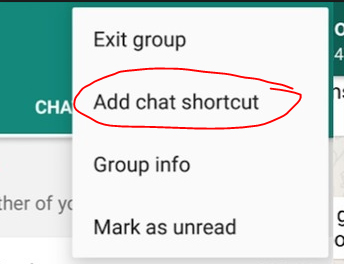
    Sometime we have so many individual chat but some are really very important to us like the contacts in speed dial of our device . So likewise you can create shortcut for individual chat in WhatsApp on the home screen so you need not to go the WhatsApp chat screen with all the individual and group messages to check the message updates from a particular person . Its more convenient to do .

    How to add home-screen shortcut to individual chats 

    1. You can add shortcut to individual chat on home-screen by first select that chat on chat screen .
    2. Now on the top menu find Add chat shortcut .
    3. Click on that so with the person’s profile there will appear a shortcut on your home screen.
    How to give reply on WhatsApp Chat from lockscreen

    If you want to reply to WhatsApp message from lock screen without opening the WhatsApp the follow this steps-

    1. Go to settings.
    2. Select Notifications
    3. Select Always show popup option
    4. You are done now you can reply from lock screen on WhatsApp

    29.Transfer files between phone and PC in WhatsApp

    You can now transfer your files between PC and phone with WhatsApp Web and your desktop by sending yourself a self message .This will make a smooth file transfer from PC to phone on WhatsApp or vice versa which is free from mind buzzing steps.
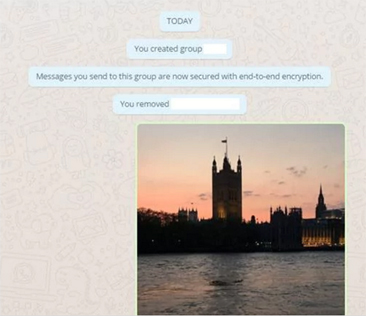
    1. Create a WhatsApp group with just one friend.
    2. Immediately delete the one friend or participant who is there in the group other than you.Now you are the only one participant in the WhatsApp group.
    3. Using a QR code on desktop or WhatsApp web you have to connect your phone to the computer system.
    4. Now send some file from your phone you can get it in your desktop.
    5. Save the file on your desktop by clicking on the download icon.

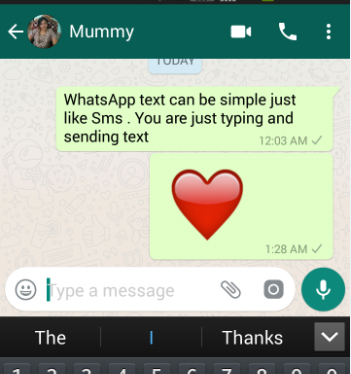
    30. Emoji ,Giant Heart

    You can send thousands of emoji by clicking on smiley and scrolling among with the heart when you sent it will appear as giant beating heart is favorite of many WhatsApp users.

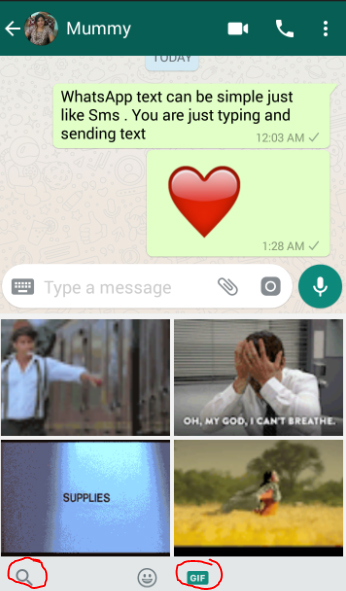
    31. GIF

    At the beginning you can send GIF Images in Whatsapp by attaching it but now you can send thousands of GIF which you can find in WhatsApp itself . To send GIF image on WhatsApp click on the smiley then you can find GIF at the end of the screen like shown in the image attached here. So scroll between the GIF and even you can type a subject so endless of related GIFs will appear to choose from.

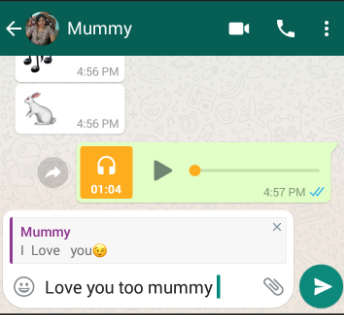
    32.Quote Particular message and reply for that

    One of the very recent feature of WhatsApp is to give quoted reply WhatsApp message. It allows you to give reply to that particular message within that.

    You can quote WhatsApp message by doing these simple steps –

    1. Go to WhatsApp chat thread.
    2. Click to select the message which you want to quote to reply.
    3. On the top find the symbol to reply like shown in the image .
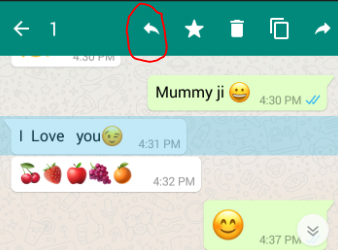
    4. Now you can type the quoted reply to that message 
    33. Protect Chats – Disable Notification preview

    If you are concerned about privacy where you don’t want your WhatsApp messages to appear on your notification bar which will be peeped by anyone who look at your phone. To protect WhatsApp chats disable notification preview by toggling off the notification preview in WhatsApp which you have to do in changing your general phone settings .


    34. Upload WhatsApp Dp / WhatsApp pp ( Display or Profile picture)

    The trendy word Dp , PP ( Display picture , Profile picture ) is more popular with WhatsApp. You can upload Display picture on WhatsApp easily –
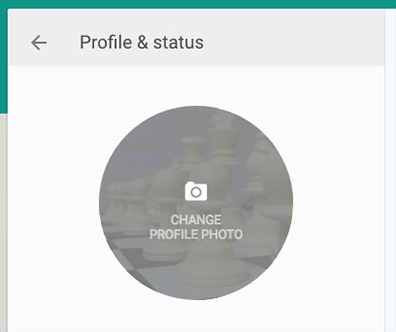
      1. Go to WhatsApp < Click on Appication Menu
      1. Go to Settings.
      1. Tap on your Profile Info.
      1. Click on your profile photo
    1. Click to set photo from gallery or take one using camera icon.

    35. Block unwanted people

    You can block the annoying people or unknown contacts who send spam messages.You can block anyone in WhatsApp and unblock them when you want easily.When you block someone in WhatsApp both of you can’t see your last seen,profile picture and other updates and prevent them from sending message and calls to you.
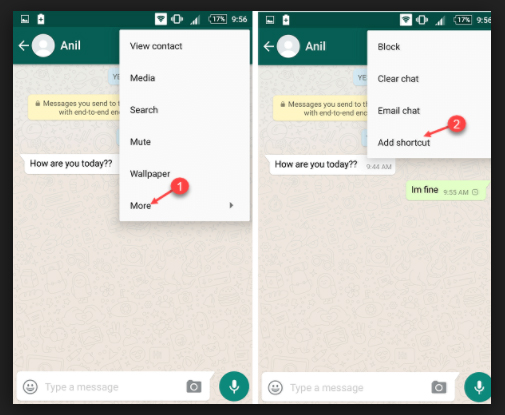
    1. Go to WhatsAp.
    2. Open the chat thread of the person you want to block.
    3. Tap on menu
    4. Click ‘more’
    5. Select block
    6. Do this again you can find ‘unblock’ click on that to unblock the person .

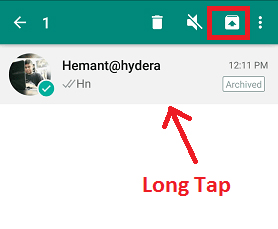
    36. Archive Chats

    If you want to hide chat threads from chat screen instead of deleting it you can archive chats in WhatsApp by selecting the chat and click on the archive symbol.

    37. Delete Multiple Chats

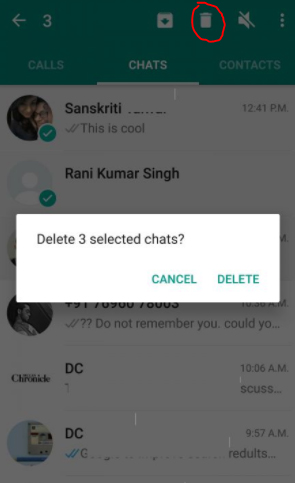
    You can delete multiple WhatsApp chats in one go .All you have to do is long press to select the chats you want to delete or even the chat threads . Now when the chats to delete are selected at the top find a trash bin . Just click on that and confirm deleting to delete multiple chats at a time.

    38. Mark as unread

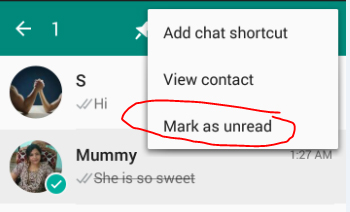
    You can mark a message you read i WhatsApp as unread easily.
    1. Go to WhatsApp chat screen.
    2. Tap and select the chat you want to mark as unread.
    3. Now click on the vertical three dots.
    4. Click on Mark as unread
    5. You are done

    39. Reply directly from the notification bar

    If you have enabled your notifications on WhatsApp then you can reply chats from WhatsApp notification bar itself .
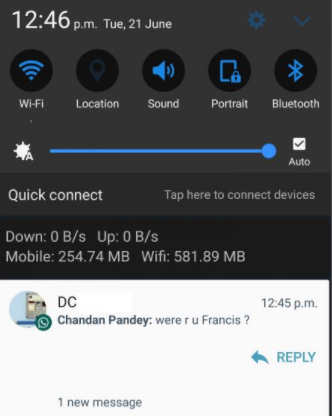
    1. Drag down the notification bar.
    2. Hit reply button .
    3. Enter your reply and send from notification bar

    40. Backup to Google drive

    You can get WhatsApp Chat Backup to google drive where you can save all your chats and media files shared. This will help you against the loss of data and also in case if your phone got any issues the backup can be restored after you fix the phone issue.

    To get WhatsApp chat chat backup on google drive all you have to do is –
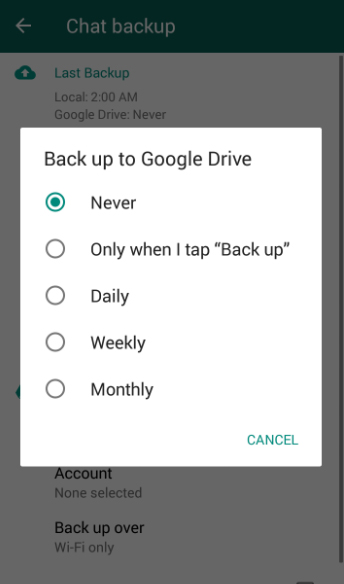
    1. Go to WhatsApp settings< Chats
    2. Choose Chat backup.
    3. Click choose to backup to Google drive
    4. Now select the frequency of backup.

    This way you can backup your chat to google drive.


    41. Change wallpaper

    You can change Wallpaper on WhatsApp  for all your chats by choosing a wallpaper of your choice as the chat background.If you want to change Wallpaper on WhatsApp follow these steps.
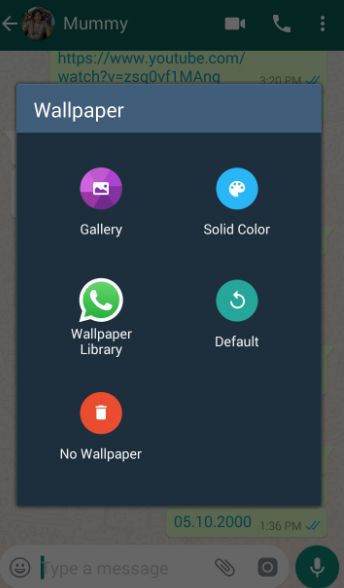
    1. Go to WhatsApp.
    2. Open a Chat thread
    3. Go to menu in that chat thread.
    4. Now find the Wallpaper option select that.
    5. Now find the different ways to add Wallpaper .
    6. Choose your preferred option that’s it.
    7. Now you can find your default Wallpaper is changed to your choice of Wallpaper on WhatsApp.

    42. Use different languages

    You can use WhatsApp in different language as your preference by following these steps-
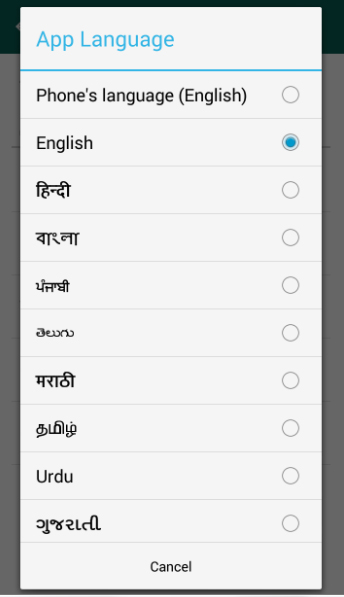
    1. Go to WhatsApp settings < Chats
    2. Click on App language.
    3. Now you can find so many language .
    4. Select the language of your preference.

    43. Search messages

    If you want to sort out any particular message you sent long ago in WhatsApp then you can easily find out by Search message in WhatsApp .
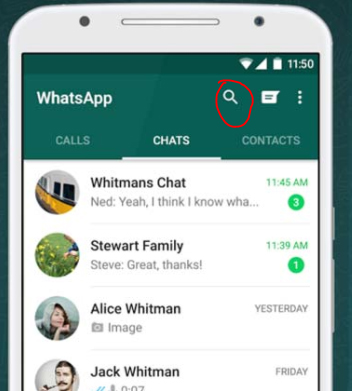
    1. On the top of the Chat screen there is a search icon.
    2. Click on that .
    3. Now type any fragment of words you remember about that message .
    4. You will get all the matching results from which you can sort it down easily.

    44.Get early updates
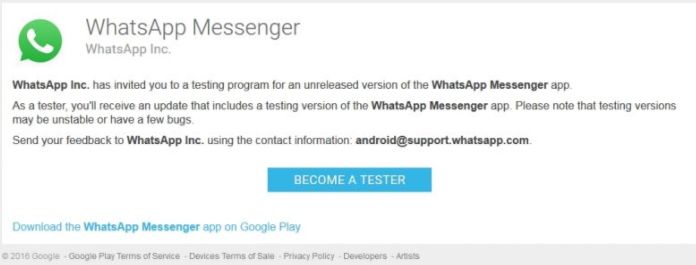
    WhatsApp comes up with new updates every time as an user if you want to get updates early then one option is to have a keen eye on the Tech news updates but still its a boring thing. To  stay updated become a WhatsApp beta user. You can register online to become a beta user in WhatsApp.


    45.Know who has read your messages in a group

    If it is an individual message sent in WhatsApp you can confirm that the person read the message it it shows double blue tick but kindly note that even in individual messages if the person have turned off Read receipts then you can’t find the blue tick confirmation.
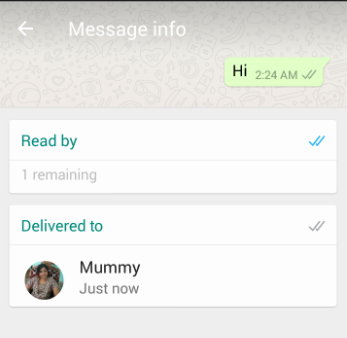
    In a group chat there are so many people so if you want to check who has read your WhatsApp message in group then follow these steps.

    1. Go to the group chat.
    2. Select your message
    3. On the top there is symbol to get information with a small i.
    4. Click on that it will give you the details about who has read your message in WhatsApp group.

    46.Send your location with maps

    You can share your real time location with your contacts in WhatsApp from google maps. To share your location in WhatsApp follow these steps-
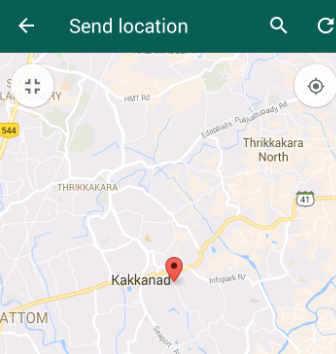
    1. Go the chat
    2. Now find the paper clip symbol.
    3. Click on that .
    4. Select ‘Location’
    5. Now the google map will identify your location and click to send.

    You can find this as a useful feature as it shows accurate location so when if you are going anywhere out and want to share your real location with your close ones you can use this.


    47.Send and receive money with FreeCharge

    If you use WhatsApp on android device then now you can send and receive money using WhatsApp. You can use the new feature of FreeCharge on WhatsApp . In this you can simply make transactions possible .

    So to know how to Transfer FreeCharge Money via WhatsApp read through the below steps carefully.
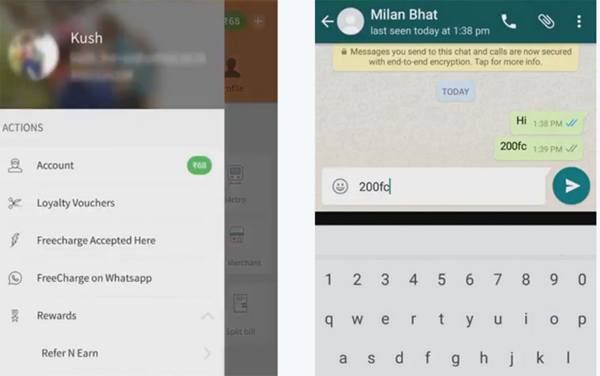
    Step 1:  From Freecharge’s menu launch to Freecharge on WhatsApp.

    Step 2: Tap enable so that the FreeCharge app gets permission to access.

    Step 3: Now to the one you want to send money open their WhatsApp chat window .

    Step 4: Enter the amount you want to exchange and it should be followed by FC, eg. 100FC

    Step 5:  Now a pop-up will appear asking you confirmation whetehr you want to send or request money. Enter the appropriate option then you are done with the process.

    This is a feather among the WhatsApp Features.


    48.Share contacts

    Unlike the traditional way of sharing phone contact by typing the number without a mistake is outdated . You can easily share contacts using whatsapp  without any pain and effort.
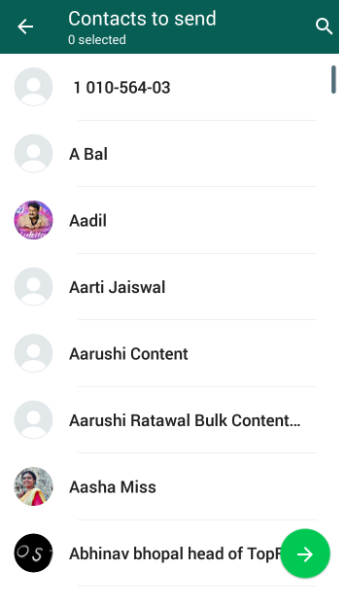
    • Click on the individual chat of the person to whom you want to share the contact . Their chats will be on your screen .
    • Now click on the attachments .
    • Find < Contact.
    • So you will find the list of contact , either scroll down and select it or manually type the contact name and select it.
    • Click the green arrow.
    • And send it you are done.

    This is one among the WhatsApp features that makes things easily from traditional method .


    49. Send Live Location & Set Frequency

    You might always have one special person atleast who always has one repeated question that is to know where are you ? So in case you find it annoying to always give them answer just go to the chat with that person and click the pin icon of attachment . Now click on Location sharing and select Share Live location  and then set time interval . Thus your live location is shared everytime .


    50.Send Images from the gallery using camera icon 

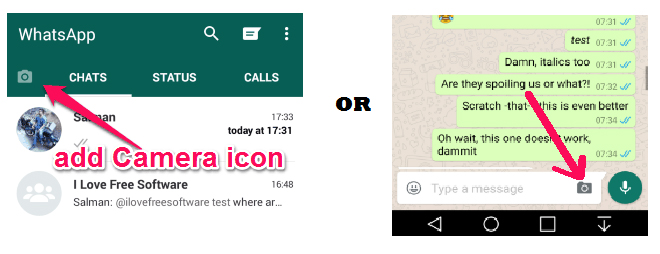
    You all know the common way of sending images using the attachment option in WhatsApp . Now there is a latest feature where using the camera icon you can select the images from the gallery and send it to your friends.

    To send images in whatsapp using camera icon find these images . You can try out both ways of sending images using camera icon feature.

    51.Pull back your accidentally sent messages

    Suppose you send a message to someone by mistake and you don’t want them to read it . There is a small chance to pull back or prevent the other person from reading the message. So follow these ways to pull back or recall a WhatsApp message  . This is just a trick not any official way to do it so .
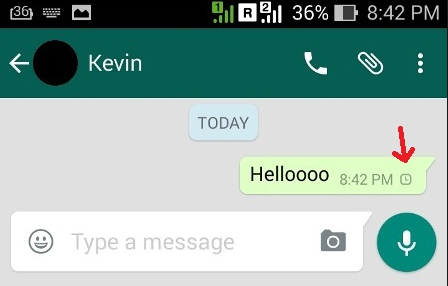
    Trick 1 : Block the user immediately for 30 days .

    Trick 2 : Turn off your internet before the message shows double tick and delete it . Bt this way to recall accidentally sent whatsapp message will work only if your internet connection is really a slow one . Guys trust me sometimes a slow internet connection can save you from your tech mistakes .

    Trick 3 : Bit crazy way but something you can do for sure . Send them a new message with 2000 words in special character before they read the accidentally send message .This will force them to delete your conversation to use their whatsapp back as normal . Because this special character message of 2000 words will crash their WhatsApp.

    One most searched topic related to WhatsApp features will be to pull back the messages which you already sent.


    52.Multiple Video or Image status for 24 hrs

    This is also a new feature of the WhatsApp which is now the rising trend and a good competitive feature to snapchat . On its 8th birthday WhatsApp launched this feature where users can upload images or write text or post a video of 30 seconds as their status .

    • Here you can simply take a photo using camera  or choose one from gallery , use GIF , video of 30 secs as your status for 24hours . After 1 day the status will be automatically vanished .
    • You can write , scribble add smileys on the photo status that you are uploading.
    • You can hide the status from particular people , that means you can restrict the visitor for that status.
    • You can add multiple number of status in a day.
    • You can delete the status before the 24hours time also.
    • You can see who viewed your status and when they viewed it.
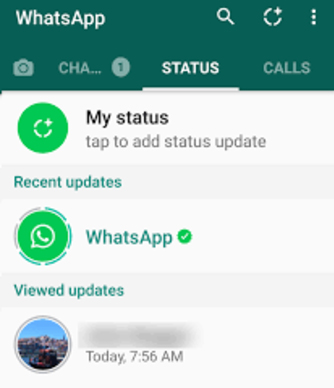
    How to hide your photo/video status in WhatsApp 

    You can hide WhatsApp status by following these simple steps –

    1. Go to WhatsApp Settings.
    2. Now tap on Account< privacy
    3. Click on Status
    4. Here there is 3 status privacy option – my contacts, my contacts except and only share with.
    5. If you select my contacts your new photo or video status in WhatsApp will be visible to all your contacts in WhatsApp.
    6. If you want to block certain people from that click on ‘my contacts except’ and search the name of contacts and add them . So they wont be able to view your whatsapp status update.
    7. To add more privacy suppose only those whom you really know the status update should see it not all , then add them alone to view your status update by selecting the third option.
    How to know who viewed your photo/video status in WhatsApp 

    You can add as many photo or video status in WhatsApp which you can custom privacy to ensure whom you want to share this status visibiliy. You can find out who viewed your WhatsApp status by following this steps.

    1. Go to Status.
    2. Tap on your status
    3. Below that you can find an eye symbol click on that there you can view the contacts who have seen your WhatsApp status.
    How to delete your photo/video status in WhatsApp 

    If you want to delete any of your WhatsApp status there is still provision for doing that by following these steps.

    1. Go to Status.
    2. Now Tap on the  status you want to delete.
    3. Below that click on the eye symbol now it will show you who viewed the status along with that there is a symbol of bin . If you  click on the bin it will ask you whether you want to delete the status so it will get deleted .
    How to forward your photo/video status in WhatsApp 

    You can simply forward your WhatsApp status to anyone you want by following these steps –

    1. Go to the status on WhatsApp.
    2. Now click on the status and eye symbol.
    3. There near to the bin there is a forward arrow click on that.
    4. Now you get list of contacts available in WhatsApp so you can choose them as individual or select multiple persons and send it .
    5. Hence your WhatsApp status is forwarded.
    How to  reply to your friend’s photo/video status in WhatsApp

    You can reply to other’s WhatsApp status by sending text on it or with images or even as audio .

    1. Click on the status you can find you contacts’ recent status update below your own status.
    2. Now click on the status on which you want to reply .
    3. Now you can find a text cursor , smiley , camera , audio near to it .
    4. Click on the smiley to add smiley to your reply and type text if you want . Even if you want to reply it with a image you can click that and take it from camera or gallery or if you want to reply it with voice press the speak button and talk and leave your fingers so it will sent.

    This is a trending among WhatsApp Features.


    53. Pin Feature

    This is a new feature , to say an upcoming feature for all whatsapp users . This will help you to get rid of scrolling thousands of messages to find your favourite one . You can now simply make the most important individual’s chat as priority by using WhatsApp Pin Feature .

    You can only pin three chats with this feature . By pinning those chats will appear in the top regardless how long its been you haven’t communicated with them .
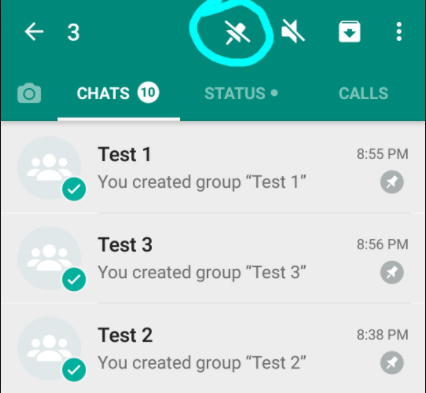
    How to Pin Chats in WhatsApp ?
    • Download WhatsApp Beta 2.17.162 or 2.17.163
    • Tap and hold the chat you want to pin , when you are holding it you can find delete , mute , archive and then a pin option on the top.
    • Click on the pin , here it is . You are done with it now this chat appear on the top even if you didn’t had conversation in recent .
    • You can unpin anyone and add new one as pinned chat because only three can be pinned .

    54 . Delete for everyone

    This allows to delete the message for both the sender and receiver .

    55. Disappearing messages

    This is an exciting feature in whatsapp latest , this allows you to select individuals with whom you want the messages to self destruct within 7 days . But remember the person can still save your messages in the form of screen shot etc or even screen recording facility is now available .

    How to enable disappearing messages on whatsapp ?

    1. go to whatsapp
    2. select the person for whom you want to disappear messages automatically in whatsapp
    3. there you can find the option disappearing messages . 
    4. click it and turn it on

    anytime you want you can turn off too .

    When you turn on this option this will give notification to the other person that you have toggled on whatsapp disappearing messages for the person.

    So here we have given you a detailed guide on the 50 exciting WhatsApp Features also find the ways to protect your WhatsApp data .

    One exciting feature that is not detailed is WhatsApp web which will be detailed as a new topic soon.
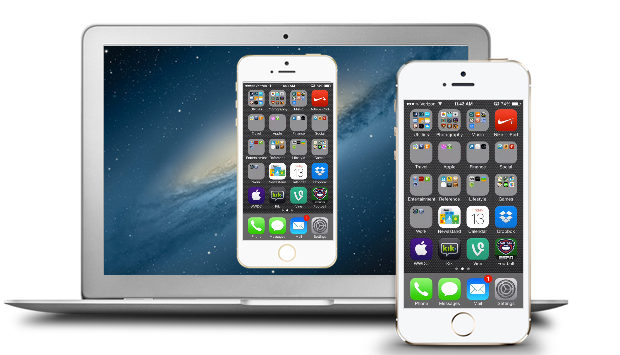
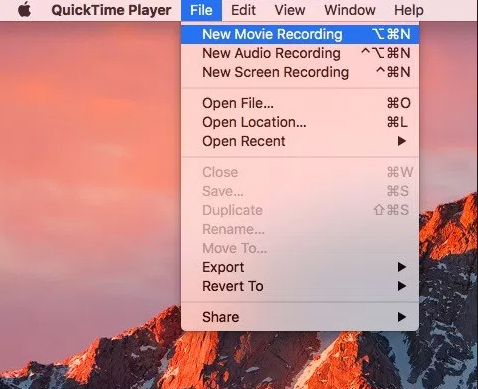
  • WannaCry Attack Security Tips- Protect computers from Ransomware

    WannaCry Attack Security Tips- Protect computers from Ransomware

    Every year there will be a breakout of some cyber attack cases all around the world . This makes a sense to think about ways of protecting our computers from different cyber attacks. Recent breakout of WannaCry Attack  demand us to think about ways to Protect Computers from Cyber Attack at all possible ways .

    Now everyone of you who is not a cyber security geek will be wondering about what is a cyber attack and what is this ransomware and of-course the name like WannaCry Ransomware are absolutely novel to many of us .

    So this article will focus on making you understand what are these novel terms and how to protect computers from cyber attack with our tips to defend ransomware attack.

    WannaCry Attack Security Tips- Protect computers from Ransomware

    At the alarming spread of the new cyber attack popularly known as WannaCry Attack here we are going to give you the best security tips to keep your computer safe from a vulnerable cyber attack. Before heading to the article let me tell you something about cyber attack , ransomware etc …

    Cyber Attack – What is That ? 

    We can simply say that a cyber attack or CNA (computer network attack) is a intentional or deliberate action of exploiting networks , computer system and other tech- dependent enterprises. With the use of malicious codes the actual data , logic and computer codes are disrupted . Cyber attacks are mainly aimed for the information and identity stealing or to cause disruption to the system.

    Consequences of cyber attack 

    • Fraudulence ,identity theft ,blackmailing
    • Sniffing passwords
    • Infiltrating System
    •  Data breach
    • Defacement of website
    • Service Denial
    • Malware , Spyware , Trojan , viruses , phishing etc
    • Unauthorized access
    • IP Theft

    Read Also : Internet Safety Rules for Kids – Online Safety Tips

     Ransomware 

    Guess you all know the meaning of the English word “ransom” , then its very simple you can now relate it to ransomware . To say precisely ransomware hold your PC from functioning , it will may your PC stop working.

    Ransomware is a kind of malicious software that will prevent your PC from functioning . It makes a cryptoviral attack and blocks the system data which will be unlocked only when a ransom is paid. Some ransomware attack can be reversed easily but while some will puzzle all techies .

    The most hot trend news in all over the world is the WannaCry ransomware Attack which break out on 12th may 2017 . Similarly Locky Ransomware was the another major global attack that just vanished but for everyone’s notice its again coming back .

    So this article is going to focus on how to protect your system from Locky Ransomware and WannaCry Attack.

    WannaCry Attack Security Tips

    Ongoing global cyber attack popularly known as WannaCry Attack ,WannaCrypt ,WannaCry Ransomware attack , WannaCryptor 2.0 , Wanna Decryptor which broke out on 12th may 2017. This ransomware attack also has the same goal as the other ransomware attacks , they just block access and demand a ransom amount to unblock our system.

    WannaCry is having components mainly – worm and ransomware package . This encrypts the  files and data on the infected windows system and demands to pay a ransom in bitcoins . Especially the older versions of Windows system is more prone to risk of getting affected by WannaCry attack.

    Reason for WannaCry attackers demand in bitcoin is that bitcoin is known for its anonymity and the hackers can use the bitcoin currency in many ways they want .

    Read Also : 10+ Best Alternatives to Whatsapp you will love this year

    How to Check If your system is affected by WannaCry Attack 

    WannaCry affects only the Windows operating system that are not protected and updated. WannaCry is a global ransomware attack which locks the files of your system and asks for a ransom to be paid to get it open.

    You can check if system is affected by WanaCry Attack  easily . If your system is affected by this ransomware then you can find out a message on your display screen which will be having a count down timer and a ransom demand along with bitcoin wallet . It may warn you like if you do not pay it , your system will be locked .

    If your system is attacked by WannaCry then you can find such a message on your display screen.

    Read Also : How to secure bank account from hackers

    What to do If your System is infected by WannaCry Attack

    If your system is infected or got a cyber attack especially if your system is affected by WannaCry you have to do certain things to protect your data.

    Things to do WannaCry Attack infected System –

    • Do not pay the hackers the ransom they ask for , it is just going to be waste of your money and a motivation to continue the effort . You do not have to pay the WannaCry Ransom request.
    • Wipe out your hard drive literally what i mean is do a fresh installation of Windows . Unfortunately this will just give your system functioning but your data will be lost unless its saved in cloud or drive.Kindly note reset doesn’t mean a simple on and off.
    • One small hope of keeping your file safe and get your system clear from WannaCry attack is to reset the date in your windows system .
    • Download apps that promise to remove WannaCry from your system. You can rely on some trusted companies like AVG, Sophos ,Symantecand their apps that is promising to fix the WannaCry Ransomware attack on your system.
    • Find the good step by step manual ways to remove WannaCry fro your system .Kindly note to take only legitimate sources .

    Complete User Manual To Remove WannaCry From System – Step Wise Instructions

    If your system infected with WannaCry then you will be thinking how to remove it without paying the ransom . And it is very important to remove WannaCry very immediately if your system is infected. But still the ways to decrypt the files for free is to be digged out. But here we can help you with the instruction to recover files that got infected by ransomware. But it is not a full guaranteed steps as the global cyber attack just broke out , even the highly tech minds are working on to solve this issue.

    Here we will explain about how to remove WannaCry using Emsisoft and MalwareBytes. Now before proceeding for a brief knowledge of the reader , Emsisoft and MalwareBytes both will protect your system from all malware , ransomware and virus attacks.

    Read Also : Web Servers A detailed overview – Popular Webservers

    Steps to Remove WannaCry from your infected system –

    • Take a print out of our instructions and Read it carefully.
    • Download the essentials we mentioned here.
    • Once you have taken a print out and downloaded the tools we recommended then we advise you to close the browser .
    • Reboot the system.
    • Inorder to terminate the suspicious programs in your system we advise you to use RKill. So download Rkill and save it on your desktop.
    • Run the downloaded file and it will automatically stop any process that is associated with the Sysprotector Registry Cleaner Tech Support Scam and the other malware.
    • Wait till it detects all the malware and malicious files in your system.
    • Once the rocess is over it will automatically close down a black window .
    • A log file gets opened , you have to review that and  close it.
    • Continue to next step.

    Note : Rebooting system after RKill has run on your system is going to bring back all the malware programs once again. Don’t Reboot system  after this process .

    • Download Emsisoft Anti-malware on your system.
    • It will be working to remove the unwanted adware in your system.
    • Run the downloaded program.
    • Click Yes if you get an alert mentioning about the safe mode and continue the process.
    • Agree to the licence agreement and access it .
    • Start the installation process by clicking on the Install button now.
    • Now you have to choose the type of license you wish to choose.
    • Click on the test for 30 days, free if you do not have a purchased license key. By this you can use it for free trial .
    • Now you decide if you want to join their network or no . Its up-to you , nothing related to the process.
    • Now Emsisoft will be updating and detecting the virus in your system.
    • Once update is done click on Enable PUPs Detection . This will protect your system from adware and other unwanted programmes.
    • Click Finish Installation so the final installation process screen will launch the Emisoft Anti malware on your system. It will now display a start screen.
    • Now you can find 4 sections like in the image.
    • Go to the Scan section.

    • Now it will ask you to select the type of scan you want to do in your system .
    • Here you have to select malware scan.

    • Once the scanning is done , it will show you the results of infections detected on the system.
    • Now select quarantine selected option, once you select this the detected infections will be removed .
    • You are done with the process but sometimes Emsisoft can request a system reboot , if so please proceed system rebooting .
    • Now download MBAB ie, Malwarebytes anti-malware and check your computer by scanning to detect any infections , unwanted programs etc.

    • Run it on the system and Install it without making any default settings changes.
    • After the installation process check Launch Malwarebytes anti-malware and click on finish.
    • Reboot if it demand else leave it.
    • Now you can find settings like shown in the image.


    •  Click on Settings then click on Protection.
    • Now enable Scan for rootkits by toggling the switches to green.
    • Click on the scanning option.
    • Now the scan result will show you the list of detected malware in your system.
    • Select all and quarantine selected option.
    • Your system may reboot and after the process is over you can continuw with further steps.
    • And finally you can exit the program.

    Though these are the ways to remove ransomware from your system , recovering of your file is still a strange possibility . At some lucky case you can recover those files that were saved in Dropbox .

    Ways to recover WannaCry Infected files 

    • You can restore from the shadow copy that Windows creates if you had enabled the System restore option.( Only for Windows XP service pack 2 , Windows Vista , Windows 7 and Windows 8)
    • You can restore the WannaCry attacked files that was encrypted on the DropBox folders in your system.Here you can’t do a restoring of all the files as a whole ,just one by one can be made possible.As it may be highly time consuming you can use dropbox restore python script to get restore all files . To run the script first make sure you have Python installed on your system.

    These two ways you can recover the files infected by WannaCry attack.

    Read Also : Safe Online transactions Tips & top 12 safe online transactions methods

    How to Prevent WannaCry Ransomware Attack – Tips to cyber security

    The European Cyber Crime Centre has released the Do’s and Don’t to prevent WannaCry attack on the system.

    1.  Update Softwares regularly .
    2. Browse and download from only trusted sites that shows a green lock symbol along with the URL.
    3. Use an updated version of antivirus software in your system.
    4. Take Regular backups of the files and try storing in a pendrive or CD for important files that you can’t risk losing.
    5. Report ransomware attack to the nearby police station .
    6. Don’t pay the ransom money.
    7. Don’t open unknown mails , attachments , banners etc.Watch the video by NIC presented by the CERT about the WannaCry Attack to know more about the global cyber attack.


    I hope WannaCry Attack Security Tips to protect your system  is going to be helpful to all the readers .

  • Internet Safety Rules for Kids – Online Safety Tips

    Internet Safety Rules for Kids – Online Safety Tips

    The Internet has practically replaced the set of encyclopedias parents used to keep in the house or the multiple trips to the library for their kids’ school projects. Besides the fact that it’s an evergreen source of information, kids can use the Internet to submit homework, contact a teacher or communicate with friends. The Internet can also be a dangerous place for a naive child, as sexual predators often use this means to initiate contact with their victims. Although the Children’s Online Privacy Protection Act was created to protect children’s personal information while online but kids must be educated about Internet Safety Rules .

    Internet Safety Rules for Kids – Must Follow

    Here we are listing some important must follow Internet Safety Rules for kids to be safe in the web world.

    Don’t Download Stuff

    Teach your kids never to download files without parental consent. Kids can cause a lot of trouble for their parents by downloading music, games or any other files. They can unknowingly end up downloading viruses or other malware, infecting your computer in the process. Kids also don’t realize the seriousness of copy infringement laws, and if your Internet Protocol address is indicated in illegal downloading activities, you may face a law suit from the copyright holder. Peer-to-peer sharing software could also be very dangerous, as some programs share all the content on your computer with everyone else, by default.

    Don’t Be Nasty

    Kids should be taught not to be nasty to others online, harmless as they think it might be. Cyber-bullying is viewed very seriously since several kids have committed suicide after being bullied online. So its a must Internet Safety Rules to be followed by our children . Kids do not always realize the consequences being nasty to another child can have. Besides the emotional and psychological harm done to the other person, a bully could end up having to face the law in juvenile court. It’s important to teach children that bullying is unacceptable.

    Read Also : 38 Best iPhone games you should play

    Don’t Reveal Anything Personal

    There’s simply nothing important enough on the Internet for children to reveal personal information about themselves on any website without a parent’s prior consent. Some online games, competitions, social networks or chat services require personal information to sign up. Kids should always consult with a parent before signing up for any of these. Teach them about their rights under the Children’s Online Privacy Protection Act, and always look at the website’s privacy policies. Report any websites that don’t comply to the FTC. Children shouldn’t reveal their location or any other information such as email address, name, photo, school or phone number to strangers they have met online.

    Visit Age-Appropriate Websites

    Although there are many websites designed for children, the Internet is first and foremost an adult place. Teach your kids never to lie about their age when trying to enter a website or playing a game. Age restrictions are there for a reason. The moment a website asks for a birth date, kids should know that it’s not age appropriate for them. Consider using a safe search browser to ensure that kids don’t accidentally stumble upon inappropriate content.

    Read Also : WhatsApp Data Sharing Disable Methods to Protect WhatsApp Data

    Don’t Exchange Photos

    Kids should never exchange photos with others online without the permission of their parents, as it makes them vulnerable to people with ill intent. Predators may use a photo to identify their next victim, or your kids could fall prey to identity theft, where a fake profile gets opened with their photos. Cyberbullies can also use photos against your kids to humiliate them publicly.

    Read Also : Improve The World With Smartphone -Top 10 Hacks

    Don’t Meet Up

    A golden rule for children to keep is not to meet up with someone they have met over the Internet. It’s just too easy to create fake profiles, and your child may be thinking that he’s chatting to a peer, while it could in fact be a much older sexual offender. Even if you give consent to the meeting, be present at the meeting to ensure the safety of your child.

    Stay safe online because its easy to be webbed in web world.


  • Best Garage Band Alternatives for Windows and Mac

    Best Garage Band Alternatives for Windows and Mac

    ­In this reforming & evolving world,almost everything can be accomplished with few computer clicks. This article will be on the Best Garage Band Alternatives.

    You can do video calling,audio calling via internet,can do online chatting ,photo editing,paying bills online,transferring Money online,filling FIR online ,booking hotels or cabs online too,even shopping all the groceries online too.

    Similarly , Garage Band is one of the professional & popular software manufactured by Apple to record audio,edit music etc

    What is a GarageBand?

    GarageBand is a line of apple’s digital audio workstations for mac OS & iOS. It includes a full fledged sound library that involves instruments,presets for guitar & voice & so on. It enables users to create audio files via instruments,podcasts & many more. It assists & works well on Apple devices such as ,mac,macbooks,iPads & iPhones . Although an apple device does not contain incorporated GarageBand & hence can be downloaded from the app store.

    So,let us frame a list of some of the Best Garage Band Alternatives both for devices which supports GarageBand and not.

    In the techno era of advancement,when every single pupil desires to become technically /digitally superior.

    Who don’t want to try anything new ?

    Practicing anything new gives you a great deal of amusement,deed & evidently makes us do better judgement among all obtainable software /gadgets & if you’re missing your garage band & still want to amend than here’s a list of some astounding ,foremost suited Best Garage Band Alternatives for you to choose:

    Read Also : Best iTunes Cleanup Software for better iTunes experience

    Best garage band alternatives for Mac:

    Although GarageBand is a colossal tool to create audio files on your Mac. Its perfect for a fresher since it provides straightforward to use interface & the best part is its completely free.

    But if you wanna try out something new then there are huge number of best alternatives to garage band for Mac –

    1. Audacity:

    • Its paid.
    • Can be downloaded from Audacity

      Attributes:

    • Its an open source project raised & perpetuated by volunteers.For the freshers,it might look like a basic ,no ruffle product,but in fact, Audacity is a very competent system that can attain efficient outcomes.
    • Besides the widespread recording & editing functions,there are also the options to record multiple channels at once,add cross fades & even overdubs a stirring track- for clever vocal harmonies or so.
    • You can also exert filters to a track after you vanished background hums using noise ejection feature.It might not eradicate everything , but its still a great amendment.
    • It also holds the ability to advancing the pitch of a track without altering the tempo & vice versa,in addition,a reasonable  amount of built in effects that can be applied to recordings    

    Accessibility :

    • Although ,its dynamic ,but it assuredly isn’t pretty. It has not a majestic user interface,whereas garage band offers neat,study user interface & supports a modern design.
    • Menus & buttons are somewhat colorless,enforcing an initial impression that can be a bit menacing.

    Supported formats:

    • WAV,AIFF,AU,FLAC & Ogg vorbis,mp3,AC3,AAC & mp4 are also available via free downloads.

    Supported 3rd party hardware:

    • No official list,but many USB devices & microphones are compatible with it.LogicPro X:
    • Its a paid service.
    • Can be downloaded from mac app store

    Read Also : Top Satellite Car Radio Installation and specification guide


    2. Logic Pro X:

    • Its paid.
    • Can be downloaded from Mac App store

      Attributes:

    • Its the premier music suite available.
    • Its a full fledge executive level software studio.
    • Its lodged with quality implicit appliances -a huge library of loops,synthesisers & other audio tools .
    • It has a prodigious physical modelling synth ,ultrabeat drum synth & sequencer.
    • Plus it incorporates EXS 24 sampler which is particularly splendid .
    • It has an aptness of recording up to an utmost of 255 tracks in all,for each composition with ability to lay down multiple tracks at once.
    • It propounds complex & dynamic editing features ,offering you control over MIDI patterns,audio tracks ,in addition you can automate changes on the fly.
    • You can also correct any erring vocalists or dawdling guitar solo through a sort of a tone,Flex pitch.
    • It also authorizes you to switch between playlists & editing on any track making it uncomplicated to paddle with imaginative ideas.

    Accessability:

    • It offers a graceful layout ,uncomplicated comprehend & operate  some hidden advanced controls which can be unhidden with simple steps.
    • Recently, apple presented the option for ipad & iPhone users to upload logic files to icloud.

    Supported formats :

    • AAF,OMF,open TL,XML(final cut pro) projects. Plus AIFF,WAV,CAF,SDII,mp3,mp4 & MIDI output options.

    Supported third party hardware:

    • Core audio device are compatible

    Read Also : Best Apple Watch Alternatives-Affordable Gadgets


    3. Ableton live 9:

    • Its paid
    • Avaibale at Ableton

      Attributes:

    • DAWS(digital audio workstations )
    • Its quite distinctive ,usually you’ll useca music program to record & dispose parts sequentially in a timeline .
    • It also contains a mode called session which permits you to create shorter clips of music that are held in banks
    • You can also demonstrate with creating textures & riffs
    • If you’re satisfied with the various elements you then press a global record button & trigger the clips alive,generally via a MIDI controller.

    Accessibility:

    • The erudition curve it proffers ,can be a little abrupt. You cab be required to invest in some sirf of control device as well but a computer keyboard can be portrayed to trigger various clips.
    • It possesses a wealth of sound creation modules & sample libraries, plus unconventional editing controls that are executed in real time . After mastering the controls,you’ll find it an easy to use program.

    Supported formats:

    • WAV,AIFF,mp3,Ogg,Vorbis,FLAC

    Supported 3rd party hardware:

    • Various MIDI controller,plus a bespoke Ableton control surface(push 2) that is paid.

    4.Reason Essentials 9:

    • Its paid.
    • Can be downloaded from reason essentials 9

      Attributes:

    • Its one of the most favoured music creation platform around. Its one of the best paid alternative to Garageband .
    • It involves standout features which is generally of the nature of exceptional synthesisers ,sound modules & virtual instruments .
    • Each one comes complete  with dials & sliders that look emphatically analogous in nature .
    • It is boosted with glorious effects that can create sonic landscapes ,mangle audio into enchanting new textures & authorizes one to build detailed & stomping drum motifs .

    Accessability:

    • User need to learn firstly, how to operate ,however its almost analogous to Ableton live.
    • Users finds it exciting to experiment with due to high calibre sounds .

    Supported formats:

    • AIFF,WAV,REX

    Supported 3rd party hardware :

    • Pretty much any media controller .
    • You can check out other astonishing  garage band alternatives too like-
    • Cubase elements 9(paid )
    • Reaper 5 (paid)
    • MuLab 7(free or paid both)
    • Ardour (free )
    • Ohm studio (free for 1st 10 projects)

    Best garage band alternatives for Window

    Now ,look at best garage band alternatives for your windows users :

    1. Audio tool:

    • Its a web browser based tool that authorizes you to incorporate music online & it also unites some dynamic attributes.

      Attributes:

    • Its a web browser based tool that authorizes you to incorporate music online & it also unites some dynamic attributes.
    • It allows you to store all your sample tracks in the cloud ,so that one can retrieve it from any where when necessary.
    • It requests no singular software to be installed ,you can instantly work upon it .
    • The final product can be dispensed  on social media like Fb,YouTube etc
    • Its an ideal tool for alliance & it works with a diversity of applications & devices.
    • It also grants you to remix all downloadable sample tracks available.
    • It is built with numerous musical instruments,mixing options,effects & many more.

    2. Mixcraft 7:

    • Its paid with free trial.
    • Like garage band ,it proffers a use friendly interface & a boundless hub of loops that could help you to create music in an attainable manner.
    • Its an easy to use tool,that permits one to consolidate down the tracks.
    • Even a fresher, who don’t have any idea or experience  of using any such software can assimilate  very easily. All you are entailed to do,is to drag & drop the loops to start petitioning them.
    • It also sanctions you to edit videos as well & it comes with a great assortment of plugins that authorizes you to add astounding effects .

    Other best garage band alternatives for window users are-

    • Soundation studio
    • Music Maker Jam(free with in app purchases)
    • FL studio 12(paid)
    • Reaper(paid )
    • LMMS(free,open source)
    • Stage light(paid)

    Yes, there are several Best Garage Band Alternatives that proffers an analogous set of features to GarageBand that you can install on your PC. Whether you want to work methodically instead of getting up with some loops,these apps will be a great platform for it.

  • Safeguard Facebook Pictures-Prevent profile picture downloading

    Safeguard Facebook Pictures-Prevent profile picture downloading

    Safeguard Facebook Pictures-Prevent profile picture downloading

    Lucky for you that Facebook has introduced brand new protections for profile pictures for users especially in India. All this in a bid to stop people from downloading, sharing or illegally misusing their personal profile pictures. There is an option for users to Safeguard Facebook Pictures through the new system. It will ensure that others can not copy, share or download their personal profile images. This will prevent strangers from tagging themselves in the image.

    Notifications for Safeguard Facebook Pictures

    Those individuals who will opt in will get a special blue shield border around their image. On android phones(which are most popular and widely used in majority of the Indian market) Facebook says it will prevent users from taking screenshots of individual’s profile images wherever and whenever possible.
    Facebook Safety on themselves posted on Wednesday, June 21, 2017 saying

    They say that it was inspired to offer this special tools after hearing from various different Indian social and safety organizations that some women especially in the country particularly elected not to upload personal pictures including their faces on the internet. These tools were developed with a joint effort with a range of those organizations and different tests indicating the kinds of things that would cut down on the misuse of profile images. For instance Facebook says that something as simple(mind you simple by Facebook standards) as adding a special design overlay to a picture means that others are almost 75% less possible to copy it.

    Read Also : WhatsApp Data Sharing Disable Methods to Protect WhatsApp Data

    So exactly how can design of overlays increase security

    Users have now power to add those layers quickly using Facebook’s system. The tools are less likely to cut out the copying of profile pictures overnight. While Facebook claims it is doing everything in it’s power to stop people from screenshot the profile pictures via Android. Users could still take screenshots on laptop or desktop and the new blue shielded border is a visual cue of protection rather than any other difficult barrier.

    Even though tests have shown that uniquely simple additions can deter opportunists. The tools are a potentially useful option for specific Indian users. As of now Facebook has not yet indicated whether similar measures will come to other countries.

    Read Also : Android boot Fix – Steps to Try When Your Android Won’t Boot

    Keeping your profile pic safe

    Soon after Facebook launched the profile picture guard in India. It would give users more control over who can download and share their personal images several women users have started protecting their display photos.

    Steps for safeguarding your profile

    On the Facebook mobile app you will see a new notification on the top of your News Feed asking to secure your profile picture. Refresh your news feed if it does not show when you log in.

    Once you accept the terms a box will pop up saying “The Profile picture guard would help keep your current photo more secure on Facebook in three ways.”

    1. Keep off creeps
    2. Keep off creeps
    3. Keep off creeps

    So now unknown stalkers would no longer be able to download or send your profile picture in a message anywhere on Facebook. Facebook also claims that it would virtually stop strangers from taking a screenshot of your profile image on Facebook wherever and whenever possible. Though the feature is currently only available for Android devices.

    Conclusion: Shield protection effectiveness

    So how trust worthy these tools are?
    You have to note that there is no 100% effective way as of now to hide your profile picture currently.It is always public by default(what’s the point of uploading if you don’t want to share). These latest methods by Facebook can surely discourage the misuse of the profile picture but would not weed out the problem from it’s root. So for undoubted safety add options to restrict the viewing of profile pictures just to friends and friends of friends only.