Tag: Google

  • Google Datally App to Control Mobile Data & WiFi Finder

    Google Datally App to Control Mobile Data & WiFi Finder

    Google launched a new app that will help android users . The new Google Datally App is the talk of the android users now.

    What is Google Datally App 

    Google Datally App is a new android application from the giant brand Google itself . Datally App helps to reduce mobile data usage on android devices . Datally is known to assist users and make them understand about their mobile data usage and Datally will control and save mobile data .

    Datally App will also track mobile data usage of android devices . Google Datally App is generally a data tracking , monitoring and controlling app .

    Datally App also acts as a WiFi Finder App for android .

    Features of Google Datally App

    • Saves mobile data upto 30%
    • Data saver bubble tracking real time data usage of each app
    • Understanding your data usage trends and history.
    • Personalized recommendation to save data.
    • WiFi finder with the strength and distance of available WiFi network

    In future google may add more features for sure but still 2 more known features as of now that are upcoming on Google Datally App are –

    • Balance Checking and reminders
    • Proactive control and warning on data usage.

    How to Download Google Datally App

    You can download Google Datally App developed by Google Inc from Playstore .

    1. Go to playstore
    2. Search for Datally App
    3. Click on the Install button

    There you go , you have successfully installed Google Data app .

    How Google Datally App Works 

    Google Datally apps works by controlling and tracking your mobile data usage  . Google datally gives your data usage by hour to hour and day to day history of data usage . It shows the near by WiFi availability and also the user ratings of available nearby WiFi networks. This apps helps you to block data usage for particular apps . You get personalized recommendation on how to save more mobile data .

    Datally App is launched as part of Google Next Billion users initiative .

    Guess this will help the android users to reduce their mobile data usage to a large extend .

  • Android Oreo Features to fall in love with Android mobiles often

    Android Oreo Features to fall in love with Android mobiles often

    Android O / Android Oreo the latest in the technology world . Don’t mistake that we are talking about our favourite biscuit Oreo . We are here discussing about the Tech Giant Google’s latest launched Android Operating System . Android Oreo is going to be game changer in the smartphone industry soon with the exciting Android Oreo Features.

    12 Android Oreo Features to fall in love with Android mobiles often

    May be a good battle with Apple iOS latest version OS . We think Android Oreo Features will definitely make many people to fall in love with Android mobiles often. Latest Android OS updated feature is here.

    # Background Limits – High Battery Life of Android Device

    Android mobile Battery drain quickly is one of the great problem faced by all Android users . Finally with the latest Android Oreo battery life is improved with background limits. Now there’s a control on the apps that are running on your background like what can the background running apps do and what not . Thus Android battery life is increased . This is one of the best Android Oreo Features.

    Read Also : Android: Prevent apps from running at startup(Stop/Disable Apps)

    # Picture in Picture Mode as Android Oreo Features

    You can do check your social media feeds , message someone and watch video simultaneously thus your technology boost your multi tasking skill now with Android Oreo Picture in Picture mode . This was available to Android TV earlier now to your mobile also .

    You can do it by watching a video and toggle it on by touch home screen so that the video will be shrinked and played in minimized size or floating player.

    # Autofill API

    Remembering passwords for every favourite website you visit is a difficult task and using apps that remembers the password for all the website is on one hand less secure and on other hand this will make your phone to work slow. Now latest Android Oreo Features has put an end to this issue . Now in Android Oreo it will auto-fill the passwords and thus makes it easy for you.

    Read Also : How to Use Google Assistant on Android Devices (Without Root)

    # Better Security on Android Device

    Now Android becomes safer than ever before . Isn’t it a great thing to feel secure with your Phone . Android Oreo features has taken a deep look into security also . Google play protect ensures that your Android device is completely secured . It scans out the apps that are installed as well as prevent any suspicious malware or virus.

    # Notification Grouped to Channels – Notification dots on Android Oreo

    Notification on android mobile like all notification clubber together can be now customized by the android user . User can make notifications to channels and control it and snooze or even block it individually. Notification dots that was in iPhone is now available for android users also . So you get important notifications to get your quick attention.

    Read Also : Best Apple Watch Alternatives-Affordable Gadgets

    # Snooze Notifications 

    You can snooze Android Oreo notification rather than missing it out forever by dismissing it . Now you can set time and snooze it for 15 mins to hours you want . It depends on your preference to have it looked back .

    # New Android Oreo Emoji

    A completely freshly designed way of emoji is what you have with Android Oreo features. Now you can enjoy the wizard , fairy , dinosaur and even one more favourite emoji to indicate one true emotion tat its the ” bursting head emoji” .

    # Adaptive icons

    Depending on the choice f the manufacturers the developed now get the chance to use any shape of app icon. So cool feature in Latest Android OS update.

    # New Android Camera Shortcuts

    Tap between camera o video instead of boring swipe . Zoom out and Zoom in photo or video easily The latest Android camera feature of double tapping to 50% zoom is really awesome for your perfect click .

    Read Also : Exciting free Photoshop Alternatives for high quality photo edits

    # Play with Octopus

    You can find the Octopus on the Android Oreo by Settings -System – About phone – Android version till you find a large Android O . Now click on the O repeatedly to get an Octopus that floats all over . Cool Isn’t it ?

    # Easy Text Selection

    Just a matter of tap there Android plays more intelligently highlighting the text for you without so much constraint . Thus selecting text has now became more easier than ever before with Android OS Latest version.

    Read Also : Android boot Fix – Steps to Try When Your Android Won’t Boot

    #Excellent system performance speed

    The auto fill feature as well as installed apps on Android Oreo makes it performance more good thus the time consumed to do each task is now falling less . This makes the speed and easiness of this update more visible t the world as better than ever before.

    Here we have listed out the top 12 exciting Android Oreo Features to fall in love with Android mobiles often.

  • Google Maps Features Exclusive guide

    Google Maps Features Exclusive guide

    Google maps have become an essential part of our life and business . Here we will take a look at exciting new Google maps features .
     

    google maps features guide

    It is always difficult for everyone to travel to different places without knowing the route. Checking the signboards, asking someone for direction every time is time-consuming and difficult. Also, if you miss out on any exit, then we will have to look for the next exit and take a diversion. When Google introduced maps (maps google , google my maps ) , all the chaos in finding the correct route to a destination was over. Google Map makes it so easy to find shops, restaurants, tourist attractions, and a lot more. You can drive alone to anywhere you want to visit without any anxiety about finding the route. But one needs clear understanding of all google maps features to use it for their convenience .

    First, you should install google map on your phone , select the starting point and destination, and follow the route shown on the map. You can turn on your location on the phone, so that, Google Map will automatically enter your current location. Click on directions and you can choose the mode of transport you are using as a car, two-wheeler, train or bus, walk, etc. Google Map offers aerial photography, street maps, satellite images, real-time traffic environment, and 360-degree interactive panoramic views. 


    How to Save Route in Google Maps

    To save a particular route in google maps that you use often, you have the option of saving the route to your home screen. Once you have installed Google Map on your android phone, choose your starting point and destination. See the top right corner, tap on the three dots or it will be given as the first alphabet of your name and you will be able to see a few choices to select. Click on add route to the home screen. Click on Add.

    This is a Great google maps feature for my life i must say .

    Why Google maps not available in my country

    Google Maps are available in the majority of the countries and regions. But still, there is 1% where Google Map will not be accessible. It can be because of any legal or political issue. We cannot accurately conclude the reason for google maps not being available in certain places and when you search for the Google Map App, it might show as Google Maps not available. 


    Fix Google Maps not updating location

    Make sure the location in your android phone is enabled. If you cannot find the blue dot (your current location) when you open the map, tap on Location at the bottom. If you find it difficult to select the precise current location, you should use a high accuracy mode. In your android phone, go to Settings > tap Location > switch on location > clock on Mode > High Accuracy. Google Map usually finds your current location with the help of Wi-Fi, GPS, and Cell towers. You can also try switching on the Wi-Fi/mobile data, try restarting your phone, or calibrate your phone by opening the google map and make a figure of 8 with your phone until the blue dot is in an accurate position. 

    This google maps features easy tip can help you have your accurate location on google map .


    Google maps not talking or giving direction – How to fix

    When you are driving, you do not need to check the map on your phone over and over. Google map comes with voice over and you can just hear the navigation while driving. If you cannot hear the voice, there are a few remedies. First, check your phone’s volume to make sure that it is not muted. Enable the play voice over Bluetooth – If you are using the google map on your car’s Bluetooth system, you should enable the play voice over Bluetooth to hear the navigation. 

    This is one of the safest driving assistance available in form of google maps features.

     Avoid toll roads on google maps

    We always like to avoid tolls and ferries enroute to our destination and with the help of Google Map, we can avoid such toll roads. If you want to reach a destination soon and if you want to avoid the toll, first you should select the starting point and destination. Click on three dots on the right top corner of the screen and you will see a few options to select. Click on > Route Options > Select avoid toll roads on google map from the three options given. Click on the Done button. The Google Map will show the route avoiding the tolls present on the main highway. See how superb are these google maps features thanks to such good inventions 🙂 


    Fix Google Maps not showing street view

    Street View map is one of the most commonly used google maps features  by the majority of the people because it shows the real images of the places you are going to visit which will be much easier to spot. But if the street view option is not showing on your android, then there might a glitch or some other problems. Check the following steps for the issues.

    Sometimes this problem may occur when you update your Google Map App. Check if you have recently updated the app and the street view is not showing. Also, check with other users if they are facing the same issue in your region. Try using the older version of Google Map to solve this problem. Or you can even try using the google map offline mode. 

    Check if the street view option is available in your area since the street view map type is not available in all the regions. 

    You can also check for map google nearby places to the destination you want to visit. All you have to do is select one of the famous spots and click on nearby places on the map to see all the nearest shops, restaurants, shopping malls, etc. So that might be able to get a street view near to the destination you are looking for. 

    This google maps features always helped me with shopping and travel whenever am in a new place .

    Try getting the map through a google search. Give your current location first in the search bar and then select the maps section. Drop a pin anywhere you like to get the image of the area you are looking for.


    Zoom on Google maps with one finger

    When you have selected your origin and destination point, the map will be reflected on the screen. If you want to zoom a particular spot on the map, you can do so by simply double-tapping the spot. To zoom in you can just pinch in the spot. You can also use two fingers to zoom out the spot you want too. Likewise, to move the map and see the route you can just press on the screen with one finger and move your finger right, left, top, or down to see.


    Set up plus codes on Google maps

    Getting the plus codes on google map is very easy. You can share the plus code with anyone and with that plus code your friends or relatives can search the map on their android just like a street address. Open the Google Map on your android and select the destination. Tap and press on the drop in on the map to the plus code and you can find the address and the plus code below.   this icon shows the plus code and you can share the plus code by simply copying the code and paste it into mail or WhatsApp etc. 


    How to set multi-stop directions in Google maps

    With Google Map, you can set up multi-step directions easily. This means, other than entering the origin and destination point, you can add other stops between the journey. To add other stops, open Google Map on your android and click on the Go button on the left bottom corner. Enter the origin and destination point. Click on the settings option which will be represented by 3 dots on the top left corner. From the drop-down menu, select Add Stop. You can add several stops as you wish in your Google Map. The stops will be shown in alphabetical order (A, B, C, etc.) You also have the option to reorder the destinations by simply dragging the leftmost button shown as small circles. 


    Restrict Google maps data grabbing

    Google Map is a very convenient technology used by the majority of people to travel. It is so easy to find the routers and landmarks using the Google Map. But using Google Map throughout your journey can consume your phone battery charge quickly and it also used mobile data. If you are thinking about using the map without grabbing the data then, there are a few options that you can try.


     Read also : How to Spoof location


    Use offline Google Maps: Before you start your journey, you can download the offline map on your android phone easily which will not consume much data of yours. Open the Google Map, click on the setting button on the top left corner and the drop-down menu will show the option of Offline Map. Click on that and download the map. 


    Disable Data Access: Another option to avoid usage of data is to disable unrestricted data usage. To do that, go to setting in your phone and select the apps from which you can click on the Google Map app. You will see a few options like permissions, storage, data usage, etc. From that, click on data usage and if the unrestricted data usage is on, then turn it off so stop using mobile data.


    Use Wi-fi Only: It is not feasible to use wi-fi on the road while you are traveling. But you can stop the usage of data by setting this up on your phone. Go to Google Map, click on the Settings button, and enable the Wi-Fi only option. 


    Share real-time location on WhatsApp and Google maps

    It is very easy to share your real-time location with your friends or family. Open WhatsApp and click on the attach option (a pin). Click on Location and tap on share the live location. You can select the duration of time below the same page and also add a comment and share the same with anybody you want. 

    To share the real-time location on Google Map > Click on three dots on the top left corner (or an alphabet). From the menu, click on Location sharing and share your live location through WhatsApp, mail, messenger, etc. 


    Create and share custom google maps 

    It is not feasible to create a custom map just using your android phone. First, you need to use your computer to set up a custom google map, and then you can share the same with your phone. To do that, open google map on your computer and select the origin and destination. Create your custom map by clicking and moving the various routes shown on the map. Once you have fixed on a particular route, click on> Send directions to your phone. You can share the same via mail, text, etc. 


    Steps to use google maps offline

    To use Google Maps offline, first, you need to download the map on your phone. Open Google Map> Click on three dots on the top left corner. From the options given, click on Offline Maps. Select the area you want by zooming in or out using your fingers and select the area. The size of the map you selected will be given below. Click on download map. Once it is downloaded, you can give your origin and destination and find the route offline.


    Save locations in Google Maps for – Android and Apple

    If you are using the same location often, then you can easily save the location on your phone. Open google map in android or Apple, select the location you want either by typing the destination or by clicking on the map. Then at the bottom, you can see many options including SAVE. Click on the save button and the location will be saved in your phone at that moment.


    Google maps clear navigation and search history

    If you want to clear or delete the navigation and search history from your phone, click on settings > click on maps history. There we will see many options that you can choose from. You can turn on the auto-delete option if you want which will automatically delete the history from your phone. You can even select months, years, or weeks according to your need and select it so that the search history for that particular period will be cleared. 


    How to turn off Google map voice search permanently on android

    When you use Google Map, once the navigation starts, the google voice will automatically give you directions which is easier for people who drive. If you want to turn the voice off, then once you click on start navigation, you will be able to see a speaker icon on the left side of the map. Disable it to stop hearing the voice again. 


    Remove location sharing on Google hangouts

    With the latest update of Google hangouts, location-sharing is unavailable. However, you can share locations through google hangout using the google map. 


    How to access Google services on pc

    If you want to use Google services on your pc, first your need to install google chrome and follow the instructions. Once it is downloaded, open the chrome, and sign in by giving your Gmail address and password. Create a new account with a username and password if you do not have one and begin using the services of Google on your pc. Likewise, you can download any google services on your pc and sign in to use it. 

    Another option is to download Bluestacks on your pc. The bluestack acts as a virtual machine that helps in downloading the apps you need. Once you have Bluestack installed, open it and sign in to your google account. Only then you will be able to use Google Play Store to download any apps of google services. With Bluestack you will get the feel of using your android phone on your pc. But it is way slower if you do not have a powerful pc. 

    Hope this google maps features helps you use this app more conveniently . Let us know your favourite google maps features

     

  • Password Checkup Chrome Extension to detect unsafe passwords

    Password Checkup Chrome Extension to detect unsafe passwords

    Are you using Chrome browser then you must know about this latest Chrome extension – Password Checkup .

    Google has always tried to improve user security and safety . We have seen google notifying us about our least secure passwords on google apps and products . This is the case that applies only to Google accounts , but what is the case with other non-Google website , apps and products which we use daily . How can we detect unsafe passwords used on websites / apps .

    We can make use of Password Check up Extension for chrome in order to detect unsafe passwords on other websites .

    Data breaches and black market of online credentials like username , passwords commonly used are a serious threat to data security . This puts any user under the threat or may even make users prey of a cyber attack , hijacking , hacking etc .

    Use of repeated and common passwords increase your risk . But how well we knew about the leaked and least secured password combinations ? To solve this issue Password checkup helps you out well .

    Password Checkup Chrome Extension

    One of the best chrome extensions for online safety . Password check up identifies unsafe passwords (least secure / repeated passwords ) . It doesn’t store or save your password and user credentials . I mean this is not a password manager , it just act as a adviser or checker to ensure you are entering each and every website with a safe password.

    How Password Checkup Extension Works ?

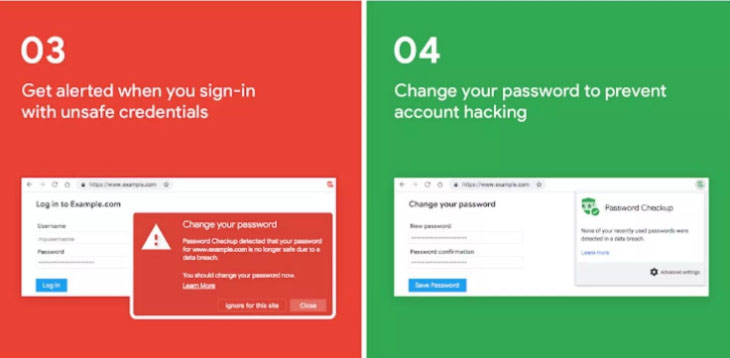
    Password Check up works for Chrome as a chrome extension . It works well for all websites not exclusively for google related accounts . It is not working as a password manager . It actually alerts unsafe passwords and unsafe user credentials without affecting your privacy . This extension doesn’t track user . In case you enter some random username and password the extension identifies if its no longer safe to use . If its unsafe then it alerts you to change / reset password . It check passwords and username have appeared on any third party data breaches as well .

    How to Use Password Check up Extension ?

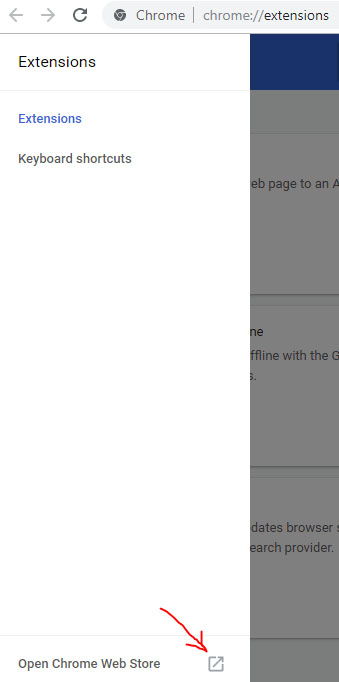
    Let us see how to install password check up chrome extension . First go to chrome extensions .

    Now as show in the image open chrome web store in a new tab .

    Open Chrome Web Store in new tab
    Open Chrome Web Store

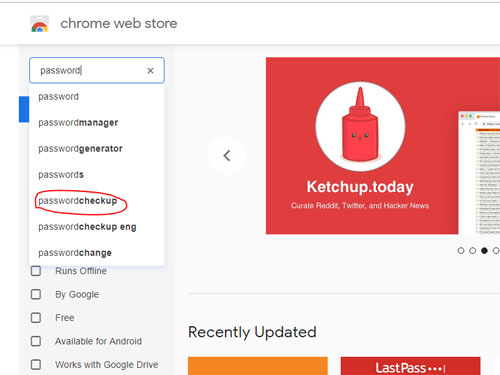
    Now in the search the store box type password checkup .

    search the store for Password checkup Extension
    Searching for Password checkup

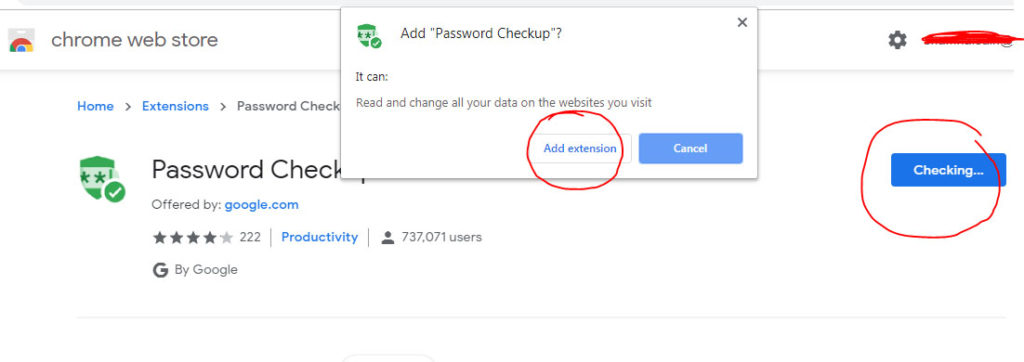
    Now click on Add to chrome .

    Now a dialog box pop ups there click on Add Extension .

    Add Extension for Password Checkup
    Add Extension for Password Checkup

    Now the extension is added to your chrome .

    In the password checkup extension settings you can make necessary setting change like you can limit the use of password checkup for particular websites or even extend it to all sites .

    That’s it hope this is useful to everyone .

  • Google Keep Dark Mode – Enable / Disable The Night Theme

    Google Keep Dark Mode – Enable / Disable The Night Theme

    Google Keep is quite popular among those who love note taking applications . Have you ever felt there is a need for Dark Theme for note taking apps .Then here we go with the Google Keep Dark mode .

    Enable / Disable Google Keep Dark Mode

    On to the main topic , let us see how we can enable Google Keep dark mode as well as the process to disable Google keep dark mode .

    First and foremost thing make sure you are you have updated your Google Keep app to its latest version .

    As of now Google Keep is not offering the exact black theme for its Dark mode . It rather uses dark grey colour . Also Google keep as of now in its initial launch of dark mode is not completely a dark mode app as many of the ares still uses the old light theme .

    Now if you want to use Google Keep dark mode then follow these steps –

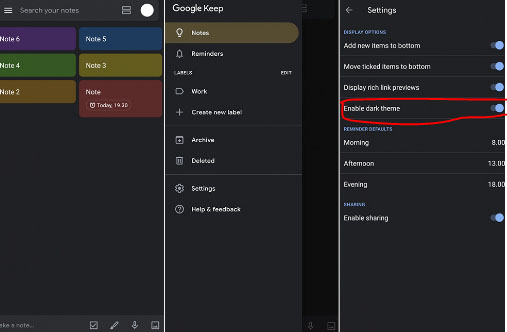
    • First launch to the Google Keep app . And make sure you run on the newest updated version of the Google Keep application .
    • Then Tap on to the settings section of the app .
    • Under the Display Options settings you can find that there is an option given to toggle on or toggle off between Dark theme “Enable Dark Theme “.

    Toggle it on if you would like to use Google Keep on Dark theme.

    It is expected that Google Keep dark theme might get more updates soon with the launch of Android Q . So at that time we can expect to use Google keep Night mode with full features on the dark theme .
    On desktop version to use the Google Keep in dark mode there isn’t any option displayed under the settings as of now . We will update you if there happens any changes in its web version settings . But using a chrome dark mode extension can allow users to enjoy the feel of dark mode to some extend on Google Keep as well .

  • Private Search Engine That Doesn’t Track You Online – Top 5

    Private Search Engine That Doesn’t Track You Online – Top 5

    Privacy is becoming an illusion these days as we are being tracked anywhere & everywhere . This becomes really tough when your Online privacy is like a Utopian concept .You search something online your Browser tracks you , but you can skip it with Incognito mode search . But this doesn’t mean that your searches online is not being tracked . Most of the search engines tracks your search and even your ISP provider tracks your search . How to prevent search engines track your searches ? Simple , get used to the Private search engine that suits you best .

    You might consider using the incognito mode or mend the settings such that you are not tracked but still you can’t be sure that you are not tracked. And most of the times you are tracked in the incognito modes as well. The best way to prevent yourself from being tracked is to use private search engine. There are a number of engines which ensure that you are not tracked.

    Private Search Engine That Doesn’t Track You Online

    Let us take a look at some of the privacy ensuring search engines that doesn’t track you . So what are those best private search engine on the list is given below –

    DuckDuckGo

    It is always counted among the best private search engines. It is the most secure private browser. It does not tracks you hence you are relieved of the tons of advertisements on the webpages. Not only that along with the privacy, it has lots of other cool features.

    It has a number of shortcuts like using right keywords directly open the webpages instead of the search results. Directly perform calculations or open calendar. So overall it is an awesome search engine which provides you with security and cool shortcuts. We have already discussed a lot about this private search engine , if you are new to this search engine , then take a look at the DuckDuckGo Search Engine Tips and Tricks .

    Metager

    Metager provides you with utmost privacy while surfing the internet. The way it ensures your privacy is that it is uses proxy server. This way you can surf any website anonymously means that the site you visit is unable to track your actual address.

    It is based in Germany so was initially launched in German language but was launched in English in 2013. Also it search your queries in 50 search engines and then sort them and then show you all the results.

    Hulbee

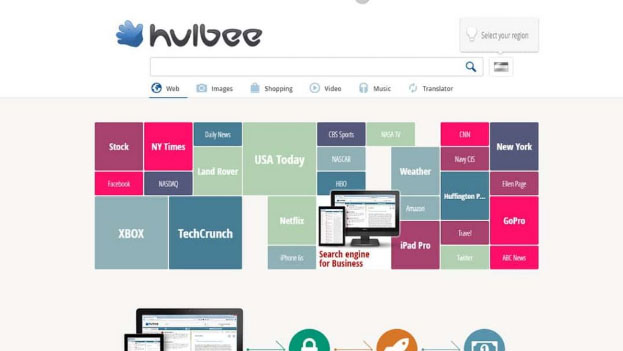
    Hulbee also ensures you with complete privacy while surfing the web. It does not tracks your keywords or anything so that you get any customized adds.

    It also encrypts your data this way even if anyone in middle steals the data is not able to utilize it and hence providing extra security to your data. It comes with an option clean your activity letting you remove your search history completely .

    Disconnect Search

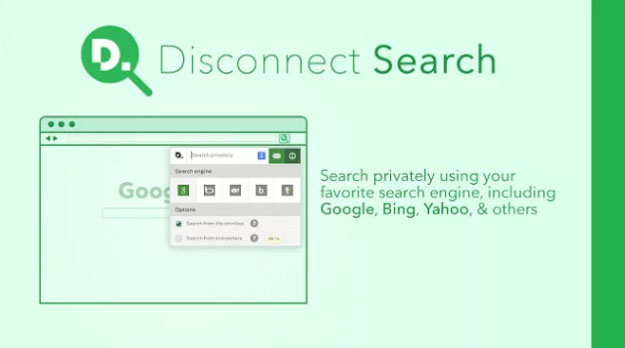
    Disconnect search find answers to your queries from other search engines like Google and yahoo and then display the results to you. You can set the locations for the search to find results which are region specific.

    The best thing about it is informs you which tool is protected or unprotected thus you can use them accordingly. It also never tracks or stores your data or IP address, providing complete security.

    Oscobo

    Oscobo ensures privacy as it never keeps IP address saved after your browsing .Secondly is that they don’t use cookies which is very unusual hence ensuring even better privacy and ensures that no third party is getting my data.

    And it is nearly as efficient as Google and simple to use and adding more features with time. Its extension can be added to the chrome browser.
    Hope you find these list as useful for private browsing . These are best search engine Alternative to Google .

  • Share Google calendar with someone step by step guide

    Share Google calendar with someone step by step guide

    Time management begins with calendar schedules and hope its really the best time to create all your schedules for your next month . Google Calendar is not anything unfamiliar to those who work on proper time management and scheduled calendar . So here we will explain how to Share google calendar with someone .

    What is Google Calendar 

    Google Calendar is a freeware app developed by google inorder to help users around the globe to easily manage their schedules and maintain effective time management . You can get Google Calendar online on PC and its also available to download Google Calendar for Android and iPhone

    You might not be aware that on App store , Google Calendar is one of the top list Time planner iOS apps .

    Google Calendar Logo with date
    Google Calendar – G suite

    Let’s know more about the top Time management app – Google Calendar .

    Read Also : Mock location app for Android & iPhone to fake location 

    Read Also : Google chrome themes that you shouldn’t Miss

    Google Calendar Is Different , believe it or not . Its not like the common calendar you usually find in the time planner apps . You can select different calendar of interest such as Holiday Calendar , sports calendar and so on .

    These Calendar of Interest will help as a reminder on any of your religious festival date , and your favourite football match date etc .

    The Need to Share Google Calendar !!!

    At times we may have to share date of certain events and sometimes we have share the schedules of official meetings that can be easily created on Google calendar and much more easy to share Google calendar events and schedules with someone else . Now we will look at the simple steps on how to share them easily.

    How to Share google calendar with someone

    Its not a tough task to share google calendar with someone else , here is the step by step guide for that task –

    Sharing google calendar is the same process as of sharing documents in Google drive . You can share it either as public / specific people .

    • Go to Google Calendar app and open it .
    • Now look at the left side of the Google Calendar app where you see an option My Calendars
    • Below that you can list of the Calendars that you have created , here for example i am going to choose the calendar Maccablo
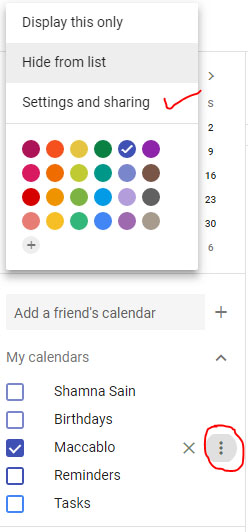
    • Near to the Calendar you would like to share you can see three vertical dots , click on that as you see in the picture given below .
    Share Google Calendar named Maccablo
    Share google calendar with someone
    • Once you have choosen the calendar to be shared and clicked the vertical dots , like the image given below there you get a box opened with an option Setting and Sharing .

    Read Also : Google News Dark Mode – How to toggle on Dark Theme

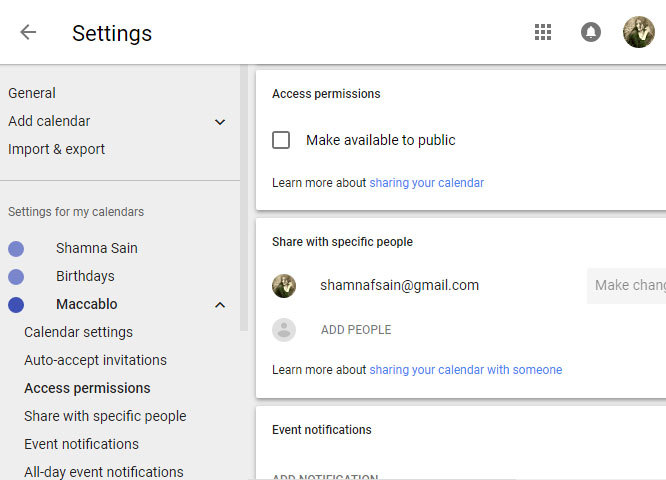
    • Now click on that , you can see an option in the Google Calendar settings page .
    Google Calendar Settings page
    Google Calendar Settings
    • Now choose Access permissions to share Google Calendar with public,  just check mark that box given below make available to public.
    • In case you would like share google calendar with specific people then on the settings page choose Share with specific people option . Click on Add people and enter the email address or email addresses of the people who must get Google calendar access .

    You can customize your Google calendar settings on what sort of events should be shared with other people and the type of permissions they can have .

  • Google chrome themes that you shouldn’t Miss

    Google chrome themes that you shouldn’t Miss

    Google Chrome , your favourite web browser from tech giant Google allows you to choose between a variety of Chrome themes . So here we will discuss out the best Google chrome themes that you shouldn’t Miss .

    Most of you must be an avid user of the Google chrome browser for your daily web browsing and if not you definitely will be aware of it. There are a plenty of options you can choose from as your web browser and Google chrome is one of the most popular options known for its lightweight and user friendly interface besides some amazing features. So Google chrome, your favorite web browser from the tech giant Google offers you a number of terrific and refreshing themes to choose from. Here we are going to discuss some of them but before there is some more information you will like to grasp.

    What is Google Chrome Theme ?

    Technically what themes are that these are additional extensions which you may add to your browser to change the way your browser looks. Also these are added like any other extensions but don’t contain any HTML or JavaScript codes. You can change the look of the browser completely starting from tabs, browser background, and color of the text and much more the way you want. Google Chrome Themes provide a new and refreshing look to your chrome browser.

    Why you should Change Google Chrome Theme ?

    Sometimes you may get tired the way your browser looks and just get bored of using it because of it same old appearance. Here changing theme provides it a new and refreshing look. Moreover you can set the colors of text, tabs, background and much more the way it comforts you, the way you want.

    Read Also : Best Web browsers for Computer & Smartphone

    Best Google Chrome Themes you shouldn’t Miss 

    Here is the list of the some of the best Google chrome themes :

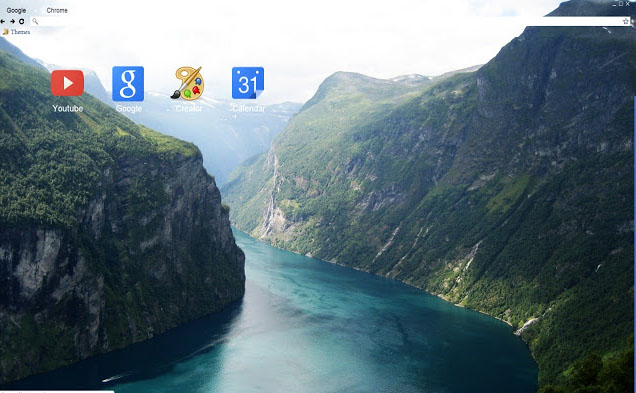
    Google chrome Norwegian Fjord Theme

    Who doesn’t love nature, right? And this theme is definitely among the best landscape Google chrome theme. Capturing the picturesque view of this water body flowing through these mountains in its background is going fill you up with some happy and refreshing vibes every time you are going to use your browser.

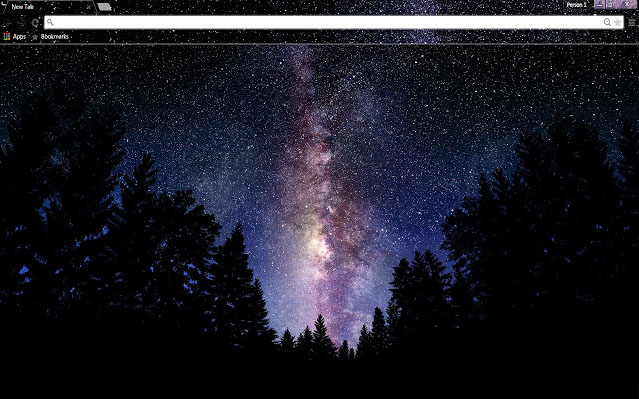
    Google chrome Galaxy view Theme

    This is the best Google chrome theme capturing the amazing colorful night sky full of stars through the trees. This truly captures the essence of the beauty of the night and is just simply going to be stunning as a new theme of your browser. I must say this is one of the best Google chrome themes available .

    Google chrome Plumage Theme

    The vibrant colors in the background are definitely going to make you enjoy using your browser. The background image consists of some intricate and beautiful details and texture. You might think of the color to be too bright but it for sure deserves a chance.

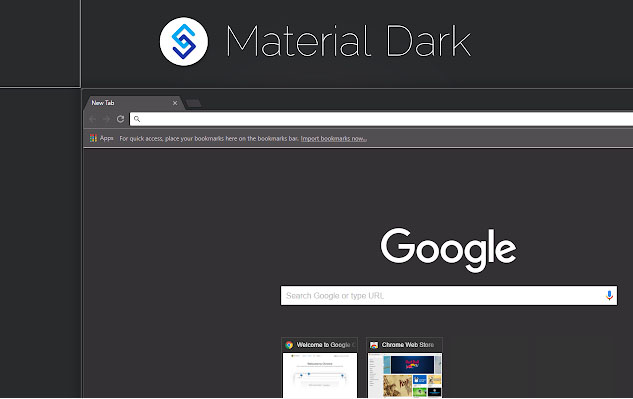
    Google chrome Material Dark Theme

    This theme is counted among the best minimalist Google chrome themes. The background image consists of very little graphics and dark shades of colors. The theme is simple and straightforward. The theme completely satisfies the saying less is more.

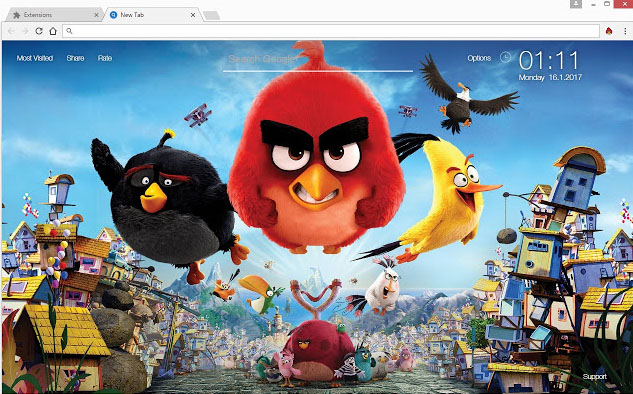
    Google chrome Angry Birds Theme

    This is the best theme for all the angry birds lovers out there. With this theme you can meet your favorite characters every time you will use your browser.

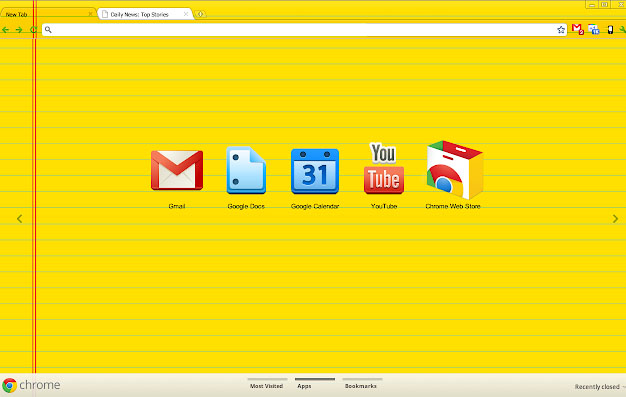
    Google chrome Legal Pad

    Laptops have somehow replaced the use of books and notebooks. With this theme you can get the feels of using some notebook. It’s the best theme for all the students for sure. If you love some bright and vibrant colors, then this theme is for you.

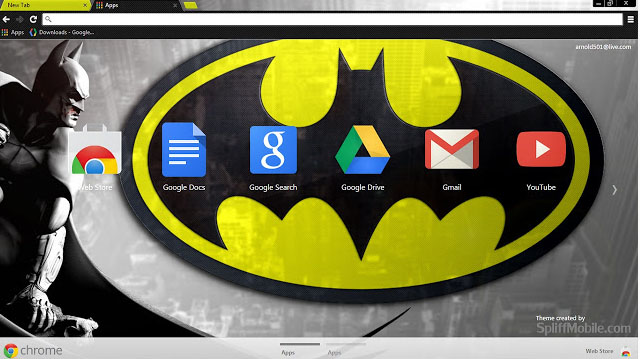
    Google chrome Batman Design

    Batman has a huge fan base across the globe. This is the best Google chrome theme for you if you are a part of this fandom. The theme is minimalistic and features dark colors. And is perfect way to show your love towards batman.
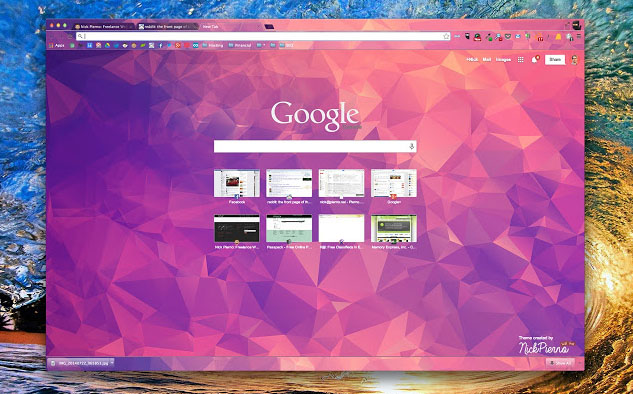
    Google chrome Polytheme

    This is the best Google chrome theme if you want a splash of colors on your browser’s background. The background features geometric designs in multiple but not too bright colors and can be simply beautiful and amazing theme for your browser.
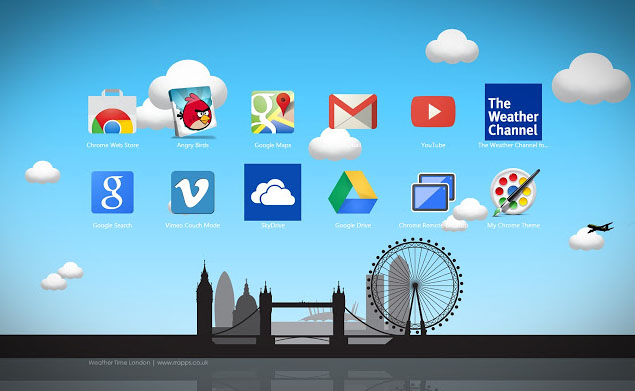
    Google chrome Weather time London theme – Daylight

    The theme captures the essence of London featuring the major attractions of the city. The colors are used in lighter shades and are comforting to the eyes. Indeed a beautiful theme and a must try.

    Google chrome Puppy Love

    If you are a dog lover then this is for sure the best Google chrome theme for you. The background features a top shot of a cute puppy lying on grass. The background is just too cute.
    How to download Google Chrome Themes ?

    You can add Google Chrome theme easily for which you have to download Google Chrome theme following the given steps –

    1. Click upon the three vertical dots present on the top right corner of your screen.
    2. Then click upon Settings.
    3. Scroll down the page that appears to Appearance. Now select Themes and then Chrome web Store.
    4. A new tab is opened displaying all the themes available for you to select.
    5. For information about each theme click its thumbnail.
    6. For installing any, simply click upon Add to chrome.
    7. You can undo it then and there if you don’t like it.

    So your desired Google chrome themes is installed in your browser and the changes can be seen on the browser window.

    Read Also : Best free office software for Computer & Smartphone

    Read Also : The ultimate guide to make Windows run faster (Boost Computer Speed)

    How to remove Google Chrome Theme ?

    The steps to install google chrome themes , let it be any theme its easy right? So are the steps to remove google chrome theme if you just in case want to restore to the default theme. Just follow the steps mentioned below:

    1. Click upon the three vertical dots present on the top right corner of your screen.
    2. Then click upon Settings.
    3. Scroll down the page that appears to Appearance.
    4. Now select Reset to default theme.

    How to Change Google Chrome Theme ?

    The whole purpose of applying a theme is to provide a new look to your browser and the day you get bored of your existing theme you ought to change it. In order to change google chrome theme all you need is to repeat the steps mentioned above under ‘How to install Google chrome theme’. Select the desired new theme and install it. The older one is removed and the newly installed Google chrome themes is put on display.

    Read Also : Connect dual displays / monitors to one computer on Windows & MAC

    How to customize Google Chrome theme (How to create own Google Chrome Theme )

    You can select the theme from the huge and amazing collection available on the chrome web store but still if you don’t like any or just want to create your own theme then that is possible as well.

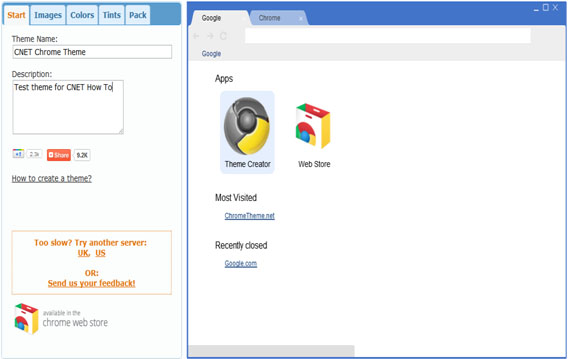
    By following the given steps you can simply create your own customized theme for your browser using Chrome theme creator , so let us see how to make your own google chrome theme :

    • First you need to understand that the left feature all the settings required while on the right side the preview of the theme you are making can be seen. You can set the theme name and add a description whatever you want to
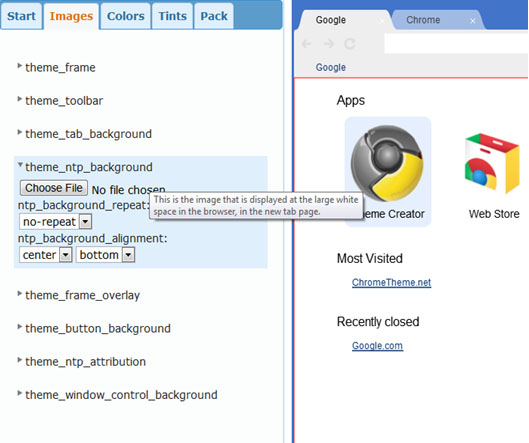
    • The next step is to set all the images for the different parts of the browser. Of you want to set image only for the background then you need to set only the Theme_ntp_background. You select the image file and adjust the alignments. If you want to set different images for the tabs, toolbar etc. then you can select separate image for each section as shown in picture.
    • In the next tabs you can set the colors and tints for the texts and the different sections as per your desire.
    • Once you are done with creating your theme click on the pack and install button. Its installs the theme and displays. If you don’t like the way it turned out then you can go back and modify again.
    • Once the theme is finalized you can download and save it for later use. You can even upload it on the chrome web store and let others use it as well.

    Best google chrome theme creator / google chrome theme makers

    Above you can understand how to create your very own theme using the Google theme creator. There are number of other amazing tools which can be used for the very same purpose:

    1. Theme Creator

    It’s a google extension application. Create some amazing and personalized themes with a lot of ease and share it with others as well.

    1. Theme beta

    Like theme creator, another theme creator tool. Select the images, color, text designs and your theme is ready.

    1. Google chromizer

    It is a web app for creating themes. Works mostly like other tools but there is a tiny restriction, it only accepts images in jpg, png or gif format.

    1. com

    It is another simple tool for creating your custom themes and makes the process quite easy and comfortable for the user.

    1. Canvas

    With all the features available with other tools it has a few add ons. You can set your own images for the tab section and also has a new feature named selfie mode for instantly clicking your pictures.
    1. Stylish

    It’s an extension where you get to edit any theme and get to choose from a huge collection of colors and skins.

    So we can see to provide a completely new and refreshing look to your browser the chrome web store provides you with a decent collection of a huge number of themes and you may now understand that the process to install, change or uninstall any theme is also pretty simple. Google also provide you with the ability to create your own personalized themes. So do tell us which one is your favorite theme and do also mention your experience if you try creating your own custom google chrome theme.

  • Google News Dark Mode – How to toggle on Dark Theme

    Google News Dark Mode – How to toggle on Dark Theme

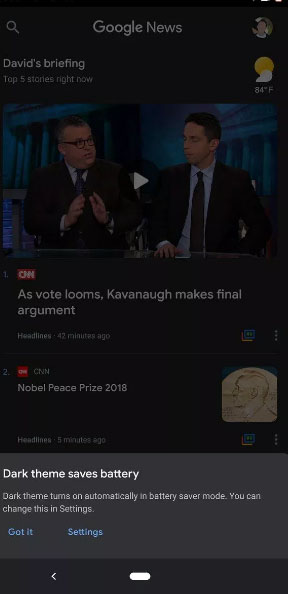
    Most of the websites are allowing users to access Dark theme , now Google news dark mode is available for certain device . As of now not all the device is getting this feature but  it is expected to be available for all devices soon .

    The tech giant Google’s one of the successful product is the news aggregation site and app . Now Google news Android will have dark theme as it is official from the sources . You may be aware that YouTube Dark Mode for Android was already released and we have discussed out the ways to use the same . Now here we will discuss on how to use Google News Dark Mode on Android .

    Google News Dark Mode – How to toggle on Dark Theme

    We already have discussed a lot about what exactly is the dark theme or dark mode for any website . Generally dark mode enables rich visual experience , that too especially in night or in low light time. Once you enable dark mode , then automatically the website or application goes to a reverse colour scheme . Thus turns to grey or black background giving more readability and visual experience than the white background . This can be good for your eyes as well just because it reduces the strain for eyes.

    Now Google News Dark mode Android is open for some of the devices , not sure the list of device name will be updated . As of now Pixel 2 XL Google News Dark mode is the confirmed device to discuss about the feature .

    Read Also : Enable Reddit Dark Mode : How to turn on Reddit Dark Theme

    Read Also : Google Datally App to Control Mobile Data & WiFi Finder

    Read Also : Google Maps List Create, Share and Edit on Desktop & Mobile Now

    What is Special about Google news dark theme ?

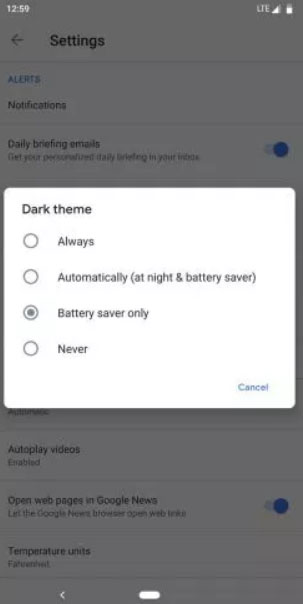
    Being tech giant Google always will give something more in all their features , same applies to this feature also . In Google news Dark mode it allows the users to pick up between 4 wide range of options such as –

    • Enable Dark Mode Always for Google News
    • Enable Dark Mode Automatically for Google News at night and battery saver time
    • Enable Dark mode only while on Battery saver mode .
    • Never Toggle on Dark mode ( Disable Google News Dark Mode )

    So the above listed out are the four options available where users can customize when do they really want to opt for google news dark mode as per their choice .

    Read Also : Google Pixel Haptic Feedback / Vibration Mode Enable or Disable

    Read Also : Disable / Enable USB Debugging on Google Pixel

    How to Turn on Google News Dark Theme

    You can turn on google news dark theme from the device settings with these steps –

    1. Go to device home screen
    2. Now select the setting option
    3. From settings find the Dark Theme
    4. Click on that
    5. Select the mode of Dark theme from the given four options
    6. Select Automatically / Always based on your choice to toggle on google news dark mode

    That is it , this is how you can use google news dark theme on android .

    How to Turn off Google News Dark Theme

    In order to turn off google news dark theme , you can disable it by following the same steps as given above up-to step 1 to step 5

    Step 6 – Click on Never 

    You have disabled Google news dark mode for your device

    So that is all about the Google news dark theme , do let us know your comments on this .