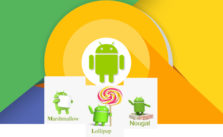
Android has won hearts of millions of people because of its salient features and new android version updates . Every time Google has something sweet as dessert when it comes to Android update . Can’t say any of the Android was a flop . Because we can still find device that are actively running on its old Android OS version . Now the latest in the Android OS release is the Android O or Android Oreo but still as i said we can find other Android OS devices. So people should still have a confusion on knowing about their Android OS . So to know better about something always a cross comparison can do a great job . So here is the cross comparison between different Android OS – Android Oreo Vs Android Nougat Vs Android Marshmallow Vs Lollipop . And much before version is Android Kitkat we think everyone has moved from that
Android Oreo Vs Android Nougat Vs Android Marshmallow Vs Lollipop
So let’s begin to familiarize with the different Android OS on the comparison list . So we can understand how things matches and differs with Android Oreo Vs Android Nougat Vs Android Marshmallow Vs Lollipop .
Let’s begin with the most recent ones – Android Oreo Vs Android Nougat
Android Oreo Vs Android Nougat
Here is the comparison between Android O Vs Nougat.
Android O
Android “Oreo” (Android O) is the eighth major version of the Android mobile operating system Preceded by Android 7.1.2 “Nougat”. The name “Oreo” is a result of partnership between Google and Nabisco,the world-famous cookie producer.
Before going to in depth comparison between android OS versions -Android Oreo Vs Android Nougat , we will see features of different android OS.
Android Oreo has Picture-in-Picture, AutoFill, Wi-Fi Aware, multi-display support and smart disk space sharing as noteworthy features.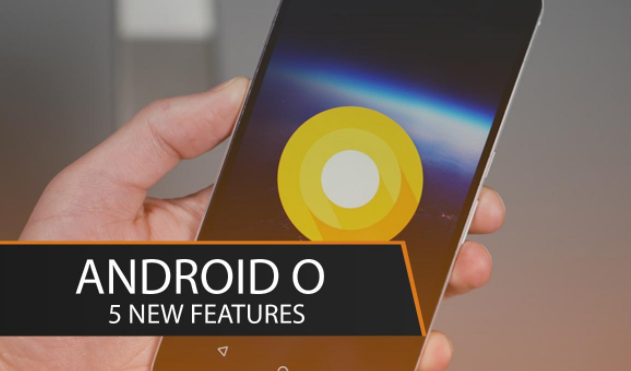
Picture-in-picture (PiP) mode : This is a kind of special type multi-windows mode. PiP mode was available for Android TV but Android Oreo brings the feature available to mobile also.
Autofill Framework : It is specially designed for filling out the forms, such as login and credit card forms, much faster and easier.
Wi-Fi Aware(Neighbor Awareness Networking or NAN) : Android Oreo supports the mechanism for finding other devices in close proximity and also the ability to establish a bi-directional Wi-Fi Aware network connection between them, without using a “traditional” Wi-Fi access point unlike done previously.
Smart disk space allocation : We encounter problems of running out internal space every now and then, Android Oreo helps improve this by implementing a per app disk space quota for cached data. When the system run out of space and needs to free up some, it will start by deleting cached files from apps that have exceeded their allocated quota.
Snooze notifications : With those many perks Android 8.0 also allows you to snooze individual notification groups for 15 minutes, 30 minutes, one hour or two hours.
Android Oreo Vs iOS 11 is the rising trend on the market . So if anyone reading this has a love for Apple iPhone latest OS then wait till the release date of new iOS (iOS 11) . Before that you can get familiarize with the exclusive features of Android Oreo .
Android Nougat
Android “Nougat” ( Android N ) is the seventh major version of the Android operating system Preceded by Android 6.0.1 “Marshmallow”.
Android Nougat is the version in the android series developed by the giant Google this has excellent features that can make one to forget the previous marshmallow and also it contains extended features.
Read Also : Android boot Fix – Steps to Try When Your Android Won’t Boot
Nougat introduces change including the split-screen view to display multiple apps on-screen together,support for inline replies to notifications, and an expanded “Doze” power-saving mode that restricts device functionality once the screen has been off to optimize battery performance.
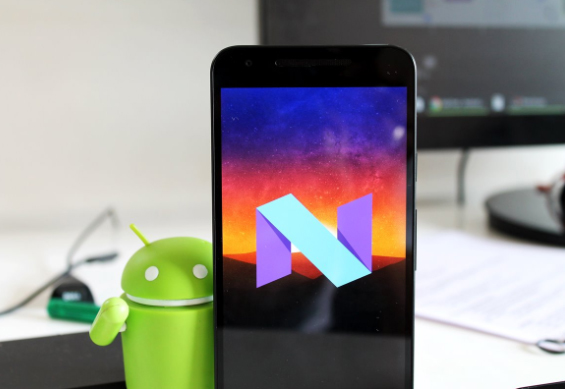
Night Light mode on Android Nougat turns your display an amber color,
it does cause less eye strain in dimly lit environments.
Most Android have had the feature to set one image as a lock screen wallpaper and another as your home screen wallpaper long ago, but Google annexed this feature in Nougat.
Read Also : Android Vs iOS – Pros & Cons of Buying Android Vs iOS
Night Light mode on Android Nougat turns your display an amber color.
It does cause less eye strain in dimly lit environments.
Now we have seen the features of both now will go to the actual comparison Android Oreo Vs Android Nougat.
Comparison Features of Android Oreo Vs Android Nougat
Battery Life– Oreo vs Nougat
In Lollipop, Google has tried making innovation by minimizing battery consumption. With Marshmallow they introduced Doze, which put devices in a state of deep sleep to save battery and in Nougat its further improved with Doze on the Go .
Quick Settings – Android Oreo vs Nougat
Among Noticeable visual changes in Oreo compared to Nougat has , is Quick Settings area. While Nougat had the dark and light gray combination for the Quick Settings panel, Oreo altered it out and It’s now white, compared to Nougat’s muted gray.
Read Also : Google Traffic : How to check traffic to work or home
Notifications – Oreo vs Nougat
If you disable notifications for any app on earlier versions it would block all notifications from the app. Which means critical notifications would also not come through. With Oreo, you can disable notifications individually of any app so that you don’t get spammed but at the same time you don’t miss out on any critical notifications.
Read Also : Battery Health : How to keep your phone or tablet battery healthy
App Interaction – Oreo vs Nougat
Notification Dots which is the new way of interaction has made taking actions against app easier than ever before. You will get to interact with the app by a long press on its icon.
It lets user to set custom importance levels for notification groups.
Each group has four levels of priority.
- Urgent: sound and notification pops on the screen.
- High: sound and places a notification in the bar.
- Medium: No sound, but a notification is still placed in the bar.
- Low: No sound or visual interruption—a silent notification.
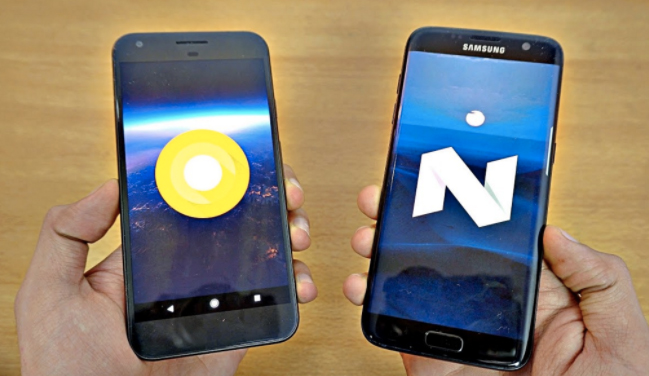
Installing Apps from External Sources– Oreo vs Nougat
Oreo aggravates security when it comes to downloading apps and giving free hand to them.In Android Oreo you can individually grant or deny permission to each App.
Improvements to the Android Runtime– Oreo vs Nougat
In Android Oreo , the runtime and app loading is faster as much as twice than it was previously in Android Nougat. Animations such as swiping down to reveal the notification appear to have been tightened up, which gives the impression of speed ,however there’s not much difference in other aspects such as switching between applications etc.
Read Also : Backup Android Device to PC or Google
App Shortcuts vs Notifications Dots– Oreo vs Nougat
Notification Dots makes interaction with apps way more easier. Whenever you get a notification from an app it will be shown by a dot , you need to long press the icon to see the exact contents and perform actions you wish against that.
We have seen about the comparison between Android Oreo Vs Android Nougat.
Android Nougat Vs Android Marshmallow
Let’s rake up and see what Google added to the repertory of Nougat and where it scored more than its predecessor.
Battery performance —Nougat vs Marshmallow
The most annoying thing for Android users has always been battery drain but Google didn’t disappoint in dealing with this problem and has shown its allegiance to Android users. It has added a Doze Off feature which saves your battery whilst the phone is not in use. You no longer have to bother about closing the apps that keeps running if you have forgotten to do so since this feature takes good care of it.
Read Also : Fix “Voice search has been turned off” error for google now
This battery saving feature was introduced in Marshmallow and is refined in Nougat.
In Android 6.0 Marshmallow , Doze activates if the phone has been stationary for a while. Unwanted features like searching WiFi In this state are disabled. For example, instead of Facebook Messenger keeping your phone active all day, it will be forced to perform in intermittent manner.
Whereas in Android 7.0 Nougat Google refined this feature and it will activate itself if your phone’s screen is off. In this mode, wakelocks are still allowed, and the phone will still search for GPS or Wi-Fi signals, but cell network access will be disabled. This will give your battery a pretty big bump over time.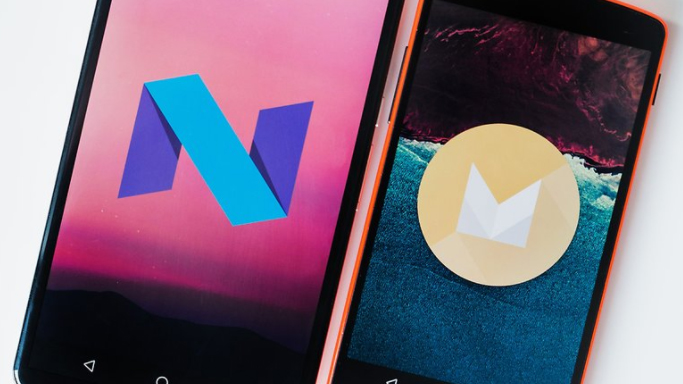
Multi Window support or Split screen—Nougat vs Marshmallow
This is the noteworthy aesthetic change that makes Nougat standout. Since now the people are preferring bigger screens and plenty of apps in their mobile phones , this is a sagacious move from Google. You can operate on different apps without switching from one to another as the apps can be snapped to occupy halves of the screen. This takes multitasking to another level and gives completely different feel but Google bought it no sooner than Nougat.
Other Aesthetic changes,
1 the keyboard that can change color , you can also embed an image of your choice in the background of it.
2 RGB settings to adjust the tint on the screen.Screen Tint Adjustment can be used to adjust screen with color tints.
3 dpi setting adjustment to expand or compress texts and icons as preferred.
Read Also : Google Pixel WiFi Calling Enable and Disable
Notification Panel—Nougat vs Marshmallow
Badly needed feature and fulsome thanks to Google for neatify popping notifications.This will allow users to view notifications from different apps in a sorted manner.This means notifications from same app will be bundled together just like an unshuffled deck of cards.You can reply to those email, message notifications separately and expand notifications to the least like never before.
Android Marshmallow Vs Lollipop
Lollipop features a redesigned user interface built around a responsive design language referred to as “material design”. Other changes include improvements to the notifications, which can be accessed from the lock screen and displayed within applications as top-of-the-screen banners.
Now you can flick up notifications to place them back to the Notification drawer without dismissing them entirely.
In Android Marshmallow, you can select a bluetooth profile or a wireless network from the drop-down panel itself.
Android Runtime (ART) replaced Dalvik for improved performance of applications.
Read Also : Google Pixel Haptic Feedback / Vibration Mode Enable or Disable
Security — Marshmallow vs Lollipop
Android 6.0 has also come up with “Biometric Fingerprint support”.If a user wants then device can only be unlocked by fingerprints. Whereas this option is not available in Android Lollipop.
Android 6.0 has user defined control over some app permissions. This means users are in control of whether or not an app has access to something such as their microphone or camera.
Read Also : How to Use Google Assistant on Android Devices (Without Root)
Status Bar — Marshmallow vs Lollipop
Users can remove any unnecessary icons from status bar through system tuner in Marshmallow as in Android Lollipop there were icons that remain active in the notification bar all the time which irritated the users.
Ram ManagerAndroid — Marshmallow vs Lollipop
Android Marshmallow has brought a change in RAM manager now users can see which app is deteriorating the device performance and which app is using minimum and maximum amount of RAM.
Volume Controls — Marshmallow vs Lollipop
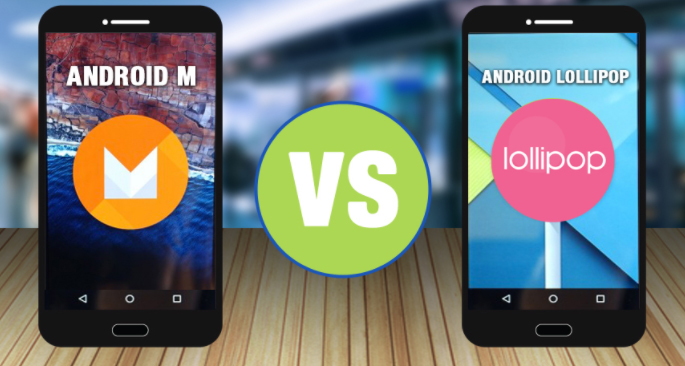
In Android Lollipop, users have to tap volume up and volume down to alter the volume but in Android Marshmallow there is a drop down option to let users to set the volume for notification, system volume and alarm. These volume controls will allow users to individually set the volume for apps, music and alarms.
Read Also : Android: Prevent apps from running at startup(Stop/Disable Apps)
Each Android release bought something new to its users because it’s obvious that we expect something better from earlier versions. Each of them might have lacked some virtues but neither of them can be termed as a flop as there are still huge number of devices that are still running on older versions.
Android Oreo seems scoring Home-Run over other versions when it comes to being handy, nimble ,secure and is the best among others served to us at least by now , but nothing lasts forever and there’s always a possibility of improving otherwise Google would have ceased releasing Android versions long ago if any of them had reached perfection.
Read Also : Google Pixel Dictionary – Add words / Phrases to Dictionary
So far Google is successful in living up to the expectations as Android is still the blood and bone of majority of devices and it’s no bad reason for taking proud.
There are plenty of reasons that Android would be surging in future, But “Perfection” is subjective and spec and feature list is not enough to make an idea of how good an Android really is or is it the best to each minuscule trait it has got.
So hope you have got a clear comparison idea about the different Android OS – Android Oreo Vs Android Nougat Vs Android Marshmallow Vs Lollipop .