Tag: android boot

  • Android boot Fix – Steps to Try When Your Android Won’t Boot

    Android boot Fix – Steps to Try When Your Android Won’t Boot

    Android boot fix steps to try when your android won’t boot

    This article we will focus on the steps to fix android when it is not able to boot , so you can read step by step to do Android boot Fix

    If your favorite android device decided to take a vacation and  android not boot properly then this condition is not acceptable and the idea of troubleshooting it is in itself haunting. The solution to this puzzle could be related to either an errant app or a corrupted Android OS or in worst case bad hardware.

    Android boot Fix steps

    Here are the steps you can take if your Android won’t boot.
    1) Soft Reset Android boot Fix

    • Your android phone might need a soft reset to boot. On majority of the devices you can press and hold the Power button for about 15 seconds to soft reset/boot. This way you can do Android boot Fix.

    Read Also : Enable / Disable JavaScript : Mozilla Firefox Hacks

    2. Pull out the battery

    • For nearly every problematic issue where an android device would not start I always suggest to pull out the battery (only if it is removable so never go to extreme lengths at start) first and leave it sunlight for time nearly about 20 seconds and then reinstall the battery and see if the issue of boot persists.  

    Read Also : How to Use Google Assistant on Android Devices (Without Root)

    This particular step could seem like it would not work but I know for sure that it has helped numerous android users.

    3. Verify for Stuck Buttons

    •  In certain case it can cause the Volume,power,home buttons to stick which prevents the start up/boot. So try to remove this case of not being able to boot.

    4. Try a Soft Reset

    • On majority android phones you can simultaneously press and hold the “Volume Down” and “Power” buttons. Keep pressing them for a time of nearly 20 seconds to soft reset/boot the phone.

    Read Also : WhatsApp Exclusive Guide – Everything about WhatsApp Features

    5. Remove Connected Hardware

    • By any chance if you have an SD card, otg-cable or any other items plugged into the device then unplug them. A bad/corrupted SD card or headset could cause issues. Though this are on rare occasions it could stop your boot.

    6. Ensure Device Has Enough Power

    • In this case your device would not turn on at all or maybe is stuck in an infinite startup loop/boot. It may not have enough power so attach the power adapter to the your phone and then plug it into a wall outlet. Remember not to use a connection to a computer or any other device because the power you would get is not suffice to power majority of android devices in the right away and could affect the boot.Another issue could be the actual battery(about which we talked earlier). To see if you can borrow a battery from a friend with a similar specification and give that a try for a boot. Though you may want to purchase a new one or maybe try a used battery out. You can also return the battery to the store if it does not help(if it is in the warranty period).

    Read Also : Improve The World With Smartphone -Top 10 Hacks

    7. Start Android in Safe Mode

    • If you have installed a particular app that either is not compatible with your device or malfunctions then it could cause the system to hang at a blank screen or continually force to close items stopping the boot process. In any case you will want to find out how to start your device or boot in Safe Mode. Safe Mode will start the device with only the basic OS required to start the device. This will usually allow you to access the android OS so that you can remove whichever app that may be causing the issue for boot.Since most devices start in safe mode by simultaneously pressing and holding the Menu or Volume Down button while you power to the device is on. If you are not confident on how to start your particular phone in Safe Mode then search the google. You can also check the documentation provided with your Android phone especially for boot.

    8. Factory Hard Reset Android

    • Alas! if you have tried every of the above steps and no option seems to work then you might want to do a factory reset operation on your phone for a boot and mind you doing so will wipe all data from the memory of the phone(usually not SD card data like music or photos).There are many different ways to perform a factory reset with a hardware button combination just before your phone’s android system loads. Look in your manual or search for what the button combination is for your particular device. They are different for almost every different phone. Only if you are not confident on how to factory reset your device. Check the documentation provided with your phone(the manual you probably never read).

    9. Repair

    • After trying everything if none of the above steps work then there may be a hardware issue that you are most likely unable to solve for yourself which is stopping your boot process. At this point I would seek help from the manufacturer or the retail store that sold you the phone. It is

    These are the steps to try when android doesn’t boot and thus will help your android to work well smoothly .

  • Android: Prevent apps from running at startup(Stop/Disable Apps)

    Android: Prevent apps from running at startup(Stop/Disable Apps)

    Android: Prevent apps from running at startup(Stop/Disable Apps)

    I have been installing too many apps on my Android device(after all what’s the point of having an android if you don’t have all the apps you might need). The device performance became slow and choppy(which make’s me mad occasionally and some days frequently). Digging deep I realized there were tons of android apps(out of a millions i installed) loading at startup and most of them had no setting to prevent apps from running at startup.

    Android OS is cool enough to kill all your low priority background apps and free up your device’s precious memory. Though there is no built in feature to control this there are some solutions that would help you to control or disable already running apps if necessary(“necessary” that is basically the reason you are reading this).

    Luckily there are some good and effective solutions to permanently prevent apps from running at startup.

    Now there are 2 ways for this:

    1) The boring technical ways(for technology enthusiasts)
    2) Completely Automated(install an app for preventing apps to load startup)

    1) The normal unanimous boring technical method(for technology enthusiasts)

    Lets begin the little boring technical way itself . After all a technology related problem should be given a technical solution .

    1st Method: Dynamically Freeze Apps

    There are some Android devices that specially provide a way for you to Freeze apps which is also known as Disabling app though this feature is useful for those apps that came with your device and cannot be uninstalled(if you still remember them).

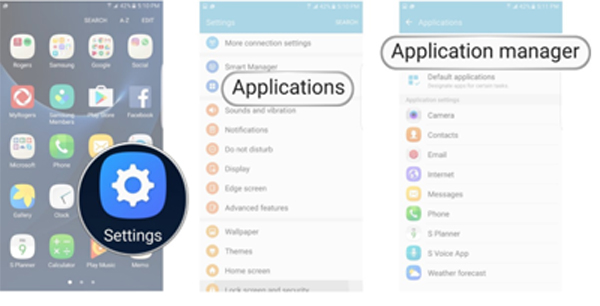
    You can generally freeze an app with these simple journey of steps:

    i) Open Settings > Applications > Application Manager.
    ii) Choose the app you wish to freeze.
    iii)Select either “Turn off” or “Disable” depending on your priorities.

    Important Note: Options can(will definitely) vary depending on the device you own and version of the Android OS you are running.

    2nd Method: Startup Cleaner

    Again some Android phones have this special feature. The app comes pre-installed. The app runs dynamically when you click on it and prevents selected apps from running when you boot your Android device. Follow these simple steps:

    1) You can find it by searching in your Android phone for startup.
    2) Launch the app and tap the minus (–) symbol next to all the apps you do not want to run at your startup.

    If android failed to boot you can also fix it easily.

    Important Note: You would just want to disable items listed under the User tab. Be sure you know what you are doing if you disable items under System but since you got here I expect you to be with some technical background.

    That is all my friends and Now the selected apps would not run whenever you restart/boot/root.

    Read Also : Best Apple Watch Alternatives-Affordable Gadgets

    Read Also : Best Truecaller Alternatives to find Caller Identity

    Read Also : Best free calling Apps for all Smartphones

    2) Almost Intelligent Apps(Not as much as us Obviously)

    A well designed/developed task manager can easily list all the running tasks on your phone even if they are in background. This includes system process and tasks and foreground running apps(basically everything).

    I personally picked a special list(Just for you my friends) of apps from our beloved Google Play Store which are capable to accomplish this task for you. These apps can control all your running android apps and can even stop or pause current running apps or system apps including process and manage background apps intelligently (Just like your Smartphone).

    Read Also : WhatsApp Exclusive Guide – Everything about WhatsApp Features

    My First Favorite App: Advanced Task Manager

    Advanced Task Manager is special task manager designed to kill tasks(murder them), free memory which speeds up your phone saving battery life and offer just one tap to boost your phone.

    Advanced Task Manager’s BoostIt can kill selected tasks while monitoring CPU lagging apps also optimizing your Android apps. It auto kill’s tasks on almost every screen off. All this while showing battery life and cleaning & boost device memory.

    Read Also : Safeguard Facebook Pictures-Prevent profile picture downloading

    My Second Favorite App: All-In-One Toolbox (Cleaner)

    All-In-One Toolbox is a special Android cleaner and memory optimizer app equipped with as many as 29 Android system tools. It is designed to clean up junk files and boost memory, protect private info and speedup your Android with just a one tap on cleaning and process killing.

    It can help you to disable running apps from system boot making your system run fast and boost speed up. All this by killing running tasks whenever device slows down or freezes(so it itself run’s in start up). It can disable unwanted startup apps from system boot and keep Android device running at optimum speed.

    Read Also : Improve The World With Smartphone -Top 10 Hacks

    My Third Favorite App: Smart Task Manager

    Smart Task Manager is an all in one system app which can manage many different Android tasks, Application, SD card, Device and System Information in one single shot. This app can display list of service, background, empty applications and service process and this application show’s you the detailed information of any particular apps like restricting process, boot, delete and some more detailed information including execution of application, update, data usage, evaluation and other details.

    Read Also : 10+ Best Alternatives to Whatsapp you will love this year

    My Fourth Favorite App: Startup Manager

    Startup Manager basically aims at either disabling or enabling startup items from system boot. Android devices which includes most smartphones and tablets can be utilized to see all the system processes that start with main Version of boot from system tabs(better try not to mess with them since it could be potentially harmful). Some processes may not seem necessary to start due to our normal natural using habits and preferences.

    You can simply check and uncheck the processes if and only if you know well about the after effects of disabling them because this app can analyze and monitor all android services (containing many of the user applications along with android processes) in the foreground and can easily stop any apps from getting auto started at your device’s boot.

    So concluding all these researched pieces of precious information and all the required information given above I would like you to have the required details. Once you’re done, then experiment any of the apps since they all pretty much do the same things in this case. Though do not mistake to take apps for granted since they could cause some serious damage to your phone. So be wise and keep sharing.