Tag: social media

  • Safeguard Facebook Pictures-Prevent profile picture downloading

    Safeguard Facebook Pictures-Prevent profile picture downloading

    Safeguard Facebook Pictures-Prevent profile picture downloading

    Lucky for you that Facebook has introduced brand new protections for profile pictures for users especially in India. All this in a bid to stop people from downloading, sharing or illegally misusing their personal profile pictures. There is an option for users to Safeguard Facebook Pictures through the new system. It will ensure that others can not copy, share or download their personal profile images. This will prevent strangers from tagging themselves in the image.

    Notifications for Safeguard Facebook Pictures

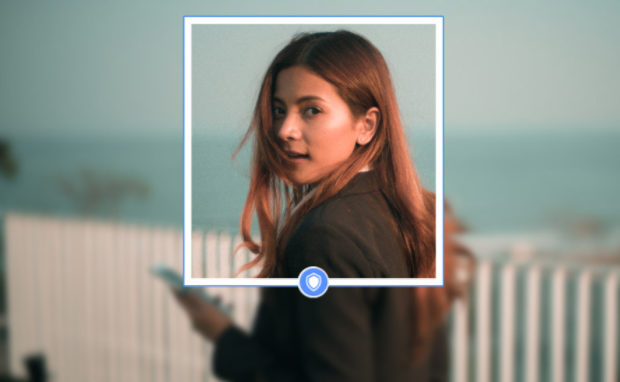
    Those individuals who will opt in will get a special blue shield border around their image. On android phones(which are most popular and widely used in majority of the Indian market) Facebook says it will prevent users from taking screenshots of individual’s profile images wherever and whenever possible.
    Facebook Safety on themselves posted on Wednesday, June 21, 2017 saying

    They say that it was inspired to offer this special tools after hearing from various different Indian social and safety organizations that some women especially in the country particularly elected not to upload personal pictures including their faces on the internet. These tools were developed with a joint effort with a range of those organizations and different tests indicating the kinds of things that would cut down on the misuse of profile images. For instance Facebook says that something as simple(mind you simple by Facebook standards) as adding a special design overlay to a picture means that others are almost 75% less possible to copy it.

    Read Also : WhatsApp Data Sharing Disable Methods to Protect WhatsApp Data

    So exactly how can design of overlays increase security

    Users have now power to add those layers quickly using Facebook’s system. The tools are less likely to cut out the copying of profile pictures overnight. While Facebook claims it is doing everything in it’s power to stop people from screenshot the profile pictures via Android. Users could still take screenshots on laptop or desktop and the new blue shielded border is a visual cue of protection rather than any other difficult barrier.

    Even though tests have shown that uniquely simple additions can deter opportunists. The tools are a potentially useful option for specific Indian users. As of now Facebook has not yet indicated whether similar measures will come to other countries.

    Read Also : Android boot Fix – Steps to Try When Your Android Won’t Boot

    Keeping your profile pic safe

    Soon after Facebook launched the profile picture guard in India. It would give users more control over who can download and share their personal images several women users have started protecting their display photos.

    Steps for safeguarding your profile

    On the Facebook mobile app you will see a new notification on the top of your News Feed asking to secure your profile picture. Refresh your news feed if it does not show when you log in.

    Once you accept the terms a box will pop up saying “The Profile picture guard would help keep your current photo more secure on Facebook in three ways.”

    1. Keep off creeps
    2. Keep off creeps
    3. Keep off creeps

    So now unknown stalkers would no longer be able to download or send your profile picture in a message anywhere on Facebook. Facebook also claims that it would virtually stop strangers from taking a screenshot of your profile image on Facebook wherever and whenever possible. Though the feature is currently only available for Android devices.

    Conclusion: Shield protection effectiveness

    So how trust worthy these tools are?
    You have to note that there is no 100% effective way as of now to hide your profile picture currently.It is always public by default(what’s the point of uploading if you don’t want to share). These latest methods by Facebook can surely discourage the misuse of the profile picture but would not weed out the problem from it’s root. So for undoubted safety add options to restrict the viewing of profile pictures just to friends and friends of friends only.

  • WhatsApp Stickers – Create custom Personalized Whatsapp Stickers

    WhatsApp Stickers – Create custom Personalized Whatsapp Stickers

    WhatsApp is definitely among the most famous online chatting app and is used worldwide. Also WhatsApp regularly roll out new updates featuring bunch of new features with every update. Like WhatsApp stories have been introduced, earlier voice call and video call were introduced, like deleting sent messages on WhatsApp and many more. The latest features introduced by WhatsApp is the WhatsApp stickers.

    Earlier smileys were present but now chatting can be even more fun using the whatsapp stickers. This feature was long awaited since almost all its competing platforms such as Hike and Telegram had this feature. Since the feature has been introduced only recently not a wide range of stickers are available but the problem can be solved by creating your own custom stickers to express yourself even better. Of course you have to use third party apps for creating custom stickers.

    One such app is Sticker Maker and believe me the process is pretty simple to implement as mentioned below :

    • Obviously firstly you need to install the app named Sticker Maker on your smartphone.
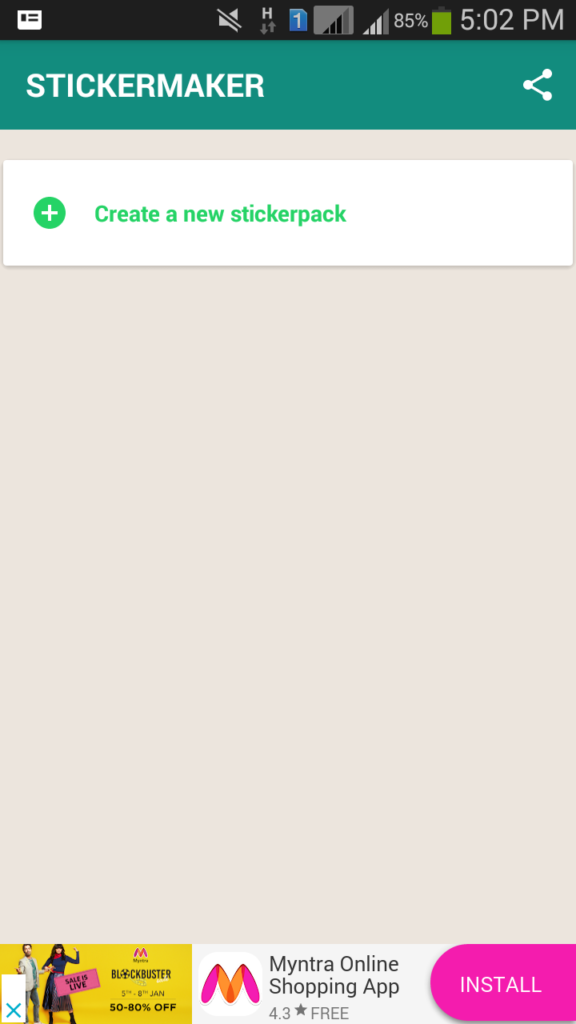
    • After you install the app, as soon as you open the app on the screen that appears, click on the option Create a new stickerpack.
    Stickermaker for WhatsApp
    Stickermaker
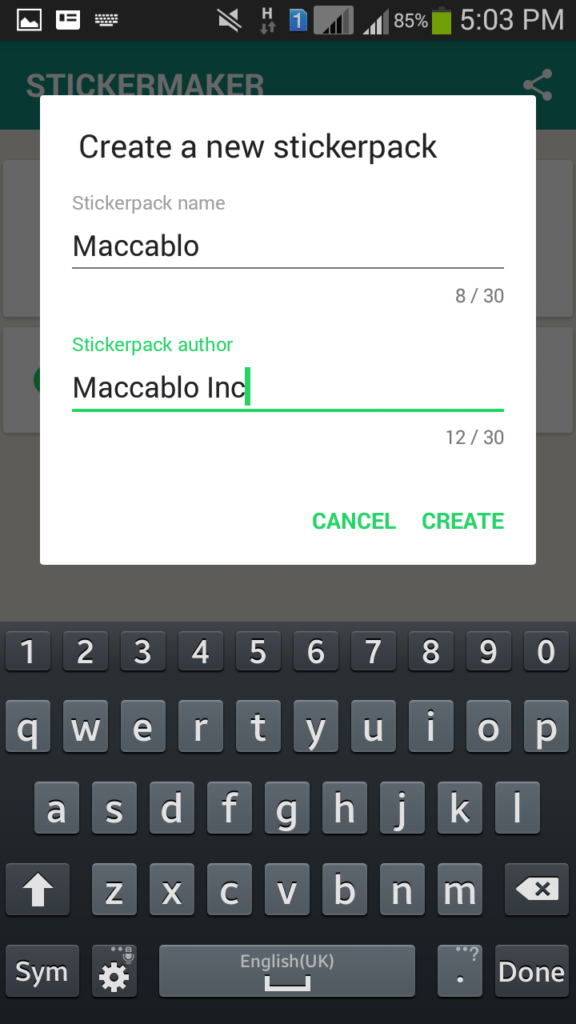
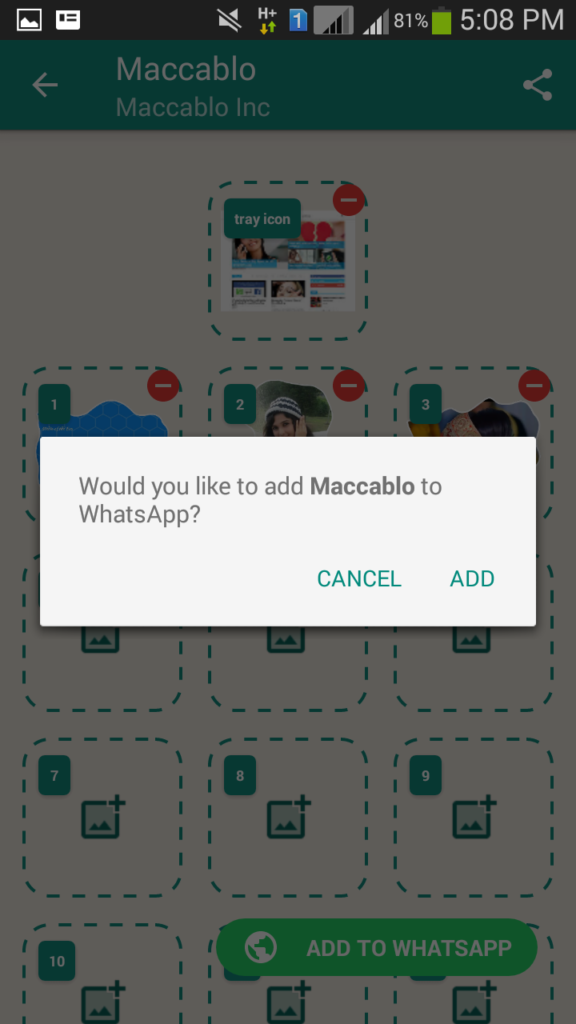
    • Now give a name to your stickerpack .Just like we have given our stickerpack name here as Maccablo .And Sticker pack Author name as Maccablo Inc.
    Creating Custom Stickers on Whatsapp
    New Stickerpack
    • Then you need to create a sticker which will be like the icon of your sticker pack which you can’t use, you can only use the stickers which are present in the slots. Each pack can have at most 30 stickers.

    Read Also : WhatsApp Security Scams and How to Protect Yourself

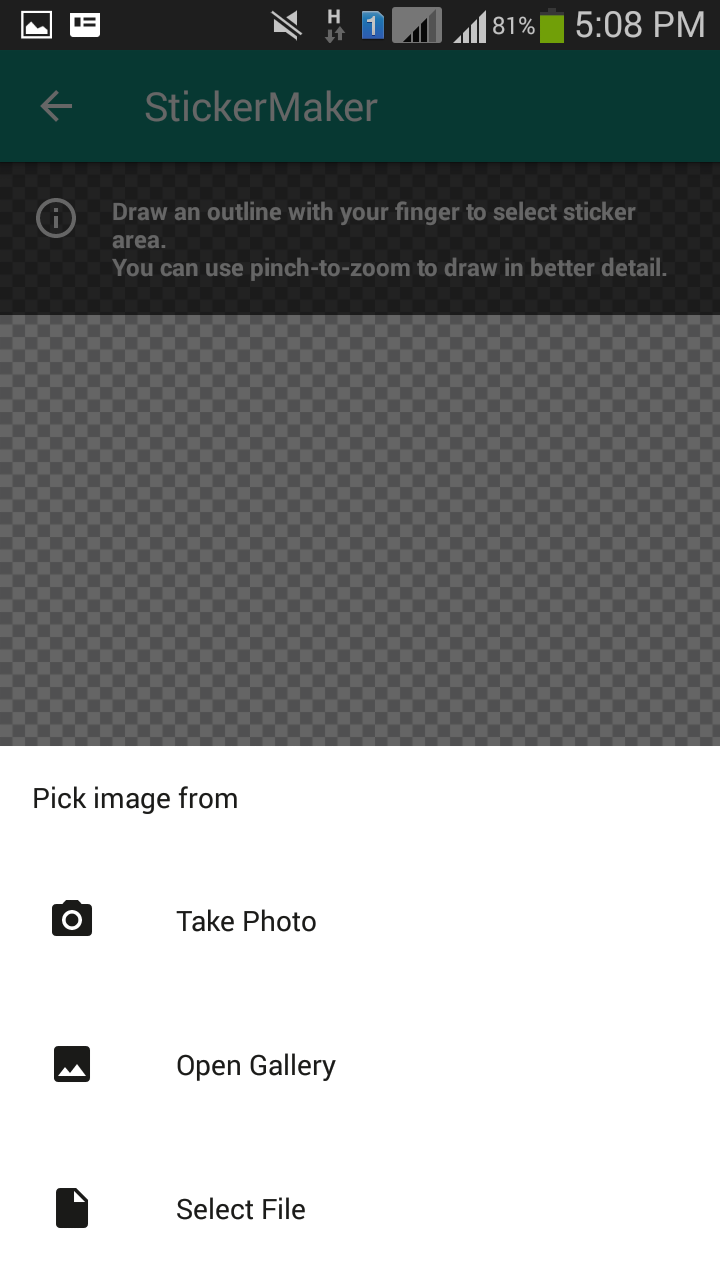
    • Inorder to create sticker choose the file you would like to make sticker from your gallery and you can cut it or freehand draw it and save it as sticker . Just like we have chosen an image of Maccablo logo from my phone Gallery .After selecting it i have chosen to use freehand cut and draw a shape . Those enclosed in the line became my new personally customized sticker.
    New WhatsApp stickers
    • Once you are done showing all your creativity, I mean done creating stickers you need to click on the green button Add to Whatsapp on the bottom right of your screen. Once done a confirmation message will be displayed.
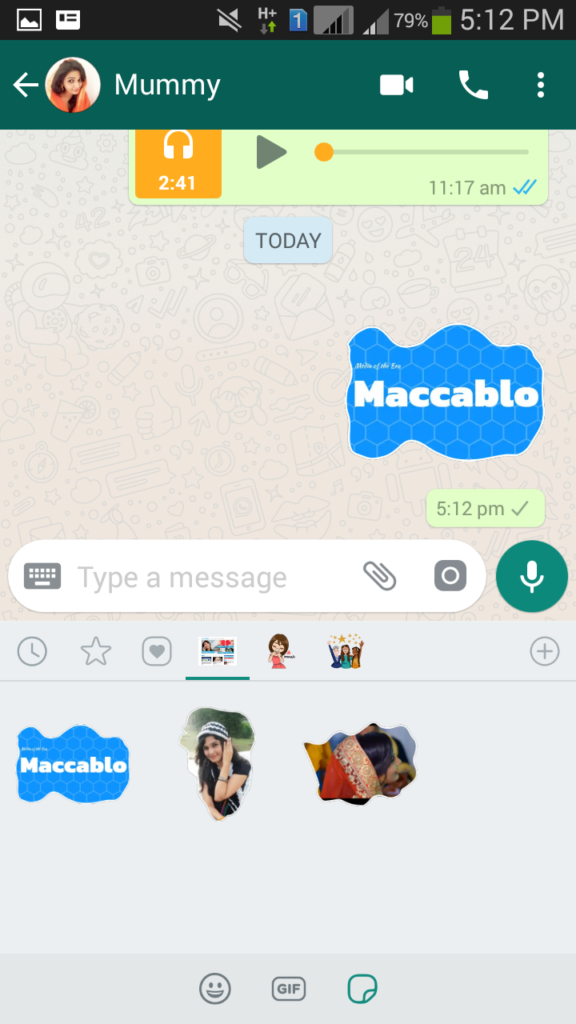
    • Now From my Whatsapp Stickers i am choosing the newly created sticker pack and selecting my sticker to send . Just like shown in the below images for reference .
    Share custom Sticker on WhatsApp

    Once done with all this all you need to do is open whatsapp and use all the fun stickers you have created. For doing so in any conversation, click on emoji button and there you can find your custom stickers easily.

    So definitely with time we hope that whatsapp rolls out a number of new stickers within the app itself, till then you can have all the fun using this app. Do share your experience of creating your very own custom stickers with us.

    You can create your own custom WhatsApp stickers by following the instructions given above and even download Whatsapp stickers from All Stickers .

    You Have an option to use Hike Stickers on Whatsapp where you can send unlimited Hike stickers on Whatsapp . All you have to do to get Hike stickers on Whatsapp is just to work on your Hike Settings . Thus you can share Hike stickers on WhatsApp .

    So enjoy the new WhatsApp feature in its newest way !!!

  • How to Reset Instagram Password – Top 4 Methods

    How to Reset Instagram Password – Top 4 Methods

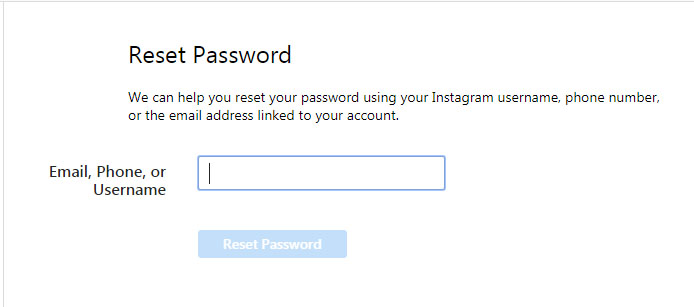
    We have discussed how to change your Instagram password when you remember them , but most cases we are forgetful people. So what if you forgot your Instagram password ? Answer is quite simple you should reset Instagram Password . So let’s learn more about How to Reset Instagram Password .

    Basically there are 4 ways to Reset Instagram Password . It can be done as usual using your Instagram username , the process is quite similar like that of how you reset Facebook password when you forget them.

    How to Reset Instagram Password – Top 4 Methods

    If you tend to forgot your password what can you do ? I know you can’t afford to lose your Instagram account that you build up very well. So let’s discover the 4 methods to reset your Instagram password .

    Resetting Password is different from how you Change Instagram Password .

    How to Reset Instagram Password via Instagram Username

    If you forget your Instagram Password and do remember your Instagram username then you can reset your Instagram password easily –

    • Tap the Instagram app icon on your phone with the Instagram logo.
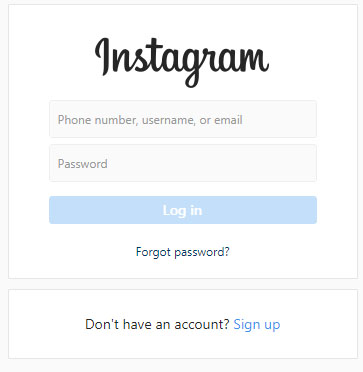
    • Now on your login section , you can find an option Get help Signing In
    • Click on that
    • Then you get option to enter your username .
    • Now you will be asked to choose either Send email or log in Facebook option.
    • Click on send email option where you get a login link to reset password on your Instagram registered email id .
    • Go to email and open the mail that you received from Instagram .
    • Click on the reset link and tap the reset your Instagram Password option
    • Now enter a new password and verify it y typing it once more then reset it .
    • That’s it you are all done with the process .

    Read Also : Instagram tips and tricks to be a Pro Instagrammer

    How to Reset Instagram Password via Facebook

    • Go to Instagram app by tapping on that Instagram icon your phone
    • Now go to the login page where you can find an option Get help signing In
    • Now click on the Log In with Facebook option (To get this done you must have already established link between your Facebook account and Instagram account )
    • Now you can proceed with resetting password .

    So you must know to Link Instagram Account with Facebook Account.

    How to Reset Instagram Password via Phone Number

    • As the above said process Tap on the app- login page-Get help Signing in
    • Click on send SMS option
    • Enter your phone number registered with Instagram Profile.
    • Tap send login link
    • Now go to your phone’s message inbox you can find Instagram’s SMS with a link to reset Instagram password.
    • Click on the link that will open up a new window where you can enter password twice and reset your old password

    How to Reset Instagram Password via Email Id

    Now this doesn’t really a great explanation because the steps are almost . But still let me explain it in short. In-order to reset Instagram password using email id you have to follow these steps –

    • Launch to the Instagram app – Go to login page
    • Click on Get help signing in / Forgot Password just below the Instagram Log In option
    • Now choose the mailing option an enter your registered email id
    • Go to mail box you would have received the Password reset link from Instagram .
    • Type a new password and re-type it to verify it gain.
    • You are done.

    So that’s it using these instruction you can reset a new password when you Forgot Password for Instagram.

  • How to Change Instagram Password

    How to Change Instagram Password

    Hey Guys , on our Instagram series of post you would be learning so many Instagram tips , tricks and shortcuts like never before . Hoping to give you lot more on the same . So for all Instagram Account holders you might at least once faced a need to Change Instagram Password . So here are the steps given to change your Instagram Password .

    How to Change Instagram Password 

    You can change Instagram password easily and the very common way is to change Instagram password with username . So now let’s take a look into the step by step process on How to change Instagram password using all these methods .

    Remember If you remember your Instagram password you can change that .

    Why you should Change Instagram Password ?

    You might be aware that the chances of getting your Instagram account hacked is very high . It purely depends upon your profile strength and your Instagram followers number . If you are an Instagram Celebrity or a Viral Instagrammer then make sure you don’t lose your Instagram account because of a weak password . Never keep your passwords as easy to guess ones.

    What if I forgot my Instagram Password – Then you have to Reset Instagram password , for which there are 4 different methods to do it.

    Note – Here we have mentioned about how to change password when you actually remember your old Instagram Password.

    How to change Instagram password via Instagram App

    You can change your Instagram password through your smartphone . You will be having the Instagram app downloaded on your Smartphone .

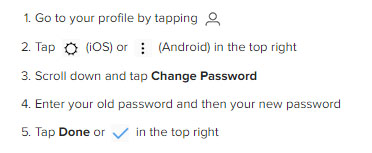
    • Just tap on the Instagram app first .
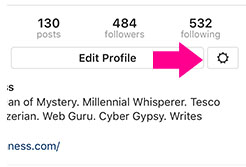
    • Go to your Instagram Profile and tap on the settings icon which is at the right corner near Edit profile option.
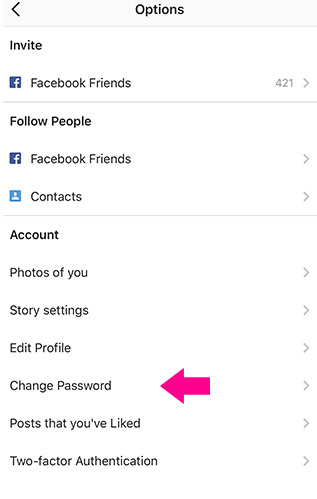
    • Now on the Options page , you can find the Account section with an option called Change Password .
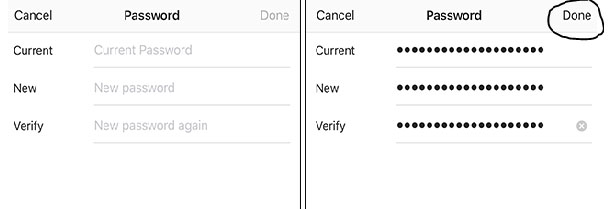
    • Now Password page opens up with requesting Old and new passwords .
    • Since you know your old password type that and enter your new password and repeat the same once again to Verify it .
    • Click Done

    That’s it you have successfully changed your Instagram password .

    How to change Instagram password via Desktop

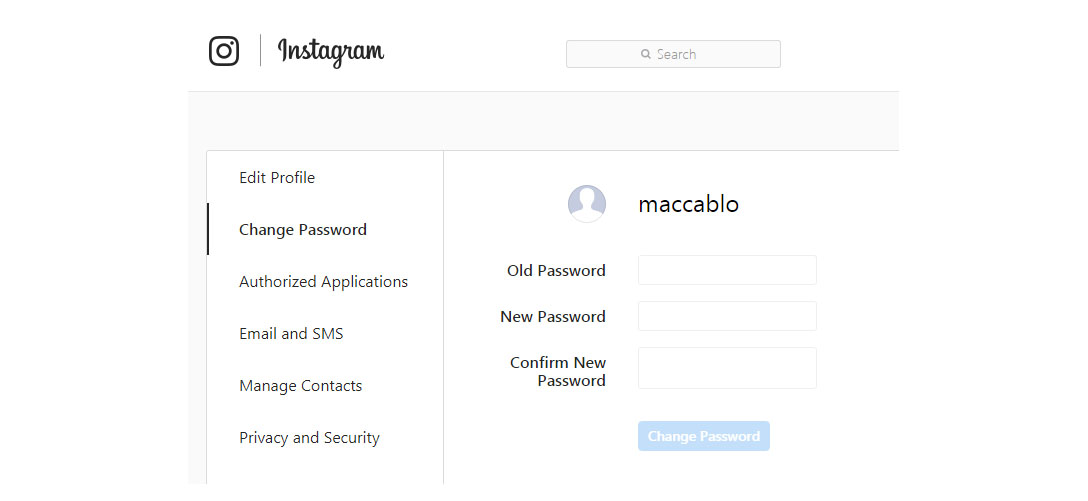
    So if you don’t have access to your smartphone Instagram app still you can change your instagram password via desktop/web .

    Read Also : Instagram for PC – How to use Instagram for Desktop ?

    How to Make a Strong Instagram Password 

    Make sure you are keeping a long password but not a same password for all your accounts . Use alpha-numeric-symbolic combination passwords . Don’t make it as a series like 123.. abc.. keep your each digit of password as far away combination .A robust password must be something that you alone know. Never make anything that’s your favourite as your password.You can find out some very rarely used idiomatic phrases or even misspell your favourite tough word and combine it with numerical and symbolic combination.

    You must be aware about how to secure Instagram account that you own . And make sure that you are changing your passwords regularly . Also securing your email address is also important enough to prevent and protect your Instagram account from Black hatters of the web world . In case you feel your account is still not safe , then simply turn on two factor authentication for Instagram account . A double lock is always better than a single lock Guys !

    Read Also : Contact Instagram Help Center Support for Any Assistance

    To those who find that it was a common stuff that didn’t needed an attention to be written then sorry guys its for those who are not aware of these . You may be smart but everyone won’t be as smart as You 🙂

  • Pinterest Tips and Tricks to use Pinterest like a Pro

    Pinterest Tips and Tricks to use Pinterest like a Pro

    Pinterest, you must have heard this name right? Whenever you search something on Google images a number of results are from Pinterest only. We might save those images and move on without actually knowing what Pinterest is. Of course many of you must be knowing what Pinterest is and how to use it but many of you don’t. So this article going to get you familiar to Pinterest tips and tricks to use Pinterest like a Pro .

    What is Pinterest ?

    Pinterest is an image-based platform for viewing images, bookmarking them and sharing your own related to different stuff such as art, fashion, food, landscapes, buildings and event planning’s and a lot of other such creative fields.

    Pinterest Tips and Tricks to use Pinterest like a Pro

    Now let’s explore the useful Pinterest Tips and Tricks –

    Adding Links without Pin button

    If you want to pin the picture then on many websites whenever we hover mouse over the picture an icon named ‘pin it’ appears if you have added the Pinterest extension to your browser. Clicking it the picture is pinned. But it can also be done without this pin it  button, just copy the image’s URL and then open your Pinterest mobile app, it will by itself pop up the link you copied and there then you can pin it.

    Read Also : Exciting free Photoshop Alternatives for high quality photo edits

    Read Also : 25 Best Selfie Apps for every Selfie Lovers – Perfect Click

    Read Also : Bothie feature on any Smartphone – Best Bothie apps

    Get rid of the pin button

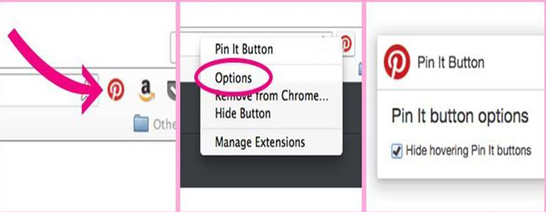
    Sometimes seeing the ‘pin it’ can be distracting and irritating when you are simply browsing some site. Whenever the pointer hovers some picture this little icon pop up. But wait here’s the solution, you can simply get rid of it.

    Just right click on the Pinterest extension button, select options and check “Hide hovering Pin it buttons” and done. No more pin it buttons.

    Trending

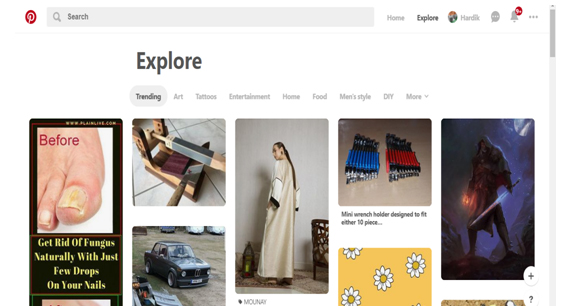
    There is loads of cool stuff to look for on Pinterest. But if you want to look at what your friends and your fellow Pinterest users are searching or if you want a look at the latest trending topics, just go to the explore section. In one simple click get all the trending pins according to your interests.

    Secret Boards

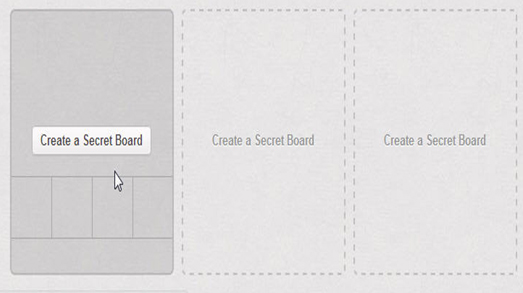
    If you don’t want to just broadcast every board of yours, want to keep some moments of yours to yourself, plan some surprise, save pins for planning some event, Secret boards can come to your rescue. You can keep secret boards to yourself or share it with selected people only.

    Setting Pin Descriptions

    If you highlight any text or any heading before pinning any image from any website then that text will be used as the description of your pin. This can save you from a lot of thinking required for an amazing caption.

    Searching Pins from a specific website

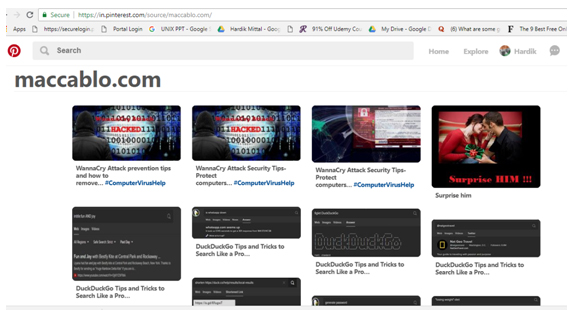
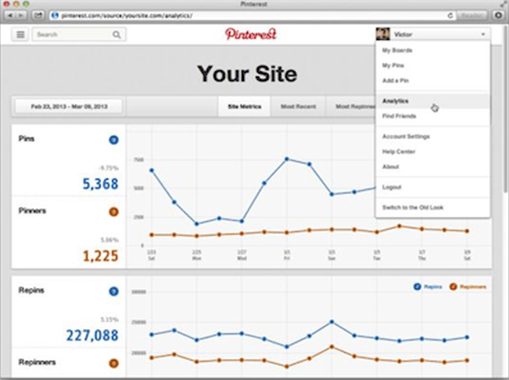
    Searching pins from a certain website can be a hectic task given a large number of pins related to every topic. This can be done simply by searching this URL https://www.pinterest.com/source/WEBSITE_DOMAIN/.  Replace the Website domain with the domain name of whichever = website you want to search for.

    For Example searching for https://www.pinterest.com/source/maccablo.com/ gives:

    Edit notifications

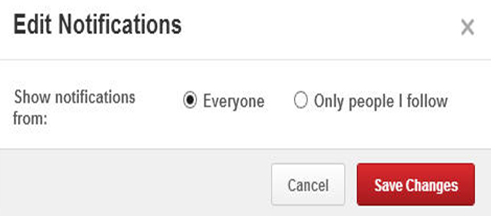
    Getting loads of notifications whenever you switch on the internet is irritating. You can manage your notifications from pinterest. Just click on edit option on the notifications menu and select the desired option and save.

    Get More Privacy

    Secret boards one of the many ways to get privacy on Pinterest. There are other ways as well.

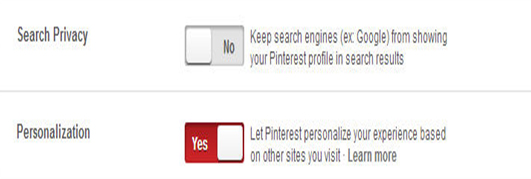
    Pinterest tracks you while you visit other sites so as to provide you a personalized experience when you are using Pinterest. You can switch it off by disabling the Personalization option in settings.

    You can keep your boards off the Google searches by enabling the Search Privacy option.

    Read Also : Instagram tips and tricks to be a Pro Instagrammer

    Place Pins

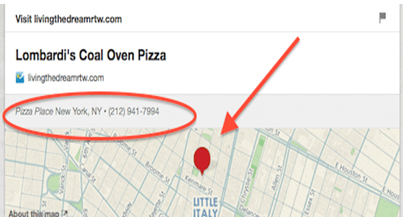
    Place pins lets you bookmark different locations on Pinterest. These can be used for planning any vacation or if you simply want to save the places you wish to visit. On Android, the app notifies you whenever you are in a nearby area of your pinned places.

    Aspect Ratios

    You can upload pictures in any aspect ratio you want, but the most recommended aspect ratios for getting the most repins are 2:5 or 1:3:5. Images with ratio 1:3:5 are very long and can viewed completely only by clicking on expand pin.

    Send pins via email

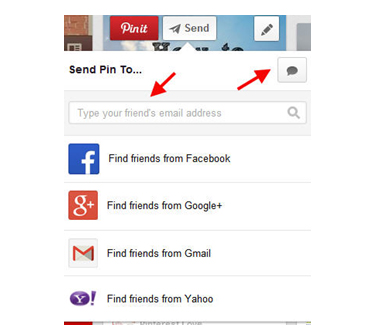
    If you want to share your pins with someone who is not on Pinterest, for this click on send option and start typing the mail address of the receiver and choose the top option from the dropdown appearing. The link of your pin will be shared with the desired person.

    Move pins to new board

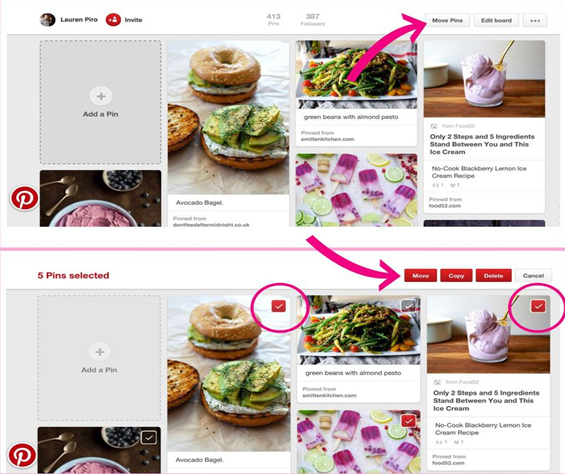
    Organizing your pins and boards is just a few clicks away. For doing so click on the ‘Move Pins’ option and check the desired the pins you want to move, select Move and list of your boards appears and then select the desired board or create a new one.

    Pin a buyable pin

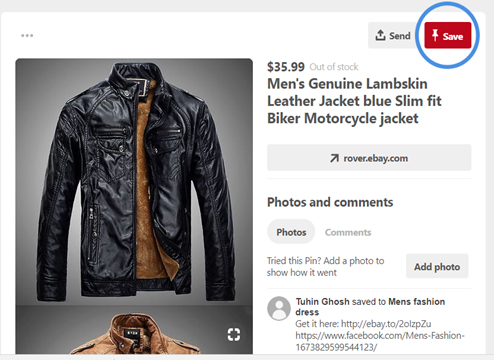
    Now you can even buy and sell stuff using Pinterest. There is a buy option right under every buyable pin. Pinterest notifies when the price of any of your pinned items drops. It is an amazing feature with Pinterest.

    Set up a Business page

    You can easily convert your personal page on Pinterest for Business purposes. Simply convert your page to Business profile. This will help you in getting the  Pinterest analytics to your page, helping you to get better at your business.

    Rich Pins

    In rich pins you can add additional information with your picture. There are different types of rich pins such as Movie pins include ratings, cast members and reviews, Article pins include the headline, author, story description and link and many more to provide instant access to some important info regarding any pin.

    Hope these Pinterest tips and tricks will help you turning into a pro Pinterest user. You must have become quite familiar by now many of the amazing features available on Pinterest. Do tell us know the Pinterest feature you loved the most. If you know some other Pinterest Tips and Tricks don’t forget to share those with us.

    So make use of all the Pinterest Tips and Tricks  and enjoy !!!

  • Disable Instagram Activity Status Feature – Privacy Tip

    Disable Instagram Activity Status Feature – Privacy Tip

    Internet lurkers , social media introverts and privacy focusing social media users , hope you are aware of the new Instagram feature that is the ” Active Status ” Green dot . So here we are going to help you with that by giving you tips to toggle off activity status on Instagram , that is on how to disable Instagram Activity Status Feature .

    What is the Instagram Activity Status 

    So this is just a newly added Instagram feature ” Activity Status ” . This green dot will be shown whenever you are using Instagram app , whenever your Instagram app is running on mobile .

    Read Also : Instagram for PC – How to use Instagram for Desktop ?

    Read Also : Contact Instagram Help Center Support for Any Assistance

    Read Also : Instagram tips and tricks to be a Pro Instagrammer

    Sometimes it can be seriously affecting your privacy online . Because you may get disturbed when you are just there on Instagram to browse the insta-stories .

    How annoying it can to get messages from random followers whenever you are online . And often there are situations where we are online just to stalk and not let others know we are online on Instagram.

    So if you want to stay relaxed and not let anyone know when you are online on Instagram then you have to toggle off / Disable Instagram Activity Status .

    How to  toggle off / Disable Instagram Activity Status ?

    When you toggle off activity status on Instagram remember that you can’t also see other’s Activity Status on Instagram . So once you disable activity status on Instagram you are safe locking your online presence and not able to find who is online also.

    So let’s see how to  toggle off / Disable Instagram Activity Status –

    It is basically a privacy option on Instagram to toggle off Activity status . You can enable Instagram Activity Status anytime you want .

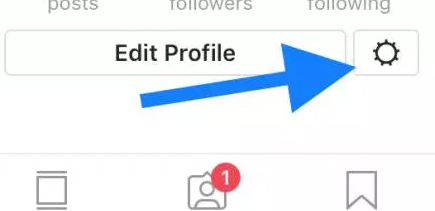
    •  Do you see a gear icon on your Instagram page on right end corner .
    • So click on that Instagram settings button.

    • Now click on the “Privacy and security ” option that you find there.
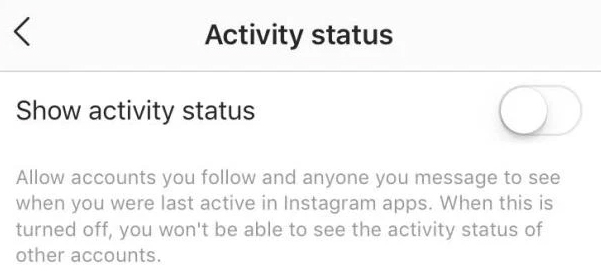
    • Now from that click on the “Show activity status ” option.

    • Toggle it off to Disable Instagram Activity Status.
    • Toggle it on to Enable Instagram Activity Status.

    Hope this privacy feature on Instagram helps most of the users to hide your online status on Instagram .

  • Instagram for PC – How to use Instagram for Desktop ?

    Instagram for PC – How to use Instagram for Desktop ?

    Even though many things are easy when it can be done in  mobile , there are some times we need things to be done from our PC . So if you have ever felt to access Instagram from Computer then lets take a look at Instagram for PC and how to use Instagram for Desktop .

    Some people who might have felt this situation will be when transferring DSLR photos to Instagram , where they needed to work twice – edit on PC , transfer to mobile then upload photos on Instagram . For them this can be useful but we will even give a post especially to transfer Photos from DSLR to Instagram directly .

    Now back to the topic Instagram for PC .

    Instagram for PC – How to use Instagram for Desktop ?

    We know that Instagram is popular social media app for mobile so how to use Instagram on PC . Let’s sort it out here.

    You can use Instagram on Windows and Instagram on Mac on different ways so let’s discuss

    Read Also : Instagram tips and tricks to be a Pro Instagrammer

    Read Also : Contact Instagram Help Center Support for Any Assistance

    Access Instagram for PC – Set up Instagram for Chrome ( Instagram on Windows)

    If you are using Chrome browser then to use Instagram for PC there is an easy method . First you have to download a chrome extension ” Instagram for Chrome ” . Now on the chrome toolbar click on the  button . Now it access your Instagram account on Desktop . Log in / sign in to you Instagram account thus you can use Instagram on web .

    Another way by which you can access Instagram on windows is from Instagram Windows store app from Microsoft store .

    Access Instagram for PC – Set up Instagram for Safari (Instagram on Mac)

    You can use Instagram on PC using Safari Browser . If you want to use Instagram on Mac then set Safari as your default browser and follow the steps .

    • Open your Safari browser
    • Click on Advanced option from Preferences
    • Now on the bottom find the option “Show develop menu” on the menu bar .
    • Next step is you have to open up a private safari browsing window
    • Select User agent from Head to develop and select Safari — iOS 10 –iPhone
    • Go to the website instagram.com
    • And now sign in to your Instagram account

    Now you can upload photos from desktop on Instagram by clicking on the camera button you find on the button of the screen .

    By this method you can access Instagram for Desktop or PC thus allowing you to use Instagram on Windows & Mac.

  • Contact Instagram Help Center Support for Any Assistance

    Contact Instagram Help Center Support for Any Assistance

    You can contact anyone , anywhere but getting back response is difficult . So if you are in search of how to Contact Instagram Help Center Support for Any Assistance and get response from Instagram team then here we reveal you all the essential methods in-order to Contact Instagram team .

    How to Contact Instagram Help Center Support for Any Assistance

    You can contact Instagram in two ways either by their phone number or by mail and the their way is by postal .

    Instagram Contact Phone Number & Instagram Email Address 

    You can contact Instagram support by means of connecting through Instagram Contact phone number , that is  by dialing to 650-543-4800 .

    Secondly you can contact Instagram email support by sending a mail to their official Instagram support mail id , that is – support@instagram.com . And for press related inquiries you can contact press@instagram.com.

    But most often you will not get response from Instagram support via mail of phone . 

    So how can you contact Instagram to get Response back ?

    Let’s dig out the ways to learn it !!!

    Why Instagram doesn’t respond to mail ?

    Let’s deal it with a practical mathematics to answer this out . You know that Instagram is a fastest growing social media app that is popular among more than 242 million users around the globe . This number is even likely to grow in even every next second .

    So now let’s answer this question why Instagram doesn’t respond or why Instagram support doesn’t respond to your query/ ticket with a simple math . Let’s assume that on a day at least a lakh of people in one million has some queries. So multiply it to 242 so it goes to approx of 242 lakh queries on a day average , even if the real actual is 1/4th of the calculation also it is a big figure of queries reaching out to Instagram in a day . So practical impossibility of answering all the tickets is one of the reason for not getting reply for your mail to Instagram .

    Read Also : Instagram tips and tricks to be a Pro Instagrammer

    How to Contact Instagram Help Center Support for Any Assistance 

    You can contact Instagram support as normal user by submitting a request on help center .

    • First go to the official website of Instagram  ( https://www.instagram.com/ )
    • Now scroll down you can find Click support at bottom of the Instagram Home page .
    • Click on Privacy & Safety Center from the left hand menu.
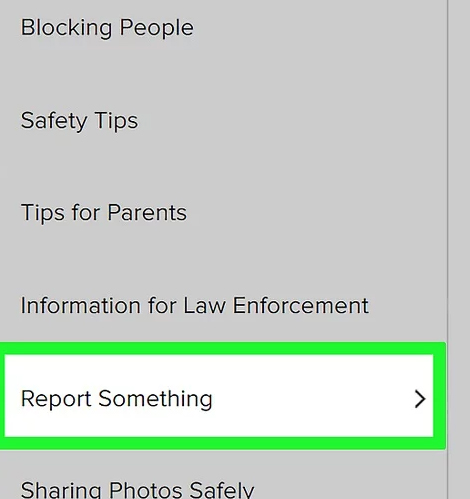
    • Click on Report Something option and enter your issue that you are facing . This is a way to report issues on Instagram .
    • Now select the link for reporting it .

    • Based on your issue type fill out the required form .

    How to contact Instagram on Social Media 

    This way can really work if you are popular on twitter or Facebook . You can get response from Instagram on Social media sites like Twitter and Facebook .

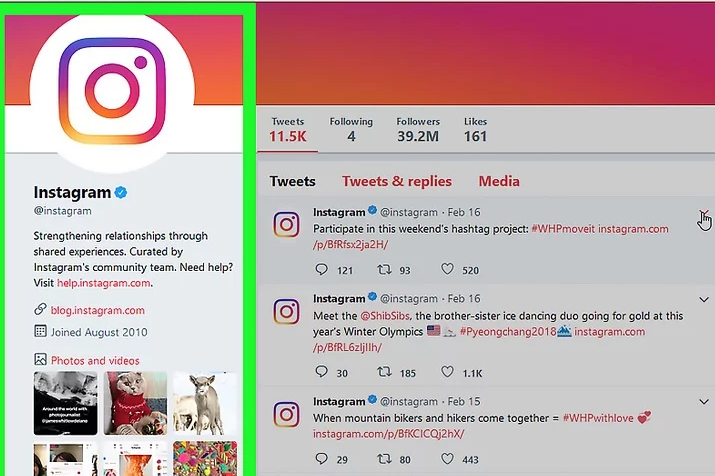
    You can contact Instagram on their official twitter profile and Instagram official Facebook profile .

    Twitter can be more preferred option .

    How to contact Instagram Support as an Influencer 

    I am sure that you would have at least once come across Instagrammers posts on how to reclaim Instagram accounts that are stolen , hacked etc .

    You can increase your chances of getting response from Instagram support team if you have a huge number of active Instagram followers . Then the other way is to find an individual who has contact in Instagram . Going for unofficial Instagram support providers are expensive and may be not secure as well .

    So this is the way to contact Instagram support team for any of your queries .

  • Instagram tips and tricks to be a Pro Instagrammer

    Instagram tips and tricks to be a Pro Instagrammer

    Most of the Instagrammers around the globe is disappointed with  Instagram Global Outage recently ( At least to some countries) , Social Media is a rage these days. Almost everyone is active on social media. Moreover the internet connections have also become cheap, boosting the social media usage even more. Well with the increased use of Instagram here we bring out – Instagram tips and tricks to be a Pro Instagrammer .

    One such quite popular, well known social media platform is Instagram. Instagram announced that it achieved the milestone of 1 Billion users in June 2018. It has now become popular not only among the youngsters but also among the adults. New Instagram updates are being rolled out time to time adding new Instagram features, improving the interface and much more. A number of celebrities are also active on Instagram and you get to follow your favorite star as well.

    The picture & video sharing app has a lots of filters for the editing of the pictures to be posted. You can post minute long videos as well. There are Insta stories which are visible to your followers up to 24 hours of you posting it. All these features attract masses of people towards Instagram.

    You all must be knowing that most of the brands staring from the smaller ones and to all the leading brands, every brand uses Social Media Marketing to reach their customers. Instagram has become one of the leading platform for social media marketing. Instagram has also helped teenagers in following their passion. Many of them try to promote their work such as photography, art, food blogging and fashion blogging and much more. Love from followers keep giving them the boost required for following their passion.

    But you must know some good and secret Instagram tips and tricks to be a popular Instagrammer .

    Instagram tips and tricks to be a Pro Instagrammer

    Here are some of the best Instagram tips and tricks:

    Read Also : Contact Instagram Help Center Support for Any Assistance

    Read Also : Instagram for PC – How to use Instagram for Desktop ?

    Turn on Post Notifications on Instagram

    If you want to see every Instagram picture, video or Instagram stories your best friend, you favorite celebrity or your favorite brand, just turn on the post notifications for that profile. This way Instagram will push a notification to you whenever they post.
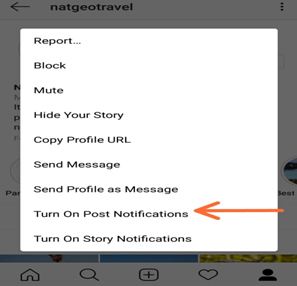
    To get Notification of your Favourite Instagram user –

    • Go to their Instagram profile
    • On top of the right side corner , tap that three dots
    • Turn on Post Notification , just enable it .

    This way you can make yourself to Never Miss a Instagram Story Again ! If you want to stay updated on Instagram then this Instagram tips is ideal for you .

    Read Also : WhatsApp Data Sharing Disable Methods to Protect WhatsApp Data

    Read Also : Best Facebook Ad management tool – Facebook Advertising

    Add & Manage Multiple Accounts

    If you have an Instagram account for your pet or you have some business of your own to promote you can manage two Instagram accounts from a single Instagram app. From your profile click on gear button (for apple) or three vertical dots (for android), scroll down and click on add a new account and then you can access it easily as well.
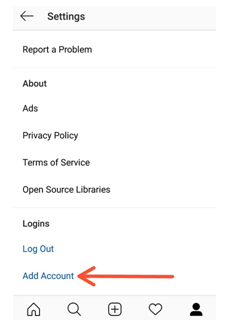
    This is the Instagram tips to use multiple Instagram accounts on one mobile app .

    Use as a Photo Editor

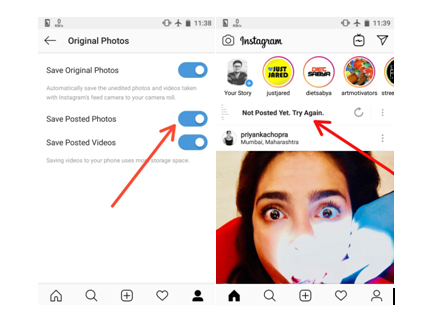
    Instagram has some amazing filters giving you a gorgeous picture to share. So, the Instagram app can also be used as one of the best Photo Editor & Photo editing apps . For doing so put your phone on Airplane mode and carry out whatever editing you want to do and post. Since your phone is on airplane mode the post will be failed but the post will be saved in your gallery. Make sure that option ‘Save Posted Photos’ is enabled in your profile.
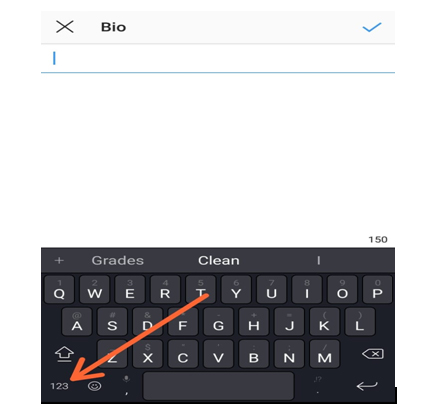
    Inserting Line Breaks in Bio and Captions

    Many keyboards don’t provide the enter or return key to introduce a line break in the caption to your posts or the bio of your profile. For doing so click on 123 button on bottom left corner of keyboard, the enter or return button appears on the bottom right. Another option is to write it some other app and then copy it to the Instagram app.
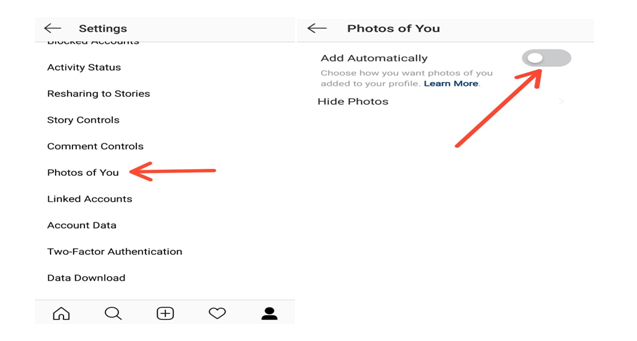
    Adjust Settings for Tagged Photos

    All the posts that you are tagged can be seen by your followers in the Photos of You section of your profile. To control visibility of these posts select the Photos of You option in your profile. There you can hide the desired images and disable the Add Automatically option.

    This is yet another Instagram tips you must know .
    Drive traffic to another Website

    You know that these days social media is not just entertainment or to catch with friends alone . Its to get in touch with your customers on social media . Instagram for business is quite widely appreciated because of the results driven from it .
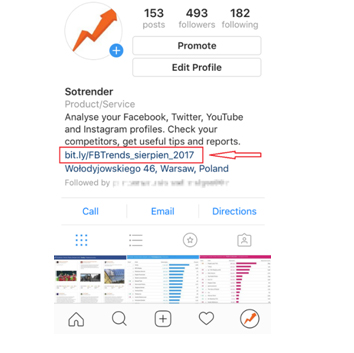
    If you have a website then you can drive Instagram traffic to website easily . You know that adding links in caption doesn’t work on Instagram .

    So what’s the way to add links on  Instagram ? Simple add it in your bio .

    Disable Activity Status on Instagram

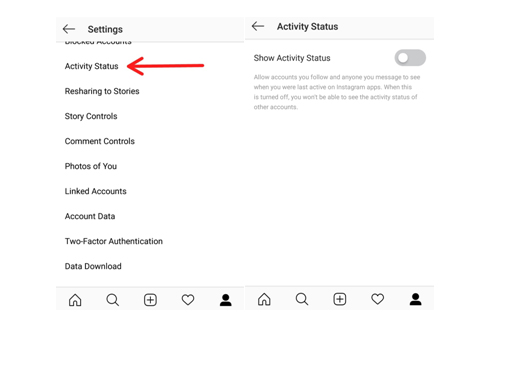
    In the Instagram Direct Messaging or the DM section it appears to your followers that when were you last active on the platform as ‘Active 2h ago’. You can disable this activity status by going to your profile, select the Activity Status option and Disable it. So this way you can disable Instagram Activity status .
    Schedule your Instagram Posts

    Most of the Instagram users are quite active on the platform and put up new posts on daily basis and if you are promoting some brand then you definitely need to do so. By switching your account to Instagram Business mode you can schedule your posts by saving them earlier and then setting the time for posting it.

    Embed Posts on Instagram

    If you are a Blogger you might want to share your Instagram posts to your blog as well. This can be done using the embed option. On the Instagram web service, click on the icon with three vertical dots and then select embed option. A link to your post is created and then you share that link wherever you want to share that post.

    Archive posts on Instagram

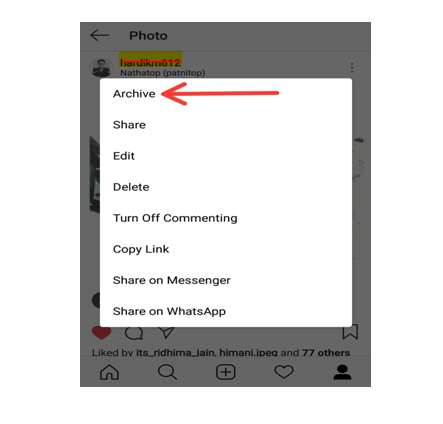
    If you don’t want your followers to see your certain post but you also don’t want to delete it permanently from your profile, then you can Archive Instagram post. This way they can only be viewed by you and you can undo your action any time you desire.
    Ignore posts from Users

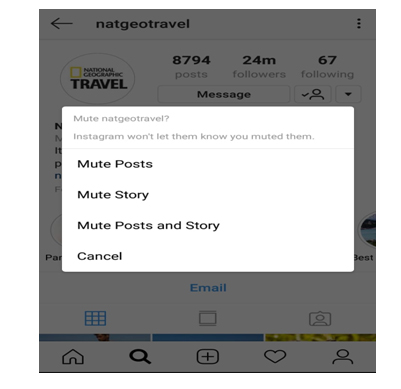
    If you want to ignore the posts or stories from someone without the of offending them by blocking them, just go their profile click on the vertical three dots on the top right corner and mute that profile. This way the posts and stories from that user won’t be shown to you.
    Save data option

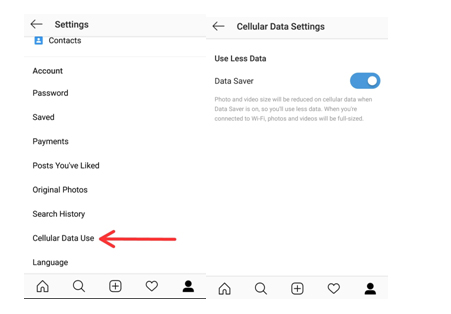
    You must be knowing that all the images and the videos in the Instagram app are preloaded and that to in HD quality. Thus if you are quite active on Instagram then using it can consume a large chunk of you mobile data. For saving your data, turn on Data Saver option which runs the app consuming a lot less data.
    Get Analytics, direct call and email Buttons

    By switching your profile to Business mode you can all the detailed analytics about your posts like the number of followers increase or decrease, how many people saved your posts, number of likes and impressions and much more. Also in business mode you can also add direct call and email options to your profile.

    Filter Instagram comments based on keywords

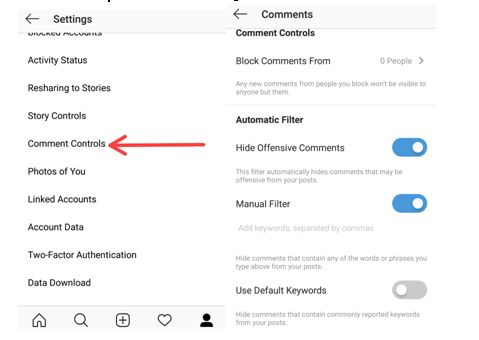
    You must be knowing that you can completely disable or delete comments on your insta post. But many of you won’t be knowing that you can hide offensive comments. Just go to your profile options and select comment setting Enable hide offensive comments and manual mode to hide comments with some specific word.
    Add hashtags to comments on Instagram

    Most of us create almost a separate para for putting up some interesting Instagram hashtags with our posts. But if you don’t want the hashtags when that post is posted on other social networks you can post them in the comments. This way people are still able to access your posts through the hashtags and they don’t appear on other social networks.

    Follow Instagram Hashtags

    The way you follow someone’s profile on Instagram, now you can follow a hashtag as well. If you want look at different posts having a certain hashtag just simply follow it and the posts appear in your feed like any other profile.

    Share someone’s Post in your Story

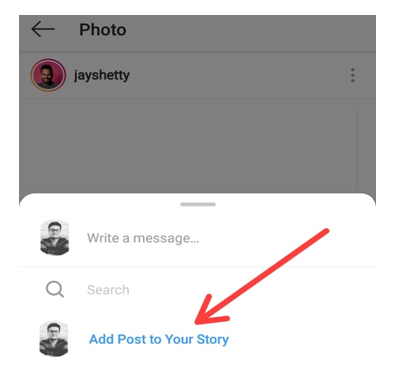
    To share a post from someone else’s post from to your story, just simply open that post and click on the arrow like icon below the post and click ‘Add post to Story’. If you have a public account and you want others to share your posts this way then select Allow Resharing to stories from your profile options and disable it.
    Highlights

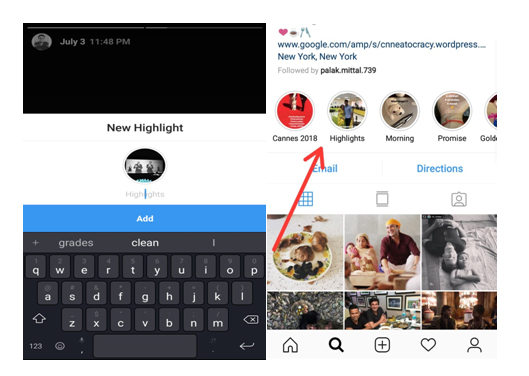
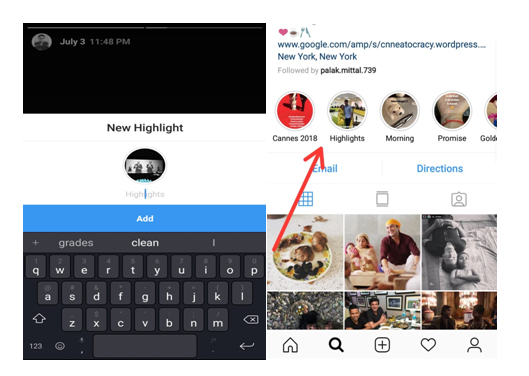
    Highlights are your stories which can be seen by your followers whenever they visit your profile unlike the normal insta stories which disappear after 24 hours of uploading. For adding Instagram highlights, go to your profile and click on time like icon and click on whichever story you want to add as a highlight.
    IGTV

    It is the latest feature to be rolled out by Instagram. Earlier you could only post a minute long videos on your profile but using the IGTV app you can post videos up to ten minutes longer or more than stories/feed videos but only in the vertical frame. You can install the IGTV app from app store and share longer videos with your followers and connect with them more.

    This is an Instagram tips to post long duration videos on Instagram .

    Hashtags

    The different hashtags you use with your pictures definitely have a direct effect on the number of your followers. Try using hashtags with your pictures which are popularly used so that a large number of people can easily access your posts. But use some unique hashtags which make your profile stand different from others.
    Follow Brands like your own on Instagram

    Having a brand of your own and promoting it on social media is a creative and thoughtful task for targeting the right person to get his/her attention towards your brand. For doing so look out for ways the brands similar to yours use for their marketing. Try drawing inspiration from those. Try interacting with their followers making them aware of your own brand. This is a good Instagram tips for Business and marketing .

    Promote other Instagram accounts

    Say if you are a food blogger in a certain city give shout outs to other food bloggers of your own or some other city. This way you can promote their account and they can promote yours. So instead of competing with each other, try helping each other.

    Hope these Instagram Tips and tricks will help you turning into a pro Instagram user. Being an active user of Instagram myself, it is my favorite social media platform as well for posting some cool pictures with some catchy captions and hashtags. Do tell us the reason for which you love Instagram and also don’t forget to tell us your favorite trick. If you know some other Instagram tips or tricks don’t forget to share those with us.