Tag: browser

  • Best Web browsers for Computer & Smartphone

    Best Web browsers for Computer & Smartphone

    Best web browsers are need of the hour for every internet users . Web browsers are used these days in both computers , tablets and smart phones. With the web browsers, the users can collect any data by simply browsing. You can take any details from the web browsers very quickly. Web Browsers help people to easily collect any information required, by just typing in the tab what they are looking for. Let it be any subjects related to your studies, games, music, and art, movies etc, all you have to do is just type and enter what you are looking for. You will get all the necessary information about any topics using the web browsers. But what are the most reliable web browsers or the best web browsers any idea ? 2020 onwards we see rise of AI-powered browsers . To stretch more about it in 2024 we could see the user has wise choice to choose among the Fastest AI-powered browsers . With AI coming into the segment the entire browsing experience has been taken to a new level. 

    Web browser is nothing much just a software that we can download and with an active internet connection this software helps you to browse anything and everything.

    It is always important to choose the right web browser for your computer or smart phone to work efficiently. It is not just the features that you have to look for when selecting a web browser. You should also check browser speed (Browser speed test can help with it) and compatibility before your download the software.

    Best Web browsers for Computer & Smartphone

    Here are some of the best web browsers you can install in your computers and smart phones. You should also test these browsers to understand how it works and to check if it is user-friendly. Read the features of each and pick the right one for you. Let us see what are the best Web browsers are available for us to use.

    Best Web browsers for Windows

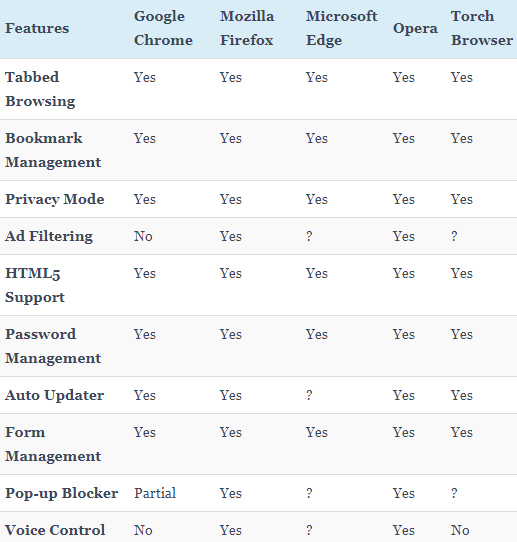
    Given below table compares most of the features of the given list of best web browsers for Windows .

    So the best web browser for Windows are –

    1. Google Chrome
    2. Mozilla Firefox
    3. Microsoft Edge
    4. Opera Browser
    5. Torch Browser

    Best Web Browsers for Mac

    Here is the best sorted list of the best web browsers for Mac Computers that is being preferred by most of the people.
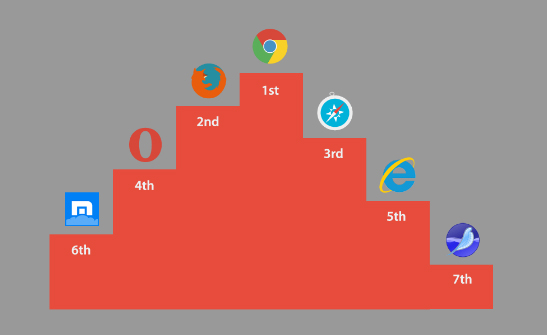
    1. Google Chrome
    2. Mozilla Firefox
    3. Internet Explorer
    4. Opera browser
    5. Maxthon
    6. Yandex
    7. Safari

    Best Web browsers for Android

    Here is the list of the some of the most popular and best web browsers for Android mobile Phone that is being preferred by most of the people.
    1. Chrome
    2. Opera Mini
    3. Firefox Focus
    4. Firefox
    5. Puffin
    6. Dolphin
    7. UC browser

    Read Also : Kindle Fire Silk Browser Alternatives

    Best Web browsers for iPhone

    Here is the list of the top rated best web browsers for iPhone that is being preferred by most of the people.
    1. Safari
    2. Chrome
    3. Puffin browser
    4. Opera Mini
    5. Dolphin Browser
    6. Ghostery
    7. Firefox focus
    8. Adblock Browser

    Read Also : uBlock Origin Replaces Adblock plus(Best Adblock Plus Alternative)

    Most Fastest Web browsers

    When considering browsing the speed is a factor of browsing . So here is the list of fastest web browsers.

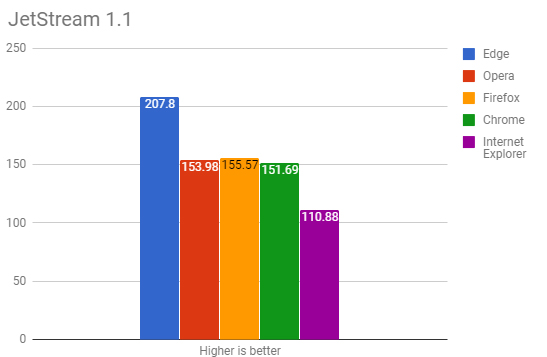
    If you are using Windows , then the fastest browser for windows includes –

    • Microsoft Edge Browser
    • Opera
    • Chrome
    • Firefox Quantum
    • Internet Explorer

    Read Also : Best Laptops of the Year – Buy the Right Laptop for You

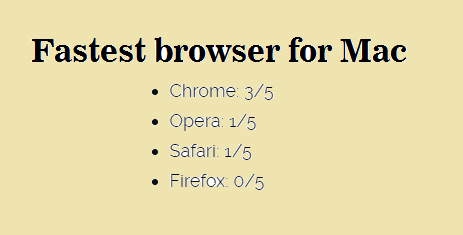
    If you are using Mac , then the fastest browser for Mac includes –

    • Google Chrome ( This is the best on different browser speed test for Mac)
    • Opera
    • Safari
    • Firefox

    If you are using Android , then the fastest browser for Android includes
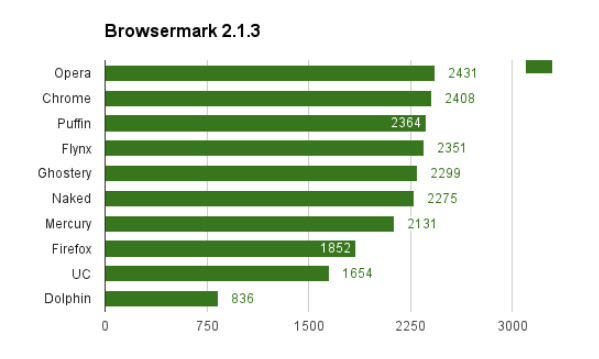
    • Puffin
    • Opera
    • Chrome
    • UC browser
    • Flynx
    • Naked
    • Mercury
    • Firefox
    • Dolphin browser

    Read Also : Best Note taking apps for PC & Smartphone

    If you are using iPhone , then the fastest browser for iPhone includes

    • Safari
    • Chrome
    • Puffin browser
    • Opera Mini
    • Dolphin Browser

    Best Web browsers for Computer & Smartphone

    Here we details the best web browser for computers and smartphone that fits as the fastest browser , safest web browser and low memory consuming browser .

    1)      Google Chrome

    One of the most user-friendly browsers that a lot many people use these days is Google Chrome. This browser is compatible with both computers and smart phones and it has an app size of 182.0 MB and 59.4 MB (IOS). When you normally get computer or a smart phone, Google Chrome will be already set since it is very friendly to the users and is also compatible with computers and android phones. Google chrome saves the history, you can give bookmarks etc.
    Moreover, Google Chrome also has the translator icon on tab which can be used to translate any language to English. Recently in some android phones, Google brought a new app that can detect your voice. If you want to set an alarm, you just have to say “OK Google” – then this app opens up and you can ask to set an alarm for you. OK Google will set the alarm and let you know that it is done. Isn’t this amazing? You do not have to type, our set an alarm by selecting the clock.

    Read Also : Best free office software for Computer & Smartphone

    2)      Mozilla Firefox

    Compatible with both computers and smart phones, Mozilla Firefox is an alternative to Google Chrome. This web browser has the same cross-platform that syncs just like the Google Chrome. One of the attractive features of Firefox is that it has a toggle switch to stop a video. Apart from this, Mozilla Firefox has a lot of extensions that can be added to your mobile. This can be done using the ad blockers to plug–ins by changing the feel of the web.
    The visual aesthetics of Mozilla Firefox is extremely good and customizability also can be done easily. This may be one reason that users choose Mozilla. This web browser works perfectly well in computers, but in android phones it does not work efficiently as Google Chrome.

    Read Also : Enable or Disable Superfetch for Windows

    3)      Opera and Opera Mini

    Opera is one of the web browsers, that are compatible with Android, iOS, Windows, Mac Os etc. The iOS users only get the light weight and data compressing Opera Mini to call, whereas the full opera on Android has a Google Now-Esque news feed. This news feed can be disabled if the user does not need it.   It also has a speed dial in which you can select your favorite sites quickly without searching much.

    Opera and Opera Mini offers a slick and clean browsing and searching for the users. You also get the option to create an Opera account through which you can sync the bookmarks and the history of the browsing with various devices. Data saving option is also possible with the main Opera App and it also supports compressing sites visa Opera’s servers. In Opera Min, the speed and data compression are the most attractive features that the users note. Like the main Opera, Opera Mini also includes ad blocking, offline pages, news feed etc.

    Read Also : Perfect Guide to Know All About Web server

    4)      Apple Safari

    Well, this browser will be familiar with all the users of Apple iPhone. Apple tries to add more features to this browser to make it easier for the users to get their work done. Some of the most recent add-on to it is – ad blocking and tighter Siri integration. The users can sync a lot of their work with other using the Apple Safari. When it comes to syncing the files, the users prefer Safari than Google Chrome.

    Apple Safari is compatible with iOS and is a favourite browser for all iPhone users. Unlike Google, Apple Safar shows no interest in tracking your browsing history which I find a good thing to do. Why do you need to get all your browsing history? Wait and watch to see more of their attractive features.

    Read Also : Best VPN For the Future

    5)      Puffin

    With 32.6MB (Android) of app size and 41.9MB (iOS), this web browser is compatible with computers and smart phones. But majority of the people might not even have heard about this browser. The main attraction of using Puffin is the speed. In just one click the page will open up and you can even see all the elements popping out quickly right in front of your eyes.

    This web browser is good for surfing in your computers since it is very fast. But it has problems in connecting with android phones. The disadvantage of Puffin is this – it struggles to cope with the newer technologies. One the other side, Puffin comes with features like gamepad overlay which helps in web gaming and it also has the advanced data saving tool with settings for image and video excellence. So if you want excellent speed to load pages, then Puffin is a good option.

    6)      Microsoft Edge

    Compatible with both computers and smart phones, Microsoft Edge is a very new web browser that has launched in beta form with App size of 66.9MB (iOS). You can test this web browser by signing up with then necessary details required. All you need to do is, install Test Flight on iOS. If you want it in your android phones, then join the waiting list of Microsoft Edge.

    Since this is a very newly launched web browser, you can expect change and added features by Microsoft. The major attracting of Edge is that it syncs with the desktop easily. Soon, you will be able to get access to Microsoft Edge in you androids and computers with efficient features.

    So, these are some of the web browsers that are compatible with both computers and smart phones. Every user would want different features to complete their work. While choosing an option from these web browsers, check the features and efficiency to meet your needs. Make your work easier by picking the right web browser and save your valuable time with these technologies.


  • Enable / Disable JavaScript : Mozilla Firefox Hacks

    Enable / Disable JavaScript : Mozilla Firefox Hacks

    Enable / Disable JavaScript : Mozilla Firefox

    Computer, Internet explorer, Google chrome, Opera, Android phones/tablets etc these things have become part of every human life as their basic need. In this advanced (modern) world everyone is connected to internet to get their work done in a jiffy. Also you will see that all Internet browser have JAVA SCRIPT installed for fast execution and safety purpose. It is the kind of web application/technology that helps in making web pages. Many People Enable / Disable JavaScript in their computer as it provides advanced and fast technology to work properly. But there are many people who disable (or don’t use) JavaScript because of some security benefit.

    This article will introduce you in a detail about JavaScript and some aspect of JavaScript(Enable/Disable).

    What is JavaScript ?

    JavaScript is one of the technological system in web browser for script languages and making web pages.. It is the programming language that provide programmatic control over its object or browser. JavaScript also helps in building interactive or dynamic web pages and provides set of instruction to works across any browser in any operating system that support JavaScript. As it is the programming language it has its own expression like syntax, naming, protocol, object oriented scripting language and basic control flow over web browser object. JavaScript also consists a worth library of objects such as Array, Data, Math and some core set of language elements such as Operator, Statements, and control structures. JavaScript is very safe as it can’t automatically write to hard disk and has its own variable data. It is very remarkable and versatile feature in web browser that allows you to create games, Animated 2D & 3D graphics, comprehensive data base-driven apps and much more with more experience. Many developers have been using this to write and build the browser application program, creating HTML, generating 3D graphics and audio samples etc.

    Read Also : uBlock Origin Replaces Adblock plus(Best Adblock Plus Alternative)

     Enable / Disable JavaScript?

    As we all know that JavaScript is programming language that operates web pages and allow web pages to dynamically load and other interactive things. All web browser such as internet explorer, opera, chrome, Firefox and safari have their own JavaScript engines/system. First will talk about Enable / Disable JavaScript : Mozilla Firefox

    Read Also : Kindle Fire Silk Browser Alternatives

    ENABLING (activate) of JavaScript in FIREFOX:-

    JavaScript is widely used programming language that is a part of creating websites. It can help you in many ways like give you instructions for your browser, easy to perusing all the images that are in lined and  full size, helps you to make new website pages(individual websites), and allow things to move on the page such as in games, news feed(regularly updates) and many more.  It is very effective and gives you some interactivity. For instance yahoo mail, the whole mailbox in JavaScript. It can also used for login management, database management, advertising games, and lots of stuff. However it is easy for many us to perform any search on google you just need to keep scrolling without having to reload the page. That is why JavaScript is very helpful for us. And if you disable JavaScript many websites won’t work properly that will be hindrance in your work. JavaScript extremely true for web apps like G mail, Google Docs and other websites as well.

    This will guide you the process of Enabling JavaScript in Firefox.

    1. First open your Firefox browser.
    2. Click into the address bar and type about:config then press Enter.
    3. Accept the warning about the setting changes and click the button ( I accept the risk) on center of the screen.
    4. You will see advanced setting and in search bar type JavaScript.enables.
    5. Now on the line of JavaScript, Right click small menu will appear, on the top click Toggle,and “false” will change to”true”.
    6. JavaScript is enabled now, your can close the tabs.

    You can follow these steps in order to Enable JavaScript

    DISABLING (deactivate) JAVASCRIPT in FIREFOX :-

    Many people don’t use JavaScript because of some security concern and disable JavaScript out of necessity. There have been a few browser that were exploited via JavaScript, malicious JavaScript can be interjected into a page, stealing cookies and forcing users to perform actions. People also disable JavaScript whether out of concern, for privacy or simply because they are fed up with advertising, pop-ups, cooking warnings, scroll jacking and many other dark patterns. JavaScript seen as a security risk by many individual and many exploits using it so it become necessary to disable JavaScript for safety. Most of us disable JavaScript for security reasons, filtering ad, making browser faster and also to stop annoying things like JS road-block ads (marketing people call them interstitial), some types of ads from loading and many more. Here are the few steps (same as enabling JavaScript)  given below that will help you to disabling JavaScript in Firefox.

    1. First type about.config. in the address bar and accept any warning.
    2. Type JavaScript in the search box.
    3. Now double click on JavaScript.enabled to change the value from “true” to “false”.
    4. After closing all the tabs you can now restart the browser.

    These are the ways to Enable / Disable JavaScript in firefox

    Read Also : Enable / Disable Windows File Protection & Fix Windows File errors

    CONCLUSION

    Finally we can say that JavaScript has its own pros and cons as every individual has their own taste some may find it useful and some may not. But probably there are many other issues as well that you will encounter with JavaScript. As you know JavaScript is a programming language. it is not just for the web you can make apps and do serve side logic. The choice is ultimately up to you whether you Enable / Disable JavaScript, but we recommend you to leave JavaScript enabled and keep updating your browser up to date perhaps it will help you in future.

  • Enable / Disable Internet Explorer Extensions and Add-ons

    Enable / Disable Internet Explorer Extensions and Add-ons

    Enable/Disable Internet Explorer Extensions and Add-ons

    Sometimes we all need to Enable / Disable Internet Explorer Extensions as well as Add-ons for some annoying reasons. Today we will discuss on three different methods to do it .

    Before we deal the actual , let’s get a rough idea about this Stuffs .

    Add-ons are just like applications that the web-browser Internet Explorer makes use of  in order to make interaction with numerous web contents such as videos & games. The toolbar, extensions these are also kind of Add-ons only . One of the most common Add-on that everyone know is the Adobe Flash. Internet Explorer is basically designed to give users Add-ons free experierence in web browsing as most of the users find irritated with add-ons. You will only be able to use Add-ons in Internet Explorer for the desktop.

    If you are loading a page that requires Add ons then to see it in the desktop: swipe up from the bottom of the screen to bring up the app commands and then select the Page tools button then finally select View in the desktop(Not that efficient but utilitarian).

    Different Ways to Enable / Disable Internet Explorer Extensions and Add-ons

    This easy and simple methods show you exactly how to enable or disable along with the dexterity to run various different extensions and Add-ons in your favorite  Microsoft Internet Explorer. Additionally this will equip you to both enable and disable all/specific system users to have the capability to either enable or disable extensions along with the Add-Ons through the Internet explorer Add-on Manager in Windows(Only if you are using IE which no one in India would do). For all these you are supposed to be logged in as an administrator so you can carry out all the steps in this magnificent methods. The different options are as follows:

    Read Also : Enable / Disable JavaScript : Mozilla Firefox Hacks

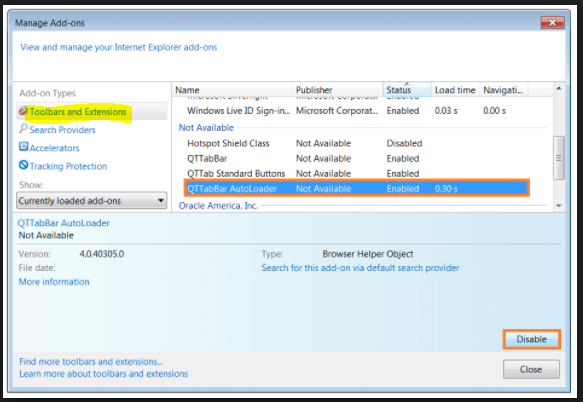
    Option 1 – Enable / Disable Internet Explorer Extensions and Add-ons From Internet Explorer Settings

    Step -1) Click on the icon of Internet Explorer.
    Step -2) Select the Settings Gear at the most upper with right corner and choose “Internet Options”.

    Step -3) Choose the “Advanced” tab(Seriously is there anything Advanced in Internet Explorer).
    Step -4) Keep scrolling down until you find the the “Browsing” section.
    Step -5) You can select/deselect the “Enable third party browser extensions” as desired.
    Step -6) You now to restart the Internet Explorer for the setting to take effect.

    Read Also : uBlock Origin Replaces Adblock plus(Best Adblock Plus Alternative)

    Read Also : WannaCry Attack Security Tips- Protect computers from Ransomware

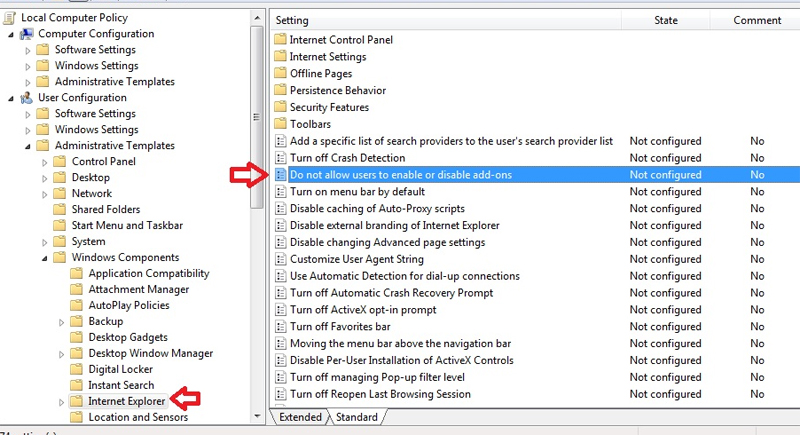
    Option 2 – Enable / Disable Internet Explorer Extensions and Add-ons Group Policy

    Choose this only if you know something about group policy. So from the Group Policy Editor expand the following:

    Step -1) Choose the options in the following set of sequence as Computer Configuration > Administrative > Templates Windows > Components > Internet Explorer > Security Features > Add-on Management

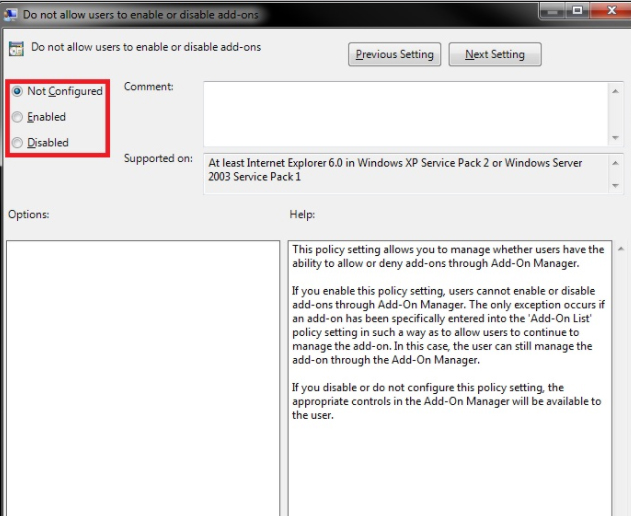
    After properly executing the above steps you have to simply set the “Deny all Add-ons unless specifically allowed in the Add-on List” to one of the following settings.

    Step -2) Enabled – Does not allow Add-Ons unless they are listed in the “Add-on List” policy setting. Though the disabled users might be able to use Add-Ons.

    Read Also : Connect dual displays / monitors to one computer on Windows & MAC

    Read Also : Android: Prevent apps from running at startup(Stop/Disable Apps)

    Option 3 – Enable / Disable Internet Explorer Extensions and Add-ons Registry

    Step -1) Login with the credentials of the user you wish to change the setting for ensuring that the Internet Explorer is closed.
    Step -2) Holding the Windows Key press “R” to bring up the run dialog box.
    Step -3) Type “regedit” and then press “Enter”.
    Step -4) Select “Yes” if you are prompted to allow access by Admin Account Control.
    Step -5) Navigate through the registry(only if you really want to).
    Step -6) Select the HKEY_CURRENT_USER from the left.
    Step -7) Set the value for “Enable Browser Extensions“. If the value does not exist then you can create it by right-clicking “Main” and click “New” > “String Value”. Set it simply to “no” if you wish for your extensions to be disabled. Set it to “yes” if you wish for extensions to be enabled.
    Step -8) Close the Registry Editor and Restart your computer. The next time you launch Internet Explorer the capability to use Add-Ons and extensions could be modified as you desire.

    Note: If you have disabled your extensions the user will still have access to install or enable them under the Manage Add Ons screen but they will not work despite showing.

    So in the end I will conclude by saying that please follow the above instructions with care. Enough information has been provided so digest it at your own pace with the best possible output. So keep reading and sharing.

  • Google chrome themes that you shouldn’t Miss

    Google chrome themes that you shouldn’t Miss

    Google Chrome , your favourite web browser from tech giant Google allows you to choose between a variety of Chrome themes . So here we will discuss out the best Google chrome themes that you shouldn’t Miss .

    Most of you must be an avid user of the Google chrome browser for your daily web browsing and if not you definitely will be aware of it. There are a plenty of options you can choose from as your web browser and Google chrome is one of the most popular options known for its lightweight and user friendly interface besides some amazing features. So Google chrome, your favorite web browser from the tech giant Google offers you a number of terrific and refreshing themes to choose from. Here we are going to discuss some of them but before there is some more information you will like to grasp.

    What is Google Chrome Theme ?

    Technically what themes are that these are additional extensions which you may add to your browser to change the way your browser looks. Also these are added like any other extensions but don’t contain any HTML or JavaScript codes. You can change the look of the browser completely starting from tabs, browser background, and color of the text and much more the way you want. Google Chrome Themes provide a new and refreshing look to your chrome browser.

    Why you should Change Google Chrome Theme ?

    Sometimes you may get tired the way your browser looks and just get bored of using it because of it same old appearance. Here changing theme provides it a new and refreshing look. Moreover you can set the colors of text, tabs, background and much more the way it comforts you, the way you want.

    Read Also : Best Web browsers for Computer & Smartphone

    Best Google Chrome Themes you shouldn’t Miss 

    Here is the list of the some of the best Google chrome themes :

    Google chrome Norwegian Fjord Theme

    Who doesn’t love nature, right? And this theme is definitely among the best landscape Google chrome theme. Capturing the picturesque view of this water body flowing through these mountains in its background is going fill you up with some happy and refreshing vibes every time you are going to use your browser.

    Google chrome Galaxy view Theme

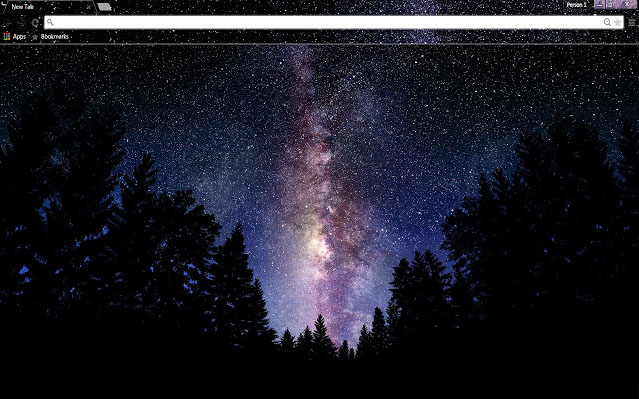
    This is the best Google chrome theme capturing the amazing colorful night sky full of stars through the trees. This truly captures the essence of the beauty of the night and is just simply going to be stunning as a new theme of your browser. I must say this is one of the best Google chrome themes available .

    Google chrome Plumage Theme

    The vibrant colors in the background are definitely going to make you enjoy using your browser. The background image consists of some intricate and beautiful details and texture. You might think of the color to be too bright but it for sure deserves a chance.

    Google chrome Material Dark Theme

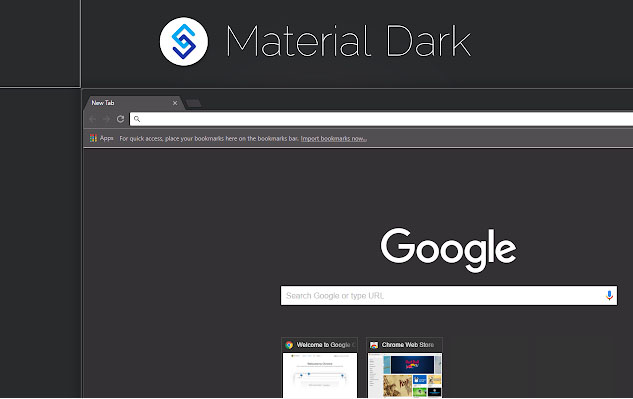
    This theme is counted among the best minimalist Google chrome themes. The background image consists of very little graphics and dark shades of colors. The theme is simple and straightforward. The theme completely satisfies the saying less is more.

    Google chrome Angry Birds Theme

    This is the best theme for all the angry birds lovers out there. With this theme you can meet your favorite characters every time you will use your browser.

    Google chrome Legal Pad

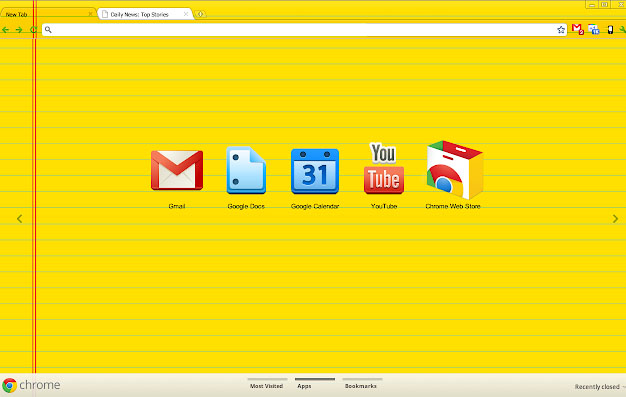
    Laptops have somehow replaced the use of books and notebooks. With this theme you can get the feels of using some notebook. It’s the best theme for all the students for sure. If you love some bright and vibrant colors, then this theme is for you.

    Google chrome Batman Design

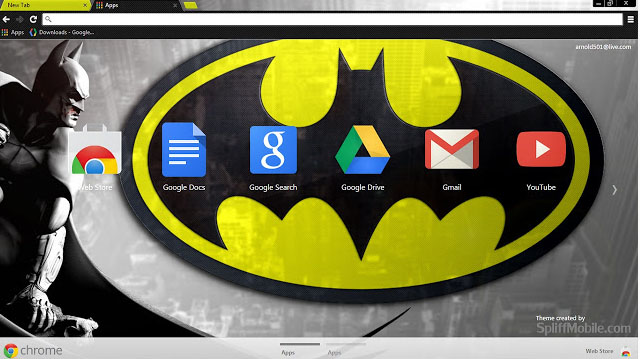
    Batman has a huge fan base across the globe. This is the best Google chrome theme for you if you are a part of this fandom. The theme is minimalistic and features dark colors. And is perfect way to show your love towards batman.

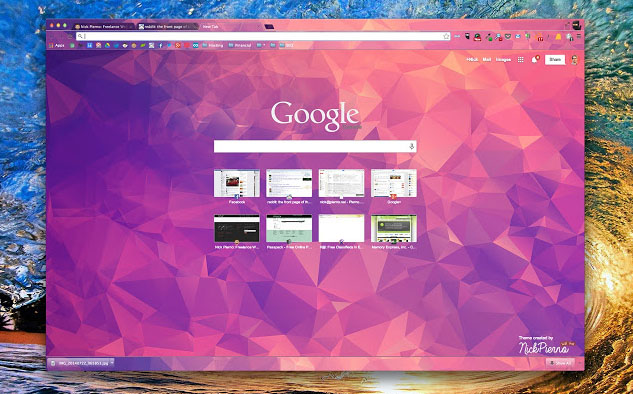
    Google chrome Polytheme

    This is the best Google chrome theme if you want a splash of colors on your browser’s background. The background features geometric designs in multiple but not too bright colors and can be simply beautiful and amazing theme for your browser.

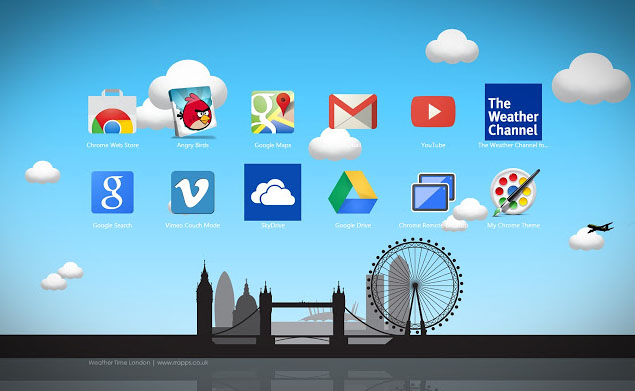
    Google chrome Weather time London theme – Daylight

    The theme captures the essence of London featuring the major attractions of the city. The colors are used in lighter shades and are comforting to the eyes. Indeed a beautiful theme and a must try.

    Google chrome Puppy Love

    If you are a dog lover then this is for sure the best Google chrome theme for you. The background features a top shot of a cute puppy lying on grass. The background is just too cute.

    How to download Google Chrome Themes ?

    You can add Google Chrome theme easily for which you have to download Google Chrome theme following the given steps –

    1. Click upon the three vertical dots present on the top right corner of your screen.
    2. Then click upon Settings.
    3. Scroll down the page that appears to Appearance. Now select Themes and then Chrome web Store.
    4. A new tab is opened displaying all the themes available for you to select.
    5. For information about each theme click its thumbnail.
    6. For installing any, simply click upon Add to chrome.
    7. You can undo it then and there if you don’t like it.

    So your desired Google chrome themes is installed in your browser and the changes can be seen on the browser window.

    Read Also : Best free office software for Computer & Smartphone

    Read Also : The ultimate guide to make Windows run faster (Boost Computer Speed)

    How to remove Google Chrome Theme ?

    The steps to install google chrome themes , let it be any theme its easy right? So are the steps to remove google chrome theme if you just in case want to restore to the default theme. Just follow the steps mentioned below:

    1. Click upon the three vertical dots present on the top right corner of your screen.
    2. Then click upon Settings.
    3. Scroll down the page that appears to Appearance.
    4. Now select Reset to default theme.

    How to Change Google Chrome Theme ?

    The whole purpose of applying a theme is to provide a new look to your browser and the day you get bored of your existing theme you ought to change it. In order to change google chrome theme all you need is to repeat the steps mentioned above under ‘How to install Google chrome theme’. Select the desired new theme and install it. The older one is removed and the newly installed Google chrome themes is put on display.

    Read Also : Connect dual displays / monitors to one computer on Windows & MAC

    How to customize Google Chrome theme (How to create own Google Chrome Theme )

    You can select the theme from the huge and amazing collection available on the chrome web store but still if you don’t like any or just want to create your own theme then that is possible as well.

    By following the given steps you can simply create your own customized theme for your browser using Chrome theme creator , so let us see how to make your own google chrome theme :

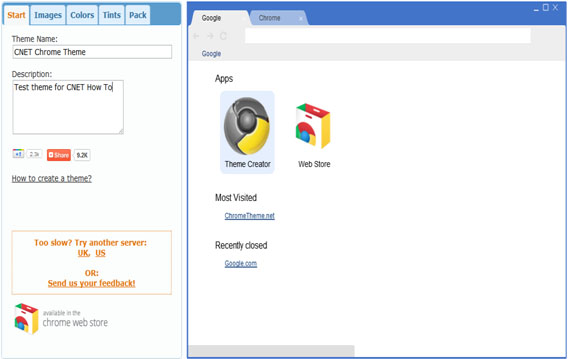
    • First you need to understand that the left feature all the settings required while on the right side the preview of the theme you are making can be seen. You can set the theme name and add a description whatever you want to
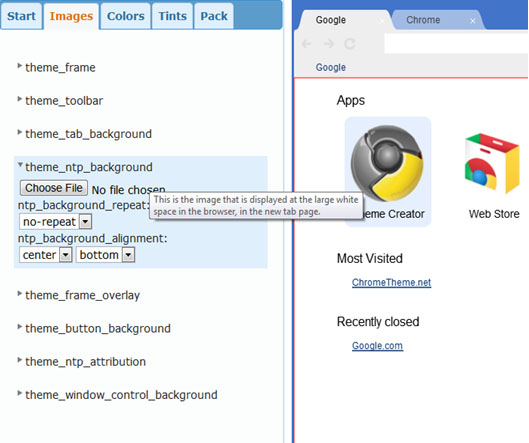
    • The next step is to set all the images for the different parts of the browser. Of you want to set image only for the background then you need to set only the Theme_ntp_background. You select the image file and adjust the alignments. If you want to set different images for the tabs, toolbar etc. then you can select separate image for each section as shown in picture.
    • In the next tabs you can set the colors and tints for the texts and the different sections as per your desire.
    • Once you are done with creating your theme click on the pack and install button. Its installs the theme and displays. If you don’t like the way it turned out then you can go back and modify again.
    • Once the theme is finalized you can download and save it for later use. You can even upload it on the chrome web store and let others use it as well.

    Best google chrome theme creator / google chrome theme makers

    Above you can understand how to create your very own theme using the Google theme creator. There are number of other amazing tools which can be used for the very same purpose:

    1. Theme Creator

    It’s a google extension application. Create some amazing and personalized themes with a lot of ease and share it with others as well.

    1. Theme beta

    Like theme creator, another theme creator tool. Select the images, color, text designs and your theme is ready.

    1. Google chromizer

    It is a web app for creating themes. Works mostly like other tools but there is a tiny restriction, it only accepts images in jpg, png or gif format.

    1. com

    It is another simple tool for creating your custom themes and makes the process quite easy and comfortable for the user.

    1. Canvas

    With all the features available with other tools it has a few add ons. You can set your own images for the tab section and also has a new feature named selfie mode for instantly clicking your pictures.

    1. Stylish

    It’s an extension where you get to edit any theme and get to choose from a huge collection of colors and skins.

    So we can see to provide a completely new and refreshing look to your browser the chrome web store provides you with a decent collection of a huge number of themes and you may now understand that the process to install, change or uninstall any theme is also pretty simple. Google also provide you with the ability to create your own personalized themes. So do tell us which one is your favorite theme and do also mention your experience if you try creating your own custom google chrome theme.