Tag: Technology

Technology has different aspects and thus definition of technology also has different spheres . The way we define technology is changing from year to year . Technology is the fastest growing sector globally .

We can define it in simple words as a collection of  technical methods , process , skill and techniques used to achieve certain objective / goal or in the production process.

Technology is the tact use of techniques in simpler words.

Ranging from Electricity , Radio , Television , Telephone , Mobile Phone , Computer , Calculator are all products of technology . You can witness that technology is dynamic and it keeps on upgrading each of its invention just like the evolution of  Smartphones , the changing trend of television to LCD , LED , OLED , 4K Smart TV  , the changing speed of Internet from 2G to 3G to 4G to 5G on expectation .

The future will be AI , robotics etc . It is always important for people to know about recent technology updates , technology tips and tricks and to get familiar with new tech products and their specifications .

  • Waze Vs Google Maps Comparison

    Waze Vs Google Maps Comparison

    GPS are a kind of saviors these days. No matter in which city you are, whatever time it is you can always find your way of the place wherever you are stuck. So here we will see a brief comparison on Waze Vs Google Maps traffic to find out the accurate one .

    Why you need services like Google maps / Waze ?

    The maps provide you with the best routes, shortest route to any place and with the least traffic. The maps tell the best routes turn by turn, at every roundabout and hence save us from a lot of trouble of useless wandering on wrong routes. Also these days they also give you a heads up regarding the live traffic, hence giving you the route with least time, thus help you to save time in traffic .

    There are a number of GPS apps out there for telling you the best routes but the most heard of and used are the Google Maps and Waze.

    Read Also : Google Maps List Create, Share and Edit on Desktop & Mobile Now

    Actually both of these have the same parent company and that is Google. Although both operate separately but also you can recognize a number of similar features if you have used both. But before comparing
    Waze Vs Google Maps , both the apps lets get to know a little bit about both apps.

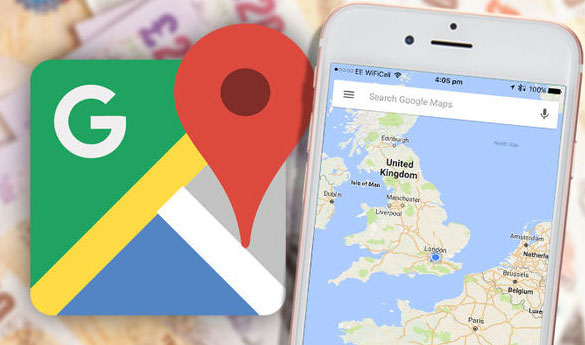
    Google Maps

    Google maps are available for private vehicles, on foot as well as for the public transport. The apps gives you the best way to your destination by analyzing the live condition on all the possible paths, providing you with the least travelling time. The maps are available offline as well. The app is based more on the data rather than its users. Not only that, it also lets you search for famous places around you. Here after you will even get speed limit camera alerts as well .

    The maps are available offline as well. The app is based more on the data rather than its users. Not only that, it also lets you search for famous places around you. Here after you will even get speed limit camera alerts as well .

    Read Also : Google Traffic : How to check traffic to work or home

    Waze

    Waze maps are available only for private vehicles. Waze is like a social media platform where you can give and receive heads up for things like different routes, some accident or any police sightings.

    This way the working of the app depends on its users rather than the data. The app is not available in offline mode. It can be used for finding routes only.

    Waze Vs Google Maps Comparison

    Now lets get to the business. Which one is better ? We can’t just decide here whether Google maps or waze which one is better since each has some specialties of its own. So lets compare some of the features between Waze Vs Google Maps –

    • The first feature is regarding the interface. Waze app has 3D interface which is quite an attention seeker. While interface for Google maps is in 2D only and is simple.

    Read Also : Mock location app for Android & iPhone to fake location

    • Google maps can be used offline as well. No such feature is available for Waze maps. Also now Google maps will give you details on speed limits as the new feature which was already there on Waze .
    • Waze can only be used for cars and bikes while Google maps can be used for public transport as well as while on foot.
    • Comparing Waze Vs Google maps traffic , Google Maps are based on data collected using satellites only while Waze gets the current conditions such as police sightings, traffic jams etc. from its users.
    • In waze such heads up can help you skip the traffic jams quite easily, also can help you save from the police tickets by notifying about police sightings while Google maps totally lacks such notifications.
    • When it come to which GPS use more data then we can say comparatively Waze needs more data than that of Google maps .

    Conclusion on Waze Vs Google Maps

    So which one is actually better? According to me the only feature that Google maps lack are the incident reporting feature by other drivers. But beside this it has a lot of stuff which it is better at like the offline mode, can be used for public transport and with the news that soon the incident reporting feature will be introduced makes Google maps the clear winner.

  • Cinemagraph app that makes pictures move (  iOS & Android)

    Cinemagraph app that makes pictures move ( iOS & Android)

    So , What is a Cinemagraph ? Is that a GIF or is it any short video ? Most of you might be familiar to some of you and unfamiliar to others . But i am quite sure you would have seen a Cinemagraph but never knew its name technically . It is not like any video or GIF and neither like a still image. It is in between these two. Some parts move while some don’t. Have you ever come across any Cinemagraph app .

    How to create Cinemagraph ? Well you take some hectic hard work to create a cinemagraph manually . Is there any apps or software to create Cinemagraph on PC or smartphone ? Of course there are plenty such cinemagraph app that makes pictures move .

    Here I have listed down some of the best cinemagraph apps which can be used easily even by the beginners . Works same as simple as how you create Animated GIF .

    Read Also : Pinterest Tips and Tricks to use Pinterest like a Pro

    Best Cinemagraph app that makes pictures move ( iOS & Android)

    Now let’s take a look at the best Cinemagraph apps for android and iPhone.

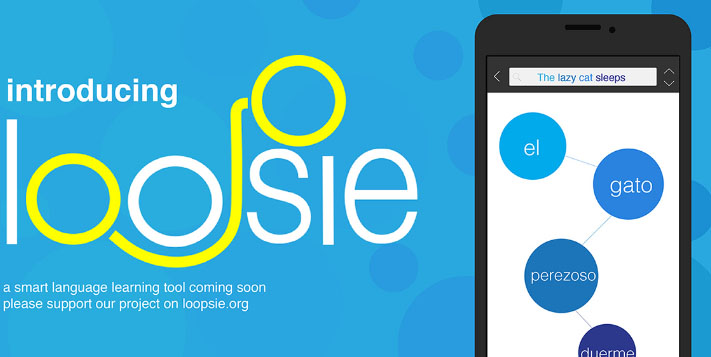
    Loopsie

    The best feature of this Cinemagraph app is definitely its inbuilt video stabilizer. Thus you don’t need to worry if you have accidentally recorded a shaky video. The inbuilt stabilizer automatically stabilizes all the videos.

    Also the app supports two modes i.e. repeat and bounce modes. Repeat mode means the Cinemagraph begins from the start again after it ends once while in Bounce mode video then plays in the reverse manner. The major problem is that it lacks the customizing features such as adding after effects on Cinemagraph etc.

    To remove the watermark you need to make an in app purchase of $1.99. Also the app can be downloaded on both android and iOS.

    Cinemagraph pro

    This app is always counted among the best Cinemagraph apps and is preferred by the professional photographers as well. The best features for this app comprise the user friendly interface and the amazing customizing options.

    Like loopsie it supports both backward and bounce manner along with adjustable speed and create cinemagraphs from images and videos.

    In its free mode, it creates videos in low qualities and with watermark. The professional photographers need to buy the premium version worth $200 which comes along with the Flixel cloud service.

    Its available only for iOS. If you are owning an android then go for Cinemagraph apps for android . In case you are using iPhone then go for this app even its one of the good Cinemagraph app for iOS.

    Read Also : 25 Best Selfie Apps for every Selfie Lovers – Perfect Click

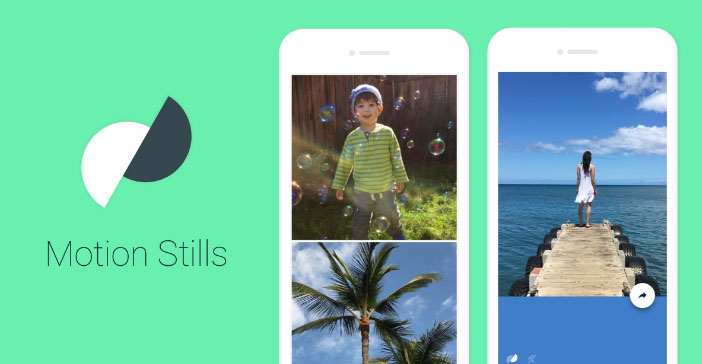
    Motion Stills

    It’s a very basic app with almost no editing features but is sufficient for creating some fun and cool Cinemagraphs. The best feature is the video stabilizing feature. It lets you create both Cinemagraphs and time lapse videos. Other amazing thing it that it can create a looping video of 3 seconds and with the amazing stabilizing feature it looks like an image.

    You can also join smaller clips to form a longer movie. Its available for free and on both platforms i.e. android and iOS. It’s the best app for creating fun cinemagraphs for beginners.

    PICOO camera

    Its like some photo editing app. It comes with a number of filters which can be applied to the picture for beatifying it further. For creating cinemagraphs, all you need is to select the area which you want in motion. It can be selected in square or circular or customized drawn by hand.

    Although the results are not always fine but the app is definitely best cinemagraph app for day to day use.

    Read Also : Best Triple Camera Phones to Buy This Year

    Read Also : Share Hike Stickers on WhatsApp – Enable Stickey

    Its free and available on both platforms.

    MaskArt

    Want to turn your existing videos into cinemagarphs, don’t worry MaskArt is here to your rescue. What it does is that it convert videos into cinemagraph. Just simply mark the sections you  wish to animate and you are done, rest of the portions of the image remain still resulting in perfect cinemagraphs.

    This provides you with even more control over the animated parts. Other awesome feature is that you may even add custom images right over the cinemagraph.

    It’s the best cinemagraph app for converting existing videos into cinemagraphs.

    Fotodanz

    Although the app was discontinued for a while but now its back in the race. It work like Maskart, shoot the video and select the regions for animations. But the maximum video length is for 5 seconds. There are a number of additional features like you can rotate images, adjust speed and length, add filters and control of loop style.

    Creating cinemagraphs is free but you need to make an in app purchase for using some of the filters of about $0.99 – $1.60. Its available on android only.

    Video loop perfect editor Cinemagraph clip maker

    The name seems quite long and complicated right, but don’t worry working with is app is pretty easy. First step is to upload the desired video whose cinemagraph you want to create. Second step is to highlight the regions you want to animate. And then if you want to apply any filters then you can also do that.

    It also adds a watermark to your cinemagraph and can be removed by making an in app purchase of $1.99. It is available for iOS platform only.

    Cinemagraph

    This app is somewhat like the one discussed above but works in a reverse manner. The first step for making a cinemagraph is to highlight the regions you wish to animate and then shoot the video. But the major issue in this app is that it lacks an automatic stabilizer. So the problem of a shaky video can’t be solved here, you may use a tripod for that. While its best feature is that you may edit your cinemagraph frame by frame, that’s like the best editing feature right?

    You may also create cinemagraphs by tapping on certain object, this way it is put in focus and cinemagraph can be created about it.

    The above list comprises of the best cinemagraph apps and can help you become a cinemagraph pro in just a matter of minutes. According to me the best app for the daily use is the Maskart or the PICOO camera while the professionals should prefer full premium version of Cinemagraph Pro. Do share your favorite app from above list in the comments below.

  • Share Hike Stickers on WhatsApp – Enable Stickey

    Share Hike Stickers on WhatsApp – Enable Stickey

    When it comes to Stickers , then we all like Hike Stickers which made our chats more interesting . But still Whatsapp has taken our hearts , and to impress their users WhatsApp also introduced the sticker feature . But we don’t have wide range of Stickers . You can get Hike Stickers on Whatsapp , here we will discuss how to download Hike Stickers for Whatsapp and step by step guide on How to share Hike Stickers on Whatsapp .

    We have shared how to make custom stickers on WhatsApp , now in order to share Hike Stickers on WhatsApp , one must enable Stickey .

    So What is this Stickey ?

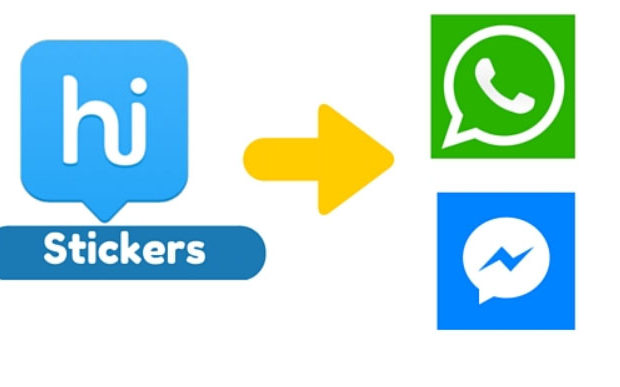
    Hike has got a new feature in its settings called Stickey . Using Stickey one can enable it and Share Hike Stickers on Facebook , Whatsapp , Wechat and so many messaging apps .

    How to Enable Stickey to Share Hike Stickers on Whatsapp / Fb Messenger ?

    Now we will look at the steps to enable Stickey –

    • Go to your Hike messenger .
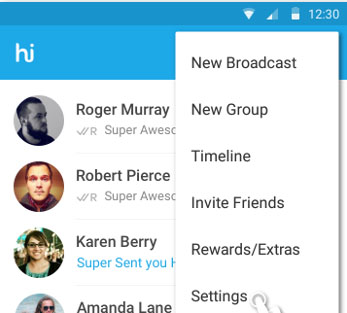
    • Now go to the Hike Settings option and click that .
    Hike Messenger Settings option
    Hike Messenger Settings
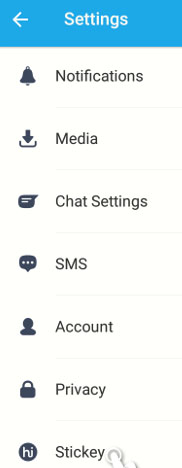
    • Scroll to the end , you can find the Stickey option there in the bottom of settings .
    Selecting Stickey option from Hike messenger settings
    Hike Stickey
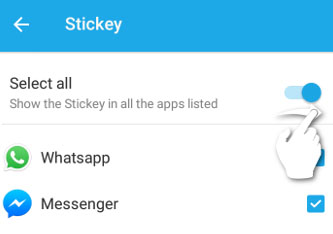
    • Now click on Stickey and to enable it just swipe to the right .Now Stickey will give you a list of other apps , Just check mark the apps on which you want to use stickey . Here i am enabling Stickey for WhatsApp and Facebook . In case your device has Wechat or any other apps , Stickey would show those apps also in the list .
    Enabling Hike Stickey for WhatsApp and Facebook messenger
    Enable Stickey for Whatsapp
    • Now you have successfully enabled Stickey for WhatsApp and Facebook .

    How to Share Hike Stickers on Whatsapp with Stickey ?

    We have discussed how to enable Stickey , now after enabling Stickey , you can share the stickers of Hike on any messenger apps . Now let us see how to send hike stickers on Whatsapp –

    • Go to WhatsApp after enabling stickey for WhatsApp via Hike Settings.
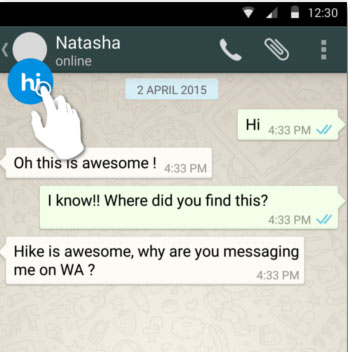
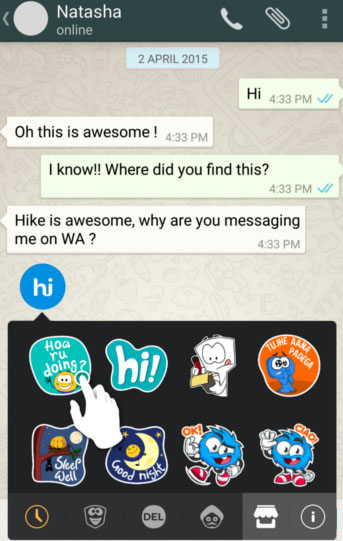
    • Now on You can find the Hike (hi) symbol on your whatsapp , just click that.
    Hike Stickey for WhatsApp
    Hike Stickers for WhatsApp
    • There you can find all the exciting Hike Stickers , select that .
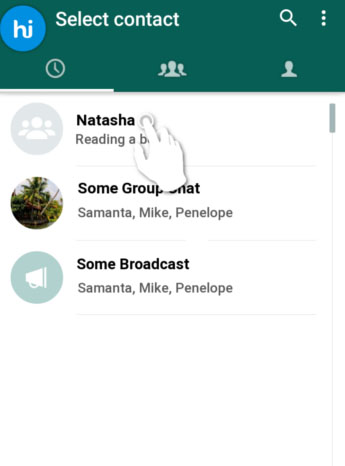
    • Now choose the desired contact and select the contact on Whatsapp & Tap send .
    • That’s it you are done .

    This way you can share Hike stickers with your Whatsapp friends .

  • Change Netflix Password Easily With These Steps

    Change Netflix Password Easily With These Steps

    Netflix being one of the most popular media streaming services online has growing number of users . Sometimes you would like to change Netflix Password for several reasons like you don’t want to share your Netflix account anymore with a person etc.

    As per the recent strict decisions by the brand , there will be severe restrictions on sharing Netflix passwords . This might be more than a restriction as the potential chances of earning is not utilized to its optimum. With the help of AI and its new software Netflix will stop allowing its users to Share Netflix account password .

    Read Also : Best Streaming Devices – All Top Media Streaming Box on Market

    Read Also : Streaming Services – Netflix Vs Prime Vs Hulu Vs Sling Vs Directv Now etc

    Change Netflix Password

    So if you want to change Netflix Password follow the steps we discuss here clearly .

    How to Change Netflix Password on Desktop Browser ?

    Now here we will discuss simple step by step instruction on how to change Netflix password or reset Netflix Password in case you forgot Netflix Password using Desktop browser –

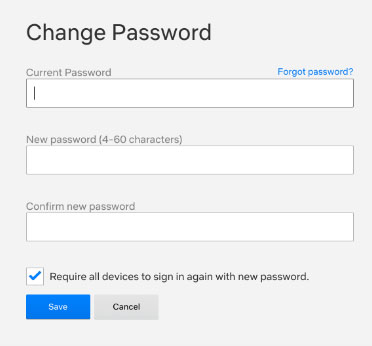
    • First login to your Netflix account . Ensure that the primary Netflix account owner’s name is selected on the right top most corner . Suppose you forgot password click on that option and do follow necessary step to reset it .
    • Now click on the Netflix owner name given and select the ” Your Account ” option .
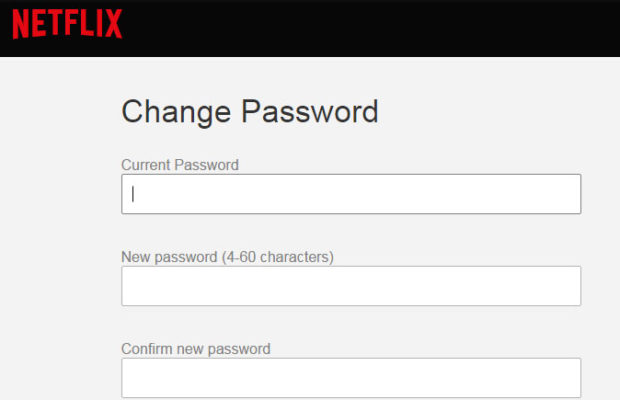
    • Now select the link of Change Password
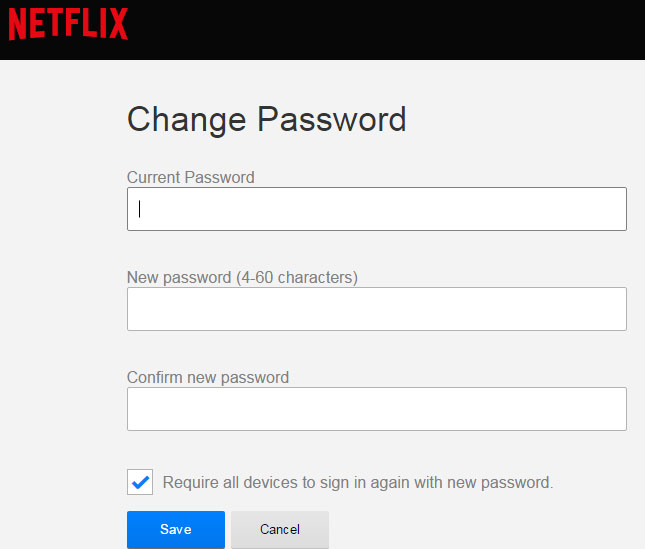
    • Now enter a new password and re type it on the columns of Current Password and New Password .
    • Now just Confirm the password .

    If your purpose of changing the password is because you want the users who know your current password to stop using it up , then make sure you go for clicking that all devices must sign in again with the new password .

    • Save it

    How to Change Netflix Password on iOS / Android App

    Now will take a look at how to change your Netflix password from Android app or iOS App.

    • First you have to login to the mobile application of Netflix already installed on your device .
    • Now in case you don’t remember Netflix password click on the Forgot Password option just like you do on all the sites .
    • On the top most left corner of the page find the Menu option and just click on it.
    • Now select the Account option which you can find by scrolling down .
    • Now you would have already got a new browser page , in that find the Change password option and click that .
    • Enter a new password as the Current password and re enter it to confirm the newly entered password .
    • Now opt out all device running on old password and enable them to login again with new password .
    • Now save it .

    Password sharing for the most popular streaming service Netflix will come to an end soon . So those who want to protect your account can reset Netflix password and use it for your own purpose .

  • WhatsApp Stickers – Create custom Personalized Whatsapp Stickers

    WhatsApp Stickers – Create custom Personalized Whatsapp Stickers

    WhatsApp is definitely among the most famous online chatting app and is used worldwide. Also WhatsApp regularly roll out new updates featuring bunch of new features with every update. Like WhatsApp stories have been introduced, earlier voice call and video call were introduced, like deleting sent messages on WhatsApp and many more. The latest features introduced by WhatsApp is the WhatsApp stickers.

    Earlier smileys were present but now chatting can be even more fun using the whatsapp stickers. This feature was long awaited since almost all its competing platforms such as Hike and Telegram had this feature. Since the feature has been introduced only recently not a wide range of stickers are available but the problem can be solved by creating your own custom stickers to express yourself even better. Of course you have to use third party apps for creating custom stickers.

    One such app is Sticker Maker and believe me the process is pretty simple to implement as mentioned below :

    • Obviously firstly you need to install the app named Sticker Maker on your smartphone.
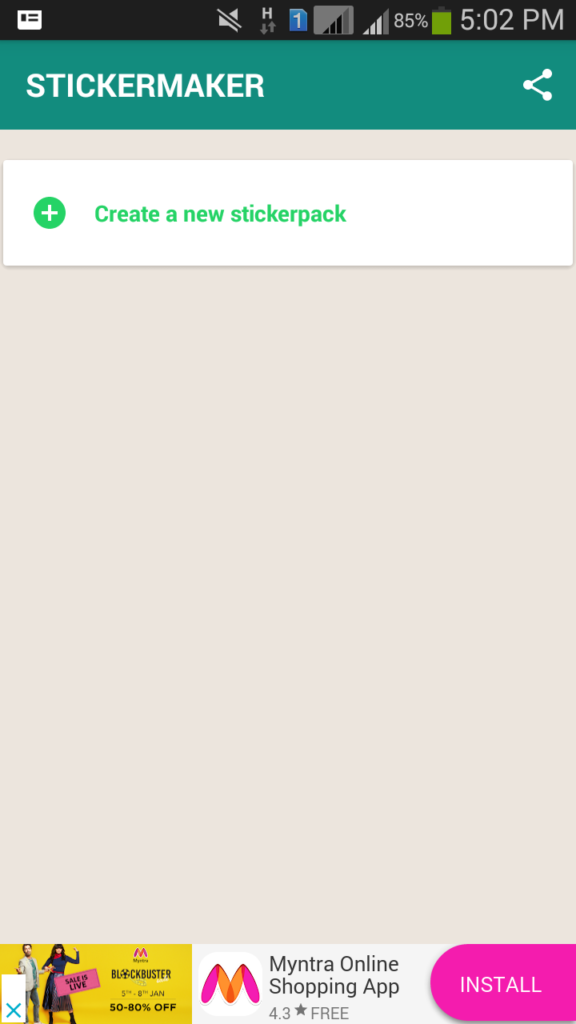
    • After you install the app, as soon as you open the app on the screen that appears, click on the option Create a new stickerpack.
    Stickermaker for WhatsApp
    Stickermaker
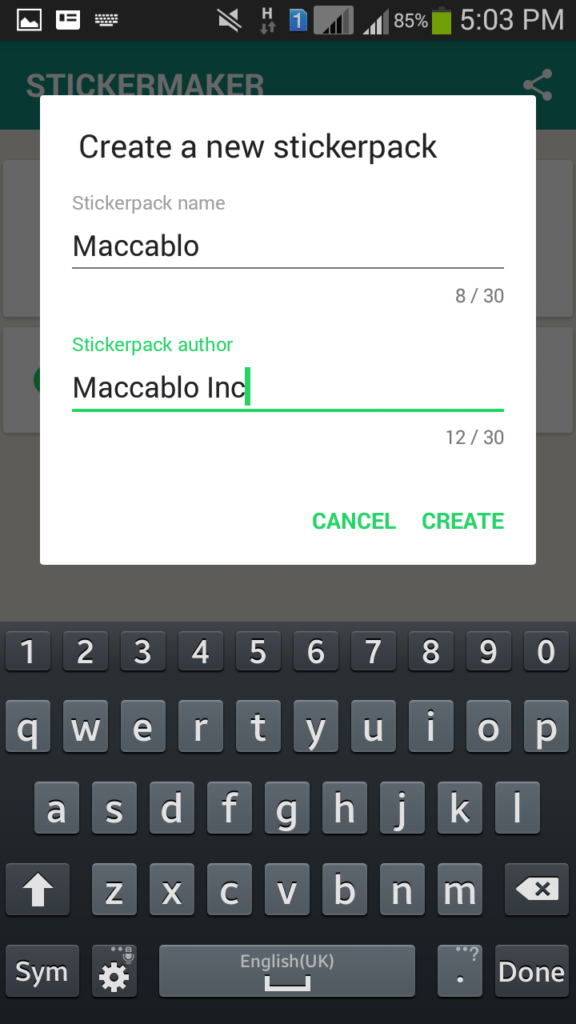
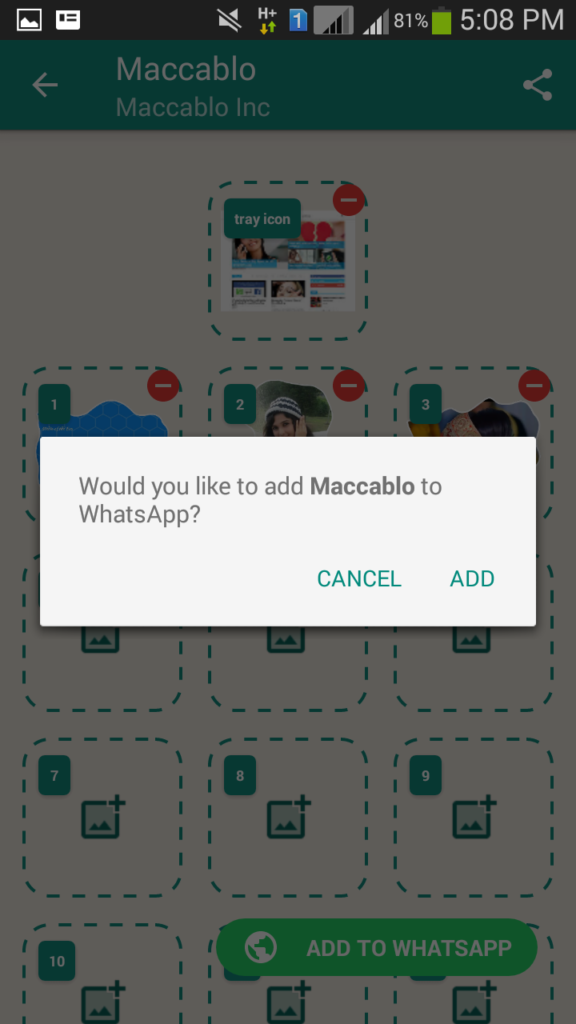
    • Now give a name to your stickerpack .Just like we have given our stickerpack name here as Maccablo .And Sticker pack Author name as Maccablo Inc.
    Creating Custom Stickers on Whatsapp
    New Stickerpack
    • Then you need to create a sticker which will be like the icon of your sticker pack which you can’t use, you can only use the stickers which are present in the slots. Each pack can have at most 30 stickers.

    Read Also : WhatsApp Security Scams and How to Protect Yourself

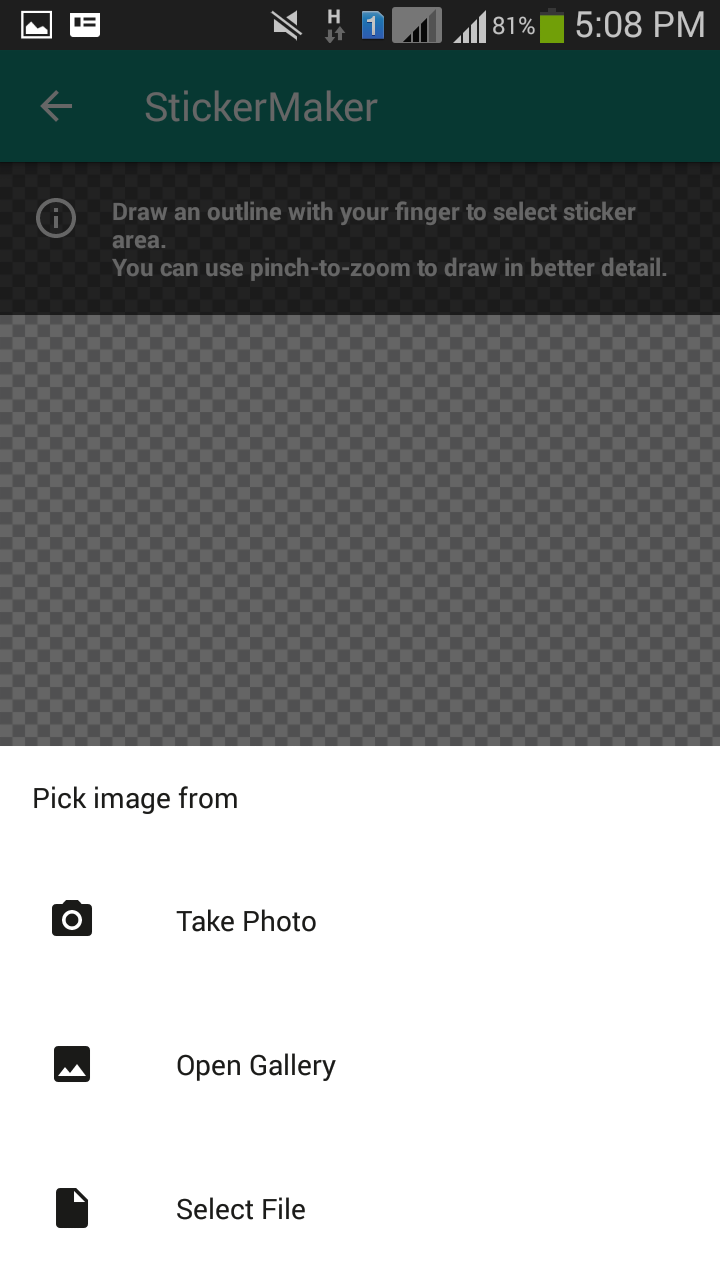
    • Inorder to create sticker choose the file you would like to make sticker from your gallery and you can cut it or freehand draw it and save it as sticker . Just like we have chosen an image of Maccablo logo from my phone Gallery .After selecting it i have chosen to use freehand cut and draw a shape . Those enclosed in the line became my new personally customized sticker.
    New WhatsApp stickers
    • Once you are done showing all your creativity, I mean done creating stickers you need to click on the green button Add to Whatsapp on the bottom right of your screen. Once done a confirmation message will be displayed.
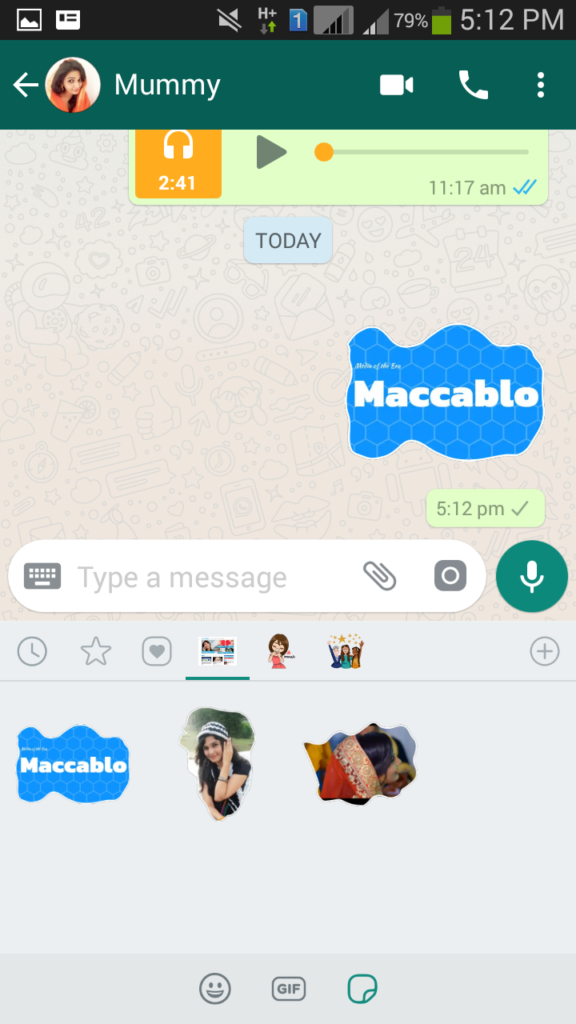
    • Now From my Whatsapp Stickers i am choosing the newly created sticker pack and selecting my sticker to send . Just like shown in the below images for reference .
    Share custom Sticker on WhatsApp

    Once done with all this all you need to do is open whatsapp and use all the fun stickers you have created. For doing so in any conversation, click on emoji button and there you can find your custom stickers easily.

    So definitely with time we hope that whatsapp rolls out a number of new stickers within the app itself, till then you can have all the fun using this app. Do share your experience of creating your very own custom stickers with us.

    You can create your own custom WhatsApp stickers by following the instructions given above and even download Whatsapp stickers from All Stickers .

    You Have an option to use Hike Stickers on Whatsapp where you can send unlimited Hike stickers on Whatsapp . All you have to do to get Hike stickers on Whatsapp is just to work on your Hike Settings . Thus you can share Hike stickers on WhatsApp .

    So enjoy the new WhatsApp feature in its newest way !!!

  • WhatsApp Security Scams and How to Protect Yourself

    WhatsApp Security Scams and How to Protect Yourself

    Whatsapp, who doesn’t use it right? Its like the most famous messaging app out there. Everyone from the younger ones to the eldest in the families use it. It is used you in all spheres from personal to professional. And with each passing day its getting improved for better , thus attracting more users. Even though there are so many best alternatives to WhatsApp , this application doesn’t lose its users . Recently Whatsapp Security has become a question of concern for its loyal users with the rise of Whatsapp Security Scams .

    WhatsApp Security Scams Alert
    Whatsapp Dangers and Scams

    WhatsApp Security Scams

    But with all this amazing features and extensive usage all around the globe there are some people who try to harm the users and scam them in some way. There are a number of scams on whatsapp which you need to be aware of and those are as follows :

    Read Also : WhatsApp Data Sharing Disable Methods to Protect WhatsApp Data

    Whatsapp gold scam

    Sometimes the scammers slide a link into your inbox claiming it to be the link for downloading the Whatsapp gold version. The scammers claim that you have the exclusive chance to use the gold version WhatsApp which is used by the celebrities with much more Latest WhatsApp features.

    But what you get in return is no gold version rather a device infected with some kind of malware.

    But what you get in return is no gold version rather a device infected with some kind of malware.

    Whatsapp gold version for celebrities scam
    Whatsapp gold scam

    The best way to stay away from this scam is to know the fact that whatsapp can never send you such a link. Secondly, if you have already been a prey to this you can download some antivirus.

    So make sure you are not downloading the wrong version of the app while you upgrade Whatsapp version . Because this is a common WhatsApp Security Scams found these days.

    Read Also : 10+ Best Alternatives to Whatsapp you will love this year

    Free vouchers

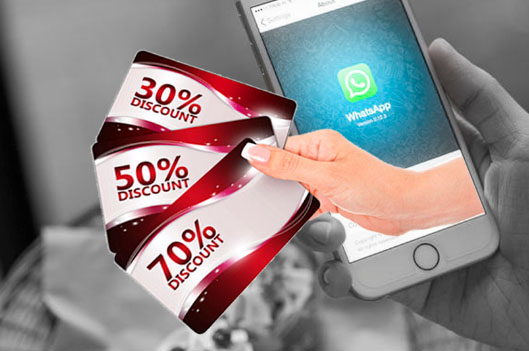
    Who doesn’t like free vouchers, right? It is the easiest way to scam anyone these days and whatsapp is full of such scams. If you receive any voucher either from Asda, Tesco or Marks & Spencer, its for a fact that its not from them since these never giveaway vouchers like these. It appears to be sent from actual number but its fake.

    Free vouchers scam on Whatsapp
    Free WhatsApp Vouchers Scam

    To be aware of such Whatsapp security scams you can look out for grammatical and spelling errors in such messages.

    Read Also : App Lockers for Android to Improve your Privacy

    Pay for renewing your Whatsapp

    Its like the oldest Whatsapp security scams , but you can still fall prey to this even now. Whatsapp is a free app so make sure you don’t have to pay anything to use this . The message asks you to forward some kind of message to other active users within 48 hours else you will be charged .

    Whatsapp Renewal Scam asking Money for updating / renewing Whatsapp
    Whatsapp Renewal Scam

    Inorder to stay safe from this scam you just have to understand that whatsapp doesn’t ask you to pay or forward any messages .

    Call this number to transfer WhatsApp Number

    This is a recent Whatsapp scam as compared to other ones. You may receive a message or call mentioning that you have initiated a request to transfer Whatsapp number , in case you haven’t made a request then there will be a number given to call to confirm that you haven’t requested to transfer Whatsapp number. Just ignore all these kind of messages .

    Transfer Whatsapp Number Scam
    Whatsapp Voice Call Scam

    To stay away from such scams never call on the given number since it is a premium number. Also transferring contacts to other device has no role for whatsapp whatsoever.

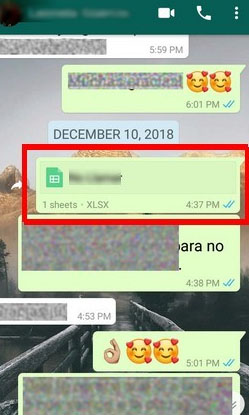
    Pdf, Excel or Word attachments with Malware

    The scam involves that the message received contains some kind of attachment and requires you to download it but it actually has some kind of malware. Downloading it just infects your phone.

    Attachment scam on WhatsApp screenshot of malware document shared on Whatsapp
    Whatsapp Attachment scam

    To stay away from such scams never open files and attachments from unknown sources and just delete such messages.

    Voicemails

    Like earlier, you may receive some voicemail but as soon as you click on listen button leads you to some website downloading malware in your device. To be safe never open voicemails from unknown sources.

    The spy app

    The message contains link for downloading an app for viewing the conversations your friends are having with other people. But link downloads some malware into your device. To stay away from such scams know for a fact that all the conversations on whatsapp are encrypted and cannot be read by anyone except the sender and receiver.

    There are number of people out there ready to scam you in one way or the other. The best  way to not to fall prey to such scams is not click on anything until you don’t know its source or something appears malicious to you. And if you have an anti-virus in your device just in case some malware attacks your device. But beware of these type of Whatsapp security scams online .

  • App Lockers for Android to Improve your Privacy

    App Lockers for Android to Improve your Privacy

    Smartphone , of course we can’t give it to somebody else’s hand even for five minutes . Why is it so , most of us have almost all personal stuffs in our phones . We always loved to protect our privacy , so as certain things need to be secret or hidden . There are ways you can stop worrying about this issue and feel free to give your phone to anyone . If you are using Android device then start using App Lockers for Android to improve your privacy .

    So you can hide your photos and personal things , keep your secrets locked using the App Lockers for Android . This is quite easy when you compare it with iPhone app lockers .

     Now let us take a look at the android app lockers one by one with their smart features .

    App Lockers for Android to Improve your Privacy & Secure Android device

    Here we have listed out the best apps for android device app locking feature .

    Norton App Lock

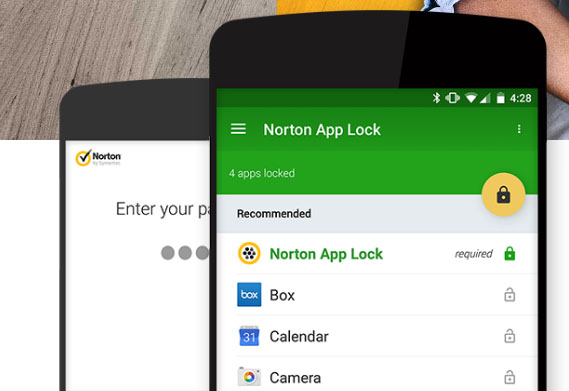
    Norton App lock for Android is one of the top rated app lockers for android devices . Norton app helps in protecting all your most sensitive personal information safe on your device . In case you left your phone somewhere or even if your phone is stolen . None of your apps can be accessed if its secured with the Norton App lock .

    Norton App Lock Android Screen Page
    Norton App Lock Android

    You can install this app from Google play store at your ease .

    Keepsafe App Lock

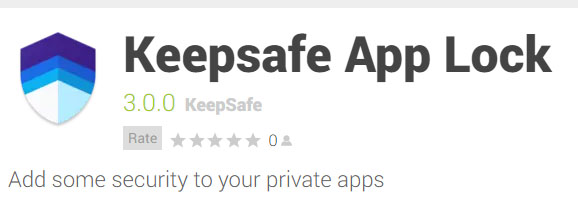
    Just like Norton , Keepsafe App lock is another android application that works absolute same as that of the Norton app locker .

    Keepsafe App lock download link
    Keepsafe App Lock for Android

    You can select the list of applications or folders in your android device which you want to keep it personal . Allows you to even lock your contact number and details on your device , so no one can now sneak peak into your mobile contact list even .

    App Lock 

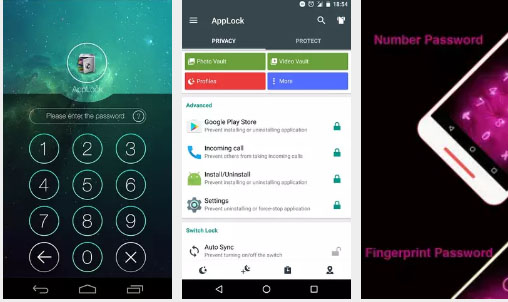
    One of the top most downloaded privacy protection app for android devices. AppLock is available on google playstore , this app can be accessed in almost 45 languages . Using this mobile app users an protect their apps by locking them with finger print lock for mobile apps such as Fb , SMS , Whatsapp , photos and so on .

    AppLock App Download screen and features
    AppLock App

    Something more interesting about Applock app is that it doesn’t drain your device battery power . So if you are on the search for Android App lockers that doesn’t drain battery then this is the best pick .

    This can be best choice of App lockers with power saving mode .

    Read Also : Mock location app for Android & iPhone to fake location

    Read Also : Android P Vs Android O Features compared

    HexLock App Lock

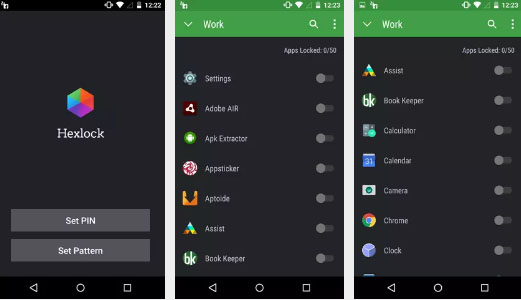
    Hexlock App lock is another app lockers for android that let you create your own profiles and lock it with pattern or finger print . Also depending on each WiFi network you can automatically get profiles enabled for easy access . This prevents app uninstall and protects your privacy . If you would like to use the Hexlock app without ads buy the paid version .

    Read Also : Share Google calendar with someone step by step guide

    Privacy Knight Applock

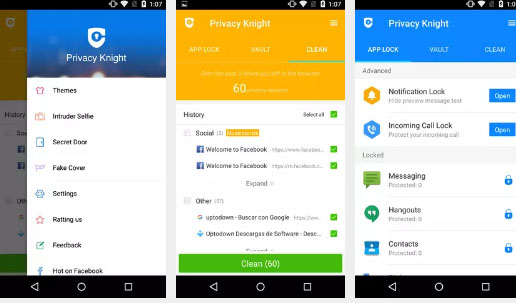
    This is developed by one big brand that is Alibaba group . Privacy Knight Applock for android can be downloaded from Google playstore easily .This app can secure all your sensitive data using password , face tracking etc .

    This app can even lock your on screen notification from apps like Whatsapp, Facebook etc . Also you can use the option to lock incoming calls.

    There are so many other android app lockers for fake crash , and protect your data . Here we have listed out the best picks among all the apps . Do let us know which one is your favourite app lockers for android .

  • Share Google calendar with someone step by step guide

    Share Google calendar with someone step by step guide

    Time management begins with calendar schedules and hope its really the best time to create all your schedules for your next month . Google Calendar is not anything unfamiliar to those who work on proper time management and scheduled calendar . So here we will explain how to Share google calendar with someone .

    What is Google Calendar 

    Google Calendar is a freeware app developed by google inorder to help users around the globe to easily manage their schedules and maintain effective time management . You can get Google Calendar online on PC and its also available to download Google Calendar for Android and iPhone

    You might not be aware that on App store , Google Calendar is one of the top list Time planner iOS apps .

    Google Calendar Logo with date
    Google Calendar – G suite

    Let’s know more about the top Time management app – Google Calendar .

    Read Also : Mock location app for Android & iPhone to fake location 

    Read Also : Google chrome themes that you shouldn’t Miss

    Google Calendar Is Different , believe it or not . Its not like the common calendar you usually find in the time planner apps . You can select different calendar of interest such as Holiday Calendar , sports calendar and so on .

    These Calendar of Interest will help as a reminder on any of your religious festival date , and your favourite football match date etc .

    The Need to Share Google Calendar !!!

    At times we may have to share date of certain events and sometimes we have share the schedules of official meetings that can be easily created on Google calendar and much more easy to share Google calendar events and schedules with someone else . Now we will look at the simple steps on how to share them easily.

    How to Share google calendar with someone

    Its not a tough task to share google calendar with someone else , here is the step by step guide for that task –

    Sharing google calendar is the same process as of sharing documents in Google drive . You can share it either as public / specific people .

    • Go to Google Calendar app and open it .
    • Now look at the left side of the Google Calendar app where you see an option My Calendars
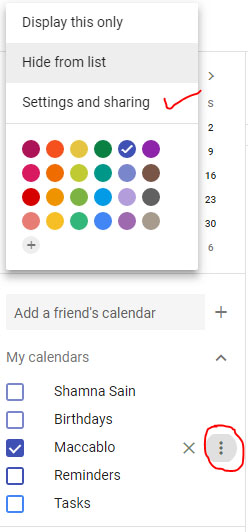
    • Below that you can list of the Calendars that you have created , here for example i am going to choose the calendar Maccablo
    • Near to the Calendar you would like to share you can see three vertical dots , click on that as you see in the picture given below .
    Share Google Calendar named Maccablo
    Share google calendar with someone
    • Once you have choosen the calendar to be shared and clicked the vertical dots , like the image given below there you get a box opened with an option Setting and Sharing .

    Read Also : Google News Dark Mode – How to toggle on Dark Theme

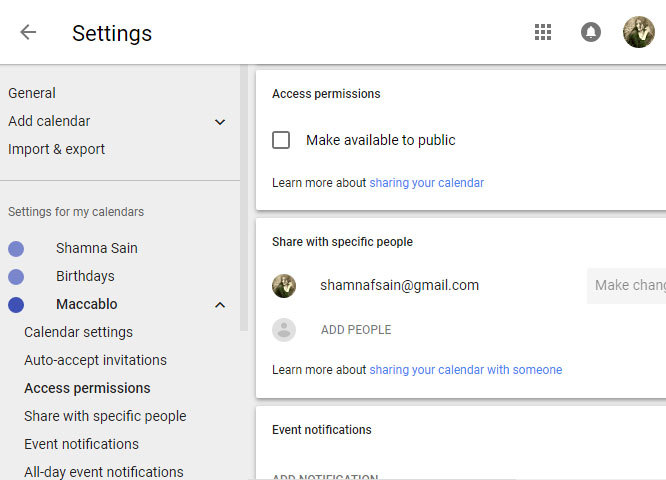
    • Now click on that , you can see an option in the Google Calendar settings page .
    Google Calendar Settings page
    Google Calendar Settings
    • Now choose Access permissions to share Google Calendar with public,  just check mark that box given below make available to public.
    • In case you would like share google calendar with specific people then on the settings page choose Share with specific people option . Click on Add people and enter the email address or email addresses of the people who must get Google calendar access .

    You can customize your Google calendar settings on what sort of events should be shared with other people and the type of permissions they can have .

  • App Store Alternatives for iOS Apps & Websites

    App Store Alternatives for iOS Apps & Websites

    App store is familiar to most of the readers who are using Apple devices such as iPhone , iPad , iPod and so on . You may be in need of different sort of Apps in your day to day life to make your Apple device more useful to your needs. May be for entertainment apps , sometimes for exam apps , even sometimes for music apps on iOS app store and mostly for iOS game apps and iPhone camera filter apps . Even for using Facebook for iOS , WhatsApp for iOS you need to visit Apple App store right ? But you can use something else that are best Apple App Store Alternatives for iOS Apps and websites .

    App Store Alternatives for iOS Apps & Websites

    Now we will discuss some of the best iOS App store alternatives that can be used easily .

    Apple App store

    App store is the official mobile app distribution platform by Apple . This work with all iOS devices and thus allows users to search for different apps and download them . Even developers can upload their newly developed iOS apps and monetize it with apple , just like you do with Google play store .

    Read Also : How to update iPhone / iPad to the Latest iOS update

    Cydia

    Cydia is one of the best iOS App Store Alternatives available for the jailbroken Apple iOS devices . This works for the same purpose on iOS devices to search and download softwares and apps .

    There are ways to install Cydia without jailbreaking your iOS device .

    TutuApp

    TutuApp is available for both android and iOS . This will also allow you to download apps just like you do with the Apple iOS store . 

    Read Also : Best iMessage alternatives for Android/ Windows/ Mac/ iOS

    Read Also : Phone Conference Calling Step by step guide

    Apps4iPhone

    This Apps4iPhone is a free alternative to apple iOS app store that allows users to download the apps available on the app store for free .

    There was one more alternative which was one among the popular recommendation that is vShare , you can check out if that is working .

    So try out any of the iOS store alternatives and do let us know if you have any popular alternative to app store that is not included in our list .

  • Google chrome themes that you shouldn’t Miss

    Google chrome themes that you shouldn’t Miss

    Google Chrome , your favourite web browser from tech giant Google allows you to choose between a variety of Chrome themes . So here we will discuss out the best Google chrome themes that you shouldn’t Miss .

    Most of you must be an avid user of the Google chrome browser for your daily web browsing and if not you definitely will be aware of it. There are a plenty of options you can choose from as your web browser and Google chrome is one of the most popular options known for its lightweight and user friendly interface besides some amazing features. So Google chrome, your favorite web browser from the tech giant Google offers you a number of terrific and refreshing themes to choose from. Here we are going to discuss some of them but before there is some more information you will like to grasp.

    What is Google Chrome Theme ?

    Technically what themes are that these are additional extensions which you may add to your browser to change the way your browser looks. Also these are added like any other extensions but don’t contain any HTML or JavaScript codes. You can change the look of the browser completely starting from tabs, browser background, and color of the text and much more the way you want. Google Chrome Themes provide a new and refreshing look to your chrome browser.
    Why you should Change Google Chrome Theme ?

    Sometimes you may get tired the way your browser looks and just get bored of using it because of it same old appearance. Here changing theme provides it a new and refreshing look. Moreover you can set the colors of text, tabs, background and much more the way it comforts you, the way you want.

    Read Also : Best Web browsers for Computer & Smartphone

    Best Google Chrome Themes you shouldn’t Miss 

    Here is the list of the some of the best Google chrome themes :

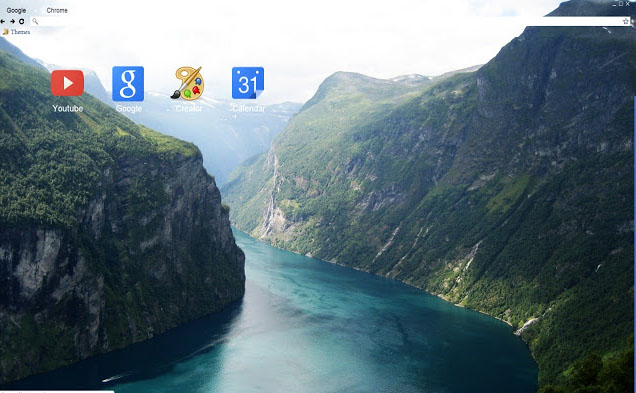
    Google chrome Norwegian Fjord Theme

    Who doesn’t love nature, right? And this theme is definitely among the best landscape Google chrome theme. Capturing the picturesque view of this water body flowing through these mountains in its background is going fill you up with some happy and refreshing vibes every time you are going to use your browser.
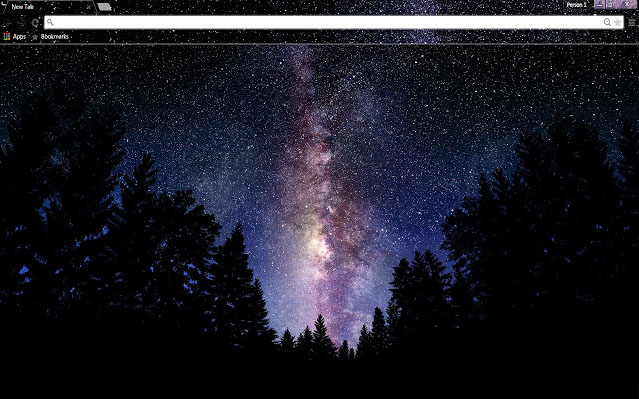
    Google chrome Galaxy view Theme

    This is the best Google chrome theme capturing the amazing colorful night sky full of stars through the trees. This truly captures the essence of the beauty of the night and is just simply going to be stunning as a new theme of your browser. I must say this is one of the best Google chrome themes available .
    Google chrome Plumage Theme

    The vibrant colors in the background are definitely going to make you enjoy using your browser. The background image consists of some intricate and beautiful details and texture. You might think of the color to be too bright but it for sure deserves a chance.

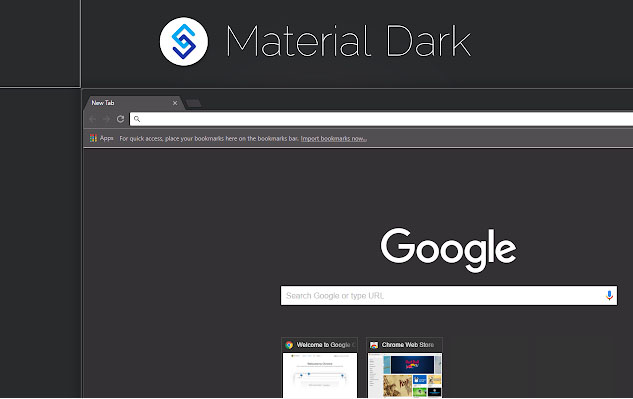
    Google chrome Material Dark Theme

    This theme is counted among the best minimalist Google chrome themes. The background image consists of very little graphics and dark shades of colors. The theme is simple and straightforward. The theme completely satisfies the saying less is more.
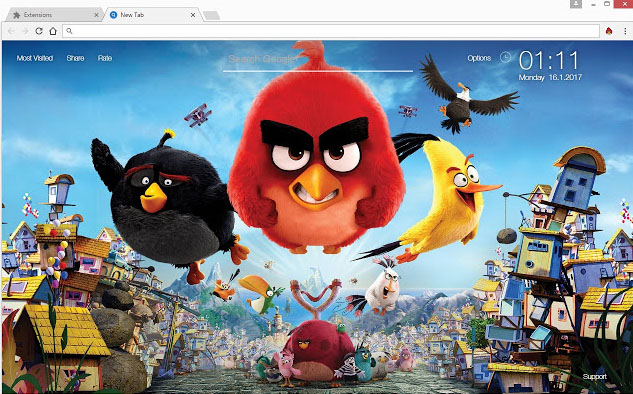
    Google chrome Angry Birds Theme

    This is the best theme for all the angry birds lovers out there. With this theme you can meet your favorite characters every time you will use your browser.
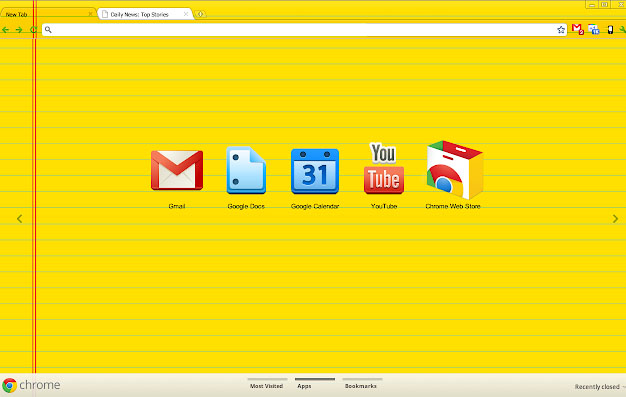
    Google chrome Legal Pad

    Laptops have somehow replaced the use of books and notebooks. With this theme you can get the feels of using some notebook. It’s the best theme for all the students for sure. If you love some bright and vibrant colors, then this theme is for you.
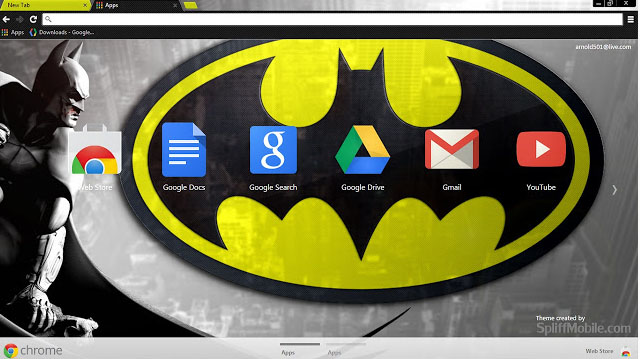
    Google chrome Batman Design

    Batman has a huge fan base across the globe. This is the best Google chrome theme for you if you are a part of this fandom. The theme is minimalistic and features dark colors. And is perfect way to show your love towards batman.
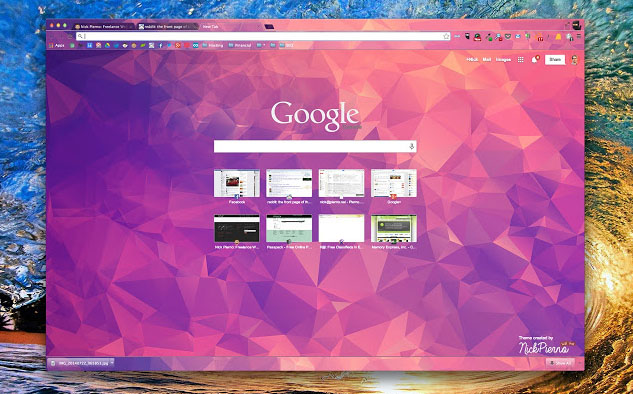
    Google chrome Polytheme

    This is the best Google chrome theme if you want a splash of colors on your browser’s background. The background features geometric designs in multiple but not too bright colors and can be simply beautiful and amazing theme for your browser.
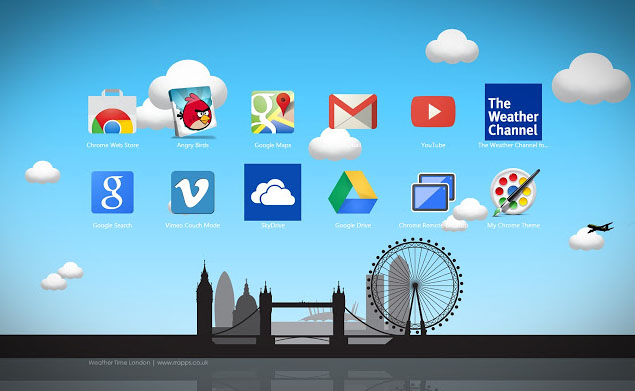
    Google chrome Weather time London theme – Daylight

    The theme captures the essence of London featuring the major attractions of the city. The colors are used in lighter shades and are comforting to the eyes. Indeed a beautiful theme and a must try.
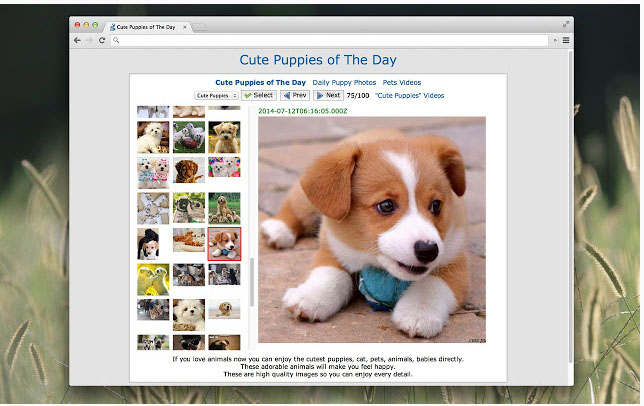
    Google chrome Puppy Love

    If you are a dog lover then this is for sure the best Google chrome theme for you. The background features a top shot of a cute puppy lying on grass. The background is just too cute.
    How to download Google Chrome Themes ?

    You can add Google Chrome theme easily for which you have to download Google Chrome theme following the given steps –

    1. Click upon the three vertical dots present on the top right corner of your screen.
    2. Then click upon Settings.
    3. Scroll down the page that appears to Appearance. Now select Themes and then Chrome web Store.
    4. A new tab is opened displaying all the themes available for you to select.
    5. For information about each theme click its thumbnail.
    6. For installing any, simply click upon Add to chrome.
    7. You can undo it then and there if you don’t like it.

    So your desired Google chrome themes is installed in your browser and the changes can be seen on the browser window.

    Read Also : Best free office software for Computer & Smartphone

    Read Also : The ultimate guide to make Windows run faster (Boost Computer Speed)

    How to remove Google Chrome Theme ?

    The steps to install google chrome themes , let it be any theme its easy right? So are the steps to remove google chrome theme if you just in case want to restore to the default theme. Just follow the steps mentioned below:

    1. Click upon the three vertical dots present on the top right corner of your screen.
    2. Then click upon Settings.
    3. Scroll down the page that appears to Appearance.
    4. Now select Reset to default theme.

    How to Change Google Chrome Theme ?

    The whole purpose of applying a theme is to provide a new look to your browser and the day you get bored of your existing theme you ought to change it. In order to change google chrome theme all you need is to repeat the steps mentioned above under ‘How to install Google chrome theme’. Select the desired new theme and install it. The older one is removed and the newly installed Google chrome themes is put on display.

    Read Also : Connect dual displays / monitors to one computer on Windows & MAC

    How to customize Google Chrome theme (How to create own Google Chrome Theme )

    You can select the theme from the huge and amazing collection available on the chrome web store but still if you don’t like any or just want to create your own theme then that is possible as well.

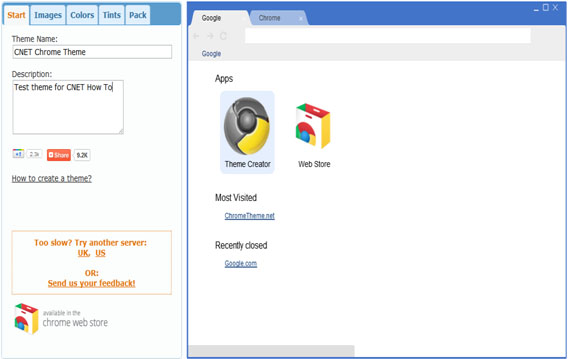
    By following the given steps you can simply create your own customized theme for your browser using Chrome theme creator , so let us see how to make your own google chrome theme :

    • First you need to understand that the left feature all the settings required while on the right side the preview of the theme you are making can be seen. You can set the theme name and add a description whatever you want to
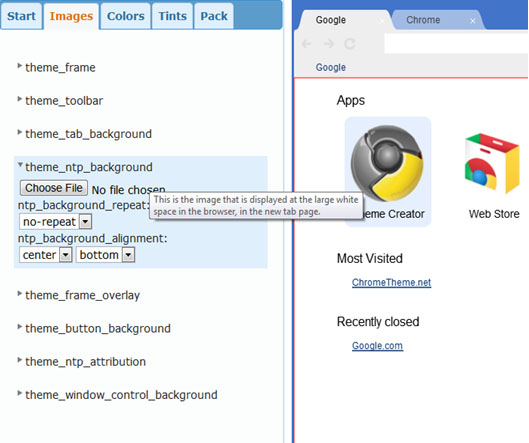
    • The next step is to set all the images for the different parts of the browser. Of you want to set image only for the background then you need to set only the Theme_ntp_background. You select the image file and adjust the alignments. If you want to set different images for the tabs, toolbar etc. then you can select separate image for each section as shown in picture.
    • In the next tabs you can set the colors and tints for the texts and the different sections as per your desire.
    • Once you are done with creating your theme click on the pack and install button. Its installs the theme and displays. If you don’t like the way it turned out then you can go back and modify again.
    • Once the theme is finalized you can download and save it for later use. You can even upload it on the chrome web store and let others use it as well.

    Best google chrome theme creator / google chrome theme makers

    Above you can understand how to create your very own theme using the Google theme creator. There are number of other amazing tools which can be used for the very same purpose:

    1. Theme Creator

    It’s a google extension application. Create some amazing and personalized themes with a lot of ease and share it with others as well.

    1. Theme beta

    Like theme creator, another theme creator tool. Select the images, color, text designs and your theme is ready.

    1. Google chromizer

    It is a web app for creating themes. Works mostly like other tools but there is a tiny restriction, it only accepts images in jpg, png or gif format.

    1. com

    It is another simple tool for creating your custom themes and makes the process quite easy and comfortable for the user.

    1. Canvas

    With all the features available with other tools it has a few add ons. You can set your own images for the tab section and also has a new feature named selfie mode for instantly clicking your pictures.

    1. Stylish

    It’s an extension where you get to edit any theme and get to choose from a huge collection of colors and skins.

    So we can see to provide a completely new and refreshing look to your browser the chrome web store provides you with a decent collection of a huge number of themes and you may now understand that the process to install, change or uninstall any theme is also pretty simple. Google also provide you with the ability to create your own personalized themes. So do tell us which one is your favorite theme and do also mention your experience if you try creating your own custom google chrome theme.