Tag: How to

  • Ultimate Ways to Connect Android with Car Stereo

    Ultimate Ways to Connect Android with Car Stereo

    Here we are discussing about the Ultimate 5 Ways to Connect Android with Car Stereo which will make your journey musical .

    All the unaware Android phone owner might incorrectly feel neglected and confused by the lack of Android specific solutions for connecting their android with car stereo specifically for listening to music while driving and traveling to workplace or places.

    How to Connect Android with Car Stereo

    Well, worry not because we have got you the best few different ways through which you can connect your Android device to your car stereo successfully.

    There are a few different ways through which you can connect your Android device to your car stereo successfully.

    1 . Auxiliary Jack

    First method to Connect Android with Car Stereo is via Auxiliary jack

    • Auxiliary jack is one of the ways to connect your android phone with your car stereo and listen to your favourite songs also take calls and listen clearly.
    • Various car models like Nissan Micra, Renault Duster, Volkswagen polo, Maruti Swift dzire etc come with an auxiliary audio jack feature available.
    • You may be able to find the audio jack on or near the stereo in your car.
    • Incase of Honda CRV car you may find audio jack in the centre in between the front right and left seats in the car.
    • 5MM cable will help you to connect your Android phone to the car.
    • Furthermore, select the stereo to the AUX setting and select then you may select your favourite song that you would like to play.
    • If you have Toyota car model then you would find a “secret” audio jack located behind the stereo in the car.
    • This may involve removing the stereo and other practical work to connect your android with your car stereo.

    Read Also : Luxurious SUVs for Sport Maniacs – Latest Update

    Read Also : Top Luxurious Cars in the world and their specifications

    2 . USB Port

    Now let us take a look at the next method to Connect Android with Car Stereo that is via USB Port . I’m sure your car has an USB Port.

    • If your car has a USB port, then you don’t have to worry as the stereo will play the music you select through the USB port.
    • You can frequently store your favourite music on your Android phone or flash drive which is another USB device.
    • Connect your android once you copy your favourite music files in it to your car stereo using the USB cable provided with your device, and select the music files from the device to play successfully.

    Flaws in this method of Connecting Android with Car Stereo via USB Port are –

    • Unfortunately, you would find it difficult as this method generally does not work if your music is connected via the Internet as only those files would play which are stored on your Android phone.
    • It also doesn’t generally work for attempting phone calls.

    Read Also : Best Car Gadgets and Accessories for an Ideal Car

    3 . Bluetooth

    • Enable Bluetooth on your Android phone if your car stereo supports Bluetooth connection by going to Settings option and then go to network connections .
    • Now simply make your Android  visible by selecting anyone.
    • Furthermore, set your car stereo to find the device, and then you would be asked to enter a PIN.
    • You can simply enjoy playing all of your favourite music and also making phone calls wirelessly once your android gets connected to Bluetooth in your car.

    This is a relaxed method for Bluetooth connectivity to Connect Android with Car Stereo .

    Read Also : Top Satellite Car Radio Installation and specification guide

    Read Also : Best Green Cars For Known To Be The Most Eco Friendly

    4 . FM Transmitter

    • If you don’t have any of the above options in you’re to connect your android with your car stereo then you’ll need to spend a bit more cash for an FM Transmitter.
    • Price range for such devices can range from $15 to $100.
    • Once you have got your FM Transmitter, all you need to do is to now find the best radio station to use in your area and set it to that station.
    • Now you’re all set to listen to some Android songs, place calls and clearly through your car speakers.

    Read Also : Used Car buyer’s checklist -Exclusive guide for buying used cars

    5 . Cassette Tape Deck Adapter

    This is a way to connect Android with Car Stereo on old car models .

    • If your car is old enough and contains a cassette tape deck, you can use a Cassette Tape Adapter to play audio through your stereo in your car.
    • Slide the adapter into the cassette deck.
    • Now connect it to the audio jack on your Android.

    So we hope this information and steps will serve best to help you to Android with Car Stereo .

  • Naturally Thick Eyebrows In A Week Ultimate Guide

    Eyebrow threading is sometimes scary when we don’t have thick eyebrows .So adding more layer to your eyebrows naturally is sometimes too tough. But you can definitely have Naturally Thick Eyebrows in a Week if you follow these hacks.

    This will be the ultimate Tips for Thicker Eyebrows naturally because these tips have worked well for me even though I had eyebrow hair loss due to stress before several months.

    Here is all you should do to get thick eyebrow quickly and naturally.

    Read Also:  Easy Ways to impress your Man

    How to Get Naturally Thick Eyebrows In A Week

    These are the inexpensive/cost effective thick eyebrow growth methods that everyone can easily do with less effort to get thick and dark eyebrows easily within a week.

    1. Castor Oil 

    Castor oil is the most traditional and really proven ingredient to boost your eyebrow growth and also eyelash growth . Castor oil contains the essential fatty acids , vitamins and proteins that boost hair growth also its highly rick in antioxidants which helps in boosting up the process of eyebrow growth quickly. Applying Castor oil will give you thick eyebrows naturally at home .

    How to use Castor oil to get Thick Eyebrows Naturally ?

    • Wash your face and clean the dirt and remove the makeup .
    • Now take a cotton buds and dip it with 2-3 drops of castor oil .
    • Using the buds gently line the eyebrow hair first .This will make your existing eyebrow hair strong and prevent eyebrow hair loss.
    • Again get the cotton buds dipped with a drop of castor oil and now apply it in a way that it touches your eyebrow skin .This will stimulate the growth o new eyebrow hair from deep . So that you can get the thick eyebrow you long for in life.

    Note -You should buy Organic & cold pressed castor oil only .

    How to get Thick eyebrows in a week naturally with Castor oil ?

    If you want to get the result in a week , you should use castor oil for a week. To be precise , you have to apply castor oil on your eyebrows at morning and keep  it unwashed for minimum 6 hours and then wash your face and remove the oil over the eyebrow region without rubbing the brows hardly. Rubbing your eyebrows hardly will lead to falling of eyebrow hair.  And apply castor oil 2 hours before you go to bed and wash it next day morning .This will give you the desired result in a week .

    Why Castor oil for Thick and Dark Eyebrows ?

    Castor oil is not so expensive and it doesn’t have any side effects when used properly . Castor oil is a proven natural eyebrow growth treatment . So castor oil stimulates thick eyebrow growth and also makes your eyebrow strong.

    Precaution Before using Castor Oil 

    It is advised to do a patch test before you use castor oil . Because some people are allergic to castor oil .So make sure your skin is okay with castor oil else it can result in skin irritation, rashes and hives.

    2. Jojoba Oil

    Jojoba is a desert shrub from which oil is made out by extracting its seeds . Its not exactly oil but a type of oil and moreover a liquid wax in reality.Jojoba oil is a key ingredient in many cosmetic and beauty products.Jojoba oil is really effective for hair growth and also for split hair ends . 

    Jojoba oil will give you amazing thick eyebrow growth quickly.

    How to get Thick eyebrows in a week naturally with Jojoba oil ?

    • Take a few drops of jojoba oil in your palm and dip your finger in the oil .
    • Apply the oil to your eyebrow region with a gentle massage with your finger .
    • Apply it before you go to bed and wash it later in the morning .

    In this way Jojoba oil for thick eyebrow growth is an effective treatment .

    3. Hibiscus flower

    You would have seen that you have a serious eyebrow hair loss and wondered that there is presence of dandruff in your eyebrow region . So if this is the case then this is the best way you should opt for getting naturally thick eyebrows in a week.

    How to use Hibiscus flower to get naturally thick eyebrows in a week ?

    • Take some fresh Hibiscus flower and grind it .
    • Make a paste out of it , it should be made in a proper consistency .
    • Apply this paste on your eyebrows and wait for 15 mins.
    • Wash it off with lukewarm water.

    Repeat this daily so it will give amazing results .

    Note – Don’t wait till the hibiscus paste gets dried on your eyebrows. Wash it before it get dries.

    4. Flaxseed Oil

    Flaxseed also known as Linseed oil is effective to stimulate eyebrow hair growth .Flaxseed oil is rich in essential fatty acids which will accelerate naturally thick eyebrows in a week.

    How to use Flaxseed Oil to get naturally thick eyebrows in a week ?

    • Wash your face and clean all the makeup residuals in your face .
    • Take half tsp of Flaxseed oil and gently apply the oil in your eyebrow area .
    • Give a gentle massage for 5 mins . This will help in the good blood circulation which is essential for boosting up the process of new eyebrow hairs.
    • Do this before you go to bed and you can keep it overnight .
    • Wash it with lukewarm water .

    You should do this twice a day for getting quick results .

    5. Olive Oil & Onion Juice

    Onion juice is rich in sulfur ,this helps to release collagen in body which is very necessary for the healthy eyebrow growth .While Olive oil will naturally nourish your eyebrow hair growth.

    So using Olive oil and onion juice mix will give you a great result .Thus you can get naturally thick eyebrows in a week.

    How to use Olive Oil & Onion Juice mix to get naturally thick eyebrows in a week  ?

    •  Take a mixer and put the freshly chopped onions and grind it well .
    • Squeeze the mixture and extract the onion juice . Instead of this you easily extract onion juice in a juicer but i will not recommend it as for next subsequent juices it will have raw onion smell .
    • Now mix olive oil into this freshly extracted onion juice .
    • Use a spoon and mix it well.
    • Now apply this mixture on your eyebrows gently.
    • Leave it for 15 minutes and wash it off .
    • Repeat this process twice a day .
    • Wash out with water after 10-15 minutes.

    It helps in boosting hair follicles and give rise to new eyebrow hair . This is a best method to get naturally thick eyebrows in a week.

    6. Aloe Vera Gel

    Aloe Vera Gel should be called as a magic gel . As listing its benefits is never ending story.Moisturize your brows with aloe vera gel to avoid the dandruff in eyebrows and boost new hair growth . Aloenin , a compound present in aloe vera helps in boosting the hair growth.

    How to use Aloe Vera Gel to get naturally thick eyebrows in a week ?

    • Take one leaf of aloe vera and scoop out the gel from it .
    • Massage your eyebrows with this gel for 10 mins and wait till the gel gets absorbed into your skin .
    • Once you feel its absorbed wash it off with plain lukewarm water.

    7. Almond Oil

    Almond oil is an ingredient which we can easily find in our shelf . But did you ever knew that how rich is Almond oil ? The fact is that almond oil is a highly rich in vitamins such as A,B and E . This helps almond oil to accelerate hair growth .

    How to use Almond Oil to get naturally thick eyebrows in a week ?

    • Gently massage your eyebrows with almond .
    • Keep it overnight and wash it in the morning .
    • You can use the mascara wand and dip oil into it and roll the mascara wand on the eyebrow hair , this will strengthen your existing eyebrow hair and thus prevent eyebrow hair loss.

    Precaution Before using  Almond Oil 

    If you are allergic to almond then you should not use almond oil as well. Majority find that almond is an allergen to them. In that case we strictly ask you to avoid this else serious almond allergy can lead to so many health issues like gastrointestinal and respiratory problems and at severe case it will lead to anaphylactic shock.

    8. Vitamin E

    Vitamin E oil is the key ingredient for skin care .

    How to use Vitamin E oil to get Thick Eyebrows Naturally ?

    • Take 2 vitamin E capsules and break it .
    • Now apply the oil in the capsule to your eyebrow .
    • Gently massage it .
    • Leave it overnight and wash it with luke warm water.

    Note- Generally when you rise up in the morning the Vitamin E oil would have got dried up and sometimes if its over  dried don’t rub harshly . This will lead to eyebrow hair damage . SO apply lukewarm water and slowly make your eyebrow hairs free and then rinse it off.

    These are the most effective ways to get Naturally Thick Eyebrows In A Week . 

  • WhatsApp Exclusive Guide – Everything about WhatsApp Features

    WhatsApp Exclusive Guide – Everything about WhatsApp Features

    WhatsApp not something unfamiliar to this generation and even the older generation. Today SMS became outdated as everyone of us are in deep love with this instant messaging app because WhatsApp features are really exciting and up-to the generation.

     What is WhatsApp ?

    Pun on the popular colloquial phrase ‘Whats up’ ,the app got such an easy to remember catchy and trending name of the century “WhatsApp“.

    WhatsApp is a messenger application for smartphones ,tablets and Desktop . It replaced SMS with this brilliant free to download application . Using WhatsApp one can send messages, audio , voice call , video call , share attachments and so on. WhatsApp is simply an instant messaging app that works with internet.

    Now let us look at latest Whatsapp features , even find the super latest whatsapp features like disappearing messages and how to use it .

    WhatsApp features

    WhatsApp messenger supports a great lot features than the normal SMS and most of the apps that exist .WhatsApp Features are getting updated day by day as well as the latest features that is rising is not any less .

    Exclusive List of 50+ WhatsApp Features 

    Given below are the super exciting Whatsapp features that are rolled out by the super messenger app .

    1. Texts 
    2. Group Chats 
    3. Voice Calls
    4. Video Calls
    5. Group Video Calls & Group Voice Calls
    6. Voice Messages
    7. Share Documents
    8. Send Images 
    9. Share audio
    10. Share video
    11. Update Status
    12. Find Storage of Each Chat 
    13. Format Text on demand
    14. Add Star to messages
    15. Get message details
    16. Mute conversation
    17. Most Popular Chat( Whom do you talk often)
    18. Hide your last seen
    19. Disable read receipts
    20. Don’t save photos and videos by default 
    21. Custom notification
    22. Export a conversation
    23. Broadcast
    24. Change Font size
    25. Reduce data usage for WhatsApp
    26. Privacy Control for photos,status and last seen
    27. Add event to Calendar
    28. Home screen shortcut for individual chats
    29. Transfer files between phone and PC
    30. Emoji ,Giant Heart
    31. GIF
    32. Quote Particular message and reply for that
    33. Protect Chats – Disable Notification preview
    34. Upload WhatsApp Dp / WhatsApp pp ( Display or Profile picture)
    35. Block unwanted people
    36. Archive Chats
    37. Delete Multiple Chats
    38. Mark as unread
    39. Reply directly from the notification bar
    40. Backup to Google drive
    41. Change wallpaper
    42. Use different languages
    43. Search messages
    44. Get early updates
    45. Know who has read your messages in a group
    46. Send your location with maps
    47. Live Location 
    48. Send and receive money with FreeCharge
    49. Share contacts
    50. Send photos from gallery using the camera icon too
    51. Pull back your accidentally sent messages (Delete for Everyone)
    52. Multiple Video or Image status for 24 hrs
    53. Pin Feature
    54. Delete Messages for all ( delete for everyone in whatsapp)
    55. Disappearing messages

    Now lets see all these WhatsApp features in brief

    1.Texts 

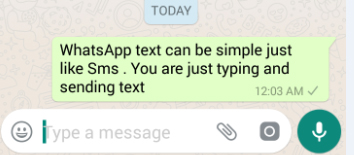
    You can send simple , long text messages for free in WhatsApp with just an active internet connection .WhatsApp text is now quite popular all around for effective communication. There is no limit in the number of text or the limit of each text word count in WhatsApp .It is really easy , simple and reliable messaging service to depend upon.

    This is a basic whatsapp features

    2. Group Chats

    Group Chats are really a boon for office people , friends , family members as it helps in sharing one text to convey a message to many people. WhatsApp group is really effective as it helps in sharing text , photos , videos , audio , voice messages to all the people in the group.

    • WhatsApp group can hold upto 256 people in one single group.
    • You can Give name and image to the group .
    • Add single or multiple admin to the group . This helps in keeping the group effective as only the admin can add or do any major changes to the group.
    • You can mute and customize notification on WhatsApp group chats. 
    • You can delete the group when its not required .
    • You can add or remove any participant of the WhatsApp group.

    Now Whatsapp Group Chat has more added features that help you feel more easy with group chats . May be solution to many annoying group chat miseries –

    • Re-adding Whatsapp Group Member Protection – Once you Leave Group Chat & You wont get added sooner as it prevents the group admin from adding you again to the group you left .
    • Find anyone in the group easily – You can search participants in the group instead of going through the whole lot of members names .
    • @Button for Catch up – No more you miss out if someone quoted you in the group chat or if anyone in group mentioned you .

    This whatsapp features is useful for students , peers , family , even for business purposes

    2.a ) How to create a WhatsApp Group ?

    You can create as many number of groups you want in WhatsApp and each group you can add upto 256 participants. You can easily create a WhatsApp Group by following these simple steps –

    ANDROID USERS

    If you are an android user then you can follow these steps to create WhatsApp group in Android device .

      1. Open WhatsApp.
      1. Go to Menu button < New Group or find the three dots on top of chat screen.
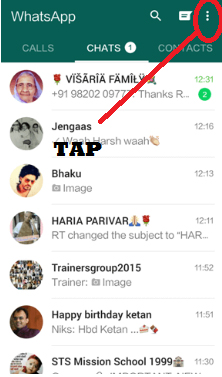
      1. Now click < New Group 
      1. Now you can find all our contacts displayed from that < Add participants
      1. Now tap the green arrow
      1. Type Group subject and add group icon
    1. Click the green tick mark

    You have created a WhatsApp group on android device.

    iPhone USERS

    1. Go to Chat screen on WhatsApp.
    2. Now look at the top of your Chat screen there you can tap like shown in the image.
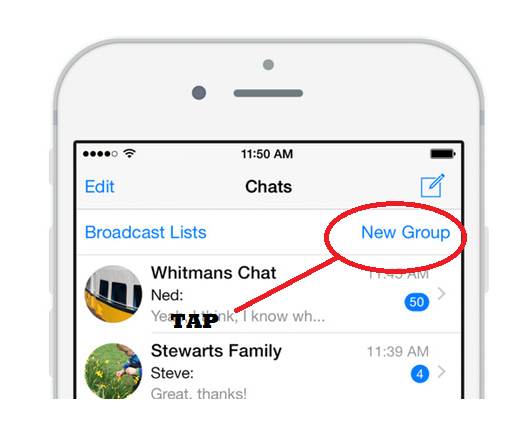
    3. Now click on the New Group button.
    4. Add participants for this group.
    5. Tap Next
    6. Name it , add an image if you prefer to do it.
    7. Tap create , you are all done you have created a WhatsApp Group.

    Windows Phone USERS

    You can create a WhatsApp group on Windows phone .

      1. Open WhatsApp <chat screen
      1. Click on the people icon on bottom of the screen < New group
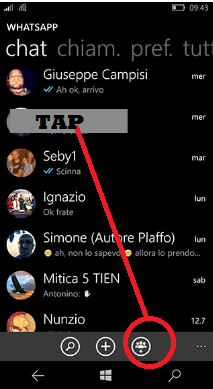
      1. Now add group subject and group icon.
      1. Tap next.
      1. Click (+) and add participants to the group or manually type the contact name whom you want to add as group participants.
      1. At the bottom of screen you can find create .
    1. Click create .
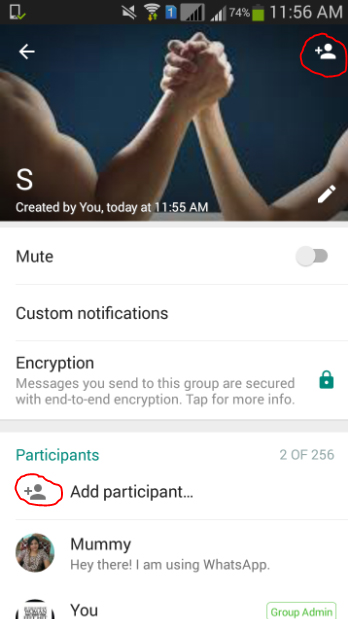
    2. b) How to add Participants to the WhatsApp Group ?

    In WhatsApp group you can add upto 256 participants in each group and you can create infinite number of groups you want . It is easy to add participants to WhatsApp group .The most essential thing to add participant to the group is to ensure you are an admin to the group.

    1. Click on the group on which you want to add participants.
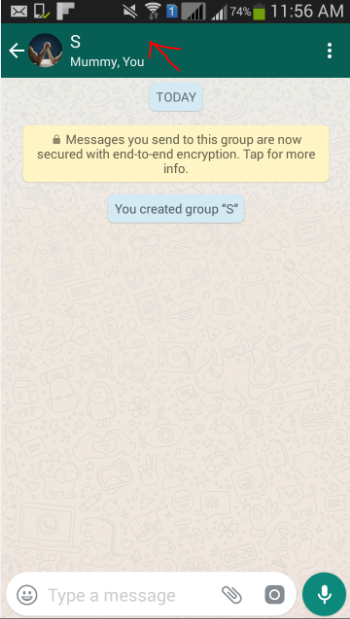
    2. Tap on Add participants.
    3. Select participants to be included from your contact list
    4. Click on add & Confirm it. That’s it you are done with the process.
    2. c) How to invite people to join WhatsApp Group with link ?
    1. Open Whatsapp.
    2. Open the WhatsApp group and add subject to the group.
    3. Click on add participants.
    4. Click on Invite to group via link and share out the link with other members in group or to some other app.
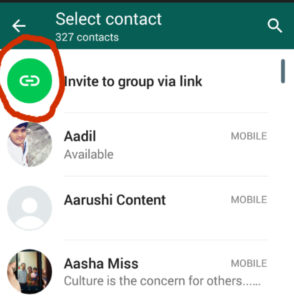
    You can invite people to join WhatsApp group with link  by following the above procedures. One important thing to do is you must be an admin to the group. The admin can make the link invalid anytime by using revoke link . Remember if the link is forwarded to anyone even without the approval of admin the person can join the group . So please be sure about it when you are inviting people using link.

    2. d) How to remove participants from a WhatsApp Group ?

    If you are an admin of the WhatsApp group the you can remove participants from WhatsApp group by doing these simple steps.

    1. Launch WhatsApp
    2. Go to the group and add subject to the WhatsApp group.
    3. Click on the participants you want to remove.
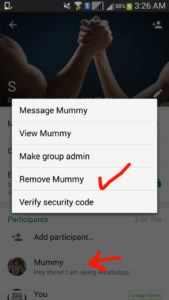
    4. Click remove.
    2. e) How to make someone admin to a WhatsApp Group ?

    You can make anyone admin to the WhatsApp group as a group can have any number of admins. Follow the below steps to make anyone admin to WhatsApp group –

    1. Go to WhatsApp.
    2. Click on the group where you want to add admin.
    3. Add the group subject.
    4. Click on the participant whom you want to assign as an admin.
    5.  Click on the option make group admin.
    2. f ) How to change WhatsApp Group subject ?

    You can change the subject of WhatsApp group by following the steps.

    1. Go to WhatsApp
    2. Go to group chat and group information
    3. Now you can find a pencil symbol .
    4. Click on the pencil symbol and type the group name
    5. So the subject of WhatsApp group is changed.
    2. g) How to change the WhatsApp Group icon ?

    You can change the group icon in WhatsApp if you want which is easy to do-

    1. Go to WhatsApp group
    2. Now on the group information tap on the group subject
    3. Click on the present group icon and choose from your camera or gallery or other folders to add a new group icon image of your choice.
    2. h) How to mute WhatsApp Group notifications ?

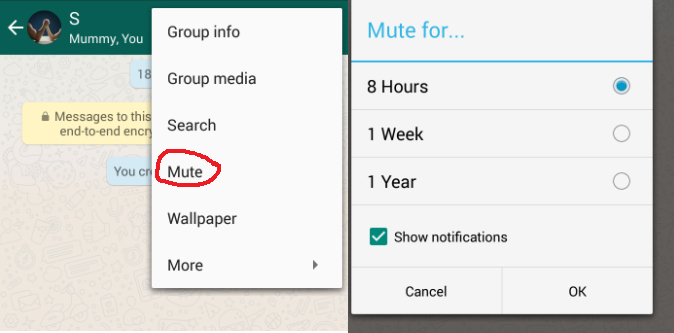
    We get notified when each message arrive in WhatsApp when it is individual message it doesn’t seem annoying but when you are in a active group then you get message over message and a series of notification then one thing is you will pissed off secondly you will find hard to search for the individual notification. So this can be avoided by simply mute WhatsApp group so you can feel ease with the group.To mute the WhatsApp group chat follow these simple steps –

    1. Open WhatsApp.
    2. Go to the group you want to mute the notifications.
    3. Now click on the three dots so you can find Mute.
    4. Click mute and select the time period up-to which you want to mute the group notification.
    5. Click OK you are done with the process.
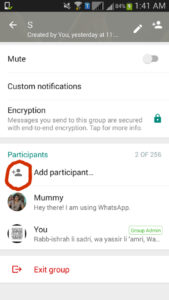
    2. i) How to exit or leave from a WhatsApp Group ?

    You can leave or exit a WhatsApp group easily if you are not interested to be part of a certain group then you can consider to choose exit/leave WhatsApp group by following some very simple steps.
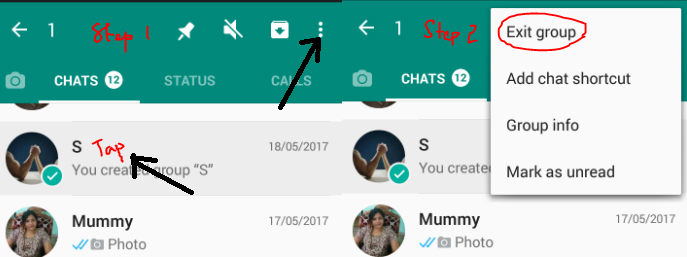
    1. Go to WhatsApp.
    2. Now on the Chat screen find the group from which you want to exit.
    3. Tap on the WhatsApp group you want to exit.
    4. Once its selected on the top find the option to exit group like given in the image.

    Read Also : Improve The World With Smartphone -Top 10 Hacks

    3.Voice Calls

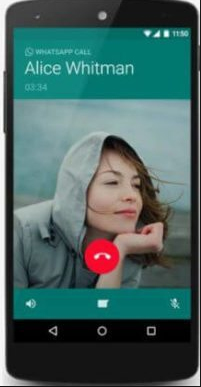
    WhatsApp Voice call is a great feature which made people to talk for free for hours and hours. There’s no barrier to talk wherever you are , whichever country you want to connect to . No charges for long hours of calling only an active data plan is all that you need . So WhatsApp Call feature has reduced our call cost we pay to our service operators .

    4.Video Calls

    You can also make WhatsApp video call which is a new feature in WhatsApp .When you click on the chat screen of the person with whom you want to make video call in WhatsApp then you can find a video button press on it which is on the top near to the call button. Make sure that your internet connectivity is good enough to place call.
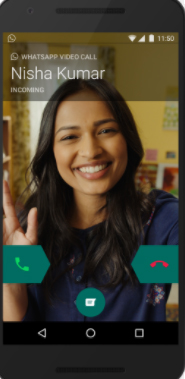
    You can attend WhatsApp video call from others by just sliding the green button to take calls.


    5. Group Video Calls & Group Voice Calls

    Now on Whatsapp you can have voice calls and video calls with a group of people allowing users to add upto 3 person . But if you want to have a group chat with a big group then i would suggest go for Snapchat Voice Group Call / Snapchat Group Video Calling feature .


    6.Voice Messages

    You can send voice message or audio message in Whatsapp by simply holding the mike button and speak or record any sound and send it to your contacts

    Suppose if you are about to make it a mistake by sending voice message then just slide to delete it instead of sending it .


    7.Share Documents

    You can now send documents among your WhatsApp contacts easily.Using the feature to Share document in WhatsApp you can share 100MB size documents among your contacts in WhatsApp. Also when you try to share a document from your folder in phone it will show you WhatsApp as an optional medium to share files.
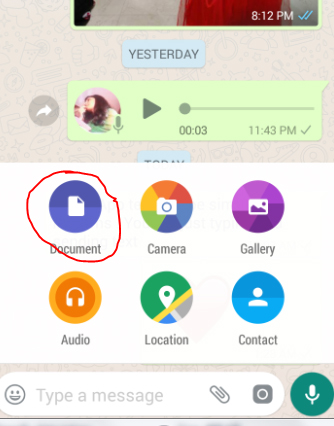
    How to send documents via WhatsApp
    1. Open the chat
    2. Find the paper clip icon
    3. Click on that
    4. Now from the desired folder choose the document you want to share.
    5. Click to send you are done with sharing document via WhatsApp.

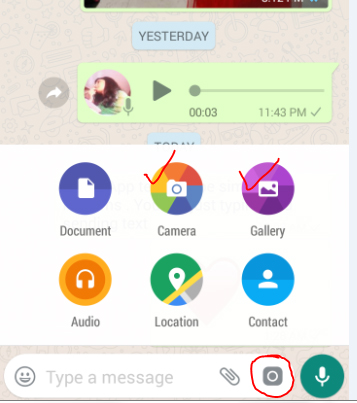
    8.Send Images 

    You can send Images via WhatsApp to your contacts by following these steps –

    1. You can send images in WhatsApp by opening the chat .
    2. Now click on the paper clip icon.
    3. Now you can click on Gallery and choose between the maximum of 10 images you want to share (or)
    4. You can click on the camera button either near to the document one or the camera icon at the end of the screen to capture a fresh image .
    5. Click send to share the image on WhatsApp.

    9.Share audio

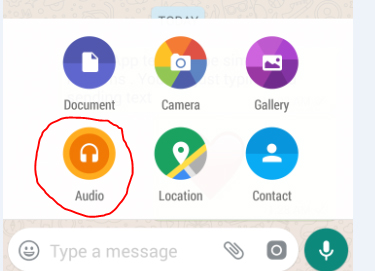
    You can share audio via WhatsApp by following these simple steps . By this you can send recorded music files , songs from your music playlist on phone etc.

    1. Click on the chat of the person to whom you want to share audio in WhatsApp
    2. Now click on the paper clip icon .
    3. Click on audio.
    4. Select from the numerous folders and audio files you have on your device.
    5. Click send button .


    Read Also : 10+ Best Alternatives to Whatsapp you will love this year

    10. Share video

    You can share videos of limit 16 MB via WhatsApp which will be of maximum 3 minutes length and you can also forward the videos that you received from someone else.

    How to share large Videos exceeding 16 MB via WhatsApp ?

    1. You can send large videos exceeding 16MB via WhatsApp by trimming the file .
    2. Use the application called “WhatsApp Video Optimizer” which enables you to send large MB videos on WhatsApp easily.

    11. Update Status

    The first form Status feature on WhatsApp was 130 character Text Status . You can update a text form status in WhatsApp by following these steps –
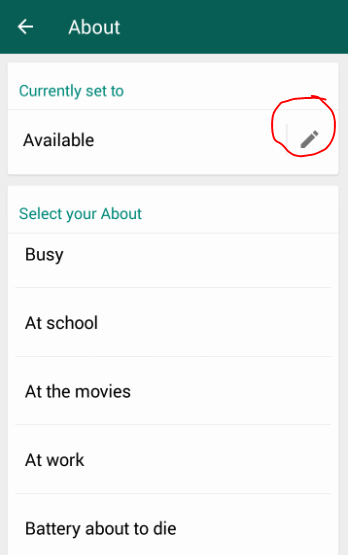
    1. Go to WhatsApp
    2. Click on the Settings
    3. Now tap on your Display picture or profile picture.
    4. Below your Profile picture there is ” About and phone number ” tap on the status word there.
    5. Now it will show “currently set to ” with a pencil icon.
    6. Click the pencil icon to type something new or choose from the existing status .

    12. Format Text on demand

    You can format text on WhatsApp like making the font change , bold , italics , strike-through etc.

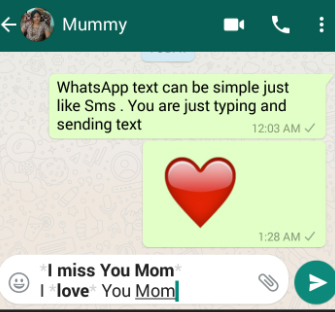
    How to bold a text in WhatsApp 

    1. You can type the text you want to bold by using the asterisk symbol before and end of the text .
    2. To say example *I miss You Mom*
    3. This will appear as bold on the message.
    How to change font of a text in WhatsApp 

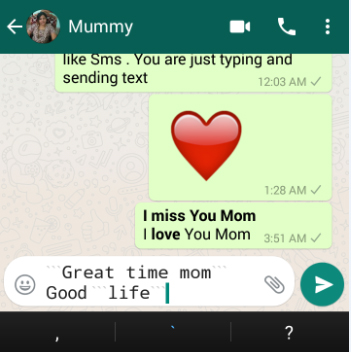
    You can Change the font of your WhatsApp text easily, to do that you can follow just a simple steps.

    1. Go to WhatsApp
    2. Click on the chat .
    3. Now type three characters “` in front of the text and at the end of the text .
    4. You can find that the text font is changed automatically .
    5. “`Great time mom“` find this example in the image given to understand better.
    6. This way you can change the font in WhatsApp text.
    How to make WhatsApp text in italics

    You can make the WhatsApp text in italics easily, to do that you can follow just a simple steps.

    1. Go to WhatsApp
    2. Click on the chat .
    3. Now type an underscore character _ in front of the text and at the end of the text .
    4. You can find that the text is italicized automatically .
    5. _Great time mom_ find this example in the image given to understand better.
    6. This way you can italicize WhatsApp text.

    How to strike-through a WhatsApp text 

    You can even format your WhatsApp text by striking through it if you want to strike-through a WhatsApp text then follow these steps.

    1. Go to WhatsApp
    2. Open chat
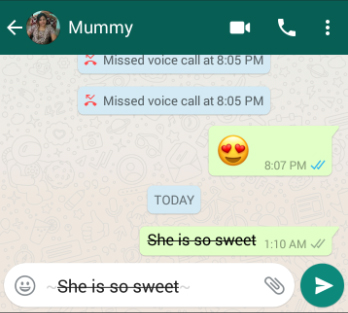
    3. Now type a Tilde character ~ both front and at the end of the text which you want strike through.
    4. ~She is so Sweet~ this is the way you have to type the text you want to strike through in WhatsApp which will look like the image below.
    13. Find Chat Storage

    Now find out how much each storage is consumed by each of the Whatsapp participants you chat with .Find the chat that eats your phone storage completely by going to Whatsapp Settings -> Then go to Data and storage usage and click on the Storage usage this will show you the details of chat storage usage .


    14.Add Star to messages

    If you want to make some messages as important which you want to quickly look into then you can add star to WhatsApp messages . By this the starred messages can be accessed quickly thus it saves time of scrolling .

    How to add star to a WhatsApp message 

    You can add star to any WhatsApp message as much as message can be starred in WhatsApp. To do this follow these steps.
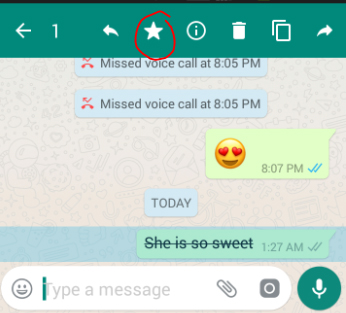
    1. Go to Chat in WhatsApp.
    2. Click to select the message inWhatsApp you want to add star .
    3. Now on the top you can find a star symbol click that.
    4. Now the message got starred .
    5. You can assure this by seeing a star symbol near to that message now.

    How to unstar a WhatsApp message

    Suppose you want to remove a message from starred list then you can unstar that message in WhatsApp without any complicated steps
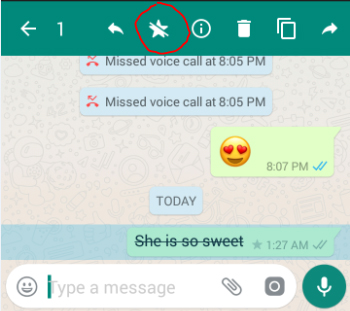
    1. To unstar WhatsApp message first go to that chat and click on the message which is starred .
    2. Select the starred image.
    3. Now on the top you can find unstar symbol click on that (or)
    4. Go to the section of all starred messages from that select the one you want to unstar.
    5. Now on the top you can find the unstar symbol.
    6. Click that you are done.

    How to view the starred messages in WhatsApp

    If you have starred so many messages and you want to view that without the pain of scrolling down then to view all starred WhatsApp messages by following these steps
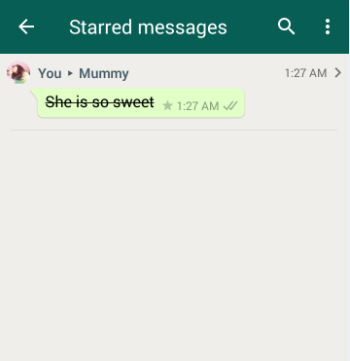
    1. Go to WhatsApp.
    2. Go to WhatsApp menu
    3. Now you can find “Starred messages” option.
    4. Click on that.
    5. Now a screen with all starred messages will appear.You can view all the messages which you have marked starred.

    How to delete the starred messages in WhatsApp

    If you unstar a message in WhatsApp it just means you removed it from your starred list but delete a starred messages is different. If you want to delete starred message in WhatsApp then follow these steps-
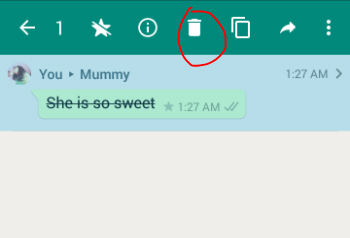
    1. Go to WhatsApp menu
    2. Find the ‘Starred messages’ option.
    3. Click on that .
    4. Now tap to select the starred image which you want to delete.
    5. Once the message gets selected you can find a symbol of trash bin.
    6. Click on the trash bin and confirm to delete it thus your starred message in WhatsApp is deleted.

    You can even click on the information symbol to get information on the starred message , if you want to copy or forward the starred message then you cans elect the concerned option in the top.


    15. Get message details

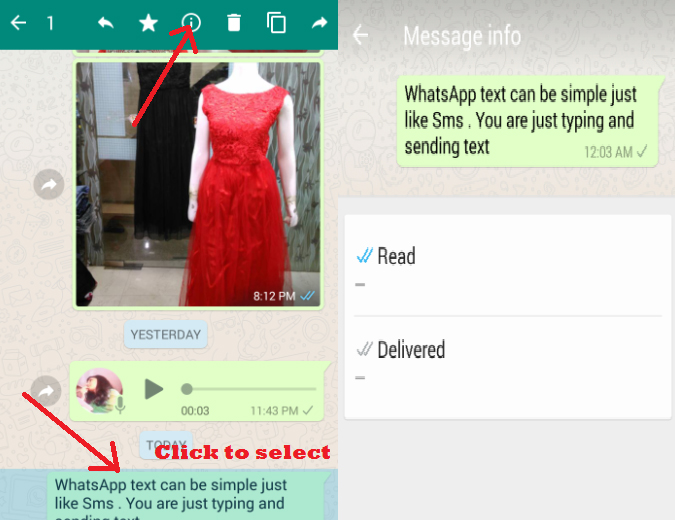
    You can find out message info in WhatsApp like whether the message got delivered , read or unread etc . If you use an iPhone you can know it by simple swiping left on the message you sent so it will show you the message information exactly the status of that message . But if you are an Android user then you can do it by simply selecting the message and press on the information symbol which looks like “i” in a circle and get the message info like shown in the below image.

    16. Mute conversation

    If you find that some messages are too much annoying then you can choose the option to mute conversation in WhatsApp to do this follow the steps –
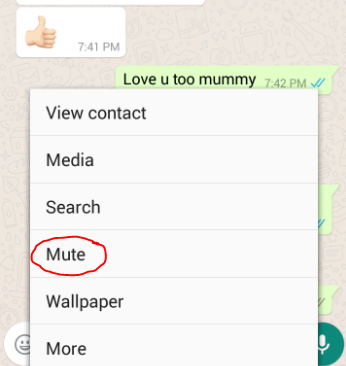
    1. Go to the chat
    2. Click on the menu
    3. It will show you option’ Mute’
    4. Click on that .
    5. Now it will ask for the time period to mute it choose it .
    6. You are done muting a chat in WhatsApp

    17. Most Popular Chat( Whom do you talk often)

    You can find out that with whom you talk the most if you use WhatsApp in iPhone.
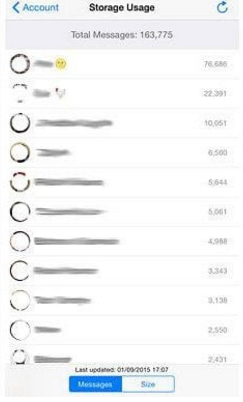
    1. Go to Settings
    2. Select Account
    3. Go to the Storage usage
    4. Now you can get the details of the total interactions you made in WhatsApp and with whom the most.

    18. Hide your last seen

    If you think pestered about the raising eyebrows and questions on your last seen is too much or for any personal reason you want to hide last seen in WhatsApp you can do it easily by changing your privacy options like –
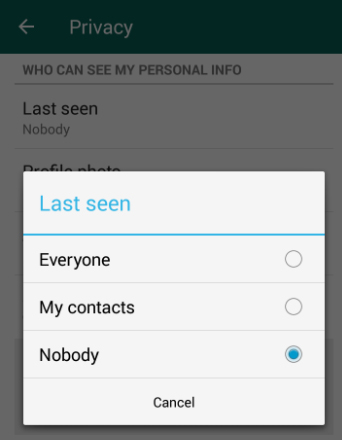
    1. Go to Settings
    2. Select Account
    3. Now go to Privacy
    4. Click Last seen
    5. Select it to none to hide last seen from all . If you want to share your last seen only with your contact then you can select My contacts .

    19. Disable read receipts

    You can disable the Read receipts in WhatsApp so you can read messages without the blue tick .
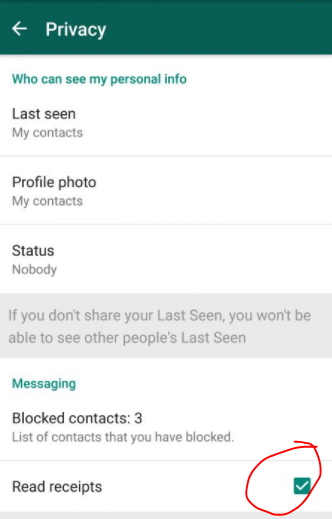
    1. Go to Settings
    2. Account < Privacy
    3. Now scroll down you can see that a green box checked in Read receipts . Click on that to un-check that option.
    4. Now you can read messages without Blue tick in WhatsApp as your read receipts is toggled off now.

    20. Don’t save photos and videos by default 

    Most people who use limited data pack or having very less space in phone memory will get sick of this automatic download of photos and videos in WhatsApp. You can solve this issue by making it don’t save media automatically . To do this follow these instructions –
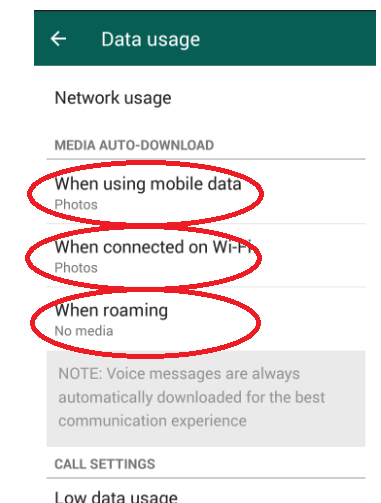
    1. Go to WhatsApp settings.
    2. Now select Data usage
    3. Find Media Auto-Download in that change the settings as you want the media to get downloaded when on mobile data, roaming and when connected to WiFi .
    4. Thus the audios,videos and photos which you receive will be saved according to your data mode and its customized setting you have chosen.

    21. Custom notification

    You can custom notification in WhatsApp like whether you need sound for incoming and outgoing messages in WhatsApp or vibrate , pop up notification , light etc. You can choose how you want the notification for individual chat messages , group chats as well for call notifications . To custom notification in WhatsApp you have to –
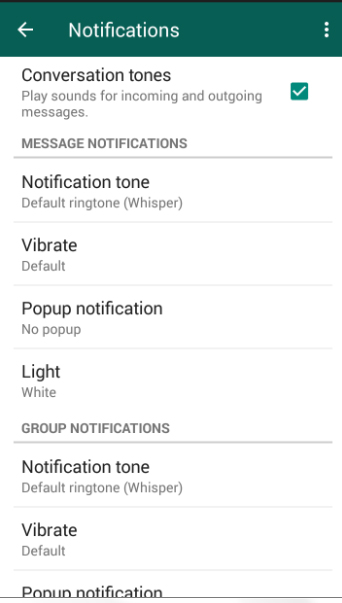
    1. Go to WhatsApp Settings.
    2. Now select Notifications.
    3. Get it customized as you wish for all the sections.

    22. Export a conversation

    If you want to save any chats for future as record or for any other means you can try to Export conversation in WhatsApp .
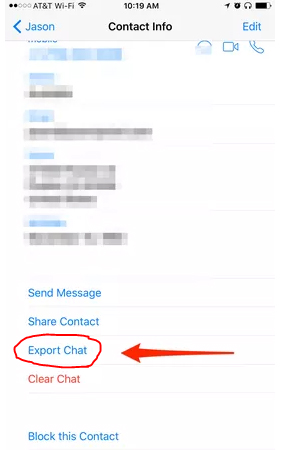
    1. View a chat thread you want to export.
    2. Tap on the contact screen
    3. Scroll down
    4. Find the contact info page at bottom and now select export chat
    5. This way you can export WhatsApp chat.
    6. In this you can select how you want to export the chat with the media or without the shared media.
    7. This includes both the to and from messages.

    23.Broadcast

    You can send messages in WhatsApp broadcast which enables you to send your single message to so many people you add to broadcast group. You can broadcast message easily by doing these steps-
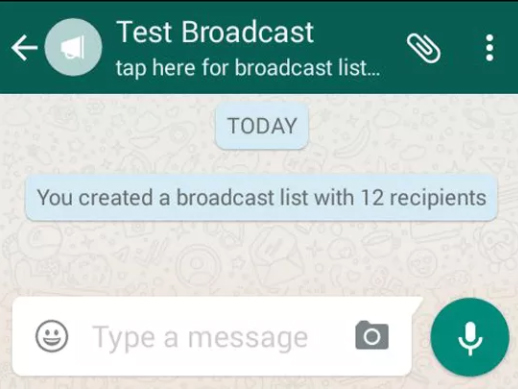
    1. Go to WhatsApp Chat screen.
    2. Find the three vertical dots in the top , tap on it.
    3. Select New broadcast.
    4. Add the people from your contact list, you have to add a minimum of two people while in WhatsApp group you can run a group with even one member or even you can delete that member and be the only participant of group yourself.But broadcast doesn’t allow this.
    5. Now your broadcast group is created with the contacts you selected .
    6. All your message will now be broadcasting to all in the list.

    24. Change Font size

    You can change the font size for WhatsApp by doing these simple steps –
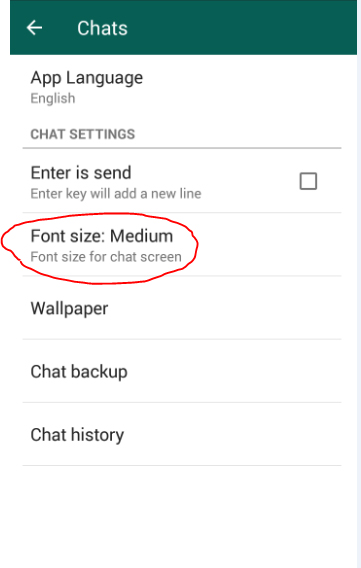
    1. Go the WhatsApp Settings.
    2. Click on Chats.
    3. You can now find Font size , choose between – small , medium and large.
    4. That’s it you are done changing your WhatsApp font size.

    25. Reduce data usage for WhatsApp

    You can reduce the data usage for all the applications running on your phone. In this you can really customize WhatsApp by enabling low data usage . 
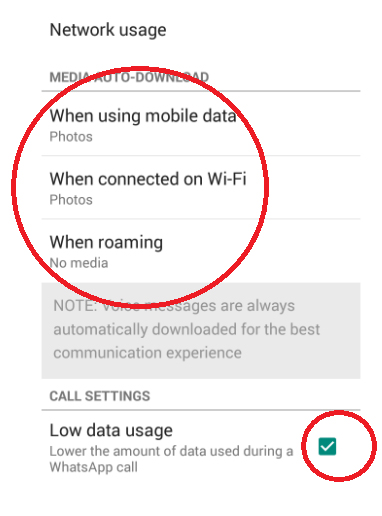
    1. Go to WhatsApp settings < Data Usage.
    2. Customize how to use your data for media downloads.
    3. Check in the Low data usage option.
    4. You are done now you can enjoy WhatsApp with low data.

    26. Privacy Control for photos,status and last seen

    You can set privacy control for your photos , status and last seen in WhatsApp . This helps the WhatsApp user to decide what they want to be private and public . To do this you have customize your Privacy settings-
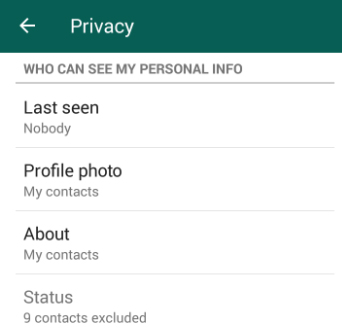
    1. Go WhatsApp Settings< Account
    2. Now go to Privacy option
    3. Now You can Click on Last seen and change the privacy setting for that.
    4. Below that Profile Photo option click that to change the privacy for who can view your profile picture .
    5. You can change ‘about’ privacy and also status also.

    27. Add event to Calendar

    You can find that the date or time that you send in WhatsApp chat will be appearing as blue font with underline. If you click on that it will allow you to Create an event for that date or time in your Calendar . So that if someone is inviting you to any meeting , dating or any important celebrations you don’t have to miss it from huge number of chat conversations.

    You can add event to WhatsApp Calendar  by –
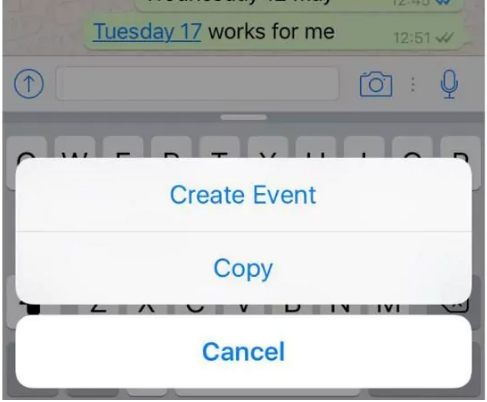
    1. Click on the date or time that appears in blue colour.
    2. It will show an option to ‘create event’ Click on that.
    3. Update Event details .
    4. Now you can find this event added in your calendar.

    28. Home screen shortcut for individual chats

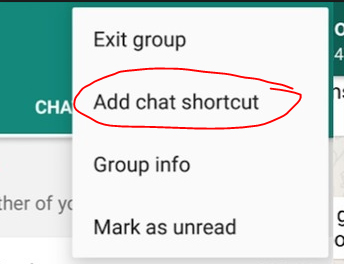
    Sometime we have so many individual chat but some are really very important to us like the contacts in speed dial of our device . So likewise you can create shortcut for individual chat in WhatsApp on the home screen so you need not to go the WhatsApp chat screen with all the individual and group messages to check the message updates from a particular person . Its more convenient to do .

    How to add home-screen shortcut to individual chats 

    1. You can add shortcut to individual chat on home-screen by first select that chat on chat screen .
    2. Now on the top menu find Add chat shortcut .
    3. Click on that so with the person’s profile there will appear a shortcut on your home screen.
    How to give reply on WhatsApp Chat from lockscreen

    If you want to reply to WhatsApp message from lock screen without opening the WhatsApp the follow this steps-

    1. Go to settings.
    2. Select Notifications
    3. Select Always show popup option
    4. You are done now you can reply from lock screen on WhatsApp

    29.Transfer files between phone and PC in WhatsApp

    You can now transfer your files between PC and phone with WhatsApp Web and your desktop by sending yourself a self message .This will make a smooth file transfer from PC to phone on WhatsApp or vice versa which is free from mind buzzing steps.
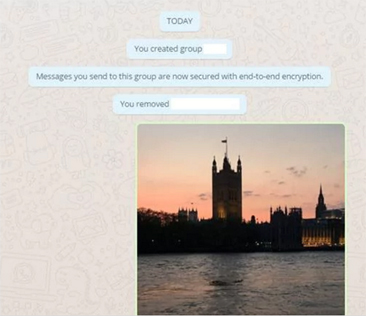
    1. Create a WhatsApp group with just one friend.
    2. Immediately delete the one friend or participant who is there in the group other than you.Now you are the only one participant in the WhatsApp group.
    3. Using a QR code on desktop or WhatsApp web you have to connect your phone to the computer system.
    4. Now send some file from your phone you can get it in your desktop.
    5. Save the file on your desktop by clicking on the download icon.

    30. Emoji ,Giant Heart

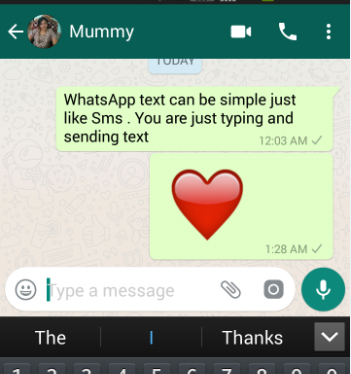
    You can send thousands of emoji by clicking on smiley and scrolling among with the heart when you sent it will appear as giant beating heart is favorite of many WhatsApp users.

    31. GIF

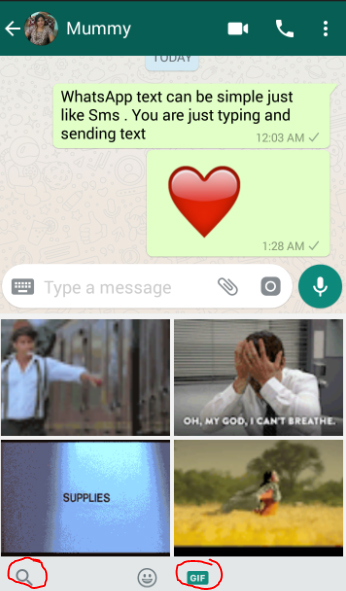
    At the beginning you can send GIF Images in Whatsapp by attaching it but now you can send thousands of GIF which you can find in WhatsApp itself . To send GIF image on WhatsApp click on the smiley then you can find GIF at the end of the screen like shown in the image attached here. So scroll between the GIF and even you can type a subject so endless of related GIFs will appear to choose from.

    32.Quote Particular message and reply for that

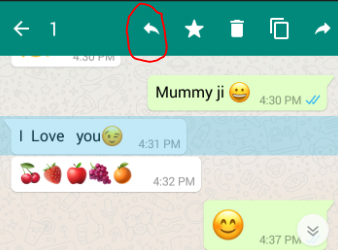
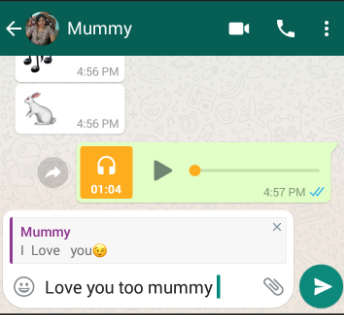
    One of the very recent feature of WhatsApp is to give quoted reply WhatsApp message. It allows you to give reply to that particular message within that.

    You can quote WhatsApp message by doing these simple steps –

    1. Go to WhatsApp chat thread.
    2. Click to select the message which you want to quote to reply.
    3. On the top find the symbol to reply like shown in the image .
    4. Now you can type the quoted reply to that message 
    33. Protect Chats – Disable Notification preview

    If you are concerned about privacy where you don’t want your WhatsApp messages to appear on your notification bar which will be peeped by anyone who look at your phone. To protect WhatsApp chats disable notification preview by toggling off the notification preview in WhatsApp which you have to do in changing your general phone settings .


    34. Upload WhatsApp Dp / WhatsApp pp ( Display or Profile picture)

    The trendy word Dp , PP ( Display picture , Profile picture ) is more popular with WhatsApp. You can upload Display picture on WhatsApp easily –
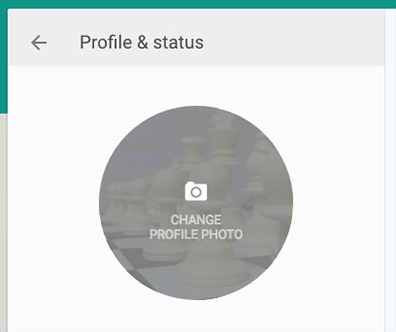
      1. Go to WhatsApp < Click on Appication Menu
      1. Go to Settings.
      1. Tap on your Profile Info.
      1. Click on your profile photo
    1. Click to set photo from gallery or take one using camera icon.

    35. Block unwanted people

    You can block the annoying people or unknown contacts who send spam messages.You can block anyone in WhatsApp and unblock them when you want easily.When you block someone in WhatsApp both of you can’t see your last seen,profile picture and other updates and prevent them from sending message and calls to you.
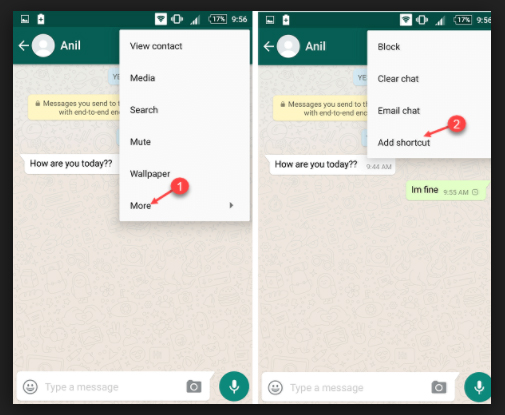
    1. Go to WhatsAp.
    2. Open the chat thread of the person you want to block.
    3. Tap on menu
    4. Click ‘more’
    5. Select block
    6. Do this again you can find ‘unblock’ click on that to unblock the person .

    36. Archive Chats

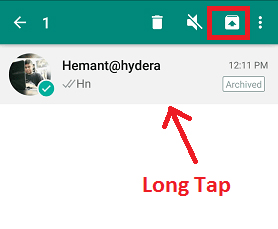
    If you want to hide chat threads from chat screen instead of deleting it you can archive chats in WhatsApp by selecting the chat and click on the archive symbol.

    37. Delete Multiple Chats

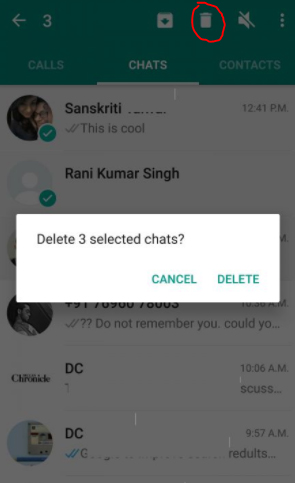
    You can delete multiple WhatsApp chats in one go .All you have to do is long press to select the chats you want to delete or even the chat threads . Now when the chats to delete are selected at the top find a trash bin . Just click on that and confirm deleting to delete multiple chats at a time.

    38. Mark as unread

    You can mark a message you read i WhatsApp as unread easily.
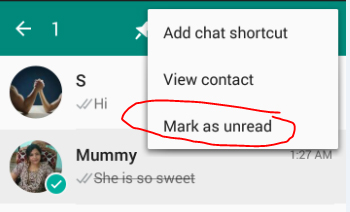
    1. Go to WhatsApp chat screen.
    2. Tap and select the chat you want to mark as unread.
    3. Now click on the vertical three dots.
    4. Click on Mark as unread
    5. You are done

    39. Reply directly from the notification bar

    If you have enabled your notifications on WhatsApp then you can reply chats from WhatsApp notification bar itself .
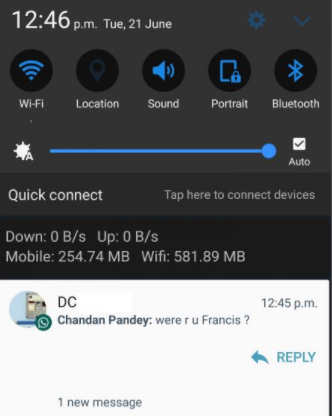
    1. Drag down the notification bar.
    2. Hit reply button .
    3. Enter your reply and send from notification bar

    40. Backup to Google drive

    You can get WhatsApp Chat Backup to google drive where you can save all your chats and media files shared. This will help you against the loss of data and also in case if your phone got any issues the backup can be restored after you fix the phone issue.

    To get WhatsApp chat chat backup on google drive all you have to do is –
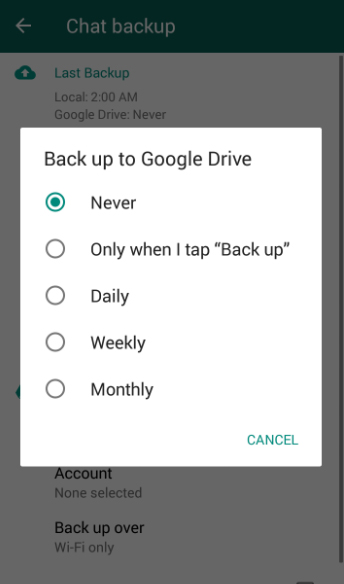
    1. Go to WhatsApp settings< Chats
    2. Choose Chat backup.
    3. Click choose to backup to Google drive
    4. Now select the frequency of backup.

    This way you can backup your chat to google drive.


    41. Change wallpaper

    You can change Wallpaper on WhatsApp  for all your chats by choosing a wallpaper of your choice as the chat background.If you want to change Wallpaper on WhatsApp follow these steps.
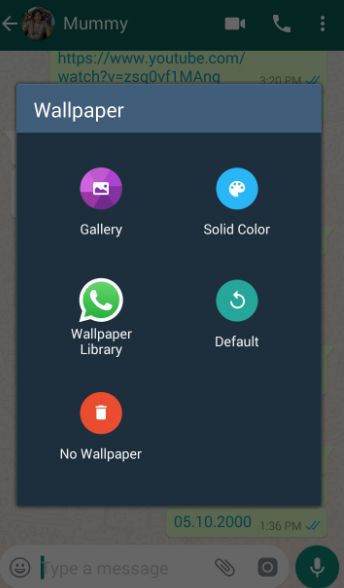
    1. Go to WhatsApp.
    2. Open a Chat thread
    3. Go to menu in that chat thread.
    4. Now find the Wallpaper option select that.
    5. Now find the different ways to add Wallpaper .
    6. Choose your preferred option that’s it.
    7. Now you can find your default Wallpaper is changed to your choice of Wallpaper on WhatsApp.

    42. Use different languages

    You can use WhatsApp in different language as your preference by following these steps-
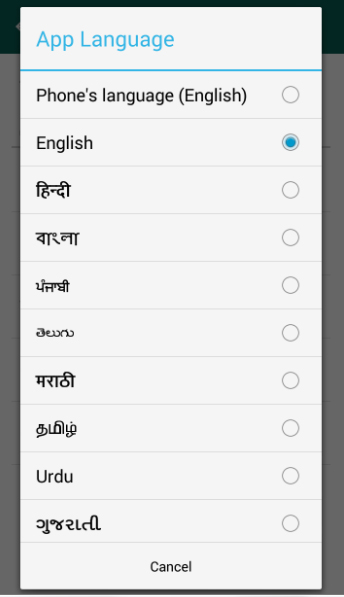
    1. Go to WhatsApp settings < Chats
    2. Click on App language.
    3. Now you can find so many language .
    4. Select the language of your preference.

    43. Search messages

    If you want to sort out any particular message you sent long ago in WhatsApp then you can easily find out by Search message in WhatsApp .
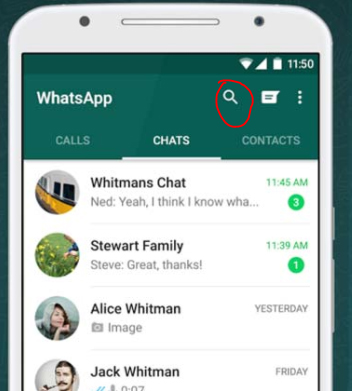
    1. On the top of the Chat screen there is a search icon.
    2. Click on that .
    3. Now type any fragment of words you remember about that message .
    4. You will get all the matching results from which you can sort it down easily.

    44.Get early updates
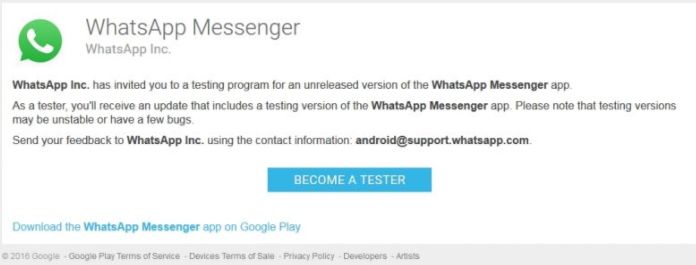
    WhatsApp comes up with new updates every time as an user if you want to get updates early then one option is to have a keen eye on the Tech news updates but still its a boring thing. To  stay updated become a WhatsApp beta user. You can register online to become a beta user in WhatsApp.


    45.Know who has read your messages in a group

    If it is an individual message sent in WhatsApp you can confirm that the person read the message it it shows double blue tick but kindly note that even in individual messages if the person have turned off Read receipts then you can’t find the blue tick confirmation.
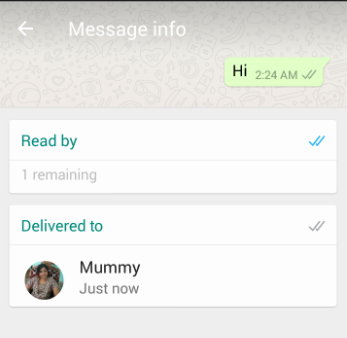
    In a group chat there are so many people so if you want to check who has read your WhatsApp message in group then follow these steps.

    1. Go to the group chat.
    2. Select your message
    3. On the top there is symbol to get information with a small i.
    4. Click on that it will give you the details about who has read your message in WhatsApp group.

    46.Send your location with maps

    You can share your real time location with your contacts in WhatsApp from google maps. To share your location in WhatsApp follow these steps-
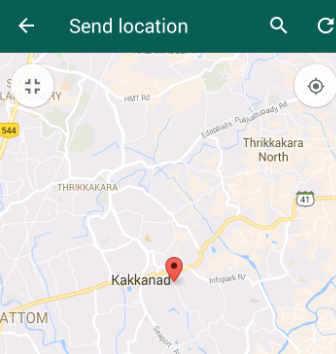
    1. Go the chat
    2. Now find the paper clip symbol.
    3. Click on that .
    4. Select ‘Location’
    5. Now the google map will identify your location and click to send.

    You can find this as a useful feature as it shows accurate location so when if you are going anywhere out and want to share your real location with your close ones you can use this.


    47.Send and receive money with FreeCharge

    If you use WhatsApp on android device then now you can send and receive money using WhatsApp. You can use the new feature of FreeCharge on WhatsApp . In this you can simply make transactions possible .

    So to know how to Transfer FreeCharge Money via WhatsApp read through the below steps carefully.
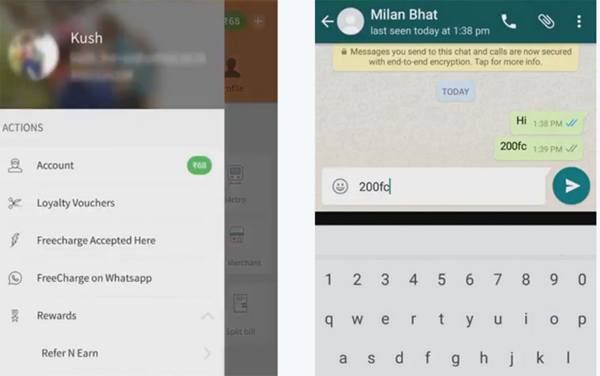
    Step 1:  From Freecharge’s menu launch to Freecharge on WhatsApp.

    Step 2: Tap enable so that the FreeCharge app gets permission to access.

    Step 3: Now to the one you want to send money open their WhatsApp chat window .

    Step 4: Enter the amount you want to exchange and it should be followed by FC, eg. 100FC

    Step 5:  Now a pop-up will appear asking you confirmation whetehr you want to send or request money. Enter the appropriate option then you are done with the process.

    This is a feather among the WhatsApp Features.


    48.Share contacts

    Unlike the traditional way of sharing phone contact by typing the number without a mistake is outdated . You can easily share contacts using whatsapp  without any pain and effort.
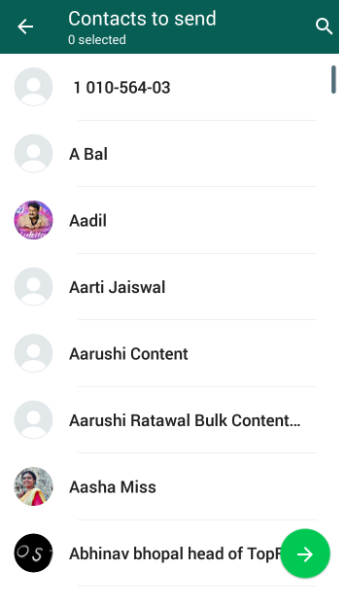
    • Click on the individual chat of the person to whom you want to share the contact . Their chats will be on your screen .
    • Now click on the attachments .
    • Find < Contact.
    • So you will find the list of contact , either scroll down and select it or manually type the contact name and select it.
    • Click the green arrow.
    • And send it you are done.

    This is one among the WhatsApp features that makes things easily from traditional method .


    49. Send Live Location & Set Frequency

    You might always have one special person atleast who always has one repeated question that is to know where are you ? So in case you find it annoying to always give them answer just go to the chat with that person and click the pin icon of attachment . Now click on Location sharing and select Share Live location  and then set time interval . Thus your live location is shared everytime .


    50.Send Images from the gallery using camera icon 

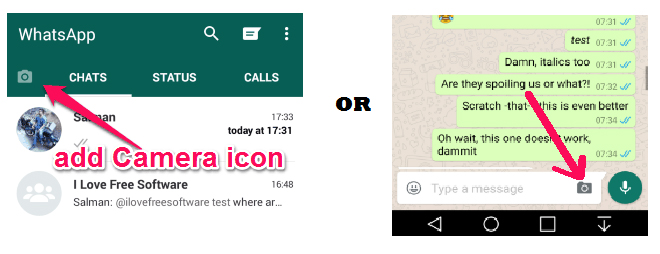
    You all know the common way of sending images using the attachment option in WhatsApp . Now there is a latest feature where using the camera icon you can select the images from the gallery and send it to your friends.

    To send images in whatsapp using camera icon find these images . You can try out both ways of sending images using camera icon feature.

    51.Pull back your accidentally sent messages

    Suppose you send a message to someone by mistake and you don’t want them to read it . There is a small chance to pull back or prevent the other person from reading the message. So follow these ways to pull back or recall a WhatsApp message  . This is just a trick not any official way to do it so .
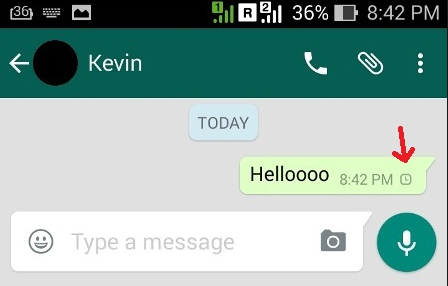
    Trick 1 : Block the user immediately for 30 days .

    Trick 2 : Turn off your internet before the message shows double tick and delete it . Bt this way to recall accidentally sent whatsapp message will work only if your internet connection is really a slow one . Guys trust me sometimes a slow internet connection can save you from your tech mistakes .

    Trick 3 : Bit crazy way but something you can do for sure . Send them a new message with 2000 words in special character before they read the accidentally send message .This will force them to delete your conversation to use their whatsapp back as normal . Because this special character message of 2000 words will crash their WhatsApp.

    One most searched topic related to WhatsApp features will be to pull back the messages which you already sent.


    52.Multiple Video or Image status for 24 hrs

    This is also a new feature of the WhatsApp which is now the rising trend and a good competitive feature to snapchat . On its 8th birthday WhatsApp launched this feature where users can upload images or write text or post a video of 30 seconds as their status .

    • Here you can simply take a photo using camera  or choose one from gallery , use GIF , video of 30 secs as your status for 24hours . After 1 day the status will be automatically vanished .
    • You can write , scribble add smileys on the photo status that you are uploading.
    • You can hide the status from particular people , that means you can restrict the visitor for that status.
    • You can add multiple number of status in a day.
    • You can delete the status before the 24hours time also.
    • You can see who viewed your status and when they viewed it.
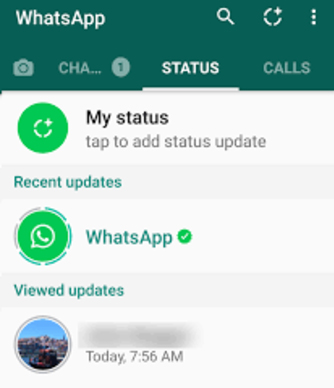
    How to hide your photo/video status in WhatsApp 

    You can hide WhatsApp status by following these simple steps –

    1. Go to WhatsApp Settings.
    2. Now tap on Account< privacy
    3. Click on Status
    4. Here there is 3 status privacy option – my contacts, my contacts except and only share with.
    5. If you select my contacts your new photo or video status in WhatsApp will be visible to all your contacts in WhatsApp.
    6. If you want to block certain people from that click on ‘my contacts except’ and search the name of contacts and add them . So they wont be able to view your whatsapp status update.
    7. To add more privacy suppose only those whom you really know the status update should see it not all , then add them alone to view your status update by selecting the third option.
    How to know who viewed your photo/video status in WhatsApp 

    You can add as many photo or video status in WhatsApp which you can custom privacy to ensure whom you want to share this status visibiliy. You can find out who viewed your WhatsApp status by following this steps.

    1. Go to Status.
    2. Tap on your status
    3. Below that you can find an eye symbol click on that there you can view the contacts who have seen your WhatsApp status.
    How to delete your photo/video status in WhatsApp 

    If you want to delete any of your WhatsApp status there is still provision for doing that by following these steps.

    1. Go to Status.
    2. Now Tap on the  status you want to delete.
    3. Below that click on the eye symbol now it will show you who viewed the status along with that there is a symbol of bin . If you  click on the bin it will ask you whether you want to delete the status so it will get deleted .
    How to forward your photo/video status in WhatsApp 

    You can simply forward your WhatsApp status to anyone you want by following these steps –

    1. Go to the status on WhatsApp.
    2. Now click on the status and eye symbol.
    3. There near to the bin there is a forward arrow click on that.
    4. Now you get list of contacts available in WhatsApp so you can choose them as individual or select multiple persons and send it .
    5. Hence your WhatsApp status is forwarded.
    How to  reply to your friend’s photo/video status in WhatsApp

    You can reply to other’s WhatsApp status by sending text on it or with images or even as audio .

    1. Click on the status you can find you contacts’ recent status update below your own status.
    2. Now click on the status on which you want to reply .
    3. Now you can find a text cursor , smiley , camera , audio near to it .
    4. Click on the smiley to add smiley to your reply and type text if you want . Even if you want to reply it with a image you can click that and take it from camera or gallery or if you want to reply it with voice press the speak button and talk and leave your fingers so it will sent.

    This is a trending among WhatsApp Features.


    53. Pin Feature

    This is a new feature , to say an upcoming feature for all whatsapp users . This will help you to get rid of scrolling thousands of messages to find your favourite one . You can now simply make the most important individual’s chat as priority by using WhatsApp Pin Feature .

    You can only pin three chats with this feature . By pinning those chats will appear in the top regardless how long its been you haven’t communicated with them .
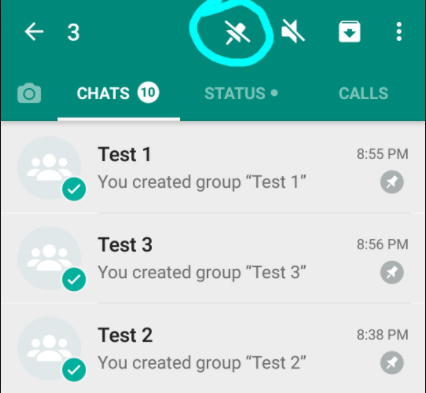
    How to Pin Chats in WhatsApp ?
    • Download WhatsApp Beta 2.17.162 or 2.17.163
    • Tap and hold the chat you want to pin , when you are holding it you can find delete , mute , archive and then a pin option on the top.
    • Click on the pin , here it is . You are done with it now this chat appear on the top even if you didn’t had conversation in recent .
    • You can unpin anyone and add new one as pinned chat because only three can be pinned .

    54 . Delete for everyone

    This allows to delete the message for both the sender and receiver .

    55. Disappearing messages

    This is an exciting feature in whatsapp latest , this allows you to select individuals with whom you want the messages to self destruct within 7 days . But remember the person can still save your messages in the form of screen shot etc or even screen recording facility is now available .

    How to enable disappearing messages on whatsapp ?

    1. go to whatsapp
    2. select the person for whom you want to disappear messages automatically in whatsapp
    3. there you can find the option disappearing messages . 
    4. click it and turn it on

    anytime you want you can turn off too .

    When you turn on this option this will give notification to the other person that you have toggled on whatsapp disappearing messages for the person.

    So here we have given you a detailed guide on the 50 exciting WhatsApp Features also find the ways to protect your WhatsApp data .

    One exciting feature that is not detailed is WhatsApp web which will be detailed as a new topic soon.

  • How to tie a Tie

    How to tie a Tie

    Let it be a function, a business meeting, a usual day at work, a tie makes your attire look formal and classy. If you have planned on wearing a tie, you can check out the different types of knots you can try out with your various attires according to the occasion. The usual knots of tie that used my men are oriental knot, Full Windsor, and half Windsor knots. But there are many other types of knots too. Here, I will introduce 10 various types of knots to tie a tie.  And if you are person who wants to know how to tie a tie in all styles and glamour here we go.


    10 Different Necktie Knots

    So many tie knots , let us see all classics to trend setter tie knots .

    Oriental Knot or the Simple Knot

    The most commonly used necktie knot, the oriental knot can be easily worn without much difficulty.

    Steps 

    1. Take your tie and drape it around the collar of your shirt with the seam facing inward. The end with more width should be on your left side. Make sure that you place your tie at least 2 or 3 inches lower than the length you require. 
    2. Now, you should take the thick end across the front of the narrow end. Again, pass it horizontally at the back of the narrow end. 
    3. Again, take the thick end and pass it across the front of the knot you have made (from left to right). 
    4. Drape the thick end horizontally behind the knot from the right side to the left side.
    5. Take the thick end and pass it across the front of the knot from left to right. You will see a loop now through which you can slip your finger. 
    6. Now the tip of the thick end should go underneath the loop. Tuck it up behind the knot and adjust the tie by pulling the narrow end and holding the knot. 


    Four in hand knot

    This necktie knot is one of the oldest styles of tying a necktie and at the same time, it is very easy which is perfect for beginners.

    Steps:

    1. First, put the tie around the collar with the thick end on the left-hand side. Remember to always place the thick end at least 3 to 4 inches than the narrow end. 
    2. Now take the thick end and cross it over the narrow end. 
    3. Bring the thick end behind the narrow portion and cross it horizontally from right to left.
    4. The thick end should now be taken horizontally across the front of the knot (right to left). Slip your finger under the horizontal area.
    5. Turn the thick end upward and slide it under the loop.
    6. Take the broader end through the loop and pull it slowly to stiffen the knot.
    7. Now hold the knot with one hand and pull down the narrow end slowly to place the knot correctly on your neck. 


    Half Windsor Knot

    This knot is also suitable for beginners and is a perfect knot for the thick ties with medium width.

    Steps:

    1. Don the necktie around your collar with the narrow end on the left and the thick end on the right (with more length on the wider portion).
    2. Take the thicker end over the narrow end from right to left below your chin which will look like an X.
    3. Now loop the thick end horizontally across the narrow portion.
    4. The wider portion should now be taken over from the top through the opening of the X shape you have made. Pull it tightly.
    5. Take the thicker end on your right hand and wrap it over the front from the right to left.
    6. Grip the knot with your left hand and the wider end should be taken towards your chest from behind the loop. Cross it over the X shape.
    7. Open up the knot (triangle shape) with your index finger of the left hand to pull the wider side.
    8. Adjust the length by pulling down the thin end while holding the knot.


    Full Windsor Knot

    Suitable for men with a long neck, this Full Windsor Knot also known as the Double Windsor Knot has a triangle shape.

    Steps:

    1. Put the tie round your collar with the wide end on the right. The wider side should hang 4 to 6 inches lower than your midriff.
    2. Take the wide end horizontally through the front which will make an X shape below your chin.
    3. The wider end should be tucked up under the loop that should point upwards behind the shape X. Hold the knot with 2 fingers and pull the wide end down.
    4. Take the wide end across and behind the knot. Now pass it horizontally from the left side to the right.
    5. The end of the wider tip should now be flipped and should be tugged diagonally over the front of the knot.
    6. The wider end should now be taken over the top of the loop and bring it back down to the same position.
    7. Take the wide end and bring it horizontally across the front of the knot from left to right. Now you can see a horizontal band. To hold it in place, tuck your finger through it.
    8. The wide end should be taken underneath the loop once again around the collar (the tip should be pointing upward).
    9. The wide end should be turned down and slide the tip through the horizontal loop you made with your finger earlier.
    10. The last step is to pull the wide end down and position the knot correctly.

    Read Also : Men’s grooming gadgets

    Pratt Knot


    This is a different style of knot for a necktie in which the seam of the tie will have to face outward when tying.

    Steps:

    1. Put the tie around the collar of your shirt with the seam facing outwards. The thick end should hang on the left side with 2 inches lower than your desired length.
    2. Take the wide end below the thin end and pass it through the loop.
    3. Now pull the wider end down and flip the tip (should point to your left).
    4. Take the wide end horizontally over the front and tuck a finger behind the horizontal band.
    5. Put the thick end through the loop below and point the tip of the wider end downwards on top of the smaller end.
    6. The thick end should be pulled down through the horizontal band.
    7. Position the knot correctly by pulling the narrow end while holding the knot.


    Eldredge Knot

    This is a difficult necktie knot. But if you are already good at tying a knot for your necktie and want to try something new for a function, then go ahead with the fancy Eldredge Knot.

    Steps:

    1. Put the tie around your collar, making sure that the thick end is on the right side. The length of the thick end should be placed exactly where you want it to be once the knot is completed.
    2. Pinch the middle of the wide end of the tie and cross the other end over the front of the wide end horizontally.
    3. Take the thin part of the tie and wrap it behind the cross shape from right to left (crossing horizontally).
    4. The narrow end of the tie should be inserted through the loop around the collar.
    5. Across the wide end, bring the narrow end horizontally.
    6. The tip of the thin end should be tucked through the loop around the collar and flip it over the knot (cross diagonally downwards from left to the right side). Now pull it down so that a diagonal band is formed along the right side.
    7. Drape the thin end around the back of the knot and through the diagonal band.
    8. Fill through and pull it tightly to create a diagonal band on both sides of the knot.
    9. Point the thin end upward and tuck it down under the loop around the collar.
    10. Loop the narrow end of the tie upwards around the circle (around your collar). Do not tighten it.
    11. Now the thick end should be tucked down and to the left below the loop around the neck. Also, take it up through the loop you just made.
    12. Time to flip the narrow end over the top of the loop.
    13. The remaining thin part of the tie should be tucked in underneath the wider portion. Tighten the knot by pulling the thick end and adjust the knot to your neck.


    Bow Tie

    Certainly not an easy knot to tie. Nevertheless, if you love the chic look of bow tie, then try it out using the following steps.

    1. Drape the bow tie round your neck with the seams facing down. Keep the right side of the tie longer.
    2. Take the right end over the left which will make the shape of an X.
    3. Take the longer end behind the X shape and pull it tight. Leave the longer end.
    4. Place your index finger in the wider part of the shorter end and fold it. A bow shape will be created now. The folded tip should be placed across the collar with a shorter end close to your neck.
    5. Hold the bow with your forefinger and thumb of your left hand. Take the longer side down over the shorter ones right in the middle of the bow.
    6. With your right hand, fold the longer end back towards your chest and pinch the fold and double the tip to form a wing shape.
    7. The folded tip of the longer end can now be tucked behind the folded top of the shorter portion through the loop.
    8. Make sure that the wings are in place and tuck the loops behind them. So that the vertical knot will be tightened.
    9. Holding the front of the knot using one finger, twist the wings to form a symmetrical shape.
    10. Position the bow tie correctly on your neck and here you are ready for a function.


    Nicky Knot

    Follow the below steps to try out a Nicky Knot for your day at the office.

    1. Put the necktie around the collar of your shirt with the seam facing outward. The wider end of the tie should be on your left side and it should be 2 inches lower than the original length you require.
    2. Now cross the wider portion of the tie below the narrow end.
    3. The wider end should be flipped in front of the loop around the collar. Tuck it down the loop, making it point to the left of the narrow end.
    4. Now the tip of the wider end should be brought horizontally across the forward-facing knot.
    5. Using your finger make some space in the horizontal band you have made and bring the tip of the broader portion up below the loop.
    6. Slip the tip of the wider end down through the loop and pull the end and leave it down.
    7. Holding the knot and pulling the narrow end slowly, you can adjust your knot on your neck.


    Kelvin Knot

    It is not very tough to tie a Kelvin Knot. If you want to try out something innovative, then check out the following steps to tie Kelvin Knot.

    1. Don the necktie around your collar. The seam should appear upwards with the wider end on your left side. Make sure to leave the wider side at least 2 to 3 inches lengthier than the other end.
    2. Take the wider end and place over the narrow ones from left to right.
    3. Wrap the wider portion under the narrow piece (right to left) and continue wrapping it around one more time.
    4. Bring the wider portion horizontally over the front of the knot you have made from right to left side.
    5. Using a finger, make some space in the horizontal band to tuck the wider end upward below the loop.
    6. Now take the tip of the wider end through the horizontal loop you made in step “d”.
    7. Pull the wider end and leave it. Adjust your tie by pulling the narrow end.


    Balthus Knot

    This is a perfect knot that you can wear for any event and fine dining.

    Steps:

    1. Use a long tie for Balthus Knot. The seam should face upward with the wider end on your left. Leave the thick end till it reaches your mid-thigh.
    2. In this knot, you should take the thin side and cross over the wider one. Now the wider end should be brought up in front to tuck it down underneath the thin end.
    3. Again, bring the wider portion back up in the front and make a loop over the thinner ones.
    4. The wider end can be now tucked down behind the thin end.
    5. Turn over the wider portion upwards and wrap it over the center of the knot.
    6. Crossing from right, bring the wider end down behind the knot you made.
    7. Now the wider end should be taken across the front of the knot horizontally (left to right).
    8. Take the wider end to the back of the knot and bring it upward. Do not tighten it now to tuck the wider end through the space you made.
    9. You are done and you can adjust your tie


  • Mac screenshot Not working – Quick Fix

    Mac screenshot Not working – Quick Fix

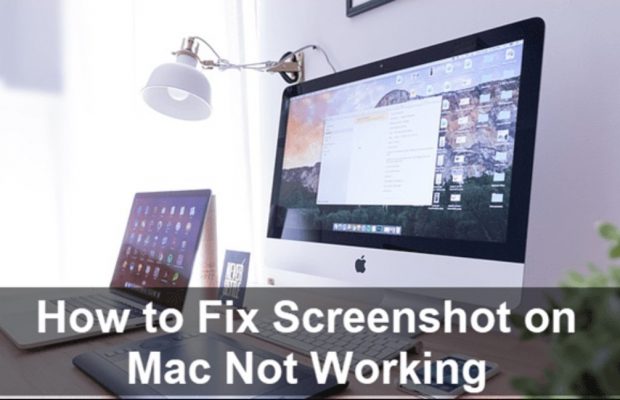
    How to take Screenshot of Mac? What if my Mac Screenshot is not working?

    Are you using a MacBook and wondering how to take screenshots on it? Taking screenshots is very common these days. People take screenshots from their laptops and mobiles for personal use or to even share with their friends or for any official purposes. If you are new to a MacBook and if you do not know how to take screenshots in it, then this article will guide you through it. 


    How to take Screenshot of Mac?

    First, you need to choose what screenshot you want to capture from your MacBook. You can take screenshots of the entire screen, a window, or even a portion of the screen of your Mac.


    1. If you want the screenshot of a full screen then follow three steps: all the three keys shift, command, and 3(#) should be pressed together. A thumbnail might pop-up on the corner of your screen which can be used to edit the screenshot taken. If you do not want to edit the screenshot, then wait for the MacBook to save the captured picture.


    1. If you want the screenshot of a portion of the screen, follow these steps: Press and hold the shift, command, and 4($) buttons together. Drag and select the portion using the crosshair that appears on the screen. You can move the selection while dragging it and pressing and holding the space bar at the same time.

    Once the portion of the screen is selected, release the mouse or the trackpad button.

     Esc key can be used to cancel taking the screenshot. You can edit the screenshot by clicking on the thumbnail that appears on the corner of the screen. If editing is not required then simply wait for the Mac to save the screenshot on the desktop.


    1. How to take a screenshot of a window or a menu: First, select the window or the menu you want. Press the Shift, Command, 4($), and space bar keys together. Now you will see the pointer changed to a camera icon. Click on the window or the menu to capture and save. (You can avoid the shadow of the window in the screenshot by simply pressing and holding the option key while you click the window or menu).

    Use the thumbnail that appears on the screen if you want to edit the screenshot taken. The screenshot taken will be saved on the desktop. Remember, you can always use the Esc key to cancel taking the screenshot. The screenshot taken in your MacBook is automatically saved in the desktop as -” Screen shot [date] at [time].png.” You can change the location and select the one you want according to your convenience.

    What if  Mac Screenshot not working?

    If you cannot take a screenshot using the steps stated above then try the following steps:

    1. Restart your MacBook

    Try restarting your Mac – Press the power button and click on the Restart button. You can also restart your Mac by choosing the Apple Key and select the Restart option or press Control, Command, and Eject to restart.


    2.Check if shortcuts are activated

    Go to System Preferences on your Mac, select Keyboard and Mouse – Choose Keyboard Shortcuts and see if the shortcuts are activated.


    3.Make use of Grab

    If you find the above 2 options not working, then go to Application > Utilities > Grab > Capture and choose what screenshot to take. 


    1. Use Preview to take a Screenshot

    You might be familiar with the Preview button. Click on Preview > Click File > choose “Take Screenshot” from the drop-down menu.


    Hope now you can enjoy taking mac screenshots as we believe this helped to fix mac screenshot 


  • Google Calendar Dark Mode – Enable Night mode on G-Calendar

    Google Calendar Dark Mode – Enable Night mode on G-Calendar

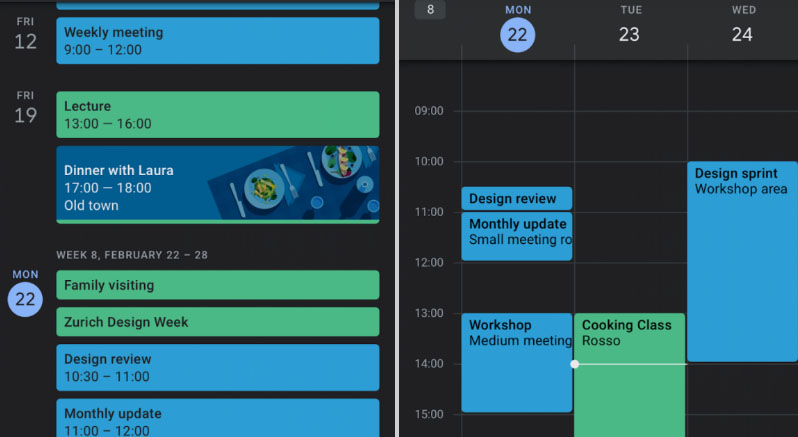
    Google was bringing the dark theme / dark mode to most of its applications and websites . Now with the arrival of Android Q nearing its release date . Google has enabled dark mode for different apps . One such we will discuss here is about Google Calendar Dark Mode .

    What is Google Calendar ?

    It is one of the popular online time management apps for managing your schedules , meetings , reminders etc . Almost we can call it as a e-calendar . But it has more features to offer you other than being a simple calendar .

    Now coming on to the point of Dark Mode / Night mode / Dark theme , we have already discussed on what it is .

    Google Calendar Dark Mode

    To be precise we will take a look at how to enable Google Calendar Dark Mode .

    • So as usual go to the General settings of Google Calendar in your Android Phone .

    ( SETTINGS — GENERAL )

    • Now go to the Theme option in Google calendar settings .
    • In this you get options to select three themes – Light theme , Dark theme and finally Set by battery saver .
    • Select Dark theme to turn on Google Calendar Dark Mode .

    In case you are not getting this feature on your Android device then try these settings option after updating Google Calendar App .

    Go to the Google play-store and update your G-Calendar application .Even after this if its not working out try to upgrade your Android OS . Because this dark mode wide update is mainly focusing on Android Nougat and its higher OS Versions .

    In case you want to use Google Calendar dark mode on Web , try to use Google chrome browser and get your browser installed with add-on for dark theme .

    In the Android Q operating system , it is clear that the users will have option to switch their phone to Dark theme by default settings . Thus the users who want to use all their apps on dark mode need not to focus on the dark theme settings of each apps.

    In case you want to disable dark mode for Google Calendar then work on the settings the same way and in Theme select the light theme .

    Dark theme is very good for vision and good for your eye health especially during the night time or during low light period . As well as using dark theme for applications can save your device battery to a great extend .

  • Time Lapse Video Making Guide

    Time Lapse Video Making Guide

    Time Lapse photography is the latest trend to hit all the photographers especially the nature lovers. You get to view a lots of natural phenomenon in quite an interesting way. So you must have come across time lapse video on any social media platforms, because these are a rage nowadays and they rightly deserve so.

    What is Time Lapse Video ?

    Time lapse videos are long videos whose speed is increased so that the slow changes can be viewed and observed better. Time lapse videos are created for those processes which are very slow and humans often lack the patience to view such processes completely such as sunset, blooming flowers, growing plants or any other thing like that.

    Time lapse videos can be made in two ways, either video is recorded continuously and then its speed is increased or photos are clicked after fixed intervals and merged later to form a video. Some slow phenomenon such as sunsets, blooming flowers and many more look stunning and interesting when viewed in time lapse videos.

    Here I have tried to breakdown the process of making a time lapse video and list down all the requirements. So let us begin with this :

    Understanding the Basics of Time Lapse Video Making

    Before actually beginning with the making of the time lapse video you need to understand what time lapse actually is?

    It is any normal video of longer interval which is played at high speed so as to give an effect to the user that time is moving fast or join a large number of pictures together to form a video. Time lapse videos are generally of short interval.

    How to make Time Lapse Video ?

    You got a picture about what is time lapse videography . Now to create a time-lapse video or to begin with the process. You must choose “Subject of Time lapse Video”

    So there are a number of phenomenons which are quite boring and slow to be observed with your eyes but when speed up in time lapse videos look stunning and beautiful. Here are few such listed out –

    • Sunset or sunrise
    • Blooming flowers
    • Under construction buildings
    • Movement of Clouds
    • Rotting fruits
    • Busy street or highway
    • Growing of plant

    All these things can result in some beautiful, fun and cool time lapse videos.

    Then based on the subject you choose you have to decide which type of time lapse video you want to choose whether Smooth or Blocky. But lets get familiarized to these terms first.

    Smooth Time Lapse Video :

    This means that either the video has been shot continuously or the separate shots are taken at shorter time intervals. Smooth time lapse videos are generally preferred for things like sunset, sunrise, movement of clouds or busy street or anything like that which last for few hours or a day not more than that.

    Blocky Time Lapse video :

    In this type of time lapse videos the separate photographs are taken after longer intervals thus when merged together kind of form a blocky video. This type of time lapse videos is preferred for shooting events which take much more time to take place such as blossoming of flower, construction of building, rotting of fruit and many more.

    Now since you have decided the subject for your video and based on that the type in which you want to shoot your video you need the right equipment to shoot it.

    Equipment required for Creating Time Lapse Video :

    Everything needs its own equipment to get that perfection and professional outcome . So if you want to take a professional time lapse video then this will be complex and tiresome. So let us take a look at the equipment needed for time lapse videography .

    There are majorly three options for you :

    • If you own a DSLR then it is definitely the best option since it will let you shoot the video in the best quality and highest resolution.
    • The next best option is the Point and shoot cameras. These are compact and pocket sized cameras. These have lesser features as compared to DSLR but still provides you with high quality videos.
    • Even high resolution camera Smartphones are good enough to make time lapse video and time-lapse Photography .

    Now you can choose which camera to be use for creating time lapse . Once you have decided with what device you are going to shoot your video, whatever it may be you will definitely need a tripod stand. It is important because it helps you in shooting a stable video not a shaky one. It keeps the frame fixed, because if the frame will vary then the resulting time lapse video won’t be shaky and will also save you a lot of effort. It ensures consistency to the video or the pictures.

    Since point and shoot camera is smaller in size you can also go for a gorillapod which also helps balancing your camera on uneven surfaces.

    The next equipment you will need is some kind of device which can instruct your shooting device to click pictures at fixed intervals since you may not be able to stay all the time with your camera. This problem is shot by Intervalometers for DSLR cameras and Time controller device in point shoot camera. But first you must check your camera’s manual since it may already have an inbuilt such time controlling device. Both intervalometers and time controller device acquire the control of your camera’s shutter and then you can set the interval after which you want to click the picture.

    Also instead of buying an additional device you can also have a number of software which also serve the same purpose but you will need to attach your laptop for all time to your camera via a USB cable. You can choose suits whatever suits you well. So I have also compiled some of the best software which are going to help you a lot while shooting a time lapse video.

    For Nikon DSLR camera users :
    • Sofortbildapp (Mac) – Compatible with most of the latest Nikon camera models.
    • D-Software Cam Control(Win) – It can be used for controlling your camera’s Shutter speed, exposure, ISO and Aperture
    • Nikon Capture 4.0(Win and Mac) – It is an amazing and powerful image editing tool. You can control nearly all the features of your camera and also lets you save your pictures directly to the PC. And definitely provides the features for the post editing of the pictures.
    For Canon DSLR camera users :
    • DSLR Remote Pro(Win and Mac) – It is among the best software to control your canon camera from your Windows PC.
    • inPhoto Capture(Win) – This software is quite easy to learn and use. It lets you control some of the latest models from your PC. It also lets you control your Olympus camera.

    Apps for shooting Time lapse using iPhone :

    Now will look at the best time lapse video apps for iPhone –

    • iTimeLapse : It is an all in one app which provides you with the features for every aspect of video making starting from clicking pictures and after editing. It lets you control white balance, iso speed, focus everything. Then once done you can edit all the frames and add audio, background effects and much more editing can be done. But the only problem is that its major features are available in the purchased version.

    Read Also : Cinemagraph app that makes pictures move ( iOS & Android)

    • Gorillacam : This app also provides you with a number of features but lesser as compared to iTimeLapse but it is available for free. For beginners it is a good way to start.

    Time Lapse Apps for Android :

    Let us look into this in detail later now here listing out few apps for android time lapse video making –

    • FrameLapse
    • TimeLapse
    • Hyperlapse by Microsoft
    • Lapse It
    • TimeLapse Camera

    Read Also : Best Triple Camera Phones to Buy This Year

    Editing Time Lapse Video :

    Once you are done with all the video recording or clicking pictures now is the time to edit time lapse video . There are two most popular timelapse editing software used for editing :

    Photoshop :

    None of us is unfamiliar with the power of Photoshop. Here also it provides you with a lot of ease. First open a picture and apply all the editing affects you want to on it. Once done create a new action by selecting Action from Windows.

    Redo all the affects to record the action. Apply this action then all of the left pictures in the batch. For doing so select Automate from Windows and there click on Batch.

    Read Also : Exciting free Photoshop Alternatives for high quality photo edits

    Lightroom :

    This is another software famous for post editing your pictures. Here also in Develop mode apply all the effects on a single picture. Then select pictures from the batch and click on Sync button. Same effects will be applied to those as well.

    Combining Time Lapse Photos :

    In the process of how to make time lapse video , the very last thing one have to do soon after editing is to combine all those edited pictures into a movie . So as your time lapse video gets ready . You need some of the apps for the purpose , here we go with it –

    • Apple Quicktime Pro7(Win and Mac) : Just open the folder which contains all the picture and select the first picture. And then it will automatically combine all the photos.
    • Time Lapse Assembler(Mac): This is another software which lets you merge your pictures but is available only for Mac. It is the best free time lapse video maker.
    • Startrails.de: It is specially designed for creating star trail photographs but can be easily used for making other time lapse videos.
    • LR-Timelapse: It is another amazing software and is available as a plugin in Lightroom. It provides you with features of both startrail.de and time lapse assembler. In free version you may combine up to 400 images.

    Once done with all this you are going to have some awesome and stunning time lapse videos. Also for beginners you may take some test shots before actually shooting the video. Also keep extra batteries and memory cards handy and always keep an eye on your camera. Do share your experience with us.