Tag: best streaming services

  • Best Kodi Alternatives for Every Streaming Device

    Best Kodi Alternatives for Every Streaming Device

    If we talk about best media player. Kodi is on the first number. Kodi is created by XMBC foundation which is a nonprofit foundation. It is a free open source software created for entertainment purpose. It can stream audio and video from the internet. Everything you need is available on Kodi you can also replace the cable with it. Kodi is compatible with many devices. It is the best media player. But there are many alternatives for Kodi available in the market some of them are Plex, Emby, Popcorn time and more. In this article, I am going to talk about best Kodi alternatives (2017) for every streaming device such as Firestick, Windows, Android, iPhone.

    Best Kodi Alternatives for Every Streaming Device

    Here is the Best Kodi Alternatives for the Top Streaming Devices that you would fall in love with.

    1. PLEX

      Plex is the first best Kodi alternative for firestick, windows, android, iPhone etc. It is compatible with many devices. It is not at all complicated to use you can use it easily. Plex offers many features which give beautiful experience to users. It supports all types of files and also 4k, you can also watch live tv without paying anything extra, there is DVR option available.
      On Plex, everything is encrypted so there are no security issues. Its library organization can easily organize all your data beautifully. If you think that some content is not good for children so for this plex offers parental controls. Plex can easily stream media to all your devices regardless of time and place. You can easily share your content with your friends. It is free of cost but if you want to access additional features, you have to pay $4.99 per month. So, overall Plex is perfect if you use it for iOS or windows it offers many features for both of them you can sync your mobile and you can also sync your mobile data to plex.

      Read Also : Streaming Services – Netflix Vs Prime Vs Hulu Vs Sling Vs Directv Now etc

    2. EMBY

      Emby is the second best Kodi alternative for Windows, iPhone, Android, and Firestick. It is mainly created to manage content and sharing it without any security issue.It is free but if you want to access some additional features you have to pay $4.99 per month.
      Emby even has a Kodi addon that gives Kodi library management features of Emby. You can stream data on any device.You can access it from anywhere.It also organizes media so perfectly and beautifully and it also syncs content to cloud for easy backup.It is compatible with smartphones, tablets, TV. It offers live TV option, DVR option to record videos and child lock. It’s apps also available for Android,iPhone,iPad windows, Amazon fire TV, Roku, chromecast, Android box, home theater computer.

      Read Also : Roku Tricks-Must Try for streaming success (Roku user manual FAQ)

    3. SPMC

      Semper Media Center is one of the best Kodi alternatives for Android and firestick. Semper Media Center is like a Kodi fork that means add-ons that work on Kodi will definitely work on Semper media center.
    4. Media portal

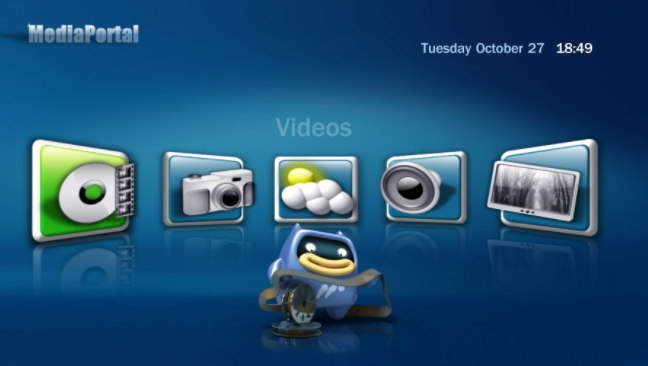
      Media portal is Kodi alternative for Windows. It is very easy to set up and use and you have to pay nothing as it is free of cost. DVR option is also available you can also record live TV. You can also access Media Portal through couch potato app for your iPhone/iPod which allows you to control your media portal through WiFi.
    5. Terrarium TV

      Terrarium Tv is Android app and the best Kodi alternative for Android and Firestick. It offers HD streaming, you can stream and download anything at no cost, there are latest movies also available.You just need a good internet connection to use it. It is not easily available for iOS but you can try some tricks like you have to install Vshare first to use it on iOS.
    6. Popcorn Time

      Popcorn time it is free, open source multiplayer platform It is one of the Kodi alternatives which is compatible with iOS, Android, and Windows. It is not illegal completely but it depends upon the way you use the content, as the content available on this is copyrighted and if you use it without owner’s permission that will be illegal. Popcorn time was created in 2014 and closed very soon but as it becomes popular two independent developers created two forks of it first is popcorn time.io and other is time4popcorn. After sometimes popcorn time.io also shut down all these things gave birth to butter project which is legal. Butter project is an app that offers media streaming.

      Read Also : Roku Pros & Cons -Reasons to Choose Roku Streaming Stick

    7. JRiver Media Center

      JRiver Media Center is an inclusive software that supports all kind of data. It is Kodi alternative for Windows and Mac OS X.

      You can also watch live tv and DVR option is also available so you can also record programs. Its audio and media player is best of all. Streaming services like the most popular Netflix, Hulu and YouTube are also available on JRiver Media Center.

    8. Google Home

      Google Home is an extension for watching and sharing content. It is one of the Kodi alternatives. It can easily control your media player through your Chrome web browser. It offers voice control it means you can ask questions and it will provide answers. It can easily recognize many voices. It supports a limited number of third-party apps.It works great with mobile devices than desktop.

      Read Also : Hard and Soft Reset Roku Manual – Fix Frozen Roku Streaming Stick

    9. Serviio

      Serviio is the free media server. It is also a best Kodi alternative for both Android and iOS also for both windows and Mac . It allows you to stream media files that is music, videos or images to your tv and mobiles. It easily streams online content and also supports subtitles.

    There are some Kodi like apps also available for Android. So, here is a list of all the best apps you can choose from.

    Apps like Kodi for android

    Here are the few apps like kodi for android users which you might surely like .

    • AllCast
    • Bubble Up np
    • Google Home
    • Local Cast
    • Emby for android
    • Plex
    • VLC for android
    • Zappo Tv Apps
    • Remote Media Center

    Read Also : Best Smart Home Gadgets for Home automation- Smart home

    Conclusion

    We are already come to know about best Kodi alternatives for streaming devices. Plex is the most popular and perfect Kodi alternative for Android, iPhone, firestick, PlayStation, Apple TV, Chromecast, Amazon Fire TV, Roku, Android TV and other smart TVs. Plex apps also available for different platforms for free. Plex also offers Plex app,so If you want to access to the latest content, Plex Pass is the best option for you. Its monthly subscription plans start from $4.99. Plex offers a huge number of channels that easily provide access to a variety of freely available streaming digital content. Its Library sharing feature is one of the best things in it. If your device is low powered then don’t worry, as Plex can work on that also. Plex’s streaming is its most attractive feature. It is even better than Kodi’s limited streaming.So, overall Plex is the best alternative but you can choose accord to your need.

    Hope all these information will help you to choose between the Best Kodi Alternatives for Every Streaming Device.

  • Streaming Services – Netflix Vs Prime Vs Hulu Vs Sling Vs Directv Now etc

    Streaming Services – Netflix Vs Prime Vs Hulu Vs Sling Vs Directv Now etc

    We are here on discussion about Top Streaming Services – Netflix Vs Prime Vs Hulu Vs Sling Vs Directv Now Vs Youtube Vs Vudu Vs Vue .Our previous update was on Best Streaming Devices and Comparisons .

    For so many years cable remain the only source of entertainment but then streaming services came into the market and attracted many people. The number of streaming services is rising increasingly, as a result confusion of people also increasing.

    So many options, confused you too?

    This article is about Streaming Services their plus points as well as negative points  and comparison between the best streaming services which will help you to choose best streaming service for you. Before,  proceeding we must understand what streaming services are. So, basically streaming service acts like an on-demand online source for entertainment. There are so many reasons to choose streaming service over Cable connection , That is why it is attracting so many people first is that they are more advanced than cable, second, they can stream live tv and third after giving so much they charge not so high that means are very affordable. As, the popularity of streaming devices have increased the competition in the market also increased.

    Streaming Services Compared

    Here is the comparison between the Best Streaming Services -Netflix Vs Prime Vs Hulu Vs Sling Vs Directv Now Vs Youtube Vs Vudu Vs Vue .

    1. NETFLIX

      Netflix is the first streaming service which still remains at its number one position. It has become the most popular streaming service. To use Netflix you have to take the subscription and you just need an internet connection. It supports iOS, Android, Windows and many streaming services devices Its recommendation system is very good. In Netflix, you can watch unlimited number of movies, shows, and online programs like House of cards, Luke cage, and Orange is the new black. If you find something to watch on Netflix you should watch quickly as new titles replace old titles very fast. Netflix offers start at $7.99 for a month. 4 people can use one Netflix account at a time. Netflix is quite expensive but spending money on Netflix is worth you will never repent on your choice.

      Read Also : Hard and Soft Reset Roku Manual – Fix Frozen Roku Streaming Stick

    2. Amazon PRIME

      Amazon Prime is the best streaming service for families. It offers most awesome content and its most attractive feature is offline viewing. iOS, Android, and Windows are some platform it supports and preferable streaming devices are Amazon Fire TV, Roku and others. It does not work with Chromecast. This is the best streaming service for people who shop online as it gives two days offer that is free shipping on every order from Amazon. Amazon has best shows for kids and its original programs are Alpha House, Transparent, and Mozart in the jungle. There is no monthly subscription available you have to take an annual subscription.

      NETFLIX Vs AMAZON PRIME

      Netflix is overall perfect for everyone, whereas Amazon Prime is nice for families. Offline viewing is not available in Netflix, whereas it is available on Amazon Prime. Netflix subscription starts at $7.49 but it doesn’t include 4K content, whereas Prime does it without charging any extra cost. Amazon offers a very useful feature that lets you know about the actors and places in the background. More streaming devices like Apple tv, Philips, Roku, Virgin Media and Chromecast supports Netflix, whereas fewer streaming services such as Amazon Fire Tv and Apple Tv. Amazon Prime is good but Netflix is still the best as it offers content which is much better than content offered by Amazon Prime.
    3. HULU

      Hulu is a streaming service which is not at all expensive. It is the first streaming service to offer tv shows as well. You can watch the best latest tv shows except for CBC channels. It also offers new movie every week. Apple Tv and Roku are the supported streaming devices. Fear and walking dead is a series which is only available on Hulu. Some of its original programs are The Mindy Project and Shut-Eye. All seasons of Games of Thrones are also available on Hulu. One downside of Hulu is that there are many ads.

       AMAZON PRIME Vs HULU

      No commercial ads are there on Amazon Prime, whereas there are lots of ads on Hulu. No live Tv option available on Amazon Prime, whereas it is available on Hulu. Amazon offers good content but not as good as Netflix, whereas content on Hulu is not much good. It offers 30 days trial, whereas Hulu offers an only 1-week trial. Prime has 5.1 encoding, whereas Hulu offers only stereo sound. Amazon Prime’s attracting feature is that it gives shopping offers to online shoppers, whereas Hulu’s attracting feature is that it offers Tv shows.
    4. SLING

      Sling streaming service offers on-demand videos as well as live tv. You can watch shows that are aired three days ago. Sling streaming service is available at a very affordable price. Roku and Amazon Fire Tv is its supported streaming services. Only one user can use it at a time. It offers three plan orange, blue, and orange+blue. Orange plan cost just $20 and offers 28 channels including ESPN and ESPN 2, blue plan cost $25 offers 40 channels but ESPN is not included and orange+blue cost $60 and offers 60 channels. You can subscribe for an offer which is suitable for you.

      HULU Vs SLING

      You can pause shows on Hulu, whereas this pause video option is not available on Sling. But according to overall performance Sling is more compatible for watching live tv than Hulu.

    5. DIRECT TV NOW

      Direct tv Now is the newest streaming service. It also offers live tv option but CBC channels not available. A user can also add channels. It is compatible with a very limited number of streaming devices such as Apple tv, Chromecast, and Fire tv. You can pause the video but fast-forward and DVR options are not available. One problem of Direct tv Now is that error 40 comes frequently.

      Read Also : Roku Pros & Cons -Reasons to Choose Roku Streaming Stick

      SLING Vs DIRECT TV

      DVR option is available on Sling but it is not available in Direct tv Now. Sling streaming service is slightly expensive than Direct tv, as it offers channels at a low price that makes it affordable. No errors on Sling, whereas Direct tv shows error frequently.

    6. YOUTUBE TV

      Youtube is the most popular streaming service. It is Google’s product.To use Youtube tv you just need an account on Google+. Live tv option is also available but no original programming is available. Lots of free content available on Youtube but there are many ads. It offers starts at $35 per month. You can use it from both Android and iOS but if you use it from iOS it cost high.

      DIRECT TV Vs YOUTUBE TV

      There is no DVR available on Direct TV Now, whereas it is available on YouTube you can keep the recording for 28 days. Only 7 days free trial offered by Direct TV now, whereas YouTube offers 30 days free trial. Direct TV offers 60+ channels at $60, whereas YouTube offers 45+channels at $35.

    7. VUDU

      Vudu streaming service is getting popular. It charges on per view basis. It supports both Android and iOS.Vudu can be played on Roku and Chromecast. It offers great content all latest movies are available on it. Even all the seasons of Games Of Thrones are also available on it. But Vudu’s app needs some improvement and it is also expensive.

      YOUTUBE Vs VUDU

      YouTube offers 30 days free trial, whereas Vudu charges money per view. This economical aspect counts as the prime comparison between Youtube Vs VUDU .

    8. VUE

      Vue is streaming service from Sony. There is nothing which is not available on Vue whether it is sports, live tv and movies. Its content is impressive there are channels like CBC, Disney, FOX Business, Food Network and many more. Streaming devices that support Vue are Roku, Amazon Fire Tv and Chromecast. Its offer starts at $39.99 offers more than 60 channels. It’s content is more like cable as well as Vue streaming service is costly.

      VUDU Vs VUE

      Vudu charges on per view, whereas Vue offers 5 days free trial. Vue is expensive but offers good content, whereas Vudu acts more like cable. If you are looking for streaming service you can go with Vue but if you want live TV and purchasing and renting options also then you can select Vudu.

      Conclusion

      There are many streaming services available but Netflix is the best among them. For better understanding details and comparison are already discussed.

  • YouTube TV Review Exclusive guide

    YouTube TV Review is all here for your better understanding . The majority of the people across the globe know what YouTube TV is. But some may not know what exactly YouTube TV is used for and how to use it. It is a TV that streams services, including live TV from more than 85 broadcasts, regional sports networks, and cable. If you subscribe to YouTube TV, you get to access live sports and a variety of entertainment shows.


    It offers an unlimited DVR space and you can avail of up to six accounts for one price. One of the major highlights of YouTube TV is you can watch the shows on it using any of your devices such as android phone, tablet, and computer and even on your television. You can also find YouTube Originals and YouTube Videos along with it.


    What Is YouTube TV

    YouTube TV is a product of Google’s live TV streaming, which is designed to offer a wire-free entertainment option. You do not have to connect a cord or it does not require satellite subscriptions. Wherever you go you can watch YouTube TV without any hassles. YouTube TV might have a lot of features in common with other live streaming platforms, but it does have many unique features, making it more attractive to the users.

    A few of the inimitable features include PBS stations and content, and the selection of more than 85 traditional cable and broadcast channels. Moreover, the pricing of YouTube TV attracts a lot of customers. Unlike other live streaming providers, YouTube TV does not charge a huge amount except for some premium channels to watch the programs on it.


    How much Is YouTube TV?

    Is YouTube TV free? Many of you might want to know how much does YouTube TV cost. Here is the answer to it. For one membership, YouTube TV charges only $ 64.00 per month, including 6 accounts. Your membership will include the local ABC, CBS, FOX, and NBC stream along with ESPN, regional sports channels, and many more. Besides, you also get a free unlimited cloud DVR storage space with this membership.


    Read More : YouTube Dark Mode Android Version Without Rooting / Modifying APK

    How to record on YouTube TV?

    If you are using YouTube TV, you will never have to miss watching any programs. You can easily record the shows in your library and watch them later when you are free. First of all, you should know that recording programs from YouTube TV does not take up any space on your device, which is the best part. Also, you can record as many programs as you want. All you need to have is a good internet connection on your device to record and view the recorded programs.

    Read More : Best Streaming Services -Netflix Vs Prime Vs Hulu Vs Sling Vs Directv Now Vs Youtube Vs Vudu Vs Vue .

    Read Also : Best Streaming Devices – All Top Media Streaming Box on Market

    Here are the steps to add/remove a program to youtube tv library in a few simple clicks.

    • Tap the plus icon next to the program title(this will record all current and upcoming airings)
    • To delete a program from your library, select the remove icon next to the title on the program page
    • Your show will not be recording anymore. But your recorded programs will be available to you until the expiry date.

    To watch YouTube Tv recorded programs, visit your library by clicking on the library button. If you want to record sports programs, keep in mind that it is usually stretched to 30 min beyond the scheduled end time. But sometimes, YouTube TV will identify the precise end time of the game and extend the recording as needed. Rests of the recordings are extended one minute past the scheduled end time.

    After you add a program to your library, all the forthcoming airings and reruns will be recorded spontaneously. It is not possible to record a single episode. But why can’t you tape all the episodes since the YouTube TV does not take up any space on your device?


    You can easily add your favorite teams to your library if you want to record sports programs. This will help in recording any games of that team available in your area. Sometimes, certain sports events might not be available. If you need one–off events such as an award show you can just add the event to your library. Once you have added an even to your library, by default you will be able to watch SVR recordings. You can also skip ads and pause the video or even rewind the recordings as per your wish.

    Rarely, you might get unskippable ads in the recorded program which is due to the network specifications.

    If you want to open a menu that covers options like adding a program to your library, go to the Home Tab of the YouTube TV mobile app and long-press the program’s thumbnail. In case if you add a program to your library while the show is in progress, the recording will start from the time you added the program. Please note that your partial recording will be replaced by the full episode of a repeat of the episode airs.

    Read Also : Roku remote control doesn’t work-Fix Roku Remote

    How does YouTube TV work?

    The mobile app of YouTube TV works on both iOS and Android. Using this, it is easy to watch YouTube TV on your tablet, computer, and on your phone. It is also possible to stream the YouTube TV to your television at home with the help of a Google Chromecast. If your television already has a built-in Chromecast, then it would be easier for you to connect. It can also work with Google Home, letting you ask Home to play a show on your Chromecast.


    How to get YouTube TV?

    Downloading YouTube TV is not a time-consuming task. All you have to do is to download it on a selected device by simply searching YouTube TV in the app store. Now, let us see the steps to downloading the app on various devices.


    Phone, Computer or Tablet

    If you are planning to watch programs on your computer, you just have to visit  tv.youtube.com and log in. But if you are using your phone or tablet, then open the YouTube app and begin streaming. One advantage is you do not need Wi-Fi or mobile data to use the YouTube TV app.       

    To use the YouTube TV on a computer, just go to tv.youtube.com and log in. If using a phone or tablet, just open the YouTube TV app to start streaming. Note that your devices need to be connected to Wi-Fi or using cellular data to use the YouTube TV app.


    Smart TV

    • Download the YouTube TV if your smart TV does not have it by default.
    • The process of downloading may vary according to the type of the smart TV.
    • Search for YouTube App
    • Click the download icon
    • When App is installed, log in using your Google account.


    PlayStation 4

    Now you can even watch YouTube TV on your PS4. Steps to download are below.

    • Sign in to your PlayStation Store Account
    • Search YouTube TV
    • Click Add to Cart
    • Access the app on PS4 and enjoy watching


    How to cast a show to your TV?

    You can cast your favorite show to your television from your android phone, computer, and iPhone and can easily watch the program on a big screen. Find the cast icon button on your TV that looks like a box with a Wi-Fi signal in the lower-left corner. In case if you are having a Mac or an iPhone, then use Airplay as an alternative to Chromecast.


    On an Android or iPhone                                                    

    1. Your phone should be connected to the same Wi-Fi network as Chromecast/Airplay
    2. Open the YouTube TV app on your phone.
    3. Click on the Casticon located at the top right of the home screen.
    4. Select the device you want to cast to.
    5. Select the program you want to watch.
    6. Tap Play.


    On a Computer

    1. Your computer should be connected to the same Wi-Fi network as Chromecast.
    2. Go to tv.youtube.com in your favorite browser.
    3. Select the program you want to watch.
    4. Once the video opens – click the Casticon (select the AirPlay on the menu bar button if using Mac).


    So, go ahead and download the YouTube TV app on any of your supported devices like Amazon Fire TV devices, Roku players and TVs, Apple TV and Apple TV 4K, Vizio SmartCast TVs, Samsung & LG smart TVs, Hisense TVs, Xbox One, and many more.