Your Android phone hanging more frequently or buying a new android device or are you the person who has the high chance to drop your phone from pocket or accidentally pour water on android phone. Oops, then you may have one main worry that is about losing your phone data, missed Android contacts and so on. To ease in all such situation you must make sure android data is safe and secure. One way to do is just that one-way guys – Completely Backup Android Device to PC or Google
It is essential to ensure that we have taken the Backup Android Device such that if any worst thing happens, then we did not lose any kind of important data.
Thus, if your Android device is full of the precious data then, it is crucial to make sure that your Android phone or tablet complete backup is taken correctly, so if anything happens with the device you still have all the irreplaceable photos and videos.
Read Also : Android boot Fix – Steps to Try When Your Android Won’t Boot
Backup Android Device to PC or Google
Planning ahead for your devices is one of the easy ways to ensure that your data is not lost to the ether even if your device destroyed. Luckily, the Google has the option of sync the contacts, appointments, docs when you give it the permission to do this.
Read Also : Android: Prevent apps from running at startup(Stop/Disable Apps)
Thus, enabling a flawless transition to a new device will help you protect the data. Read the whole article will give you some tips for taking whole Backup Android Device to PC or Google. Here are some steps which can help you Backup Android Device –
Google Backup and Restore -Backup Android Device To Google account
For the novice users of the Android device, when it comes to most vital contact and email information. All can be preserved, apps data such as calendar, browser, contacts, Gmail, Photos, Music, People and some other detailed such as WiFi passwords. All the things can be synced to the server of Google by just performing some steps and your device data can be restored.
Visit settings>Accounts>Tap on Google account>check the box for everything you want to sync to your Google account.
Now back to settings and go to backup and reset> enable it if it’s not enabled by default.
Backup and reset is one of the great things about the Android which saves almost everything except the SMS received.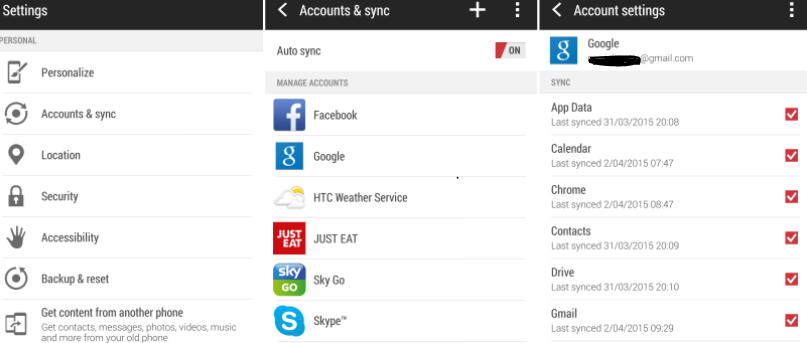
Now with the Android 5.0, 6.0 and 7.0 has come up with the improved restore function which can backup everything. It’s a full fledged solution but for this, you need to have Android 5.0 or higher.
Well, the Google is doing an excellent job by providing facility to Backup Android Device of almost everything. Just once you need to sign in to your Google account, and immediately get all your contacts, bookmarks, browser, movies, which you select the sync option.
Read Also : How to Use Google Assistant on Android Devices (Without Root)
Now for saving up the passwords of WiFi and many other things you can use on your Android device is the option of Backup and Restore.This option will assure you to restore all the deeper settings such as passwords which are secured on the server of google. This is about the google android backup.
How to take Photos Backup on Android Device :
One of the major concern of the individuals using any device is their photos. Every individual has photos in their device which they did not want to lose any time. Well in the Android device this can also be done as there are a Google photos which store the full resolution of each photo and has the capability of storing up to 1000 GB.
Read Also : Fix “Voice search has been turned off” error for google now
Also, you can use Dropbox, or cloud option to save the photos forever. Using these options will help you save the photos immediately and also be retrieval through device or PC. Some other options for the photos backup on Android device are Flickr, Photobucket, Box and Microsoft Skydrive.
Manual Backup Android Device Data :
You can Backup Android data to the PC manually by performing these easy steps given below:
Contacts and Calendars Backup:
Backing up the contacts and calendars on Android can easily be done by yourself. For this, you can go to the contact app and in the contact setting you will get the option of export all contacts to SD card, you can just perform this option. After doing this use a USB cable and connect the device to the PC for backing up the contacts on PC. But if you want to use any third party app for taking the backup of contacts then, you can simply download Wondershare , TunesGo for the Android device.
Read Also : Battery Health : How to keep your phone or tablet battery healthy
Inbox SMS backup of Android / Taking SMS Backup on Android :
Backing up the SMS of the Android device is a bit typical task as compared to the other kinds of backup. This can not be done automatically but for this, you need to download the third party application such as the SMS backup, SMS backup and restore, or Wondershare , MobileGo. These all the apps can help you to take the backup SMS as well as MMS effectively without putting many efforts.
Take Music and Video Backup of Android :
For backing up the photos and videos from the Android device, you can use a USB cable to connect your device to PC. Now when your device will be selected as the removable disk in PC just tap on it to open. Now make a folder in your PC to save and you can easily drag and drop the whole folder of the music and video from it. Using this way also you can take the backup of your photos which are saved in your device. Taking the Android manual backup of the photos is a great way to save it for the long term if sometimes you just forgot your google account password. This way you can take Backup of video and music from Android to PC.
Android Complete Backup all in One:
Now with the Android, you can get the solution which offers you to backup each and everything on Android device. Yes, this costs you money or have some limits but they are amazing which ensures to backup everything. MyBackup Pro which works simply to backup android completely to PC. For this app, the root is not required but it helps in a great way and if the user wants he/she can put it in $4.99 which is very reasonable. It is the best no-root Android Backup App.
This application just saves everything such as secure the cloud or to your SD card as well as a computer. This app takes the backup of each and every aspect of your device. If you are looking to save the applications, then App Backup & Restore is the just ideal app which works great. This app is easy to be used and the best thing about it is that its free.
Read Also : Use Kindle Fire as Second PC Screen / Display Ultimate Guide
Another app which is excellent and offers one backup solution is Helium app.
This Helium backup app is the choice of all the Android enthusiasts. Do not forget after downloading you to setup this application initially but once you set it up, you are ready to use the app. This app offers the individual to sync and let them copy each and everything from the device to device, or from device to tablet. Helium app helps to do Android backup to PC easily.
But, if you are using the Samsung device Backup, then SmartSwitch is an app which is free to be used and it will transfer the whole of your data on the PC. To use this app you need to connect your PC with the cable or you can use it through WiFi too.
We have seen the best android backup app as well.
Getting Backup of Files to PC:
For this, you need to first install Android SDK tools, but if you already have the Android Studio, then open Android Studio and select SDK Manager. Install the package after checking Android SDK Platform tools.
- Launch SDK Manager then go to Android SDK platform tools and select install packages.
- After this on your device go to Settings> About Phone
- Now tap on the builder number for 7 times till when it says You are now a developer.
- Now again go to Settings>Developer options> set USB Debugging to on
- Connect your device via USB cable to your PC
- Now open the command as administrator or terminal and navigate where ADB is located: “C:UsersusernameAppDataLocalAndroidsdkplatform-tools“
- Type one of the commands given below according to the information you want to back up:
- adb backup all: This will let you backup the system data as well as app data but applications cannot be themselves backed up. This saves the data of device in platform tools with the folder named as backup.ab by default.
- adb backup: This command save as above but in this, you can set the location to save the file by C:filenameichoose.ab
- Now when you have chosen the command accordingly tab enter
- Now protect your backup with a password. This password can help you restore the data in future when you need. Now tap on the Back up my data and you will see that it start transferring.
Read Also : Skype for Business: Fix “Cannot sign in because the server version is incompatible with Microsoft Lync”
Conclusion:
Nowadays smartphone is one of the best things which individuals consider and save most of their important data in it. But, the sad part about it is that sometimes it might get stolen, lost or broke which leave you frustrated.
But taking the precautions is better. So, if you follow all the steps above given in the article surely your experience will not be daunting and you might not get worried about your data in your device as you can get it all on your PC. So, it is vital to be prepared before any incident takes place.