Google maps have become an essential part of our life and business . Here we will take a look at exciting new Google maps features .
It is always difficult for everyone to travel to different places without knowing the route. Checking the signboards, asking someone for direction every time is time-consuming and difficult. Also, if you miss out on any exit, then we will have to look for the next exit and take a diversion. When Google introduced maps (maps google , google my maps ) , all the chaos in finding the correct route to a destination was over. Google Map makes it so easy to find shops, restaurants, tourist attractions, and a lot more. You can drive alone to anywhere you want to visit without any anxiety about finding the route. But one needs clear understanding of all google maps features to use it for their convenience .
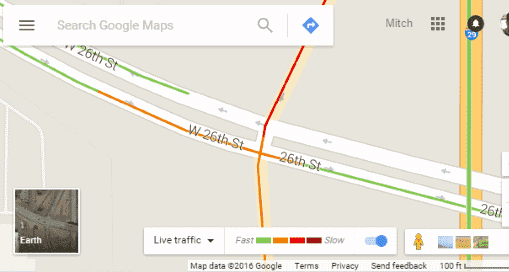
First, you should install google map on your phone , select the starting point and destination, and follow the route shown on the map. You can turn on your location on the phone, so that, Google Map will automatically enter your current location. Click on directions and you can choose the mode of transport you are using as a car, two-wheeler, train or bus, walk, etc. Google Map offers aerial photography, street maps, satellite images, real-time traffic environment, and 360-degree interactive panoramic views.
How to Save Route in Google Maps
To save a particular route in google maps that you use often, you have the option of saving the route to your home screen. Once you have installed Google Map on your android phone, choose your starting point and destination. See the top right corner, tap on the three dots or it will be given as the first alphabet of your name and you will be able to see a few choices to select. Click on add route to the home screen. Click on Add.
This is a Great google maps feature for my life i must say .
Why Google maps not available in my country
Google Maps are available in the majority of the countries and regions. But still, there is 1% where Google Map will not be accessible. It can be because of any legal or political issue. We cannot accurately conclude the reason for google maps not being available in certain places and when you search for the Google Map App, it might show as Google Maps not available.
Fix Google Maps not updating location
Make sure the location in your android phone is enabled. If you cannot find the blue dot (your current location) when you open the map, tap on Location at the bottom. If you find it difficult to select the precise current location, you should use a high accuracy mode. In your android phone, go to Settings > tap Location > switch on location > clock on Mode > High Accuracy. Google Map usually finds your current location with the help of Wi-Fi, GPS, and Cell towers. You can also try switching on the Wi-Fi/mobile data, try restarting your phone, or calibrate your phone by opening the google map and make a figure of 8 with your phone until the blue dot is in an accurate position.
This google maps features easy tip can help you have your accurate location on google map .
Google maps not talking or giving direction – How to fix
When you are driving, you do not need to check the map on your phone over and over. Google map comes with voice over and you can just hear the navigation while driving. If you cannot hear the voice, there are a few remedies. First, check your phone’s volume to make sure that it is not muted. Enable the play voice over Bluetooth – If you are using the google map on your car’s Bluetooth system, you should enable the play voice over Bluetooth to hear the navigation.
This is one of the safest driving assistance available in form of google maps features.
Avoid toll roads on google maps
We always like to avoid tolls and ferries enroute to our destination and with the help of Google Map, we can avoid such toll roads. If you want to reach a destination soon and if you want to avoid the toll, first you should select the starting point and destination. Click on three dots on the right top corner of the screen and you will see a few options to select. Click on > Route Options > Select avoid toll roads on google map from the three options given. Click on the Done button. The Google Map will show the route avoiding the tolls present on the main highway. See how superb are these google maps features thanks to such good inventions 🙂
Fix Google Maps not showing street view
Street View map is one of the most commonly used google maps features by the majority of the people because it shows the real images of the places you are going to visit which will be much easier to spot. But if the street view option is not showing on your android, then there might a glitch or some other problems. Check the following steps for the issues.
Sometimes this problem may occur when you update your Google Map App. Check if you have recently updated the app and the street view is not showing. Also, check with other users if they are facing the same issue in your region. Try using the older version of Google Map to solve this problem. Or you can even try using the google map offline mode.
Check if the street view option is available in your area since the street view map type is not available in all the regions.
You can also check for map google nearby places to the destination you want to visit. All you have to do is select one of the famous spots and click on nearby places on the map to see all the nearest shops, restaurants, shopping malls, etc. So that might be able to get a street view near to the destination you are looking for.
This google maps features always helped me with shopping and travel whenever am in a new place .
Try getting the map through a google search. Give your current location first in the search bar and then select the maps section. Drop a pin anywhere you like to get the image of the area you are looking for.
Zoom on Google maps with one finger
When you have selected your origin and destination point, the map will be reflected on the screen. If you want to zoom a particular spot on the map, you can do so by simply double-tapping the spot. To zoom in you can just pinch in the spot. You can also use two fingers to zoom out the spot you want too. Likewise, to move the map and see the route you can just press on the screen with one finger and move your finger right, left, top, or down to see.
Set up plus codes on Google maps
Getting the plus codes on google map is very easy. You can share the plus code with anyone and with that plus code your friends or relatives can search the map on their android just like a street address. Open the Google Map on your android and select the destination. Tap and press on the drop in on the map to the plus code and you can find the address and the plus code below. this icon shows the plus code and you can share the plus code by simply copying the code and paste it into mail or WhatsApp etc.
How to set multi-stop directions in Google maps
With Google Map, you can set up multi-step directions easily. This means, other than entering the origin and destination point, you can add other stops between the journey. To add other stops, open Google Map on your android and click on the Go button on the left bottom corner. Enter the origin and destination point. Click on the settings option which will be represented by 3 dots on the top left corner. From the drop-down menu, select Add Stop. You can add several stops as you wish in your Google Map. The stops will be shown in alphabetical order (A, B, C, etc.) You also have the option to reorder the destinations by simply dragging the leftmost button shown as small circles.
Restrict Google maps data grabbing
Google Map is a very convenient technology used by the majority of people to travel. It is so easy to find the routers and landmarks using the Google Map. But using Google Map throughout your journey can consume your phone battery charge quickly and it also used mobile data. If you are thinking about using the map without grabbing the data then, there are a few options that you can try.
Read also : How to Spoof location
Use offline Google Maps: Before you start your journey, you can download the offline map on your android phone easily which will not consume much data of yours. Open the Google Map, click on the setting button on the top left corner and the drop-down menu will show the option of Offline Map. Click on that and download the map.
Disable Data Access: Another option to avoid usage of data is to disable unrestricted data usage. To do that, go to setting in your phone and select the apps from which you can click on the Google Map app. You will see a few options like permissions, storage, data usage, etc. From that, click on data usage and if the unrestricted data usage is on, then turn it off so stop using mobile data.
Use Wi-fi Only: It is not feasible to use wi-fi on the road while you are traveling. But you can stop the usage of data by setting this up on your phone. Go to Google Map, click on the Settings button, and enable the Wi-Fi only option.
Share real-time location on WhatsApp and Google maps
It is very easy to share your real-time location with your friends or family. Open WhatsApp and click on the attach option (a pin). Click on Location and tap on share the live location. You can select the duration of time below the same page and also add a comment and share the same with anybody you want.
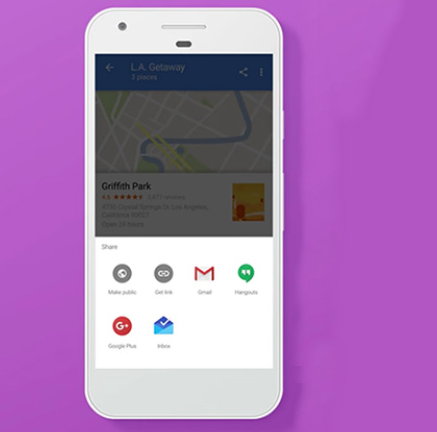
To share the real-time location on Google Map > Click on three dots on the top left corner (or an alphabet). From the menu, click on Location sharing and share your live location through WhatsApp, mail, messenger, etc.
Create and share custom google maps
It is not feasible to create a custom map just using your android phone. First, you need to use your computer to set up a custom google map, and then you can share the same with your phone. To do that, open google map on your computer and select the origin and destination. Create your custom map by clicking and moving the various routes shown on the map. Once you have fixed on a particular route, click on> Send directions to your phone. You can share the same via mail, text, etc.
Steps to use google maps offline
To use Google Maps offline, first, you need to download the map on your phone. Open Google Map> Click on three dots on the top left corner. From the options given, click on Offline Maps. Select the area you want by zooming in or out using your fingers and select the area. The size of the map you selected will be given below. Click on download map. Once it is downloaded, you can give your origin and destination and find the route offline.
Save locations in Google Maps for – Android and Apple
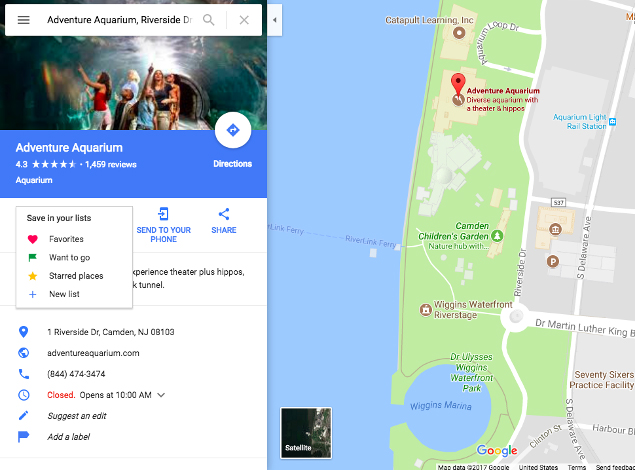
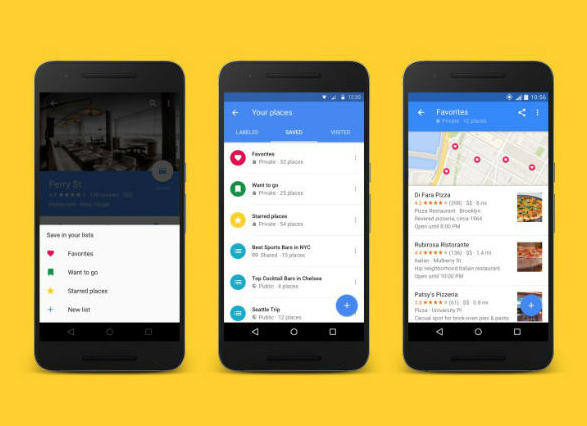
If you are using the same location often, then you can easily save the location on your phone. Open google map in android or Apple, select the location you want either by typing the destination or by clicking on the map. Then at the bottom, you can see many options including SAVE. Click on the save button and the location will be saved in your phone at that moment.
Google maps clear navigation and search history
If you want to clear or delete the navigation and search history from your phone, click on settings > click on maps history. There we will see many options that you can choose from. You can turn on the auto-delete option if you want which will automatically delete the history from your phone. You can even select months, years, or weeks according to your need and select it so that the search history for that particular period will be cleared.
How to turn off Google map voice search permanently on android
When you use Google Map, once the navigation starts, the google voice will automatically give you directions which is easier for people who drive. If you want to turn the voice off, then once you click on start navigation, you will be able to see a speaker icon on the left side of the map. Disable it to stop hearing the voice again.
Remove location sharing on Google hangouts
With the latest update of Google hangouts, location-sharing is unavailable. However, you can share locations through google hangout using the google map.
How to access Google services on pc
If you want to use Google services on your pc, first your need to install google chrome and follow the instructions. Once it is downloaded, open the chrome, and sign in by giving your Gmail address and password. Create a new account with a username and password if you do not have one and begin using the services of Google on your pc. Likewise, you can download any google services on your pc and sign in to use it.
Another option is to download Bluestacks on your pc. The bluestack acts as a virtual machine that helps in downloading the apps you need. Once you have Bluestack installed, open it and sign in to your google account. Only then you will be able to use Google Play Store to download any apps of google services. With Bluestack you will get the feel of using your android phone on your pc. But it is way slower if you do not have a powerful pc.
Hope this google maps features helps you use this app more conveniently . Let us know your favourite google maps features