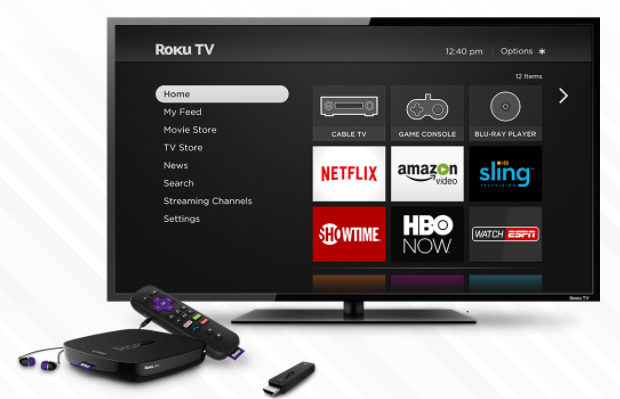
Roku Tricks
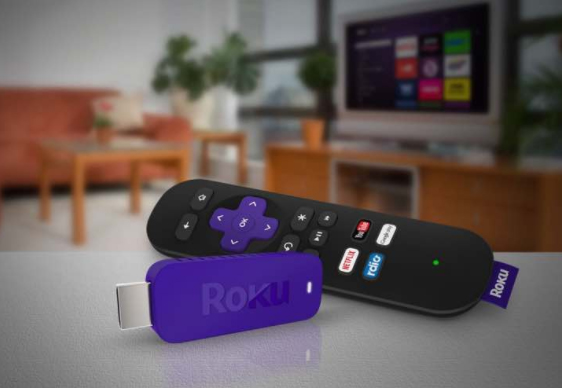
Roku has been introduced as the fastest and the most powerful streaming player available. It has been loved by most youngsters to watch movies and their favorite TV series and also to play games on HD TV. If the space in the Roku player is insufficient, we can use an external memory card to store their most loved programs or games and can insert into the slot. Roku streaming stick avails 1500+ streaming channels, which can access more than 200,000 movies, games, sports and much more of entertainment.But there are so many things you don’t know about this streaming device so here is all the amazing Roku tricks.
Roku is easy to connect to any system having HDMI port.
Roku TV Setup:
To set up the Roku TV, at first, we need a Roku Set-top box and HDMI cable to which the device has to be connected.
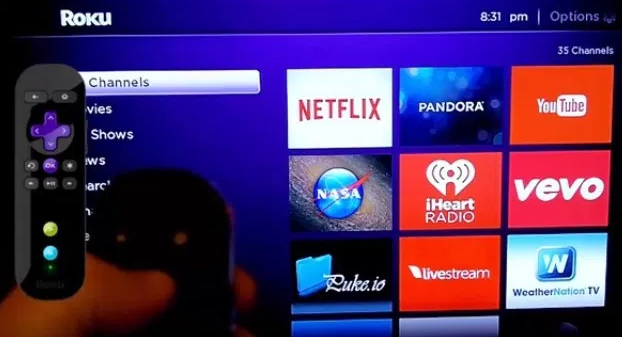
Step 1: As the Roku box gets connected, we get to see the following display on the TV screen:
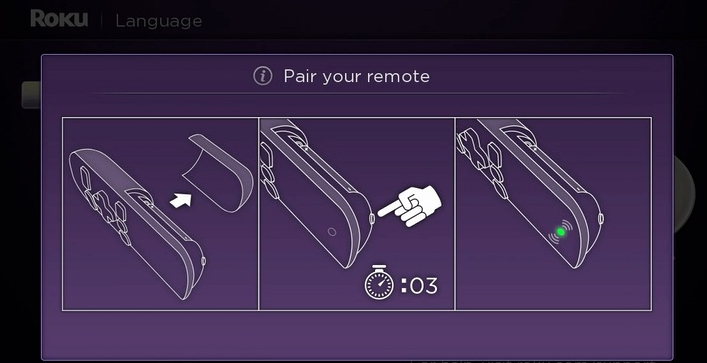
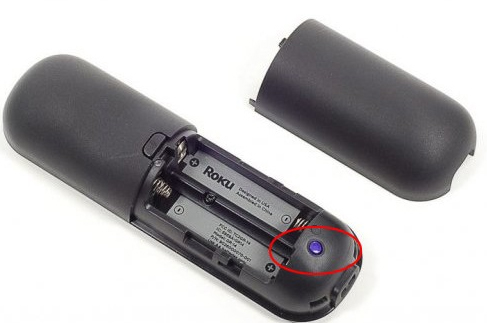
There is a small button behind the Roku remote. When it is pressed, it gets connected as well.
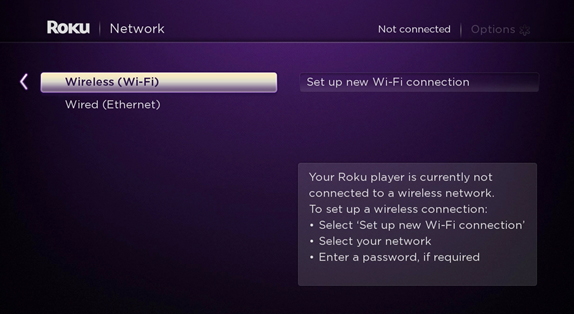
Step 2: Make the Internet connection Settings. There are two options: Wireless(Wi-Fi) or Wired Connection; which is Ethernet.
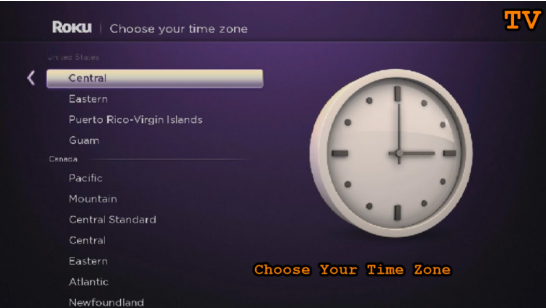
Step 3: Set the Time Zone
Step 4: Activate Roku by linking to its website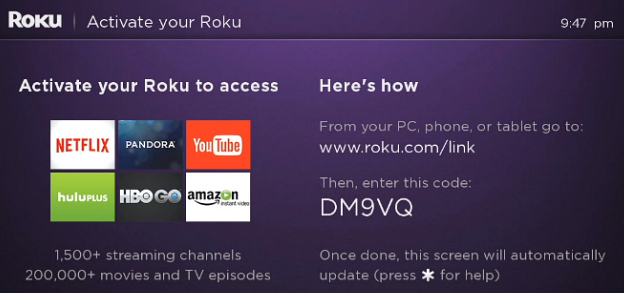
This step is very important and necessary as it enables in importing the favorite channels on one page or screen. One needs to create a new account if they have no existing accounts and to make payments.
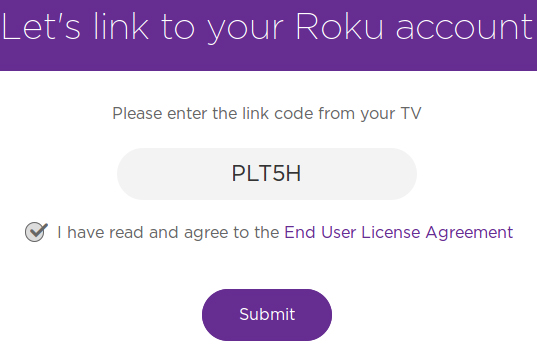
The code is entered to link to the Roku account. Once the code is entered Submit button is clicked, it shows a page where we need to register, in case of a New User of Roku.
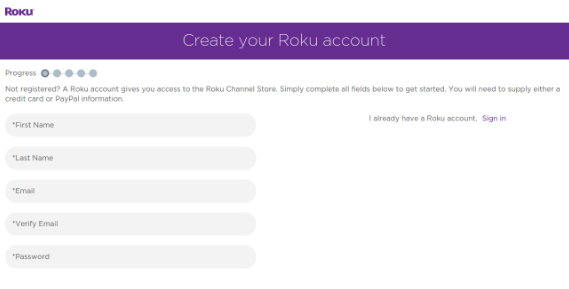
PIN has a vital role in verification of authenticate installation of Roku channels.
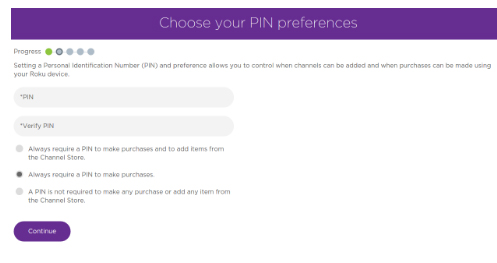
Step 5: Once the linking is complete, the Roku box setup procedure on TV is complete.
There is another way, exclusively for the Developers, to enable Developers Mode, by pressing Home 3x, Up 2x, Right, Left, Right, Left, Right. The whole set should be processed in 10 seconds.
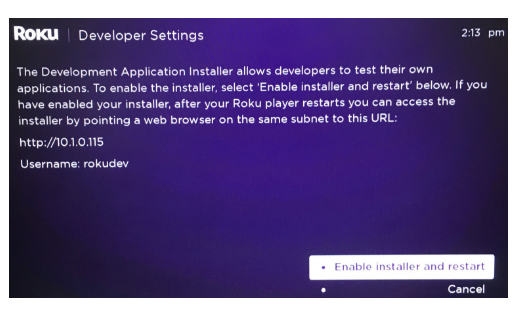
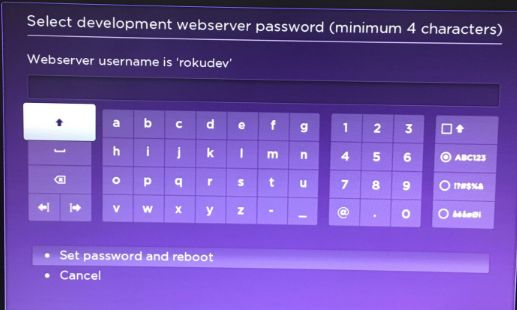
The link further opens, from the Web browser, to install the channels into Roku, however it does not download from the store. The link is based on the IP address generated as we connect to the Internet, and it changes from time to time. A password has to be setup so as to make the Roku frame work through IDE.
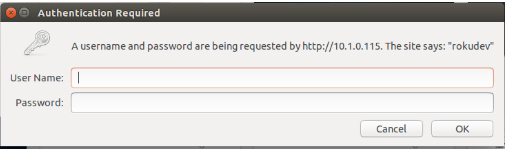
Step 6: In the final step, a pop-up appears, as a the web browser is opened with the link; wherein the username, by default being rokudev is entered.
How Roku Works:
Roku is a digital player, usually placed near the television. It receives the digital transmission from the broadband internet via Wi-Fi signal or Ethernet cable. The signal is processed and displayed onto the TV screen. A remote control is used to select the program and to control the signal.This is how roku works.
To set up Roku, the device is plugged into the electrical socket . The device is then connected to the home data network, either with a wired connection or using the built-in WiFi receiver. Finally, it is connected to the television using different cable types. One can choose from the type of HDMI, composite, or in the top of the line model, component video. An audio can also be sent to the receiver using standard RCA stereo cords in all models, or using an optical digital cable with their top of the line unit.
Types of Roku Digital Video Players:
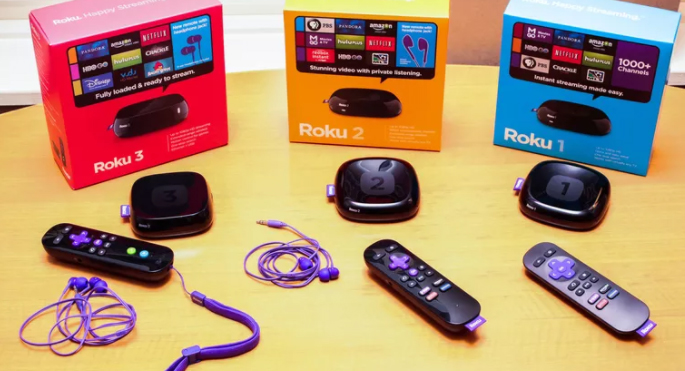
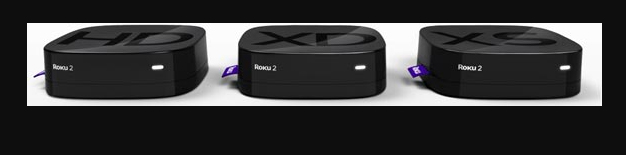
Roku provides three different Roku types/models:
- Roku HD: This model being the base model costs $59.99, streaming the content to the television at 720p, the lower of the two high-definition television standards.
- Roku XD: This Roku version falls in the middle of the line,selling at the price of $79.99 including free shipping. It has a better remote, with enhanced WiFi capability, and 1080p output. This model also facilitates instant replay.
- Roku XDS. The top of the line model costs $99.99 including free shipping; supporting component video and optical digital audio outputs. With this model, USB port can also be used in playing back media from memory sticks and other devices.
Before buying this streaming stick one must be pretty clear about the Pros and Cons of Roku .
Roku Tricks- A Few Top Chosen:
If one has been using Roku for quite some time, but still have not known much about this amazing player, then you got to know that it can do more Roku Tricks that you ever would imagine! So, let’s get to know about the real magical things Roku could do.
Roku could be just a streaming stick or a set-top box, it delivers incomparable video quality on your TV set, for instance, Netflix, HBO, Hulu etc. May it be the on-screen keyboard… or the default interface theme…. all these could be improved.
There are ways to have a great experience with Roku as a media player, rather than just using the default provisions. Here are a few Roku Tricks:
Using Phone as Roku Keyboard
Nothing is more annoying, than using remote to operate the on-screen keyboard. For instance, to sign in to Netflix account, could be distressing as it would take time; in searching the movie or the actor’s name.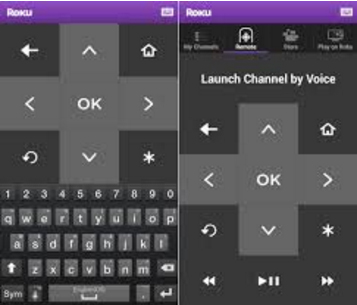
Good news is that there is an easier way to fix this; using your phone as an alternative. Roku apps, either in Android or iOS platform takes the role of Roku remote, and even providing a keyboard to make data entry in a faster and easier way.This is the method to use mobile as Roku keyboard.
Using phone for roku voice search
Did you know there is a faster way than than typing on the keyboard? Yes, it is our voice. If you have a Roku 3($79.85 at Amazon) or Roku 4, it gives us the joy of voice search on roku , which can be operated through Roku remote.
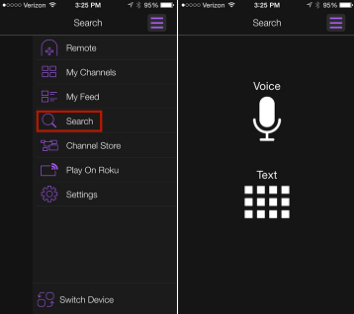
If you don’t have these latest versions, don’t you worry; the Roku app avails its own voice-search capabilities. So, for instance, you could rather choose to say, “Leonardo DiCaprio” than typing over the keyboard and wasting time, and find his available movies.
Streaming media from phone or tablet
If you wish to show the collection photos and videos taken at the recent wedding, graduation, soccer game or zombie escape room stored in the phone or tablet, show it BIG,on the TV screen. The Roku app also enables to cast photos, videos and music from your mobile device to the Roku device. Just start the app and tap Play On Roku. One can choose the type of media to be streamed, then the specific media. BINGO! Watch it BIG from a Smaller device.
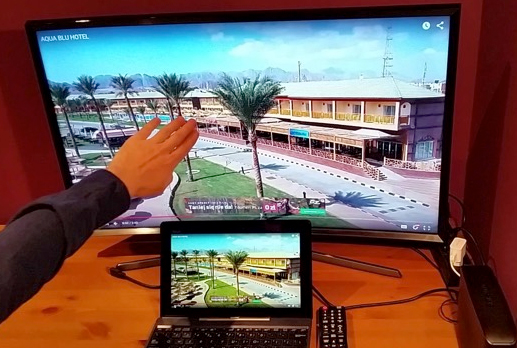
If you want to advance the way of enjoying the media, have a copy or a Reflection of the phone or tablet onto the Roku device.
Turning the Roku Remote into Universal Remote
If you are a true fan of Roku, you would definitely love the design of the remote this device has, especially the shortcut buttons for Netflix & Amazon likes. However, the lagging point of the Roku remote is that it cannot control the TV.
However, there is an option to program a Sideclick. Provisioned for the different streamers such as Apple TV and Amazon Fire TV, this clever add-on, as described in the best possible way, puts itself beside your Roku remote, thus adding a row of readily available programmable buttons: power, volume up/down, channel up/down, input and A/B last available for whatever functions you want.
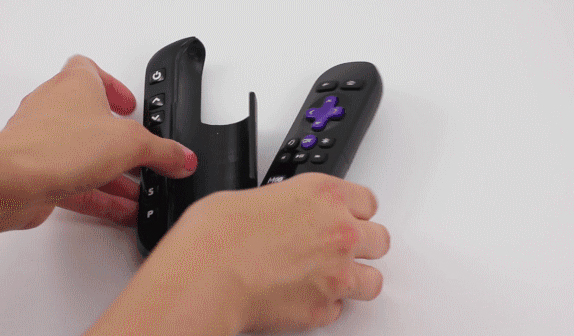
The Sideclick starter kit for this streaming media player is sold at $29.99 comprising four adapter clips to accommodate the majority of Roku remotes. It’s a quite an option for those tired of use-and-throw remotes.
Read Also : Connect dual displays / monitors to one computer on Windows & MAC
Organizing Channels
As the channels added to the Roku library gets more, there will more confusion in finding the favorite ones. Here is when one need to find some way to reorganize their library.
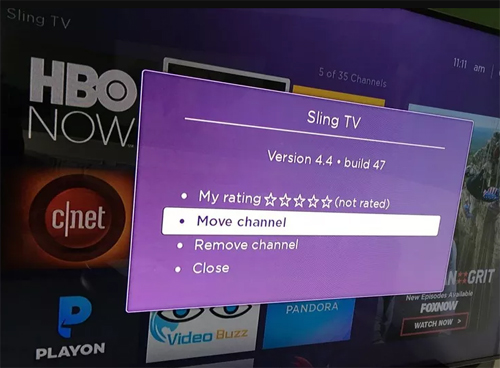
The Know-how: Find a roku channel to be relocated, e.g, HBO Now and highlight it with the remote. Don’t select it completely; just move the cursor over it and it gets highlighted. Next, press the Option button on the remote- looking like an Asterisk, then choose Move Channel. Now use the direction pad to move the icon accordingly, and observe as how others move out of the way.
Once the location is set press OK to complete the procedure. Repeat when required.
Reorganizing Channels in Roku App
There has been an update of the Roku app with a great feature; it is the Channels screen, just like the one seen on TV, making a much faster access to the favorite channels.
However, it cannot be easily understood as to how the channels are organised. This is because the app cannot be used to directly organize. One has to hit up the real Roku on TV. Then just follow the steps shown in Organize your roku channels. Or, if you go through in detail, check out How to organize your channels in the new Roku 4.0 app.
Choosing A New Theme
Not finding the default interface theme that attractive? No problem, everyone need not like the color Purple If you venture into the Settings menu and choose Themes, you’ll see a handful of other options. 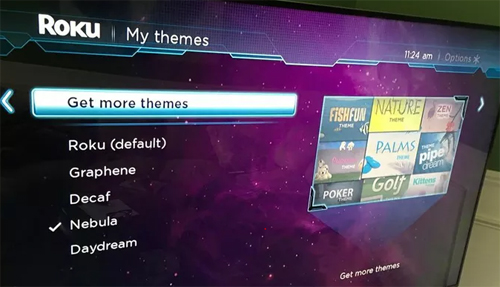
To be even better, as you select Get more themes option, Roku Channel Store’s Themes collection is displayed. Themes can be browsed online too. Here they have a huge collection ranging from Golf to Garfield to Star Trek. The bad news is that, these extra-features are not for free. Their costs range from 99 cents to $2.99.
Installing a Screensaver
Are you really irritated by the boring logo of Roku playing over the idle screen? Well, we shall have some interesting screensaver instead. When it comes to selecting the theme, get into the Settings menu and choose Screensaver, enabling a lot of options. When choosing a different theme on roku , there would be other screensaver options too. For instance, When Nebula theme is selected, it displays a Digital clock in place of the Roku logo.
Renaming Roku
There could be that a person owns more than one Roku device. In such a case, it would be more sensible in naming each of them differently. To make Roku being identified easily, based on where it is kept, it could be named as “Bedroom Roku” and “Living Room Roku” rather than the simple Roku 1 & Roku 2.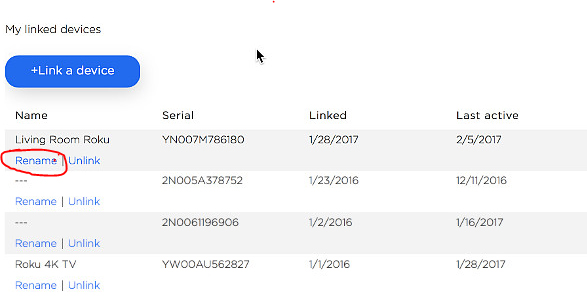
There is a lagging point renaming the roku device. You cannot rename using the app. You have to sign in to my.roku.com, then go to MyAccount page. Scroll down to see the list of connected devices; click Rename next to the one to be changed. If confused with the name, refer to the app regarding this,
- tap Setting>Switch Device, to see the set of connected Roku
- look for the serial number
- match it with the one shown in the portal.
Read Also : The ultimate guide to make Windows run faster (Boost Computer Speed)
Installing Private Channels
Besides the usual mainstream channels such as Netflix and Hulu, Roku supports private channels too.Now, you would surely ask if it is coded as “Adult”. Answer could be Yes and No. Besides these private channels, there are a variety of family-friendly options at Roku-Channels.com, RokuGuide.com, StreamFree.tv and RokuChannels.tv. One great option is The Silent Movie Channel, enabling selections from the likes of Charlie Chaplin, Buster Keaton and Rudolph Valentino. To add a Silent movie channel, head to Roku’s My Account page in your browser and click Add a Channel, then enter the code ROLLEM.
The channel should be added automatically to the Roku device within 24 hours,; however you should force on it by going to the Channel Store on your Roku, then exiting back out to the main menu.
Read Also : Unavoidable Parental Control Apps ,Tools to monitor children
Finding a Lost Roku Remote
Although the design of the Roku remote is quite attractive, it could be easily lost because of its size. If you are lucky to have a Roku 4 ($96.95 at BuyDig.com) or Roku Ultra, it is more easier to find the lost remote. Both models have a button on top; when pressing it, the remote makes a sound.
If you wish to know about the ways to choose the type of sound it makes, Check this: Quickly find a lost Roku remote with this trick.
Here we have learnt a few amazing Roku tricks on how Roku device can be used.
Roku Hacks- Top 10 :
Roku has been the most popular and the demanded brand among all the set-top boxes, dongles and the streaming sticks used. Imagine those stunning 4K and HDR picture quality with advanced remote control, fully loaded with movies, videos and television series episodes, 3,500+ channels, private listening system and so on. If these could make you go ‘On the toes’ with excitement, we assure you, these Roku Hacks could make Home entertainment even more enjoyable.
Let us explore a few interesting ways of enjoying Roku:
Finding Hidden Roku Channels
There are a few “Deep Secrets” stored in Roku streaming player, which should be screened carefully with high privacy. Such channels are normally not shown in the Channel Store which is displayed by default. To view, go to Add Channel , which would connect to Account page. You need to log in using Roku username and password, add the access code for the private channel. Bingo! It gives a link to the updated private channel’s access code.
Plex roku
As Plex put off its sign-up rates,having a stand-alone server to the Roku device makes a great impact. Plex enables customization all your streaming content completely, along with summary and extracts for better understanding. It allows to arrange all contents, to watch them from the portable devices.You can share Plex with family and friends. To do so, download the app by going to Preferences > Connect Plex Account > verify PIN code. Here we go! It also avails a whole lot of skins and themes to choose from.
Smart Control Roku
Have you got enough of the same old remote? Feeling cozy hanging on to smartphone? It is time you catch hold onto the downloadable apps iOS,Android,Windows or Linux. It enables screen mirroring in most of the Roku models.
Instant Notification
Doesn’t this get you on nerves when an episode of your favorite program keeps you waiting? Don’t lose your hair pulling them out with anger by checking the manuals every time. Roku can be set to “notify” on a new available show, video or episode . Just go to the main menu, select My Feed, and search movies, shows, actors, singers, and directors you wish to follow. Roku would automatically inform on anything new coming up.
Cloud Music
Not interesting in listening to Pandora or Spotify? Get your own music media like MP3 and video files. MP3Tunes are easily installed into Roku Channel Store under MUSIC. It enables to stream directly from the MP3Tunes servers straight to television. Now enjoy 10GB for free— Time to party! So, when you want Full on entertainment at home, this channel could be set to link in the music straight from your TV set along with videos or themes.
Share Memories
Have you gifted a Roku to your parents, girlfriend or your kid living elsewhere. Did you know that this streaming device lets you share memories with your loved ones? Your dear ones could be updated with new family photos and videos by simply downloading the Roksbox channel on Roku and Dropbox app on their PC or tablet. Folder can be shared through Dropbox and lets them instantly get to have a look at your photos, videos, and other downloads which they can play directly to their Roku.
Roku Live Feeds
Now, you can directly watch the World Cup to UFC Fight Night, NFL, and other entertainment showcases LIVE!Directly from the stadium or arena somewhere, from your cozy couch in living room.These LIVE channels could be accessed by installing Ustream Channel (access code: IN4DN) and access the most watched sports events, news updates, live concerts, gala and other live streams.
Keep Track on Roku
It is observed that the channels are arranged in the way they have been added. However, with Roku, these most watched or frequently checked channels can be tracked. Choose Options on the Home screen and rearrange in a way that all the favorite channels would be on the top in the channel list.
Roku Screensaver
Have you ever imagined have the huge flatscreen as a Wall-art? Well, make this imagination come into life!There are a hundreds of channels to choose from, for those amazing screensavers- Christmas Winter, Weather4us, Aquarium, Cities At Night, Landscapes, Kittens and other animals, Beaches, Fantasy, and so on. Just check the Screensavers and apps to get the ones you want.
Read Also : Hard and Soft Reset Roku Manual – Fix Frozen Roku Streaming Stick
Hope you have got the Best of Hacks. There have been many hacks launched everyday to make your Roku experience far better than how it is for now. You can always update yourself with the latest of Roku Tricks & Hacks.
Enjoy Roku with more Tricks and get “Hacked”.