Category: Tech

  • Android Q – What it would be Named ?

    Android Q – What it would be Named ?

    Android Q , the next Android OS that might be released . You may be aware that Android always gives out a good desserts name for each of its release . Android O as Android Oreo , and now the latest is Android P as Android Pie , So guess what would be the name for Android Q .

    Android Q – What it would be Named ?

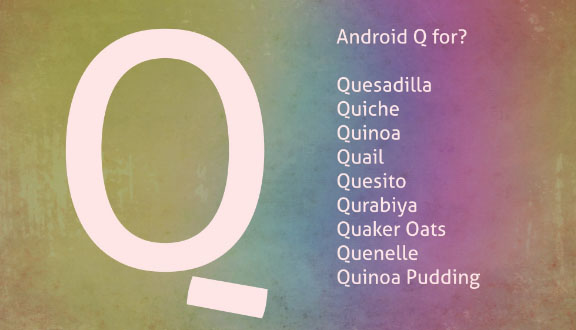
    This is not really as simple as you think to guess out a dessert name with Q . But still we would take a look at some of the names we guessed for Android Q .

    Since you might have noted that Android H is not named as a dessert item , may be if that is the case Android Q might also get some other popular Q words . Also we have a personal guess that we can also expect any bird / animal / fish names . Sometime just like using some brand names like Oreo , kitkat we can expect even such names from Android for Android Q

    Quince

    Android Q might sometimes be called as Android Quince . Because Quince is a fruit , exactly the taste of Quince is just like a mix of apple and pear fruit .  This can be a wrong guess even .

    Quince Jelly 

    I personally believe this name has higher probability just like Android gingerbread combination . Here Quince is the same fruit that we mentioned above . This can be used to make a really sweet jam , Since Android is using dessert names there is a chance it can take up a name Android Quince Jelly .

    Already Android Jelly exist so may be Google might prefer to use this more . Just a guess work , lets see next guessing .

    Read Also : Update Latest Android OS – Top reasons to upgrade Mobile OS

    Quince Jam

    Android Q as Android Quince Jam , this is my next guess word for the latest Android version .

    Quince cheese

    I have got one more combination for Android Q with Quince that is sweet . How about Android Quince Cheese ? Not sure , but again my last guessing on Android Q for Quince .

    Read Also : Android Oreo Features to fall in love with Android mobiles often

    Queijadinha

    This might sound bit weird to most of the readers . Well Queijadinha is a sweet confectionery with Portuguese origin.  It is a type of sweet candy . Even though weird may be we can guess that Android Queijadinha can be the name for latest Android version .

    Queijada

    One of the Portugal sweet , if this can be the Q in Android’s Q version , then it will be Android Queijada . But you can notice that Google have always chooses common English words  not any regional or country language .

    Queen Cake

    This can be a rare choice to hear as Android Queen Cake as the name sound sorta weird .

    Read Also : Android Oreo Vs Android Nougat Vs Android Marshmallow Vs Lollipop

    Read Also : Android Oreo Features to fall in love with Android mobiles often

    Read Also : Android Vs iOS – Pros & Cons of Buying Android Vs iOS

    Quick Bread

    Just like Ginger Bread may be Android can get this name for its Q word – Android Quick Bread . That sounds sorta cool as per my choice .

    Qistibi

    A perfect non fermented roasted flat bread . This can also stand for Android Qistibi , but just like we mentioned before this name can sound too regional not a common English word .

    Quark

    Android Quark can also be a name or even Android Quark Cheese can be the next versions name . Quark is a form of milk , a perfect diary product just like Paneer .

    Quillback

    If Google may consider fish name since the Q words are few , then Android Quillback can be its name for the Q version Android OS .

    Quartz

    Quartz Watches being popular , the mineral name Quartz can be the Q in the Android Q version . If so we can guess that Android Quartz can be the next name .

    Quad

    Android Quad can also be possible mostly , Do you know what exactly Quad means – Quad just means 2 bits , note that it is not the computer bits ..

    But technically Quad is used as a word to describe the numerals on the IP address ( One IP Address consist 4 Quads (numbers) and periods (Dots) generally )

    Quiche

    This is a type of savory flan with french origin , may be Android Quiche can also be the name .

    Qurabiya

    It is basically a biscuit ( A shortbread – Scottish biscuit ) type made with nuts . This being a regional word the chances are very less to make up to Android Qurabiya for Q version .

    Queen of Puddings

    Famous British pudding that is one among popular British desserts , But its quite a long three word to take up for Android OS name .

    Quindim

    Android Quindim also can be the preferred name choice for the latest Android OS .

    Qottab

    Its again a dessert item , form of cake or pastry . If Google prefers this can be Android Qottab .

    Quesito

    Android Quesito is a pastry made of cheese . If Android likes this pastries then Android Quesito can be the name in the next list .

    Quetschentaart

    This is a dessert with Luxembourg origin , since google used dessert names for all other versions may be it can be Android Quetschentaart .

    Quail

    You may be aware that Google Algorithm update gets new name each time like – Penguin update , Panda update etc … So what if Android OS gets a bird name this time as Android Quail .

    I think i am done guessing out , apologies to Google Android if all the guesswork names are so stupid . And to our readers do let us know the names you think as the Android Q name .

    Note : Names mentioned here are not official , just random guess words which we think can be Android Q name . We will notify the Android Q release date and more about Android Q features .

  • Wikipedia Tips and tricks to be a Wiki Master

    Wikipedia Tips and tricks to be a Wiki Master

    Wikipedia is globally popular site ranking among top 10 websites . Basically, Wikipedia acts as a free encyclopedia and also allow users to participate and contribute to Wikipedia in order to improve the quality of information. In this article, we are going to throw some light on the tips and tricks of Wikipedia. Hope these Wikipedia Tips and tricks will help you to to become a Wiki Master / Wikipedia Expert .

    Wikipedia is discovered by Jimmy Wales and Larry Sanger on 15th January 2001 and is owned by Wikipedia Foundation.

    Wikipedia is an encyclopedia that is available in multiple languages and is free of cost. The best feature of Wikipedia is that anyone can edit or donate on Wikipedia information to make the information more informative. Wikipedia can be used in various ways just have a look at some Wikipedia tips and tricks that can help you to use Wikipedia more effectively.

    Wikipedia Tips and tricks to be a Wiki Master

    So let us see some of the popular Wikipedia tricks and Wikipedia tips to be a Wikipedia expert .

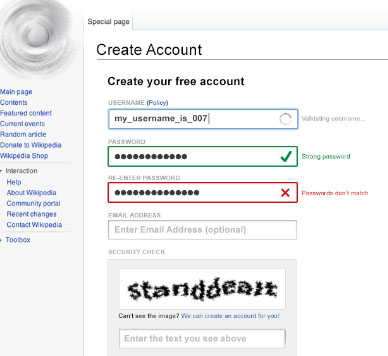
    Registration on Wikipedia 

    Users can work as an admin after they register themselves on Wikipedia, after registration they can create content, and access options like edit and rename content, socialize with others. Like this you can become Wikipedia contributor .

    Steps to do the registration:

    • Do Sign up it is free
    • Log in to your account
    • A personal account will be open
    • Edit your profile
    • Ready to use

    Wikipedia Offline Reading 

    Wikipedia, offers a feature that allows users to create books which they can read or use offline on their devices. Suppose you are travelling for hours and there is no guarantee of the network then you can use this book creating option at its best. You can create an offline book of web pages in which you are interested.

    Read Also : Apple Homepod Tips, Tricks and Review

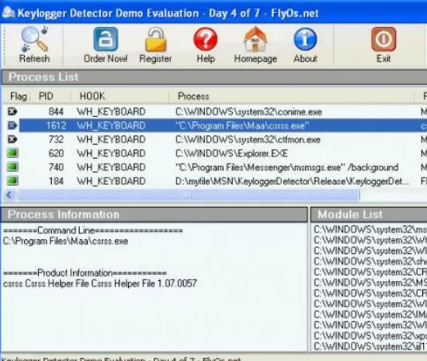
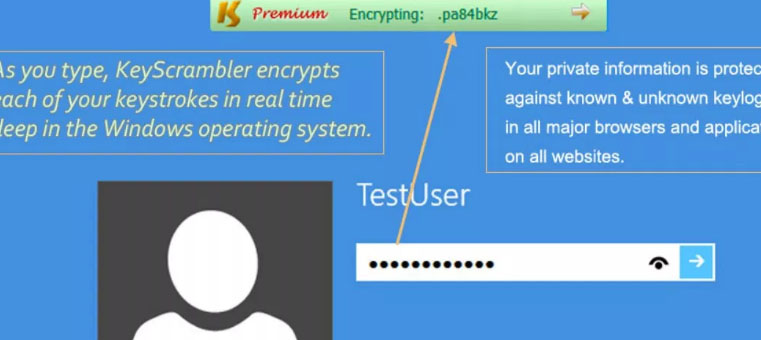
    Read Also : Keylogger detector & Anti-Keyloggers to Protect your data

    Use Wikipedia to read the news

    On Wikipedia you can read about all the current news and events that happen across the world. You can read old news as well as latest news on Wiki. You can read all the latest news by using the Current event option.

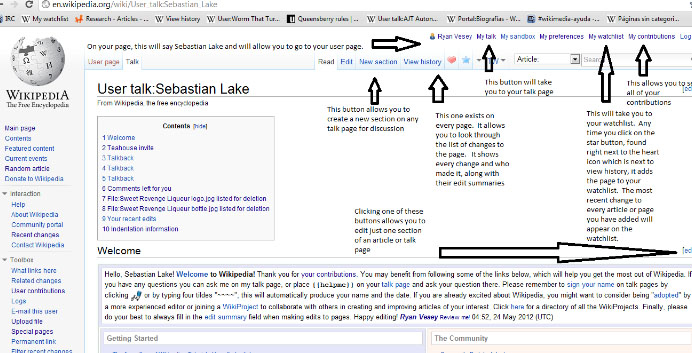
    Wikipedia Talk Page

    Wikipedia offers its user to contribute by editing the information so the information can become more informative. Users can simply edit the information. But before editing users must check the online debate that is going on the Talk page one of the best examples of this is the Smashing Pumpkins. Basically, the Smashing Pumpkins is one of the most debated topics as there are many different arguments, reviews, are given by different users. So, reading all these once will give a better thought to the user in doing the better editing.

    Wikipedia Vision

    This is the most interesting feature of Wikipedia. Wikipedia Vision allows its users to see the changes made on encyclopedia on the map. This feature helps users to see the background work and from which part of the world the editing is been done. This feature is there for users to check the list of recent edits as well as the location. This recent edit list can be sort by time, date, internet protocol address.

    Wiki Suggest Bot 

    As the name suggests the Suggest Bot option is used for solving the confusion faced by the users. When the users face problem as what to edit next then they Suggest bot can suggest them a topic according to the user’s history of editing.

    Wikimedia commons

    Wikimedia common is a feature that gives the user to free access to media, multimedia and picture files. The multimedia files can be used easily by users on any project they want. It is known as Wikimedia common because all the media it offers can be used by anybody.

    Read Also : DuckDuckGo Tips and Tricks to Search Like a Pro

    Read Also : Facebook Small Business Advertisement Working and Results

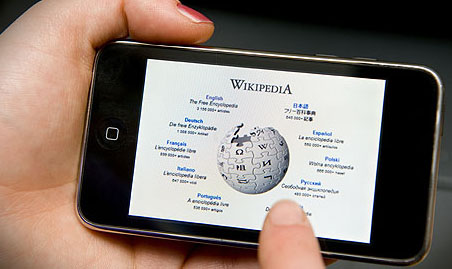
    Wikimedia mobile

    Wikimedia mobile is a feature that allows users to use Wikipedia on their mobile devices without paying any charges. The main purpose of inventing Wikimedia mobile is that it allows users to access knowledge without paying anything.

    These are some of the Wikipedia tips that can help users to use Wikipedia efficiently.

  • Best Nintendo Switch Games to enjoying Game time

    Best Nintendo Switch Games to enjoying Game time

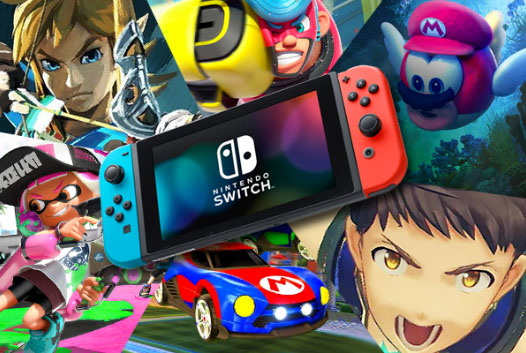
    Nintendo Switch was the seventh major video game console launched by Nintendo . Ever since video games hit as the most sought entertainment among kids to adults . Best Seller Video games are increasing day to day with new version of each popular games . Here we have some of the Nintendo Switch Best Sellers games and list of upcoming Best Nintendo Switch Games .

    Nintendo Switch console , it is a kind of a hybrid console consisting of two major units. The major unit is inserted in the dock station to connect it to the television while the other is kind of a remote, Joy-con controllers used to play the games consisting of the direction buttons and a small joy stick for motion sensing.

    The console can be removed from the dock can be used as a tablet like a touch screen LCD screen. It is a portable device to which you can connect the Joy-con controllers on the sides acting as a hand support and play all the games you move even when you are not at your home.

    Best Nintendo Switch Games to enjoying Game time

    Here is the list of the Best Nintendo Switch Games which have loved all time by the critics with some recent and some upcoming video game releases :

    Super Mario Odyssey

    Who doesn’t loves Mario right? Almost everyone has played and enjoyed this game in their childhood and now Nintendo switch has presented to you a newer version to the game. Here also you have to save Princess Peach but you have got a new companion, a spirit, Mr. Cappy. Because of it now you have lots of new moves such as the cap throw, cap jump, capture and has the power to possess other objects and animals. You get to uncover loads of powers as you progress in the game. The game received wide critical acclaim upon its release. It is praised especially how new innovations were added to the game still keeping its originality and is counted among the Best Nintendo Switch Games of its series .

    You may not believe this but the Goomba stacking limit while playing super mario is 200 . For all super mario lovers do let us know if anyone got lucky to beat 200 Goombas .

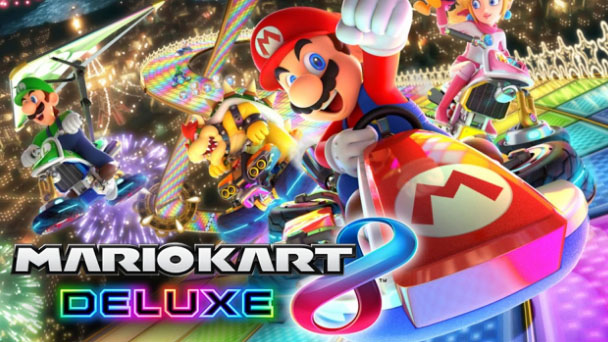
    Mario Kart 8 Deluxe

    Mario Kart 8 is another game featuring your favorite childhood buddy Mario and is a racing video game. In the game you are to compete against other members from the Mario universe in a race in your go karts and try to hinder others and improve your speed by different tools found in item boxes. The Mario Kart also had anti-gravity arena where you can drive on walls and ceilings.

    The Mario kart 8 Deluxe version featured 8 new arenas and several new gameplay modes. Mario Kart 8 Deluxe gained universal acclaim upon release and also a commercial success and counted among the best Nintendo switch racing games.

    Celeste

    Celeste is the among the most recent game released on the Nintendo switch which got a worldwide critical acclaim for its heart touching and genuine story, for the amazing music and soundtrack, and definitely for the amazing and exciting moments the players gets to experience while playing.

    The players play a girl named Madeline. She is to climb a mountain and on each levels you are to solve puzzles putting your mind and knowledge to test. Madeline can jump, climb and occasionally perform an air dash. Across each levels are hidden strawberries and the ending depends on the number of these you collect. Its definitely one of the best Nintendo Switch games .

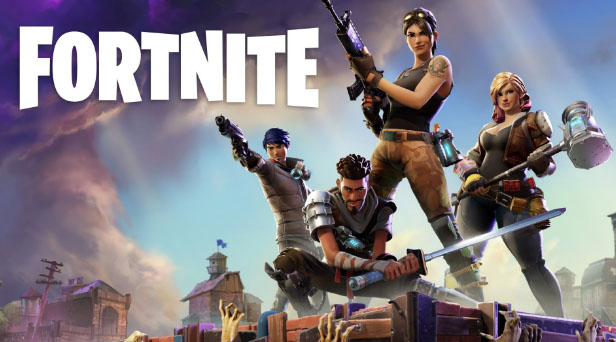
    Fortnite

    Fortnite Battle Royale is one of the best player versus player game where up to 100 players fight so as to be the last stand alone winner. Each player can play alone, in a dual or with a squad. All are dropped on an island weaponless, whose size is decreasing due to the incoming storm.

    All players fight and kill and search for weapons to stay alive. So as to access all the resources map is put to use. The last player or duo or squad alive wins. The game is quite popular with the Nintendo Switch users and loved universally.

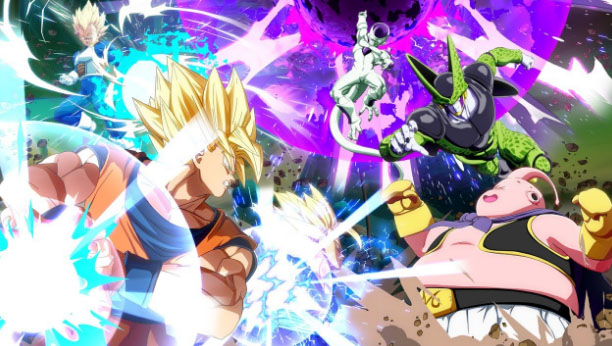
    Dragon Ball FighterZ

    Dragon Ball Fighterz was released recently in January 2018 for the Nintendo Switch system. It’s a fighting game and is set in the time period between “Future Trunks” and “Universe Survival” arcs of Dragon Ball Super. The basic premise is similar to any fighting game.

    The player is to select three characters for his team. Player controls one of these and can switch during the game. The three characters can attack simultaneously and in combos. All three opponent’s characters are to be defeated to win. Each character has its own special moves. The games characters, fighting and music were widely appreciated while the story was criticized. Its counted among the Best Nintendo Switch fighting game.

    Undertale

    Undertale is a role playing video game and was launched for the Nintendo Switch platform quite recently in September 2018. Undertale follows the story of a boy who falls into a secluded large area underneath the earth’s surface and now is on the quest to reach the surface back. While on his quest he has to fight a number of monsters.

    Every time its his decision whether he wants to kill them or to pacify with them. Each decision made decides the journey forward. The game is praised for its writing, the characters and the dialogues and also how the journey depends upon the decisions made by the player. Its among the best Nintendo Switch games.

    Read Also : Best Augmented Reality Games that are safe

    Into the Breach

    The game was released for the Nintendo switch platform in August 2018 only. The game is set in very far future where the human soldiers are to fight against gigantic creatures breeding under the earth. They are to fight them by operating the large mechs which can be equipped with a number of armors, weapons and lots of other cool equipment. It’s a strategy based game and has turn based combat.

    You are to form an estimate of the attack and then to have a proper strategy for the counter attack. The game has been praised simplistic design, amazing difficulty and creative strategies required and also for the writing and the background music. The game proved to be Nintendo switch’s best reviewed game for this year so far.

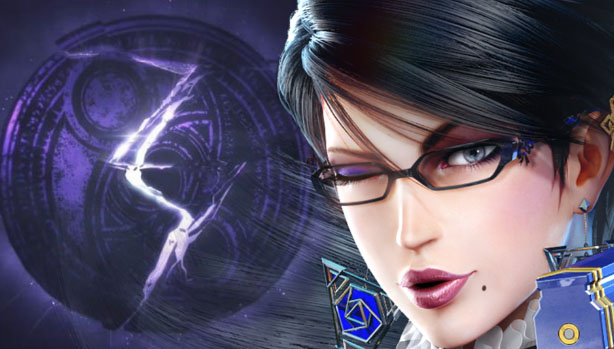
    Bayonetta 3

    Bayonetta 3 is an upcoming action and adventure Nintendo Switch game which is highly anticipated by the fans of the Bayonetta series.

    A teaser trailer for the game has been released from which the fans of the series have speculated that it occurs in a parallel world or an alternate timeline and also although the complete look of Bayonetta has not been revealed but the teaser shows some changes in the original look. Bayonetta 2 was a huge commercial and critical success and the same is expected from Bayonetta 3 as well.

    Read Also : All Possible ways to Make Money by Playing Pokemon Go

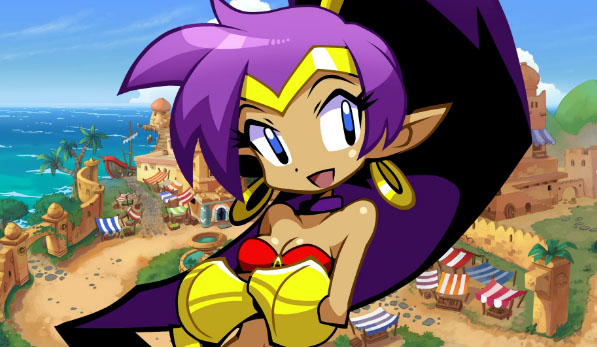
    Shantae : Half Genie Hero

    The game is the fourth installment in the Shantae series and was launched for Wii U and Nintendo Switch, especially made for high definition platforms. The player controls a half genie, Shantae who can kill enemies with the whip of her hair.

    She can dance and transform into different beings like elephant and monkey and then reach to some inaccessible areas. Game features multiple stages that can be replayed. In this installment some new transformations are added and a new ‘Hard Core Mode’ featuring even dangerous enemies was added through an update. The game received favorable reviews upon its release. Considering the best game reviews this is one among the Best Nintendo Switch Games .

    Read Also : Life threatening Games Online – Steps to Stay Safe

    Read Also : 38 Best iPhone games you should play

    West of Loathing

    West of loathing is funny comic adventure role playing video game. The game features handmade drawings with all the characters made out of thin sticks. It has turn based combat.

    The game is set in the wild west of the Kingdom of Loathing universe. While on your quest you get to fight silver tongued snakes, skeletons wearing cow boy hats and some demon cows. The game features quests, puzzles and loads of gags, laughs and jokes. The game was well received with some critics calling it the one of the funniest Nintendo switch games ever.

    Hope, you must have loved reading about all these games and definitely will like to experience the excitement and adventure with these games on your Nintendo switch. If your favorite game is not on the list don’t forget to mention your favourite and Best Nintendo Switch Games in the comments below.

  • iPhone Conference Calling Step by step guide

    iPhone Conference Calling Step by step guide

    Most of our daily routines in office demands Conference calls . Even the best buddies conference call to make exciting plans , meet ups , get together or to share some blunders and laugh together we need this tech feature . If you have an iPhone , and ever wondered about how to make Conference call on iPhone then here we will be discussing out the step by step guide on making iPhone Conference Calling .

    What is Conference Call ? Exactly there is nothing like a great definition to be discussed here . When you make a call there is certainly 2 people involved . When more than 2 people , exactly 3 or more people on a call together is conference call .

    On a conference call you can hear everyone and everyone can hear you .

    iPhone Conference calling – How to turn on conference call on iPhone

    So now let us understand , how to start a conference call on iPhone with simple step by step instructions .

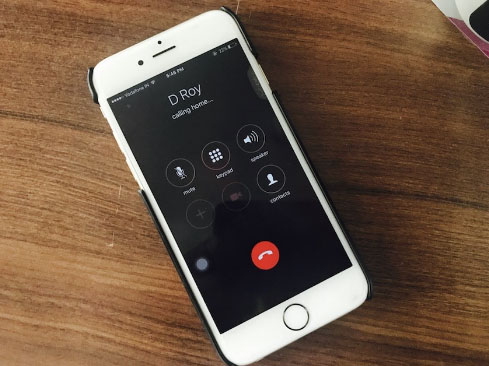
    1.  Go to iPhone’s Phone app and dial the first person’s number
    2. Now make a call by dialing the call button on iPhone screen
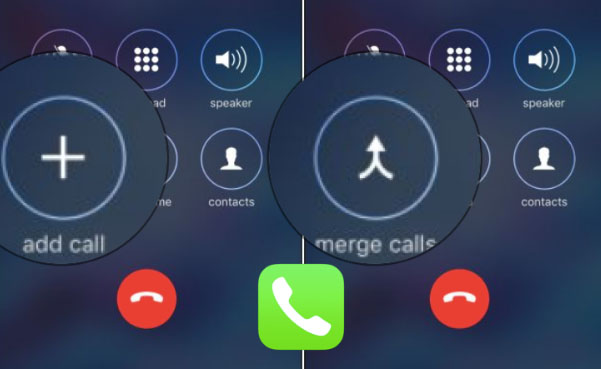
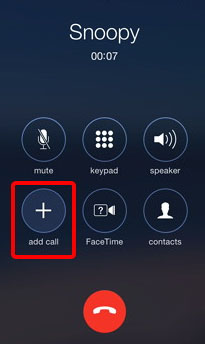
    3. Tap on the Add call button while the first call in ongoing .
    4. Now enter the next person to be added on to your iPhone group call .
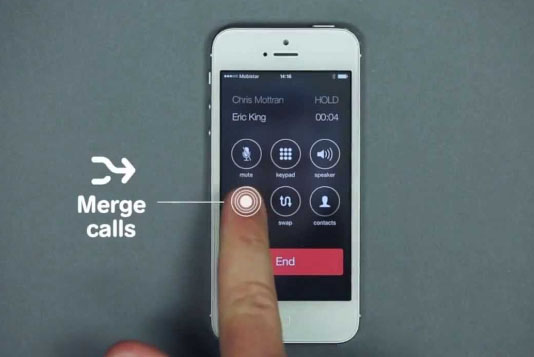
    5. Now your first person will be put on hold on iPhone
    6. Tap Merge calls 
    7. You have now all the three including yourself connected on conference call
    8. Repeat the step of add call and merge calls to add more people to iPhone conference call.

    This is how to do a conference call on iPhone .

    Read Also :  Best free calling Apps for all Smartphones

    Read Also : Best iMessage alternatives for Android/ Windows/ Mac/ iOS

    In case sometimes if you are not able to add and merge calls on iPhone , i mean when the steps of how to turn on conference call on iPhone doesn’t works out then check your iPhone call settings .iPhone Conference Calling Not working can be due to the following reasons sometimes . So this is the checklist when iPhone calling doesn’t works –

    • Check DND (Do not disturb ) on your iPhone
    • Check iPhone block list
    • Check your iPhone call forwarding settings and options
    • Make sure your iPhone software updated is up-to the date

    Solution to fix  –

    • Check airplane mode  and turn it on and turn off airplane mode after 5 minutes
    • Try to check your network coverage
    • Remove and reinsert iPhone sim from the sim slot .

    If you are using VoLTE then ,  iPhone conference call won’t merge . So this cannot be fixed .

    Hope you guys find this useful 🙂

  • Disable Developer Mode on Samsung Galaxy

    Disable Developer Mode on Samsung Galaxy

    If you are using Samsung Galaxy series and would like to Enable / Disable Developer Mode on Samsung Galaxy then here we will brief the steps for that process.

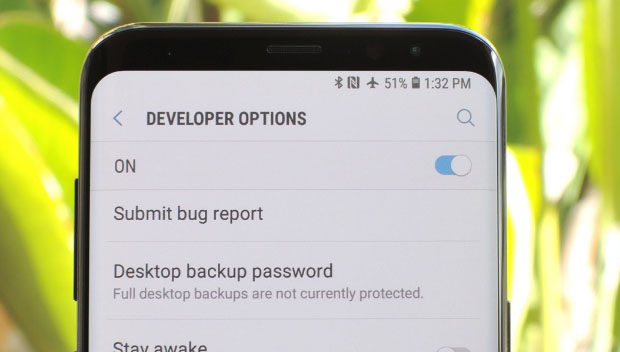
    Developer mode in Samsung Galaxy series , if enabled will allow the users to use Android SDK and other Android development tools within the device .

    How to Enable Developer mode in Samsung Galaxy 

    Enabling Developer mode in android will allow the android users to do Android USB debugging . So if you want to enable developer mode in Samsung via Settings then here is the steps to follow –

    1. First go to your Home screen
    2. Now select the Settings tab and open it
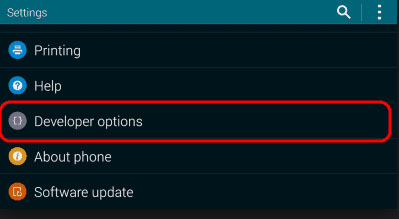
    3. On the Samsung Galaxy Settings button if you scroll down you can find out an option called About phone 
    4. Click on that and scroll down
    5. Now you can find Build number option
    6. You have to tap that build number for 7 times
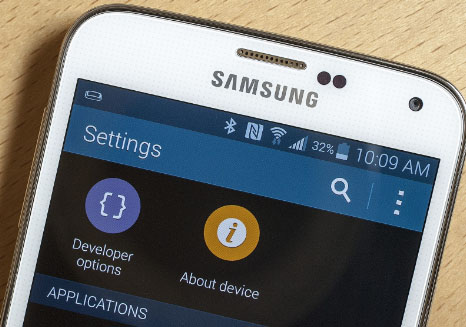
    7. So finally your settings menu will display out the Developer mode option for Samsung Galaxy .
    8. Turn it on

    That is it , you have successfully enabled developer mode .

    Read Also : iPhone Vs Samsung which is better – iPhone Vs Galaxy Compared

    Read Also : Best Triple Camera Phones to Buy This Year

    How to Disable Developer mode in Samsung Galaxy 

    Now if you want to disable developer mode on Samsung Galaxy then you have to follow the certain steps as given below –

    1. First go to your device’s home screen
    2. Secondly go to the device Settings menu
    3. Now From the settings menu , choose the Developer mode
    4. Toggle it off

    You are done with it , in case if you want to completely Clear data on Settings app of Samsung Galaxy , that may not work . So your option is to factory reset your Samsung galaxy.

    There might be reasons to turn off developer mode or even to hide developer mode but there are strong reasons and benefits for enabling or toggle on developer mode on Samsung phones .

    • If you want to install custom Android ROM , then enabling developer mode for android is your cup of tea .
    • In order to enhance the device animation performance also , enable developer mode
    • Screen record android activity with developer mode enabled
    • Fake or duplicate your GPS location
    • Boost your gaming speed on device

    All the listed out points shows the merit of enabling developer mode option . So now its your decision how you want to operate .

  • Google News Dark Mode – How to toggle on Dark Theme

    Google News Dark Mode – How to toggle on Dark Theme

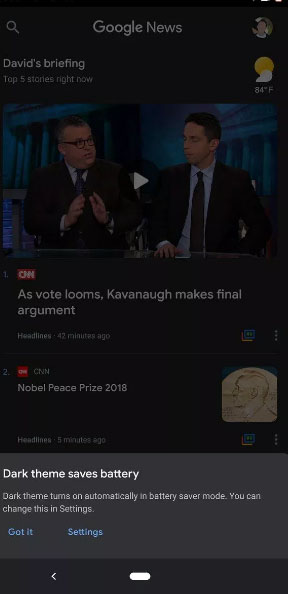
    Most of the websites are allowing users to access Dark theme , now Google news dark mode is available for certain device . As of now not all the device is getting this feature but  it is expected to be available for all devices soon .

    The tech giant Google’s one of the successful product is the news aggregation site and app . Now Google news Android will have dark theme as it is official from the sources . You may be aware that YouTube Dark Mode for Android was already released and we have discussed out the ways to use the same . Now here we will discuss on how to use Google News Dark Mode on Android .

    Google News Dark Mode – How to toggle on Dark Theme

    We already have discussed a lot about what exactly is the dark theme or dark mode for any website . Generally dark mode enables rich visual experience , that too especially in night or in low light time. Once you enable dark mode , then automatically the website or application goes to a reverse colour scheme . Thus turns to grey or black background giving more readability and visual experience than the white background . This can be good for your eyes as well just because it reduces the strain for eyes.

    Now Google News Dark mode Android is open for some of the devices , not sure the list of device name will be updated . As of now Pixel 2 XL Google News Dark mode is the confirmed device to discuss about the feature .

    Read Also : Enable Reddit Dark Mode : How to turn on Reddit Dark Theme

    Read Also : Google Datally App to Control Mobile Data & WiFi Finder

    Read Also : Google Maps List Create, Share and Edit on Desktop & Mobile Now

    What is Special about Google news dark theme ?

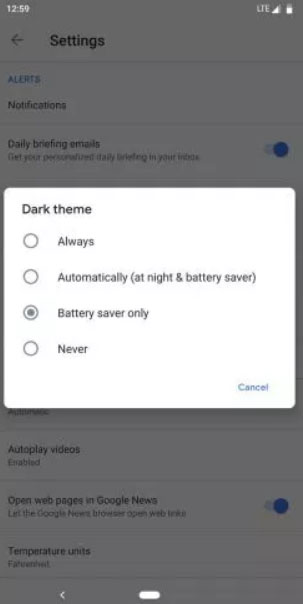
    Being tech giant Google always will give something more in all their features , same applies to this feature also . In Google news Dark mode it allows the users to pick up between 4 wide range of options such as –

    • Enable Dark Mode Always for Google News
    • Enable Dark Mode Automatically for Google News at night and battery saver time
    • Enable Dark mode only while on Battery saver mode .
    • Never Toggle on Dark mode ( Disable Google News Dark Mode )

    So the above listed out are the four options available where users can customize when do they really want to opt for google news dark mode as per their choice .

    Read Also : Google Pixel Haptic Feedback / Vibration Mode Enable or Disable

    Read Also : Disable / Enable USB Debugging on Google Pixel

    How to Turn on Google News Dark Theme

    You can turn on google news dark theme from the device settings with these steps –

    1. Go to device home screen
    2. Now select the setting option
    3. From settings find the Dark Theme
    4. Click on that
    5. Select the mode of Dark theme from the given four options
    6. Select Automatically / Always based on your choice to toggle on google news dark mode

    That is it , this is how you can use google news dark theme on android .

    How to Turn off Google News Dark Theme

    In order to turn off google news dark theme , you can disable it by following the same steps as given above up-to step 1 to step 5

    Step 6 – Click on Never 

    You have disabled Google news dark mode for your device

    So that is all about the Google news dark theme , do let us know your comments on this .

  • Best Media players for Computer & Smartphone

    Best Media players for Computer & Smartphone

    When it comes to Media players most of us might know one common name that would be Windows Media player and few of us may know even VLC Media player . But know what there are so many which can be pointed out as the best media players and really the best free alternative to Windows Media Player .

    So let’s take a look at some of the best Media players available .

    Best Media players for Computer & Smartphone

    You all might be familiar with some of the media players that are commonly available. For the people who are still in search for the best free media players, please have a look at the following options.

    1. Windows Media Player
    2. VLC Media Player
    3. iTunes
    4. KM Player
    5. GOM Player
    6. Kodi
    7. Media Player Classic
    8. Winamp
    9. MPlayer
    10. Plex
    11. Real Player
    12. Serviio
    13. Boxee
    14. Dragon Player
    15. MPEG Audio Decoder
    16. JRiver Media Center
    17. Flip4Mac

    Now we’ll have a look at some of the Best Media players for Computer & Smartphone that are quite popular and most preferred .

    1)      VLC Media Player

    This is one of the most commonly used best media players for both computers and smart phones. People who watch videos in their phone or computer will surely be aware of the VLC media player. This customizable media player is one of the most flexible players these days. The android app of VLC was launched in 2012 and it became very popular among the android users. Thus making it a best android media player .

    The users can easily play HD content with VLC media player since this player is supported by open source codec files which can be installed as an add-on. VLC Media Player is compatible with and Windows platforms too. Some of the key features of VLC media player are:

    1. a)      It supports files, Discs, webcams, devices and streams.
    2. b)      Codec packs not required
    3. c)       It runs on platforms like Linux, Mac, Windows, OS and UNIX
    4. d)      VLC media player also supports media conversion and streaming.

    2)      MX Player

    MX player , one of the best video players for android phone users. Also compatible with both iOS and Windows. The layout of MX player is very simple and this makes it easier for all the users to run it without much effort. Apart from this, MX Player has an advanced hardware decoder which helps in supporting playback of high quality videos. This is one of the best iOS Media player .

    MX player also works well with devices that have multiple core processors since it supports multi core decoding. One of the major highlighting features of MX player is that, it can transfer you old collection of movies into digital format. Once the transfer is done, you can easily play the movie in MX player without any issues.

    Read Also : Best Torrent Managers for Computer & Smartphone

    3)      KMPlayer

    When it comes to video streaming, KMP is one of the best options that can help you with high quality streaming. KMP Media Player with its floating screen allows the users to work on different windows, making it a perfect multitasking media player.

    KMP media player is compatible with Android, iOS and Windows. One of the major attraction of KMP player is its ability to support more than 30 languages which in inbuilt. Likewise, it also supports multiple audio tracks and subtitles without any lags and slowdowns.This is one of the Best Media players .

    KMP Media Player also supports 3D formats and it also has an option to add the quality of album and includes plug-ins and playback options. While playing any music track, KMP media player automatically supports the album art with changing colour themes for each new track.

    Read Also : Alexa Tips, Tricks and Commands

    4)      SM Media Player

    Developed by Mr. Ricardo Villalba, this media player has features like:

    1. a)      Switching of Audio Tracks
    2. b)      Mouse scrolling and multiple speed playbacks
    3. c)       Codec free playback
    4. d)      Remembers setting of the files you play

    SM Media Player is an open source player which is compatible with Windows, Linux and Androids. To use this media player, all you have to do is download it and start using. You will not need any external codes to pay the videos. SM media player also support YouTube videos and the user can easily download subtitles.

    SM media player consists of different skins and icon themes. So when the user wants to change the look for the player, they can do so by choosing the options of themes. This is one among the Best Media players and also has video and audio filters, changing the playback speed, video equalizer etc.

    Read Also : YouTube Dark Mode Android Version Without Rooting

    5)      DivX Player

    This is another media player which is compatible with both computers and android phones. You will have to download the DivX App in your android phone from Google Play Store to start using it. For iOS devices, you can make use of the Apple Store. To watch the videos that are saved in your phone, all you have to do is click the “My Videos” option and start watching by selecting a video. If you have stored the videos in your computer, then click “Media Servers” and select DivX Media Server.

    This media player support all file formats and it also helps in adaptive streaming. The DivX Player automatically adjusts the quality of a video you watch. In this player, the users can save videos according to title, genre, date or time. It acts as a fully featured video library manager. Moreover, the user can embed high quality videos with all its features in websites or blogs.

    Read Also : Apple Homepod Tips, Tricks and Review

    Read Also : Spotify Tips and Tricks to Enjoy Spotify Subscription More

    6)      Real Player

    Real Player is one the media players that allows users to download web videos and watch it offline. The user has all the control of this media player. To keep the videos safe, this player helps the user to create a unique pin to access the videos. This player is works very fast and it also adds mobile sharing of clips. Streaming is possible with Real Media Player and the user can convert the videos and watch it on TV, computers or android phones.

    Real Players comes with a downloader and trimmer, helping the users to edit the videos that way you want. This player also helps in sending photos, clips and videos with your friends easily. Real time offers two premium plans to the users to choose from and they include more space, better quality video, more music choices and last but not the least the ability to create unlimited real times with any music track. Apart from being a media player , this is an effective video editing tool and video trimmer tool to rely upon.

    Know these media players first and choose one that suits your needs.  Hope this article helps you to opt the right media player for your android phone or computers.  Enjoy watching videos with these high quality media player to keep you engaged during a holiday or while you travel.

  • Best iMessage alternatives for Android/ Windows/ Mac/ iOS

    Best iMessage alternatives for Android/ Windows/ Mac/ iOS

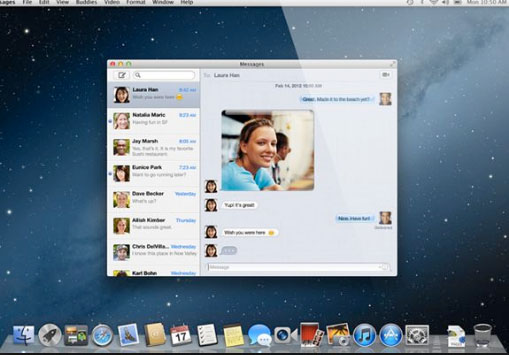
    iMessage , SMS/ MMS Alternative on Apple’s iPhone devices is an instant messenger application used to share different types of media files / text with help of mobile data . This iMessage, by Apple Inc is available for iPhone and Mac . Best iMessage Alternatives Applications for different devices is listed here .

    What is iMessage ?

    iMessage in an Apple application developed for instant messaging service by Apple Inc . Best alternative to SMS / MMS service .

    iMessage Encounters Problems with Latest iOS

    Have you felt that after the launch of new iOS version , iMessage functioning is affected ? Many of the users who have updated iOS in their device felt that they face problem with iMessage .

    If iMessage is not working properly then you can rely on some of the best iMessage alternatives .

    On iOS , i mean on your iPhone / iPad you can try these iMessage alternatives for iPhone

    Whatsapp , Facebook Messenger app , Slack , Telegram etc .

    Read Also : Best free calling Apps for all Smartphones

    Best iMessage alternatives for Android

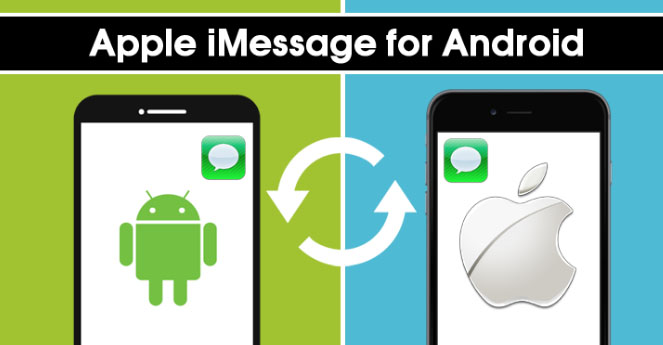
    As iMessage is only available for iPhones and not for Android to compensate that there are many iMessage alternatives for Android those works in a same way like iMessage. Below mentioned are given some Best iMessage Alternatives for Android.

    • Whatsapp Messenger
    • Telegram Messenger
    • Facebook Messenger
    • Google Allo
    • Google Hangout
    • Skype
    • Push Bullet
    • Line
    • Mood Messenger
    • Textra

    Best iMessage alternatives for windows

    Windows also doesn’t have any inbuilt iMessage feature but users can go for alternatives that are available in the market. For windows, below listed apps are best iMessage alternatives for Windows.

    May be in the upcoming years iMessage for Windows will be available as Microsoft and Apple is working on together to make Windows support iMessage version , thus making iMessage for PC possible .

    • Viber
    • Line
    • We chat
    • Facebook messenger
    • Google Hangout
    • Whatsapp messenger
    • Skype
    • BBM Messenger
    • GroupMe

    Best iMessage alternatives for Mac

    Mac users can install iMessage app for Mac however still there are iMessage alternatives available for Mac. Some of the best iMessage alternatives are mentioned below:

    • Viber
    • Wire
    • BBM Messenger
    • Whatsapp Messenger
    • Skype
    • WeChat
    • Facebook Messenger
    • Kik
    • Line
    • Google Hangout

    Best iMessage alternatives for Android / Windows / Mac /iOS

    As we already know that there are many iMessage alternatives available for Android, Windows and Mac. So now we are going in depth discussion of some common best iMessage alternative apps that are available for all the three operating system.

    Here is the list of best iMessage alternatives for Android, Windows and Mac.

    Whatsapp Messenger

    Whatsapp Messenger is the best iMessage alternative that can be downloaded on Android, Windows and Mac. This messenger helps users to send and receive message instantly and for it they don’t even have to pay charges as it is free of cost it just need internet connection.

    On Whatsapp you can send pictures, videos, gifs and you can also create group. It also allows you the options of like voice calling and video calling.

    Read Also : WhatsApp Exclusive Guide – Everything about WhatsApp Features

    Read Also : 10+ Best Alternatives to Whatsapp you will love this year

    Read Also : WhatsApp Data Sharing Disable Methods to Protect WhatsApp Data

    Facebook Messenger 

    Almost everyone have Facebook account and Facebook messenger is the second best iMessage alternative available. Facebook messenger helps its users to send message to each other by using internet. You can download it on any platform like Android, Mac and Windows, as it is compatible with all of them. Some of the best features of Facebook messenger are stickers, emoji, voice call, video call, sending link, location, pictures, videos and more.

    Read Also : View Facebook Full site – Facebook Desktop Version on Android

    Read Also : Safeguard Facebook Pictures-Prevent profile picture downloading

    Read Also : Best Facebook Ad management tool – Facebook Advertising

    Read Also : Instagram tips and tricks to be a Pro Instagrammer

    Viber Messenger 

    Viber Messenger is a free messenger that can be install in Android, Mac, and Windows. You can send message in anywhere in the world only by using internet. Viber offers exciting stickers and emoji to share with family and friends. You can also make international phone calls or video calls through Viber. On Viber you can also make a group of approximately 250 people. Some other attractive features of Viber are that you can send audios and video messages to your contacts. Viber Messenger also allows its users to play exciting games on Viber with contacts, followers and people near your location.

    Skype 

    Skype is available for Android, Windows and as well as for Mac. Mainly Skype is used by people to do video calls but it can also be used as iMessage alternative. Skype allows its user to chat, share, voice call, sends giphy and more. So this is the multipurpose app you can use it for calling as well as for messaging.

    Read Also : Skype for Business: Fix “Cannot sign in because the server version is incompatible with Microsoft Lync” error

    WeChat 

    WeChat is one alternative for iMessage, and one can download WeChat on any platform. WeChat is used for messaging, calling people all over the world. It is said to be a all in one app that is used for sending any type of message whether voice, photo or txt, group calls and chats, send stickers from  stickers gallery, share special moments, share location, translate your message in different languages and more. It also assures best privacy policy and one other attractive feature of WeChat is that it allows you to find new friends as it gives options like Friends Radar.

    Read Also : Get Celebrities Notice Maximum on Twitter – Popular Tweeter Hacks

    Read Also :  View Twitter Full Site – Check Twitter Desktop Version on Android

    Hangout 

    Google Hangout also used as iMessage alternatives and users can use them on any platform and device. Hangout allows it users to do free calling, send free messages and do free video calls. By using Hangout you can do video call with almost 10 people at a time.

    Read Also : Google Datally App to Control Mobile Data & WiFi Finder

    So these are some best iMessage alternatives one can use in place of iMessage. All of these iMessage alternatives provide best features so user can have good using experience also. All of these iMessages are good but users can try and select which one is the best for them.

  • How to update iPhone / iPad to the Latest iOS update

    How to update iPhone / iPad to the Latest iOS update

    Apple being one of the famous brand always upgrade Operating system for its devices . As you may be very well aware that the operating system Apple make use of is the iOS . Soon after the release of three new flagship iPhones here comes the most awaited latest iOS version . Here we will learn about How to update iPhone / iPad to the Latest iOS update .
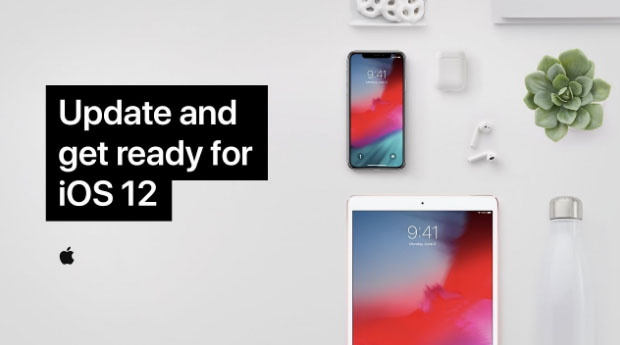
    Answering the most awaited question about iOS 12 release date , the new iOS got released for 2018 also on September . Those who wanted to upgrade iOS and update iPhone with Latest iOS . Then read this piece , because its just written for you.

    The history of iOS versions begins from the release of iPhone OS 1 , iPhone OS 2 , iPhone OS 3 , iOS 4 , iOS 5 , iOS 6 , iOS 7 , iOS 8 , iOS 9 , iOS 10 ,  iOS 11 , iOS  12, the latest .

    Read Also : Improve The World With Smartphone -Top 10 Hacks

    iOS 12 Released 

    Finally the most awaited latest Apple OS for iPhone and iPad is released. After iOS 12 beta now iOS is official . It is evident that most of the iOS 11 supported devices will support iOS 12 .
    You can update iPhone to iOS 12 by checking out whether your iPhone OS can be upgraded .

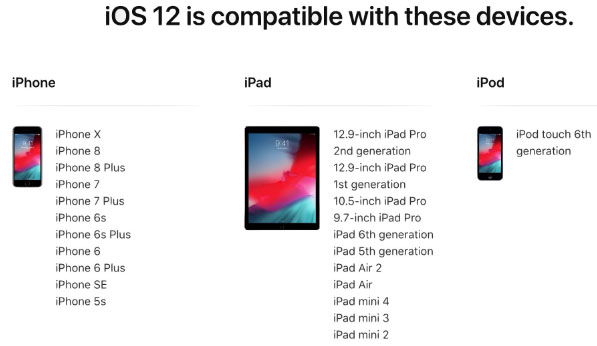
    iOS 12 Supported Device list

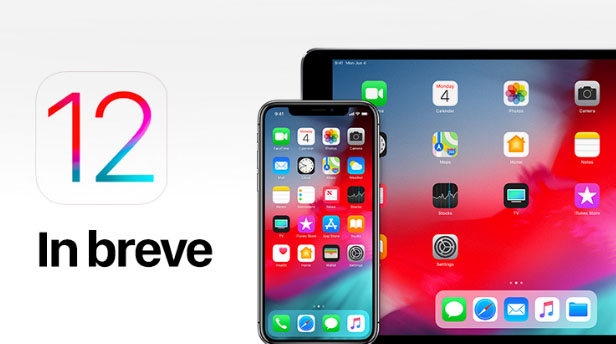
    Given below is the devices that use iOS 12 and also list of devices where you can upgrade iOS .Here is the list of Apple devices capable to do iOS 12 download. We will also guide you about how to update iPhone with latest iOS  .
    iPod Touch

    On the series of iPod touch devices the iPod Touch 6 (iPod 6th generation) is compatible for iOS update . You can download iOS 12 for iPod Touch 6 . The iPod touch 6 G that initially was iOS 8 which can be now updated. So you can update iOS 8 to iOS 12 .

    Read Also :  38 Best iPhone games you should play

    iOS 12 for iPod Touch – How to Install iOS 12 On iPod Touch

    In order to update iPod touch with iOS 12 follow the given steps –

    • First take a iTunes Backup / iCloud Backup of your iPod Toch device
    • Install latest iOS (download iOS 12) either by wireless method or by iTunes

    The steps to installation of iOS is same for iphone , ipad and iPod .So read the common section for understanding how to update iPod software .

    iPad iOS update Supported Devices 

    Given is the list of iPad devices that can be upgraded to iOS 12 . So lets see how to update iOS on iPad .

    • iPad Air – Initially used iOS 7 , now this can be updated from iOS 7 to iOS 12

    • iPad Air 2 – Initially used iOS 8 , now this can be updated from iOS 8 to iOS 12

    • iPad 2017 – Initially used iOS 10.2.1 can be upgraded to iOS 12

    • iPad 2018 – Initially used iOS 11.3 can be updated from iOS 11 to iOS 12

    • iPad Mini 2 -Initially used iOS 7.03 can be updated to iOS 12

    • iPad Mini 3 -Initially used iOS 8.1 can be upgraded to iOS 12

    • iPad Mini 4 -Initially used iOS 9 can be now updated from iOS 9 to iOS 12

    • iPad Pro (9.7 inches) , iPad Pro (10.5 inches) , iPad Pro (12.9 inches ) Generation 1 and 2 – Initially used iOS 9.1 can now be upgraded with latest iOS 12 .
    iPhone iOS 12 supported

    Here is the list of iPhone that can be available for iPhone software update to the latest iOS 12 . These devices can be upgraded to iOS 12

    • iPhone 5S – Initially run on iOS 7 can be now upgraded to iOS 12

    • iPhone 6 – iOS 8 to iOS 12 can be updated for iPhone 6 users

    • iPhone 6 Plus – This iPhone 6 Plus users using iOS 8 can update it to iOS 12

    • iPhone 6S & iPhone 6S Plus -Initially run on iOS 9 can be upgraded to iOS 12

    • iPhone SE – updating iOS for iPhone SE is available , here you can upgrade iOS 9.3 to iOS 12

    • iPhone 7 – iOS 10 to iOS 12 software update is available for iPhone 7 series

    • iPhone 7 Plus – iOS 10 to iOS 12 update is possible for even iPhone 7 Plus

    • iPhone 8 – You can update the old iOS in iPhone 8 which was iOS 11 to iOS 12

    • iPhone 8 Plus – iOS 11 is the OS running on iPhone 8 plus hich was available for iOS 11 update earlier . Now you can upgrade iPhone 8 Plus to iOS 12 .

    • iPhone X – iOS 11 was the iPhone X OS , now those who are using iPhone X can update iPhone to iOS 12

    • iPhone XS – iOS 12 is the OS for the new flagship Apple phone

    • iPhone XS Max – This apple flagship phone uses iOS 12

    • iPhone XR – Most modern apple phone , iPhone XR runs on iOS 12

    Why iOS 12 – Best Features of iOS 12 

    The newly released iOS 12 has so many features to make you fall in love with iOS 12 . Let’s take a look at some of the most exciting and best iOS 12 features –
    Navigation Apps is Not Limited Anymore 

    You may be aware that earlier versions of Apple OS has allowed its users to rely upon only the Apple Navigation app , that is the Apple Maps . Those who had voted more for Google Maps on a comparison between Google Maps Vs Apple Maps , can be happy now . Your iOS 12 allows you to use Google Maps and other third party navigation apps with the Apple CarPlay .

    That’s quote a good news , isn’t . Don’t worry we will guide you on how to Google Maps with Apple CarPlay in our upcoming write up.

    Group FaceTime Call is Latest in iMessage Group Chat

    Now , this feature is not live but it will be rolled out soon in iOS 12 . Thus allowing the iPhone , iPad and Mac users to enjoy group Facetime Call with new iOS .

    Read Also : Best Triple Camera Phones to Buy This Year

    iOS with More App updates

    Seriously not a major app updates but yes there are few excellent app updates with the iOS 12 .

    • Apple News App with a scroll option in iPad.
    • Stock Analysis , Performance and top stock related news updates throughout the day.
    • iPad now gets Voice memo apps . Also there is iCloud support to sync your Voice memo with other Apple devices .
    • iBooks turned to be Apple Books . It has got Book store feature and Reading now feature to make it much more easy to use .

    Access Apple TV with Apple Control Center 

    Add Apple TV tile to your iOS 12 Control center , now just swipe and tap to access Apple TV

    Managing Screen Time

    Now iOS 12 lets the Apple iPhone and iPad user to understand the pattern of their device usage time , a clear and detailed summary of how much you have used your device . Also which app you spend more time etc.

    App Limit Feature 

    Along with managing screen time , apple also introduced an efficient and smart feature that allows the users to limit their usage by setting time limit for each apple apps . So that’s how the App Limit feature adds more power to the screen time management feature in iOS 12.

    Downtime Feature in iOS 12

    This is a boon to parents where they can remotely manage their kid’s apple device usage with Family sharing app . The downtime feature in iOS 12 aims at helping parents to limit their kid’s access to apps or websites and even set time to each applications .

    Bye bye to Long list of Notifications

    No more irritating thread by thread notifications to pile up your home screen . Everything is now sent as a grouped notification on a single thread . This single thread notification is one of the best things that happened with iOS 12

    Read Also : iPhone Vs Samsung which is better – iPhone Vs Galaxy Compared

    Do Not Disturb & Critical Alerts

    Set time to enable Do not disturb and toggle on Do not disturb whenever you want to stay away from getting distracted because of mobile. But one better thing is Critical alerts from healthcare persons will work even when your Do not disturb is enabled .

    There are more features like – iOS Photos – For You Tab , Siri shortcuts for iOS 12 , ARKit 2.0 , USDZ format , Add 2 Face Id Profiles , Better password manager , Apple camera app with Improved Portrait mode , better battery health , better QR scanner , Better screenshots on iPhone , New Apple map design , location sharing , Animoji and memoji trends , iOS 12 Siri suggestions improved .

    How to update iPhone / iPad to the Latest iOS update

    Now let us dive into the core topic ,that is how to update iPhone/iPad with latest iOS . Before you do iPhone Sofware update you have to backup iPhone /iPad before you update iOS .

    How to Backup iPhone /iPad /iPod before updating to iOS 12 

    Before you download iOS 12 , You have to backup iPhone /iPad /iPod to prevent loss of data while software upgrade.

    You may be aware that there are two methods to update iPhone –

    1. Update iPhone using iTunes
    2. Update iPhone using iCloud

    Now before that all you need is to learn to back up iPhone / iPad /iPod

    Read Also : Factory reset iPhone without password or iTunes with data backup

    How to Take iTunes Backup of iPhone/iPad/iPod

    To prevent iPhone data loss before you update iPhone or any of your iOS device , take a iTunes backup . Follow the given steps –

    • Ensure that you have updated latest iTunes version , if no install latest iTunes version first .
    • Now open iTunes
    • Connect your iPhone/iPad/iPod to your computer
    • Now you will be asked to verify the computer by entering the passcode .
    • Next you have to enter your Passcode information correctly .
    • Now select your device on iTunes window’s left corner .
    • You have to click on the Summary option that you can see on the left corner of the window
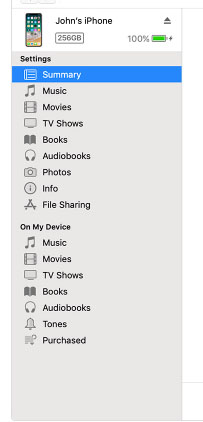
    • At this time yo can see your device information on centre of the window displayed out . Also there you can find an option This Computer
    • Toggle it and below that there is an option Encrypt device backup , Click that and enable tick mark for that to protect it with password
    • Now on Manually backup and restore option click on Backup Now
    • Click done .

    Read Also : Best iTunes Cleanup Software for better iTunes experience

    This is how you can restore iPhone/iPad /iPod using iTunes . Make sure that you do take a back up iphone /ipad before updating to ios 12 .

    How to update iPhone / iPad to the Latest iOS update

    Now let us learn how to download iOS and install latest iOS on your iPhone , iPad and iPod . So i guess you have taken back up of your iPhone . If so proceed on how to download latest iOS ( How to dowload iOS 12 ) –

    • To update iPhone with latest iOS 12 you must either take iClod / iTunes backup of your device first
    • Now to install iOS 12 using iTunes follow the given steps
    1.  Go to iTunes
    2. Plug your Device , that is plug iPhone / iPad / iPod
    3. Now select the device icon that can be found at top left
    4. Go to Summary
    5. Now click on Check for Update
    6. Select Download and update option
    7. Now click Agree button mentioning you agree to all the terms and conditions
    8. Enter your device passcode
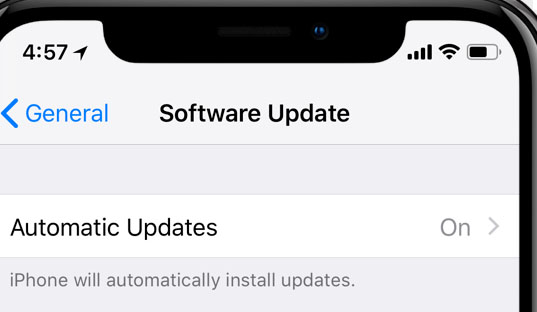
    • Now to install iOS 12 using iPad / iPhone software update follow these steps to update iPhone iOS with iOS 12
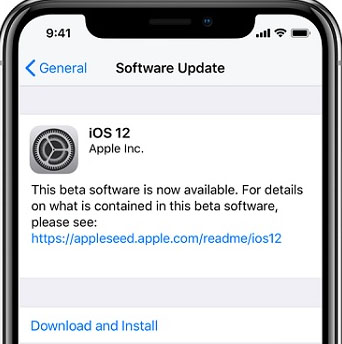
    1.  Take iCloud Backup
    2. Go to device Settings option
    3. Go to General 
    4. Now click on the Software update 
    5. There you can see and option called Download and Install , just click that
    6. Proceed with entering your device passcode and simple agree to terms and conditions4
    7. Click Agree to confirm

    That’s it , this is how to update iPhone with iOS 12 , hope you are clear with how to download iOS 12 and install iOS 12 .

    Android Vs iOS – Comparing Android P Vs iOS 12

    After Android O (Android Oreo) google has released Android P , that is Android Pie , the very latest Android OS . So with the release of iOS 12 , most of the users have a confusion which is the best Android Vs iOS ( On a cross comparison between Android or iOS) . So here we will take a look at Android P Vs iOS 12 .
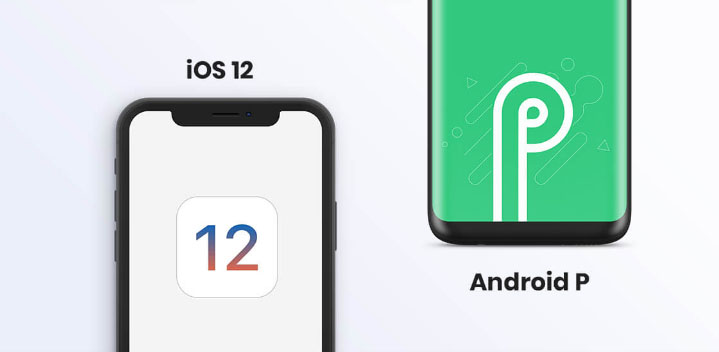
    Many of the devices are apt for Android 9 Pie as OS . And we have already discussed iOS 12 supported devices and how to upgrade to iOS 12 . Google Pixel 3 XL will come with Android 9.0 (Android P) . And in many other devices using Android Oreo you can update Android Oreo to Android Pie ( Android O to Android P )

    Read Also : Android Oreo Vs Android Nougat Vs Android Marshmallow Vs Lollipop

    Now lets take a look at iOS 12 Vs Android P –

    • iOS 12 Vs Android 9.0 comparison Google’s Android P is the best with respect to maps and navigation performance when your compare with iPhones. So google maps is best when compared to apple maps .
    • While encountering comparison between the virtual voice assistants in Android P and iOS 12 , Android wins the heart . Even though Apple has brought so much of new updates to Siri , still Google assistant remains favourite for majority .
    • Digital health aspects is taken more carefully by iOS than Android , so in that case iOS is winner

    Read Also : iOS 11 Vs Android Oreo – Who wins gadget lover’s Heart

    Read Also : Update to Latest Android OS : Android Pie -Stay with Nougat / Marshmallow/ Oreo

    Read Also : Backup Android Device to PC or Google

    There are more differences that will be discussed separately and in detail .

    So i guess we have given our users a very detailed idea on iOS 12 and iOS 12 supported devices , a cross comparison between iOS 12 Vs Android P & our core point how to update iPhone / iPad / iPod to latest iOS 12.