Microsoft Windows 10 new feature multiple desktop or Virtual Desktop feature is drawing more attention . Earlier we have given the ways to enable Virtual desktop feature with Alt + Tab . Here we will discuss about how to Use Multiple Desktops in Windows ( Virtual Desktop Feature ) . We will discuss three things under this head like – how to add a virtual desktop in Windows , how to switch between multiple desktops in Windows and finally how you can move windows between multiple desktops.
Use Multiple Desktops in Windows ( Virtual Desktop Feature )
In Latest Windows OS you can enjoy the privilege to use as many as Virtual desktops you want to use . The Task View Pane makes it more easy and swift for the Windows 10 users.
How to Add a Virtual desktop in Windows
So if you want to add new virtual desktop in Windows then follow the instructions given below –
- From Taskbar , click on the Task view button to open new Task View Pane.
Keyboard shortcut to open new Task View Pane – ” Windows Key + Tab “.
2. Now Click – New Desktop in the Task View Pane . This will Add a Virtual desktop in Windows
Keyboard shortcut to add new desktop – ” Windows Key + Ctrl +D “.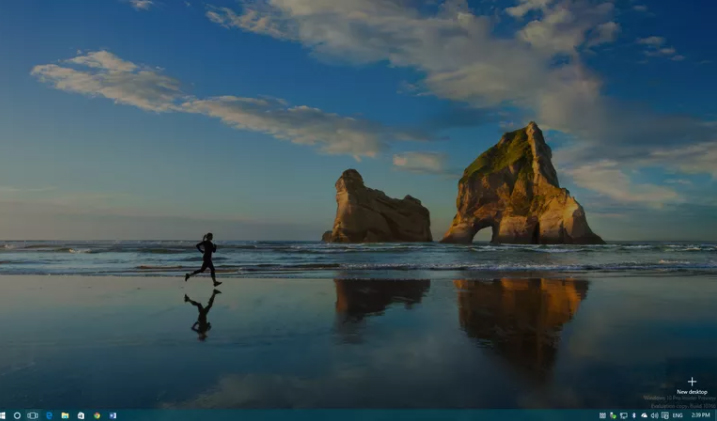
If there are already opened desktop then each new desktop will come up with a plus sign and as a grey tile .
You can follow the above steps to Use Multiple Desktops in Windows by adding a new virtual desktop on windows.
Read Also : Enable / Disable Windows File Protection & Fix Windows File errors
How to Switch between multiple desktops in Windows
So if you want to switch between multiple desktops in Windows then follow the instructions given below –
- Open Task View Pane.
- Point your cursor to the desktop you want to switch to and click it once.
Keyboard shortcut to switch between virtual desktops – ” Windows Key + Ctrl +Left Arrow ” & ” Windows Key + Ctrl + Right Arrow “
Switching from one desktop to another doesn’t happens as rapidly . It takes time of cycling between all opened virtual desktops to switch to the particular one you want . Lack of scrolling function makes it more time consuming to switch between virtual desktops .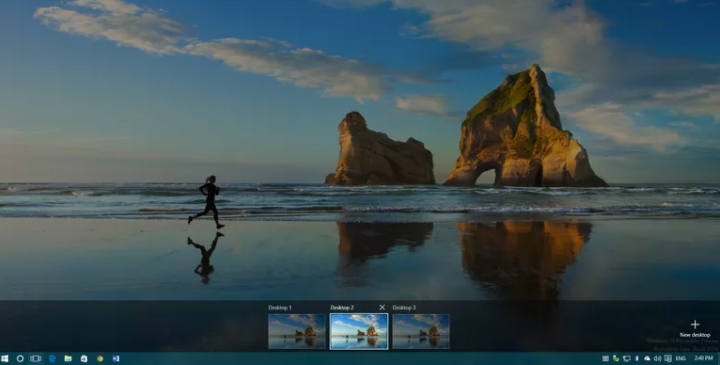
Though you can add infinite number of virtual desktop in Windows 10 , you can see only 9 virtual desktop at a time .
Hopefully upcoming windows 10 version will fix these kind of issues to make multi window user function more hassle free .
Read Also : Connect dual displays / monitors to one computer on Windows & MAC
How to move windows between multiple desktops
So if you want to move a virtual desktop in Windows then follow the instructions given below –
- Open Task View Pane
- Hover the virtual desktop window that you prefer to move .
- You can find that virtual desktop’s window will pop out.
- Now find the virtual desktop window you want to move out.
- “Right Click ” the window you want to move and then select “Move to ” & finally choose the desktop to which you want to move the virtual desktop.
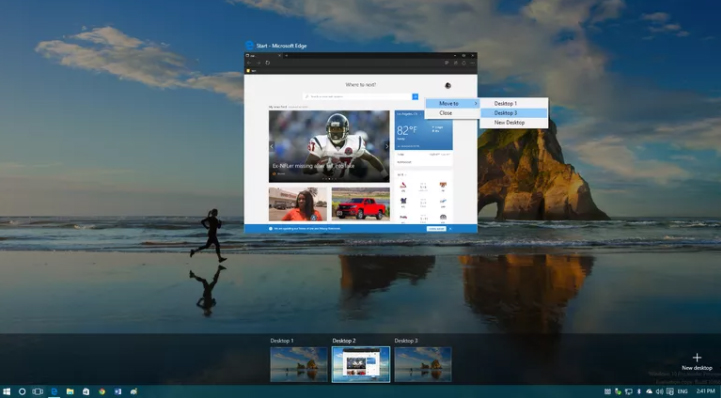
It is just like select and drag .
Read Also : The ultimate guide to make Windows run faster (Boost Computer Speed)
How to close a Virtual Desktop on Windows multiple desktop
So if you close a new virtual desktop in Windows then follow the instructions given below –
- Open Task View Pane
- Hover on the desktop you want to close
- Wait till a small X sign appears on top ride side.
- Click X
- That’s it you have closed the virtual desktop .
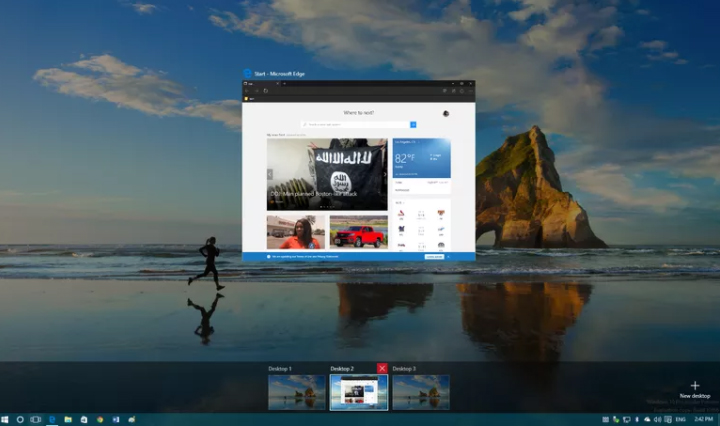
Keyboard shortcut to close between virtual desktops – ” Windows Key + Ctrl + F4 ”
Limitations of Windows Multiple Desktop Function ( Virtual desktop feature )
Though its an amazing thing to Use Multiple Desktops in Windows . There are some drawbacks /limitations of Windows Multiple Desktop Function. They are given as below –
- No provision to drag or drop programs between multiple screens.
- Individual desktops wallpaper cannot be changed
- Jumping to particular desktop window is not possible immediately .
Though this feature has some kind of limitations , it stands out as best features of Windows latest OS . Hope this will help you all to Use Multiple Desktops in Windows . Our next guideline will be how to use virtual desktops on Windows 7 and Windows 8 without updating to Windows 10 .