Tag: Windows 10

  • Enable or Disable Superfetch for Windows

    Enable or Disable Superfetch for Windows

    Well some of you who launched to read this may have fairly an idea about super fetch in windows. Due to some reasons most of you would be looking out for how to enable or Disable Superfetch for Windows . If yes, then this is exclusively written to assist you. First of all for some of the non tech people let me introduce this term elaborately. Those who know please skip to next subheading don’t mind my lecture.

    What is super fetch ?

    Well superfetch technology is part of Window OS right from its vista version. It’s not a big deal to say that superfetch technology is one of the parts in windows memory manager.

    Read Also : The ultimate guide to make Windows run faster (Boost Computer Speed)

    Why Superfetch – Enable superfetch for windows

    Know what ? You should Enable Superfetch for Windows for particular reasons like these we gonna discuss .

    Basically Superfetch has two aims firstly it reduce boot time and secondly to makes sure that the applications that you use the most loads fast and more efficiently. Superfetch adapts your usage patterns.

    Let’s elaborate the first goal that is decreasing boot times. All through the Windows boot process, the same files need to be access at various different period of time. Superfetch also track record on which data along with files need to be accessed and when. It also stores all the track record data inside a trace file. During following boot, this information is used and helps to make the loading data/files faster and well-organized.

    Superfetch performs more tasks to make the boot process more efficient. It also helps to increase the access speed by rearranging the files stored on the disk in order to occupy the contiguous storage locations during the boot process. Basically it performs this as a schedule task on all three day and the some of the specific file layout gets stored in the Windows/Prefetch/Layout.ini.

    Read Also : Record iPhone iPad Screen on Windows & Mac

    Let’s elaborate the second goal that is to make applications open or load faster. Superfetch simply does this by pre-loading the applications that are used mostly by you in your main memory, based on not only the usage patterns but also when one access or use it. For example, if you have the same daily routine of opening the chrome – gmail, SuperFetch will pre-load these into memory in the morning and help to load fast.

    Superfetch for applications basically operates similarly as the boot variant does like, it traces what files are opened by an application during the first ten seconds that the application start up. It helps to load the proper data in memory at right times.

    Read Also : Best Garage Band Alternatives for Windows and Mac

    Superfetch & RAM

    Superfetch really serves great to make you use fullest capacity of your RAM. The high you’re RAM the more you reap super fetch benefit. Superfetch helps in maintains and improves system performance overtime. Superfetch is actually a feature introduced back on the windows vista and it will constantly analyze & adapt the RAM usage pattern and apps you run most often. Superfetch is something that every operating system must have.

    Enable or Disable Superfetch for Windows

    Now lets see the methods to Enable or Disable Superfetch for Windows step by step .

    Enable or Disable Superfetch in Services

    1. Press the Win+R keys to open Run, type services.msc into Run, and click/tap on OK to open Services.
    2. Double click/tap on the Superfetch service.

    Read Also : Create Virtual Desktop without Upgrading to Latest Windows OS

    Now to Enable Superfetch then

    • Firstly click to Change the Start-up type to Automatic.
    • Now click on the Start button and tap ok.
    • And now simply close services.

    One strong reason to disable superfetch for windows is that people experience enormous disk usage due to superfetch so if you want To Disable Superfetch then

    • Click and tap on the stop button appearing on your screen.
    • Now simply click on to Change the Start-up type to Disabled and after that click on
    • And now you can simply close Services.

    Read Also : Best Baby Monitor systems – WiFi & Night Vision Video Monitors

    How to turn on/off Superfetch in Windows 10 ?

    For latest Windows turn on/off superfetch with these steps

    1. Click on Run msc to open the Services Manager.
    2. Now simply Scroll down to Superfetch service.
    3. After that double tap on super fetch service to open Properties box.
    4. Now Click on Stop so as to end the process.
    5. Now simply make the start-up type Disabled by simply clicking on Apply.
    6. You can exit the Services Manager once you click to ok.
    7. You may have to restart your Windows 10 PC to end the process

    So we hope you guys found it useful either to enable windows superfetch or to disable windows superfetch technology .
  • Use Multiple Desktops in Windows ( Virtual Desktop Feature )

    Use Multiple Desktops in Windows ( Virtual Desktop Feature )

    Microsoft Windows 10 new feature multiple desktop or Virtual Desktop feature is drawing more attention . Earlier we have given the ways to enable Virtual desktop feature with Alt + Tab . Here we will discuss about how to  Use Multiple Desktops in Windows ( Virtual Desktop Feature ) . We will discuss three things under this head like – how to add a virtual desktop in Windows , how to switch between multiple desktops in Windows  and finally how you can move windows between multiple desktops.

    Use Multiple Desktops in Windows ( Virtual Desktop Feature )

    In Latest Windows OS you can enjoy the privilege to use as many as Virtual desktops you want to use . The Task View Pane makes it more easy and swift for the Windows 10 users.

    How to Add a Virtual desktop in Windows

    So if you want to add new virtual desktop in Windows then follow the instructions given below –

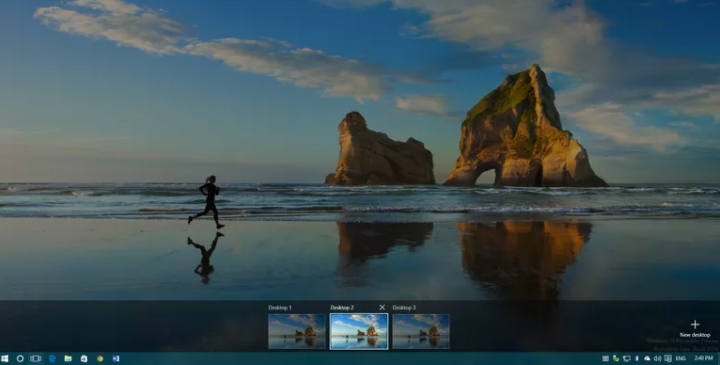
    1. From Taskbar , click on the Task view button to open new Task View Pane.

    Keyboard shortcut to open new Task View Pane – ” Windows Key + Tab “.

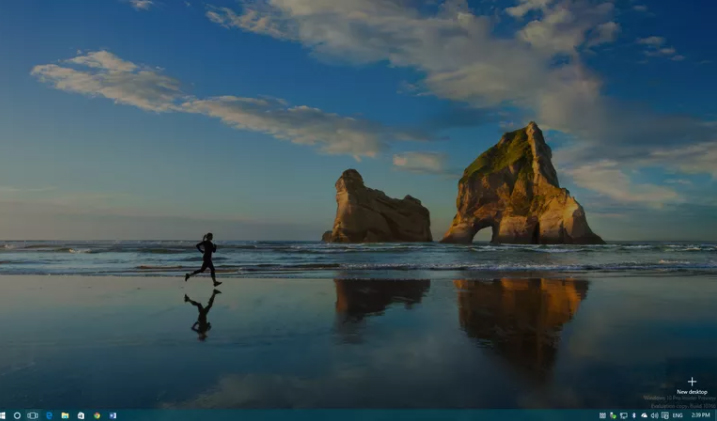
    2. Now Click – New Desktop in the Task View Pane . This will Add a Virtual desktop in Windows

    Keyboard shortcut to add new desktop  – ” Windows Key + Ctrl +D “.

    If there are already opened desktop then each new desktop will come up with a plus sign and as a grey tile .

    You can follow the above steps to Use Multiple Desktops in Windows by adding a new virtual desktop on windows.

    Read Also : Enable / Disable Windows File Protection & Fix Windows File errors

     How to Switch between multiple desktops in Windows

    So if you want to switch between multiple desktops in Windows then follow the instructions given below –

    1. Open Task View Pane.
    2. Point your cursor to the desktop you want to switch to and click it once.

    Keyboard shortcut to switch between virtual desktops  – ” Windows Key + Ctrl +Left Arrow ” & ” Windows Key + Ctrl + Right Arrow “

    Switching from one desktop to another doesn’t happens as rapidly . It takes time of cycling between all opened virtual desktops to switch to the particular one you want .  Lack of scrolling function makes it more time consuming to switch between virtual desktops .

    Though you can add infinite number of virtual desktop in Windows 10 , you can see only 9 virtual desktop at a time .

    Hopefully upcoming windows 10 version will fix these kind of issues to make multi window user function more hassle free .

    Read Also : Connect dual displays / monitors to one computer on Windows & MAC

    How to move windows between multiple desktops

    So if you want to move a virtual desktop in Windows then follow the instructions given below –

    1. Open Task View Pane
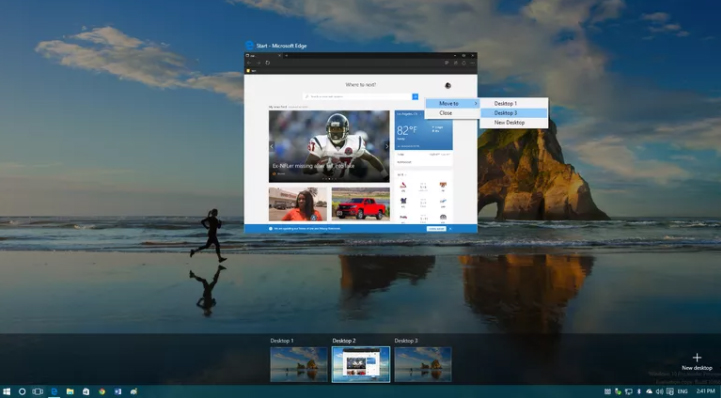
    2. Hover the virtual desktop window that you prefer to move .
    3. You can find that virtual desktop’s window will pop out.
    4. Now find the virtual desktop window you want to move out.
    5. Right Click ” the window you want to move and then select “Move to ” & finally choose the desktop to which you want to move the virtual desktop.

    It is just like select and drag .

    Read Also : The ultimate guide to make Windows run faster (Boost Computer Speed)

    How to close a Virtual Desktop on Windows multiple desktop

    So if you close a new virtual desktop in Windows then follow the instructions given below –

    1. Open Task View Pane
    2. Hover on the desktop you want to close
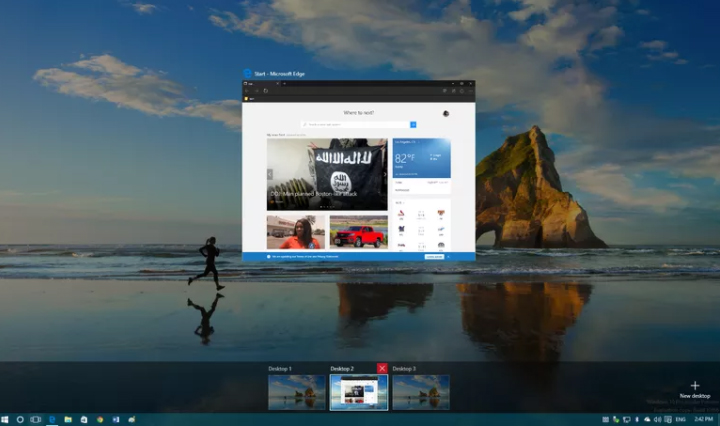
    3. Wait till a small X sign appears on top ride side.
    4. Click X
    5. That’s it you have closed the virtual desktop .

    Keyboard shortcut to close between virtual desktops  – ” Windows Key + Ctrl + F4 ”

    Limitations of Windows Multiple Desktop Function ( Virtual desktop feature )

    Though its an amazing thing to Use Multiple Desktops in Windows . There are some drawbacks /limitations of Windows Multiple Desktop Function. They are given as below –

    • No provision to drag or drop programs between multiple screens.
    • Individual desktops wallpaper cannot be changed
    • Jumping to particular desktop window is not possible immediately .

    Though this feature has some kind of limitations , it stands out as best features of Windows latest OS . Hope this will help you all to Use Multiple Desktops in Windows . Our next guideline will be how to use virtual desktops on Windows 7 and Windows 8 without updating to Windows 10 .

  • Alt + Tab Windows Virtual Desktops / Multiple Desktop Function

    Alt + Tab Windows Virtual Desktops / Multiple Desktop Function

    This article is the perfect guide to help you with steps to enable Alt + Tab Windows Virtual Desktops / Multiple Desktop Function. Microsoft has given Windows , a new user experience with the launch of Windows 10 . Know what is the reason behind this new Windows 10 user experience enhancement ? It is because of Windows Virtual Desktops or Windows Multiple Desktop Function in Windows 10 . Using keyboard you can switch between desktops using Alt + Tab Windows Virtual Desktops .

    Alt + Tab Windows Virtual Desktops / Multiple Desktop Function

     
    Alt+Tab is a popular keyboard shortcut function on Windows . Though earlier it was used in the previous versions to switch between full size windows to desktop . But now on Windows 10 “Alt + Tab” is the shortcut for multiple desktop function or Virtual desktops.

    Windows Virtual Desktops / Multiple Desktop Function

    Do you guys remember about PowerToy ?

    If anyone remembers then they would have indirectly got my point by now . Yes the latest Windows 10 feature Multiple desktop function was implicitly introduced on PowerToy much before .

    Now on Windows 10 its an important mainstream feature to enable Alt + Tab Windows Virtual Desktops .

    Read Also : Connect dual displays / monitors to one computer on Windows & MAC

    What is Virtual Desktop

    In simple words we can say that Virtual Desktop means expanding physical area of the virtual screen by which covering the limitations of the physical desktop screen.

    For Windows XP , PowerToy Virtual Desktop was created by the great Microsoft.

    Read Also : The ultimate guide to make Windows run faster (Boost Computer Speed)

    Windows 10 Multiple Desktop Function / Virtual Assistant

    If you didn’t understood the concept of virtual assistant then let’s make it more precise and simple by clearing Windows 10 Multiple Desktop Function / Virtual Assistant feature.

    Multiple Desktop Function / Virtual Assistant feature on Windows 10 is going to create more space to open new windows where you can toggle between them and do works more effectively.

    How to use /enable the Multiple Desktop Function / Virtual Assistant feature in Windows 10

    As the option to use the Multiple Desktop Function / Virtual Assistant feature in windows 10 is now enabled by default you have to turn it on to use that particular Windows feature .

    Read Also : Record iPhone iPad Screen on Windows & Mac

    Alt+Tab Windows Virtual Desktops / Multiple Desktop Enabled

    Here is the short and sweet keyboard shortcuts Alt + Tab between Multiple Desktop on Windows 10.

    Here is the steps to enable /turn on Alt + Tab Windows Virtual Desktops .

    1. Go to the start menu < Select the ” Settings “
    2. Select “System ” When “Settings” gets opened.
    3. Here find an option called ” Multitasking”
    4. You can find “Virtual Desktops” beneath that there is a drop down ” Pressing Alt+ Tab shows the windows that are opened ” . Click on that and you have to finally select ” All desktops ” option.

    These simple steps helps to enable Virtual desktops on Windows 10 and thus you can use use Alt+tab to switch between multiple desktops that are opened up.