Tag: Use Multiple Desktops in Windows

  • Create Virtual Desktop without Upgrading to Latest Windows OS

    Create Virtual Desktop without Upgrading to Latest Windows OS

    This will help all to Create Virtual Desktop without Upgrading to Latest Windows OS . If you use Windows 7 or Windows 8 but need Windows 10 Virtual desktop Feature on Windows 7/8 then you can get the multiple desktop feature without upgrading to Latest Windows OS .

    Its a known fact that Mac & Linux had the virtual desktop feature from long . Microsoft has launched this officially through Windows 10 .

    Create Virtual Desktop without Upgrading to Latest Windows OS
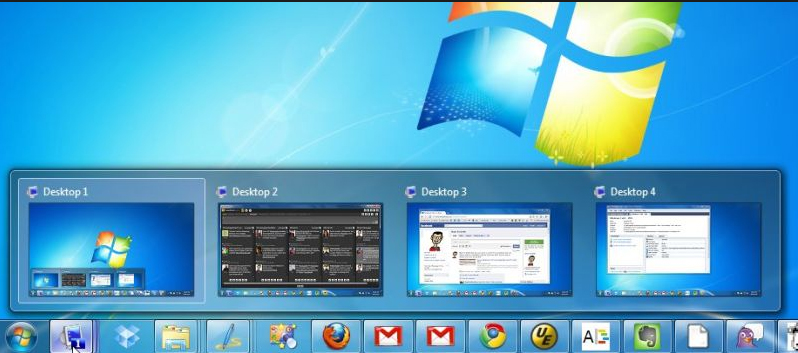
    But do you guys know that Windows already has this Virtual desktop feature but its not enabled in our PC by default.

    So In this article we will guide you to Create Virtual Desktop on Windows 7 & Windows 8 without updating to latest Windows OS.

    Read Also : Use Multiple Desktops in Windows ( Virtual Desktop Feature )

    These days multi tasking has become the need of the hour . So when you are not having multiple monitor then this feature of multiple desktop function is really helpful . This helps you to use multiple virtual desktops on one PC.
    1. Go to Microsoft TechNet site – ( Find link here – https://technet.microsoft.com/en-in ) .
    2. Now from Download you have to download a freeware : Desktops v2.0 Windows Sysinternals.
    3. You can get it downloaded into your PC as a ZIP File.
    4. Now extract the EXE file by opening the ZIP folder.
    5. Now somewhere in your PC on a accessible location like in document stash the EXE file
    6. Now fire up program by double clicking it.
    7. Now run the installation on your Windows.
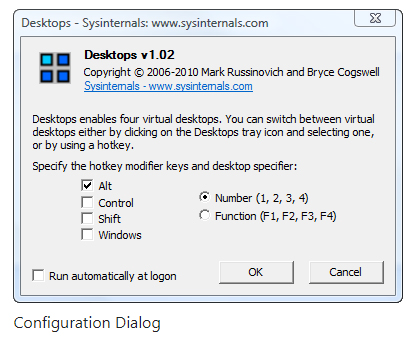
    8. At program startup set hotkeys.

    That’s it , the process of installation is done. You can use this on Windows XP higher versions to use virtual desktops.

    Read Also : Alt + Tab Windows Virtual Desktops / Multiple Desktop Function

    Now you can use virtual desktops in Windows without upgrading to new OS. The entire process of switching between the virtual desktops seems to be slow . But this gives you provision for creating four virtual desktops.

    If you look for some other alternative to Desktops v2.0 Windows Sysinternals then the recommendation is Dexpot . Because Dexpot allows to use multiple desktop function with more added features than Desktops v2.0 .

    Note – Windows Sysinternals is from Microsoft while Dexpot is just a third party app . If you are not using the licensed Windows OS then don’t try to use these methods to use virtual desktops .

    So this will help all the Windows XP higher version users to  Create Virtual Desktop without upgrading to latest Windows OS.
  • Use Multiple Desktops in Windows ( Virtual Desktop Feature )

    Use Multiple Desktops in Windows ( Virtual Desktop Feature )

    Microsoft Windows 10 new feature multiple desktop or Virtual Desktop feature is drawing more attention . Earlier we have given the ways to enable Virtual desktop feature with Alt + Tab . Here we will discuss about how to  Use Multiple Desktops in Windows ( Virtual Desktop Feature ) . We will discuss three things under this head like – how to add a virtual desktop in Windows , how to switch between multiple desktops in Windows  and finally how you can move windows between multiple desktops.

    Use Multiple Desktops in Windows ( Virtual Desktop Feature )

    In Latest Windows OS you can enjoy the privilege to use as many as Virtual desktops you want to use . The Task View Pane makes it more easy and swift for the Windows 10 users.

    How to Add a Virtual desktop in Windows

    So if you want to add new virtual desktop in Windows then follow the instructions given below –

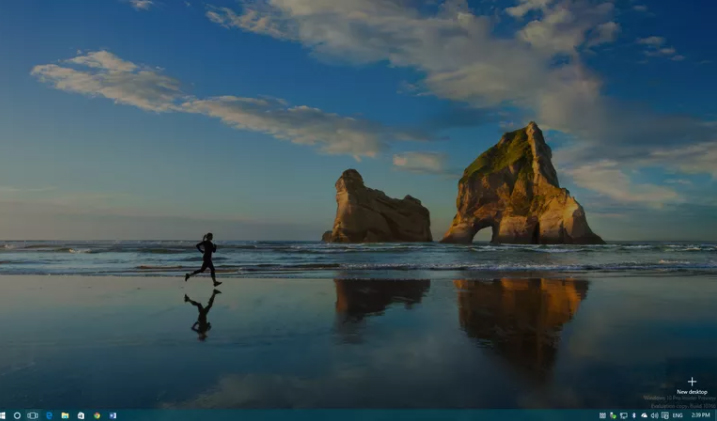
    1. From Taskbar , click on the Task view button to open new Task View Pane.

    Keyboard shortcut to open new Task View Pane – ” Windows Key + Tab “.

    2. Now Click – New Desktop in the Task View Pane . This will Add a Virtual desktop in Windows

    Keyboard shortcut to add new desktop  – ” Windows Key + Ctrl +D “.

    If there are already opened desktop then each new desktop will come up with a plus sign and as a grey tile .

    You can follow the above steps to Use Multiple Desktops in Windows by adding a new virtual desktop on windows.

    Read Also : Enable / Disable Windows File Protection & Fix Windows File errors

     How to Switch between multiple desktops in Windows

    So if you want to switch between multiple desktops in Windows then follow the instructions given below –

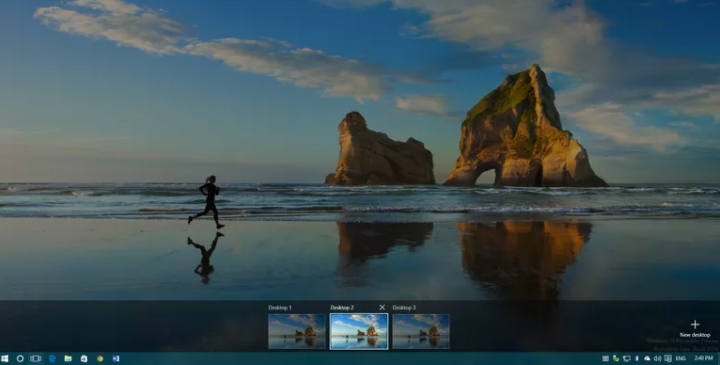
    1. Open Task View Pane.
    2. Point your cursor to the desktop you want to switch to and click it once.

    Keyboard shortcut to switch between virtual desktops  – ” Windows Key + Ctrl +Left Arrow ” & ” Windows Key + Ctrl + Right Arrow “

    Switching from one desktop to another doesn’t happens as rapidly . It takes time of cycling between all opened virtual desktops to switch to the particular one you want .  Lack of scrolling function makes it more time consuming to switch between virtual desktops .

    Though you can add infinite number of virtual desktop in Windows 10 , you can see only 9 virtual desktop at a time .

    Hopefully upcoming windows 10 version will fix these kind of issues to make multi window user function more hassle free .

    Read Also : Connect dual displays / monitors to one computer on Windows & MAC

    How to move windows between multiple desktops

    So if you want to move a virtual desktop in Windows then follow the instructions given below –

    1. Open Task View Pane
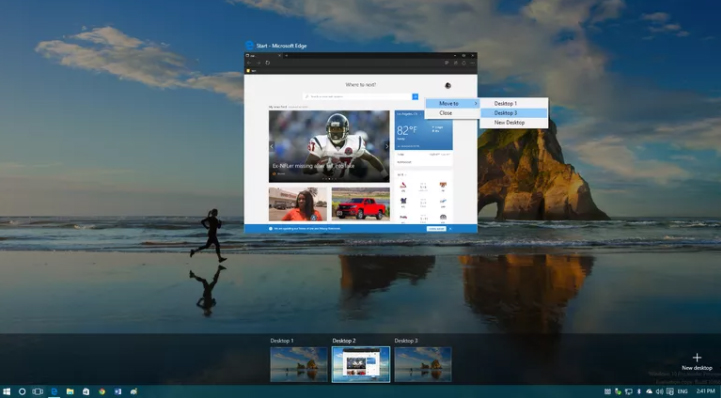
    2. Hover the virtual desktop window that you prefer to move .
    3. You can find that virtual desktop’s window will pop out.
    4. Now find the virtual desktop window you want to move out.
    5. Right Click ” the window you want to move and then select “Move to ” & finally choose the desktop to which you want to move the virtual desktop.

    It is just like select and drag .

    Read Also : The ultimate guide to make Windows run faster (Boost Computer Speed)

    How to close a Virtual Desktop on Windows multiple desktop

    So if you close a new virtual desktop in Windows then follow the instructions given below –

    1. Open Task View Pane
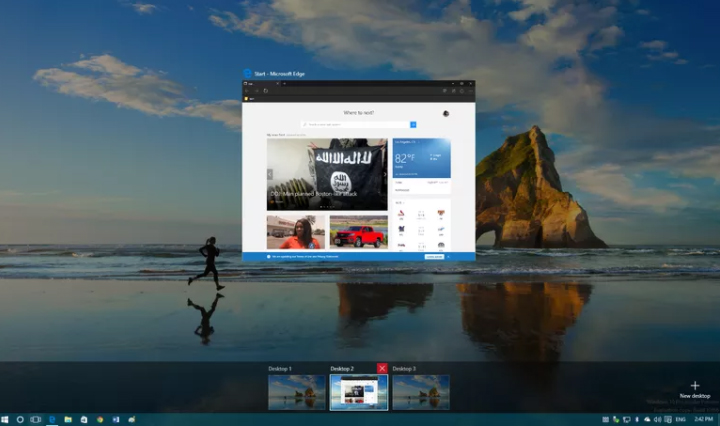
    2. Hover on the desktop you want to close
    3. Wait till a small X sign appears on top ride side.
    4. Click X
    5. That’s it you have closed the virtual desktop .

    Keyboard shortcut to close between virtual desktops  – ” Windows Key + Ctrl + F4 ”

    Limitations of Windows Multiple Desktop Function ( Virtual desktop feature )

    Though its an amazing thing to Use Multiple Desktops in Windows . There are some drawbacks /limitations of Windows Multiple Desktop Function. They are given as below –

    • No provision to drag or drop programs between multiple screens.
    • Individual desktops wallpaper cannot be changed
    • Jumping to particular desktop window is not possible immediately .

    Though this feature has some kind of limitations , it stands out as best features of Windows latest OS . Hope this will help you all to Use Multiple Desktops in Windows . Our next guideline will be how to use virtual desktops on Windows 7 and Windows 8 without updating to Windows 10 .