Tag: tech assistance

  • Use Old Reddit Layout – How to opt out New Reddit Design

    Use Old Reddit Layout – How to opt out New Reddit Design

    Everyone would be aware that Reddit has come up with their new design ever since its launch , this is the first redesign . So as there is mixed response to the new Reddit design from Reddit lovers around the globe. Some of the old Reddit users find it annoying on how to use the latest Reddit redesign . If you are one such person , who is madly in love with the old Reddit Layout here is the guidance on how to opt out New Reddit design and Use Old Reddit Layout again.

    There are so many changes in Reddit Old and Reddit New features . You can find some features of old Reddit is missing , so if you want to use old Reddit with all its feature here is the steps you should follow. Likewise for the new Reddit design lovers you can try out the Reddit Night mode .If you have opted to use old Reddit then you will miss this Night mode feature .

    How to Use Old Reddit Layout and opt out of New Reddit Design

    We believe that now you are on the new Reddit layout and looking forward to use old Reddit design again.

    Now carefully understand the simple steps to switch between new Reddit to Old Reddit –

    • First Go to Reddit website and use your Reddit username and password to Log in to your Reddit Account.
    • Now you are on its New layout , we assume .
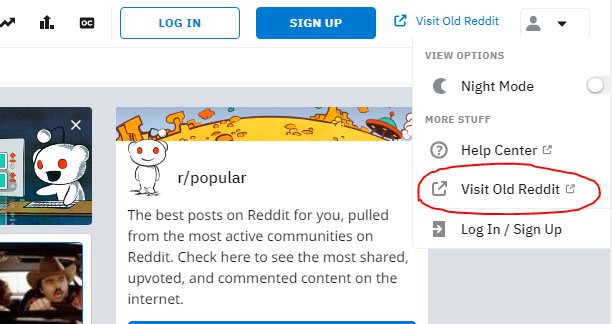
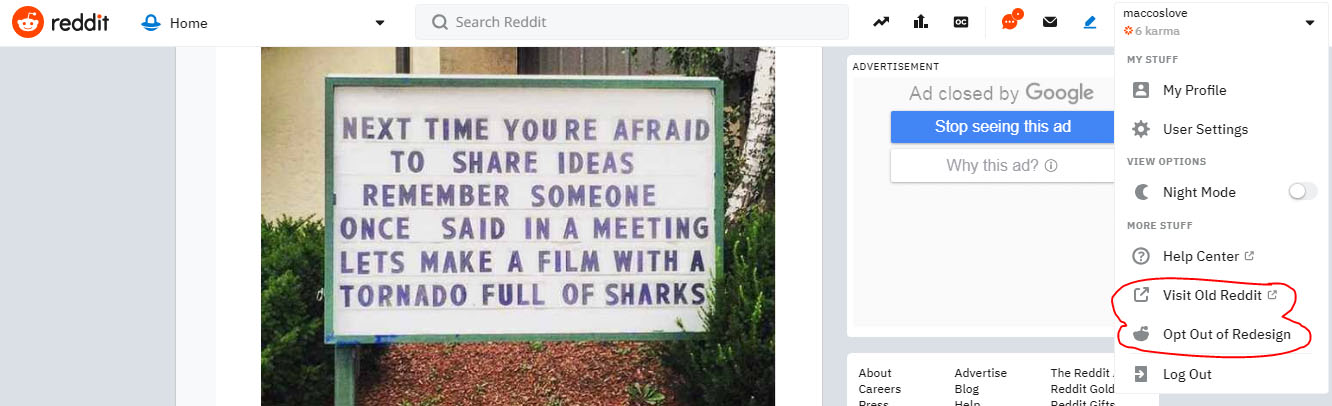
    • Look at the right side top corner , where you can find an option with a link named Visit Old Reddit

    • Just click on that , you will be directed to old Reddit design .

    ( or )

    Suppose you couldn’t find that option then try this method if you Cannot switch back to old Reddit –

    • Login to your Reddit profile
    • Click on the Reddit profile icon of yours on the right end upper corner .
    • You can find option Visit old Reddit

    • Just click on that , you are done you will be able to access old Reddit again.

    ( or )

    We started the instructions with an assumption that you are on new reddit design , supose you are still using the old Reddit and sometimes your old Reddit is opening as New Reddit design then you have to change certain settings in your Reddit Account .

    • Go to your Reddit Profile
    • On the right end upper corner you get an option preferences 
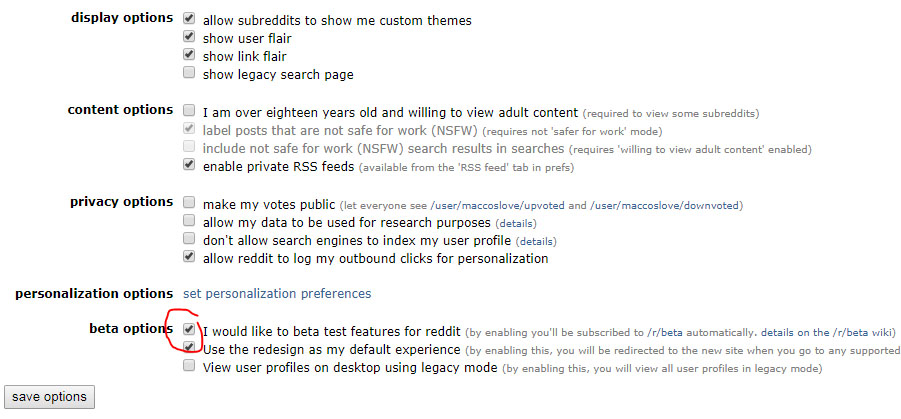
    • Click on that and on the settings page scroll down remove the tick marks for ” use redesign as default experience ” and for “world like to test out beta features “

    • Just save the preferences

    You are done with it now you will be able to use old Reddit for all Reddit websites and apps.

  • Enable Reddit Dark Mode : How to turn on Reddit Dark Theme

    Enable Reddit Dark Mode : How to turn on Reddit Dark Theme

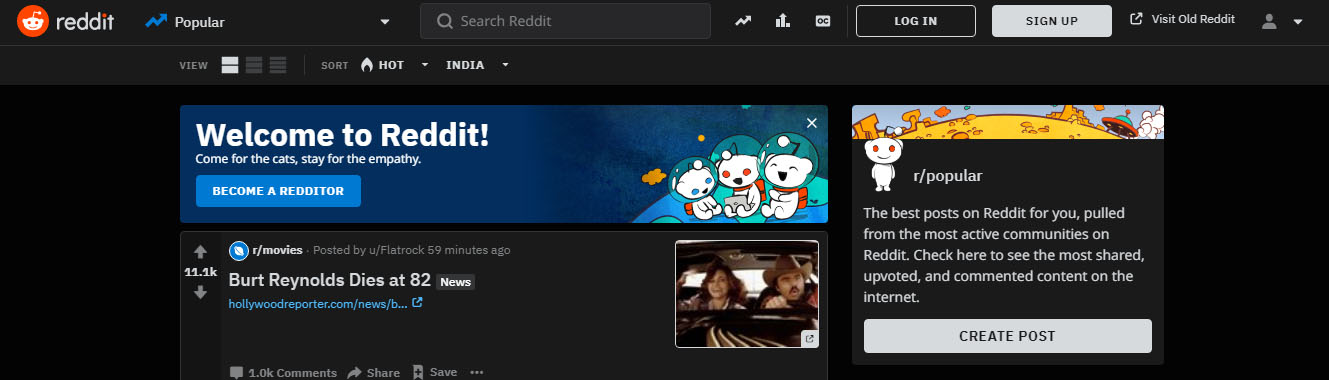
    If you are a Reddit lover , who always wanted to use Reddit dark theme , then you are at the right place . Here we will tell you how to enable Reddit dark mode .

    So let me tell you that switching to Reddit dark theme / Reddit night mode is not a tech stuff as you have seen in the YouTube android night mode  .

    How to enable Enable Reddit Dark Mode

    As officially announced Reddit night mode theme is now open to the Reddit users around the globe. You can use this dark theme on both the Reddit desktop version as well as on the Reddit mobile app.

    Inorder to enable Reddit dark mode or Reddit dark theme you should be using the latest redesigned Reddit version . You may be aware that Reddit beta design is already out , if you haven’t taken a look to try new Reddit then you must do that first . Even though the new Reddit design is cool , some of the users prefer it in the old look .

    Don’t worry you can still use the old Reddit layout . But you cannot use Reddit dark mode with the old Reddit design. So in order to enable Reddit dark mode you must enable Reddit redesign .

    We have already discussed about how to switch back to old Reddit layout .

    Enable Reddit Dark Mode : How to turn on Reddit Dark Theme

    So now let’s learn how to enable Reddit Dark mode or Reddit Nigh mode . It is very easy to turn on Reddit Night Mode , not like the complex steps encountered with YouTube Dark mode on Android .

    Let us dive deep into the process of Turning on Reddit Night mode  –

    • In order to enable Reddit Dark mode you have to switch to New Reddit design . If you don’t know to switch to Reddit New layout , you can read it in our previous post or click on the enable Reddit redesign link inside the content.

    Assuming you are using the latest Reddit redesign, now follow the steps –

    • Log in to Reddit using your account username and Reddit password .
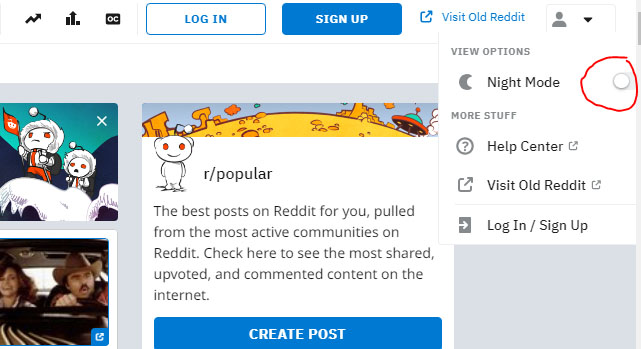
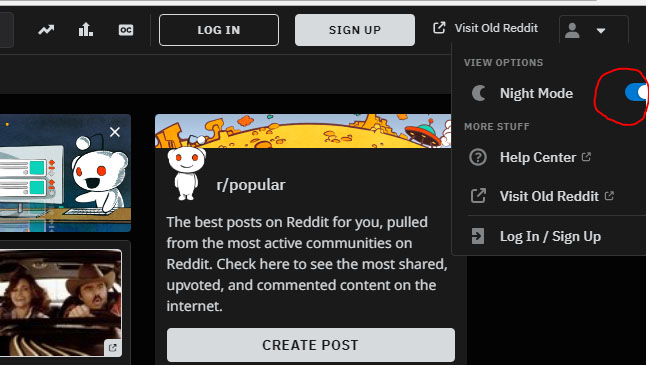
    • Now on the profile section , just click . You can now see View Option
    • Under the View Option you can find out the Night mode option with a toggle button
    • Toggle Night mode button on

    That’s it you are done with the process and successfully you can View Reddit Night mode now .

    In order to Disable Reddit Night Mode or to turn of Reddit Dark mode all you have to do is follow all the above said steps and the last step you have to toggle off Night mode in Reddit .

    You might be now comfortable about How to disable / Enable Reddit Dark mode .

  • Dropbox Business vs Dropbox Personal – Better Choice

    Dropbox Business vs Dropbox Personal – Better Choice

    Dropbox , is not new to many of the internet users. Dropbox is one of the popular online file hosting and online backup services. Dropbox being very popular has different versions and pro service accounts . So here we will make a short comparison between Dropbox Business vs Dropbox Personal. So we can learn the features of Dropbox Personal as well as Dropbox business accounts.

    What is Dropbox ?

    Before proceeding, we must understand what is Dropbox? In simple words Dropbox is a modern service that is meant to lessen the burden to manage files on electronic devices. It can be used on PC, laptops as well as on mobile as an app.

    When you use Dropbox for storing the files it becomes very easy to sync them on all devices consequently the accessibility to the files improve. While using the Dropbox , one can do many numbers of things such as one can share big files with anyone, can create their own Dropbox paper, can save and access files from anywhere and more.

    Dropbox is a kind of cloud storage assistance or online backup service that often used by people for personal use, for professional use and for business use. Dropbox offers two kinds of account that are Dropbox business, Dropbox professional and Dropbox personal. All of these accounts are designed to suit the different needs of its user.

    Here is the comparison between the two accounts or packages offered by Dropbox- Dropbox business Vs Dropbox personal.

    Dropbox Business

    Dropbox business is a Dropbox account mostly used by companies to share files over a large number of people. It is one of the popular ways to securely sharing of files with a big team.  The thing that makes Dropbox Business version different from Dropbox is that it is used to store and share one’s files online and sync those files on all the devices one use whereas , Dropbox Business is a package that is offered by Dropbox to share and store a file with a big group.

    To use Dropbox Business you just have to take the subscription and you can also use 30 days trial option before taking the subscription. It supports Mac, Android, Linux, Windows, iPhone/iPad etc.  It can be used by 3 users to small, medium, and large businesses or organizations. Dropbox business standard subscription starts from Standard  $12.50 per month besides standard subscription there are two more subscription plans are available one is advance subscription and other is enterprise subscription user can choose according to their need.Dropbox business features are detailed in the following section that is Dropbox business Vs Dropbox personal.

    Dropbox personal accounts are for individual users to be able to share securely with others. It is a place where they can store their files like photos, videos, project work and more and can access them from any device. Dropbox personal is very easy and simple to use, it keeps the files safe and secure. Dropbox personal offers three kinds of plans which are –

    Dropbox Personal Basic that is free of cost and offers 2GB space, personal plus it offers 1TB space

    Dropbox personal professional it offers 2TB space it also offers a feature such as smart sync.

    Users who want to use advanced features within Dropbox personal account and not in Dropbox Business they can take subscription of Dropbox professional so we can say that Dropbox professional is the updated version of Dropbox plus with some features of Dropbox business. More details about Dropbox Personal is provided in the downward section that is Dropbox business Vs Dropbox personal.

    Dropbox Business Vs Dropbox Personal

    Now moving on to the cross comparison of Dropbox Personal Vs Dropbox Business accounts .

    • The main differences between Dropbox for Business and our individual accounts are collaboration, security and scale.
    • Dropbox Business is used by a big organization or business to share and manage their files, In this each user will have a separate account, and one user will have the Administrator function to add members and control the security and sharing of the data in Dropbox whereas Dropbox personal is used by individuals and Dropbox Professional is used by the people who use it for their professional need but not in a team such as freelancer.
    • Dropbox Business start with a minimum of 3 users and an unlimited number of users can use it whereas Dropbox personal or professional is used only by one user.

    Read Also : Best Note taking apps for PC & Smartphone

    Read Also : Best free office software for Computer & Smartphone

    Read Also : Zipped File Extraction Error Fixing “An unexpected error is keeping you from copying file” error

    Read Also : Best File compression Tools for Computer & Smartphone

    Dropbox Personal

    • Dropbox business provides features such as unlimited space, sharing control, SSL encryption and 256-bit AES,  sharing permissions, junk cleaning, file tracking, live customer support and more whereas Dropbox personal  provides features such as file sharing and storing, file recovery and back-up, download, preview, anywhere accessibility, automatic syncing option, automatic update, file management, large file sharing and more.
    • Dropbox Business offers three plans that are – Dropbox Standard ($ 12.50 per month) it offers 3TB of space, Dropbox Advanced plan ($20 per month) and Dropbox Enterprise plan they both offer as much space the user need whereas Dropbox Personal also offers three plans that are Basic for which you don’t have to pay anything, Plus plan it costs $8.25 per month and Professional plan it costs $ 16.58 per month.

    Conclusion

    Both Dropbox business and Dropbox personal are unique in their own way. You can choose according to your need if you need an account to share files with your team you can opt for Dropbox business whereas if you want to use Dropbox only for personal need you can opt for Dropbox basic or Dropbox plus and if you want to use the personal account for professional then you can opt for Dropbox professional.

  • New Reddit Design – Switch from Classic Reddit to Reddit Redesign

    New Reddit Design – Switch from Classic Reddit to Reddit Redesign

    Reddit being one of the favourite spot for all the internet users to get every latest updates in the globe . This American news aggregator website has finally come up with a new design , a new Reddit layout is finally here . After a decade the New Reddit Design has finally happened . Even though the Reddit beta design was not open to all the Reddit users , now the new Reddit design is available to all the Reddit users .

    So here will learn how to Switch from Classic Reddit to New Reddit Design , if you have got bored from using the old Reddit theme you can use these steps to enable Reddit redesign .

    Read Also : Pinterest Tips and Tricks to use Pinterest like a Pro

    Read Also : Alexa Tips, Tricks and Commands

    Reddit New Design – Highlights of New Reddit Design 

    New Reddit layout is entirely a different visual retreat to all the new age users who hated the old Reddit theme . You can find some of the important Reddit features in new Reddit redesign theme . Some of the highlight features to be noticed are –

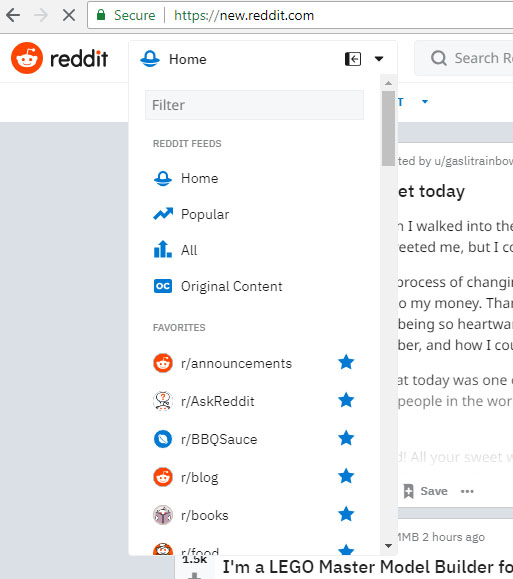
    • Menu button replaced the navigation bar from the old Reddit . This is just like the most of the popular website theme available online . The Reddit Menu option in the left corner will give links to the following such as Reddit feeds , Reddit favourite subreddits , subscriptions , user profiles , messages etc .

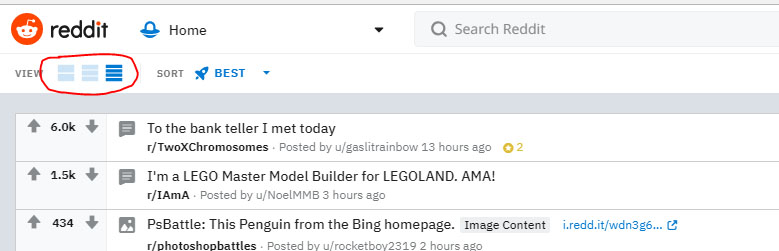
    • The second major highlight feature of new Reddit theme is you can view the website in three different modes – Reddit Card View , Reddit Classic View and finally Reddit Compact view .

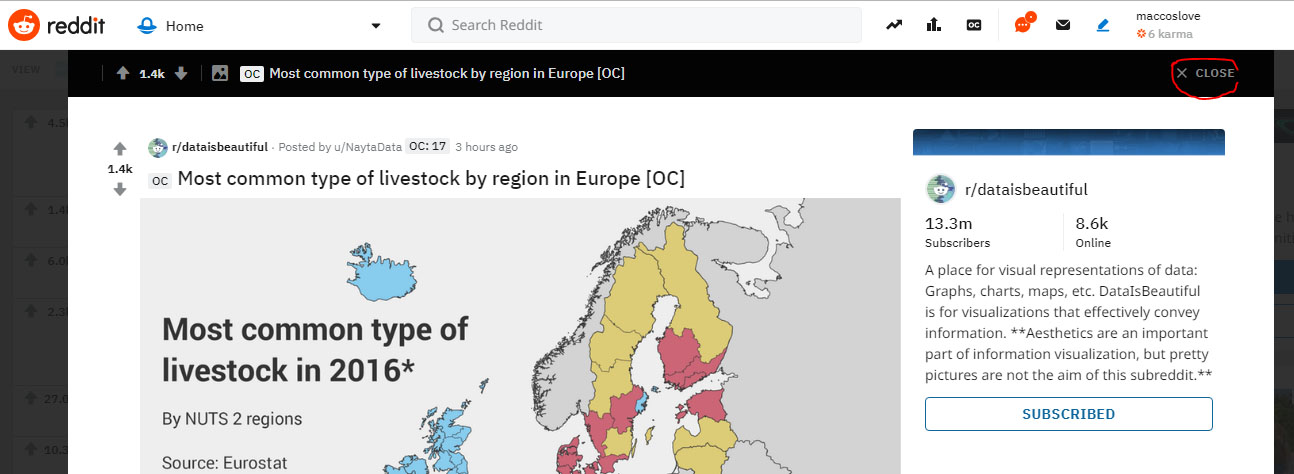
    • You can read any Reddit Posts and stay on the same Reddit Page now . This is because when you open any Reddit posts that will open up in a box with an option to close . So after reading when you close the post , you can still view the same page . Look at the image to understand better .

    • Since the new Reddit design is not much welcomed by the old Reddit users , they can opt for the choice to use the Old Reddit theme. They can Visit Old Reddit with just a click and even Opt out of Redesign in Reddit to view the old Reddit theme .

    So these are the important changes in Reddit new version .

    Note – You can visit Reddit old website through Reddit Old link directly and you can switch to Reddit New Design by directly accessing Reddit New Link .

    New Reddit Design – How to Switch From Old Reddit Layout to New Reddit Layout 

    You can easily switch from old Reddit website to new Reddit website layout . Follow the given simple steps to access Reddit New Redesign and its features .

    1 . Go to Reddit website and Login to Reddit with your Reddit username and password.

     2 . Now you can see the same old boring Reddit theme which you have been using since a decade . Now near to your Reddit username there is an option named preferences , just click on that .

    3 . Now you will be taken to the Reddit Settings page , scroll down you can find beta options . Now in the beta option click tick mark for the first two options in order to use the Reddit new theme .

    That’s it you will be directed to the New Reddit Website theme .

    You can directly visit the new Reddit with the url as mentioned in this article’s note . Also there is one more easy option to access new Reddit site .

    Soon after Logging In to Reddit instead of checking the preferences , you can click on the Visit New Reddit option which can be found on the upper left corner of the Reddit Old site .

    So that’s all this is how you can use New Reddit version easily .

  • YouTube Dark Mode Android Version Without Rooting

    YouTube Dark Mode Android Version Without Rooting

    For all the android YouTube app lovers who are equal lovers of dark mode apps / night mode apps . We know that one of the eagerly waiting Android update for YouTube is to use the night mode . So don’t wait , here we have discovered something exciting which will allow you to use / enable YouTube dark mode on Android without rooting.

    I guess all our readers know how to enable YouTube Dark mode on Windows / Mac . Even if you don’t know , then we are here to help you with . Moving on to YouTube Dark Mode Android Version Without Rooting let’s learn how to enable YouTube night mode on Android phones.

    YouTube Dark Mode Android Version Without Rooting / Modifying APK 

    If you want to use YouTube dark mode on Android without rooting your android device or even without modifying your Android Package Kit (APK) then read the steps and instructions given below very carefully .

    As per the reports that are rolling out on the web world , some of the android device users can use YouTube Dark mode for android with some simple settings change .

    Read Also : Streaming Services – YouTube Vs Netflix Vs Prime Vs Hulu Vs Sling Vs Directv Now etc

    Enable YouTube dark mode via Android Phone Settings 

    Follow these simple steps to turn on Android YouTube dark mode easily –

    • Go to YouTube App on your Android phone (make sure your YouTube app is updated )
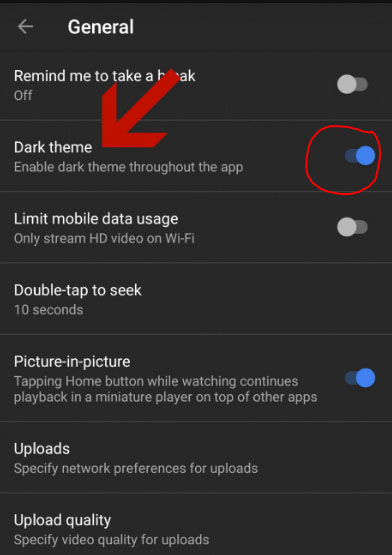
    • Go to your profile icon and launch into YouTube General Settings
    • You can find an option called Enable Dark Theme 
    • Toggle it on so that the dark theme works for the entire YouTube app till you disable dark theme for YouTube app.
    • In-order to turn off YouTube dark mode  toggle off the enable dark theme option

    So that’s it !!!

    If this doesn’t worked out for you then try this way (not too techy but not as easy as above ). Don’t worry let me try to make it more simple in my explanation.

    Read Also : Best Torrent Managers for Computer & Smartphone

    Enable YouTube dark mode YouTube ADB backup

    So you may be aware that the feature of YouTube dark theme mode is based on the already defined preference on the youtube.xml file . This is because XML files are the place where the app settings are set to the preference . To change this manually you have to do rooting . But there is a way to change XML file app settings without rooting , that is with the help of a ADB backup .So this involves a tool for assistance .

    • First setup an ADB (Android Debug Bridge ) access for your Android phone . This helps you to use so many debugging features .
    • Keep your YouTube app on android updated to the latest version from Google play store.
    • Now from AndroidFileHost download the zip file called YouTubeDarkTheme_XDA.zip
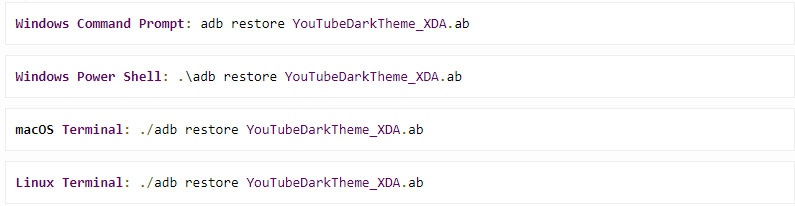
    • Open up command prompt window in ADB located directory .
    • Now depending upon the type of the Operating System enter the command .
    • You can read a message like this “Now unlock your device and confirm restore option”
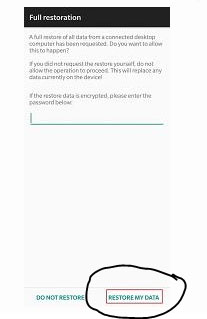
    • Now a Full restoration window appears and you be asked to enter a password.
    • Don’t give any password .
    • Just click on the Restore my data option
    • That’s it , the full restoration window disappears . If you are already in YouTube app you can find that it is working in dark mode . Else go to YouTube and enjoy YouTube Android dark theme

    Benefits of using YouTube Dark mode 

    YouTube has recorded a higher number of users around the world , also the number of android users are more high when you take in account of the ratio of Android Vs iPhone users statistics .Watching videos longer consumes your battery charge to a wide extend . So using dark mode can save your Battery life more . That’s why dark mode for YouTube app is highly beneficial and preferred .

    So we hope this tutorial on how to enable YouTube Dark Mode Android Version Without Rooting wa useful to all YouTube Dark theme Android lovers

  • How to Reset Instagram Password – Top 4 Methods

    How to Reset Instagram Password – Top 4 Methods

    We have discussed how to change your Instagram password when you remember them , but most cases we are forgetful people. So what if you forgot your Instagram password ? Answer is quite simple you should reset Instagram Password . So let’s learn more about How to Reset Instagram Password .

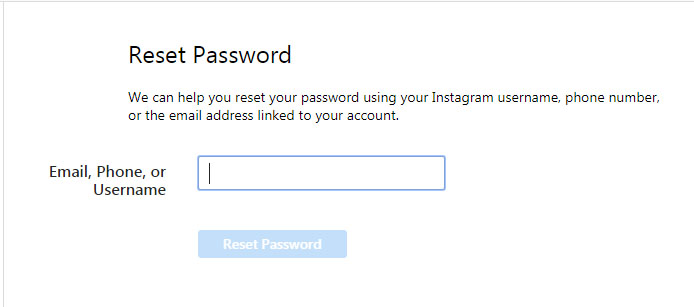
    Basically there are 4 ways to Reset Instagram Password . It can be done as usual using your Instagram username , the process is quite similar like that of how you reset Facebook password when you forget them.

    How to Reset Instagram Password – Top 4 Methods

    If you tend to forgot your password what can you do ? I know you can’t afford to lose your Instagram account that you build up very well. So let’s discover the 4 methods to reset your Instagram password .

    Resetting Password is different from how you Change Instagram Password .

    How to Reset Instagram Password via Instagram Username

    If you forget your Instagram Password and do remember your Instagram username then you can reset your Instagram password easily –

    • Tap the Instagram app icon on your phone with the Instagram logo.
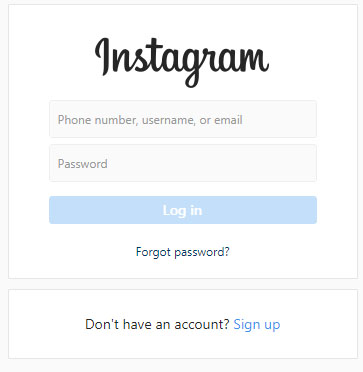
    • Now on your login section , you can find an option Get help Signing In
    • Click on that
    • Then you get option to enter your username .
    • Now you will be asked to choose either Send email or log in Facebook option.
    • Click on send email option where you get a login link to reset password on your Instagram registered email id .
    • Go to email and open the mail that you received from Instagram .
    • Click on the reset link and tap the reset your Instagram Password option
    • Now enter a new password and verify it y typing it once more then reset it .
    • That’s it you are all done with the process .

    Read Also : Instagram tips and tricks to be a Pro Instagrammer

    How to Reset Instagram Password via Facebook

    • Go to Instagram app by tapping on that Instagram icon your phone
    • Now go to the login page where you can find an option Get help signing In
    • Now click on the Log In with Facebook option (To get this done you must have already established link between your Facebook account and Instagram account )
    • Now you can proceed with resetting password .

    So you must know to Link Instagram Account with Facebook Account.

    How to Reset Instagram Password via Phone Number

    • As the above said process Tap on the app- login page-Get help Signing in
    • Click on send SMS option
    • Enter your phone number registered with Instagram Profile.
    • Tap send login link
    • Now go to your phone’s message inbox you can find Instagram’s SMS with a link to reset Instagram password.
    • Click on the link that will open up a new window where you can enter password twice and reset your old password

    How to Reset Instagram Password via Email Id

    Now this doesn’t really a great explanation because the steps are almost . But still let me explain it in short. In-order to reset Instagram password using email id you have to follow these steps –

    • Launch to the Instagram app – Go to login page
    • Click on Get help signing in / Forgot Password just below the Instagram Log In option
    • Now choose the mailing option an enter your registered email id
    • Go to mail box you would have received the Password reset link from Instagram .
    • Type a new password and re-type it to verify it gain.
    • You are done.

    So that’s it using these instruction you can reset a new password when you Forgot Password for Instagram.

  • How to Change Instagram Password

    How to Change Instagram Password

    Hey Guys , on our Instagram series of post you would be learning so many Instagram tips , tricks and shortcuts like never before . Hoping to give you lot more on the same . So for all Instagram Account holders you might at least once faced a need to Change Instagram Password . So here are the steps given to change your Instagram Password .

    How to Change Instagram Password 

    You can change Instagram password easily and the very common way is to change Instagram password with username . So now let’s take a look into the step by step process on How to change Instagram password using all these methods .

    Remember If you remember your Instagram password you can change that .

    Why you should Change Instagram Password ?

    You might be aware that the chances of getting your Instagram account hacked is very high . It purely depends upon your profile strength and your Instagram followers number . If you are an Instagram Celebrity or a Viral Instagrammer then make sure you don’t lose your Instagram account because of a weak password . Never keep your passwords as easy to guess ones.

    What if I forgot my Instagram Password – Then you have to Reset Instagram password , for which there are 4 different methods to do it.

    Note – Here we have mentioned about how to change password when you actually remember your old Instagram Password.

    How to change Instagram password via Instagram App

    You can change your Instagram password through your smartphone . You will be having the Instagram app downloaded on your Smartphone .

    • Just tap on the Instagram app first .
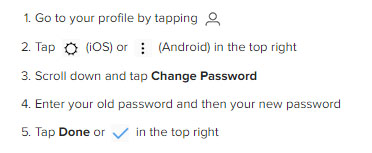
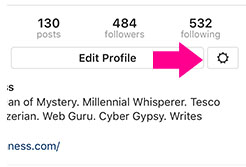
    • Go to your Instagram Profile and tap on the settings icon which is at the right corner near Edit profile option.
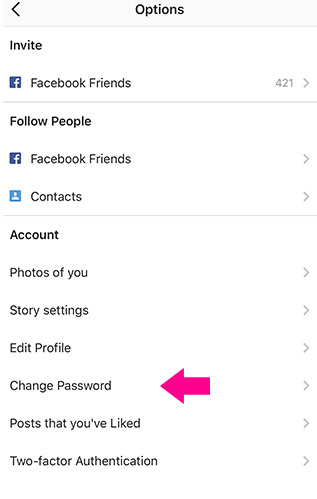
    • Now on the Options page , you can find the Account section with an option called Change Password .
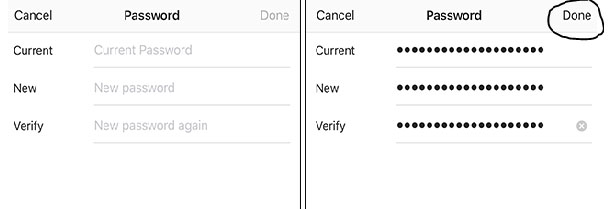
    • Now Password page opens up with requesting Old and new passwords .
    • Since you know your old password type that and enter your new password and repeat the same once again to Verify it .
    • Click Done

    That’s it you have successfully changed your Instagram password .

    How to change Instagram password via Desktop

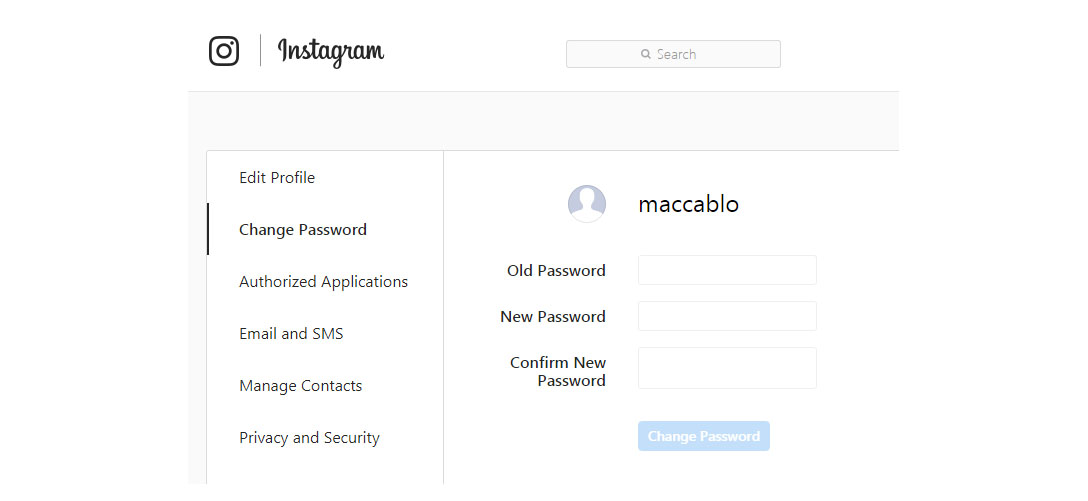
    So if you don’t have access to your smartphone Instagram app still you can change your instagram password via desktop/web .

    Read Also : Instagram for PC – How to use Instagram for Desktop ?

    How to Make a Strong Instagram Password 

    Make sure you are keeping a long password but not a same password for all your accounts . Use alpha-numeric-symbolic combination passwords . Don’t make it as a series like 123.. abc.. keep your each digit of password as far away combination .A robust password must be something that you alone know. Never make anything that’s your favourite as your password.You can find out some very rarely used idiomatic phrases or even misspell your favourite tough word and combine it with numerical and symbolic combination.

    You must be aware about how to secure Instagram account that you own . And make sure that you are changing your passwords regularly . Also securing your email address is also important enough to prevent and protect your Instagram account from Black hatters of the web world . In case you feel your account is still not safe , then simply turn on two factor authentication for Instagram account . A double lock is always better than a single lock Guys !

    Read Also : Contact Instagram Help Center Support for Any Assistance

    To those who find that it was a common stuff that didn’t needed an attention to be written then sorry guys its for those who are not aware of these . You may be smart but everyone won’t be as smart as You 🙂

  • Spotify Tips and Tricks to Enjoy Spotify Subscription More

    Spotify Tips and Tricks to Enjoy Spotify Subscription More

    Spotify is one of the trending in chart , so let’s discover some of the exciting Spotify features , Spotify Tips and Tricks to Enjoy Spotify Subscription More .

    What is Spotify 

    Spotify, many of you must have heard this name as it is one of the leading platforms for music streaming online. Spotify was founded in Sweden in 2008. As per May 2018, it had as huge as 175 million active monthly subscribers.

    Spotify has come a long way from Sweden now has expanded to most parts of the world. Over 35 million songs can be played using Spotify.

    Spotify is available for all leading platforms including Windows, Mac OS and even Linux. It has mobile applications for android, apple and Windows. It can also be used to play songs on play stations and Xbox.

    Everyone loves listening to music, music can be our best companion under any kind of circumstances whether happy or harsh or sad, and Spotify can be just the perfect way for you to meet your best companion.

    With Spotify app we can access to huge number of songs from all genres and from a number of artists. We can share our listening sessions and playlists with your followers and on other social media networks as well.

    Read Also : Top 8 Smule alternatives – Best Karaoke Singing Apps

    Spotify Tips and Tricks to Enjoy Spotify Subscription More

    Here are the features and some of the Spotify Tips and Tricks which justify why Spotify is one of the leading music streaming platforms:

    Discover Weekly Playlist

    It is a personalized playlist created by Spotify for each of its user. The playlist is updated every Monday. The playlist is based on the type and genre of songs you listen on Spotify, means that study your recent music choices on spotify then create a playlist of similar songs it thinks you will love to listen to.
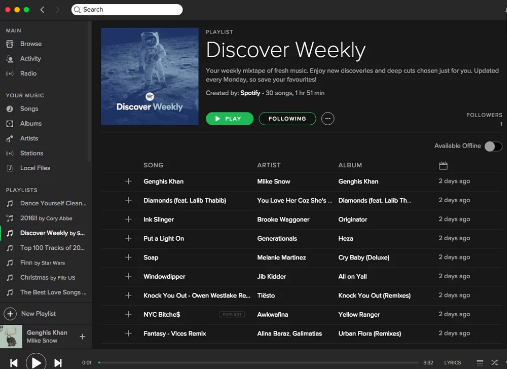
    For accessing this playlist you simply go to the Playlists section and can find it there. You can thumps up or down the songs in this playlist to help spotify further create even more awesome playlists for you.

    Read Also : Best Garage Band Alternatives for Windows and Mac

    Read Also : Garageband Alternatives- iPad / iPhone / Android

    Daily Mixes

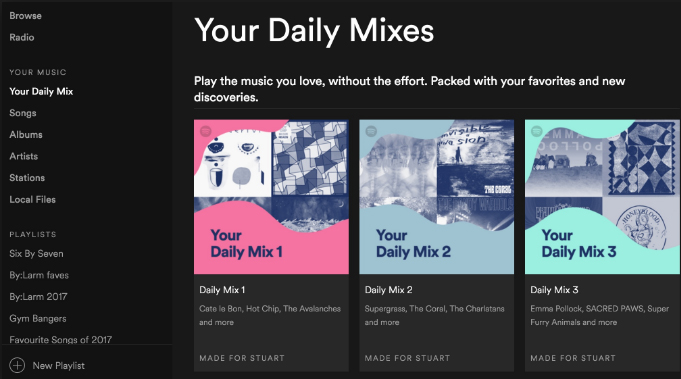
    These are also personalized playlists created by the Spotify like the Discover Weekly playlists. The only difference that these are updated on a daily basis rather than weekly basis. Use like and dislike for improving the playlists as per your interests.
    Add tracks from Shazam

    If you discover some new track on some other app like Shazam you don’t need to go search it separately in Spotify app to add it to your playlist or library, you can directly add it using the Shazam app only.

    For this you need to link your Spotify account to Shazam. After this whenever you identify some new song click on the arrow along the song and select the Spotify option. This plays the song in the Spotify app.

    Read Also : Best Streaming Devices – All Top Media Streaming Box on Market

    Read Also : Streaming Services – Netflix Vs Prime Vs Hulu Vs Sling Vs Directv Now etc

    Private Listening Sessions

    Sometimes you might be in a mood that you don’t want to share whatever you are listening to with your followers, or you want to stop sharing for a while then you can use the Spotify Private listening mode. Just go to the settings and enable this option. It is the perfect way of enjoying your guilty pleasures.

    Spotify Keyboard’s shortcuts

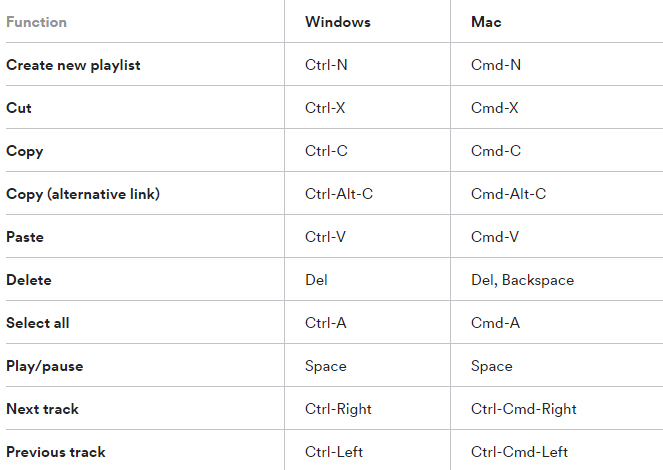
    Some Spotify shortcuts always come in handy so why not some for the Spotify application. Here are some Spotify keyboard shortcuts which will help you master in using Spotify –
    Recover deleted playlists

    Sometimes you might have deleted some playlist accidentally or you just want to listen to a playlist you deleted earlier, no problem. Spotify creates backups and keeps them for a considerable time period. For accessing these simply go to the Recover Playlists in the Main menu on the desktop app of Spotify. Then select the desired playlist and click ‘Restore’.

    Your Personal Karaoke

    On the Spotify desktop app when you play a song you can read its lyrics on your screen without exiting the app. Thus it can be your very own personal karaoke, have fun and sing along with your favorites.

    Collaborative Playlist

    As the name for the feature a collaborative playlist with your friends on Spotify such that all of you can add and remove songs from the playlist. So go check out this feature and create some amazing playlists and for doing so, in your library select whichever playlist you want to collaborate and select ‘Make Collaborative’.

    Radio Station

    Radio stations are playlists based on the artist or the song used to create it. You can create radio stations for the artists you listen to and similar ones. A radio station can also be created using a single song containing songs from the same artist and similar to it. For creating radio playlist click on the three dots and from the options select ‘Go to Radio’ and the radio playlist appears.

    Read Also :  Find the best radio station for iPod or iPhone FM Transmitter

    Read Also : Top Satellite Car Radio Installation and specification guide

    Discover about live gigs

    You can discover about all the concerts in and around your location. Just go to the browse section and then to concerts. There you can find about the live gigs of the artists you listen to and all the top artists as well. You can get all the details with one simple click.This would be a least familiar Spotify Tips and Tricks for most of the readers .

    Learn more about Spotify Live gigs to make use of this Spotify tips .

    Smart Search

    You can search any song or album on Spotify using its full name on Spotify easily. Besides this you can search using keywords like genre: jazz for searching songs of particular genre, year: 1980-1985 for songs of this specific era. You can use keywords like AND, NOT for including and excluding certain artist from the search.

    This will be a familiar Spotify tips for most of you .

    Hear a quick Preview

    If you want to add new albums or songs to your library and playlists, Spotify can help you lessen your work. No need to listen to complete songs or albums, just long tap on whichever song you want to listen to then spotify will play a small section for you to decide whether you want to add it or not.

    Read Also : Fast Forward , Rewind , Scrub Music in iPhone & iPad Music Player

    Read Also : Best iTunes Cleanup Software for better iTunes experience

    Crossfade feature

    If you hate the time when one song ends and the next one begins to play, the crossfade feature is definitely there for your rescue. It simply blends the two songs and you can customize the Spotify crossfade time between 1-12 seconds.
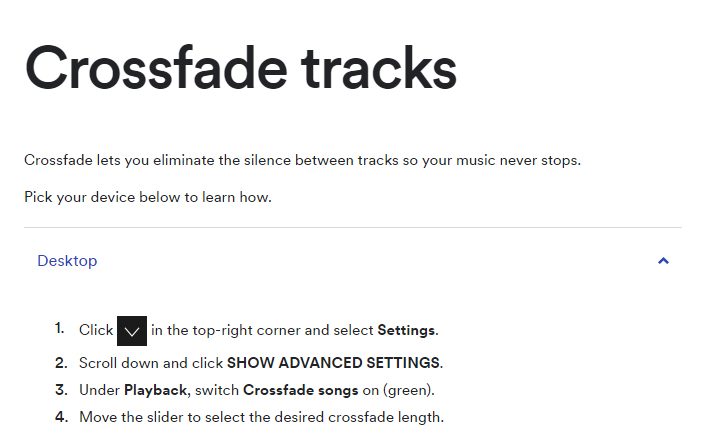
    Just access the settings then go to Show Spotify Advanced features, scroll down enable and then customize this option the way you want.

    Running Playlist

    Spotify has this amazing feature where it plays songs which matches your tempo while you are running. For this select any running playlist from the browse section. Then through your phone sensors it will find your tempo and play songs with similar tempo, thus taking your running experience to next level.

    Listen to Spotify on your Uber ride

    You can listen to any of yours Spotify playlists by linking your Spotify account with your Uber account. If the feature is allowed by your Uber driver then you can have the access the stereo of the uber car and enjoy your ride to its fullest with your favorite music playing.

    But this feature is not available in all countries yet, for checking if it’s available in your country, check it in the uber app.

    Behind the Lyrics

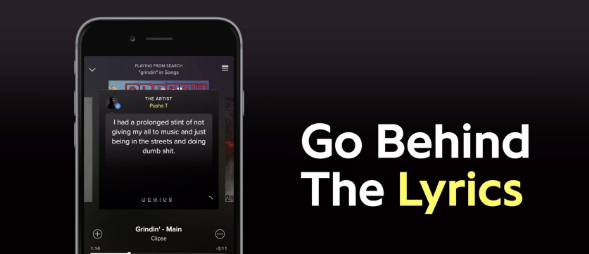
    This feature was launched by Spotify in collaboration with Genius. What this features actually does is that provides the listener with the meaning of the lyrics or some facts and trivia about that song. Although behind the lyrics is not available for all the songs in the App or website but still is definitely an amazing feature
    Be picky

    Be picky in whatever music you add to your library since spotify allows you to add only a finite number of songs to your library. Once the limit is reached you will have to clean your library by going through all of it, instead add carefully initially. You can also save you some space by adding songs to your playlist instead of the library. This Spotify tips is a must to avoid messy situation in future.

    By reading the loads of cool stuff you can do on spotify all your doubts that why Spotify is one of the leading music streaming platform among the music lovers across the globe. But many of the above Spotify features mentioned only for Spotify Premium Accounts. There are offers for complete family subscription or Student discounts are also available. You can opt for these ways for a cheaper subscription.

    Do tell us which feature do you find the coolest and don’t forget to share any of your favourite Spotify tips and tricks with us in the comments below.

  • Pinterest Tips and Tricks to use Pinterest like a Pro

    Pinterest Tips and Tricks to use Pinterest like a Pro

    Pinterest, you must have heard this name right? Whenever you search something on Google images a number of results are from Pinterest only. We might save those images and move on without actually knowing what Pinterest is. Of course many of you must be knowing what Pinterest is and how to use it but many of you don’t. So this article going to get you familiar to Pinterest tips and tricks to use Pinterest like a Pro .

    What is Pinterest ?

    Pinterest is an image-based platform for viewing images, bookmarking them and sharing your own related to different stuff such as art, fashion, food, landscapes, buildings and event planning’s and a lot of other such creative fields.

    Pinterest Tips and Tricks to use Pinterest like a Pro

    Now let’s explore the useful Pinterest Tips and Tricks –

    Adding Links without Pin button

    If you want to pin the picture then on many websites whenever we hover mouse over the picture an icon named ‘pin it’ appears if you have added the Pinterest extension to your browser. Clicking it the picture is pinned. But it can also be done without this pin it  button, just copy the image’s URL and then open your Pinterest mobile app, it will by itself pop up the link you copied and there then you can pin it.

    Read Also : Exciting free Photoshop Alternatives for high quality photo edits

    Read Also : 25 Best Selfie Apps for every Selfie Lovers – Perfect Click

    Read Also : Bothie feature on any Smartphone – Best Bothie apps

    Get rid of the pin button

    Sometimes seeing the ‘pin it’ can be distracting and irritating when you are simply browsing some site. Whenever the pointer hovers some picture this little icon pop up. But wait here’s the solution, you can simply get rid of it.

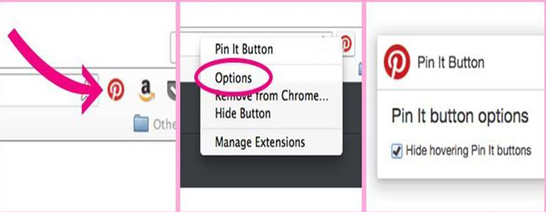
    Just right click on the Pinterest extension button, select options and check “Hide hovering Pin it buttons” and done. No more pin it buttons.

    Trending

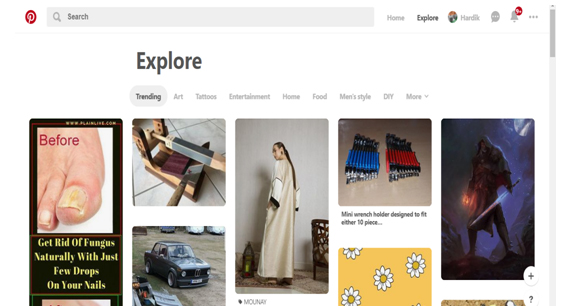
    There is loads of cool stuff to look for on Pinterest. But if you want to look at what your friends and your fellow Pinterest users are searching or if you want a look at the latest trending topics, just go to the explore section. In one simple click get all the trending pins according to your interests.

    Secret Boards

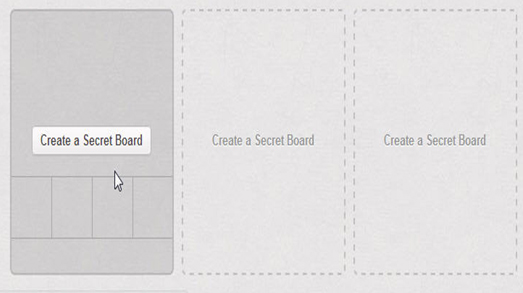
    If you don’t want to just broadcast every board of yours, want to keep some moments of yours to yourself, plan some surprise, save pins for planning some event, Secret boards can come to your rescue. You can keep secret boards to yourself or share it with selected people only.

    Setting Pin Descriptions

    If you highlight any text or any heading before pinning any image from any website then that text will be used as the description of your pin. This can save you from a lot of thinking required for an amazing caption.

    Searching Pins from a specific website

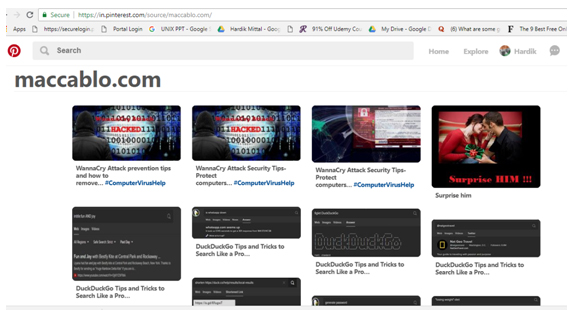
    Searching pins from a certain website can be a hectic task given a large number of pins related to every topic. This can be done simply by searching this URL https://www.pinterest.com/source/WEBSITE_DOMAIN/.  Replace the Website domain with the domain name of whichever = website you want to search for.

    For Example searching for https://www.pinterest.com/source/maccablo.com/ gives:

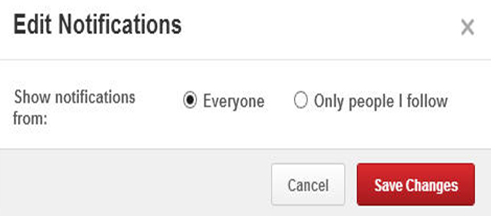
    Edit notifications

    Getting loads of notifications whenever you switch on the internet is irritating. You can manage your notifications from pinterest. Just click on edit option on the notifications menu and select the desired option and save.

    Get More Privacy

    Secret boards one of the many ways to get privacy on Pinterest. There are other ways as well.

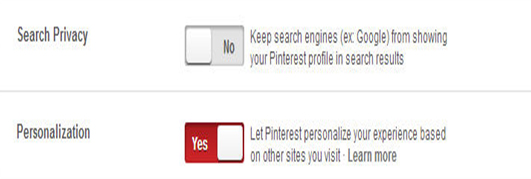
    Pinterest tracks you while you visit other sites so as to provide you a personalized experience when you are using Pinterest. You can switch it off by disabling the Personalization option in settings.

    You can keep your boards off the Google searches by enabling the Search Privacy option.

    Read Also : Instagram tips and tricks to be a Pro Instagrammer

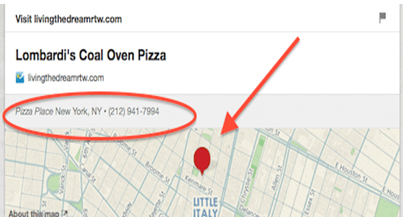
    Place Pins

    Place pins lets you bookmark different locations on Pinterest. These can be used for planning any vacation or if you simply want to save the places you wish to visit. On Android, the app notifies you whenever you are in a nearby area of your pinned places.

    Aspect Ratios

    You can upload pictures in any aspect ratio you want, but the most recommended aspect ratios for getting the most repins are 2:5 or 1:3:5. Images with ratio 1:3:5 are very long and can viewed completely only by clicking on expand pin.

    Send pins via email

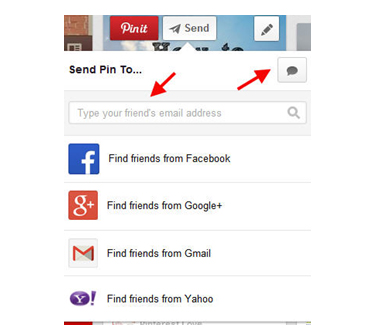
    If you want to share your pins with someone who is not on Pinterest, for this click on send option and start typing the mail address of the receiver and choose the top option from the dropdown appearing. The link of your pin will be shared with the desired person.

    Move pins to new board

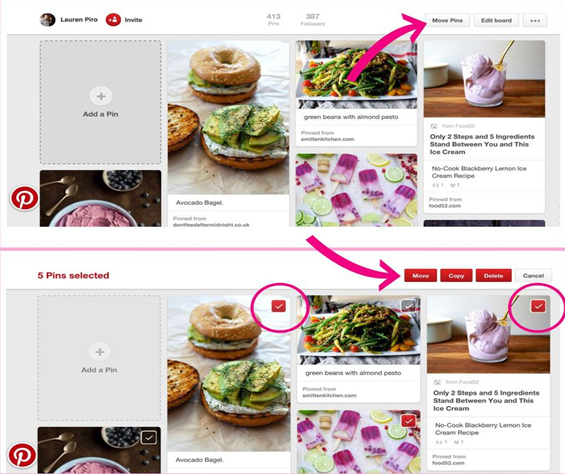
    Organizing your pins and boards is just a few clicks away. For doing so click on the ‘Move Pins’ option and check the desired the pins you want to move, select Move and list of your boards appears and then select the desired board or create a new one.

    Pin a buyable pin

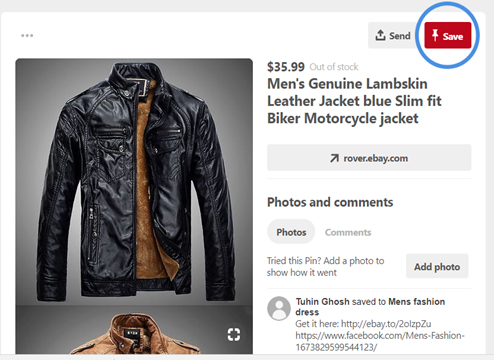
    Now you can even buy and sell stuff using Pinterest. There is a buy option right under every buyable pin. Pinterest notifies when the price of any of your pinned items drops. It is an amazing feature with Pinterest.

    Set up a Business page

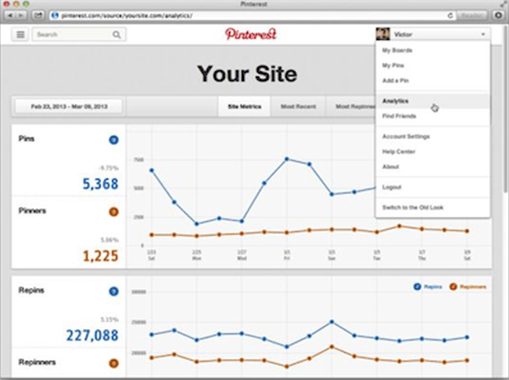
    You can easily convert your personal page on Pinterest for Business purposes. Simply convert your page to Business profile. This will help you in getting the  Pinterest analytics to your page, helping you to get better at your business.

    Rich Pins

    In rich pins you can add additional information with your picture. There are different types of rich pins such as Movie pins include ratings, cast members and reviews, Article pins include the headline, author, story description and link and many more to provide instant access to some important info regarding any pin.

    Hope these Pinterest tips and tricks will help you turning into a pro Pinterest user. You must have become quite familiar by now many of the amazing features available on Pinterest. Do tell us know the Pinterest feature you loved the most. If you know some other Pinterest Tips and Tricks don’t forget to share those with us.

    So make use of all the Pinterest Tips and Tricks  and enjoy !!!

  • Disable Instagram Activity Status Feature – Privacy Tip

    Disable Instagram Activity Status Feature – Privacy Tip

    Internet lurkers , social media introverts and privacy focusing social media users , hope you are aware of the new Instagram feature that is the ” Active Status ” Green dot . So here we are going to help you with that by giving you tips to toggle off activity status on Instagram , that is on how to disable Instagram Activity Status Feature .
    What is the Instagram Activity Status 

    So this is just a newly added Instagram feature ” Activity Status ” . This green dot will be shown whenever you are using Instagram app , whenever your Instagram app is running on mobile .

    Read Also : Instagram for PC – How to use Instagram for Desktop ?

    Read Also : Contact Instagram Help Center Support for Any Assistance

    Read Also : Instagram tips and tricks to be a Pro Instagrammer

    Sometimes it can be seriously affecting your privacy online . Because you may get disturbed when you are just there on Instagram to browse the insta-stories .

    How annoying it can to get messages from random followers whenever you are online . And often there are situations where we are online just to stalk and not let others know we are online on Instagram.

    So if you want to stay relaxed and not let anyone know when you are online on Instagram then you have to toggle off / Disable Instagram Activity Status .

    How to  toggle off / Disable Instagram Activity Status ?

    When you toggle off activity status on Instagram remember that you can’t also see other’s Activity Status on Instagram . So once you disable activity status on Instagram you are safe locking your online presence and not able to find who is online also.

    So let’s see how to  toggle off / Disable Instagram Activity Status –

    It is basically a privacy option on Instagram to toggle off Activity status . You can enable Instagram Activity Status anytime you want .

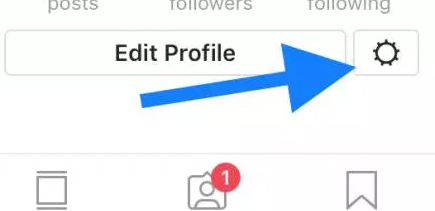
    •  Do you see a gear icon on your Instagram page on right end corner .
    • So click on that Instagram settings button.

    • Now click on the “Privacy and security ” option that you find there.
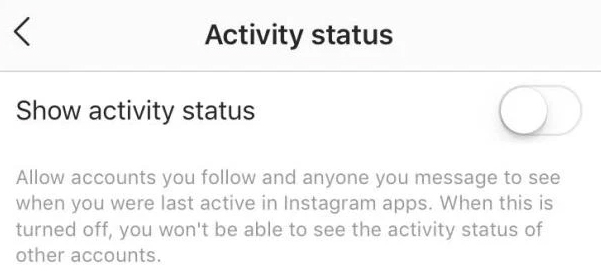
    • Now from that click on the “Show activity status ” option.

    • Toggle it off to Disable Instagram Activity Status.
    • Toggle it on to Enable Instagram Activity Status.

    Hope this privacy feature on Instagram helps most of the users to hide your online status on Instagram .