Tag: Software

  • Fix Excel Freezing or Slow -Excel not responding / hang issues

    Fix Excel Freezing or Slow -Excel not responding / hang issues

    Excel not responding often we get this type of messages when we work on Microsoft excel workbook. Sometimes Excel crashes, hangs, freezes or  stops responding. In this situation you receive messages of ERROR.  Microsoft excel is very robust program that we use for the making sheets, files, documents etc. But when Excel doesn’t respond while working we get irritated and have to stop our work in between.  In this article you will learn some troublesome aspect of excel freezing that can help resolve the common issues when you receive an Excel not responding error or hangs when you launch Excel or open a file. Sometimes it happens that problems with Excel files crashing, hanging or freezing may be caused by  several things and you need to Fix Excel Freezing or Slow -Excel not responding / hang issues

    How do I start Excel in Safe mode ?

    It is a difficult problem when your excel hangs so to Fix Excel Freezing all you can do is to start MS Excel in safe mode.

    Does excel freezes every time when you use ?

    If you find any problem(freeze) with excel files then you can follow these steps given below.This will help to Fix Excel Freezing

     Try to Start Excel in Safe Mode

    You are having problems with Excel ?  If so, then here is the easy way for you to start Excel in “safe mode” that would help you to display Excel very easily, you are just required to follow few steps given below:-

    1. First, make sure Excel is not running or close it completely.
    2. Then hold the Windows key and press “R” to run the dialogue box.
    3. In the search box type excel.exe /s then press ENTER. Now you will see Excel starts in fixed mode. If there is any problem occurs in excel mode you can follow the next steps.
    4. Select “File” } option”.
    5. Now choose “Adds-ins”.
    6. In the Manage, select “Excel Adds-ins“. then Select “Go“.
    7. Now normally exit the program and select “OK“.
    8. Finally close Excel, and Restart it normally.
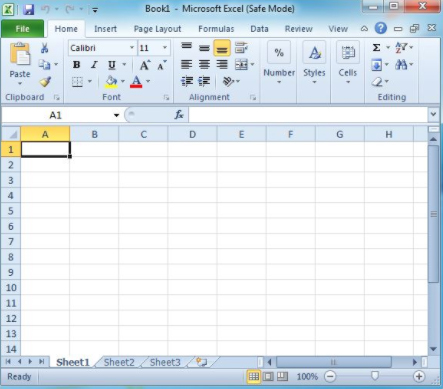
    With all above steps you would be able to start Excel in safe mode.

    Now first you need to check if Excel sheet is freezing or hanging in between more then one time. If you find any problem with Excel as you open it so you don’t need to worry about it as it is the part of the program itself. And if it is happens only in one file then you will have to check what exactly the problem is.   

    Read Also : Enable / Disable Windows File Protection & Fix Windows File errors

    Reinstall MS Office

    1. First Right-click the “Start” button, then select “Control Panel“.
    2. Choose or Select “Programs“.
    3. click on  “Uninstall a program“.
    4. Now Locate “Microsoft Office” in the list. Right-click it, then choose “Change“.
    5. Select “Quick Repair“, then click “Repair“.
    6. Once the repair and every thing is complete. Try to launch Excel properly and see if you have a freezing problem. If the problem persists, try the “Online Repair” option.

    This is one way to Fix Excel Freezing when no other options work out.

    Read Also : Connect dual displays / monitors to one computer on Windows & MAC

    Excel Freezes in Only One Spreadsheet

    If the problem only occurs  only with one spreadsheet file is open, there is something in the file causing the problem. You can apply given steps to solve the problem if excel freezes in only one spreadsheet.

    Clear Conditional Formatting

    1. If you have problem with opening in excel file then, select “Home” } “Conditional Formatting” } “Clear Rules” } “Clear Rules From Entire Sheet“.
    2. At the bottom of the sheet select additional tabs, and repeat step one on each of them.
    3. Now,Select “File” > “Save as” and make a additional/new copy of the spreadsheet with a different name. The old one will exist if you need to revert to it due to lost data.

    These above step will help you in excel file. If you no longer experience freezing or slowness or any problems in the Excel file, you will need to narrow down which section is causing the problem and reapply the conditional formatting.

    Remove/Delete Styles

    First, Download Remove Style, then run the file. At the button option of “Home” select the “Remove Styles“, and see if speed of files are good or not.

    Clear Objects (Shapes)

    You have to be very careful with this solution if you wish to keep objects.

    1. First hold CTRL and press “G” to bring up the “Go To” box.
    2. Select the “Special…” button.
    3. Now first select the “Go To Special” screen, select “Objects“, then select “OK“.
    4. Press “Delete“ option.

    Read Also : The ultimate guide to make Windows run faster (Boost Computer Speed)

    How can I repair corrupted Excel files?

    Corrupted excel files can harm your data and documents. As recovery of corrupted excel files allows to avoid the important information. Microsoft recovery excel is designed for effective data recovery from corrupted Microsoft excel sheet. So to prevent your excel files from any harm you can recover your corrupted excel files by scanning or analyzer. Here is step by step process that you can use to repair corrupted excel file.

    1. First open your Microsoft excel
    2. Open the folder that contains corrupted files
    3. In the open dialogue box, select the corrupted files
    4. Next to open button click the arrow, and then click open and Repair.
    5. Now you can repair as much as you can cover your workbook or files.

    It is the good process to cover Microsoft excel files but if by chance, Repair isn’t able to recover your data, then you can extract data to extract value and formulas from the workbook. You can also take some measure to avoid your files from being corrupted by automatically a backup copy  of your work book and by creating recovery file from time to time.
    What to do when Excel Freezes on MAC ?

    Freezing, hanging, corrupting files these are the common issues for Microsoft excel but can be very dangerous for as it can detect your important files. But to recover excel files on Microsoft Mac is different thing as you would experience some issues like program will close automatically, you will receive error message, files could crashes and you won’t be able to access normal computer functions. To resolve excel freezing on Mac problem you can follow these steps given below:-

    1. First leave all program and close all windows
    2. In the file or apple menu click force quit
    3. Now remove excel preference and office setting
    4. Make sure all your mac program are closed, now on Go menu, open the hidden library
    5. Open the group container folder , and open the “office” folder
    6. In this folder, look for the Com.Microsoft.officeprefs.plist file.you can delete this file
    7. Restart the folder and check is issue resolved, if it isn’t you can delete the whole folder that will delete your previous setting
    8. Now you can restart your Microsoft excel
    9. If there is any problem while restarting it then you can remove and reinstall office again.

    Read Also : Record iPhone iPad Screen on Windows & Mac

    What Should I avoid to stop Excel freezing or to avoid Excel running slow – Fix Excel Freezing

    Slow excel work is hindrance foe many of us. Sometimes it is frustration keep up with a slow excel sheet.

    • Use faster formulas technique – Excel gives you many techniques that can can do same thing if you would able to find new technique then it can be very helpful for you.
    • Avoid volatile function – Functions such as NOW, TODAY, INDIRECT etc. These function recalculate everything every time there is a change in the workbook. This takes additional processing speed and you end up with a slow excel workbook.
    • Use less data – if you use less data then you would find that excel is not freezing and working properly.
    • Use excel tables and named ranges – This is the amazing feature that hold your data and makes referencing super easy. It almost good idea to make your excel easy and faster.
    • Keep all reference and data in one sheet – If you keep your all data in one sheet then your excel would run faster. Although it is not easy to keel data in one sheet but you can try.
    • Use Manuel calculation mode – Using Manual calculation gives you the flexibility to tell excel when to calculate, rather than Excel taking its own decisions.
    • Function ,Efficiency usage – While doing a huge matrix if you tend to use so many formulas other than using VLOOKUP ,This would enhance your excel speed .

    This will help you to Fix Excel Freezing both in windows as well as in MAC .
  • Best Screenshot Tools for Computer & Smartphone

    Best Screenshot Tools for Computer & Smartphone

    Nowadays, taking screenshots has become very common. People take a screenshot to save a current text in a group or to take a quick screenshot of something that you are searching in google and send it to someone. All the computers and android phones come with the option to take screenshots easily. If you are using a computer, you can simply press the print screen button on the keypad. In androids, you can press the volume key and power button at the same time to take the screenshot. But these options in your computer and smartphone will not have many features wherein you can edit or crop the screenshot. There you need some best screenshot tools to enhance screenshot experience .

    There are many screenshot tools available now that you can download on your computer and smartphone. For those who are seeking for a good screenshot tool, I hope this article will help you find the best. Below are some of the best screenshot tools to download.

    Best Screenshot Tools for Computer & Smartphone

    Take a look at the screenshot tools that are ideal for your phone and computer . Even though all mobile and system has the liberation of giving us an option of PRINT SCREEN button , we find it is not just sufficient to Snapshot / screenshot most things .

    Snagit

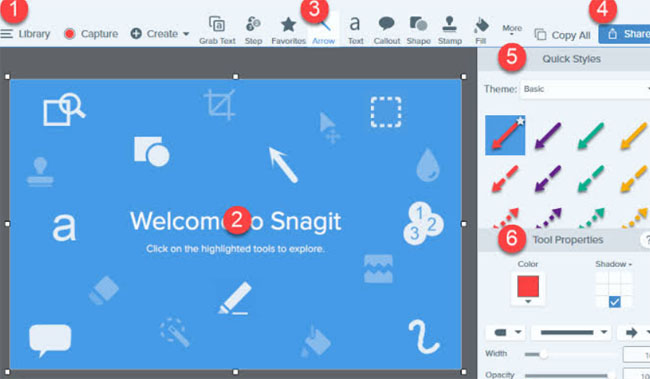
    You might have heard about the TechSmith Software Company and the Snagit screenshot tool is one of their products. With this tool, the user can add comments on the screenshot taken. Some of the key features of Snagit include: a preview window with a cursor hovering, the images can be edited with special effects, a quick toolbar to capture the image, recording a video and share it via email, etc. This app helps in taking the screenshot of the whole screen of your computer too.

    Thus it is one of the best screenshot tools in the market .

    Snipping Tool

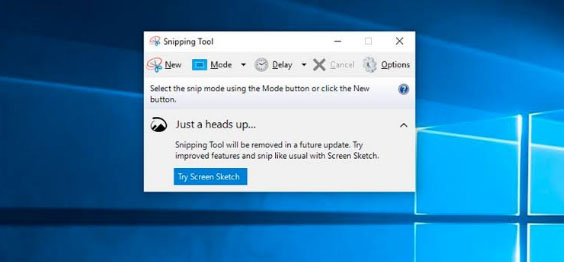
    This is a default tool on your windows that helps in taking a screenshot in a rectangular form and can also add any notes you want. You can also highlight any sentence with colors or you can strike off any words using the font colors.

    All the screenshot taken can be saved in PNG, JPEG, and GIF format and once the image is captured it is copied automatically, helping in pasting it as you require. With the help of the snipping tool, you can take the screenshot in 4 modes which are: free-form snip, window snip, full screen, and rectangular snip. It is one of the best windows screenshot software .

    Skitch

    Skitch is a screenshot tool of the company Evernote that has been crafted for windows and Mac. This freehand screenshot tool comes with the feature of marking the areas blurry that you do not want to be visible in the image. I find this feature quite useful so that if you want any information on the image like a word or a phone number cannot be visible to any other person to whom you share the screenshot.

    Some of the other features like adding a comment on the image, uploading the screenshot in a mail, highlighting, etc. are available. Skitch screenshot tool can be used in both computers and smartphones and all the editing options come under one menu, making it easier for the user to perform the activities.

    Greenshot

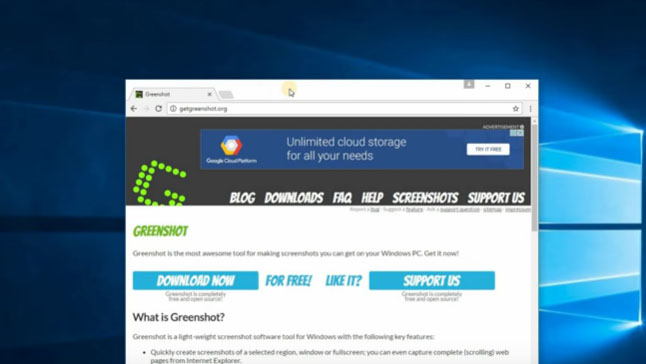
    Another screenshot tool called Greenshot is a free and open-source program designed for Windows OS. You can take a screenshot with this app very quickly and easily. A full-screen window can be captured by scrolling the page and you also get a chance to highlight and annotate. One of the advantages of using the Greenshot tool is that you can save the captured image in a different format and can also edit it later.

    The captured images can be emailed or you can even print it directly. This screenshot tool is available in 26 languages which makes this tool stand out among the other tools. Moreover, it also offers several capture modes like capture the last part, capture region, capture window, and capture the full screen.

    Lightshot

    This is a very convenient screenshot tool that is easy to use and can capture the image quickly that can be customized too. It also allows you to select the area you want to capture and in just two button clicks your screenshot is taken. Lightshot tool can be downloaded on your computer and it supports Windows, Mac, Firefox, Chrome, Opera and Internet Explorer. You can share the captured image using this tool and the quality of the captured images are high.

    AZ Screen Recorder

    The primary function of the AZ Screen Recorder is that it allows you to record your screen in the form of a video. It also comes with the feature of capturing a screenshot as well. Editing features are available with this tool. This screen recorder tool does not come with any ads, watermarks or time limits. This screen recorder can be downloaded in your smartphone from the play store.

    Screen Master

    This is one of the best screenshot tools and a photo markup tool for your smartphone that allows you to crop and rotate the images captured. You can add a text on the image, add an emoji and you can even blur the selected portion if you want to cover any area that you require. Other features include several image annotations, a floating button for easy access, full web page capture and many more. The whole web page can also be captured by copying the URL into the screen master app. This app can be downloaded for free and even a paid version is available that removes advertising and other features.

    Screenshot Touch

    For easy and fast access, this screenshot tool called Screenshot Touch comes with an overlay and persistent notification. Features like image cropper, whole web page capture, screen recording, scroll capture, etc. are available in this app. One of the easiest ways to take a screenshot with this app is just by shaking your smartphone. Like a few other apps, this screenshot tool can be downloaded in your android for free or even paid version without advertising pop-ups can be downloaded.

    Super Screenshot

    With text addition, image blur, image resize and many more features, this Super Screenshot Tool can be one of the right choices for you. It allows you to enable the gesture controls that help in capturing the images on your android. You can share the screenshot on multiple platforms and can be downloaded for free. Other notable features include browsing and copying the screenshot via PC.

    Touchshot

    Another screenshot app for android phones, Touchshot comes with unique features like camera preview capture function, screen record, quality settings and in one touch you can take a screenshot. Editing and sharing the captured images can be done using this screenshot tool.

    Taking a screenshot is very simple in this app which means all you have to do is just to touch on the screen to capture what you want. This tool can be downloaded in all Android devices regardless of the device being rooted or not. You can also screen record videos using the touch shot tool.

    These are some of the best screenshot tools for computer and smartphones. Research the possible options and download the best screenshot tool according to your requirements and convenience.

  • Best Media players for Computer & Smartphone

    Best Media players for Computer & Smartphone

    When it comes to Media players most of us might know one common name that would be Windows Media player and few of us may know even VLC Media player . But know what there are so many which can be pointed out as the best media players and really the best free alternative to Windows Media Player .

    So let’s take a look at some of the best Media players available .

    Best Media players for Computer & Smartphone

    You all might be familiar with some of the media players that are commonly available. For the people who are still in search for the best free media players, please have a look at the following options.

    1. Windows Media Player
    2. VLC Media Player
    3. iTunes
    4. KM Player
    5. GOM Player
    6. Kodi
    7. Media Player Classic
    8. Winamp
    9. MPlayer
    10. Plex
    11. Real Player
    12. Serviio
    13. Boxee
    14. Dragon Player
    15. MPEG Audio Decoder
    16. JRiver Media Center
    17. Flip4Mac

    Now we’ll have a look at some of the Best Media players for Computer & Smartphone that are quite popular and most preferred .

    1)      VLC Media Player

    This is one of the most commonly used best media players for both computers and smart phones. People who watch videos in their phone or computer will surely be aware of the VLC media player. This customizable media player is one of the most flexible players these days. The android app of VLC was launched in 2012 and it became very popular among the android users. Thus making it a best android media player .

    The users can easily play HD content with VLC media player since this player is supported by open source codec files which can be installed as an add-on. VLC Media Player is compatible with and Windows platforms too. Some of the key features of VLC media player are:

    1. a)      It supports files, Discs, webcams, devices and streams.
    2. b)      Codec packs not required
    3. c)       It runs on platforms like Linux, Mac, Windows, OS and UNIX
    4. d)      VLC media player also supports media conversion and streaming.

    2)      MX Player

    MX player , one of the best video players for android phone users. Also compatible with both iOS and Windows. The layout of MX player is very simple and this makes it easier for all the users to run it without much effort. Apart from this, MX Player has an advanced hardware decoder which helps in supporting playback of high quality videos. This is one of the best iOS Media player .

    MX player also works well with devices that have multiple core processors since it supports multi core decoding. One of the major highlighting features of MX player is that, it can transfer you old collection of movies into digital format. Once the transfer is done, you can easily play the movie in MX player without any issues.

    Read Also : Best Torrent Managers for Computer & Smartphone

    3)      KMPlayer

    When it comes to video streaming, KMP is one of the best options that can help you with high quality streaming. KMP Media Player with its floating screen allows the users to work on different windows, making it a perfect multitasking media player.

    KMP media player is compatible with Android, iOS and Windows. One of the major attraction of KMP player is its ability to support more than 30 languages which in inbuilt. Likewise, it also supports multiple audio tracks and subtitles without any lags and slowdowns.This is one of the Best Media players .

    KMP Media Player also supports 3D formats and it also has an option to add the quality of album and includes plug-ins and playback options. While playing any music track, KMP media player automatically supports the album art with changing colour themes for each new track.

    Read Also : Alexa Tips, Tricks and Commands

    4)      SM Media Player

    Developed by Mr. Ricardo Villalba, this media player has features like:

    1. a)      Switching of Audio Tracks
    2. b)      Mouse scrolling and multiple speed playbacks
    3. c)       Codec free playback
    4. d)      Remembers setting of the files you play

    SM Media Player is an open source player which is compatible with Windows, Linux and Androids. To use this media player, all you have to do is download it and start using. You will not need any external codes to pay the videos. SM media player also support YouTube videos and the user can easily download subtitles.

    SM media player consists of different skins and icon themes. So when the user wants to change the look for the player, they can do so by choosing the options of themes. This is one among the Best Media players and also has video and audio filters, changing the playback speed, video equalizer etc.

    Read Also : YouTube Dark Mode Android Version Without Rooting

    5)      DivX Player

    This is another media player which is compatible with both computers and android phones. You will have to download the DivX App in your android phone from Google Play Store to start using it. For iOS devices, you can make use of the Apple Store. To watch the videos that are saved in your phone, all you have to do is click the “My Videos” option and start watching by selecting a video. If you have stored the videos in your computer, then click “Media Servers” and select DivX Media Server.

    This media player support all file formats and it also helps in adaptive streaming. The DivX Player automatically adjusts the quality of a video you watch. In this player, the users can save videos according to title, genre, date or time. It acts as a fully featured video library manager. Moreover, the user can embed high quality videos with all its features in websites or blogs.

    Read Also : Apple Homepod Tips, Tricks and Review

    Read Also : Spotify Tips and Tricks to Enjoy Spotify Subscription More

    6)      Real Player

    Real Player is one the media players that allows users to download web videos and watch it offline. The user has all the control of this media player. To keep the videos safe, this player helps the user to create a unique pin to access the videos. This player is works very fast and it also adds mobile sharing of clips. Streaming is possible with Real Media Player and the user can convert the videos and watch it on TV, computers or android phones.

    Real Players comes with a downloader and trimmer, helping the users to edit the videos that way you want. This player also helps in sending photos, clips and videos with your friends easily. Real time offers two premium plans to the users to choose from and they include more space, better quality video, more music choices and last but not the least the ability to create unlimited real times with any music track. Apart from being a media player , this is an effective video editing tool and video trimmer tool to rely upon.

    Know these media players first and choose one that suits your needs.  Hope this article helps you to opt the right media player for your android phone or computers.  Enjoy watching videos with these high quality media player to keep you engaged during a holiday or while you travel.

  • Best File compression Tools for Computer & Smartphone

    Best File compression Tools for Computer & Smartphone

    At your office or at home, at some point, you will need to compress your files to save because of the large size of the doc. Sometimes, you may not be able to attach files in the mail or any other documents because of the size of the document that you want to send. SO, what you need to know some of the best File compression tools and software for your computers and smart phones. To quickly compress file to send or save.

    You can save a lot of space in your smart phones or computers if you compress large files and save. You may have heard about many best file compression tools and software. But let us discuss a few here that can help you in minimizing your work time.

    Best File Compression Tools for Computers and Smart Phones

    So here are the list of some of the best file compression tools and file compression softwares for computer and Smartphone .

    1)     WinZip

    WinZip is one of the most commonly used file compressors by the users. There are different versions of Winzip and it has reached the version 21 at present. This file compression tool integrates with a number of programs to make zipping easy as the users work along. Hence, Winzip supports a wide range of archive format including ZIP, ZIPX, RAR etc.

    WinZip file compressor also includes features like splitting of large zip files that can easily fit variety of media, advanced file sharing features, cloud support and it also has n advanced zip management system. Winzip interface is compatible with both mouse and keyboard setups. It also adapts easily with any touch screen devices too. Your files will always be protected in WinZip since this file compressor has back up and security options. With WinZip, one can create and extract files via the program interface or even by using the program window.

    This is one of the best software for compressing large files .

    Read Also : Best Note taking apps for PC & Smartphone

    Read Also : Best VPN For the Future

    Read Also : Best free office software for Computer & Smartphone

    Read Also : Best Email clients for Computer & Smartphone

    2)     Hamster Zip Archiver

    Like WinZip, Hamster can also handle any files with any format. With excellent format support and interface, this file compressor is user-friendly and it is totally free to use. Hamster Zip includes cloud support and creating and extracting files to one format is very easy. All you have to do is jut drag and drop the files. Doesn’t that sound quick?   With its cloud support feature, the user can easily create a compressed file and the files can be easily uploaded into Dropbox, Google Drive etc.

    The users also get the option to have a sharable link which will created automatically. Using the Windows context menu too, a user can create and extract files rather than dragging and dropping the files to a folder. One of the major disadvantage of Hamster Zip Archiver is that this tool is only compatible with Windows, Max and Linux users.

    Read Also : Best Torrent Managers for Computer & Smartphone

    Read Also : Best Drones On Different Budgets To Buy This Year

    3)     WinRAR

    WinRAR is the only file compressor that can create RAR archives .Majority of the file compression tools can extract RAR files, but only WinRAR has the option to officially create RAR archives.Using WinRAR, compressing files can be done to other popular formats. Even though the interface does not look very attractive, you can find many features and options to choose from.  One of the major attractive feature of WinRAR is, it has a wizard mode which takes up all the hard work and gives you the result you want.

    As said earlier, the best feature of WinRAR is it RAR support and it is veruy fast since it creates small archives, resulting in more free disk space and transmission costs. This file compression tool is perfect to use for multimedia files since it automatically identifies and selects the best compression form.  Your files can be saved in different disks by splitting your archives if you need. You can get WinRAR free to use for 40 days as a trial. So why to waste such an opportunity. Go ahead and experience the trail pack of WinRar to find how good this tool would help you.

    4)     PeaZip

    PeaZip is one of the free file compression tool that works on its own or it also woks together with the tool WinRAR. Compatible with both Qwindows and Linux, this file compression tool is very powerful and it helps in converting archives to different format. PeaZip tool is safe to use as it is security conscious, having AES256- based encryption. It also has a two-factor authentication and a password manager which in fact will keep your archives safe.

    Like other file compression tools, you can easily use the main program interface or use the right mouse button and the context menu to create and extract files. PeaZip file compression tool is one of the tools that can sort,create and extract RAR files. Check if you have the use of PeaZip file compressor and then download it in your device.

    Read Also :  Best Web browsers for Computer & Smartphone

    5)     7 Zip

    If your main need is to compress large files like videos, then 7-Zip file compression tool will be the right pick for you. This tool can be used for free it supports majority of the compressed formats. This compression tool includes its own compressed file format – .7z with high-compression rate. This, it helps in compression extremely large files into archives.

    The interface of 7 zip is not very attractive to the users eyes and it also has a number of context menu which can be a little hassle. But if you cross this, then you might find this file compression tool very interesting. You can also change the number of context menu according to your choice.

    So these are some of the best File compression Tools that you can use for easy creation of files with less size. Read and try these tools to check which one will suit you the best for you work stream. Compressing the files will become easier for you to send large files using these file compression tools. Some of these tools also offer free trial which can be accessed easily to understand how ti works. Make use of it and choose the Best File compression Tools for your device.