Tag: Google Calendar

  • Google Calendar Dark Mode – Enable Night mode on G-Calendar

    Google Calendar Dark Mode – Enable Night mode on G-Calendar

    Google was bringing the dark theme / dark mode to most of its applications and websites . Now with the arrival of Android Q nearing its release date . Google has enabled dark mode for different apps . One such we will discuss here is about Google Calendar Dark Mode .

    What is Google Calendar ?

    It is one of the popular online time management apps for managing your schedules , meetings , reminders etc . Almost we can call it as a e-calendar . But it has more features to offer you other than being a simple calendar .

    Now coming on to the point of Dark Mode / Night mode / Dark theme , we have already discussed on what it is .
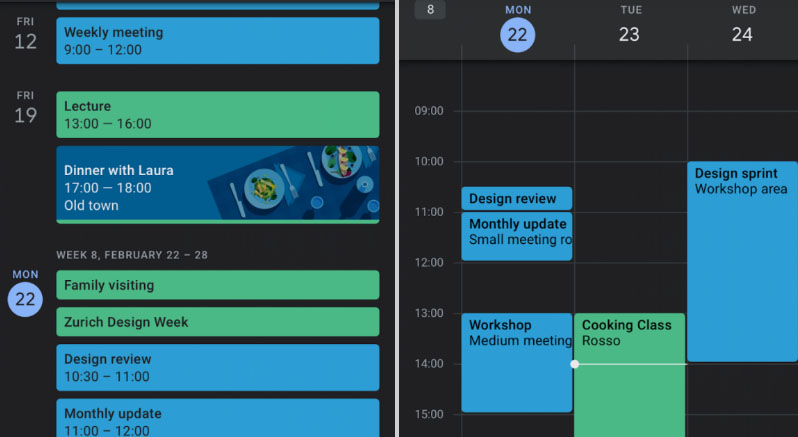
    Google Calendar Dark Mode

    To be precise we will take a look at how to enable Google Calendar Dark Mode .

    • So as usual go to the General settings of Google Calendar in your Android Phone .

    ( SETTINGS — GENERAL )

    • Now go to the Theme option in Google calendar settings .
    • In this you get options to select three themes – Light theme , Dark theme and finally Set by battery saver .
    • Select Dark theme to turn on Google Calendar Dark Mode .

    In case you are not getting this feature on your Android device then try these settings option after updating Google Calendar App .

    Go to the Google play-store and update your G-Calendar application .Even after this if its not working out try to upgrade your Android OS . Because this dark mode wide update is mainly focusing on Android Nougat and its higher OS Versions .

    In case you want to use Google Calendar dark mode on Web , try to use Google chrome browser and get your browser installed with add-on for dark theme .

    In the Android Q operating system , it is clear that the users will have option to switch their phone to Dark theme by default settings . Thus the users who want to use all their apps on dark mode need not to focus on the dark theme settings of each apps.

    In case you want to disable dark mode for Google Calendar then work on the settings the same way and in Theme select the light theme .

    Dark theme is very good for vision and good for your eye health especially during the night time or during low light period . As well as using dark theme for applications can save your device battery to a great extend .
  • Share Google calendar with someone step by step guide

    Share Google calendar with someone step by step guide

    Time management begins with calendar schedules and hope its really the best time to create all your schedules for your next month . Google Calendar is not anything unfamiliar to those who work on proper time management and scheduled calendar . So here we will explain how to Share google calendar with someone .

    What is Google Calendar 

    Google Calendar is a freeware app developed by google inorder to help users around the globe to easily manage their schedules and maintain effective time management . You can get Google Calendar online on PC and its also available to download Google Calendar for Android and iPhone

    You might not be aware that on App store , Google Calendar is one of the top list Time planner iOS apps .

    Google Calendar Logo with date
    Google Calendar – G suite

    Let’s know more about the top Time management app – Google Calendar .

    Read Also : Mock location app for Android & iPhone to fake location 

    Read Also : Google chrome themes that you shouldn’t Miss

    Google Calendar Is Different , believe it or not . Its not like the common calendar you usually find in the time planner apps . You can select different calendar of interest such as Holiday Calendar , sports calendar and so on .

    These Calendar of Interest will help as a reminder on any of your religious festival date , and your favourite football match date etc .

    The Need to Share Google Calendar !!!

    At times we may have to share date of certain events and sometimes we have share the schedules of official meetings that can be easily created on Google calendar and much more easy to share Google calendar events and schedules with someone else . Now we will look at the simple steps on how to share them easily.

    How to Share google calendar with someone

    Its not a tough task to share google calendar with someone else , here is the step by step guide for that task –

    Sharing google calendar is the same process as of sharing documents in Google drive . You can share it either as public / specific people .

    • Go to Google Calendar app and open it .
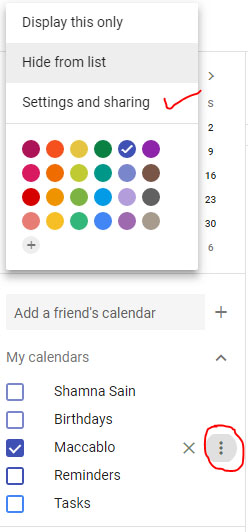
    • Now look at the left side of the Google Calendar app where you see an option My Calendars
    • Below that you can list of the Calendars that you have created , here for example i am going to choose the calendar Maccablo
    • Near to the Calendar you would like to share you can see three vertical dots , click on that as you see in the picture given below .
    Share Google Calendar named Maccablo
    Share google calendar with someone
    • Once you have choosen the calendar to be shared and clicked the vertical dots , like the image given below there you get a box opened with an option Setting and Sharing .

    Read Also : Google News Dark Mode – How to toggle on Dark Theme

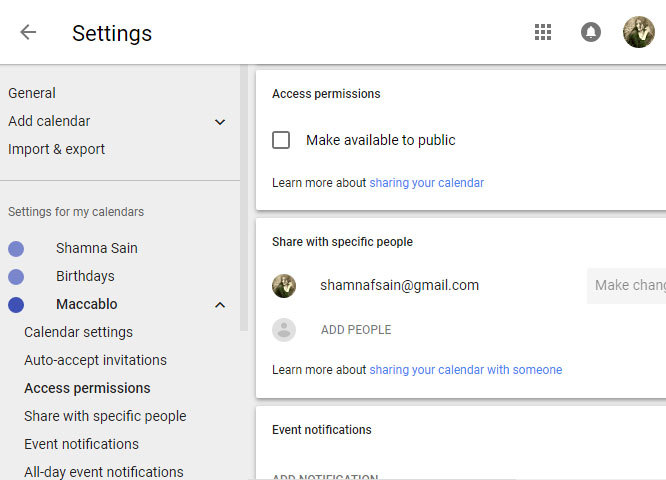
    • Now click on that , you can see an option in the Google Calendar settings page .
    Google Calendar Settings page
    Google Calendar Settings
    • Now choose Access permissions to share Google Calendar with public,  just check mark that box given below make available to public.
    • In case you would like share google calendar with specific people then on the settings page choose Share with specific people option . Click on Add people and enter the email address or email addresses of the people who must get Google calendar access .

    You can customize your Google calendar settings on what sort of events should be shared with other people and the type of permissions they can have .