Tag: Technology

Technology has different aspects and thus definition of technology also has different spheres . The way we define technology is changing from year to year . Technology is the fastest growing sector globally .

We can define it in simple words as a collection of  technical methods , process , skill and techniques used to achieve certain objective / goal or in the production process.

Technology is the tact use of techniques in simpler words.

Ranging from Electricity , Radio , Television , Telephone , Mobile Phone , Computer , Calculator are all products of technology . You can witness that technology is dynamic and it keeps on upgrading each of its invention just like the evolution of  Smartphones , the changing trend of television to LCD , LED , OLED , 4K Smart TV  , the changing speed of Internet from 2G to 3G to 4G to 5G on expectation .

The future will be AI , robotics etc . It is always important for people to know about recent technology updates , technology tips and tricks and to get familiar with new tech products and their specifications .

  • Best iMessage alternatives for Android/ Windows/ Mac/ iOS

    Best iMessage alternatives for Android/ Windows/ Mac/ iOS

    iMessage , SMS/ MMS Alternative on Apple’s iPhone devices is an instant messenger application used to share different types of media files / text with help of mobile data . This iMessage, by Apple Inc is available for iPhone and Mac . Best iMessage Alternatives Applications for different devices is listed here .

    What is iMessage ?

    iMessage in an Apple application developed for instant messaging service by Apple Inc . Best alternative to SMS / MMS service .

    iMessage Encounters Problems with Latest iOS

    Have you felt that after the launch of new iOS version , iMessage functioning is affected ? Many of the users who have updated iOS in their device felt that they face problem with iMessage .

    If iMessage is not working properly then you can rely on some of the best iMessage alternatives .
    On iOS , i mean on your iPhone / iPad you can try these iMessage alternatives for iPhone

    Whatsapp , Facebook Messenger app , Slack , Telegram etc .

    Read Also : Best free calling Apps for all Smartphones

    Best iMessage alternatives for Android

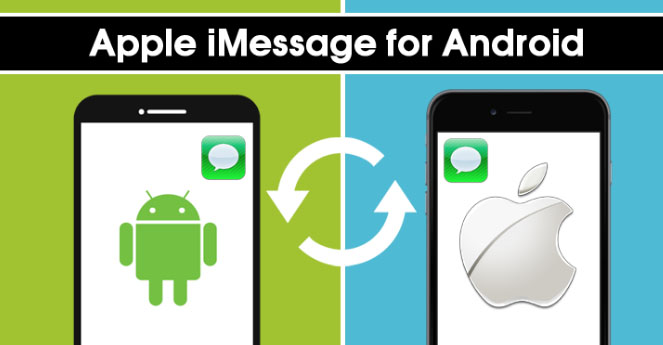
    As iMessage is only available for iPhones and not for Android to compensate that there are many iMessage alternatives for Android those works in a same way like iMessage. Below mentioned are given some Best iMessage Alternatives for Android.
    • Whatsapp Messenger
    • Telegram Messenger
    • Facebook Messenger
    • Google Allo
    • Google Hangout
    • Skype
    • Push Bullet
    • Line
    • Mood Messenger
    • Textra

    Best iMessage alternatives for windows

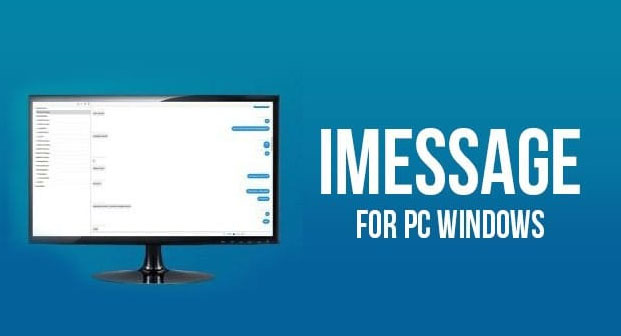
    Windows also doesn’t have any inbuilt iMessage feature but users can go for alternatives that are available in the market. For windows, below listed apps are best iMessage alternatives for Windows.

    May be in the upcoming years iMessage for Windows will be available as Microsoft and Apple is working on together to make Windows support iMessage version , thus making iMessage for PC possible .
    • Viber
    • Line
    • We chat
    • Facebook messenger
    • Google Hangout
    • Whatsapp messenger
    • Skype
    • BBM Messenger
    • GroupMe

    Best iMessage alternatives for Mac

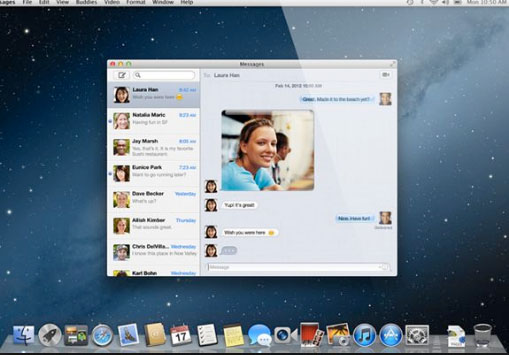
    Mac users can install iMessage app for Mac however still there are iMessage alternatives available for Mac. Some of the best iMessage alternatives are mentioned below:
    • Viber
    • Wire
    • BBM Messenger
    • Whatsapp Messenger
    • Skype
    • WeChat
    • Facebook Messenger
    • Kik
    • Line
    • Google Hangout

    Best iMessage alternatives for Android / Windows / Mac /iOS

    As we already know that there are many iMessage alternatives available for Android, Windows and Mac. So now we are going in depth discussion of some common best iMessage alternative apps that are available for all the three operating system.

    Here is the list of best iMessage alternatives for Android, Windows and Mac.

    Whatsapp Messenger

    Whatsapp Messenger is the best iMessage alternative that can be downloaded on Android, Windows and Mac. This messenger helps users to send and receive message instantly and for it they don’t even have to pay charges as it is free of cost it just need internet connection.
    On Whatsapp you can send pictures, videos, gifs and you can also create group. It also allows you the options of like voice calling and video calling.

    Read Also : WhatsApp Exclusive Guide – Everything about WhatsApp Features

    Read Also : 10+ Best Alternatives to Whatsapp you will love this year

    Read Also : WhatsApp Data Sharing Disable Methods to Protect WhatsApp Data

    Facebook Messenger 

    Almost everyone have Facebook account and Facebook messenger is the second best iMessage alternative available. Facebook messenger helps its users to send message to each other by using internet. You can download it on any platform like Android, Mac and Windows, as it is compatible with all of them. Some of the best features of Facebook messenger are stickers, emoji, voice call, video call, sending link, location, pictures, videos and more.

    Read Also : View Facebook Full site – Facebook Desktop Version on Android
    Read Also : Safeguard Facebook Pictures-Prevent profile picture downloading

    Read Also : Best Facebook Ad management tool – Facebook Advertising

    Read Also : Instagram tips and tricks to be a Pro Instagrammer

    Viber Messenger 

    Viber Messenger is a free messenger that can be install in Android, Mac, and Windows. You can send message in anywhere in the world only by using internet. Viber offers exciting stickers and emoji to share with family and friends. You can also make international phone calls or video calls through Viber. On Viber you can also make a group of approximately 250 people. Some other attractive features of Viber are that you can send audios and video messages to your contacts. Viber Messenger also allows its users to play exciting games on Viber with contacts, followers and people near your location.
    Skype 

    Skype is available for Android, Windows and as well as for Mac. Mainly Skype is used by people to do video calls but it can also be used as iMessage alternative. Skype allows its user to chat, share, voice call, sends giphy and more. So this is the multipurpose app you can use it for calling as well as for messaging.
    Read Also : Skype for Business: Fix “Cannot sign in because the server version is incompatible with Microsoft Lync” error

    WeChat 

    WeChat is one alternative for iMessage, and one can download WeChat on any platform. WeChat is used for messaging, calling people all over the world. It is said to be a all in one app that is used for sending any type of message whether voice, photo or txt, group calls and chats, send stickers from  stickers gallery, share special moments, share location, translate your message in different languages and more. It also assures best privacy policy and one other attractive feature of WeChat is that it allows you to find new friends as it gives options like Friends Radar.

    Read Also : Get Celebrities Notice Maximum on Twitter – Popular Tweeter Hacks

    Read Also :  View Twitter Full Site – Check Twitter Desktop Version on Android
    Hangout 

    Google Hangout also used as iMessage alternatives and users can use them on any platform and device. Hangout allows it users to do free calling, send free messages and do free video calls. By using Hangout you can do video call with almost 10 people at a time.

    Read Also : Google Datally App to Control Mobile Data & WiFi Finder
    So these are some best iMessage alternatives one can use in place of iMessage. All of these iMessage alternatives provide best features so user can have good using experience also. All of these iMessages are good but users can try and select which one is the best for them.
  • How to update iPhone / iPad to the Latest iOS update

    How to update iPhone / iPad to the Latest iOS update

    Apple being one of the famous brand always upgrade Operating system for its devices . As you may be very well aware that the operating system Apple make use of is the iOS . Soon after the release of three new flagship iPhones here comes the most awaited latest iOS version . Here we will learn about How to update iPhone / iPad to the Latest iOS update .

    Answering the most awaited question about iOS 12 release date , the new iOS got released for 2018 also on September . Those who wanted to upgrade iOS and update iPhone with Latest iOS . Then read this piece , because its just written for you.

    The history of iOS versions begins from the release of iPhone OS 1 , iPhone OS 2 , iPhone OS 3 , iOS 4 , iOS 5 , iOS 6 , iOS 7 , iOS 8 , iOS 9 , iOS 10 ,  iOS 11 , iOS  12, the latest .

    Read Also : Improve The World With Smartphone -Top 10 Hacks

    iOS 12 Released 

    Finally the most awaited latest Apple OS for iPhone and iPad is released. After iOS 12 beta now iOS is official . It is evident that most of the iOS 11 supported devices will support iOS 12 .

    You can update iPhone to iOS 12 by checking out whether your iPhone OS can be upgraded .

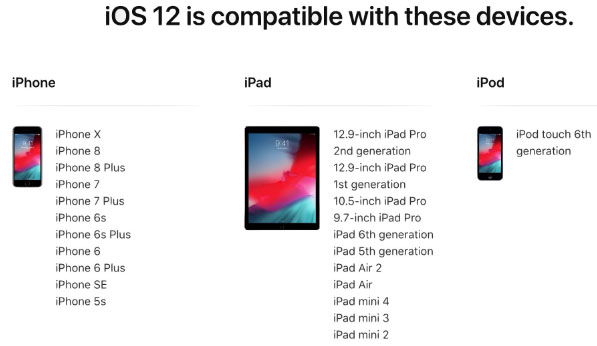
    iOS 12 Supported Device list

    Given below is the devices that use iOS 12 and also list of devices where you can upgrade iOS .Here is the list of Apple devices capable to do iOS 12 download. We will also guide you about how to update iPhone with latest iOS  .

    iPod Touch

    On the series of iPod touch devices the iPod Touch 6 (iPod 6th generation) is compatible for iOS update . You can download iOS 12 for iPod Touch 6 . The iPod touch 6 G that initially was iOS 8 which can be now updated. So you can update iOS 8 to iOS 12 .

    Read Also :  38 Best iPhone games you should play

    iOS 12 for iPod Touch – How to Install iOS 12 On iPod Touch

    In order to update iPod touch with iOS 12 follow the given steps –

    • First take a iTunes Backup / iCloud Backup of your iPod Toch device
    • Install latest iOS (download iOS 12) either by wireless method or by iTunes

    The steps to installation of iOS is same for iphone , ipad and iPod .So read the common section for understanding how to update iPod software .

    iPad iOS update Supported Devices 

    Given is the list of iPad devices that can be upgraded to iOS 12 . So lets see how to update iOS on iPad .

    • iPad Air – Initially used iOS 7 , now this can be updated from iOS 7 to iOS 12

    • iPad Air 2 – Initially used iOS 8 , now this can be updated from iOS 8 to iOS 12

    • iPad 2017 – Initially used iOS 10.2.1 can be upgraded to iOS 12

    • iPad 2018 – Initially used iOS 11.3 can be updated from iOS 11 to iOS 12

    • iPad Mini 2 -Initially used iOS 7.03 can be updated to iOS 12

    • iPad Mini 3 -Initially used iOS 8.1 can be upgraded to iOS 12

    • iPad Mini 4 -Initially used iOS 9 can be now updated from iOS 9 to iOS 12

    • iPad Pro (9.7 inches) , iPad Pro (10.5 inches) , iPad Pro (12.9 inches ) Generation 1 and 2 – Initially used iOS 9.1 can now be upgraded with latest iOS 12 .

    iPhone iOS 12 supported

    Here is the list of iPhone that can be available for iPhone software update to the latest iOS 12 . These devices can be upgraded to iOS 12

    • iPhone 5S – Initially run on iOS 7 can be now upgraded to iOS 12

    • iPhone 6 – iOS 8 to iOS 12 can be updated for iPhone 6 users

    • iPhone 6 Plus – This iPhone 6 Plus users using iOS 8 can update it to iOS 12

    • iPhone 6S & iPhone 6S Plus -Initially run on iOS 9 can be upgraded to iOS 12

    • iPhone SE – updating iOS for iPhone SE is available , here you can upgrade iOS 9.3 to iOS 12

    • iPhone 7 – iOS 10 to iOS 12 software update is available for iPhone 7 series

    • iPhone 7 Plus – iOS 10 to iOS 12 update is possible for even iPhone 7 Plus

    • iPhone 8 – You can update the old iOS in iPhone 8 which was iOS 11 to iOS 12

    • iPhone 8 Plus – iOS 11 is the OS running on iPhone 8 plus hich was available for iOS 11 update earlier . Now you can upgrade iPhone 8 Plus to iOS 12 .

    • iPhone X – iOS 11 was the iPhone X OS , now those who are using iPhone X can update iPhone to iOS 12

    • iPhone XS – iOS 12 is the OS for the new flagship Apple phone

    • iPhone XS Max – This apple flagship phone uses iOS 12

    • iPhone XR – Most modern apple phone , iPhone XR runs on iOS 12

    Why iOS 12 – Best Features of iOS 12 

    The newly released iOS 12 has so many features to make you fall in love with iOS 12 . Let’s take a look at some of the most exciting and best iOS 12 features –

    Navigation Apps is Not Limited Anymore 

    You may be aware that earlier versions of Apple OS has allowed its users to rely upon only the Apple Navigation app , that is the Apple Maps . Those who had voted more for Google Maps on a comparison between Google Maps Vs Apple Maps , can be happy now . Your iOS 12 allows you to use Google Maps and other third party navigation apps with the Apple CarPlay .

    That’s quote a good news , isn’t . Don’t worry we will guide you on how to Google Maps with Apple CarPlay in our upcoming write up.

    Group FaceTime Call is Latest in iMessage Group Chat

    Now , this feature is not live but it will be rolled out soon in iOS 12 . Thus allowing the iPhone , iPad and Mac users to enjoy group Facetime Call with new iOS .

    Read Also : Best Triple Camera Phones to Buy This Year

    iOS with More App updates

    Seriously not a major app updates but yes there are few excellent app updates with the iOS 12 .

    • Apple News App with a scroll option in iPad.
    • Stock Analysis , Performance and top stock related news updates throughout the day.
    • iPad now gets Voice memo apps . Also there is iCloud support to sync your Voice memo with other Apple devices .
    • iBooks turned to be Apple Books . It has got Book store feature and Reading now feature to make it much more easy to use .

    Access Apple TV with Apple Control Center 

    Add Apple TV tile to your iOS 12 Control center , now just swipe and tap to access Apple TV

    Managing Screen Time

    Now iOS 12 lets the Apple iPhone and iPad user to understand the pattern of their device usage time , a clear and detailed summary of how much you have used your device . Also which app you spend more time etc.

    App Limit Feature 

    Along with managing screen time , apple also introduced an efficient and smart feature that allows the users to limit their usage by setting time limit for each apple apps . So that’s how the App Limit feature adds more power to the screen time management feature in iOS 12.

    Downtime Feature in iOS 12

    This is a boon to parents where they can remotely manage their kid’s apple device usage with Family sharing app . The downtime feature in iOS 12 aims at helping parents to limit their kid’s access to apps or websites and even set time to each applications .

    Bye bye to Long list of Notifications

    No more irritating thread by thread notifications to pile up your home screen . Everything is now sent as a grouped notification on a single thread . This single thread notification is one of the best things that happened with iOS 12

    Read Also : iPhone Vs Samsung which is better – iPhone Vs Galaxy Compared

    Do Not Disturb & Critical Alerts

    Set time to enable Do not disturb and toggle on Do not disturb whenever you want to stay away from getting distracted because of mobile. But one better thing is Critical alerts from healthcare persons will work even when your Do not disturb is enabled .

    There are more features like – iOS Photos – For You Tab , Siri shortcuts for iOS 12 , ARKit 2.0 , USDZ format , Add 2 Face Id Profiles , Better password manager , Apple camera app with Improved Portrait mode , better battery health , better QR scanner , Better screenshots on iPhone , New Apple map design , location sharing , Animoji and memoji trends , iOS 12 Siri suggestions improved .

    How to update iPhone / iPad to the Latest iOS update

    Now let us dive into the core topic ,that is how to update iPhone/iPad with latest iOS . Before you do iPhone Sofware update you have to backup iPhone /iPad before you update iOS .

    How to Backup iPhone /iPad /iPod before updating to iOS 12 

    Before you download iOS 12 , You have to backup iPhone /iPad /iPod to prevent loss of data while software upgrade.

    You may be aware that there are two methods to update iPhone –

    1. Update iPhone using iTunes
    2. Update iPhone using iCloud

    Now before that all you need is to learn to back up iPhone / iPad /iPod

    Read Also : Factory reset iPhone without password or iTunes with data backup

    How to Take iTunes Backup of iPhone/iPad/iPod

    To prevent iPhone data loss before you update iPhone or any of your iOS device , take a iTunes backup . Follow the given steps –

    • Ensure that you have updated latest iTunes version , if no install latest iTunes version first .
    • Now open iTunes
    • Connect your iPhone/iPad/iPod to your computer
    • Now you will be asked to verify the computer by entering the passcode .
    • Next you have to enter your Passcode information correctly .
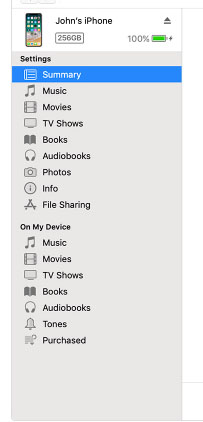
    • Now select your device on iTunes window’s left corner .
    • You have to click on the Summary option that you can see on the left corner of the window
    • At this time yo can see your device information on centre of the window displayed out . Also there you can find an option This Computer
    • Toggle it and below that there is an option Encrypt device backup , Click that and enable tick mark for that to protect it with password
    • Now on Manually backup and restore option click on Backup Now
    • Click done .

    Read Also : Best iTunes Cleanup Software for better iTunes experience

    This is how you can restore iPhone/iPad /iPod using iTunes . Make sure that you do take a back up iphone /ipad before updating to ios 12 .

    How to update iPhone / iPad to the Latest iOS update

    Now let us learn how to download iOS and install latest iOS on your iPhone , iPad and iPod . So i guess you have taken back up of your iPhone . If so proceed on how to download latest iOS ( How to dowload iOS 12 ) –

    • To update iPhone with latest iOS 12 you must either take iClod / iTunes backup of your device first
    • Now to install iOS 12 using iTunes follow the given steps
    1.  Go to iTunes
    2. Plug your Device , that is plug iPhone / iPad / iPod
    3. Now select the device icon that can be found at top left
    4. Go to Summary
    5. Now click on Check for Update
    6. Select Download and update option
    7. Now click Agree button mentioning you agree to all the terms and conditions
    8. Enter your device passcode
    • Now to install iOS 12 using iPad / iPhone software update follow these steps to update iPhone iOS with iOS 12
    1.  Take iCloud Backup
    2. Go to device Settings option
    3. Go to General 
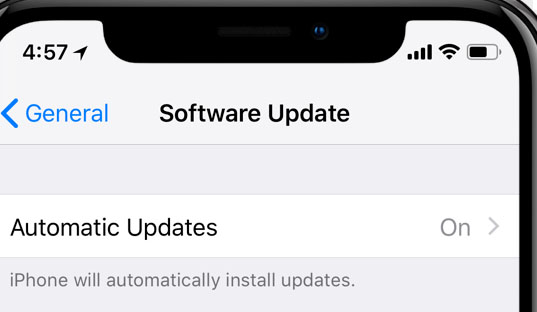
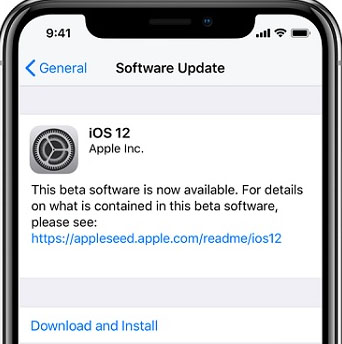
    4. Now click on the Software update 
    5. There you can see and option called Download and Install , just click that
    6. Proceed with entering your device passcode and simple agree to terms and conditions4
    7. Click Agree to confirm

    That’s it , this is how to update iPhone with iOS 12 , hope you are clear with how to download iOS 12 and install iOS 12 .

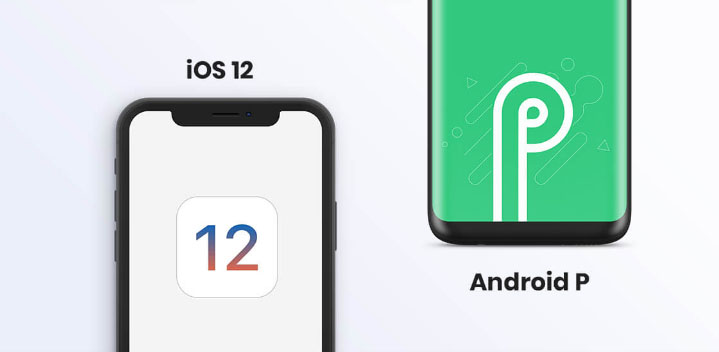
    Android Vs iOS – Comparing Android P Vs iOS 12

    After Android O (Android Oreo) google has released Android P , that is Android Pie , the very latest Android OS . So with the release of iOS 12 , most of the users have a confusion which is the best Android Vs iOS ( On a cross comparison between Android or iOS) . So here we will take a look at Android P Vs iOS 12 .

    Many of the devices are apt for Android 9 Pie as OS . And we have already discussed iOS 12 supported devices and how to upgrade to iOS 12 . Google Pixel 3 XL will come with Android 9.0 (Android P) . And in many other devices using Android Oreo you can update Android Oreo to Android Pie ( Android O to Android P )

    Read Also : Android Oreo Vs Android Nougat Vs Android Marshmallow Vs Lollipop

    Now lets take a look at iOS 12 Vs Android P –

    • iOS 12 Vs Android 9.0 comparison Google’s Android P is the best with respect to maps and navigation performance when your compare with iPhones. So google maps is best when compared to apple maps .
    • While encountering comparison between the virtual voice assistants in Android P and iOS 12 , Android wins the heart . Even though Apple has brought so much of new updates to Siri , still Google assistant remains favourite for majority .
    • Digital health aspects is taken more carefully by iOS than Android , so in that case iOS is winner

    Read Also : iOS 11 Vs Android Oreo – Who wins gadget lover’s Heart

    Read Also : Update to Latest Android OS : Android Pie -Stay with Nougat / Marshmallow/ Oreo

    Read Also : Backup Android Device to PC or Google

    There are more differences that will be discussed separately and in detail .

    So i guess we have given our users a very detailed idea on iOS 12 and iOS 12 supported devices , a cross comparison between iOS 12 Vs Android P & our core point how to update iPhone / iPad / iPod to latest iOS 12.

  • Best Triple Camera Phones to Buy This Year

    Best Triple Camera Phones to Buy This Year

    Camera , Photography , Selfie , Bothie and so on has become one of the exciting features that the generation wants as the best in their Smartphone . Recent trend in Smartphone photography is hiking with new models of Smartphones with exciting features . Here comes the new trend setter Smartphone Camera feature after Nokia Bothie app .That is the rise of Triple Rear Camera feature , so let’s find out the list of Best Triple Camera Phones .

    Best Triple Camera Phones to Buy This Year

    You may be very much familiar with dual camera smartphones in market , but there are only few handpicked brands and smartphone models that fall under the category of Best Triple Camera Phones .

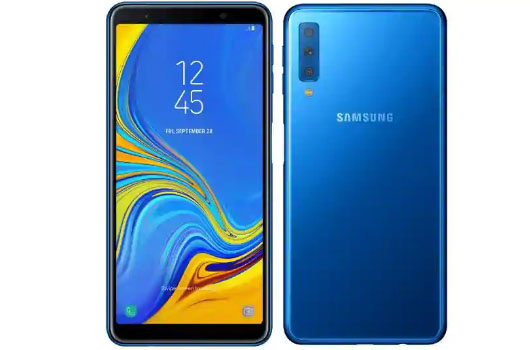
    Samsung Galaxy A7 

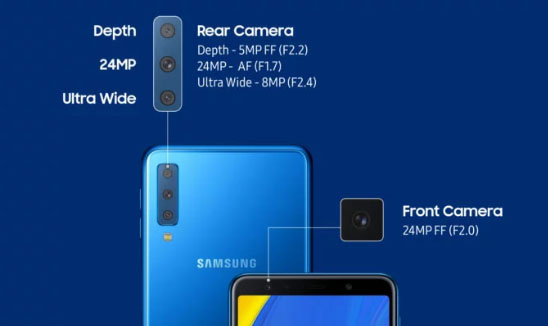
    Samsung will introduce their very first smartphone with triple cameras . Samsung Galaxy A7 will be one of the Best Triple Camera Phones .

    Samsung Galaxy A7 will be one of the best camera smartphone of the year to buy .

    Features of Samsung Galaxy A7

    Now let us analyse the features of Samsung Galaxy A7  –

    Memory –  6 GB RAM , 128 GB Storage & 4 GB RAM , 64 GB Storage with 512 GB expandable memory

    Colours –   Three colours will be available that is Black , blue and gold

    Dimension – 7 inches FHD

    Display – AMOLED screen

    Samsung Galaxy A7 price will range at Rs.28,990 for 6GB RAM and Rs.23390 for 4GB RAM . This is the first triple camera phone from Samsung brand . So the highlight of this phone is all about Camera .

    So what’s special about this best Triple Camera Phones –

    This will be one of the Best Triple Camera phone in the market right now and it offers higher camera quality then iPhone latest models also. Samsung A7 offers triple rear camera when all the old models offer dual camera . This will be a flipkart exclusive to buy .

    iPhone XR Vs Samsung Galaxy A7  Camera 

    Since the most pricey phone on market is iPhone XR , let’s take a look at the iPhone XR Camera Vs Samsung Galaxy A7 Camera . Also fingerprint sensor is a highlight to point out in Samsung Galaxy A7 . This will add more competition to Oppo F9 Pro , Xiaomi Poco F1 , Viv V11 Pro smatphones .

    Triple Camera Vs Dual Camera 

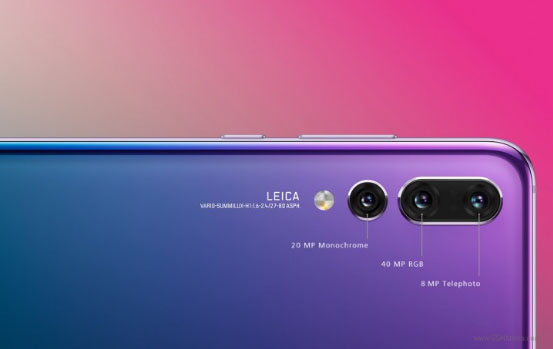
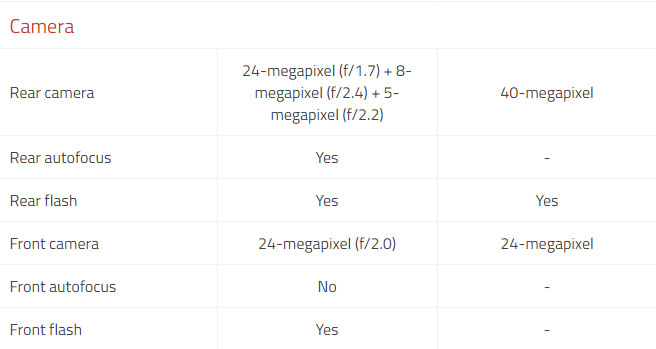
    The triple lens camera can be giving far better experience than dual camera . Best Triple Camera can be now witnessed in Samsung A7 and earlier Huawei P20 Pro . Samsung offers 24 MP low light front facing camera , 8 MP sensor  with 120 degree field view with its ultra wide lens . 5 MP depth Sensor with Live view sensing focusing on bokeh photography.

    Triple Camera / Multiple Camera Vs Dual camera in smartphones , i would say multiple cameras and triple cameras would be the trend in the future just because of this reasons –

    • Wide angled shots
    • Depth shots by detecting depths
    • Low light camera feature
    • Better HDR Experience with camera
    • Zoom high and zoom better

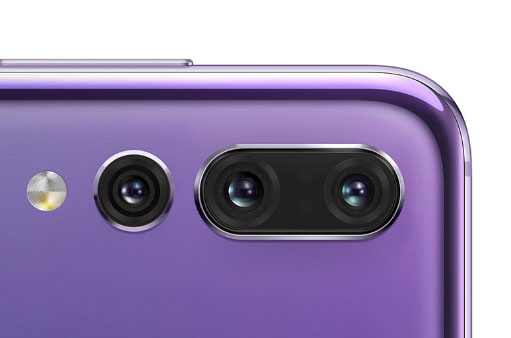
    Huawei P20 Pro

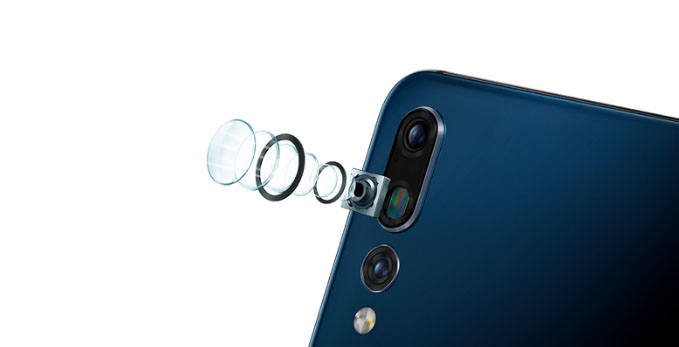
    The very first smartphone that came with triple camera was Huawei P20 Pro , this was a different experience to the camera lovers to use such an efficient smartphone.

    Huawei P20 Pro Vs Samsung Galaxy A7

    Here is the comparison between Huawei P20 Pro Vs Samsung Galaxy A7 Camera feature compared

    Also Huawei P20 Pro confirmed that its upcoming upgrade will come with large storage space and Huawei P20 Pro will disable AI Scene recognition and will disable

    Ulefone Gemini 4G Phablet 

    This is not a quite popular name in smartphone brands but , Ulefone Gemini 4G Phablet offers triple cameras  , take a look at the camera specifications of Ulefone Gemini 4G


    Multiple Camera Smartphones  

    On the saga of smartphones , many brands will pose competition to each other with their multiple rear camera smartphones .

    Upcoming on the list is –

    • Light Phone with 9 camera (To become the 9 camera smartphone on market)
    • After bothie feature , Nokia to come up with 5 lens camera smartphone , thus Nokia to offer 5 Camera smartphones
    • Also LG to come up with multiple camera smartphone soon with their LG V40 ThinQ 5 camera smartphone

    So let us know which one is your favourite and  Best Triple Camera Phones to buy . If you look for better camera then forget iPhone XR also .

  • iPhone Vs Samsung which is better – iPhone Vs Galaxy Compared

    iPhone Vs Samsung which is better – iPhone Vs Galaxy Compared

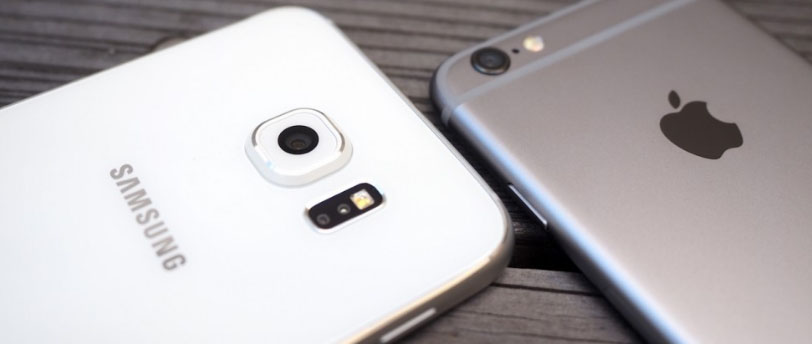
    Apple and Samsung being two big brands in the industry have made Galaxy and iPhone as two big names in the realm of Smartphone, Galaxy is introduced by Samsung and iPhone is introduced by Apple. Both Galaxy and iPhone are very popular among their users, their popularity has given rise to competition between both of them. More the competition , it lead to more of confusion among the buyers . So, in this article, we will discuss which one is better Samsung Galaxy or iPhone. The article is about iPhone Vs Samsung (Galaxy Vs iPhone) and the comparison between iPhone X , XS , XS Max and XR  and Samsung galaxy S10 , S9 and S8.
    In Samsung Galaxy, Smartphone Android Operating system is used whereas in iPhone, iOS software is used. Both of them offer so many features that it is very difficult to choose anyone. But one of the differences between the two is that iPhones are always expensive whereas Galaxy phones are affordable. Let’s have a look at the comparison between iPhone Vs Samsung Galaxy through a comparison between their latest Smartphone.

    Read Also : Improve The World With Smartphone -Top 10 Hacks

    Read Also : Best iTunes Cleanup Software for better iTunes experience

    Read Also : iOS 11 Vs Android Oreo – Who wins gadget lover’s Heart

    We all buy Smartphone but when it comes to buying we do all possible efforts to find out which is the best in the market. And after researching the two names that you must come across are Samsung Galaxy and iPhone. You might want some constructive comparison between iPhone Vs Samsung if you heard about Galaxy phones and iPhones.

    Latest Galaxy & Latest iPhone 

    Samsung on their Galaxy S series has launched Samsung Galaxy S9 .The latest Smartphone launched by Samsung Galaxy is Samsung Galaxy S9 which is released on 16 March 2018 . The upcoming latest Samsung phone will be Samsung Galaxy S10 .

    Whereas the latest iPhone is iPhone X launched by Apple on November 3, 2017.  Now Apple has released their 3 flagship smartphones recently – iPhone XS , iPhone XS Max and iPhone XR .

    iPhone Vs Samsung which is better – iPhone Vs Galaxy Compared

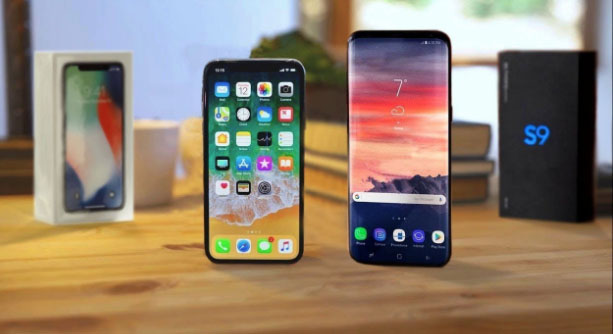
    When we discuss about iPhone Vs Samsung , Both of these smartphones are giving tough competition to each other. To know more about the features, prices, and other details of these smartphones please go through the iPhone X Vs Galaxy S9.

    Read Also : Update Latest Android OS – Top reasons to upgrade Mobile OS

    Read Also : Samsung Pay Guide with Exclusive Samsung Pay FAQ

    Read Also : Android Vs iOS – Pros & Cons of Buying Android Vs iOS

    Read Also : Apple Homepod Tips, Tricks and Review

     iPhone X Vs Galaxy S9

    • The operating system of iPhone X is iOS v11.0.1 whereas the OS of Samsung Galaxy S9 is Android v8.0.
    • Both the Smartphone offers 64 GB of storage whereas memory of S9 is expandable and memory of the iPhone cannot be expendable.
    • Both provide 12 megapixels of a camera.Samsung Galaxy S9 offers 8 megapixels front facing camera whereas iPhone offers 7 megapixels of front camera.
    • The display of both is 5.8 inches but Galaxy S9 screen is Super AMOLED whereas the screen of iPhone is OLED.
    • iPhone X is a single sim Smartphone whereas Samsung Galaxy S9 is dual sim Smartphone.
    • The processor of iPhone X is Hexacore whereas Samsung Galaxy S9 processor is Octa-core.
    • Samsung Galaxy S9 is made up of metal and its price is ₹ 57,900 whereas the iPhone X is made up of glass and its price is ₹ 89,000.

    If we talk about the battery of S9 and iPhone then the battery of both of them can’t be replaced. The mAh of S9 is 3000 whereas the mAh of iPhone is 2716.  RAM of S9 is GB whereas RAM of iPhone X is 3 GB and the chipset of iPhone X is Apple A11 Bionic whereas chipset of Samsung Galaxy S9 is Samsung Exynos 9810.

    iPhone X and Samsung Galaxy S9 both are going great in the market. iPhone X is brought by people who like to buy luxury products because it adds to their social status but just because of this one can’t underestimate Samsung Galaxy S9 as it is a great rival to iPhone X and using it is very fun and amazing experience. Both of these smartphones are best however users can choose between iPhone X and Samsung Galaxy S9 according to their own requirements.

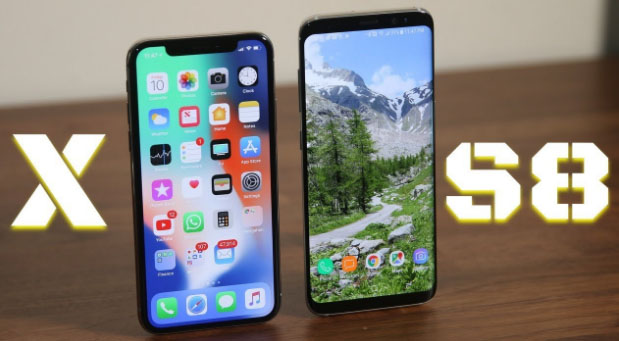
    iPhone X Vs Samsung Galaxy S8

    • Samsung Galaxy S8 is the successor of Samsung Galaxy S9, S8 is launched by Samsung on May 5, 2017. The features of Samsung Galaxy S8 are similar to the features of Samsung Galaxy S9 users but Samsung Galaxy S9 features are more advanced.
    • The price of iPhone X is around 90,000 whereas Samsung Galaxy S8 Price is around 60,000. The Samsung Galaxy S8 is available in 5 colours that are black, grey, gold, silver, red and blue.
    • The iPhone X offers some amazing features like wireless charging, face unlock feature, animoji feature whereas these Samsung Galaxy S9 and S8 offers features like face recognition, dual lens camera, stereo speaker, dual sim, intelligent scan, AR emoji like bitmoji , memoji , Bixby feature, desktop experience supporting, calling PLUS and more.
    • The iPhone X does not have any home button, fingerprint scanner, and headphones jack whereas Samsung galaxy s9 has all of these.

    Both Samsung Galaxy S9 and iPhone X are offering best features at the best price. Both are getting positive reviews from the users, however, iPhone win the hearts of many people but before buying you must understand your expectation and need and choose between both on the basis of it. Whether you choose S9 or iPhone X both will give you an amazing experience as both are best in their own ways, features and style.

    Now when you compare iPhone Vs Samsung , we have seen the comparison between iPhone X Vs Samsung S9 , iPhone X Vs Samsung S8 .

    As Samsung S10 (Samsung Galaxy S10) is upcoming we will make a cross comparison between iPhone XR Vs Samsung S10 . Samsung galaxy note 9 is best alternative to iPhone XS .

    You might be aware that iPhone X Vs iPhone XS doesn’t have so much breathtaking features to be cross compared . Well iPhone XS Max can be one of the best product recently launched in market .

  • iPhone X Features ,Tips ,Tricks and iPhone X Review

    iPhone X Features ,Tips ,Tricks and iPhone X Review

    If we talk about smartphones, iPhone is the first name that comes on everybody’s mind.  Everything about iPhones is special such its features, its price, its fan following, its demand all over the country is just outstanding all these things make it a luxury.  In this article, we are going to throw some light on the latest iPhone X, iPhone X features , and iPhone tips and tricks.

    On the Apple mobile series the latest is iPhone XS , iPhone XS Max and iPhone XR . You may be aware that the iPhone X got discontinued . It doesn’t mean that your iPhone X is useless now , those who have the iPhone X can still continue to use their device . But those who wanted to buy a new iPhone X , you lost the chance .

    Don’t worry you have better options than iPhone X . The latest iPhone XS , iPhone XS Max and iPhone XR have got better specifications than iPhone X features .

    iPhone X Features ,Tips ,Tricks and iPhone X Review

    Here we will discuss about iPhone X features and iPhone X tips for those who still use the iPhone X model.

    Read Also : How to Fix “Cannot Take Photo” Problem on iPhone and iPad

    iPhone X

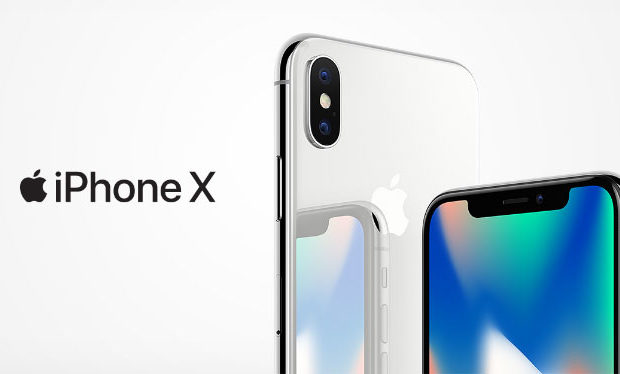
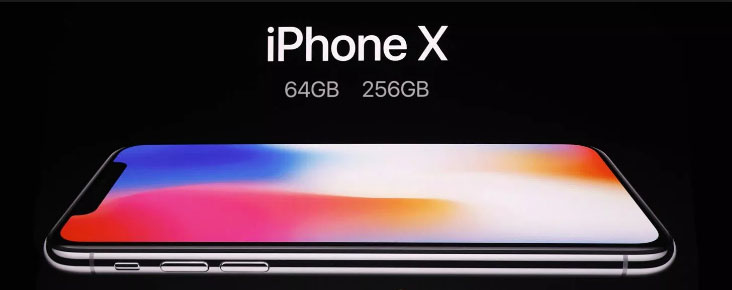
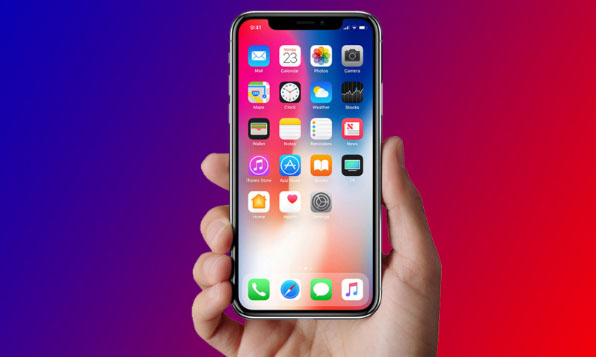
    Apple launched iPhone X on November 3, 2017. The iPhone X is available in two colour options one is space grey and the other is black. The stainless steel is used to make the phone as it ensures durability and glass is used to make the casing of iPhone X.

    Some of the awesome iPhone X features are given below:

    • General: iPhone X weight is 174.00 and dimension is 143.60 x 70.90 x 7.70.
    • Display: The display screen of the iPhone is 5.80-inch with a resolution of 1125 pixels*2436 pixels. It provides a super retina HD display, multi-touch display, and 3D Touch.
    • Hardware: The iPhone X is powered by the hexa-core processor and it provides 3 GB RAM. The phone provides 64GB of internal storage that is non-extendable.
    • Operating system: iOS 11 is the operating system used in iPhone X it makes the smartphone more compelling, personal and intelligent than ever.
    • Wireless Charging: The best iPhone X feature is that it ensures wireless charging.
    • Battery: Battery capacity of iPhone X is 2716 and the battery is non- removable.
    • Camera: The rear camera is of 12 megapixels and has features like Quad-LED dual-tone flash, panorama, HDR, Noise reduction, Exposure control, Body and face detection and more. The front camera is of 7 megapixels. It is compatible with Retina Flash, Portrait Mode, Exposure control, Burst mode, Timer mode, Auto image stabilization etc.
    • Video recording: Options like 720p HD video recording at 30 fps, 1080p HD video recording at 30 fps/ 60 fps, and 4K video recording at 24 fps/30 fps/ 60 fps, are also available.
    • Sensors: Sensors that are offered in iPhone are Accelerometer, Face ID, Three-axis gyro, Barometer, Ambient light sensor, and Proximity sensor.
    • Animoji: The most attractive iPhone X feature is Animoji. With this feature, you can customize emojis. It can be possible with the help of one more attractive iPhone X feature that is true depth camera.
    • Some of the other iPhone X features are that it is dust, water, and Splash resistance and it supports Nano Sim.

    Read Also : Android Vs iOS – Pros & Cons of Buying Android Vs iOS

    Read Also : iOS 11 Vs Android Oreo – Who wins gadget lover’s Heart

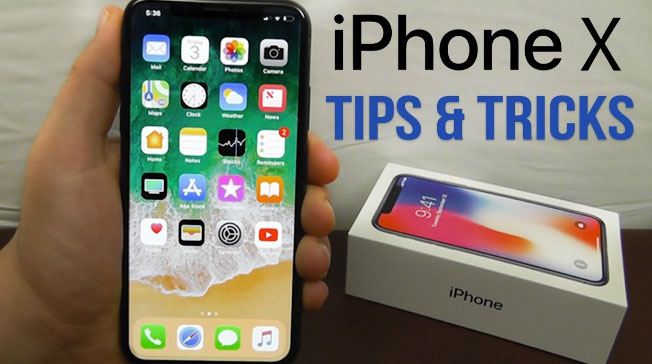
    iPhone X tips and tricks

    The new iPhone is quite different from its successors, so it became difficult for its users to find and use all iPhone X features. So, some tips and tricks are shared below for the iPhone X users which will help them in using their smartphones more smartly.

    1. Use face to mute alarm: iPhone X users don’t have to snooze their alarm. They just need to look at the mobile and the Face ID will automatically lessen the loudness of the alarm.
    2. Deactivate Face ID: The Face ID can be deactivated and passcode security will reactivate when the user presses the power button five times.
    3. Battery: The battery percentage is never shown on the iPhone X, however; users can see the battery percentage by swiping down the notch presented on the right side.
    4. Home button: Home button is not present but the user can get a virtual home button, they just need to go to General, where they will find Accessibility and in it, they have to turn on the Assistive Touch option.
    5. Save battery: Users can save the battery of there iPhone by setting black wallpaper or by using the grayscale mode.
    6. Close multiple tabs: Users can close multiple tabs in one go by using Safari option.
    7. SIRI announcements: If the user is using headphones and someone is calling then Siri will announce who is calling. A user can turn on this feature by visiting the setting option.

    Read Also : Fast Forward , Rewind , Scrub Music in iPhone & iPad Music Player

    Read Also : Garageband Alternatives- iPad / iPhone / Android

    Read Also : Factory reset iPhone without password or iTunes with data backup

    iPhone X price

    iPhones are always expensive that’s what makes them a luxury and not a common thing. The current price of iPhone X in the market is quite high because of the increase in customs duty. The price of the 64GB Apple iPhone is Rs. 95,390 and the price of the 256GB Apple iPhone is Rs. 1, 08,930.

    With the Launch of iPhone XS ,  iPhone XS Max and iPhone XR Price range of the iPhone X will see a heavy fall .

    iPhone X reviews

    iPhone never disappoints its users, after going through people’s reviews one thing is very clear that iPhone X users are really very satisfied with it. The best iPhone X feature which many people liked is face unlock feature, the other thing which users like is its wireless charging feature, the camera is quality is just great, the display and size of iPhone X are just awesome and comfortable to hold. When it was first released not many apps were supported on it, however, developers are trying since to make it compatible with more apps. So, we can say that iPhone X has majorly satisfied its users.

    Read Also : 38 Best iPhone games you should play

    What to do with old iPhone X ?

    This is a question in mind of every gadget lover who got disappointing with the discontinuity of iPhone X . So what can you do with the iPhone X .

    Well here we give a short idea on what can you do with old iPhone .

    Upgrade iPhone X 

    You can now make use of the last few days to upgrade your old iPhone X . You can upgrade iPhone X to iPhone XS ,or iPhone XS Max using the apple’s iPhone Upgrade Program .

    But when you have iPhone X then the decision to upgrade iPhone X to iPhone XS will seriously disappointing you . So you can consider to upgrade iPhone X to iPhone XS Max .

    To get a novel feel with iPhone you must buy iPhone XR . You can even sell or trade old iPhone online easily .

     iPhone X plus

    Apple launched iPhone XS in the market. Being the newest model, the iPhone XS will provide more advanced features and obviously will be more expensive. The release date of iPhone XS is September 12, 2018. Though it is going to be launched soon, people already started being curious and begin to guess what features this new iPhone will have so from the sources we came to know that its display will be of 6.0, it will provide storage of 64 GB, camera will be 13 MP, battery MAH will be 2815, and 4GB Ram. For more accurate details we need to wait until it launched.

    Soon we will give you iPhone XS , iPhone XS Max and iPhone XR review and features.

  • Apple Homepod Tips, Tricks and Review

    Apple Homepod Tips, Tricks and Review

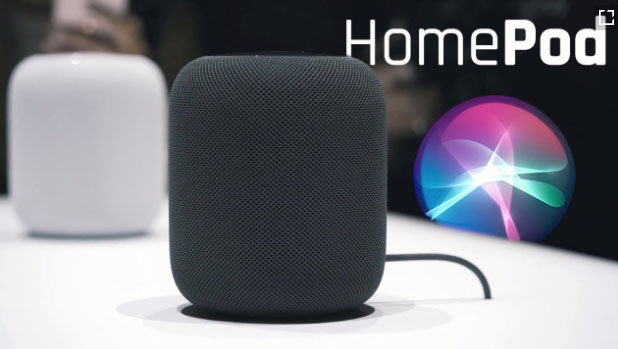
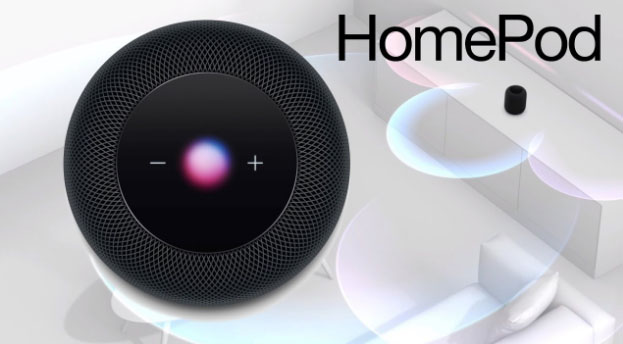
    Apple Homepod is the Apple’s smart speaker. Apple launched it in February this year. Apple finally entered this field after Amazon’s Alexa or Echo and then followed by Google’s Home assistant. Earlier we have discussed out the Amazon Alexa tips and tricks , now here we will discuss the Apple Homepod Tips and Tricks as well as Apple Homepod Review .

    Since its release the Apple Homepod has been most appreciated for which Apple is much famous already i.e. its sound quality that to with 360 degree audio. How can I forget to mention that the Homepod is damn good looking and stylish. But it costs much more as compared to Echo.

    Before we discuss about the Apple Homepod Tips and tricks , lets understand what is Apple Homepod.

    What is Apple Homepod ?

    The question is simple and the answer is very simple . Apple Homepod , popularly known as Homepod is a smart speaker that functions amazingly along with Siri and creates a wonderful music experience with Apple music . This wireless smart speaker is the trend of the generation.

    Apple Homepod Price ?

    You can buy Apple homepod from apple store online or even there are great deals for Apple Homepod this year on different e-commerce site . The price range of Apple Homepod is about $349 .

    There are speculations in the market regarding Apple Homepod which are not yet confirmed .There can a price cut for Homepod , else Apple Homepod 2 or Apple Homepod Mini will be released .

    Read Also : Best Apple Watch Alternatives-Affordable Gadgets

    Apple Homepod Tips, Tricks and Review

    Here’s a guide to all the major Apple Homepod tips and tricks that are going to help you to get you the best out of your Homepod or force you to buy one right now:

    Switch Siri’s voice on Homepod

    The very first Homepod trick is that if you want a completely new refreshing voice and accent for your Homepod so here’s the good news . You can try and experiment the different available option to choose different accent such as American accent / British / Australian accent . Even you can switch between either female / male voice . To change Siri voice , all you have to do is just long press Homepod tile . This will enable so many options from which you can select the Siri language settings , default voice and many more as per your choice of interest . This is one of the excellent Apple Homepod tips to try out .

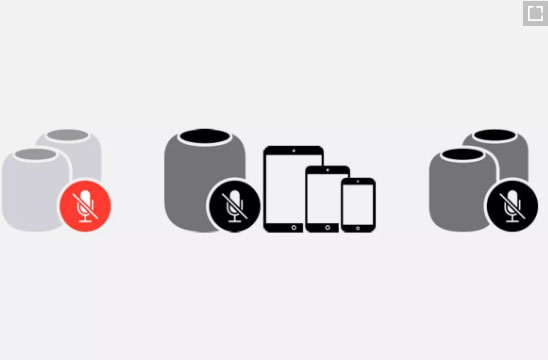
    Mute Siri on Homepod

    Sometimes you might want Siri to not listen to some of your conversations so here is one more Homepod tip for you. For doing so you can mute Siri. Just say ‘Hey Siri, Stop listening’. For making your Homepod active again just say ‘Hey Siri, Start listening’.

    You can also control these settings from your Home app simply by selecting on/off for the ‘Hey Siri’ option.

    Homepod Security controls

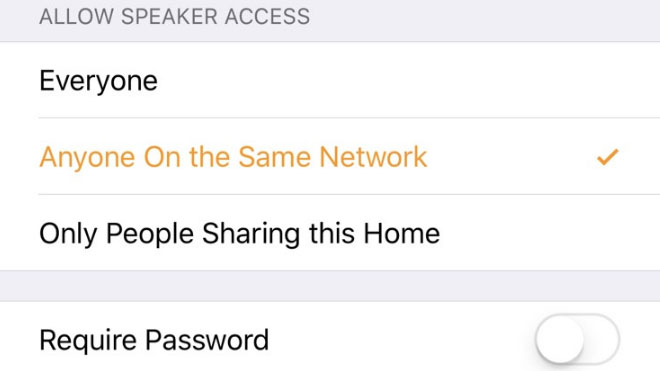
    Here’s one of the most important Homepod tip for you. None of you might want that anyone who’s near your homepod and can connect to it is able to play songs on it. For this you can limit your homepod access. You can allow access to everyone living in your home or to people connected to the same network. You can even set a password for accessing your homepod. All these settings can be accessed in the home app.

    Translate with Homepod

    Homepod can act as your very own translator. Siri can help you translating English to French, German, Italian, Spanish and Mandarin. Just say ‘Hey Siri, how do you say [word] in [language]’ and there’s your answer.

    Siri Tune

    Whenever you give some command to your Homepod you might keep wondering whether it heard it or not. For this you can switch on Siri tune. It will assure you whether your Homepod heard you or not.

    For turning it on, go to your Homepod’s settings in the Home app and switch on ‘Sound when using Siri option’.

    Latest Gossip and news on Homepod

    You can get all the latest scoop about your favorite celebrity and the latest news from your Homepod. Simply say ‘Hey Siri, give me the latest news about Beyoncé’ and for listening the latest news say ‘Hey Siri, what’s the latest news?’.

    Homepod as Speaker for your Apple TV

    Your TV speaker is a crap? No problem, your Homepod can be the perfect replacement for the speaker of your Apple TV. Just long press the play/pause button and select your Homepod for audio.

    For permanently doing so, in your TV’s settings, there select ‘Video and Audio’ section and then select ‘Audio Output’ and choose your Homepod.

    Homepod Smart Home Controller

    If you use smart lights, fans and smart appliances in your house and they are compatible with the apple Homepod kit you can simply ask your Homepod to switch them on/off for you. Just say ‘Hey Siri, switch on the lights’ and done.

    Read Also : Best Smart Home Gadgets for Home automation- Smart home

    Homepod Nearby Suggestions

    Want to explore your surroundings, no problem. Your Homepod can be of great help here. Just ask your Homepod ‘Hey Siri, what are the great restaurants nearby’ or ‘Hey Siri, tell me some great shops nearby’ and done.

    Send Text Messages to your contacts via Homepod

    Feeling lazy for typing something and sending it to some friend of yours, your Homepod can come to your rescue here. Just say ‘Hey Siri, send a message to john saying I won’t come today’ and done, your message is sent. If the recipient replies then a notification is delivered through a chime. Its definitely a Homepod tip you will love to use a lot, no typing just speaking and the message is sent.

    Read Also : Alexa Tips, Tricks and Commands

    Set Alarms on Homepod

    Just say ‘Hey Siri, set an alarm for 8:00 a.m.’ and done your alarm is set. Similarly you can also set timers and snooze the alarm. Quite a helpful Homepod tip helping you being on time wherever you want to go.
    Scenes

    This is definitely an amazing Homepod tip. Scenes are when you deliver a certain command and a chain of events occur because of that single command. Such as on saying ‘Hey Siri, good morning’ your lights are switched on, some sweet music is switched on and your coffee maker is switched on.

    You can set scenes for your Homepod from the home app in your iPhone.

    Transfer a call on Homepod

    You can very simply convert your Homepod into a loudspeaker while talking on the phone. Just select the audio mode for the phone call as the Homepod. The green light on Homepod shows that an active conversation is going on.

    Family grocery list on Homepod

    If the whole simply add their own demands at their own to the shopping or grocery list that’s the best. Your Homepod can help you in this task helping you by maintaining a family grocery list. This way any family member can add their needs to the list.

    For doing so under your iPhone’s settings go to Reminders. There under iCloud select family option and done. Now any family member can add items to the list. Just say ‘Hey Siri, add soap bars to the grocery list’.

    Spotify Music Streaming on Homepod

    If you have a Spotify premium account then this Homepod tip is definitely for you. You might be wondering whether you can stream music through your spotify account on your Homepod. The answer is why not. Just open your Spotify app, check devices available and select your Homepod. There you can connect the Homepod to your Spotify app and you can now stream music through it.

    Read Also : Spotify Tips and Tricks to Enjoy Spotify Subscription More

    iTune Podcasts on Homepod

    You can listen to the iPhone podcasts whether you have subscribed to it or not. Just say ‘Hey Siri, play podcast [Podcast name]’ and if you want to subscribe to some podcast say ‘Hey Siri, subscribe to [Podcast name]’ and done, siri will itself add that podcast to your library.

    Read Also : Best iTunes Cleanup Software for better iTunes experience

    Discover from Specific artists

    One of the best Homepod tip for all the music lovers out there. For every artist his/her songs are organized under three categories i.e. Essentials, Next Steps and Deep Cuts. Essentials contain all the major hits from that artist, Next Steps consists of some other hits from that artist and even now you want to dig deeper in your favorite artist’s songs play Deep cuts. Just say ‘Hey Siri, play [Artist Name] Essentials/Next Steps /Deep Cuts’.

    Use your voice as your Volume Control

    This is just another simple Homepod tip you will be using a lot while using your Homepod. You can simply command Siri to change the volume level for the Homepod. Simply say ‘Hey Siri, increase the volume’ or ‘Hey Siri, turn up the volume’ or set it to some specific level by saying ‘Hey Siri, set the volume to 50 percent’.

    Musical Trivia on Homepod

    Whenever some song is playing on your Homepod, you might be interested to get some history about that song. Thus simply use this Homepod tip to increase your knowledge. You can simply ask Siri whatever question pops up in your mind like ‘Hey Siri, when was this song released?’ or ‘Hey Siri, How many copies did this album sold?’ or ‘Hey Siri, tell me more about this artist’ anything else. Siri will answer you.

    Let Siri know your tastes

    Let Siri know about your likings and disliking while Siri is playing some song. This will help Siri personalize playing your favorite music even more. Just say ‘Hey Siri, I like/don’t like this song’ or ‘Hey Siri, I love/hate this [band name]/[artist name]’. This Homepod tip helps Siri personalizing you music listening experience.

    Block Explicit Content

    Quite amazing and helpful Homepod tip this is if you are having some kids in your house. Many of the songs might be having some explicit words and if some kids are around you will definitely want them to listen to those. In Homepod you can block the explicit content.

    Go to your homepod’s settings in the home app and there you can block any music with Parent Advisory label.

    Factory Reset

    This is the Homepod tip which is going to prove its worth at the time of crisis. If your Homepod is not responding to your commands properly the simplest way to correct id by resetting it. It can be done from home app. Click on Homepod icon and details will appear, there you can reset.

    The other way is using Homepod itself. Unplug it then wait and plug it in again. Keep your hand over the white light until it turns red. Keep it there only and you will hear from Homepod it is resetting and done and then you can remove your finger.

    Hope you liked all these features for the Apple’s Homepod. You might be thinking that it can a do a lot of stuff and its true as well.

    Now the latest Homepod update in September has come up with new homepod features .

    Latest Homepod Updates Highlights

    The very recent homepod update can make it more powerful rival for the other best smart speakers such as Echo , Sonos One , Google home etc.

    • So many new homepod features
    • Siri can be used to the core now
    • More languages added to Siri
    • Just like Alexa Routines , Google Routines , Siri will also now give users the access to Siri shortcuts
    • Find your iPhone with Homepod , so you don’t have to search the whole messy room to find where you kept your phone
    • Homepod allows you use multiple timer feature
    • Search by lyrics on Homepod
    • You can receive calls and make calls with Homepod

    Firstly the smart speakers were launched by Amazon then Google and then by apple. So the comparisons are ought to happen. More or less you might be thinking that all three of them have similar features. But in the cost of buying one Homepod you can buy about three Alexa. If you are a music lover and just simply want no compromise for the sound quality of your speaker you can straightly for the Homepod without giving it any second thought if you don’t have any budget constraint.

  • Use Old Reddit Layout – How to opt out New Reddit Design

    Use Old Reddit Layout – How to opt out New Reddit Design

    Everyone would be aware that Reddit has come up with their new design ever since its launch , this is the first redesign . So as there is mixed response to the new Reddit design from Reddit lovers around the globe. Some of the old Reddit users find it annoying on how to use the latest Reddit redesign . If you are one such person , who is madly in love with the old Reddit Layout here is the guidance on how to opt out New Reddit design and Use Old Reddit Layout again.

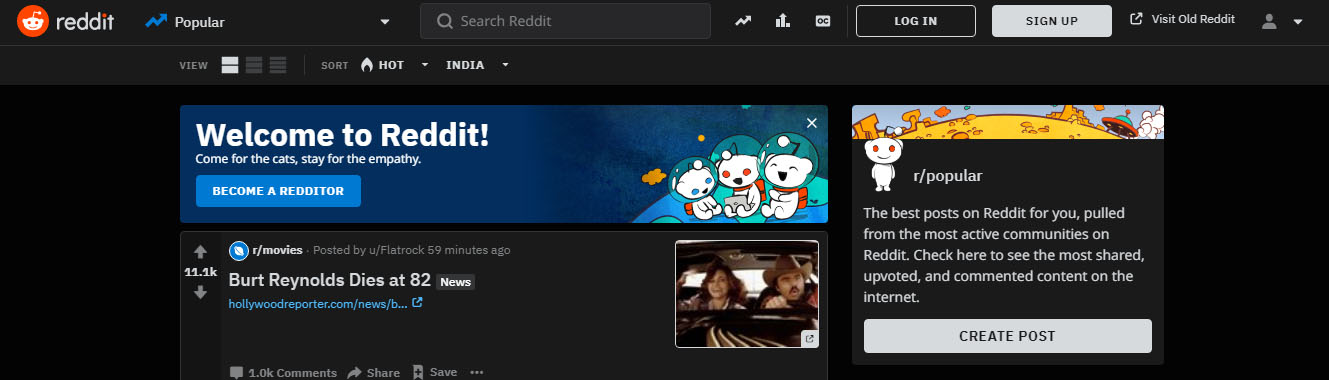
    There are so many changes in Reddit Old and Reddit New features . You can find some features of old Reddit is missing , so if you want to use old Reddit with all its feature here is the steps you should follow. Likewise for the new Reddit design lovers you can try out the Reddit Night mode .If you have opted to use old Reddit then you will miss this Night mode feature .

    How to Use Old Reddit Layout and opt out of New Reddit Design

    We believe that now you are on the new Reddit layout and looking forward to use old Reddit design again.

    Now carefully understand the simple steps to switch between new Reddit to Old Reddit –

    • First Go to Reddit website and use your Reddit username and password to Log in to your Reddit Account.
    • Now you are on its New layout , we assume .
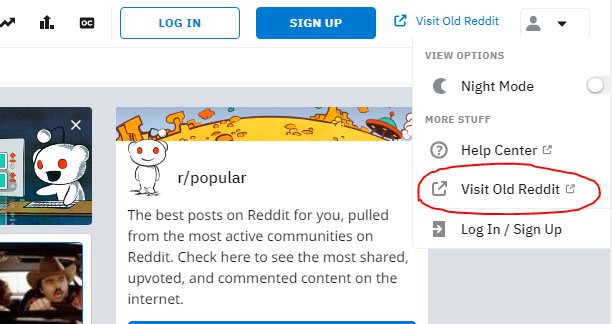
    • Look at the right side top corner , where you can find an option with a link named Visit Old Reddit

    • Just click on that , you will be directed to old Reddit design .

    ( or )

    Suppose you couldn’t find that option then try this method if you Cannot switch back to old Reddit –

    • Login to your Reddit profile
    • Click on the Reddit profile icon of yours on the right end upper corner .
    • You can find option Visit old Reddit

    • Just click on that , you are done you will be able to access old Reddit again.

    ( or )

    We started the instructions with an assumption that you are on new reddit design , supose you are still using the old Reddit and sometimes your old Reddit is opening as New Reddit design then you have to change certain settings in your Reddit Account .

    • Go to your Reddit Profile
    • On the right end upper corner you get an option preferences 
    • Click on that and on the settings page scroll down remove the tick marks for ” use redesign as default experience ” and for “world like to test out beta features “

    • Just save the preferences

    You are done with it now you will be able to use old Reddit for all Reddit websites and apps.

  • Enable Reddit Dark Mode : How to turn on Reddit Dark Theme

    Enable Reddit Dark Mode : How to turn on Reddit Dark Theme

    If you are a Reddit lover , who always wanted to use Reddit dark theme , then you are at the right place . Here we will tell you how to enable Reddit dark mode .

    So let me tell you that switching to Reddit dark theme / Reddit night mode is not a tech stuff as you have seen in the YouTube android night mode  .

    How to enable Enable Reddit Dark Mode

    As officially announced Reddit night mode theme is now open to the Reddit users around the globe. You can use this dark theme on both the Reddit desktop version as well as on the Reddit mobile app.

    Inorder to enable Reddit dark mode or Reddit dark theme you should be using the latest redesigned Reddit version . You may be aware that Reddit beta design is already out , if you haven’t taken a look to try new Reddit then you must do that first . Even though the new Reddit design is cool , some of the users prefer it in the old look .

    Don’t worry you can still use the old Reddit layout . But you cannot use Reddit dark mode with the old Reddit design. So in order to enable Reddit dark mode you must enable Reddit redesign .

    We have already discussed about how to switch back to old Reddit layout .

    Enable Reddit Dark Mode : How to turn on Reddit Dark Theme

    So now let’s learn how to enable Reddit Dark mode or Reddit Nigh mode . It is very easy to turn on Reddit Night Mode , not like the complex steps encountered with YouTube Dark mode on Android .

    Let us dive deep into the process of Turning on Reddit Night mode  –

    • In order to enable Reddit Dark mode you have to switch to New Reddit design . If you don’t know to switch to Reddit New layout , you can read it in our previous post or click on the enable Reddit redesign link inside the content.

    Assuming you are using the latest Reddit redesign, now follow the steps –

    • Log in to Reddit using your account username and Reddit password .
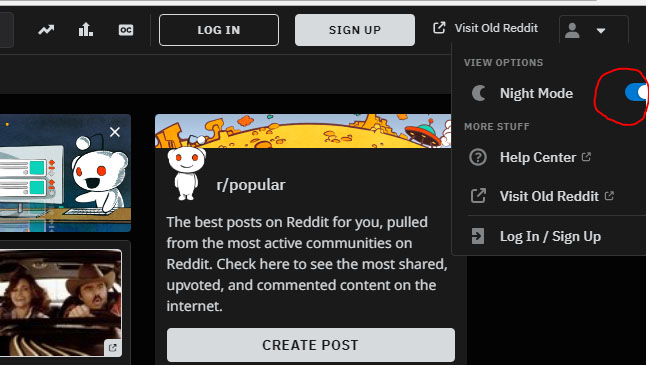
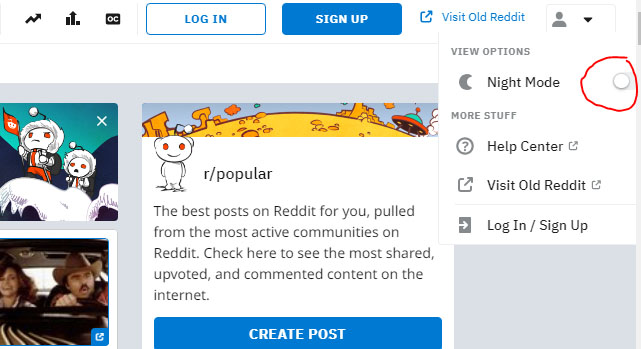
    • Now on the profile section , just click . You can now see View Option
    • Under the View Option you can find out the Night mode option with a toggle button
    • Toggle Night mode button on

    That’s it you are done with the process and successfully you can View Reddit Night mode now .

    In order to Disable Reddit Night Mode or to turn of Reddit Dark mode all you have to do is follow all the above said steps and the last step you have to toggle off Night mode in Reddit .

    You might be now comfortable about How to disable / Enable Reddit Dark mode .

  • Dropbox Business vs Dropbox Personal – Better Choice

    Dropbox Business vs Dropbox Personal – Better Choice

    Dropbox , is not new to many of the internet users. Dropbox is one of the popular online file hosting and online backup services. Dropbox being very popular has different versions and pro service accounts . So here we will make a short comparison between Dropbox Business vs Dropbox Personal. So we can learn the features of Dropbox Personal as well as Dropbox business accounts.

    What is Dropbox ?

    Before proceeding, we must understand what is Dropbox? In simple words Dropbox is a modern service that is meant to lessen the burden to manage files on electronic devices. It can be used on PC, laptops as well as on mobile as an app.

    When you use Dropbox for storing the files it becomes very easy to sync them on all devices consequently the accessibility to the files improve. While using the Dropbox , one can do many numbers of things such as one can share big files with anyone, can create their own Dropbox paper, can save and access files from anywhere and more.

    Dropbox is a kind of cloud storage assistance or online backup service that often used by people for personal use, for professional use and for business use. Dropbox offers two kinds of account that are Dropbox business, Dropbox professional and Dropbox personal. All of these accounts are designed to suit the different needs of its user.

    Here is the comparison between the two accounts or packages offered by Dropbox- Dropbox business Vs Dropbox personal.

    Dropbox Business

    Dropbox business is a Dropbox account mostly used by companies to share files over a large number of people. It is one of the popular ways to securely sharing of files with a big team.  The thing that makes Dropbox Business version different from Dropbox is that it is used to store and share one’s files online and sync those files on all the devices one use whereas , Dropbox Business is a package that is offered by Dropbox to share and store a file with a big group.

    To use Dropbox Business you just have to take the subscription and you can also use 30 days trial option before taking the subscription. It supports Mac, Android, Linux, Windows, iPhone/iPad etc.  It can be used by 3 users to small, medium, and large businesses or organizations. Dropbox business standard subscription starts from Standard  $12.50 per month besides standard subscription there are two more subscription plans are available one is advance subscription and other is enterprise subscription user can choose according to their need.Dropbox business features are detailed in the following section that is Dropbox business Vs Dropbox personal.

    Dropbox personal accounts are for individual users to be able to share securely with others. It is a place where they can store their files like photos, videos, project work and more and can access them from any device. Dropbox personal is very easy and simple to use, it keeps the files safe and secure. Dropbox personal offers three kinds of plans which are –

    Dropbox Personal Basic that is free of cost and offers 2GB space, personal plus it offers 1TB space

    Dropbox personal professional it offers 2TB space it also offers a feature such as smart sync.

    Users who want to use advanced features within Dropbox personal account and not in Dropbox Business they can take subscription of Dropbox professional so we can say that Dropbox professional is the updated version of Dropbox plus with some features of Dropbox business. More details about Dropbox Personal is provided in the downward section that is Dropbox business Vs Dropbox personal.

    Dropbox Business Vs Dropbox Personal

    Now moving on to the cross comparison of Dropbox Personal Vs Dropbox Business accounts .

    • The main differences between Dropbox for Business and our individual accounts are collaboration, security and scale.
    • Dropbox Business is used by a big organization or business to share and manage their files, In this each user will have a separate account, and one user will have the Administrator function to add members and control the security and sharing of the data in Dropbox whereas Dropbox personal is used by individuals and Dropbox Professional is used by the people who use it for their professional need but not in a team such as freelancer.
    • Dropbox Business start with a minimum of 3 users and an unlimited number of users can use it whereas Dropbox personal or professional is used only by one user.

    Read Also : Best Note taking apps for PC & Smartphone

    Read Also : Best free office software for Computer & Smartphone

    Read Also : Zipped File Extraction Error Fixing “An unexpected error is keeping you from copying file” error

    Read Also : Best File compression Tools for Computer & Smartphone

    Dropbox Personal

    • Dropbox business provides features such as unlimited space, sharing control, SSL encryption and 256-bit AES,  sharing permissions, junk cleaning, file tracking, live customer support and more whereas Dropbox personal  provides features such as file sharing and storing, file recovery and back-up, download, preview, anywhere accessibility, automatic syncing option, automatic update, file management, large file sharing and more.
    • Dropbox Business offers three plans that are – Dropbox Standard ($ 12.50 per month) it offers 3TB of space, Dropbox Advanced plan ($20 per month) and Dropbox Enterprise plan they both offer as much space the user need whereas Dropbox Personal also offers three plans that are Basic for which you don’t have to pay anything, Plus plan it costs $8.25 per month and Professional plan it costs $ 16.58 per month.

    Conclusion

    Both Dropbox business and Dropbox personal are unique in their own way. You can choose according to your need if you need an account to share files with your team you can opt for Dropbox business whereas if you want to use Dropbox only for personal need you can opt for Dropbox basic or Dropbox plus and if you want to use the personal account for professional then you can opt for Dropbox professional.

  • New Reddit Design – Switch from Classic Reddit to Reddit Redesign

    New Reddit Design – Switch from Classic Reddit to Reddit Redesign

    Reddit being one of the favourite spot for all the internet users to get every latest updates in the globe . This American news aggregator website has finally come up with a new design , a new Reddit layout is finally here . After a decade the New Reddit Design has finally happened . Even though the Reddit beta design was not open to all the Reddit users , now the new Reddit design is available to all the Reddit users .

    So here will learn how to Switch from Classic Reddit to New Reddit Design , if you have got bored from using the old Reddit theme you can use these steps to enable Reddit redesign .

    Read Also : Pinterest Tips and Tricks to use Pinterest like a Pro

    Read Also : Alexa Tips, Tricks and Commands

    Reddit New Design – Highlights of New Reddit Design 

    New Reddit layout is entirely a different visual retreat to all the new age users who hated the old Reddit theme . You can find some of the important Reddit features in new Reddit redesign theme . Some of the highlight features to be noticed are –

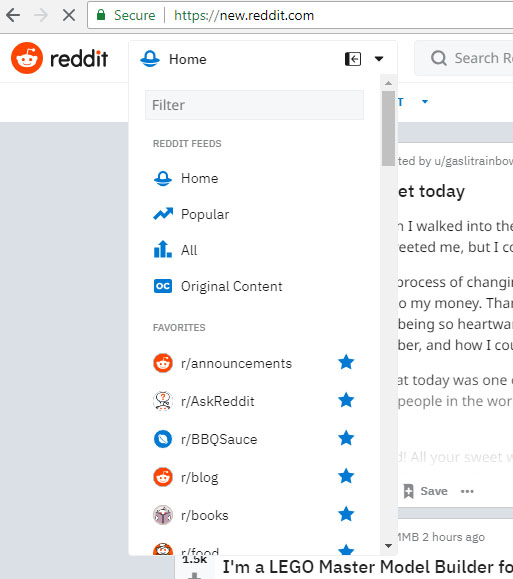
    • Menu button replaced the navigation bar from the old Reddit . This is just like the most of the popular website theme available online . The Reddit Menu option in the left corner will give links to the following such as Reddit feeds , Reddit favourite subreddits , subscriptions , user profiles , messages etc .

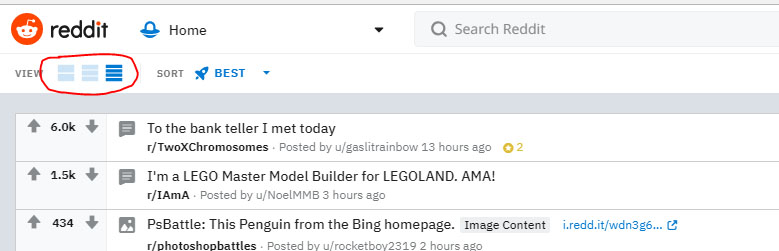
    • The second major highlight feature of new Reddit theme is you can view the website in three different modes – Reddit Card View , Reddit Classic View and finally Reddit Compact view .

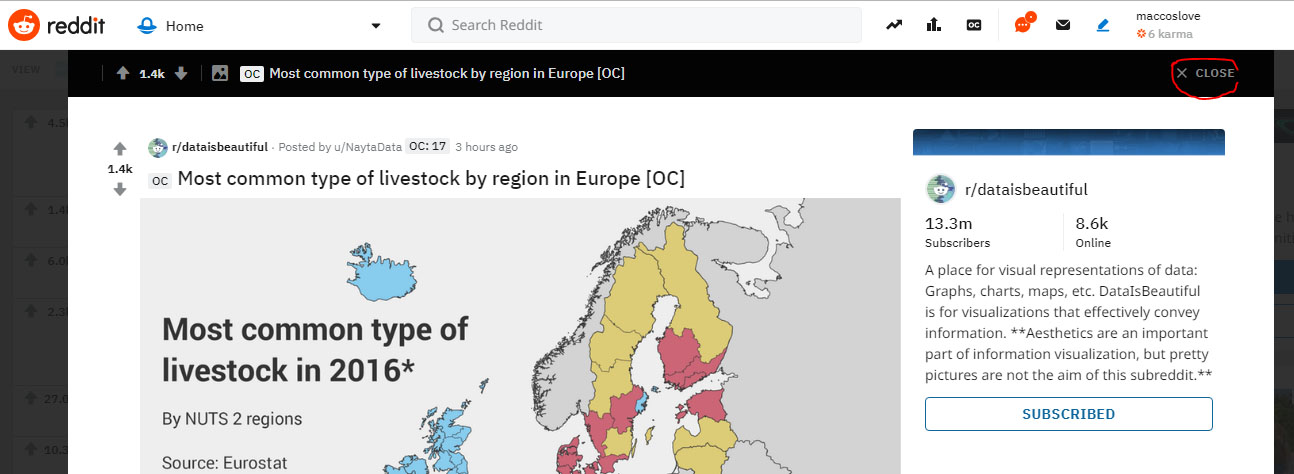
    • You can read any Reddit Posts and stay on the same Reddit Page now . This is because when you open any Reddit posts that will open up in a box with an option to close . So after reading when you close the post , you can still view the same page . Look at the image to understand better .

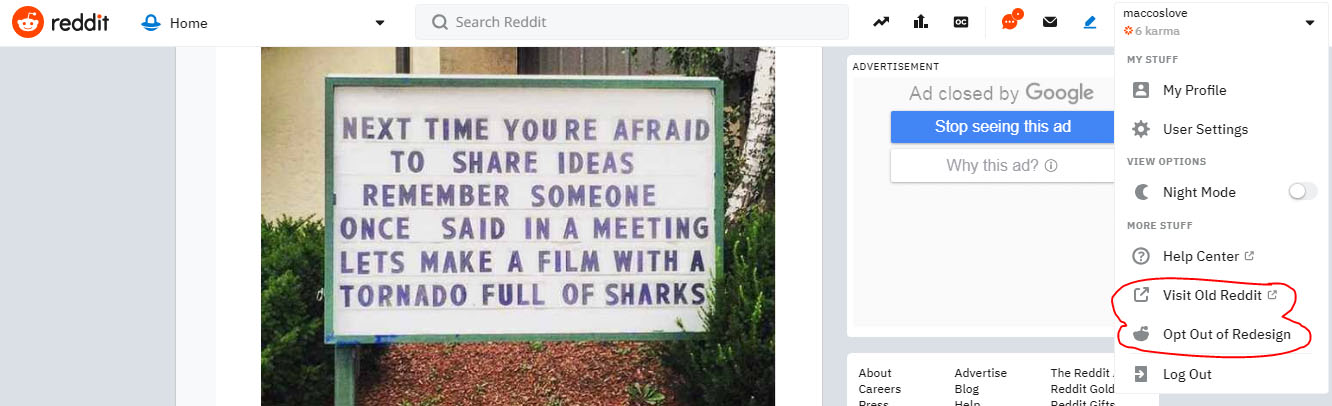
    • Since the new Reddit design is not much welcomed by the old Reddit users , they can opt for the choice to use the Old Reddit theme. They can Visit Old Reddit with just a click and even Opt out of Redesign in Reddit to view the old Reddit theme .

    So these are the important changes in Reddit new version .

    Note – You can visit Reddit old website through Reddit Old link directly and you can switch to Reddit New Design by directly accessing Reddit New Link .

    New Reddit Design – How to Switch From Old Reddit Layout to New Reddit Layout 

    You can easily switch from old Reddit website to new Reddit website layout . Follow the given simple steps to access Reddit New Redesign and its features .

    1 . Go to Reddit website and Login to Reddit with your Reddit username and password.

     2 . Now you can see the same old boring Reddit theme which you have been using since a decade . Now near to your Reddit username there is an option named preferences , just click on that .

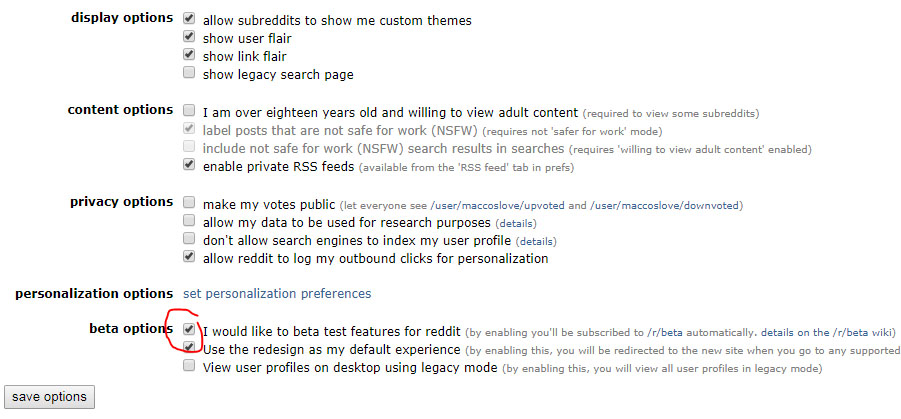
    3 . Now you will be taken to the Reddit Settings page , scroll down you can find beta options . Now in the beta option click tick mark for the first two options in order to use the Reddit new theme .

    That’s it you will be directed to the New Reddit Website theme .

    You can directly visit the new Reddit with the url as mentioned in this article’s note . Also there is one more easy option to access new Reddit site .

    Soon after Logging In to Reddit instead of checking the preferences , you can click on the Visit New Reddit option which can be found on the upper left corner of the Reddit Old site .

    So that’s all this is how you can use New Reddit version easily .