Tag: Screen recording

  • Record iPhone iPad Screen on Windows & Mac

    Record iPhone iPad Screen on Windows & Mac

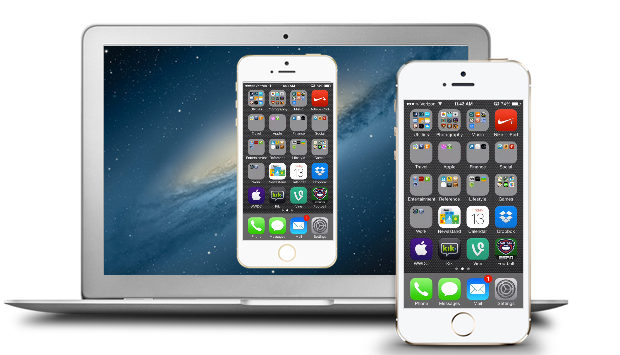
    Wondering how to Record iPhone iPad Screen on Windows or Mac? Capturing or Recording iPhone/iPad Screen on your computer is no longer impossible. Recording a high-quality video of a presentation, tutorial, or gaming you can easily record it. If you are going to record iPhone or iPad screen on Mac then, you can simply use the QuickTime which is an inbuilt application on the Mac. Record iPhone , iPad Screen, if you are using Windows then there is an availability of the easy to use iPad/iPhone recorder.

    Most of the individuals are aware of the QuickTime which supports Mac OS and allow the users to record iPad screen.  But when it comes to the windows only a few people know the method of the recording. Follow some simple steps and you will surely find it easy to record the screen on iPhone or iPad.

    Steps to Record iPhone iPad Screen on Mac

    QuickTime:

    • To start with the recording of the iPhone or iPad screen on your Mac OS, firstly make sure that you are running with OS X Yosemite and iOS 8.
    • Connect your iPhone or iPad to Mac using the Lightning cable. (Suggestion: You may need to “Trust” your Mac so before iPhone works.
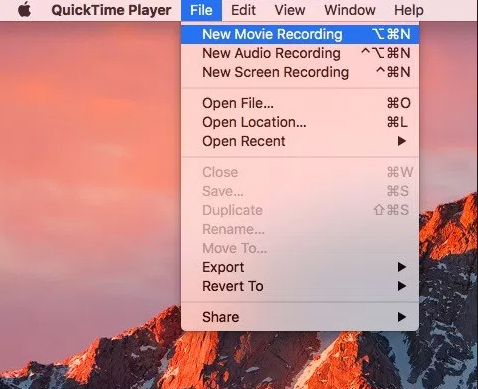
    • Launch QuickTime on Mac and select file then under file select New Movie recording which is available on the menu bar. Also, you can use an alternative option which is a shortcut given through the keyboard i.e. Option-Command-N. These all options will launch a new QuickTime window for the video recording. Now you can easily click on the small downward facing triangle which is just next to the record button. This button will let you just select an alternative which includes your iPhone or iPad now.
    • Now you can select your iPhone or iPad screen from the list and easily see the device screen which is just been replicated in the QuickTime window. The QuickTime recording acknowledges the iPhone or iPad screen rotation so do not ignore to see the preview window on your Mac switch aspect ratio as you rotate your device.

    The recording itself is a real time but some noticeable difference is seen between performing an action on the device and seeing the action being occurred on the window of QuickTime. But, for the actual iPhone recording, it is not an issue as the software will sync audio as well as the video for the final output. But, this does not mean that you don’t use this feature while playing live games or perform tasks which require less latency. For the audio, you can easily record iPhone or iPad screen on Mac and add the audio later during post and editing, or you can also record audio live with the video.

    Read Also : TeamViewer Alternatives – Top rated Remote Desktop Software

    ScreenFlow:

    This is a similar way to record the iOS device like the QuickTime. But ScreenFlow gives the advantage to edit video instead of open up another program. Sometimes, the ScreenFlow is better than the QuickTime in capturing the video. But, QuickTime is free and ScreenFlow is paid.
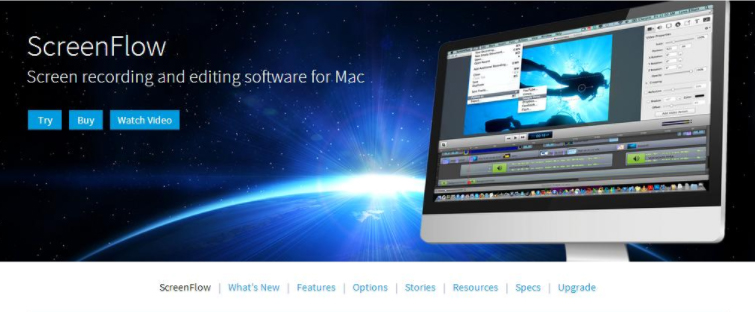
    To get started with the ScreeenFlow just connect your iOS device with Mac with lightning cable and open ScreenFlow. Automatically, your device will get detected and give you the option to record screen.

    Read Also : Best Truecaller Alternatives to find Caller Identity

    Tips to Record iPhone iPad Screen on Windows OS:

    You can Record iPhone iPad Screen on windows easily like as in MAC.

    Apowesoft Phone Manager:

    This phone manager is one of the most powerful apps that provide users to mirror the iOS devices screen to the Windows and record all content on the screen.
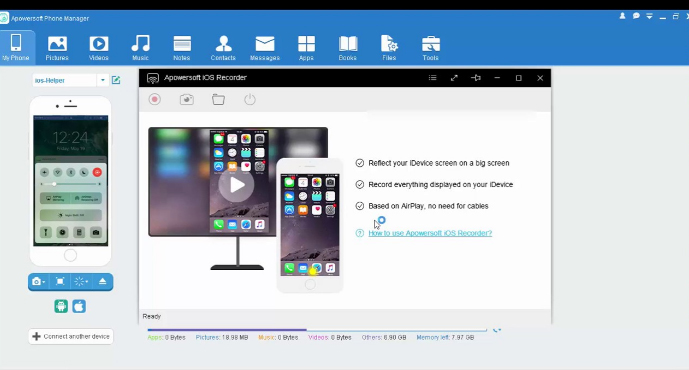
    • To simply achieve the recording follow the steps:
    • Download the app and then install
    • Mirror your iOS device to the PC
    • Record iPhone iPad Screen
    • Then, connect your iOS device and PC with the Wi-Fi
    • Run this phone manager on computer and click on “Tools” and then “iOS Recorder”
    • Swipe up from bottom on your device of screen to access control center
    • Tap on “AirPlay” and you will able to see a TV icon with its name. Click it and open up mirroring function.
    • Within some time, you will see the device screen is projected to the PC screen and both the screens will act simultaneously.

    Read Also : Best Apple Watch Alternatives-Affordable Gadgets

    ApowerMirror:

    ApowerMirror is an excellent tool of mirroring for recording iOS device by following some steps:
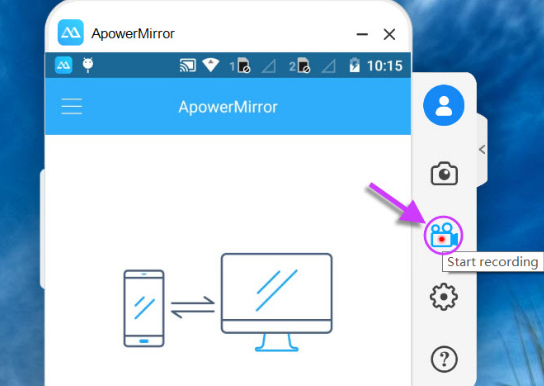
    • Install the application on the PC and afterward activate it
    • Then, on the iOS device just open AirPlay mirroring or AirPlay.
    • Select the device name and thus your device screen gets mirrored on PC.
    • Then, click on the recording icon or just simply press Ctrl + R to record screen

    Conclusion:

    So, this is the way you can easily Record iPhone iPad Screen on the Windows or Mac. Just follow the simple steps and you will surely be able to record the screen without any hassles.
  • Best Screenshot Tools for Computer & Smartphone

    Best Screenshot Tools for Computer & Smartphone

    Nowadays, taking screenshots has become very common. People take a screenshot to save a current text in a group or to take a quick screenshot of something that you are searching in google and send it to someone. All the computers and android phones come with the option to take screenshots easily. If you are using a computer, you can simply press the print screen button on the keypad. In androids, you can press the volume key and power button at the same time to take the screenshot. But these options in your computer and smartphone will not have many features wherein you can edit or crop the screenshot. There you need some best screenshot tools to enhance screenshot experience .

    There are many screenshot tools available now that you can download on your computer and smartphone. For those who are seeking for a good screenshot tool, I hope this article will help you find the best. Below are some of the best screenshot tools to download.

    Best Screenshot Tools for Computer & Smartphone

    Take a look at the screenshot tools that are ideal for your phone and computer . Even though all mobile and system has the liberation of giving us an option of PRINT SCREEN button , we find it is not just sufficient to Snapshot / screenshot most things .

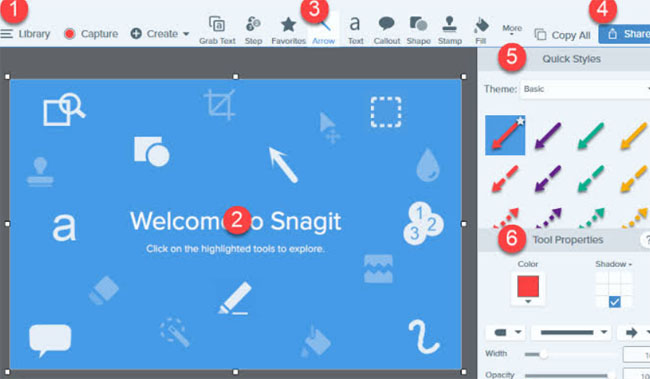
    Snagit

    You might have heard about the TechSmith Software Company and the Snagit screenshot tool is one of their products. With this tool, the user can add comments on the screenshot taken. Some of the key features of Snagit include: a preview window with a cursor hovering, the images can be edited with special effects, a quick toolbar to capture the image, recording a video and share it via email, etc. This app helps in taking the screenshot of the whole screen of your computer too.

    Thus it is one of the best screenshot tools in the market .

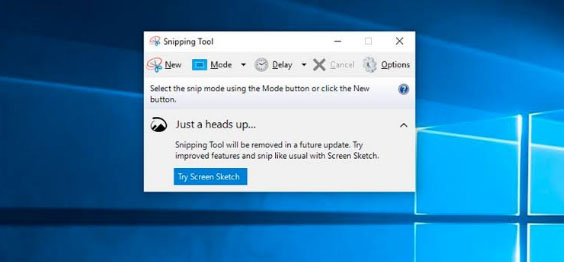
    Snipping Tool

    This is a default tool on your windows that helps in taking a screenshot in a rectangular form and can also add any notes you want. You can also highlight any sentence with colors or you can strike off any words using the font colors.

    All the screenshot taken can be saved in PNG, JPEG, and GIF format and once the image is captured it is copied automatically, helping in pasting it as you require. With the help of the snipping tool, you can take the screenshot in 4 modes which are: free-form snip, window snip, full screen, and rectangular snip. It is one of the best windows screenshot software .

    Skitch

    Skitch is a screenshot tool of the company Evernote that has been crafted for windows and Mac. This freehand screenshot tool comes with the feature of marking the areas blurry that you do not want to be visible in the image. I find this feature quite useful so that if you want any information on the image like a word or a phone number cannot be visible to any other person to whom you share the screenshot.

    Some of the other features like adding a comment on the image, uploading the screenshot in a mail, highlighting, etc. are available. Skitch screenshot tool can be used in both computers and smartphones and all the editing options come under one menu, making it easier for the user to perform the activities.

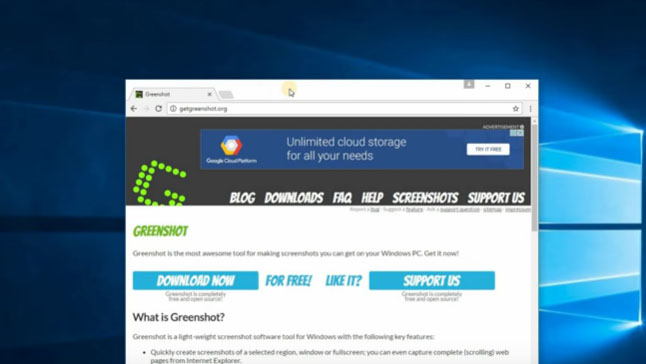
    Greenshot

    Another screenshot tool called Greenshot is a free and open-source program designed for Windows OS. You can take a screenshot with this app very quickly and easily. A full-screen window can be captured by scrolling the page and you also get a chance to highlight and annotate. One of the advantages of using the Greenshot tool is that you can save the captured image in a different format and can also edit it later.

    The captured images can be emailed or you can even print it directly. This screenshot tool is available in 26 languages which makes this tool stand out among the other tools. Moreover, it also offers several capture modes like capture the last part, capture region, capture window, and capture the full screen.

    Lightshot

    This is a very convenient screenshot tool that is easy to use and can capture the image quickly that can be customized too. It also allows you to select the area you want to capture and in just two button clicks your screenshot is taken. Lightshot tool can be downloaded on your computer and it supports Windows, Mac, Firefox, Chrome, Opera and Internet Explorer. You can share the captured image using this tool and the quality of the captured images are high.

    AZ Screen Recorder

    The primary function of the AZ Screen Recorder is that it allows you to record your screen in the form of a video. It also comes with the feature of capturing a screenshot as well. Editing features are available with this tool. This screen recorder tool does not come with any ads, watermarks or time limits. This screen recorder can be downloaded in your smartphone from the play store.

    Screen Master

    This is one of the best screenshot tools and a photo markup tool for your smartphone that allows you to crop and rotate the images captured. You can add a text on the image, add an emoji and you can even blur the selected portion if you want to cover any area that you require. Other features include several image annotations, a floating button for easy access, full web page capture and many more. The whole web page can also be captured by copying the URL into the screen master app. This app can be downloaded for free and even a paid version is available that removes advertising and other features.

    Screenshot Touch

    For easy and fast access, this screenshot tool called Screenshot Touch comes with an overlay and persistent notification. Features like image cropper, whole web page capture, screen recording, scroll capture, etc. are available in this app. One of the easiest ways to take a screenshot with this app is just by shaking your smartphone. Like a few other apps, this screenshot tool can be downloaded in your android for free or even paid version without advertising pop-ups can be downloaded.

    Super Screenshot

    With text addition, image blur, image resize and many more features, this Super Screenshot Tool can be one of the right choices for you. It allows you to enable the gesture controls that help in capturing the images on your android. You can share the screenshot on multiple platforms and can be downloaded for free. Other notable features include browsing and copying the screenshot via PC.

    Touchshot

    Another screenshot app for android phones, Touchshot comes with unique features like camera preview capture function, screen record, quality settings and in one touch you can take a screenshot. Editing and sharing the captured images can be done using this screenshot tool.

    Taking a screenshot is very simple in this app which means all you have to do is just to touch on the screen to capture what you want. This tool can be downloaded in all Android devices regardless of the device being rooted or not. You can also screen record videos using the touch shot tool.

    These are some of the best screenshot tools for computer and smartphones. Research the possible options and download the best screenshot tool according to your requirements and convenience.