Tag: iPad

  • How to Fix “Cannot Take Photo” Problem on iPhone and iPad

    How to Fix “Cannot Take Photo” Problem on iPhone and iPad

    Fix Cannot Take Photo Problem on iPhone and iPad Method 1:

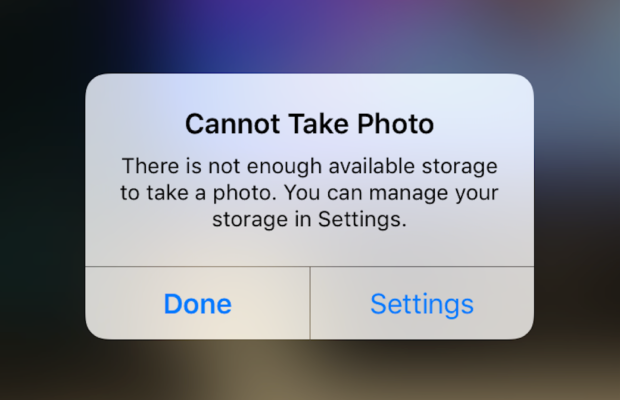
    When you go to take a photo using the Camera or any other app like Instagram, WhatsApp etc on your Apple iPhone or iPad but while doing so if you find an error message which says “Can’t Take Photo – There is not enough available storage to take a photo“.  You can manage your storage in Settings. Now you might get confused about what to do. Don’t worry because your savior(which is me by the way) can help you with this simple steps to Fix Cannot Take Photo.

    Why Can’t I Take Pictures on my iPhone

    I got an issue “my iPhone wont let me take pictures because of storage“. To fix this issue you need to remove some unwanted files and free up the storage. So choosing Settings on this message will provide you with a list of apps and the amount of storage they are using. You can also reach this screen at any other time by going to Settings > General > Usage.

    If you want you could select an app that is taking up a large amount of space(basically browse which apps take up the most space or an app that you can delete (deleting pictures or videos and music also creates extra space)) and then click on Delete app. That could or could not free enough storage to fit photos. Moreover you may not want to do this in case you like and value every single one of your apps.

    Read Also:

    How to Factory reset iPhone without password or iTunes

    Record iPhone iPad Screen on Windows & Mac

    Quick Fix Cannot Take Photo Problem on iPhone and iPad

    In majority of the cases iTunes(your culprit) is loading your device with music and regularly causing this message to appear when you use the Camera or any other app.

    You would free some space while you are out and by deleting some unwanted music from the device. What I to do is locate an entire album that I can live without and delete it using these steps(which is obviously hypothetical in my case ).

      • 1) Open the Music app on your iPhone.
      • 2) Select a particular artist (if you downloaded them legally) that has songs stored on the device you would like to delete.
      • 3)You can also locate a music track that is already stored on the device but if the track has a cloud icon that means it is not stored on the device(probably stored on iCloud). You will have to find tracks that do not have this icon.
      • 4) You then have to swipe left across the name of the song. A button is bound appear that says Delete.
      • 5) You than have to tap delete(putting a stone on your heart) and the song is gone forever. Repeat these steps any number of times unless you have freed enough space.

    Read Also : Best iTunes Cleanup Software for better iTunes experience

    Fix Cannot Take Photo Problem on iPhone and iPad Method 2:

    1) Connect your iPhone to a Mac or Windows PC which has iTunes installed already.
    2) Open iTunes(most complex step of this method so be careful :)).
    3) Select on your device then choose “Music“.
    4) Uncheck the ‘Automatically fill free space with songs‘ button(Though I think it would be a checkbox).
    5) Choose ‘Sync’.

    If these steps do not fix storage error message from regularly appearing then you might need to remove some apps, photos maybe even videos from the device(Unfortunately you have to set your priorities).

    Using iMyFone Umate

    iMyFone Umate is a special memory cleaner for mac and is highly recommended for increasing storage space on the device and cleaning up the unwanted phone memory. All I demand is that you have to follow these few simple steps and your phone will be new:

    • Connect your phone to open the cleaner.
    • iMyFone Umate will do a quick scan.
    • With one click, all the junk files and unwanted files will be removed.
    • It clean many hidden temporary files with a click
    • It clear’s the junk files to improve iPhone performance

    Some other programs are:

    • Photo manager

    It basically compresses the images/photos compressing the size of each photo.

    • App manager

    It has a one click mechanism to mass remove all the unwanted Apps.(If you have any)

    Hopefully the above given methods would serve your purpose but if you want something extra then below are some extra tips.

    To exchange information on one iPhone with other are extremely valuable for you on the high probability that you need to duplicate substance from old iPhone to new purchased iPhone /iPhone Plus. You might want to replicate information. For instance songs, photographs, from your personal iPhone to a new iPhone.

    iCloud goes down your iPhone once every day. Since it is a good idea to reinforcement your old iPhone to iCloud one last time before moving. So nothing is passed up as a major opportunity. In the Settings explore the iCloud storage and Backup opportunities and tap on Back up. This may require significant investment relying upon the measure of information to be replicated.
  • Factory reset iPhone without password or iTunes with data backup

    Factory reset iPhone without password or iTunes with data backup

    Security, Safety, Password etc These are not just words but necessity for our life to protect personal things,documents,files and it becomes important for people those who have iPhone or any other phone. Lot of people use password in their phones to protect their data, files, important documents etc. This article will tell iPhone users how to Factory reset iPhone  with backup data? People always reset or fix their setting when they are about to sell their iPhone or iPad for that they don’t want their personal data on it. To safe guard phone data, people restore iPhone to factory setting. The factory restore erases the information and setting on your iPhone or iPad to prevent your any personal data  from being misused. It is really a good way to protect your personal data.

    Factory reset iPhone without Password:-

    Factory reset iPhone  is always a tough decision, as it means all the important data on iPhone will be lost. It is the security measure that put in place to prevent unauthorized access to the private files, but you can always perform a system restore to prevent your data. And this article will guide and provide you with effective approach on how you can Factory reset iPhone without password.

    There are two methods to restore iPhone without password.

    1) Factory reset iPhone without password with Power Button – 

    It is one of the most easiest way to reset iPhone if iPhone buttons are available.

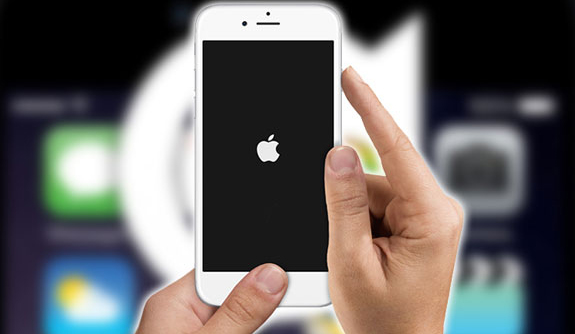
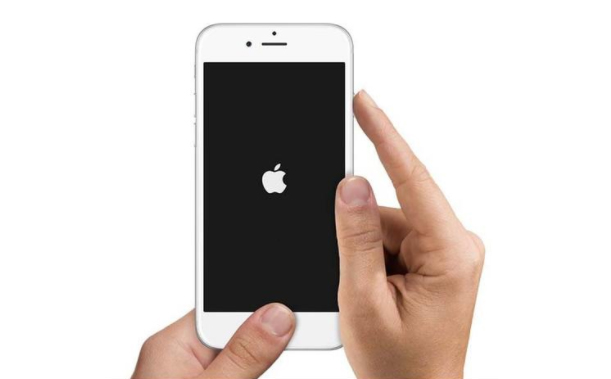
    Step 1 – First thing you need to do is to press home button long (at the bottom) and like wise press the power button (on the top) simultaneously.

    Step 2  Now long press the both buttons and wait till it gets shut down and restart again like wise go on  let it go you see the apple logo appear on the screen.

    Read Also : Cancel / Reverse Venmo payment : When a Venmo payment goes wrong

    2) Factory reset iPhone without password with iTunes –

    This method will help you only if have synced your iPhone using iTunes in the past, and for that you will not be asked again for your password.

    Step 1 – First you need to Backup your data, because all your iPhone data will be removed by a factory reset.

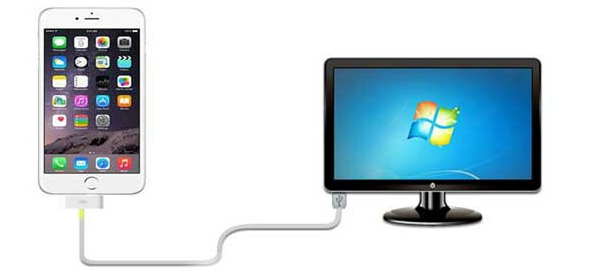
    Step 2 – Now connect your iPhone to your computer with USB cable.

    Step  3 – Install latest version of iTunes on your computer.

    Step 4 – Turn your iPhone off.

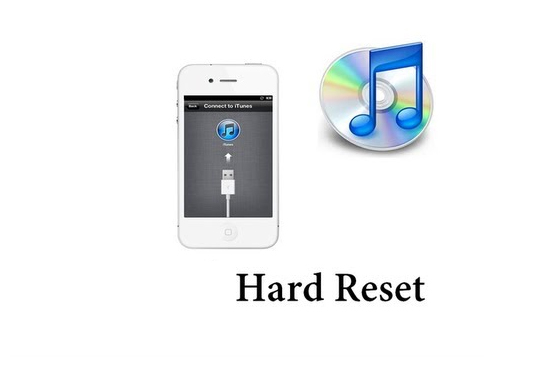
    Step 5 – Press and hold down your iPhone home button and connect the other end of the cable to phone.

    Step 6 – Wait until; iTunes appears on the computer screen, and then releases the home button.

    Step 7 – Finally CLICK on ‘Restore button on iTunes’.

    This way you can Factory reset iPhone using iTunes without password .

    Read Also : Venmo User Guide for Safe Transactions – Venmo payment

    Factory reset iPhone with Password:-

    Password can protect your important content from being misused or misplaced.  If you remember your phone password then you can restore your iPhone with the following methods:-

    1) Restore iPhone with password via menu

    If you still remembered you iPhone password then it is well and good as you can access your iPhone successfully. But it could be little bit hard to reset iPhone via menu.

    Step 1 -First Go to setting } General } Reset and select now “Erase all the content and setting”.

    Step 2 – Now click OK button to confirm  your restore iPhone factory setting.

    2) Factory restore iPhone without iTunes

    Without using or synced your iPhone to iTunes you can restore you phone easily. But you are required to follow the step.

    Step 1 – Connect to WI-FI, before backing up you need to connect your iPhone to WIFI, otherwise you won’t be able to restore your phone. You can also use hotspot and other network as well.

    Step 2 -Now go to your setting } icloud and then click on “Backup” button at the bottom. You will see the data of your last icloud backup as well. It might take time to backing up depending on your data.

    Step 3 – Lastly you can restore a backup from your iPhone. Do this by going to Setting } General and find “RESTORE”, And select all “erase content and setting” option

    Read Also : Hard and Soft Reset Roku Manual – Fix Frozen Roku Streaming Stick

    How to hard reset iPhone ?

    If your iPhone is not responding as well as you are thinking of how to hard reset iPhone to the factory setting by erasing all its data and restoring a backup in iClouds and iTunes. You can easily follow the steps below to factory reset your iPhone by carrying out a hard reset.

    Step 1 – Shut down the iPhone normally so that you can reset it again. Hold down the power button long until the slide to power off message appears.

    Step 2 – Now you can press and hold the reset button ( shut down on its own ) and start to restart.

    • iPhone 6S and earlier : power button + home button
    • iPhone 7S and 7plus : power button + volume – down button.

    Step 3 – Continue holding both buttons, Do it for 10 seconds.

    Step 4 – Finally Release the button once you see the “Apple logo”on screen.

    Read Also : How to Use Google Assistant on Android Devices (Without Root)

    Backup iPhone before Factory reset

    It is good and safe to backup your iPhone before factory reset as as factory reset will clear your iPhone data. So it is better you backup your data from iPhone before factory resetting if you don’t want to lose your data.  It is simple and easy method to use that allow you to select backup and you can also preview and store your data before back up. In 3 steps you can back up your iPhone before factory reset.

    How to backup iPhone

    Here is the steps on How to backup iPhone

    Step 1 – First you need to launch dr. fone toolkit  to backup your iOS data backup and restore on the computer. To connect your iPhone to computer  you need to click on “iOS data Backup & Restore”.

    Step 2 – Now select data type,  once back up is completed the programmer will scan your iPhone data , this process will take few minutes to complete it.

    Step 3 -Finally you can select/choose the content to backup for that you have to Click the button “Restore to device” or “Export to PC”.

    You all (iPhone user) have to know that once you factory reset your iPhone all your text and SMS messages will be deleted  only after a successful reset and new setting of your iPhone. Furthermore the entire data to the third party apps are going to be lost as well. So before factory resetting your iPhone you need to carefully read and understand everything in a very detail. Sometimes in hasty result lead to loss of data.

  • Record iPhone iPad Screen on Windows & Mac

    Record iPhone iPad Screen on Windows & Mac

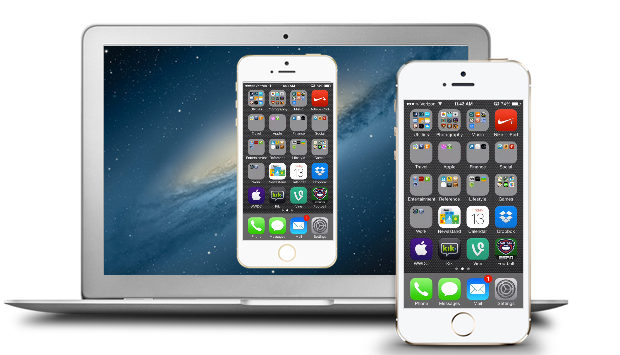
    Wondering how to Record iPhone iPad Screen on Windows or Mac? Capturing or Recording iPhone/iPad Screen on your computer is no longer impossible. Recording a high-quality video of a presentation, tutorial, or gaming you can easily record it. If you are going to record iPhone or iPad screen on Mac then, you can simply use the QuickTime which is an inbuilt application on the Mac. Record iPhone , iPad Screen, if you are using Windows then there is an availability of the easy to use iPad/iPhone recorder.

    Most of the individuals are aware of the QuickTime which supports Mac OS and allow the users to record iPad screen.  But when it comes to the windows only a few people know the method of the recording. Follow some simple steps and you will surely find it easy to record the screen on iPhone or iPad.

    Steps to Record iPhone iPad Screen on Mac

    QuickTime:

    • To start with the recording of the iPhone or iPad screen on your Mac OS, firstly make sure that you are running with OS X Yosemite and iOS 8.
    • Connect your iPhone or iPad to Mac using the Lightning cable. (Suggestion: You may need to “Trust” your Mac so before iPhone works.
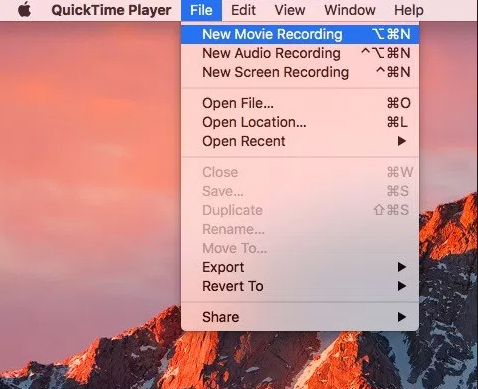
    • Launch QuickTime on Mac and select file then under file select New Movie recording which is available on the menu bar. Also, you can use an alternative option which is a shortcut given through the keyboard i.e. Option-Command-N. These all options will launch a new QuickTime window for the video recording. Now you can easily click on the small downward facing triangle which is just next to the record button. This button will let you just select an alternative which includes your iPhone or iPad now.
    • Now you can select your iPhone or iPad screen from the list and easily see the device screen which is just been replicated in the QuickTime window. The QuickTime recording acknowledges the iPhone or iPad screen rotation so do not ignore to see the preview window on your Mac switch aspect ratio as you rotate your device.

    The recording itself is a real time but some noticeable difference is seen between performing an action on the device and seeing the action being occurred on the window of QuickTime. But, for the actual iPhone recording, it is not an issue as the software will sync audio as well as the video for the final output. But, this does not mean that you don’t use this feature while playing live games or perform tasks which require less latency. For the audio, you can easily record iPhone or iPad screen on Mac and add the audio later during post and editing, or you can also record audio live with the video.

    Read Also : TeamViewer Alternatives – Top rated Remote Desktop Software

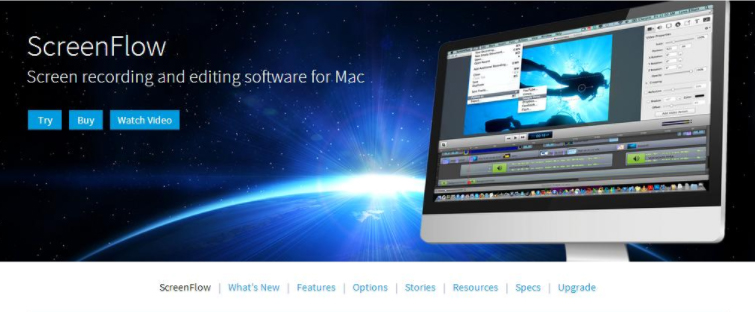
    ScreenFlow:

    This is a similar way to record the iOS device like the QuickTime. But ScreenFlow gives the advantage to edit video instead of open up another program. Sometimes, the ScreenFlow is better than the QuickTime in capturing the video. But, QuickTime is free and ScreenFlow is paid.

    To get started with the ScreeenFlow just connect your iOS device with Mac with lightning cable and open ScreenFlow. Automatically, your device will get detected and give you the option to record screen.

    Read Also : Best Truecaller Alternatives to find Caller Identity

    Tips to Record iPhone iPad Screen on Windows OS:

    You can Record iPhone iPad Screen on windows easily like as in MAC.

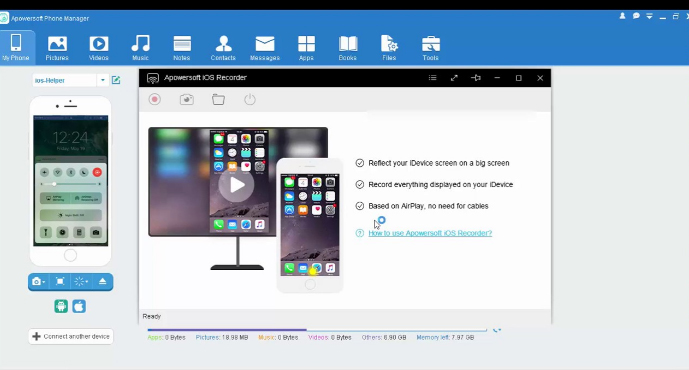
    Apowesoft Phone Manager:

    This phone manager is one of the most powerful apps that provide users to mirror the iOS devices screen to the Windows and record all content on the screen.

    • To simply achieve the recording follow the steps:
    • Download the app and then install
    • Mirror your iOS device to the PC
    • Record iPhone iPad Screen
    • Then, connect your iOS device and PC with the Wi-Fi
    • Run this phone manager on computer and click on “Tools” and then “iOS Recorder”
    • Swipe up from bottom on your device of screen to access control center
    • Tap on “AirPlay” and you will able to see a TV icon with its name. Click it and open up mirroring function.
    • Within some time, you will see the device screen is projected to the PC screen and both the screens will act simultaneously.

    Read Also : Best Apple Watch Alternatives-Affordable Gadgets

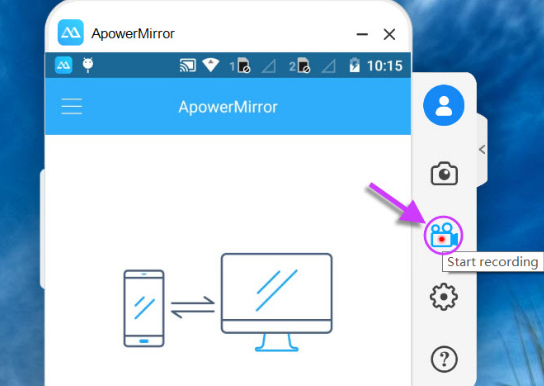
    ApowerMirror:

    ApowerMirror is an excellent tool of mirroring for recording iOS device by following some steps:

    • Install the application on the PC and afterward activate it
    • Then, on the iOS device just open AirPlay mirroring or AirPlay.
    • Select the device name and thus your device screen gets mirrored on PC.
    • Then, click on the recording icon or just simply press Ctrl + R to record screen

    Conclusion:

    So, this is the way you can easily Record iPhone iPad Screen on the Windows or Mac. Just follow the simple steps and you will surely be able to record the screen without any hassles.